How to fix
Printing error 0x000006BA
on Windows
Resolve the 0x000006BA printing error in Windows 10 or 11 quickly and easily. Follow our expert-tested solutions for a hassle-free experience!


What causes How to fix printing error 0x000006BA in Windows?
- Print spooler service is not running
- Corrupted system files
- Issues within the computer's registry
- Malfunctioning print spooler software
Repairs Windows system files, removes malware, and restores a clean OS state — without reinstalling.
I receive "Operation Could not be completed (error 0x000006ba). The local print spooler service is not running" every time I attempt to print something. Is there anything I can do to fix this?
The indispensable nature of printers in today's digitized landscape cannot be overstated. Despite a surge in digital information management, the tangible utility of printed materials remains unchallenged across various sectors such as businesses, academia, healthcare, and personal settings.
Amid the seamless transition of content from the digital realm to paper, printers can be subjected to technical anomalies. These hindrances, while frustrating, are often resolvable with appropriate measures. A frequently reported impediment that Windows users may encounter is the 0x000006BA error.
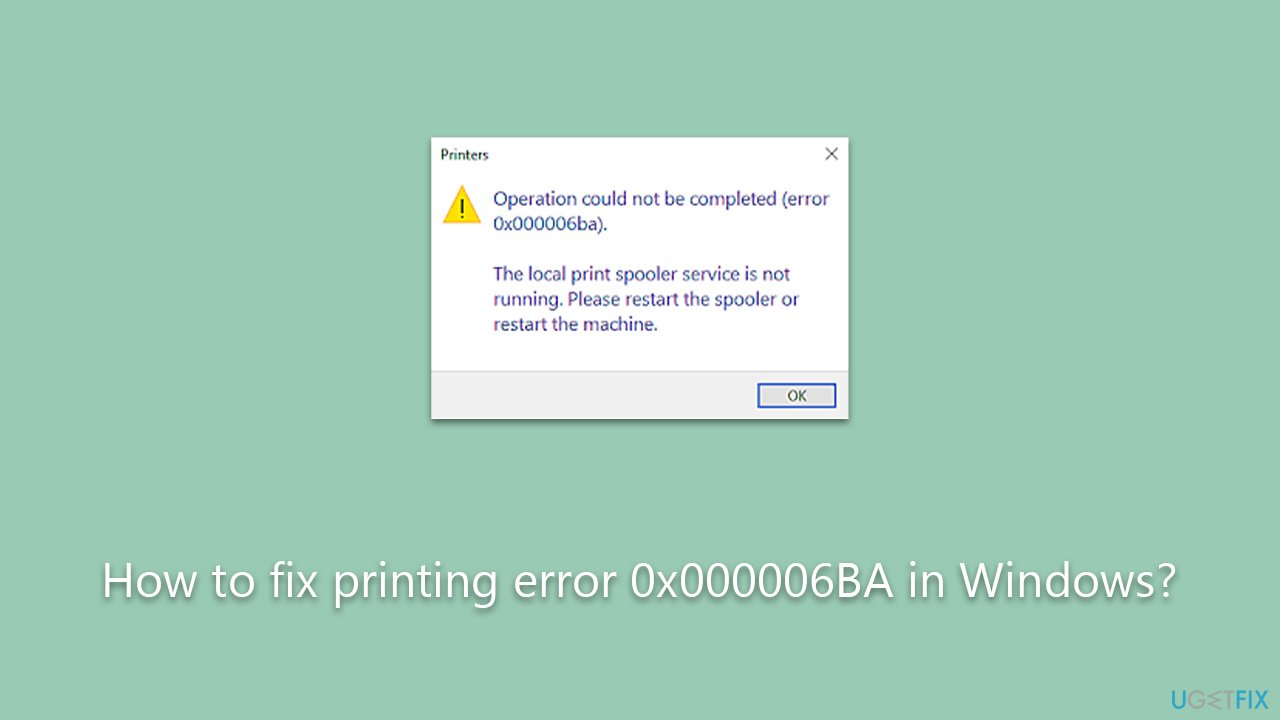
The error 0x000006BA manifests when an attempt to print is undertaken. The accompanying message reads, "Operation Could not be completed (error 0x000006BA). The local print spooler service is not running. Please restart the spooler or restart the machine." Importantly, this error is not exclusive to any specific make or model of printer or confined to a particular version of Windows; users operating Windows 7, 8, 9, 10, and 11 alike may experience this setback.
At the root of this error lies an issue with the print spooler, a software program that manages all print jobs sent to the printer. If the spooler service is malfunctioning or not running, it results in the 0x000006BA error. Furthermore, it could be indicative of corrupted system files or issues within the computer's registry that interfere with the print spooler's functionality.
While this error may appear daunting, potential solutions are available. Detailed instructions designed to assist users in resolving this issue are provided below.
For a more comprehensive approach, the usage of a PC repair tool like [d1] is advisable. While it may not directly rectify the 0x000006BA error, this tool can be instrumental in fixing corrupted system files, resolving issues in the registry, and cleaning unnecessary junk. Such steps can contribute to a more stable, efficient, and error-free printing experience in the future.
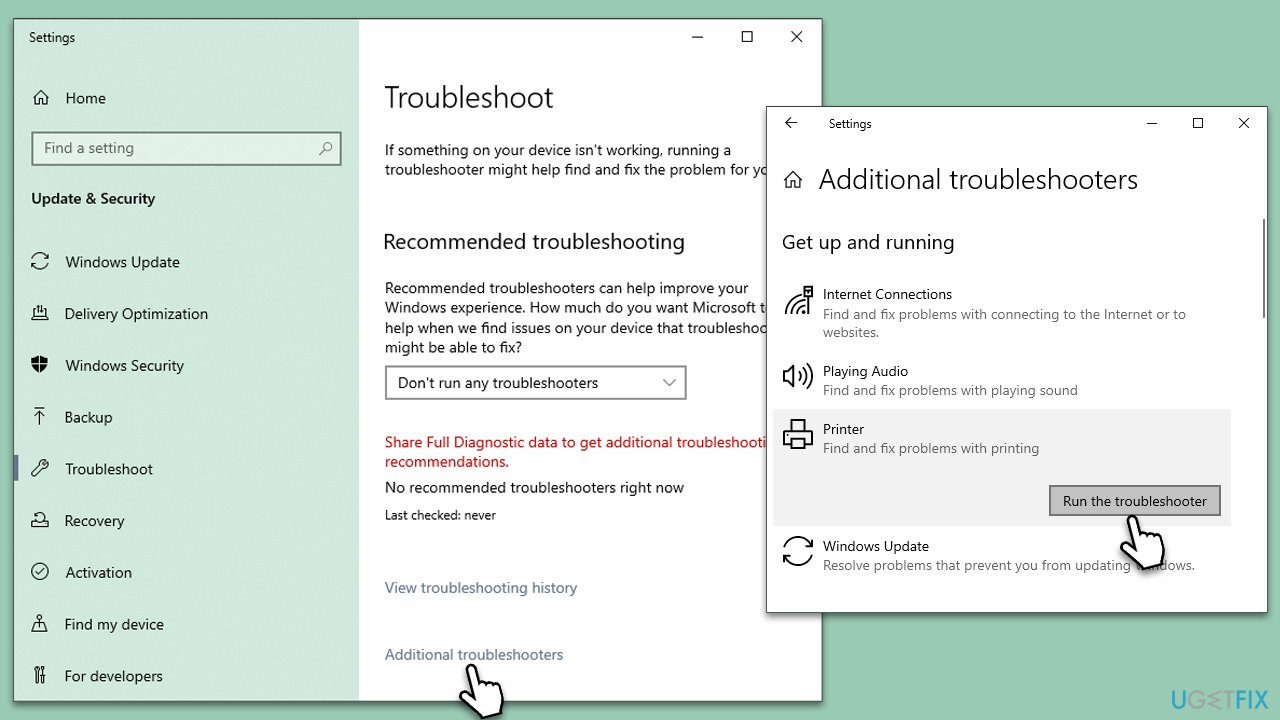
Fix 1. Running printer troubleshooter
- Type in Troubleshoot in Windows search and hit Enter.
- Go to Additional Troubleshooters/Other troubleshooters.
- Pick the Printer section and click Run the troubleshooter/Run.
- Apply the recommended fixes.
- Restart your device.
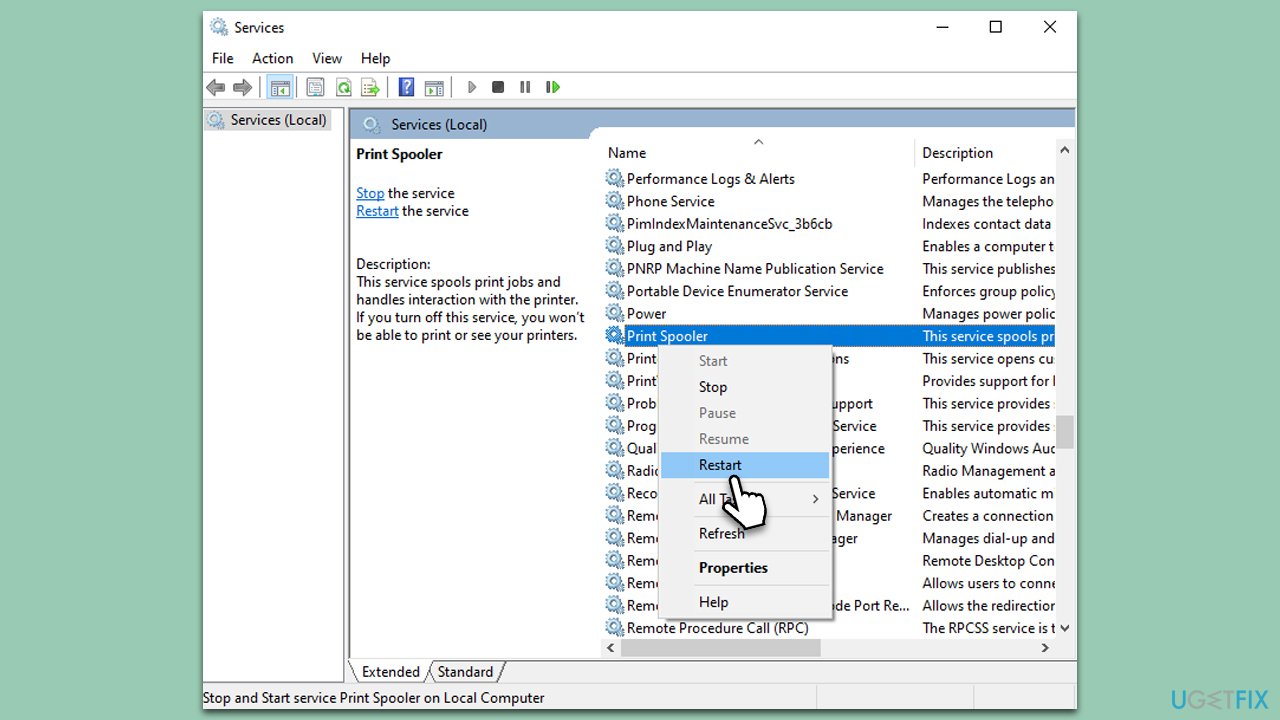
Fix 2. Restarting the Print Spooler
The Print Spooler is a software program that manages the printing process. If it malfunctions or stops, it could cause the 0x000006BA error. Restarting the spooler can often rectify this problem.
- Press the Windows key + R to open the Run dialog box.
- Type services.msc and hit Enter.
- Find the Print Spooler service in the list.
- Right-click on it and select Restart.
- Close the services window and try printing your document again.
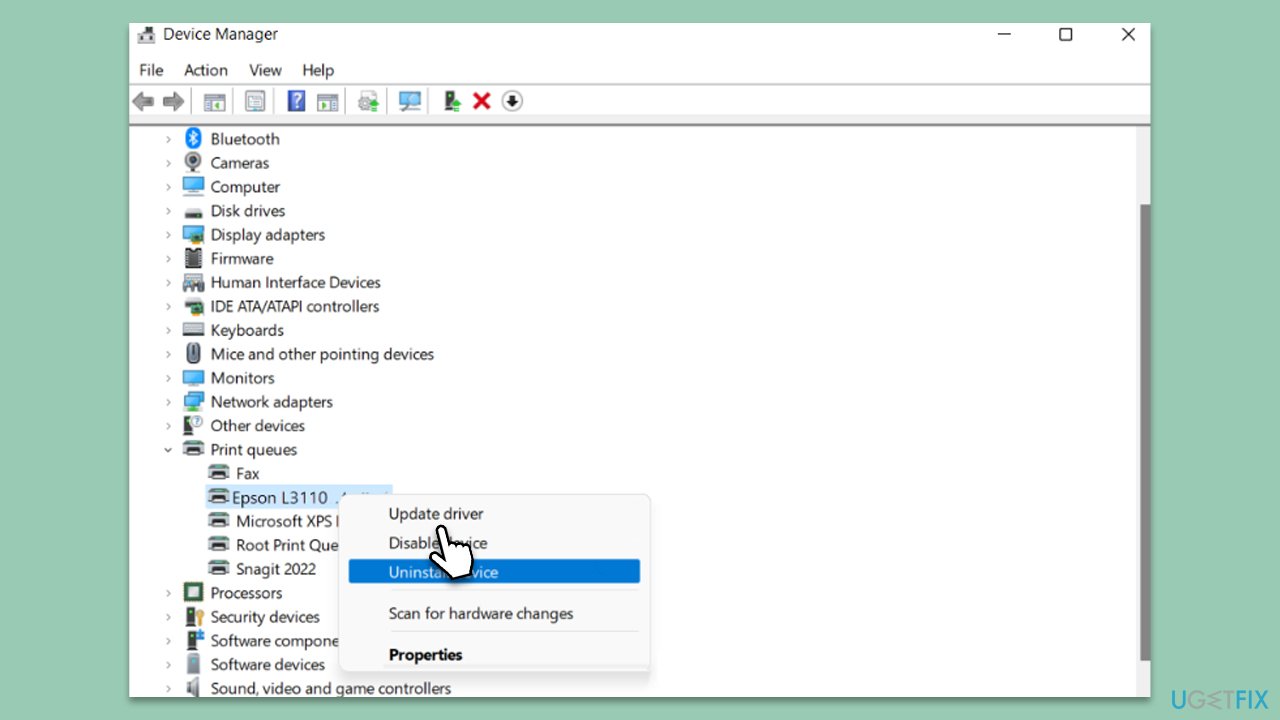
Fix 3. Updating printer drivers
Outdated or corrupted printer drivers can also cause printing errors. Regularly updating these drivers ensures that your printer can communicate effectively with your computer.
- Right-click on Start and pick Device Manager.
- Find your printer under the Printers category.
- Right-click on it and choose Update Driver.
- Select Search automatically for drivers.
- Follow the prompts to install any available updates.
Note that Windows might not always find the new version of a driver for your particular printer. Thus, we recommend visiting the manufacturer's official website and downloading the driver manually or choosing [rev id="DriverFix"] for a hassle-free driver update process.
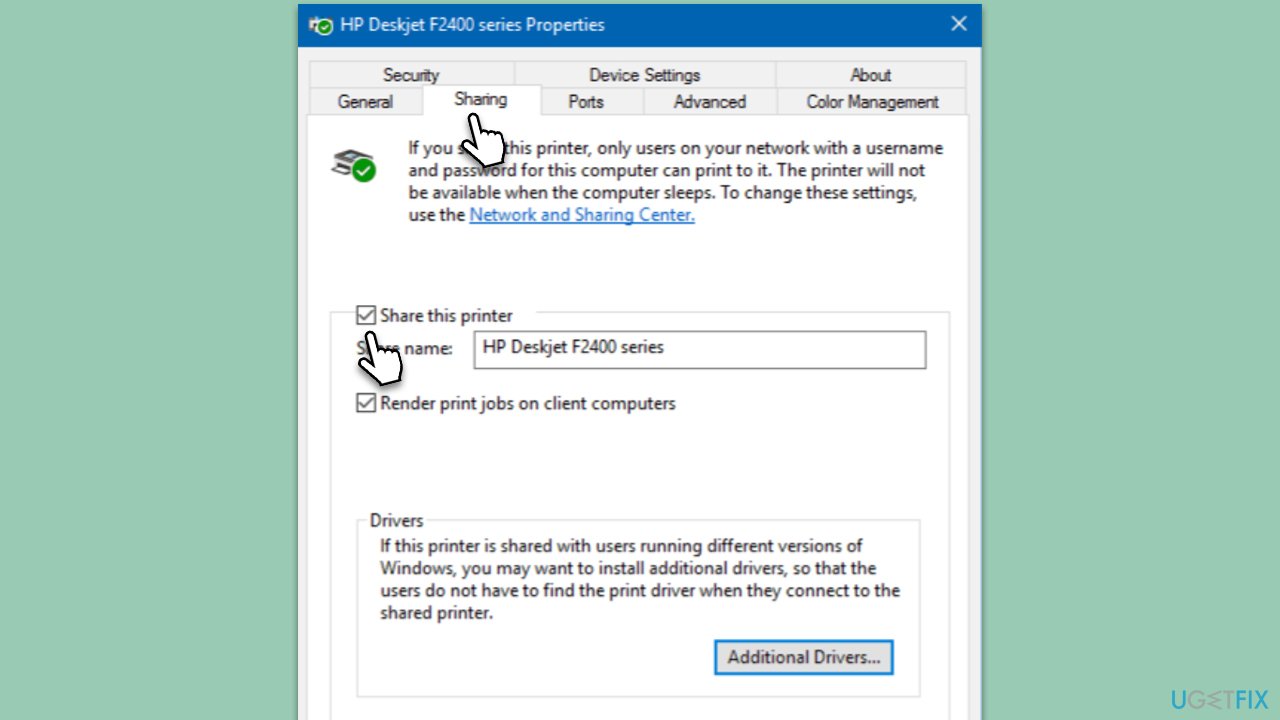
Fix 4. Checking the Printer Sharing option
The Printer Sharing feature allows multiple users or devices on a network to access a single printer. However, if this feature is not configured properly, it could lead to printing errors. Verifying and adjusting your printer sharing settings could help resolve the issue at hand.
- Go to the computer where the printer is physically connected.
- Open Control Panel, and go to Devices and Printers.
- Right-click on the printer, select Printer Properties, and then click on the Sharing tab.
- Ensure the Share this printer box is checked.
Fix 5. Running SFC and DISM
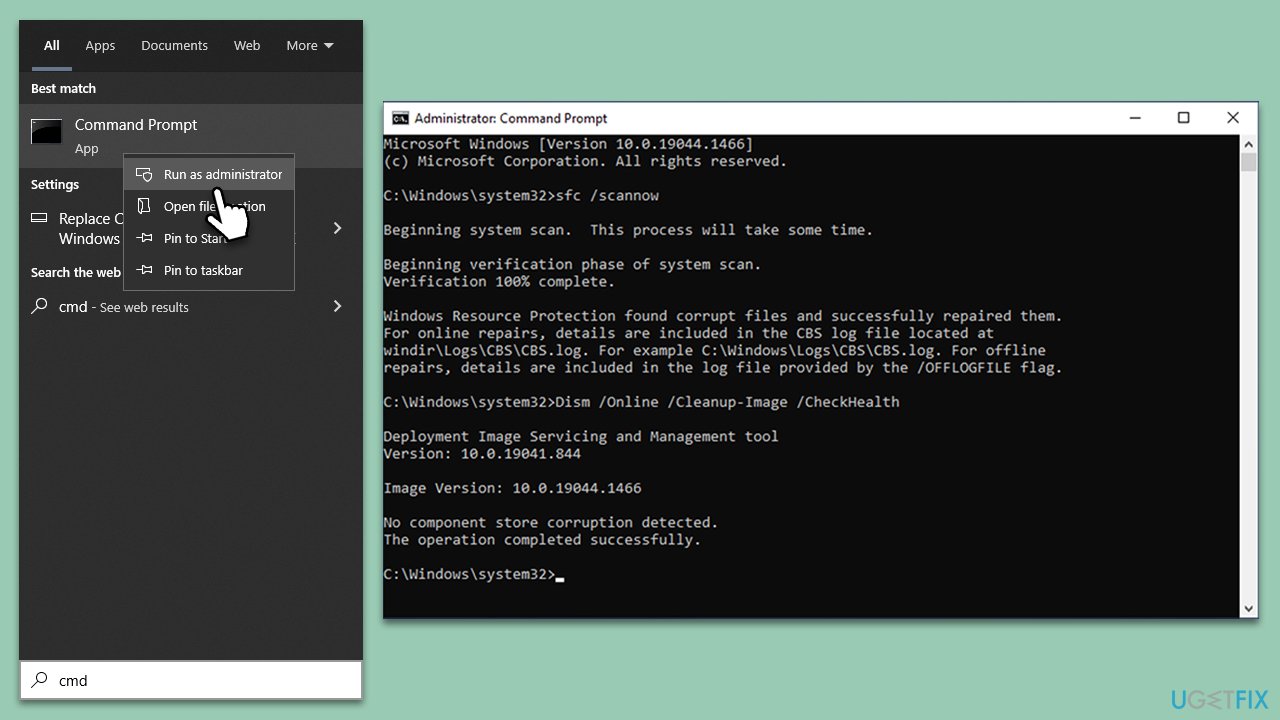
Both the System File Checker and Deployment Image Servicing and Management are built-in Windows tools designed to repair corrupted or damaged system files. While SFC focuses on smaller system files, DISM can repair the Windows system image. Running these tools sequentially can often resolve complex system issues, including the 0x000006BA error.
- Type in cmd in Windows search
- Right-click on Command Prompt and select Run as administrator
- User Account Control will ask you whether you allow making changes to the system - click Yes
- In the Command Prompt window, paste the following command and hit Enter:
sfc /scannow - Next, use the following commands, pressing Enter each time:
Dism /Online /Cleanup-Image /CheckHealth
Dism /Online /Cleanup-Image /ScanHealth
Dism /Online /Cleanup-Image /RestoreHealth
(Note: if you get an error executing this last command, add /Source:C:\RepairSource\Windows /LimitAccess to it and try again). - Reboot your system.
Fix 6. Clearing Printers folder
The Printers folder houses temporary files for ongoing print jobs. Over time, these files may build up and interfere with the Print Spooler service, leading to errors like 0x000006BA. Clearing these files can help restore proper functioning.
- Access Services as previously explained.
- Find the Print Spooler service in the list, right-click on it, and select Stop.
- Once the service has stopped, press the Windows key + R.
- Type %WINDIR%\system32\spool\printers and hit Enter. This should open the Printers folder.
- Delete all files within this folder.
- After clearing the folder, go back to the services window, find the Print Spooler service, right-click on it, and select Start.
- Close the services window and attempt to print your document again.

Bottom line
To fix the printing error 0x000006BA, you can restart the print spooler service or restart your machine. Additionally, using a PC repair tool may help in fixing corrupted system files and resolving registry issues. If these solutions do not work, consider seeking further technical assistance.
Frequently asked questions
The printing error 0x000006BA typically occurs due to issues with the print spooler service or corrupted printer drivers in Windows 10 and Windows 11.
To restart the print spooler service, open the Run dialog by pressing Win + R, type 'services.msc', find 'Print Spooler', right-click it, and select 'Restart'.
Yes, updating your printer drivers through Device Manager or the manufacturer's website can help resolve the 0x000006BA error in Windows 10 and Windows 11.




Report an issue
What's wrong with this guide? We review every report and update or remove content.
Report received — thank you. We'll review and fix it.
You need a free account to submit a report.
Be the first to comment