How to fix
Sticky Notes not syncing
on Windows
Fix Sticky Notes syncing issues on Windows 10 or 11 easily and regain access to your notes. Expert-tested solutions for quick resolution!


What causes How to fix Sticky Notes not syncing in Windows?
- Account settings misconfiguration
- Outdated Sticky Notes app
- Session issues from signing in
- Corrupted app data
- System errors affecting app performance
Repairs Windows system files, removes malware, and restores a clean OS state — without reinstalling.
Hello. I keep trying to sync my Sticky Notes on Windows but it does not work. How do I fix this?
The Sticky Notes app comes with Windows and allows users to create and manage virtual sticky notes on their desktops. It allows users to quickly jot down quick reminders, important information, or anything else they want to keep easily accessible.
However, users may occasionally encounter a problem in which Sticky Notes fail to sync properly across multiple devices or within the same device. As a result, notes created or edited on one device are not updated or reflected on other devices, resulting in an inconsistent and fragmented user experience.
This syncing issue can have a significant impact on users in a variety of ways. For starters, it prevents seamless access to notes across devices, which disrupts intended productivity and synchronization. Users may overlook important reminders or fail to gain access to critical information when it is required. Furthermore, the inability to sync Sticky Notes can result in data loss if a device fails or is replaced, because notes may not be backed up or recoverable.
There are a few possible solutions to the syncing problem with Sticky Notes. Checking the account settings, ensuring the app is up to date, signing out and back in, or resetting the app are some examples. However, depending on the underlying cause and the user's system configuration, the specific steps to resolve the problem may differ.
In this guide, you will find 6 steps that should help you fix Sticky Notes not syncing in Windows. You may also try a maintenance tool like [d1] that can fix most system errors, BSODs,[ref en-1] corrupted files, registry[ref en-2] issues, or clear cookies and cache.[ref en-3] Otherwise, follow the step-by-step instructions below.
Solution 1. Run Microsoft Store Apps Troubleshooter
- Open the Start menu.
- Click the gear-shaped icon to launch the Settings app.
- In the Settings app, click on the System tab.
- Click on Troubleshoot.
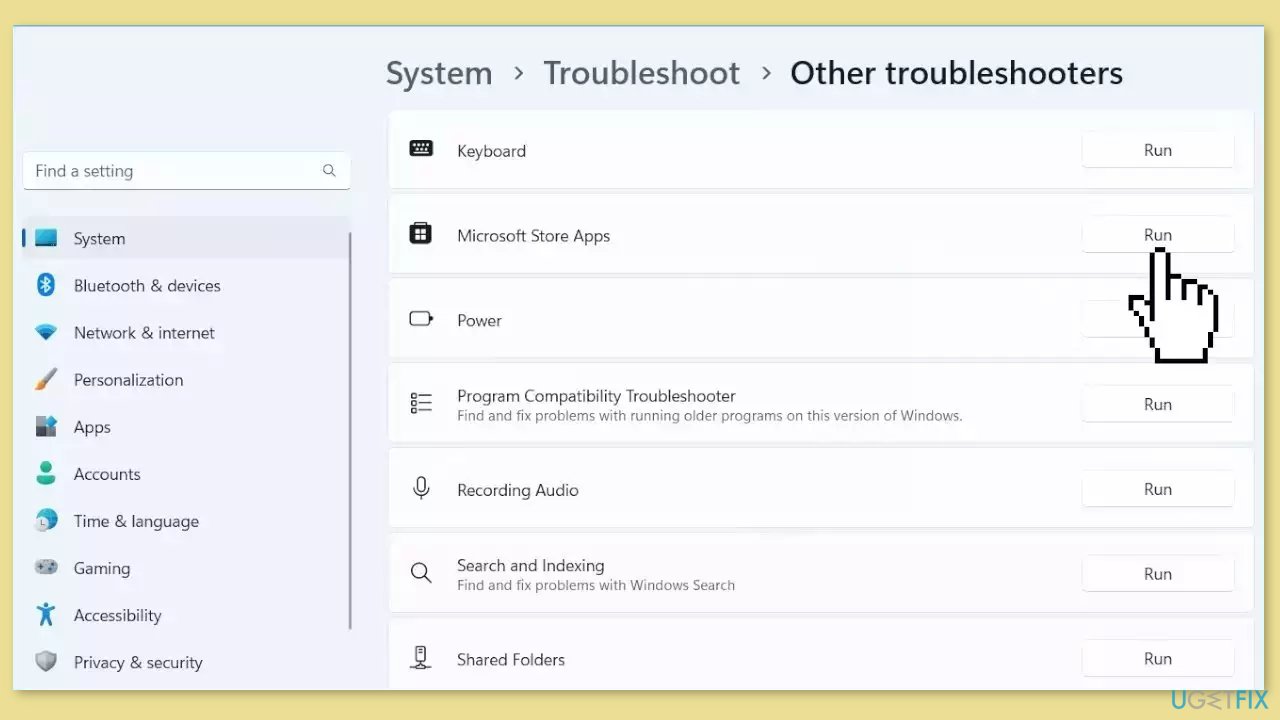
- Select Other troubleshooters.
- Look for Microsoft Store Apps and click the Run button next to it.
- Follow the on-screen prompts to run the troubleshooter.
Solution 2. Sign out and Sign in Again
Before proceeding, please sign out and then sign back into your account. This action will reset your sign-in and, in most cases, will resolve the Sticky Notes sync issue on your device.
Solution 3. Sign in with the same Microsoft Account
- Open Sticky Notes.
- From the list of notes, click or tap the Settings icon located in the upper right corner.
- If you're not already signed in, click Sign in and enter your Microsoft account credentials.
- If you are using a new account, you will be prompted to input additional information, such as your email address or password.
- Tap Continue.
Solution 4. Force Sync Sticky Notes
- Open the Sticky Notes app and view your list of notes.
- If only a single note is displayed, click or tap the ellipsis icon ... in the upper-right of the note, and then click or tap Notes list.
- Click the Settings icon located on the upper right of the Notes list.
- Tap Sync now.
Solution 5. Manually Search for a Sticky Note
- Open Sticky Notes.
- From the top of the list of notes, type a search word or phrase in the Search box. Alternatively, press Ctrl + F on the keyboard to activate the search function.
- The list of notes will be filtered, displaying only the notes that contain the search term.
- To return to the Notes List, click or tap the Search box, and then click the close icon X, or press Esc on the keyboard.
Solution 6. Repair or Reset the Sticky Notes App
- Open the Settings app using the Windows key + I.
- Access the Apps category using the left section.
- Click on Apps & Features available in the top right section.
- Scroll down the page to find and select the Sticky Notes app.
- Click on the three vertical dots icon available for Sticky Notes.
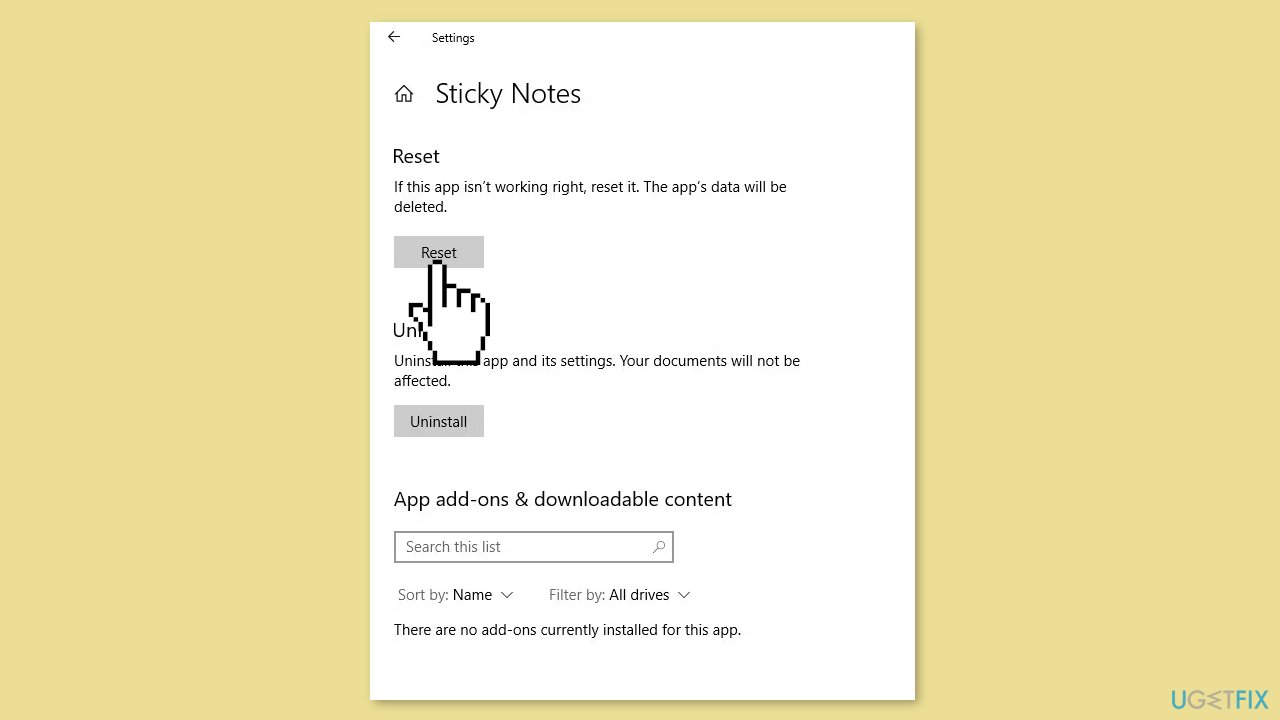
- Click on Advanced options.
- Scroll down the page.
- Click on the Repair button.
- A confirmation pop-up will open. Press the Repair button in that pop-up.
- If the issue persists, go back and press the Reset button.
Bottom line
To fix Sticky Notes not syncing in Windows, you can try running the Microsoft Store Apps Troubleshooter, ensuring the app is up to date, signing out and back in, or resetting the app. If these steps do not resolve the issue, consider using a maintenance tool to address potential system errors.
Frequently asked questions
Sticky Notes may not sync due to a Microsoft account issue or a temporary glitch in the app. Ensure you're logged into the same Microsoft account on both devices and check your internet connection.
You can reset Sticky Notes by going to Settings > Apps > Apps & features, selecting Sticky Notes, and clicking on 'Advanced options,' then choosing 'Reset.' This will clear the app's data and may resolve syncing problems.
If Sticky Notes still won't sync, try signing out and back into your Microsoft account, or reinstall the app from the Microsoft Store to refresh its functionality.




Report an issue
What's wrong with this guide? We review every report and update or remove content.
Report received — thank you. We'll review and fix it.
You need a free account to submit a report.
Be the first to comment