How to fix
System Restore error 0x80071ac5
on Windows
Resolve System Restore error 0x80071ac5 on Windows 10 and 11 easily. Get expert-tested solutions for a seamless recovery experience today!

What causes How to fix System Restore error 0x80071ac5 in Windows?
- Issues with the file system
- Corrupt system files
- Disk errors
- Antivirus interference
Repairs Windows system files, removes malware, and restores a clean OS state — without reinstalling.
Hey. I had some troubles with Windows, so I wanted to perform a System Restore, but unfortunately, I received an error 0x80071ac5. How do I fix this?
System Restore is a handy feature in Windows operating systems that allows users to roll back their system's state, including system files, installed applications, Windows Registry, and system settings, to that of a previous point in time.
This can help rectify system malfunctions or instability issues caused by various changes to the system, such as software installations, driver updates, or unintended modifications in settings. However, users may sometimes encounter errors during the process, one of which is error 0x80071ac5.
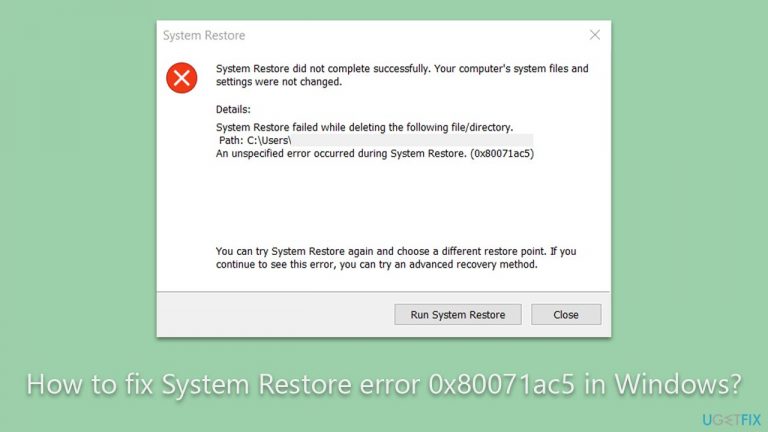
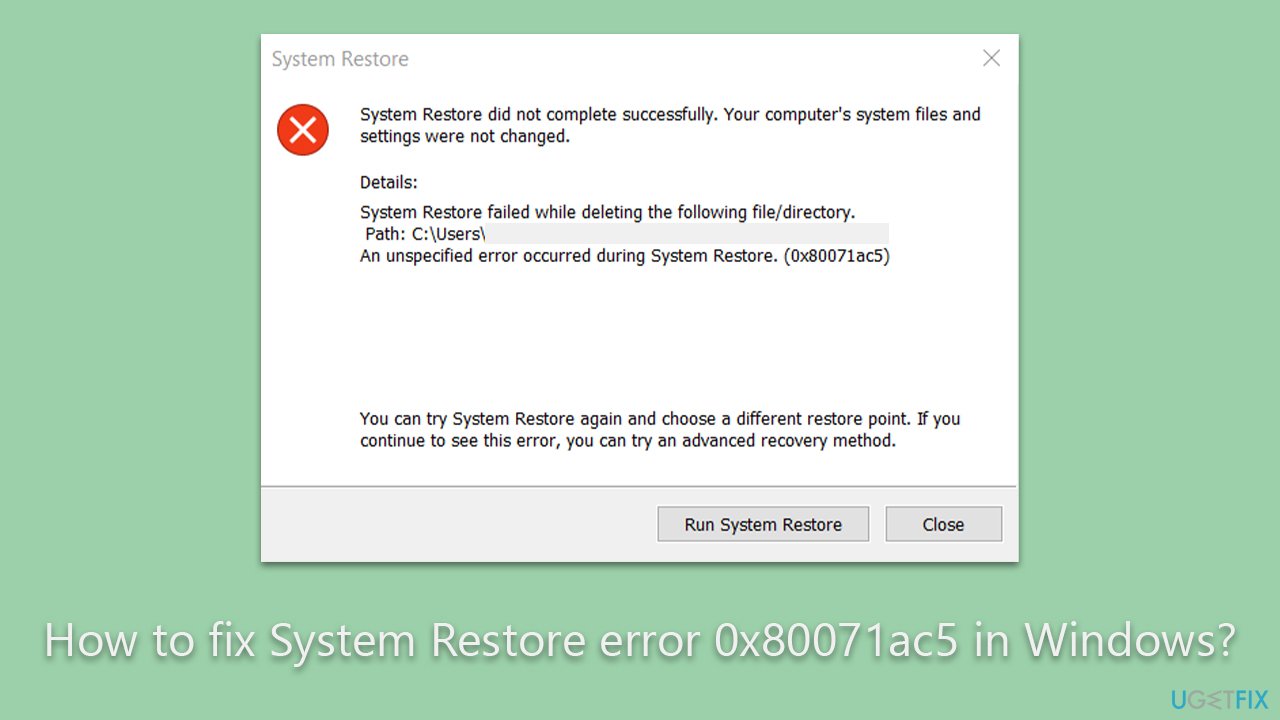
The full error message typically reads:
System Restore did not complete successfully. Your computer’s system files and settings were not changed.
Details: System Restore failed while deleting the following file/directory.
Path: [PATH]
An unspecified error occurred during System Restore. (0x80071ac5)You can try System Restore again and choose a different restore point. If you continue to see this error, you can try an advanced recovery method.
Error 0x80071ac5 often surfaces when System Restore fails to delete a particular file or directory. This could be due to various reasons, such as issues with the file system, corrupt system files, disk errors, or even due to antivirus interference. This error implies that the System Restore process cannot continue until the underlying problem is resolved.
The methods to fix this error are diverse and depend on the specific cause. Fortunately, they are detailed in the subsequent sections of this article. In addition to the manual fixes, it's worth trying a PC repair tool like [d1]. This tool is designed to automatically diagnose and repair common issues that lead to system errors. It might be particularly effective in this situation as it's capable of repairing damaged system files, among other potential issues that could be causing error 0x80071ac5.
The complete set of solutions for resolving the System Restore error 0x80071ac5 are outlined in detail below this article. It's worth noting that not all solutions may apply to your specific situation, and it's recommended to proceed with caution while performing any system-level operations.
Fix 1. Run SFC and DISM
These are two powerful built-in tools in Windows, designed to help repair system files that might be damaged or corrupted.
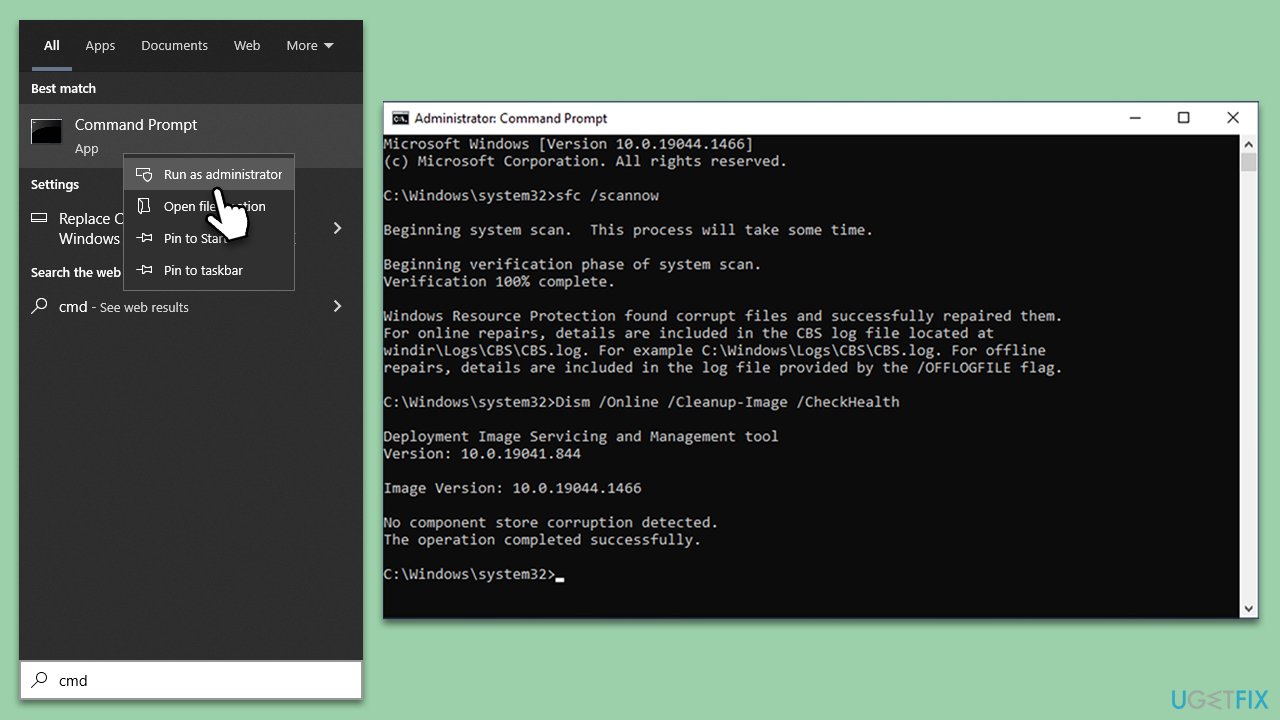
- Type cmd in Windows search.
- Right-click on Command Prompt and select Run as administrator.
- User Account Control will ask whether you want to allow changes - click Yes.
- Use the following command and press Enter:
sfc /scannow - After the SFC scan is complete, use the following commands, pressing Enter after each:
DISM /Online /Cleanup-Image /CheckHealth
DISM /Online /Cleanup-Image /ScanHealth
DISM /Online /Cleanup-Image /RestoreHealth - Restart your computer.
Fix 2. Use Check Disk utility
The error can also be a result of disk errors. The Check Disk utility can help in identifying and fixing such errors.
Instructions:
- Type cmd in Windows search.
- Right-click on Command Prompt and select Run as administrator.
- When the User Account Control window shows up, click Yes.
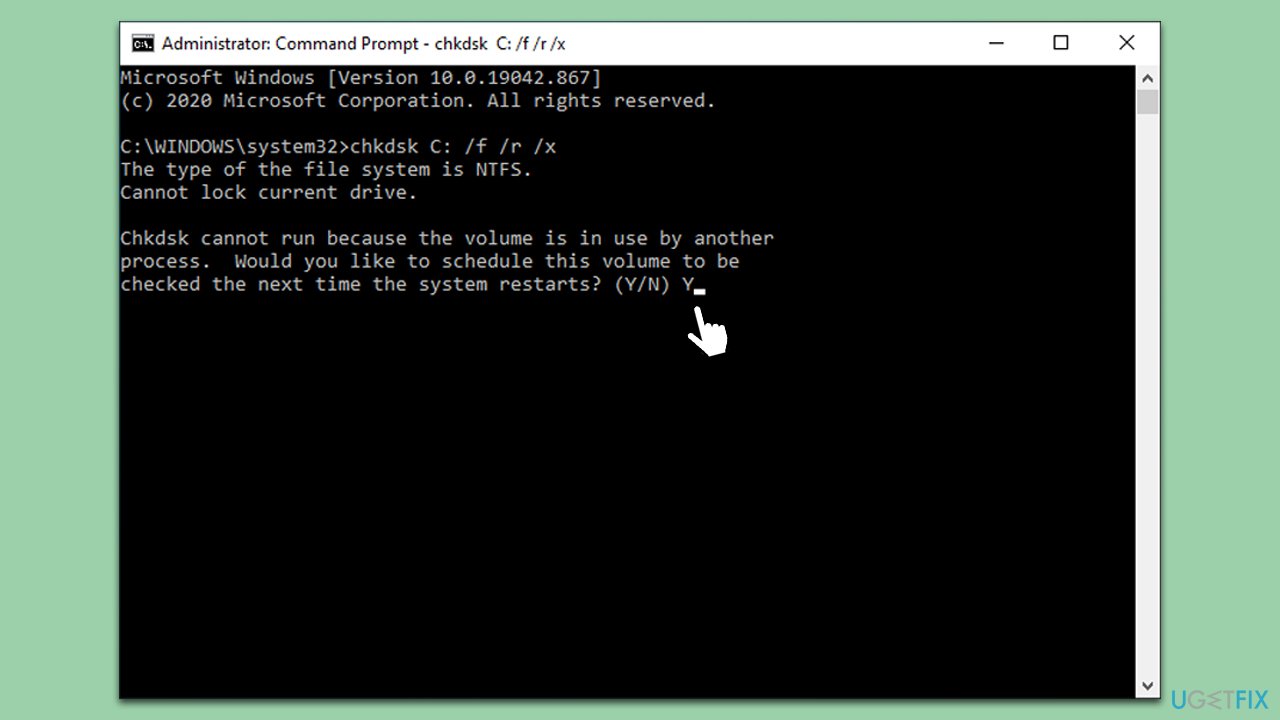
- In the new window, type in the following command and press Enter:
chkdsk c: /f
(Note: use chkdsk c: /f /r /x command if you are using SSD as your primary partition) - If you receive an error, type in Y, close down Command Prompt and restart your computer.
- Wait till the scan is finished - you can then find the results in the Event Viewer.
Fix 3. Temporarily disable antivirus software
Sometimes, antivirus software may interfere with System Restore. Temporarily disabling it may allow System Restore to complete successfully.
Instructions:
- Open your antivirus software.
- Look for the option to disable it temporarily (the exact steps depend on the software).
- Run System Restore again.
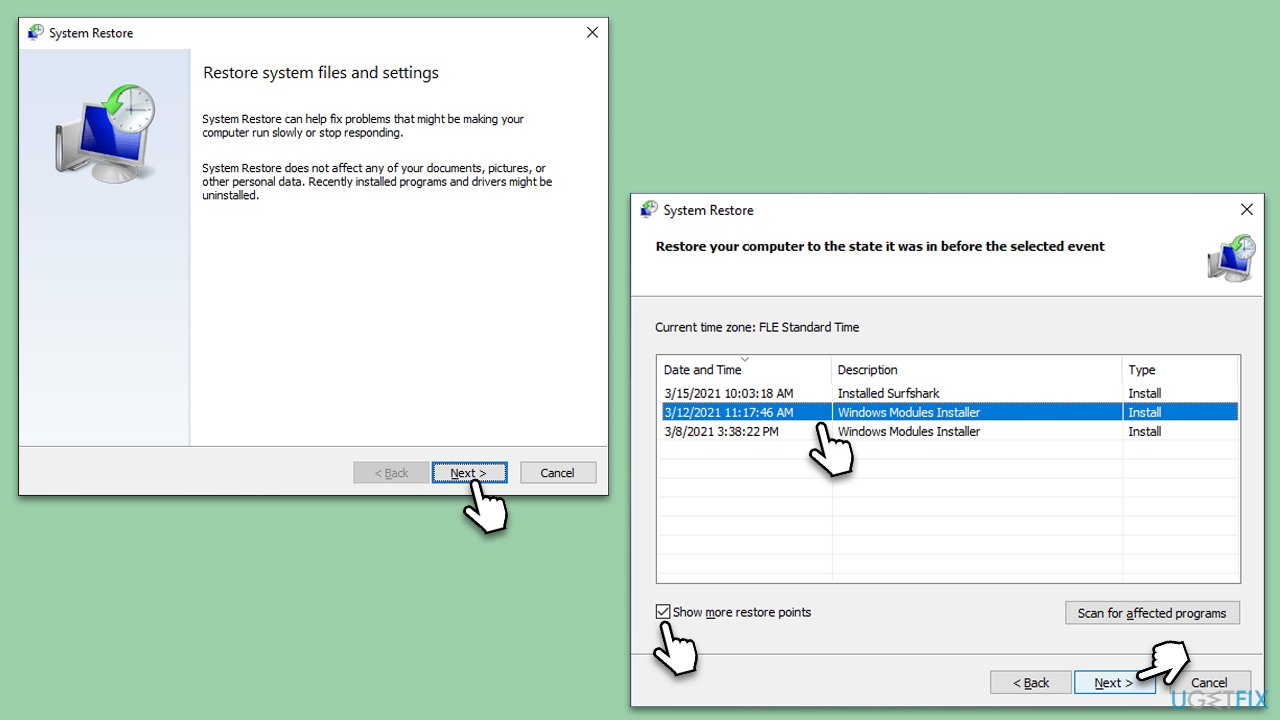
Fix 4. Use a different System Restore point
Trying a different System Restore point can circumvent the file/directory issue causing the error.
Instructions:
- Type in Create a Restore point in Windows search and hit Enter.
- Go to the System Protection tab and pick System Restore.
- Click Next.
- Click Show more restore points.
- Pick a different restore point you tried last time and click Next.
- Follow the prompts to finish the process.
Fix 5. Start Volume Shadow Copy service
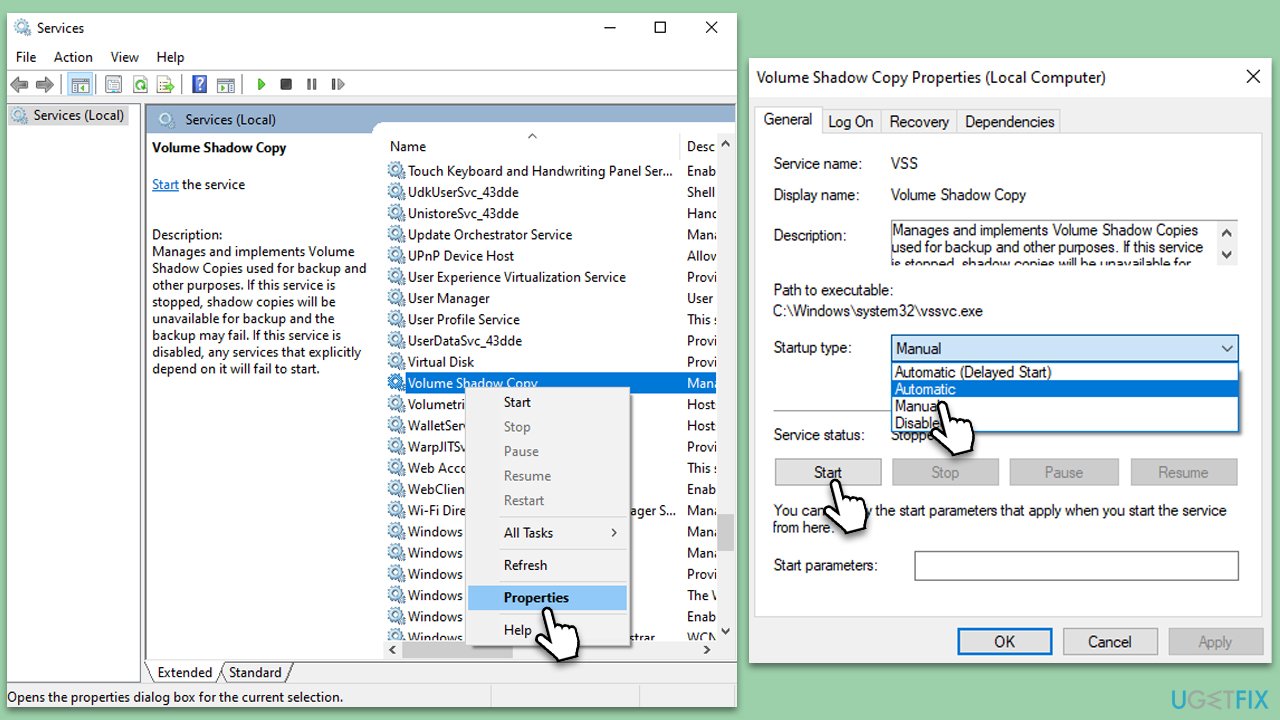
The Volume Shadow Copy Service (VSS) is a Windows service that enables manual or automatic backups or snapshots of computer files and volumes. It's an essential service for System Restore to function correctly. If VSS is not running, System Restore may fail with an error.
- Type Services in Windows search and press Enter.
- In the Services list, look for Volume Shadow Copy.
- Right-click on Volume Shadow Copy and select Properties.
- In the Properties dialog box, set the Startup type to Automatic.
- If the service status is Stopped, click on Start to start the service. If it's already running, select Restart.
- Click Apply and then OK to save your changes.
Fix 6. Use Clean Boot
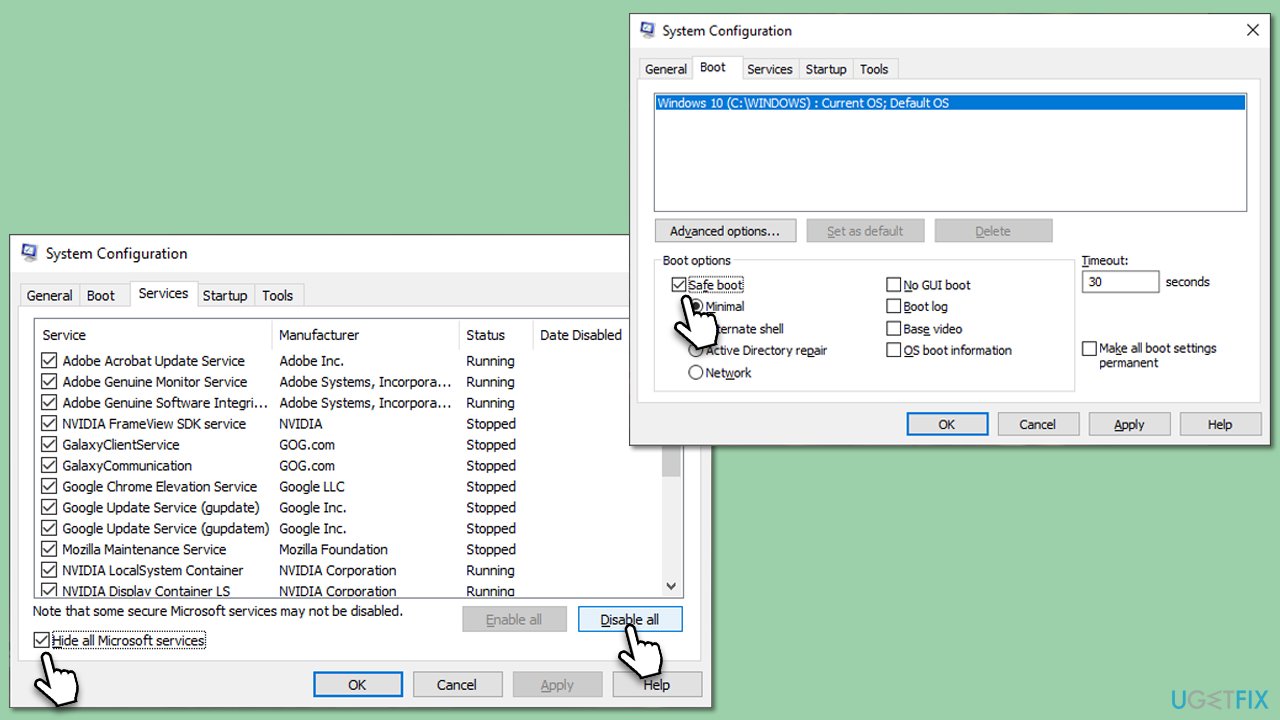
A Clean Boot is a troubleshooting technique that allows you to start Windows with a minimal set of drivers and startup programs. This can be beneficial in identifying conflicts that may be causing errors, like the System Restore error.
- Type msconfig in Windows search and press Enter.
- Select the Services tab.
- Check the Hide all Microsoft services box and pick Disable all.
- Go to the Startup tab and select Open Task Manager.
- In the Task Manager, right-click on every entry and select Disable, then close the Task Manager.
- Go to the Boot tab, tick Safe Boot, then click Apply and OK.
Fix 7. Reset Windows
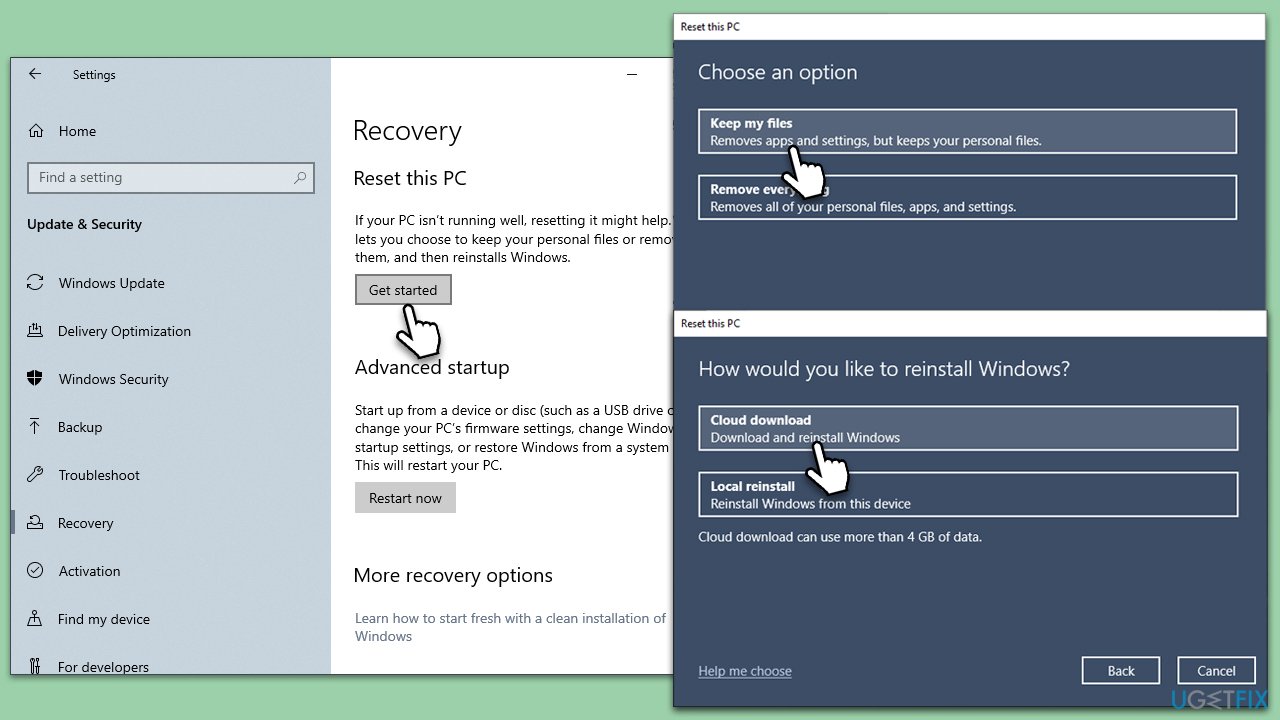
If none of the above solutions help, you can try resetting Windows.
- Right-click on Start and then select Settings.
- Go to Update & Security and pick Recovery on the left side of the window.
- Find Reset this PC section and click Get Started.
- Select Keep my files and Cloud download.
- Next, pick whether you want to reinstall the apps.
- Click Reset.
- Your system will restart, and the process of Windows reset will begin.
Bottom line
To fix the System Restore error 0x80071ac5, you can try using a different restore point, running a PC repair tool, or performing advanced recovery methods. If these solutions do not resolve the issue, further investigation into the underlying problems may be necessary.
Frequently asked questions
The error 0x80071ac5 indicates a problem with the Volume Shadow Copy Service, which is essential for creating restore points in Windows 10 and Windows 11. This can occur due to corrupted system files or issues with the hard drive.
To fix this error, you can run the System File Checker tool by executing 'sfc /scannow' in Command Prompt as an administrator on Windows 10 or Windows 11. Additionally, ensure that the Volume Shadow Copy service is running and then try to perform the restore again.
Yes, you can check the Volume Shadow Copy service by typing 'services.msc' in the Windows search bar, locating the service in the list, and ensuring its status is set to 'Running.' If it's not running, right-click and select 'Start'.




Report an issue
What's wrong with this guide? We review every report and update or remove content.
Report received — thank you. We'll review and fix it.
You need a free account to submit a report.
Be the first to comment