How to fix
0x80073cfd error
on Windows
Fix the pesky 0x80073cfd error in Windows 10 or 11 with our expert-tested solutions. Get your system running smoothly in no time! Updated 2025.


What causes How to fix 0x80073cfd error in Windows?
- Conflicts with the Microsoft Store
- Outdated system files
- Corrupted system files
- Problems with Windows registry
- Compatibility issues with certain games or apps
Repairs Windows system files, removes malware, and restores a clean OS state — without reinstalling.
Hi. I've been having trouble with Microsoft Store, so I tried to reinstall it via PowerShell, but I received a 0x80073cfd error. Any tips on what to do next?
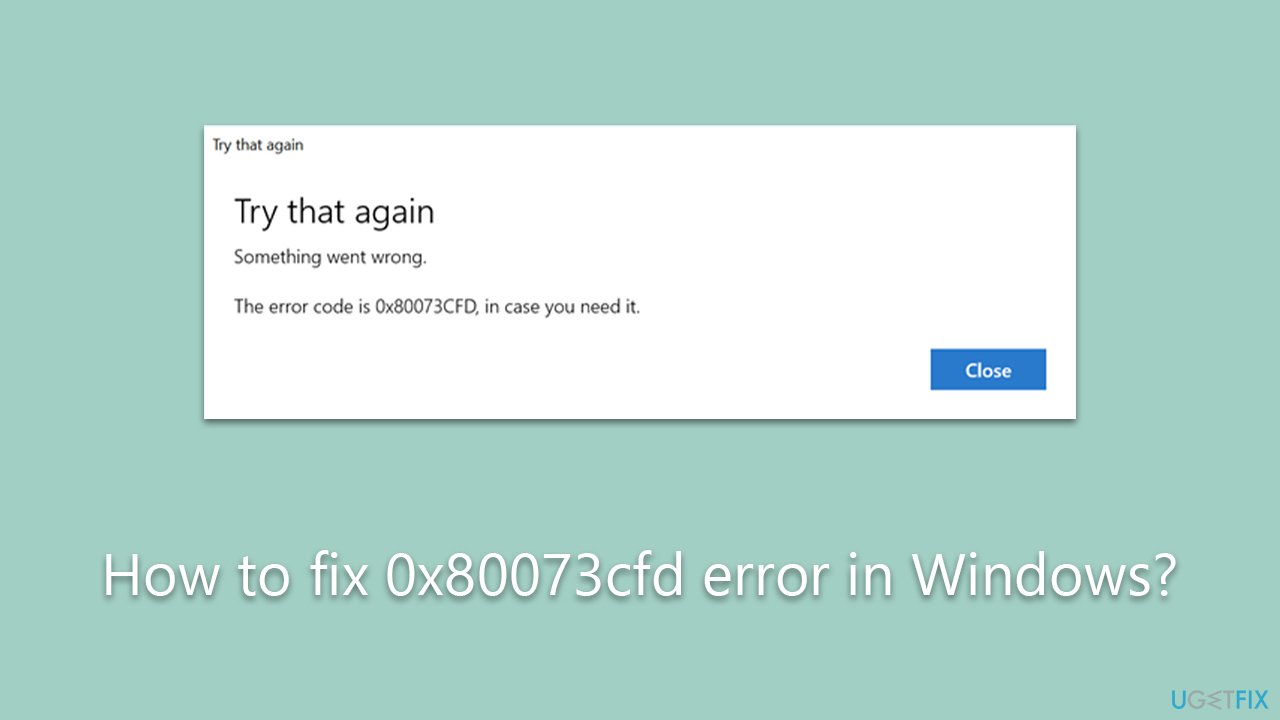
When using your Windows-operated computer, you may have encountered the frustrating "0x80073cfd" error. This error is commonly linked with issues revolving around the Microsoft Store, but it can also emerge while playing games on Game Pass on PC.
A scenario often faced by users includes encountering this error while attempting to troubleshoot store issues via PowerShell. In such cases, the error message appears as: "Add-AppxPackage : Deployment failed with HRESULT: 0x80073CF6, Package could not be registered." This glitch can hamper your user experience and may even disrupt the functionality of your device.
The root causes of the 0x80073cfd error are often multifaceted. At its core, it is usually due to conflicts with the Microsoft Store. These conflicts may arise from a variety of factors, including outdated system files, corrupted system files, problems with your Windows registry, or even compatibility issues with certain games or apps. Troublesome as it may be, understanding the origin of the error is crucial in implementing the appropriate solution to rectify it.
Addressing the 0x80073cfd error requires a methodical approach. Depending on the exact cause of your error, several solutions can be applied. These may range from simple system updates to more complex solutions such as repairing or reinstalling your Microsoft Store.
For those facing issues with games on Game Pass, you may need to check your app compatibility or even reinstall the game. Other potential solutions include running an SFC (System File Checker) or DISM (Deployment Image Servicing and Management) scan, which can detect and automatically fix corrupted system files.
For an in-depth guide on resolving this error, refer to the comprehensive instructions provided below the article. Following them step-by-step will help ensure that you address the issue effectively and restore your system to its optimal performance.
Lastly, a PC repair tool like [d1] can be a reliable alternative for those who prefer a more hands-off approach. This tool is designed to repair corrupted system files, resolve registry issues, and more, thereby providing an all-encompassing solution to various system glitches.
Fix 1. Run SFC and DISM scans
These are built-in Windows tools that are designed to find and repair corrupted or missing system files which may cause errors. They work by scanning the integrity of all protected system files and replacing incorrect versions with correct Microsoft versions.
- Type cmd in Windows search.
- Right-click on Command Prompt and select Run as administrator.
- The User Account Control window will ask whether you want to allow changes - click Yes.
- In the Command Prompt window, paste the following command and hit Enter:
sfc /scannow - As soon as the scan finishes, Windows will report whether integrity violations were found and if they could be fixed. Regardless of the outcome, use these commands next, pressing Enter after each:
Dism /Online /Cleanup-Image /CheckHealth
Dism /Online /Cleanup-Image /ScanHealth
Dism /Online /Cleanup-Image /RestoreHealth - Close down the Command Prompt and restart your PC.

Fix 2. Reset Windows update components
This can resolve issues related to Windows Update, which can indirectly fix the 0x80073cfd error.
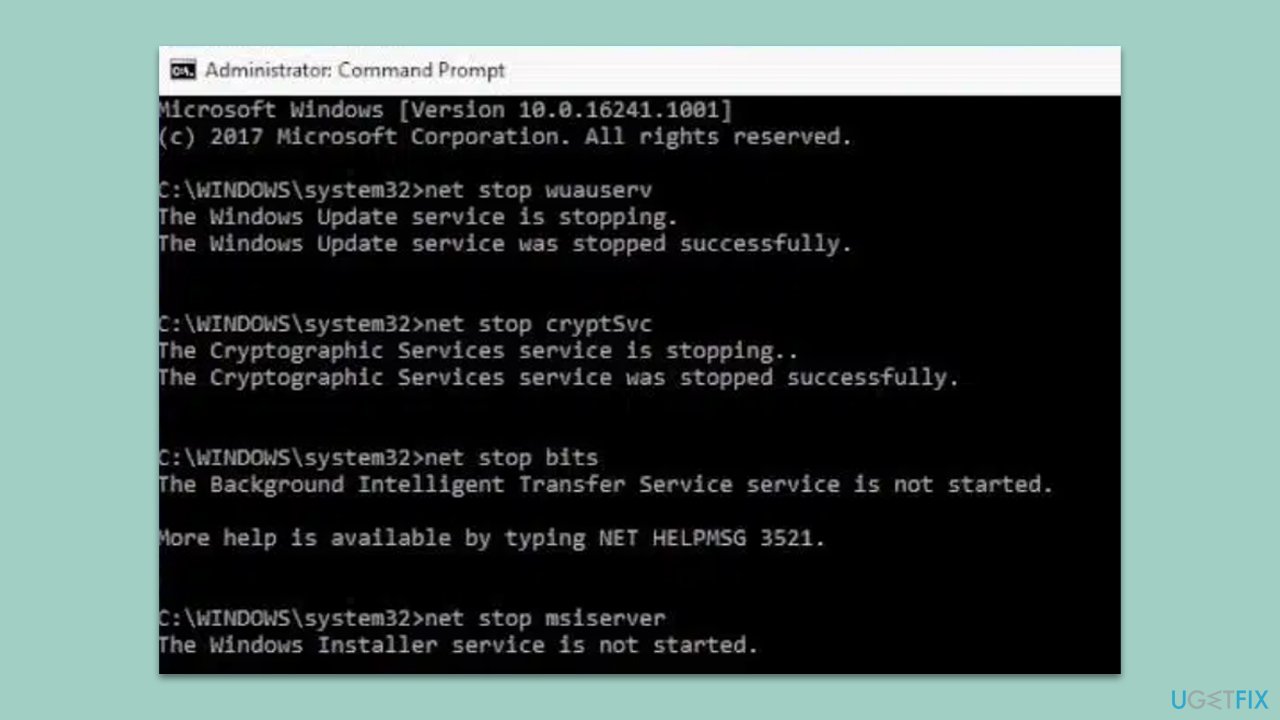
- Open Command Prompt as administrator.
- Copy and paste each of the command lines, pressing Enter each time and waiting till each of the commands is executed:
net stop bits
net stop wuauserv
net stop appidsvc
net stop cryptsvc
Del “%ALLUSERSPROFILE%\Application Data\Microsoft\Network\Downloader\*.*”
rmdir %systemroot%\SoftwareDistribution /S /Q
rmdir %systemroot%\system32\catroot2 /S /Q
regsvr32.exe /s atl.dll
regsvr32.exe /s urlmon.dll
regsvr32.exe /s mshtml.dll
netsh winsock reset
netsh winsock reset proxy
net start bits
net start wuauserv
net start appidsvc
net start cryptsvc - Reboot your system.
Fix 3. Use the Wsreset command to reset Store cache files
Cache files can sometimes cause issues. The Wsreset command clears the cache files of the Microsoft Store without changing account settings or deleting installed apps.
- Press the Windows key + R to open the Run dialog box.
- Type
wsreset.exeand hit Enter. - Wait for the process to complete, and then check if the error is resolved.

Fix 4. Update Windows
Sometimes, simply updating Windows to the latest version can resolve many errors, as the update may contain bug fixes and improvements.
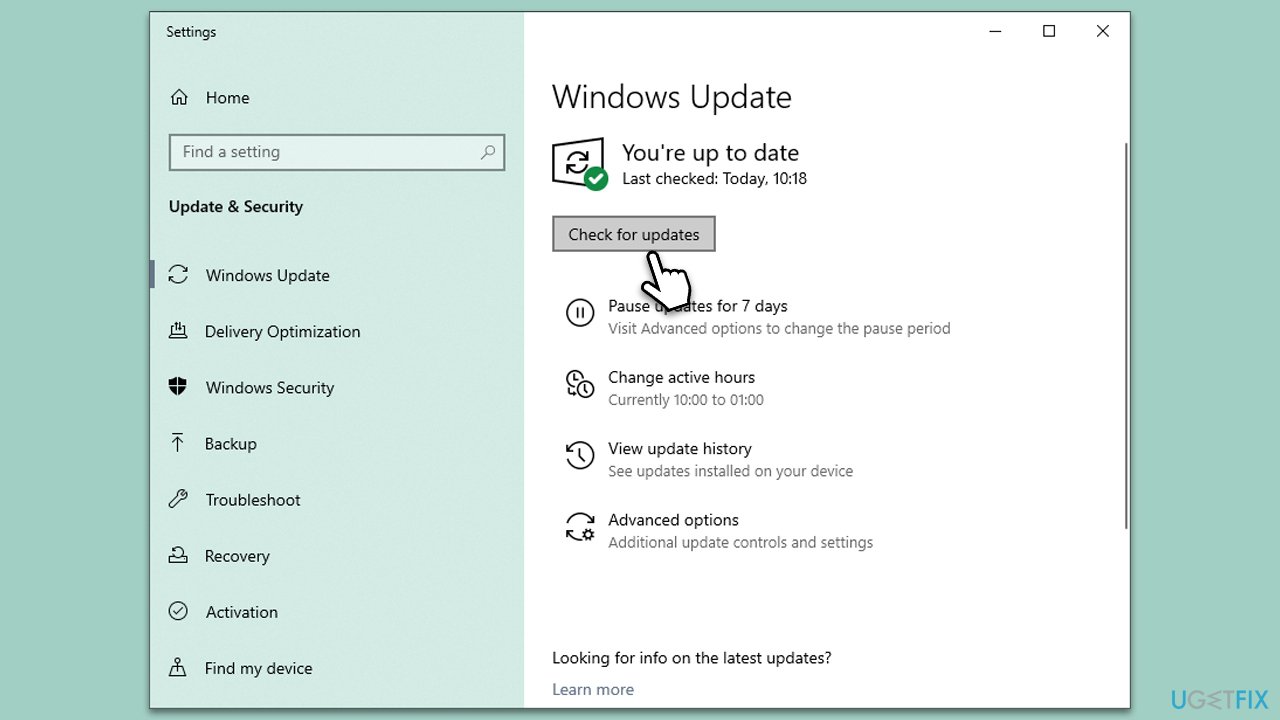
- Type Updates in Windows search and hit Enter.
- On the right side of the window, click Check for Updates.
- Wait till all the files are downloaded and installed.
- Install all the optional updates if such are available.
- Restart your computer when done.
Fix 5. Repair or reset Microsoft Store/Xbox App
Repairing or resetting the app reinstalls and re-registers all built-in Windows apps, which can resolve any issues related to these apps.
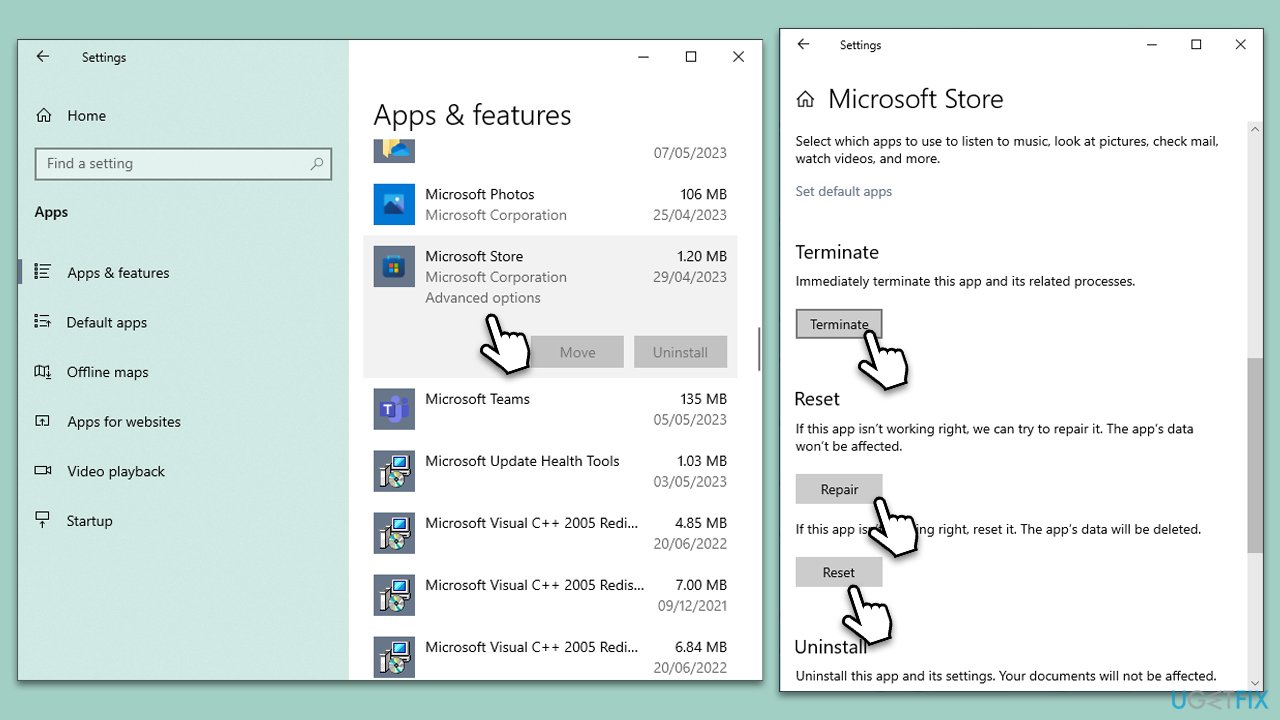
- Go to Settings > Apps > Apps & features.
- Select Microsoft Store or Xbox app, then Advanced options.
- Click on Repair or Reset and follow the instructions.
- Restart your computer.
Fix 6. Reinstall Microsoft Store
If the 0x80073cfd error occurs under other circumstances, you can reinstall the Store in the following way:
- Make sure your Microsoft Store is closed and not running in the background.
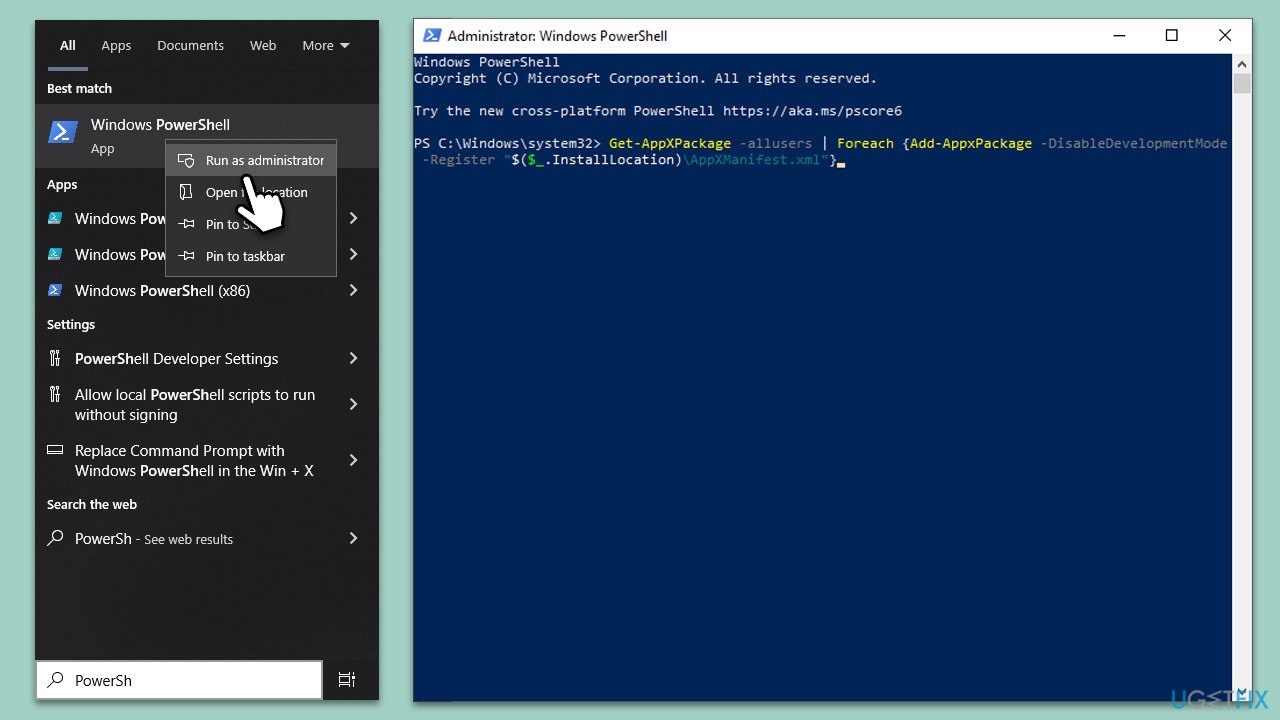
- Right-click on Start and select PowerShell (Admin).
- Paste the following command and press Enter:
Get-AppXPackage -allusers | Foreach {Add-AppxPackage -DisableDevelopmentMode -Register "$($_.InstallLocation)\AppXManifest.xml"} - Close Powershell and restart your PC.
Bottom line
To fix the 0x80073cfd error, you can try updating your system, repairing or reinstalling the Microsoft Store, checking app compatibility, or reinstalling the game. Additionally, running an SFC or DISM scan may help detect and fix corrupted system files. If none of these solutions work, consider using a PC repair tool for further assistance.
Frequently asked questions
The 0x80073cfd error usually occurs due to issues with Windows Store apps, such as corrupted files or problems with the Microsoft Store itself.
To fix the 0x80073cfd error in Windows 11, try resetting the Microsoft Store cache by running 'wsreset.exe' or reinstalling the affected application.
To prevent the 0x80073cfd error in Windows 10, ensure your system is regularly updated and perform routine maintenance like checking for corrupted files using the System File Checker tool.




Report an issue
What's wrong with this guide? We review every report and update or remove content.
Report received — thank you. We'll review and fix it.
You need a free account to submit a report.
Be the first to comment