How to fix
Microsoft Store error 0x80248014
on Windows
Resolve Microsoft Store error 0x80248014 on Windows 10 and 11 quickly with proven methods. Get back to downloading apps in minutes, expert-tested.


What causes How to fix Microsoft Store error 0x80248014?
- Problem with the Store's update process
- Temporary system glitch
- Issues with Windows updates
- Corrupted Microsoft Store cache
- Network connectivity problems
Repairs Windows system files, removes malware, and restores a clean OS state — without reinstalling.
Hello. When I try to download any app from the Microsoft Store, I receive the 0x80248014 error. Is there a way to fix this?
The Microsoft Store is an official digital marketplace for various Microsoft Windows-compatible applications, games, software, and media content. It offers users a convenient platform for discovering, purchasing, and downloading a wide variety of apps for their devices. Additionally, the Microsoft Store provides features such as automatic updates, a user-friendly interface, and integration with Microsoft accounts for seamless synchronization across multiple devices.
Users have reported encountering the error code 0x80248014, which prevents them from downloading apps from the Microsoft Store. This error usually indicates a problem with the Store's update process or a temporary system glitch. It can be aggravating for users because they are unable to access or install desired applications, limiting their ability to improve their Windows experience with new software or entertain themselves with games and media content.
This problem may have a significant impact on users who rely on the Microsoft Store for essential apps, productivity tools, or entertainment options. It limits their ability to access and use the most recent software offerings, preventing them from taking advantage of new features, bug fixes, security patches, and performance enhancements. Furthermore, because the error disrupts the Microsoft Store's synchronization capabilities, users may have difficulty maintaining a consistent app ecosystem across their devices.
While specific troubleshooting steps may differ depending on the underlying cause of the error, users can investigate a number of potential solutions. Checking for and installing Windows updates, resetting the Microsoft Store cache, verifying network connectivity, or running the Windows Store Apps troubleshooter are all possible solutions.
This guide will walk you through six steps that should help you resolve Microsoft Store error 0x80248014. Remember that you can use a maintenance tool like [d1] to repair most system errors, BSODs,[ref en-1] corrupted files, registry[ref en-2] issues, or clear cookies and cache.[ref en-3] Otherwise, proceed with the instructions below.
Solution 1. Run Microsoft Store Apps Troubleshooter
- Open the Start menu.
- Click the gear-shaped icon to launch the Settings app.
- In the Settings app, click on the System tab.
- Click on Troubleshoot.
- Select Other troubleshooters.
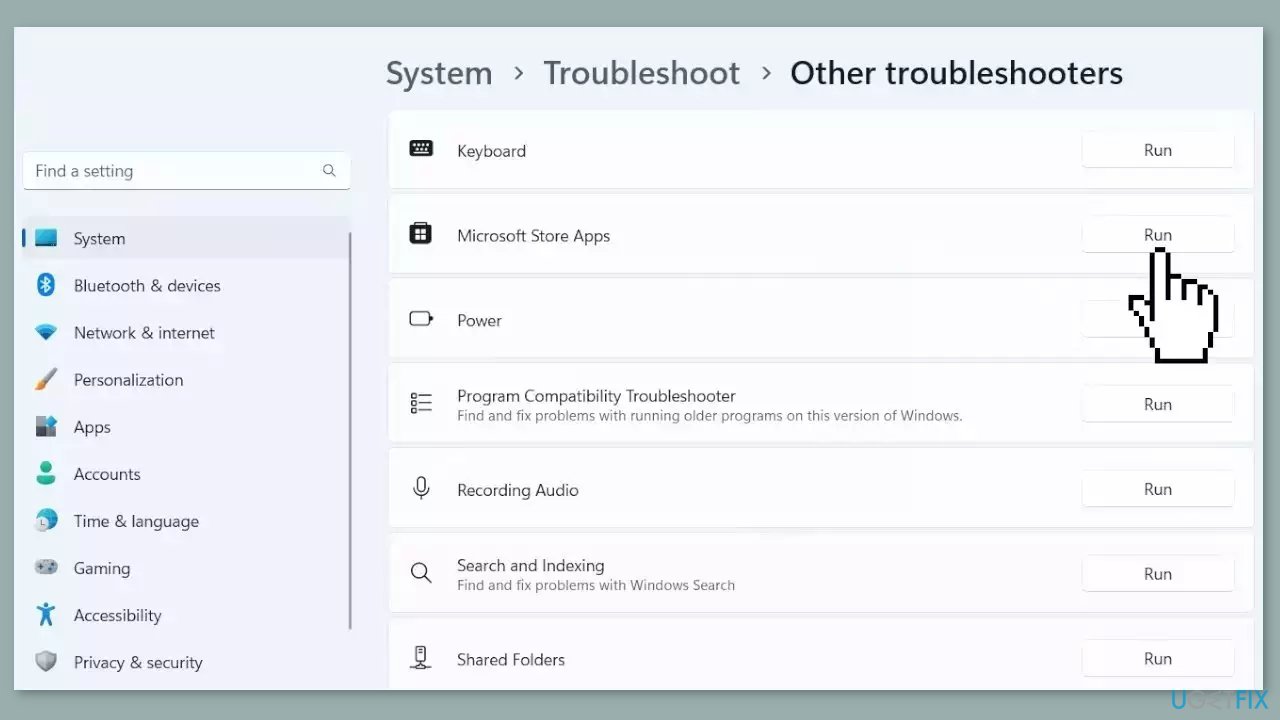
- Look for Windows Store Apps and click the Run button next to it.
- Follow the on-screen prompts to run the troubleshooter.
Solution 2. Fix Corrupted System Files
Use Command Prompt commands to repair system file corruption:
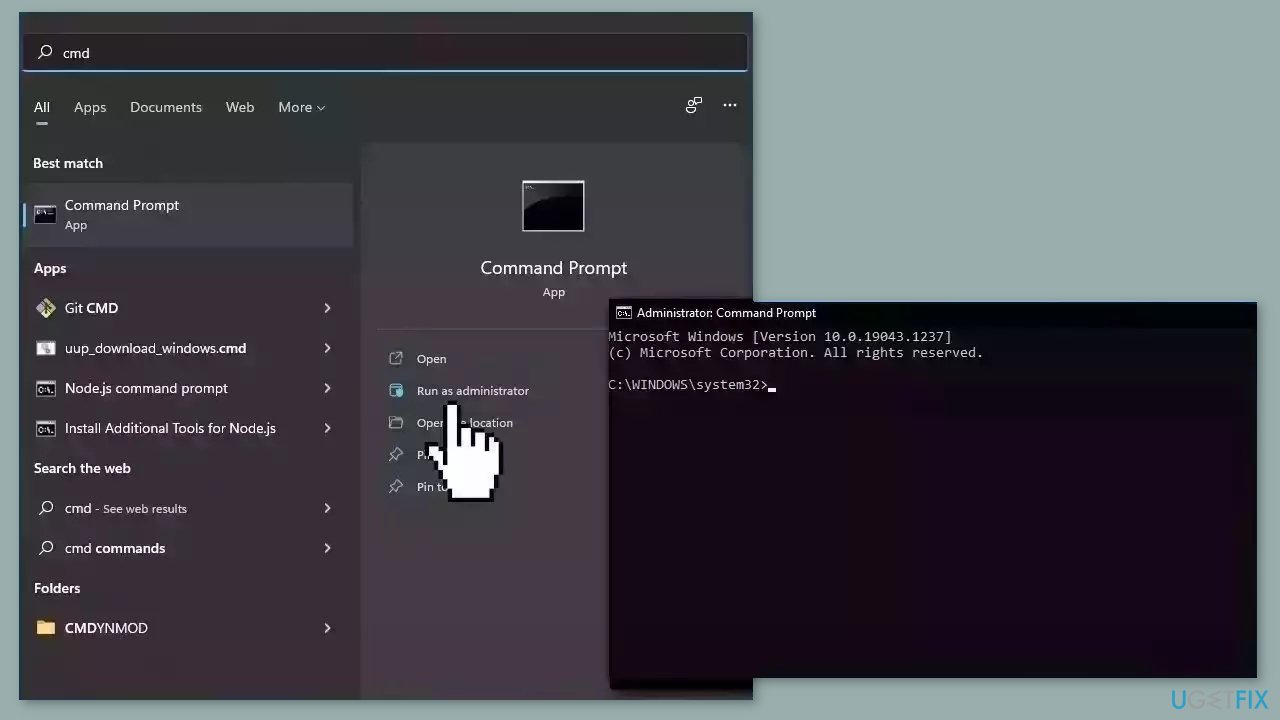
- Open Command Prompt as administrator
- Use the following command and press Enter:
sfc /scannow
- Reboot your system
- If SFC returned an error, then use the following command lines, pressing Enter after each:
DISM /Online /Cleanup-Image /CheckHealth
DISM /Online /Cleanup-Image /ScanHealth
DISM /Online /Cleanup-Image /RestoreHealth
Solution 3. Reset Network
- Press the Windows key + I to launch the Settings window.
- Click on the Network & internet option from the left sidebar.
- From the right section, click on Advanced network settings.
- Under the More settings section, click on the Network reset option.
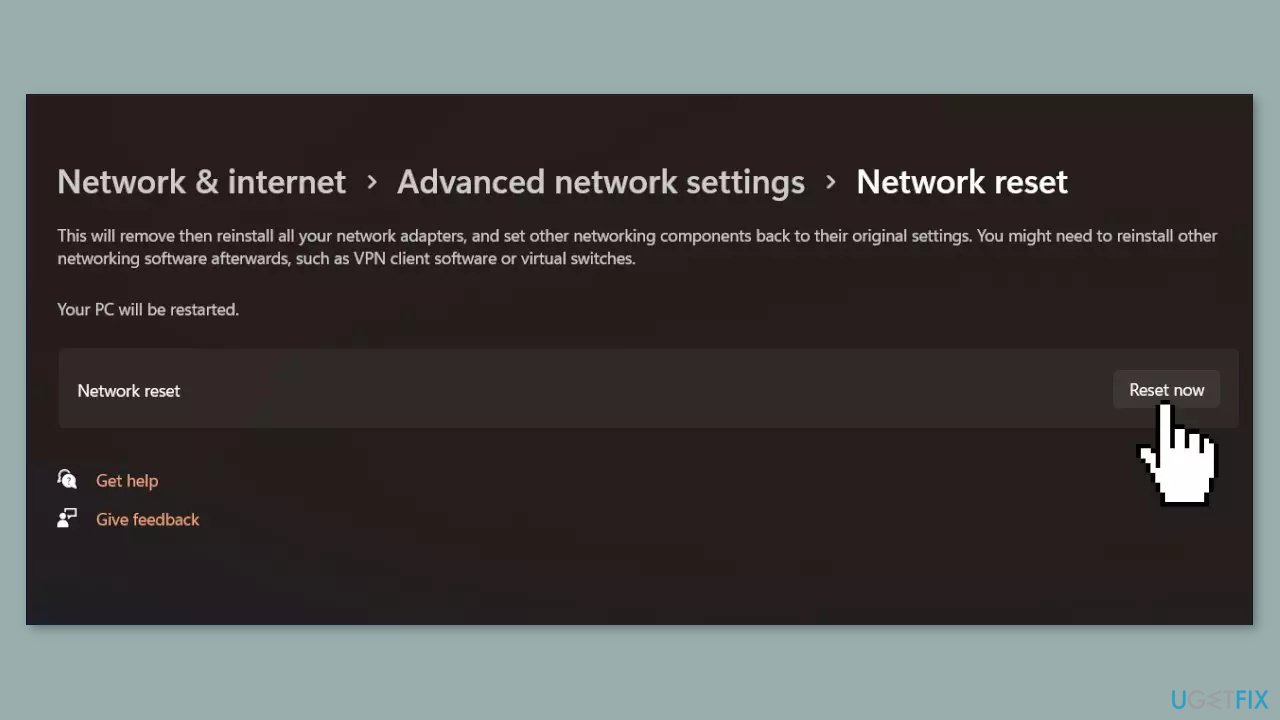
- Click the Reset now button to reset the network settings.
- Confirm the action by selecting Yes on the confirmation pop-up window.
- Restart your Windows PC to complete the network reset process.
Solution 4. Clear Microsoft Store Cache
Like most applications, Microsoft Store creates and stores cache data to enhance performance. However, if this cache becomes corrupt, you may experience various issues.
- Open the Run dialog box by pressing the Windows key + R.
- If the hotkeys don't work, you can use any other method to open the Run dialog box.
- In the search bar of the Run dialog box, type wsreset.exe.
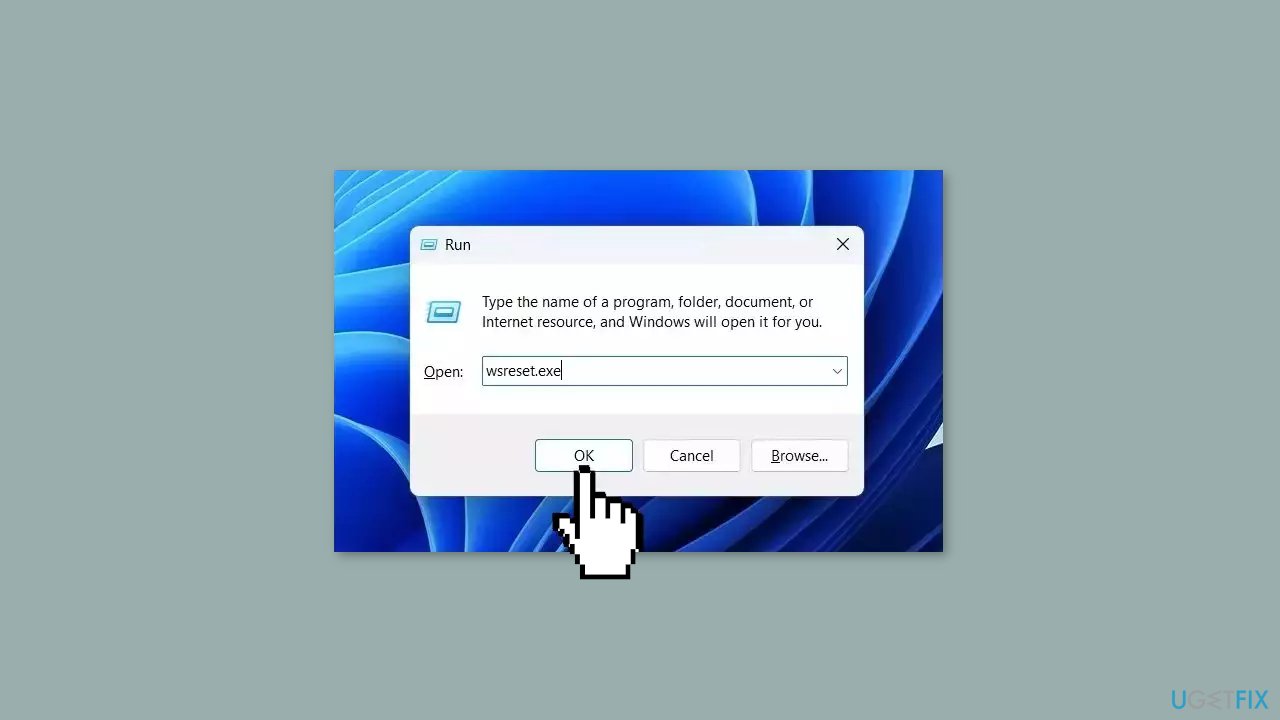
- Click OK.
- A blank Command Prompt window will appear for a few seconds.
- Once the cache is cleared, Windows will close the Command Prompt window and automatically launch the Microsoft Store app.
Solution 5. Re-register the App Packages
- Press the Windows key to open the Start Menu.
- Type Windows PowerShell in the search bar.
- Choose Run as administrator from the right pane.
- In the elevated PowerShell window, type the following command:
Get-AppXPackage -AllUsers | Foreach {Add-AppxPackage -DisableDevelopmentMode -Register “$($_.InstallLocation)\AppXManifest.xml”}
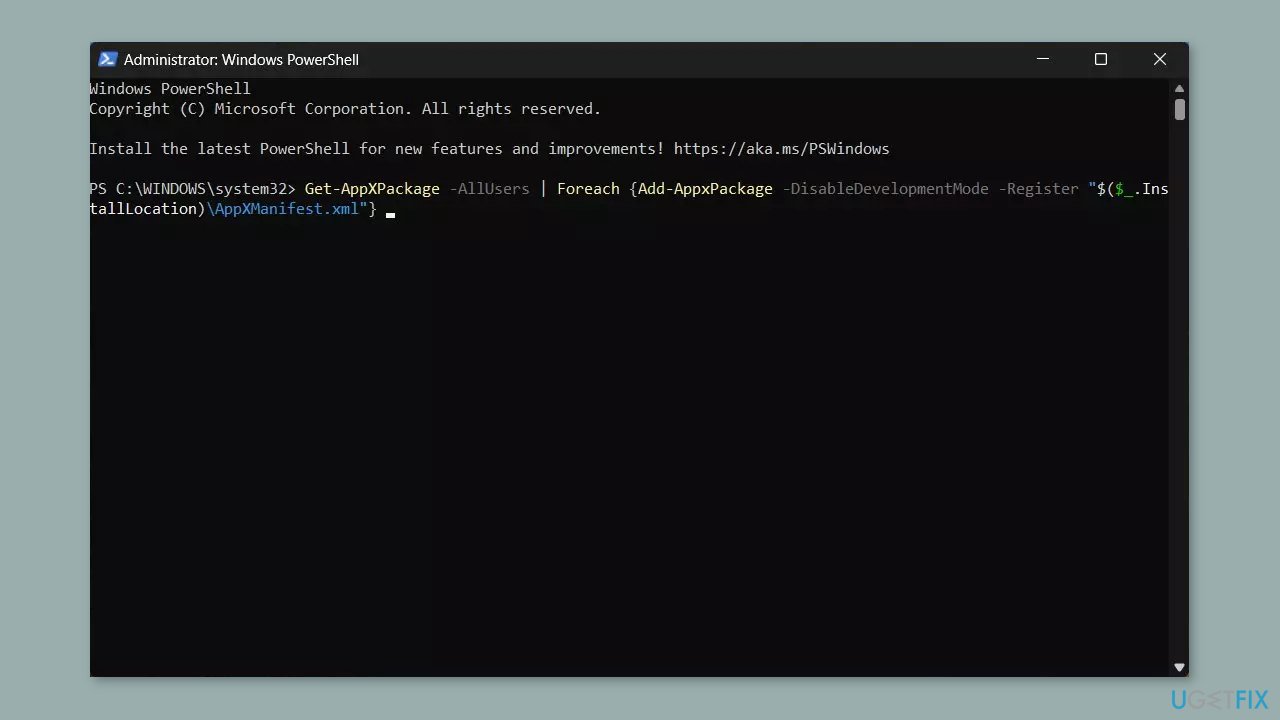
- Press Enter to run the command.
- Wait for the process to complete.
- Close the PowerShell window.
- Check if the Microsoft Store app is working properly now.
Solution 6. Repair or Reset the Microsoft Store
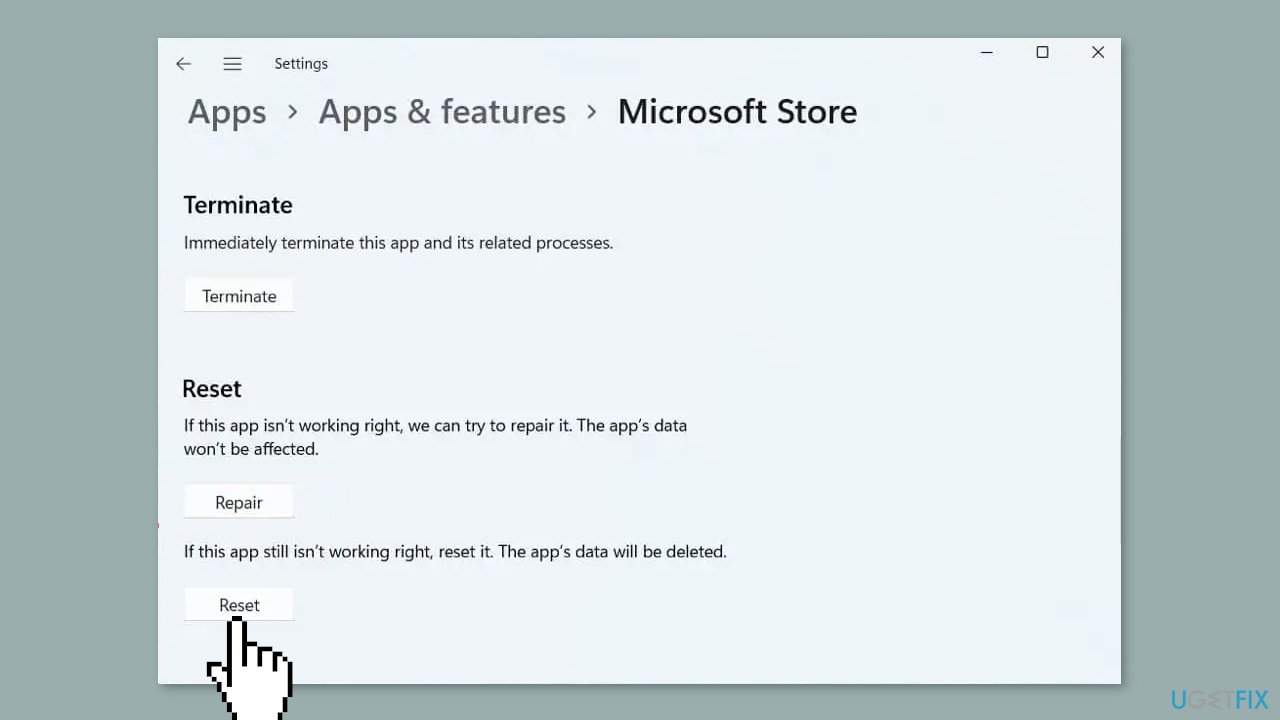
- Right-click on Start and pick Apps & Features.
- Scroll down to locate Microsoft Store and click Advanced options.
- Click Terminate and Repair.
- If that does not help, try the Reset option instead.
Bottom line
To resolve Microsoft Store error 0x80248014, you can try running the Microsoft Store Apps troubleshooter, checking for and installing Windows updates, resetting the Microsoft Store cache, and verifying your network connectivity. If these solutions do not work, consider using a maintenance tool to repair system errors.
Frequently asked questions
The Microsoft Store error 0x80248014 typically indicates a problem with the Windows Update service or a corrupted component in the Windows operating system affecting app downloads.
You can resolve this error by running the Windows Update Troubleshooter, resetting the Microsoft Store cache using the 'wsreset' command, or ensuring that the Windows Update services are running properly.
Yes, resetting the Microsoft Store can help fix error 0x80248014 by clearing any corrupted data and allowing the store to function correctly.




Report an issue
What's wrong with this guide? We review every report and update or remove content.
Report received — thank you. We'll review and fix it.
You need a free account to submit a report.
Be the first to comment