How to fix
“A service installation section in this INF is invalid” error
on Windows
Resolve the "A service installation section in this INF is invalid" error on Windows 10 and 11 quickly with our expert-tested solutions. Fixed in minutes!


What causes How to fix “A service installation section in this INF is invalid” error in Windows?
- Invalid entries in the INF file
- Syntax errors in the INF file
- Outdated driver version
- Incorrect driver version for the hardware
- Corrupted INF file
Repairs Windows system files, removes malware, and restores a clean OS state — without reinstalling.
I am trying to install a Wi-Fi driver, and it is not working - I receive an error "A service installation section in this INF is invalid" every time. Any idea what is going on and how do I fix this?
The error message "A service installation section in this INF is invalid" usually occurs on Windows operating systems when users are attempting to install drivers, typically for their Android devices, but it can also surface while installing other devices, such as WiFi adapters.
This error arises due to the configuration file of the device driver, referred to as the "INF" file, containing either invalid entries or syntax errors. When Windows encounters such discrepancies, it responds by triggering the error message, thus hindering the installation process.
"A service installation section in this INF is invalid" error can significantly impede users' ability to use their PCs effectively. Given that drivers act as a crucial bridge between the operating system and the hardware, an unsuccessful installation could lead to the hardware being unrecognized or not working properly. This can prove incredibly frustrating, causing delays and interruptions to routine tasks and ultimately lowering productivity levels.
In a computing context, drivers are specific software that enables the operating system to interact with and control hardware components. They serve a critical function, transmitting necessary instructions from the system to the hardware. Without these drivers, the hardware - whether it's an Android device or a WiFi adapter - will not work as expected, emphasizing the crucial need to resolve such installation issues promptly.
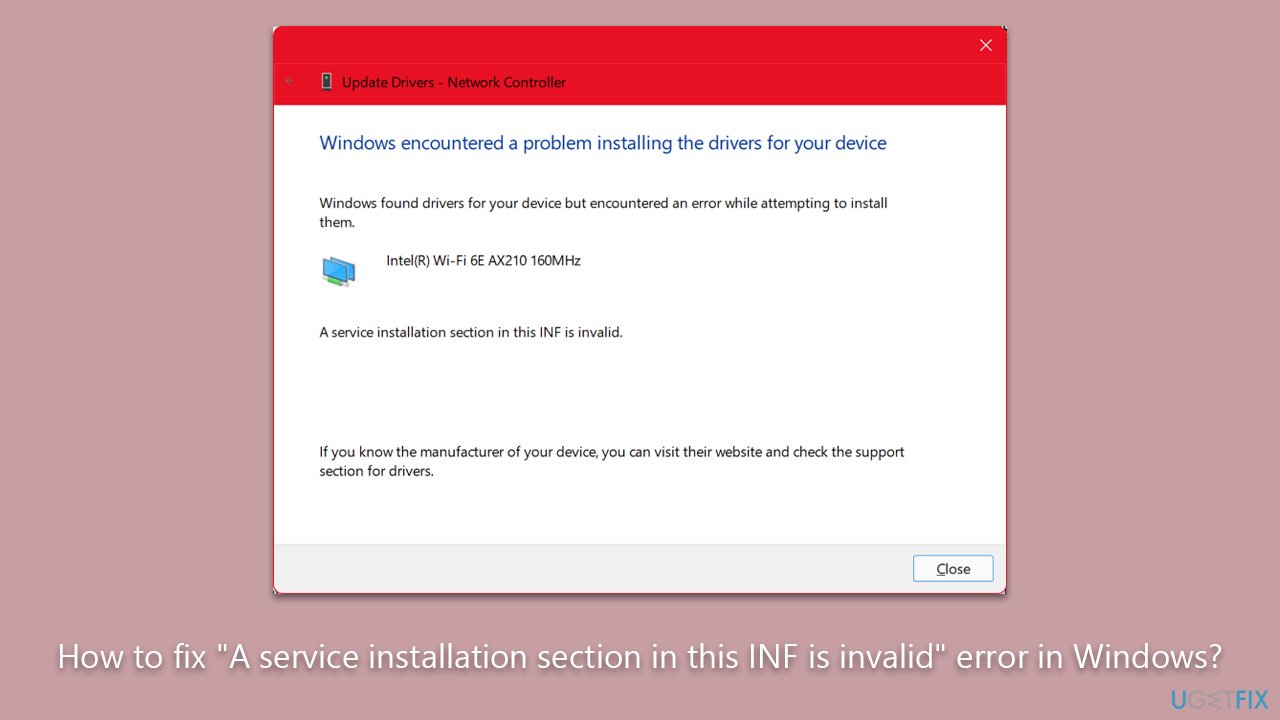
To address the "A service installation section in this INF is invalid" error, a series of troubleshooting steps must be taken, which typically include checking the integrity of the INF file, validating the syntax, or, in some cases, obtaining an updated or correct version of the driver from the manufacturer's website. While the precise method will depend on the individual situation, it's vital to approach the problem systematically and cautiously to prevent any further complications.
However, users need not navigate these challenges alone. Tools like the [d1] PC repair are incredibly effective at providing assistance in such circumstances. The app can resolve a wide range of PC issues, significantly simplifying and expediting the resolution process. Leveraging such resources can make the often daunting task of troubleshooting Windows problems considerably more manageable. For all your driver problems, we recommend trying [rev id="DriverFix"].
Fix 1. Re-add the device
This method bypasses the automatic driver installation process, allowing you to install the driver manually. It works by forcing Windows to use the specific driver file you provide, thus avoiding the potentially problematic INF file. Before doing so, remove your device:
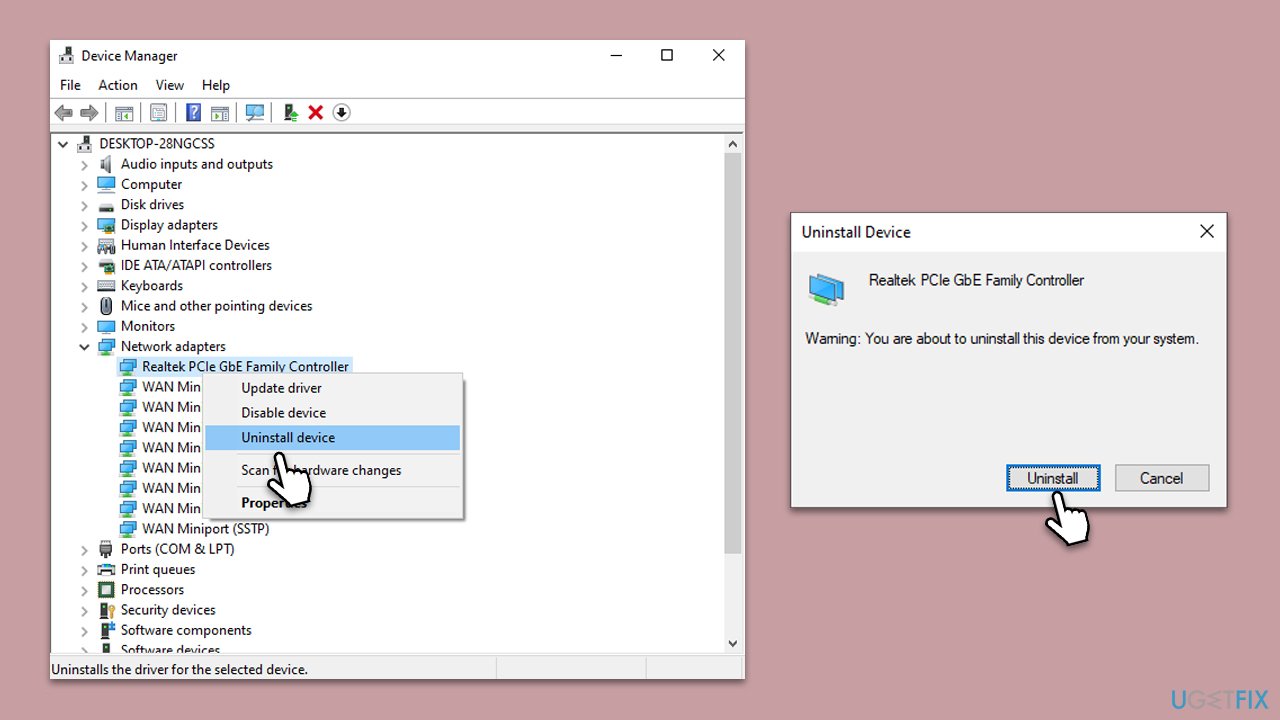
- Right-click on Start and pick Device Manager.
- Expand the appropriate section, for example, Network adapters.
- Locate the problematic device, right-click it, and select Uninstall device.
- Restart your computer. Upon boot-up, Windows will automatically detect and reinstall the device and its drivers.
Fix 2. Install the driver manually
This method bypasses the automatic driver installation process, allowing you to install the driver manually. It works by forcing Windows to use the specific driver file you provide, thus avoiding the potentially problematic INF file.
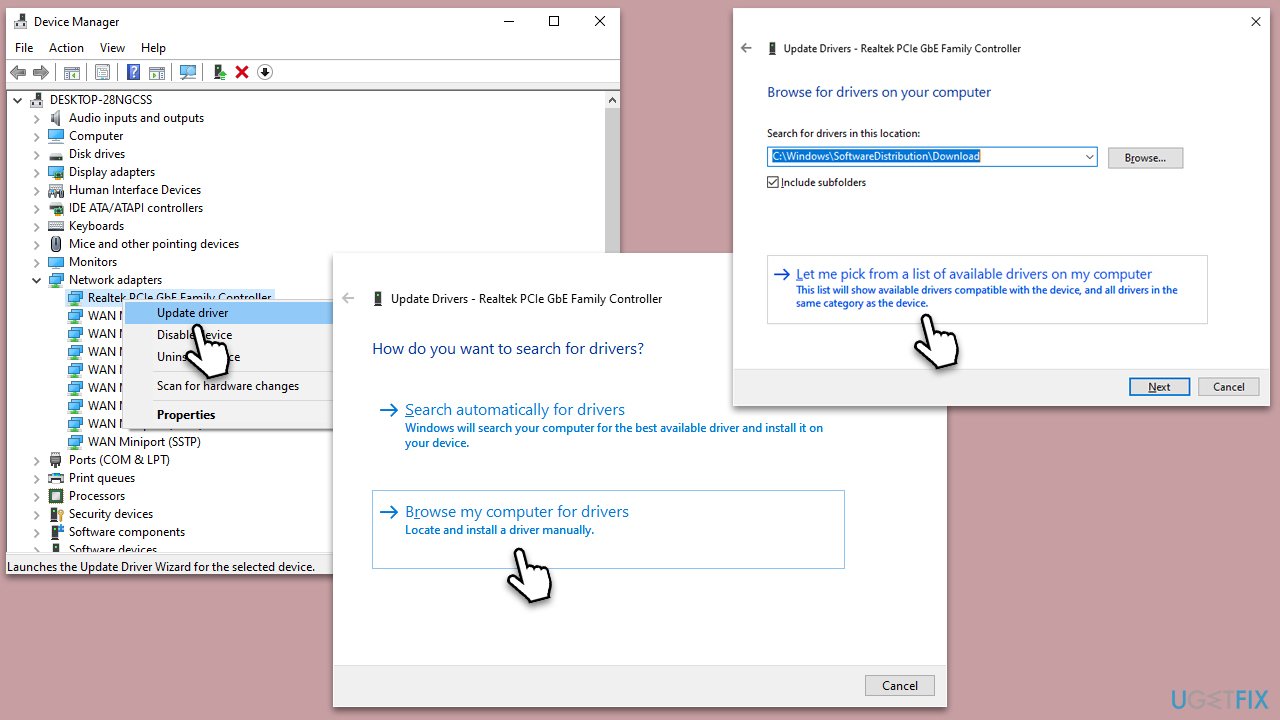
- Go to Device Manager.
- Right-click the problematic device and choose Update Driver.
- Select Browse my computer for drivers.
- Choose Let me pick from a list of available drivers on my computer.
- Locate MTP USB Device, select it, and click Next.
- Wait for the installation to finish and restart your PC.
Fix 3. Install the MTP driver manually via File Explorer
This is an alternative method to installing the driver manually if the previous solution did not work.
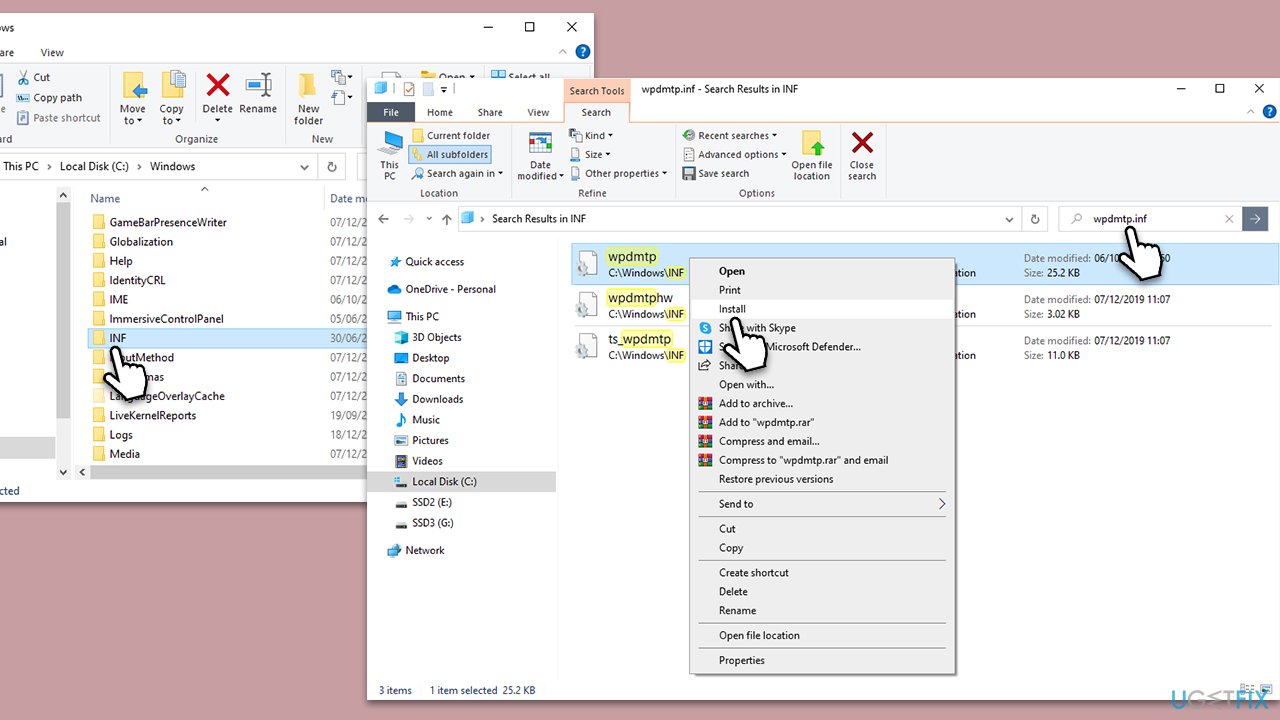
- Press Win + E to open File Explorer.
- Click on View and mark the Show hidden items checkmark at the top.
- Next, navigate to the following location:
C:\Windows\INF - In the search bar of File Explorer, type in wpdmtp.inf.
- Right-click wpdmtp.inf from the search results and pick Install.
- Follow the prompts to install the driver and reboot your system.
Fix 4. Run SFC and DISM
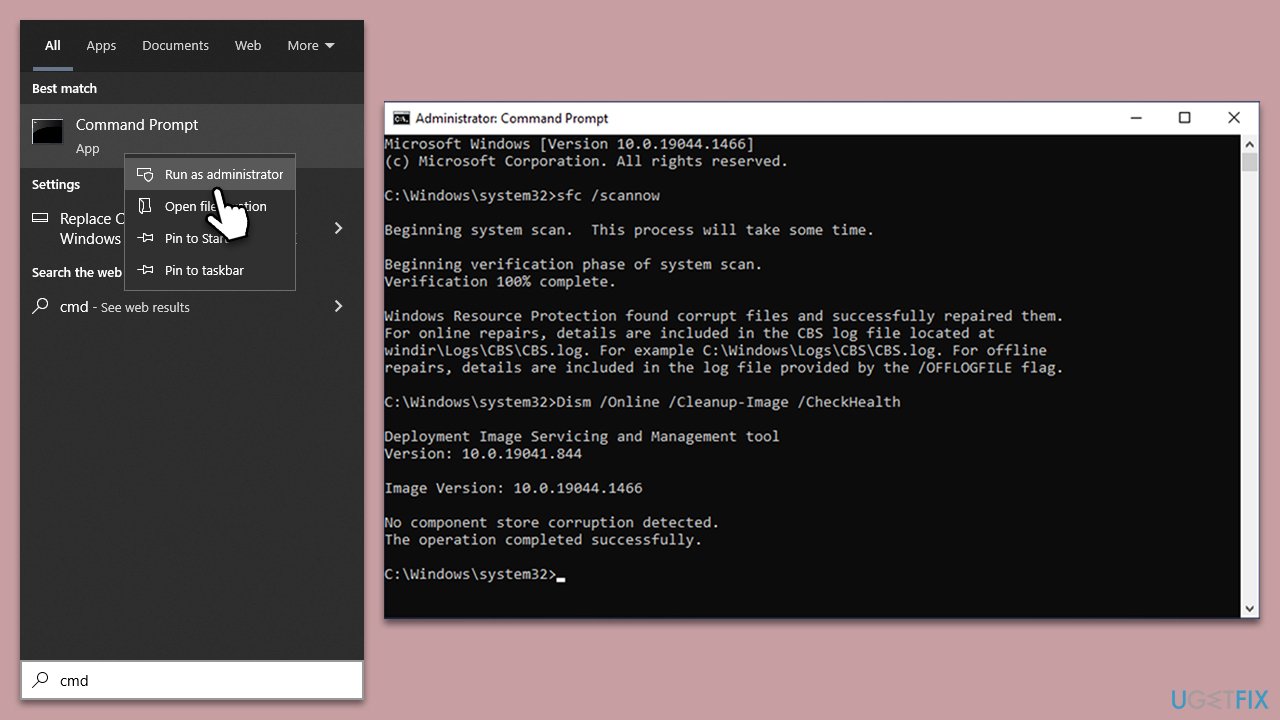
Some users managed to fix the issue by repairing corrupted system files.
- Type cmd in Windows search.
- Right-click on Command Prompt and pick Run as administrator.
- User Account Control window will show up - click Yes when prompted.
- Then, copy and paste the following command, pressing Enter after:
sfc /scannow - Wait till the scan is finished. If Windows finds system file integrity violations, it will attempt to fix them. After this, use the set of the following commands, pressing Enter each time:
DISM /Online /Cleanup-Image /CheckHealth
DISM /Online /Cleanup-Image /ScanHealth
DISM /Online /Cleanup-Image /RestoreHealth - (Note: if you get an error executing this last command, add /Source:C:\RepairSource\Windows /LimitAccess to it and try again).
- Close down the Command Prompt and restart your system.
Bottom line
To fix the 'A service installation section in this INF is invalid' error, check the integrity and syntax of the INF file, or obtain an updated version of the driver from the manufacturer's website. If these steps do not resolve the issue, consider seeking additional support or resources.
Frequently asked questions
This error typically occurs due to corrupted or incompatible driver files in the INF section, preventing proper installation. It can also be triggered by a faulty Windows update or incorrect system settings.
To fix this error in Windows 11, try reinstalling the affected driver through Device Manager or using the Windows Update tool to ensure all drivers are up to date. Additionally, you can manually edit the INF file if you are comfortable with advanced troubleshooting.
To prevent this error from recurring, ensure that your Windows 10 or Windows 11 system is regularly updated and use reliable sources for downloading drivers. Regularly checking for system file integrity with tools like SFC can also help maintain driver stability.




Report an issue
What's wrong with this guide? We review every report and update or remove content.
Report received — thank you. We'll review and fix it.
You need a free account to submit a report.
Be the first to comment