How to fix
“Turn on fast startup” option missing
on Windows
Resolve the missing "Turn on fast startup" option in Windows 10 and 11 effortlessly. Boost your system's performance with expert-tested solutions!

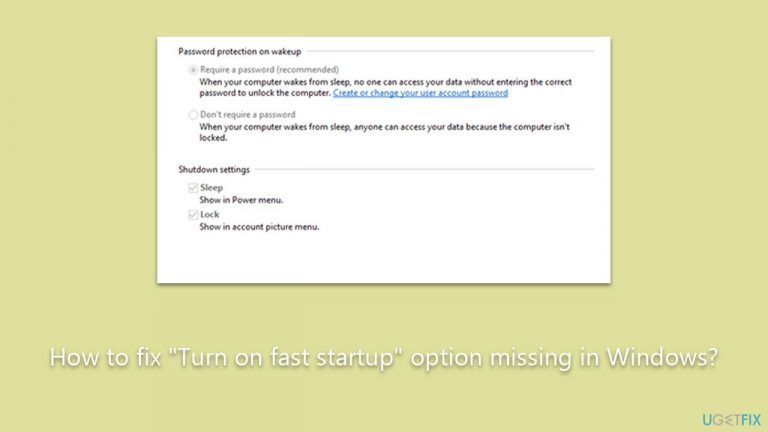
What causes How to fix “Turn on fast startup” option missing in Windows?
- System updates
- Driver issues
- Errors in the Windows Registry
- Hibernate option not enabled
Repairs Windows system files, removes malware, and restores a clean OS state — without reinstalling.
Hi. I wanted to enable the Fast Startup because I was advised to, and when I went to Power Options, there was no such option available. How do I recover the "Turn on fast startup" button?
The Fast Startup feature is a salient facet of the Windows operating system, specifically designed to bolster the speed at which your computer starts up. This option functions by saving a snapshot of the system's drivers and loaded kernel into a hibernation file upon shutdown.
Consequently, when the system is booted up, it merely reloads this data, thereby accelerating the startup process considerably. Fast Startup thus marries the best of both traditional shutdown and hibernation modes to deliver a seamless, efficient startup experience.
While the benefits of the Fast Startup feature are undeniable, its usage is not devoid of potential issues. Some users may experience problems with this feature, such as difficulty in accessing shared networks or drives or issues with hardware compatibility. These instances occasionally prompt users to keep the Fast Startup feature deactivated.
However, many users prefer to retain this feature due to the notably enhanced startup speed it offers. A sluggish startup can be a source of frustration and an impediment to productivity, particularly for those who heavily rely on their PCs for work or personal use.
In certain cases, users have reported the "Turn on fast startup" option being mysteriously absent from their Windows Power Options. This can be a source of consternation for those keen on exploiting the feature to hasten their system's startup time. There can be a multitude of reasons behind the disappearance of this option. Factors may include system updates, driver issues, or potential errors in the Windows Registry.
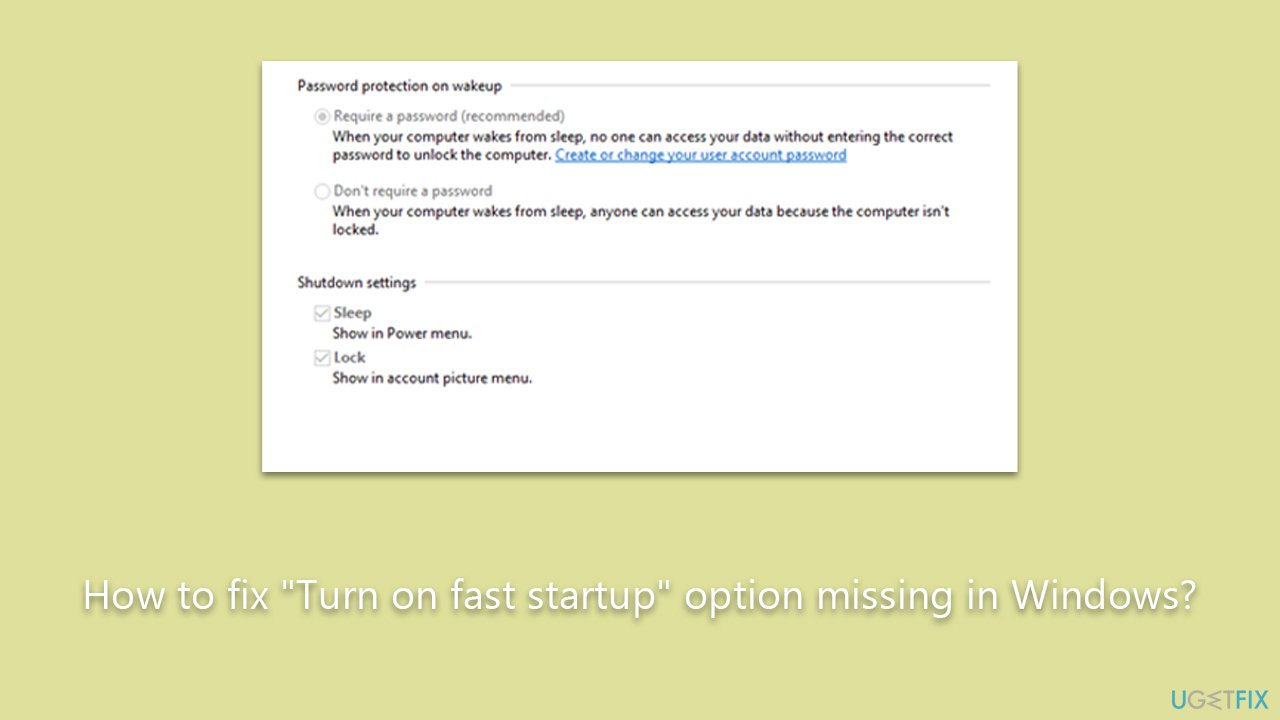
Fortunately, multiple solutions exist to rectify this predicament. Running the Windows power troubleshooter, restoring the default power schemes, or enabling the hibernate option through Command Prompt can potentially restore the missing "Turn on fast startup" feature. Detailed instructions for implementing these fixes can be found in the sections below this article. Each method offers a unique approach to resolving the issue, catering to a variety of user comfort levels with system manipulation.
Alternatively, for a simpler and more comprehensive solution, the [d1] PC repair tool can be a valuable asset. This versatile utility is designed to automatically fix a wide array of Windows issues, including the missing "Turn on fast startup" option, thereby offering an uncomplicated path to maintaining optimal system performance.
Fix 1. Run Power Troubleshooter
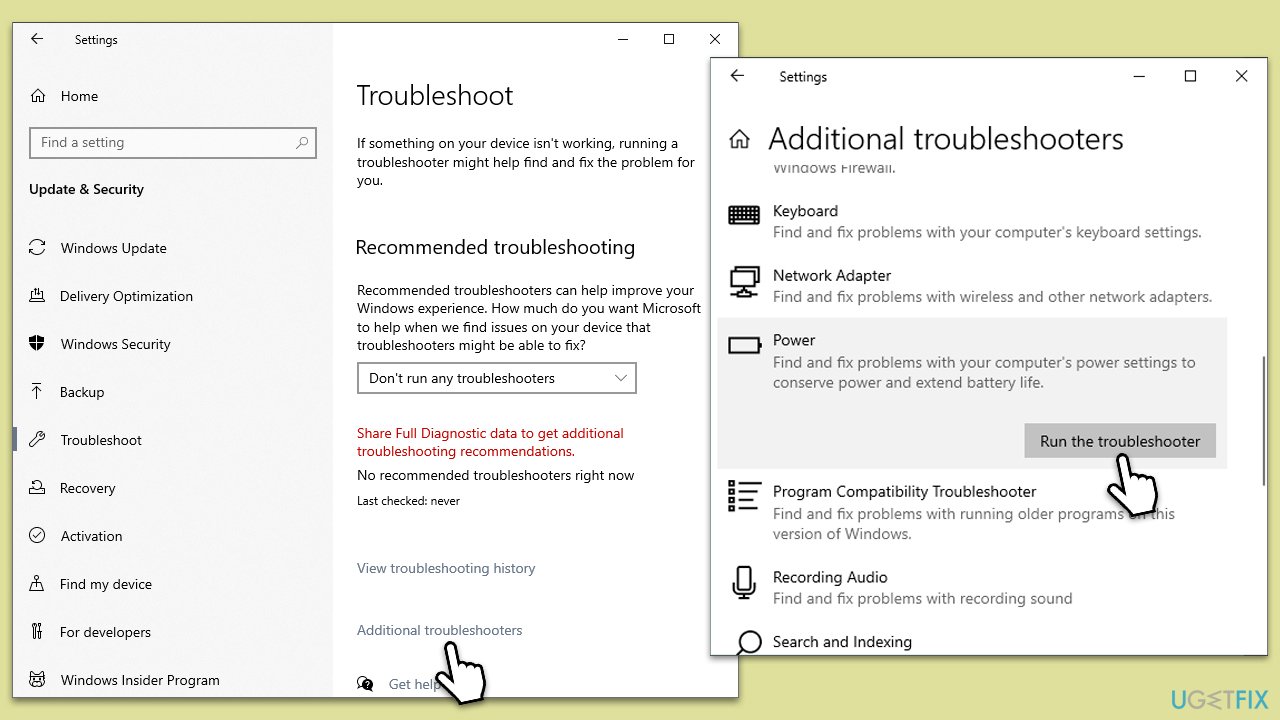
The Power Troubleshooter is an inbuilt utility in Windows that scans your system for potential power-related issues and rectifies them automatically. It can detect any discrepancies in your power settings that might be causing the Fast Startup option to go missing and can resolve those issues.
- Type troubleshoot in Windows search and press Enter.
- Select Additional troubleshooters/Other troubleshooters.
- Scroll down to find the Power section.
- Click Run the troubleshooter/Run.
- The scan will begin, and problems will be diagnosed during this process.
- Apply all the recommendations.
Fix 2. Restore Power Plan
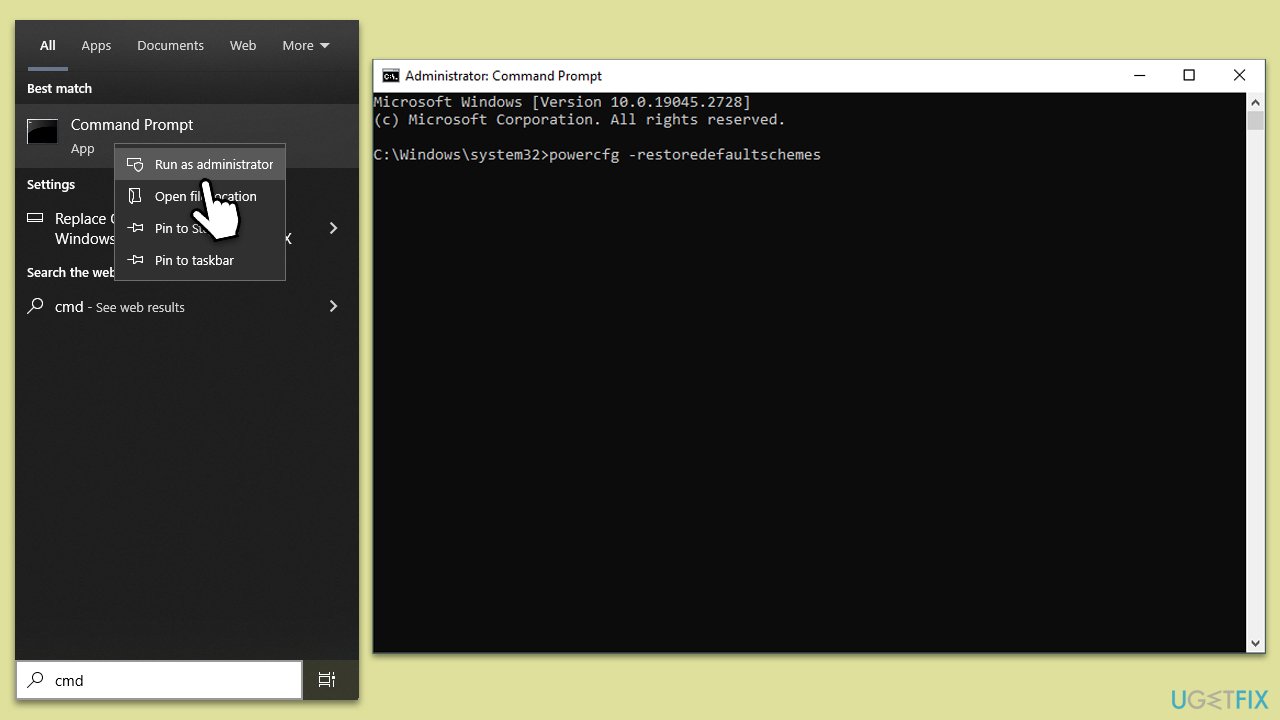
Alterations to power schemes can cause the Fast Startup feature to vanish. Restoring default schemes resets power settings to their initial state, potentially reviving the missing Fast Startup option.
- Type cmd in Windows search.
- Right-click on Command Prompt and select Run as administrator.
- In the Command Prompt window, copy and paste the following:
powercfg -restoredefaultschemes - Close down everything and restart your computer.
Fix 3. Enable Hibernate via Command Prompt
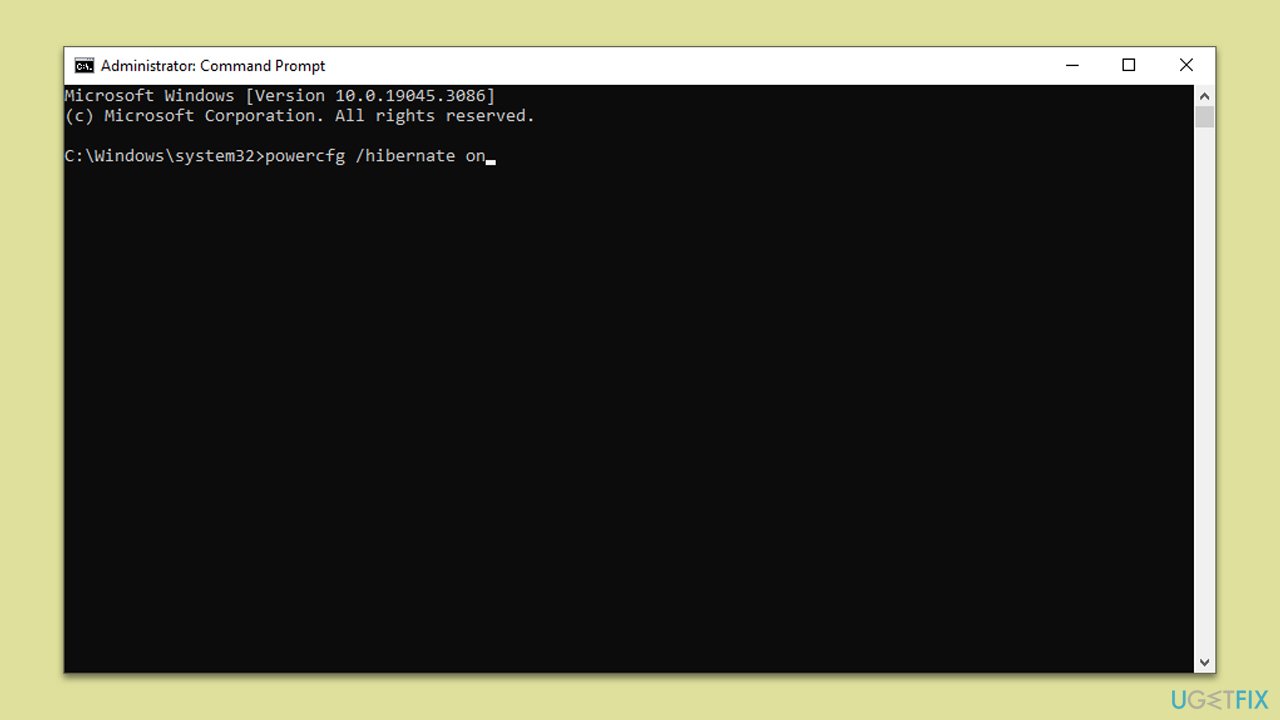
Fast Startup works by saving system information to a file during shutdown (similar to hibernation). Therefore, if the Hibernate feature is disabled on your system, Fast Startup may also be affected. By enabling hibernation via Command Prompt, you reactivate this fundamental requirement for Fast Startup, which may cause the option to reappear.
- Open Command Prompt as administrator.
- Copy and paste the following command, pressing Enter after:
powercfg /hibernate on - Restart your PC.
- This should enable Hibernate, and the "Turn on fast startup" option should show up again.
Fix 4. Run SFC and DISM
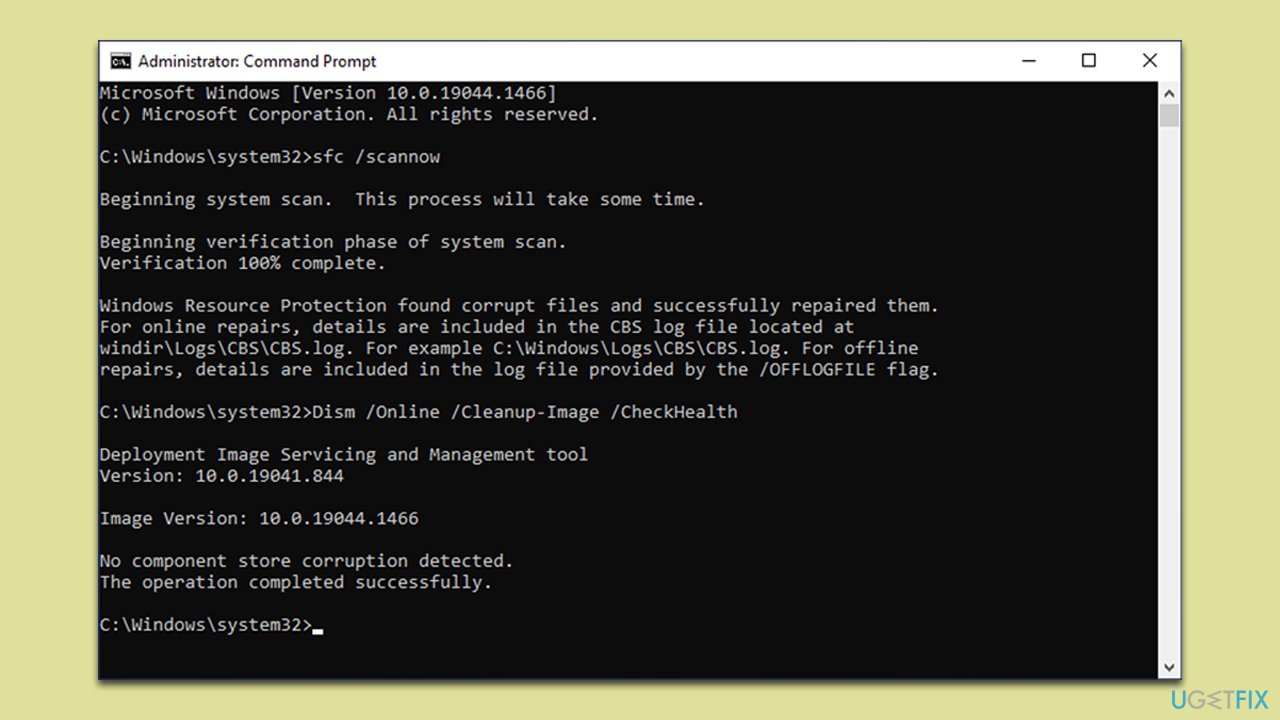
SFC and DISM are Windows utilities that detect and repair damaged system files. If files related to Fast Startup are corrupted, running these scans can replace the problematic files, potentially restoring the missing Fast Startup option.
- Open Command Prompt as administrator.
- Use the following command and press Enter:
sfc /scannow - When the scan is complete, you should also run the following commands to repair Windows image files if needed:
DISM /Online /Cleanup-Image /CheckHealth
DISM /Online /Cleanup-Image /ScanHealth
DISM /Online /Cleanup-Image /RestoreHealth - Restart your device.
Fix 5. Reset Windows
If none of the solutions above helped, try resetting Windows following these steps:
- Right-click on Start and then select Settings.
- Go to Update & Security and pick Recovery on the left side of the window.
- Find Reset this PC section and click Get Started.
- Select Keep my files and Cloud download.
- Next, pick whether you want to reinstall the apps.
- Click Reset.
- Your system will restart, and the process of Windows reset will begin.

Enable the Fast Startup via Control Panel
Once you've completed the troubleshooting steps, you should enable Fast Startup as follows:
- Open Control Panel and go to Power Options.
- Click on Choose what the power buttons do.
- Click on Change settings that are currently unavailable.
- Enable the Turn on fast startup option.
- Click Save changes.
Bottom line
To fix the missing 'Turn on fast startup' option, you can run the Windows power troubleshooter, restore the default power schemes, or enable the hibernate option through Command Prompt. If none of these solutions work, further investigation into your system settings may be necessary.
Frequently asked questions
The 'Turn on fast startup' option may be missing due to incompatible hardware settings or if the Fast Startup feature is disabled in the system settings. Check your BIOS/UEFI settings to ensure that Fast Boot or similar options are enabled.
To restore the option in Windows 11, navigate to Control Panel > Power Options > Choose what the power buttons do and ensure that 'Turn on fast startup' is enabled under the Shutdown settings.
If the option is grayed out, make sure that hibernation is enabled by running 'powercfg /hibernate on' in the Command Prompt, and check your power plan settings to allow hybrid sleep.




Report an issue
What's wrong with this guide? We review every report and update or remove content.
Report received — thank you. We'll review and fix it.
You need a free account to submit a report.
Be the first to comment