How to fix
Can’t install QTS1081B adapter driver
on Windows
Resolve QTS1081B adapter driver installation issues on Windows 10/11 effortlessly. Follow expert-tested solutions for quick fixes and seamless performance.

![[Fix] Can’t install QTS1081B adapter driver](https://ugetfix.com/wp-content/uploads/articles/askit/fix-cant-install-qts1081b-adapter-driver_en-768x432.jpg)
What causes [Fix] Can’t install QTS1081B adapter driver?
- Driver not installed
- Driver compatibility issues
- Conflicts with existing drivers or software
- Outdated driver version
- Missing driver updates
Repairs Windows system files, removes malware, and restores a clean OS state — without reinstalling.
Hello. I just bought the QTS1081B LAN-USB adapter for my Windows laptop but I can't install drivers for it. Any suggestions would be appreciated.
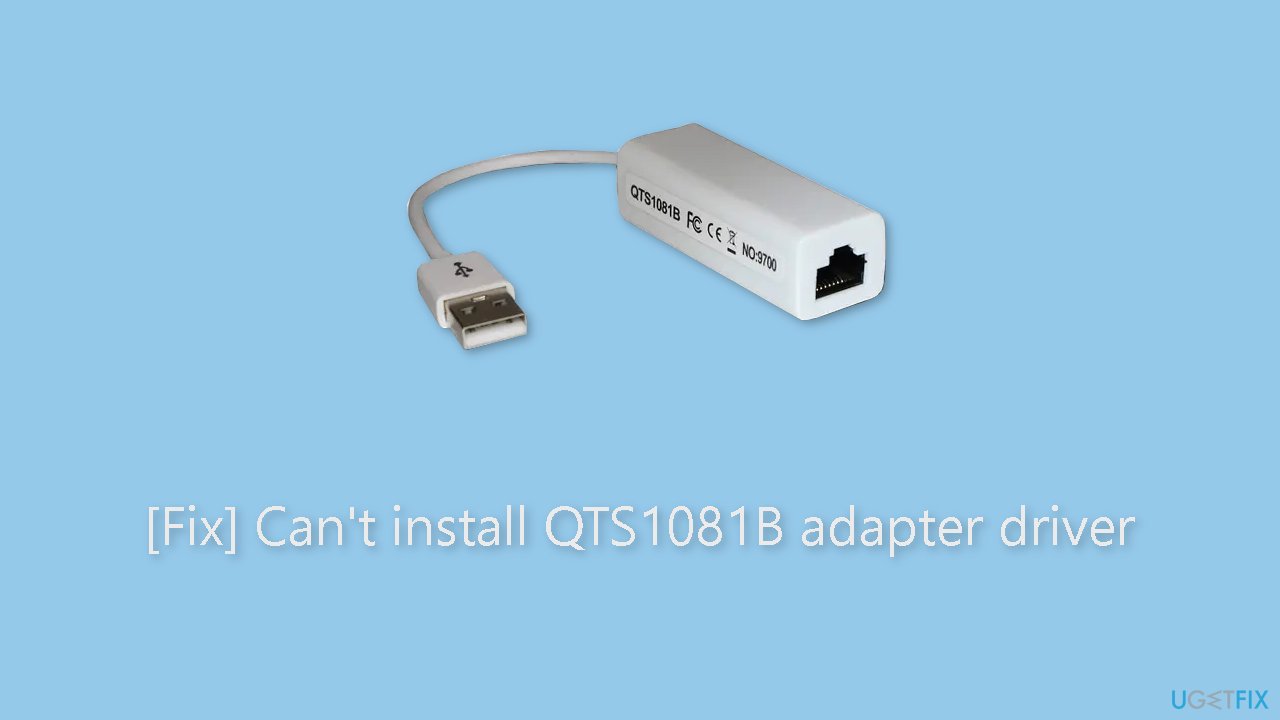
The QTS1081B adapter is a LAN-USB adapter that allows you to connect a device or system with a USB port to an Ethernet network. It functions as a bridge, allowing users to benefit from Ethernet connectivity even if their device lacks an Ethernet port. This type of adapter is commonly used in environments that require a stable and reliable network connection, such as offices, homes, or other settings.
The problem is that the QTS1081B adapter driver[ref en-1] cannot be installed in the Windows operating system. A driver is a software component that allows the operating system to effectively recognize and communicate with the hardware device. The adapter may not function properly or be recognized by the operating system if the proper driver is not installed.
This problem may have serious consequences for users who rely on the QTS1081B adapter to connect USB-only devices or systems to an Ethernet network. The adapter cannot establish a proper connection without the driver, resulting in network connectivity loss.
This can make it difficult for users to access online resources, participate in video conferences, download/upload files, or perform other tasks that necessitate a stable network connection. A lack of network connectivity can cause frustration, decreased productivity, and limitations in carrying out essential activities that require a reliable and fast network connection.
Installing the correct driver for the QTS1081B adapter on the Windows operating system could be one solution to this problem. Users may need to check the manufacturer's website for driver updates, confirm compatibility with their specific version of Windows, or troubleshoot any conflicts with existing drivers or software.
In this guide, you will find out how to download and install the driver manually using the Microsoft Update Catalog. If none of the solutions work, you can also try using a maintenance tool like [d1]. It can fix most system errors, BSODs,[ref en-2] corrupted files, and registry[ref en-3] issues. Otherwise, follow the step-by-step instructions below.
Install Driver from Microsoft Update Catalog
- Go to the Microsoft official drivers website.
- Download the driver file named Corechip SemiConductor Inc.
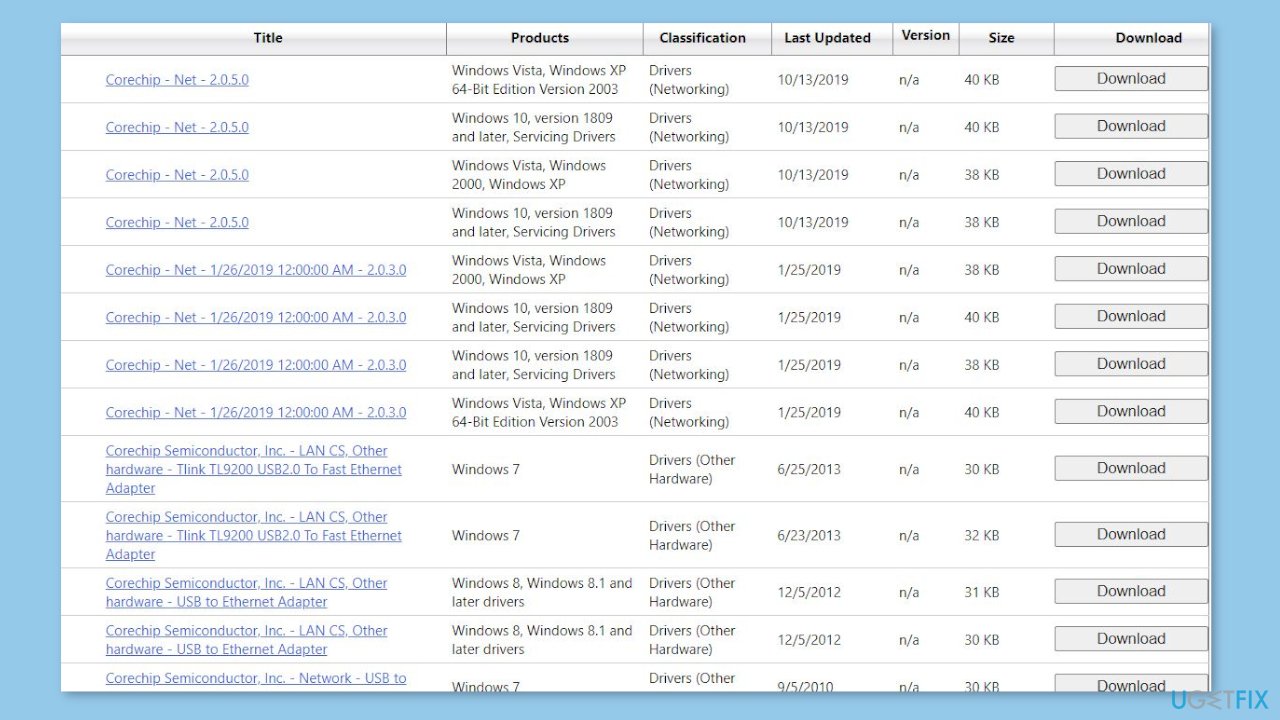
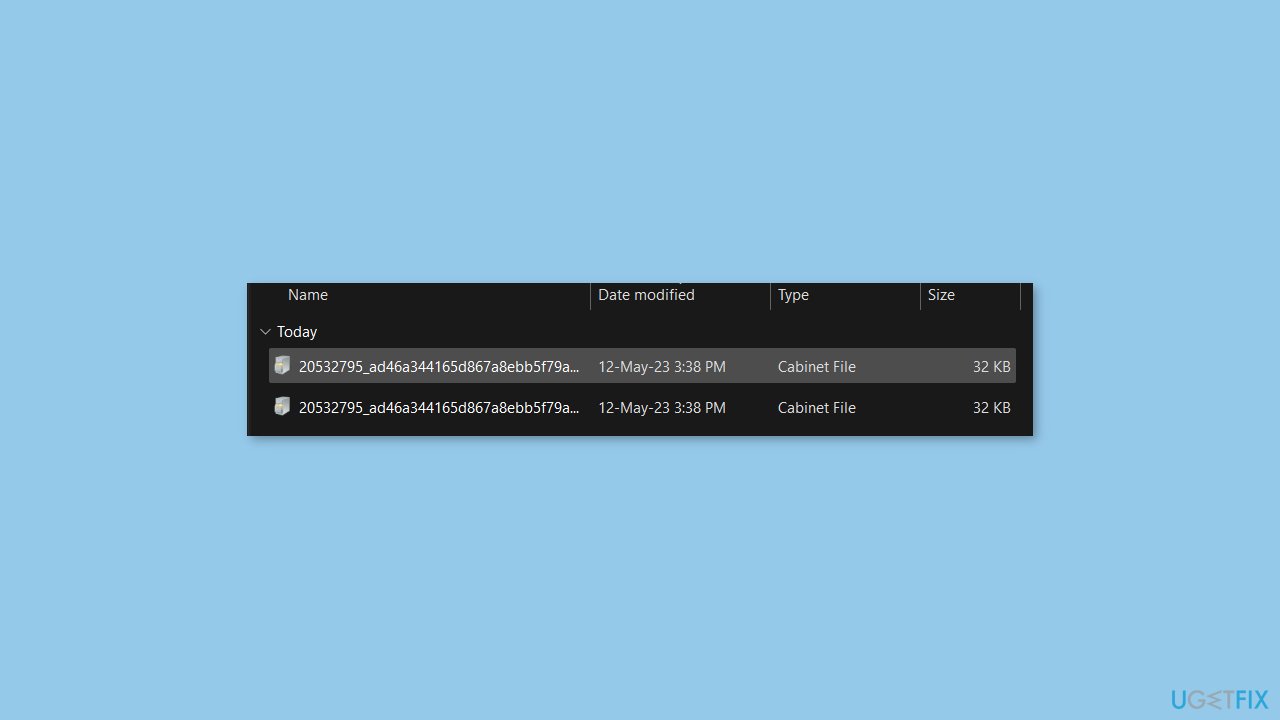
- A cabinet file (a type of folder) will be downloaded.
- Double-click the downloaded cabinet file to open it.
- Copy all the files from the opened cabinet folder.
- Create a new folder and give it a name, e.g., Ethernet_to_USB.
- Paste all the copied files into the newly created Ethernet_to_USB folder.
- Open the Device Manager on your computer.
- Ensure that you have inserted your Ethernet to USB cable.
- In the Device Manager, locate your device under the Other devices section, usually marked with a caution icon.
- Right-click on the device and select Update driver from the pop-up menu.
- Choose the option Browse my computer for drivers.
- Click on the Browse button.
- Navigate to and select the folder you created previously (Ethernet_to_USB).
- Proceed with the driver installation process to complete the installation.
If the problem persists after attempting the previously mentioned solutions, users should consider contacting the manufacturer of the QTS1081B adapter for assistance. Their customer service team may be able to provide additional assistance or specific troubleshooting steps tailored to the adapter and Windows operating system.
Bottom line
To resolve the installation issue for the QTS1081B adapter driver, users should check the manufacturer's website for driver updates, confirm compatibility with their Windows version, and troubleshoot any existing driver conflicts. If these solutions do not work, consider using a maintenance tool to fix system errors or follow the step-by-step instructions provided in the guide.
Frequently asked questions
Ensure that you have the latest Windows updates installed, as they can contain crucial driver updates. Additionally, try running the installation as an administrator by right-clicking the setup file and selecting 'Run as administrator.'
Visit the manufacturer's website to verify compatibility and check for any specific drivers tailored for Windows 11. Also, check if your Windows 11 system meets the hardware requirements for the adapter.
First, uninstall any previous versions of the driver from Device Manager, then download and install the latest version from the manufacturer's site. Restart your computer after installation to ensure the changes take effect.




Report an issue
What's wrong with this guide? We review every report and update or remove content.
Report received — thank you. We'll review and fix it.
You need a free account to submit a report.
Be the first to comment