How to fix
Windows keeps installing same update
on Windows
Resolve the issue of Windows 10 or 11 repeatedly installing the same update with our expert-tested solutions. Get it fixed in minutes!

What causes How to fix Windows keeps installing same update?
- Repeated installation of the same update
- Corrupted system files
- Errors or conflicts during update installation
- Impact on system stability
- Potential security vulnerabilities due to improper installation
Repairs Windows system files, removes malware, and restores a clean OS state — without reinstalling.
Hello. Windows keeps asking to restart because it installed updates but nothing happens. Is there a way to fix this?
The problem of Windows repeatedly installing the same update and prompting users to restart can be quite inconvenient. Users have reported that even after installing the update and restarting their systems as instructed, Windows insists on installing it again. This repetitive cycle can have a number of negative effects on the user experience.
For starters, this problem disrupts users' workflow and productivity. Constant restart notifications and reminders can disrupt their work or activities, causing frustration and distraction. Users may have to repeatedly postpone or halt their tasks to accommodate the update installation, resulting in time and efficiency loss.
Furthermore, the issue can be time-consuming. Going through the installation process again and again, only to be met with the same update prompt, is a waste of time. Users may become frustrated if they are caught in an endless loop of installing and restarting with no resolution.
In addition to the disruption and time loss, the problem may have an impact on the system's stability. If the update installation encounters errors or conflicts, system instability, crashes, or other unexpected issues may occur. This can have a negative impact on the computer's overall performance and reliability, causing additional inconvenience for users.
Furthermore, if the update that keeps installing is a security patch or a critical update, improper installation is a major concern. Users may remain vulnerable to security risks and exploits addressed by the update. This situation may expose their systems to potential threats, jeopardizing data security and privacy.
In this guide, you will find 5 steps that should help you fix Windows that tries to keep installing the same update. You can also try running a maintenance tool like [d1] that can fix most system errors, BSODs,[ref en-1] corrupted files, and registry[ref en-2] issues. Otherwise, follow the step-by-step instructions below.
Solution 1. Fix Corrupted System Files
Use Command Prompt commands to repair system file corruption:
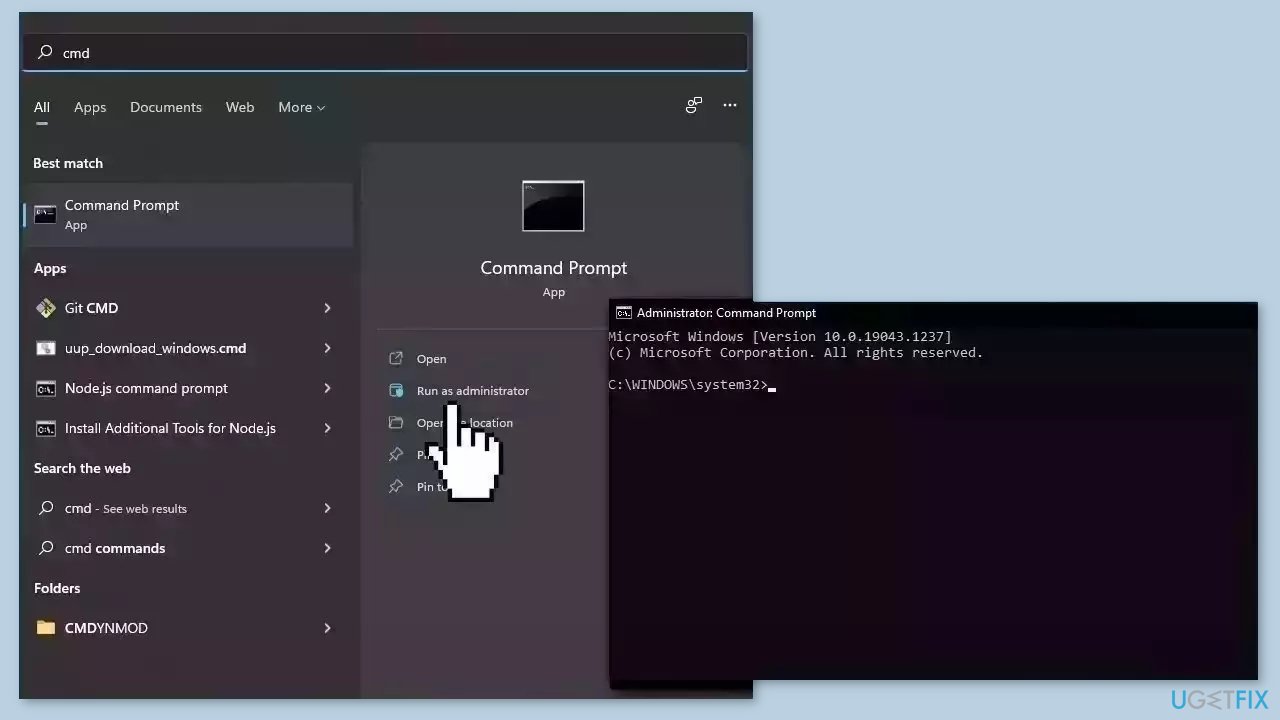
- Open Command Prompt as administrator
- Use the following command and press Enter:
sfc /scannow
- Reboot your system
- If SFC returned an error, then use the following command lines, pressing Enter after each:
DISM /Online /Cleanup-Image /CheckHealth
DISM /Online /Cleanup-Image /ScanHealth
DISM /Online /Cleanup-Image /RestoreHealth
Solution 2. Run Windows Update Troubleshooter
- Press the Windows key + X and go to Settings.
- Go to Update and Security.
- Click Troubleshooter.

- Select Additional troubleshooters.
- Run the Update troubleshooter.
- Restart the computer.
Solution 3. Uninstall the Update
- Note down the number of the update that keeps installing.
- Right-click on the Start button to open the WinX Menu.
- Select Control Panel from the menu.
- Open the Programs & Features applet.
- Click on Installed Updates to access the Windows Update history.
- Search for the update by its number.
- Right-click on the update and select Uninstall.
- Restart your computer.
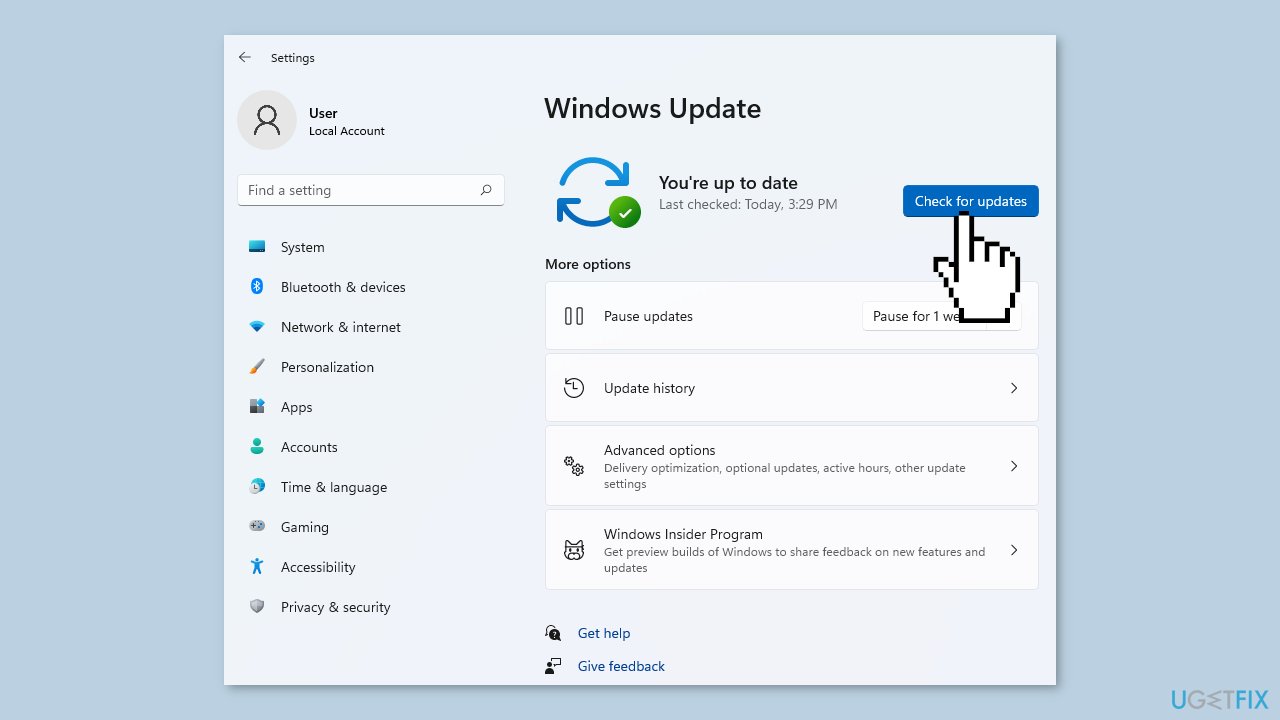
- Run Windows Update again.
- Install the update afresh.
Solution 4. Clear Corrupted Windows Update Files
- Disconnect from the Internet by turning off Wi-Fi and disconnecting from a wired connection.
- Restart your computer after disconnecting from the Internet. You can enable Airplane mode from the Action Center by pressing the Windows key + A.
- Open the Start menu and type CMD in the search bar.
- Right-click on CMD in the search results.
- Click on Run as administrator.
- In the Command Prompt window, type the following commands one by one and press Enter after each command:
taskkill /f /fi "SERVICES eq wuauserv" (Repeat this command multiple times)
net stop cryptSvc
net stop bits
net stop msiserver
ren C:\Windows\SoftwareDistribution SoftwareDistribution.old
rmdir C:\Windows\SoftwareDistribution\DataStore
rmdir C:\Windows\SoftwareDistribution\Download
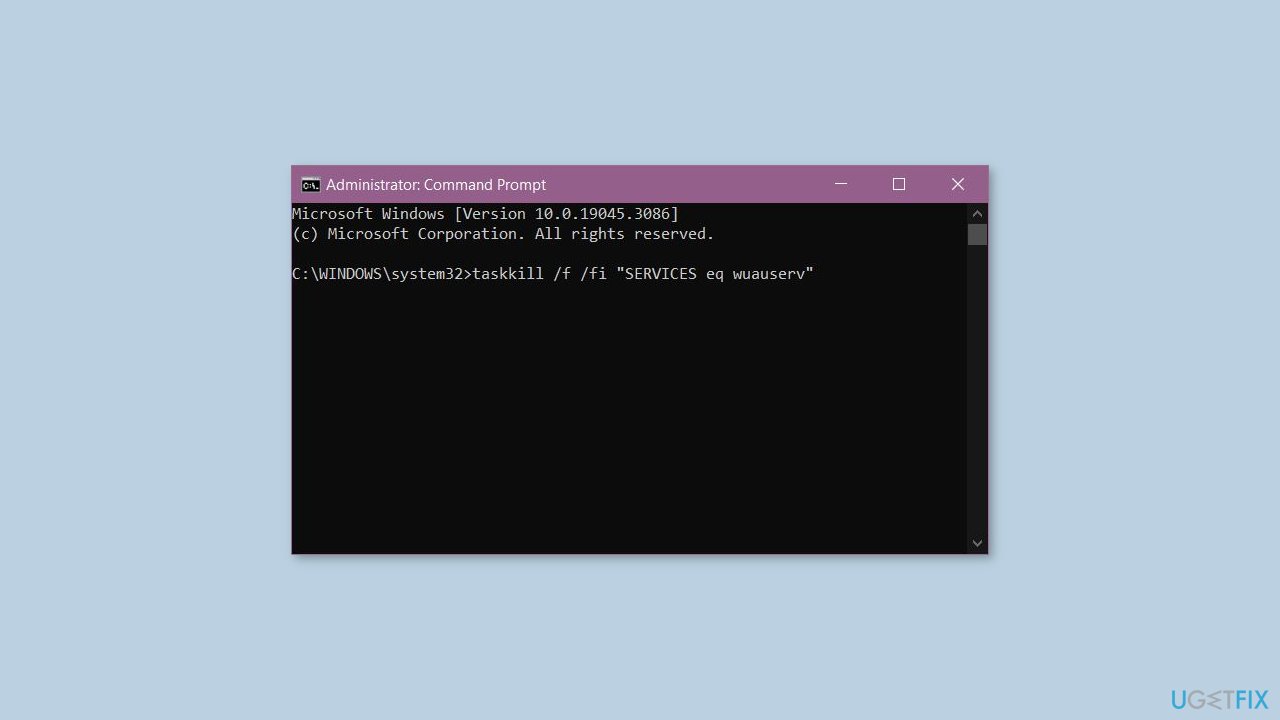
- Wait for the commands to complete their execution.
- After the commands have executed successfully, press Enter again.
- Restart your computer.
- Try updating Windows again.
Solution 5. Use System Restore
System Restore is a feature in Microsoft Windows that allows users to revert their computer's state to a previous point in time. This can be helpful if you have made changes to your system that are causing problems.
- Press the Windows key + R on your keyboard to open the Run box.
- Type SystemPropertiesProtection and press Enter.
- Go to the System Protection tab.
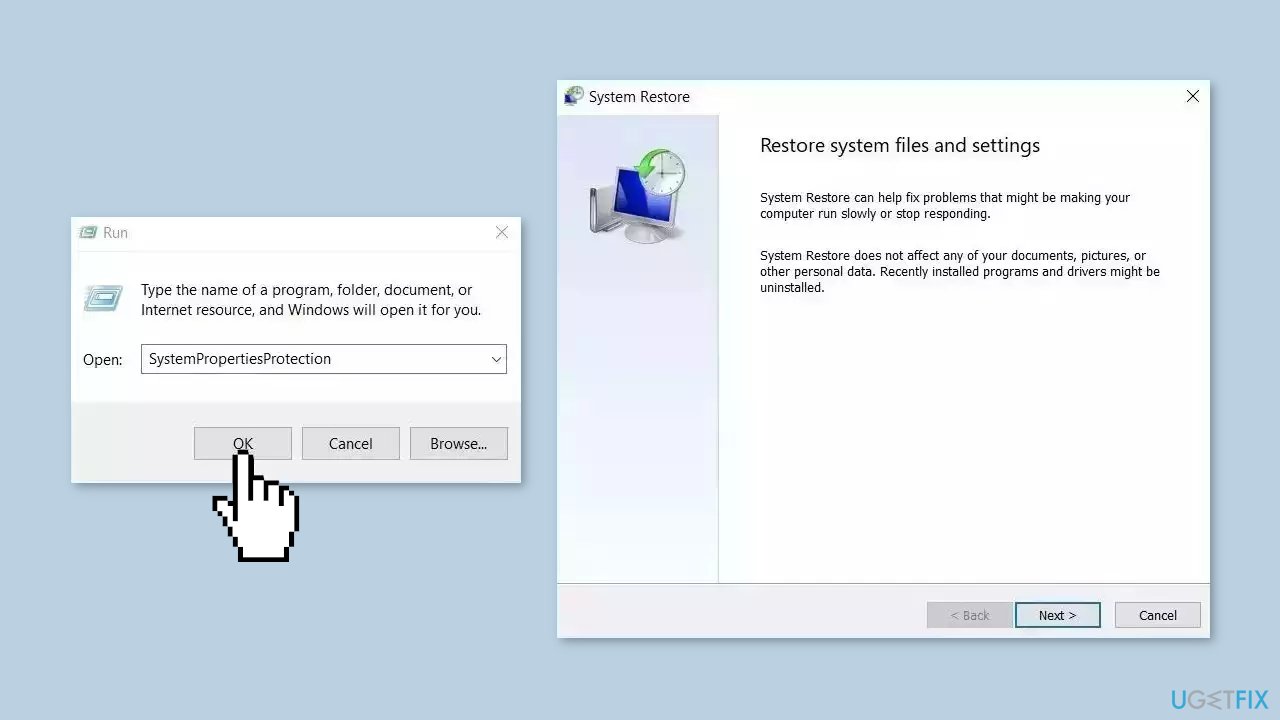
- You will see the System Restore… button. Click it to run System Restore.
- Follow the prompts until you can select a restore point.
- Select the one you want (ideally before the issue started occurring) and go ahead with the process.
Bottom line
To fix the issue of Windows repeatedly installing the same update, you can try repairing corrupted system files using Command Prompt commands. If the problem persists, consider running a maintenance tool to address system errors and other issues. If none of these solutions work, further troubleshooting may be necessary.
Frequently asked questions
This issue often occurs due to corrupted update files or conflicts with existing software. You can resolve it by running the Windows Update Troubleshooter or by manually resetting the Windows Update components.
To stop the repeated installation attempts, you can hide the problematic update using the Microsoft Show or Hide Updates tool. Additionally, ensure your system has enough disk space and that all previous updates are correctly installed.
If updates fail to install, try clearing the SoftwareDistribution folder and then restart the Windows Update service. You can also use the DISM and SFC tools to repair any corrupted system files.




Report an issue
What's wrong with this guide? We review every report and update or remove content.
Report received — thank you. We'll review and fix it.
You need a free account to submit a report.
Be the first to comment