How to fix
0x00000006 Printer error
on Windows
Resolve the 0x00000006 printer error on Windows 10 and 11 effortlessly. Get expert-tested solutions and fix your printing issues in minutes.

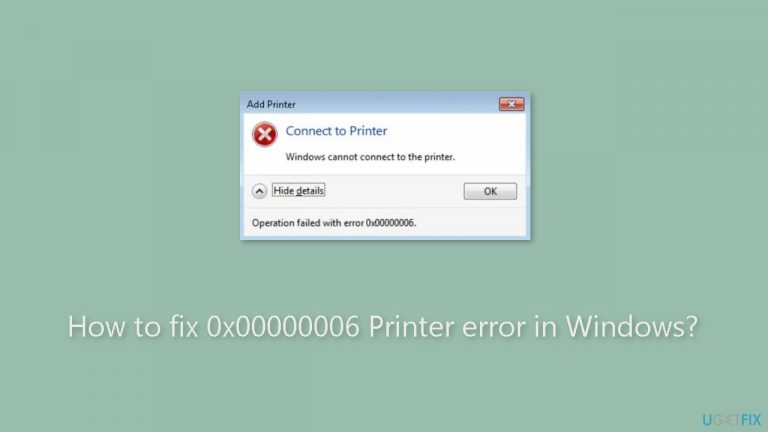
What causes How to fix 0x00000006 Printer error in Windows?
- Not on the same network as the printer
- Network connectivity issues
- Outdated printer drivers
- Incorrect network settings
- Technical knowledge required for resolution
Repairs Windows system files, removes malware, and restores a clean OS state — without reinstalling.
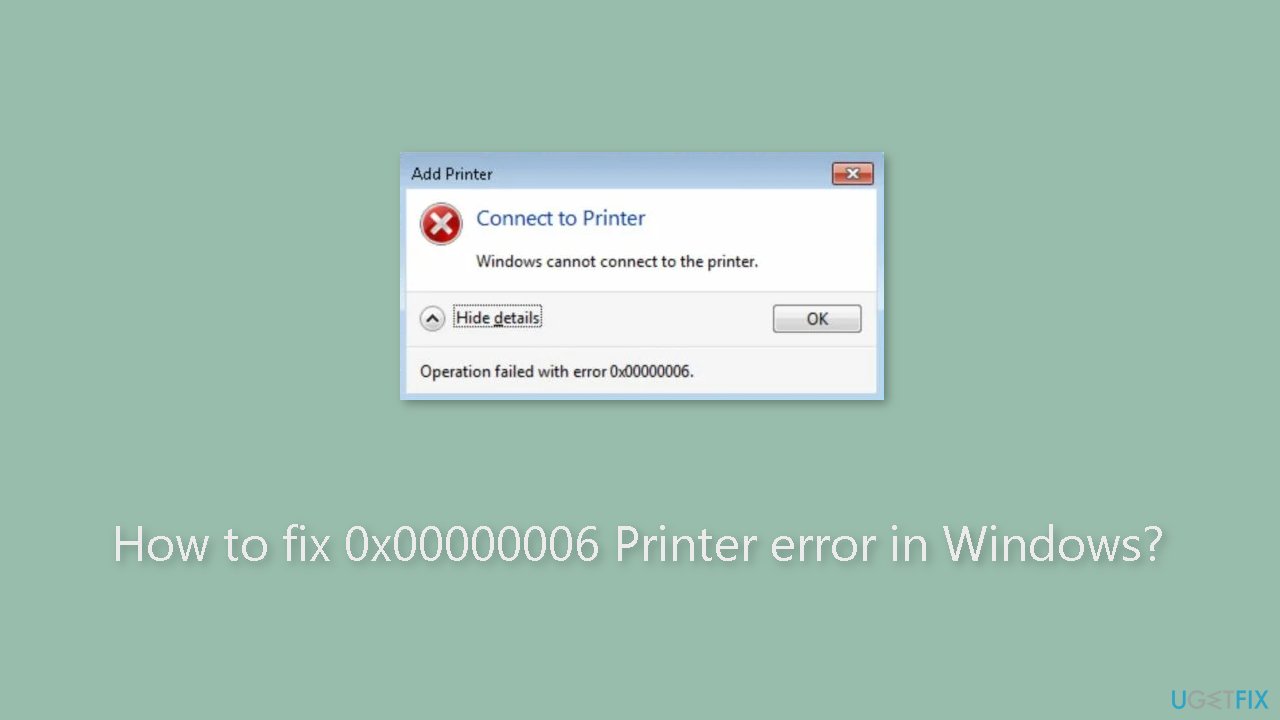
Hello. When I try connecting the printer to my Windows PC, I get the 0x00000006 error code with the "Windows cannot connect to the printer" message. Is there a way to fix this?
When attempting to add a printer to a shared network, Windows users frequently encounter the 0x00000006 printer error. This error typically occurs when users attempt to connect to a server printer but their computers are not on the same network.
This problem may have a number of consequences for users. For starters, it prevents users from adding and accessing shared network printers, limiting their ability to print documents. This is especially aggravating in office settings or shared workspaces where efficient printing capabilities are critical for daily tasks. Furthermore, the error message itself can cause confusion and disrupt workflow, resulting in lost time and productivity.
There are several options for dealing with the 0x00000006 printer error. Generally, these solutions entail ensuring that the computers attempting to connect to the shared printer are on the same network or resolving network connectivity issues. Users may need to verify network connections, check network settings, or contact their network administrator for assistance. To resolve the issue, it may also be necessary to update printer drivers[ref en-1] or restart relevant services.
It is important to note that resolving the 0x00000006 printer error may necessitate technical knowledge, and the specific solution may differ depending on the network configuration and system configuration. This guide will walk you through 6 steps that should help you resolve the 0x00000006 Printer error.
You can also try running a maintenance tool like [d1]. It can fix most system errors, BSODs,[ref en-2] corrupted files, and registry[ref en-3] issues. Otherwise, follow the step-by-step instructions below.
Method 1. Run the Printer Troubleshooter
- Press the Windows key on your keyboard.
- Click on Settings in the menu that appears.
- In the Settings window, select System from the options on the left side.
- On the right side of the System window, click on Troubleshoot.
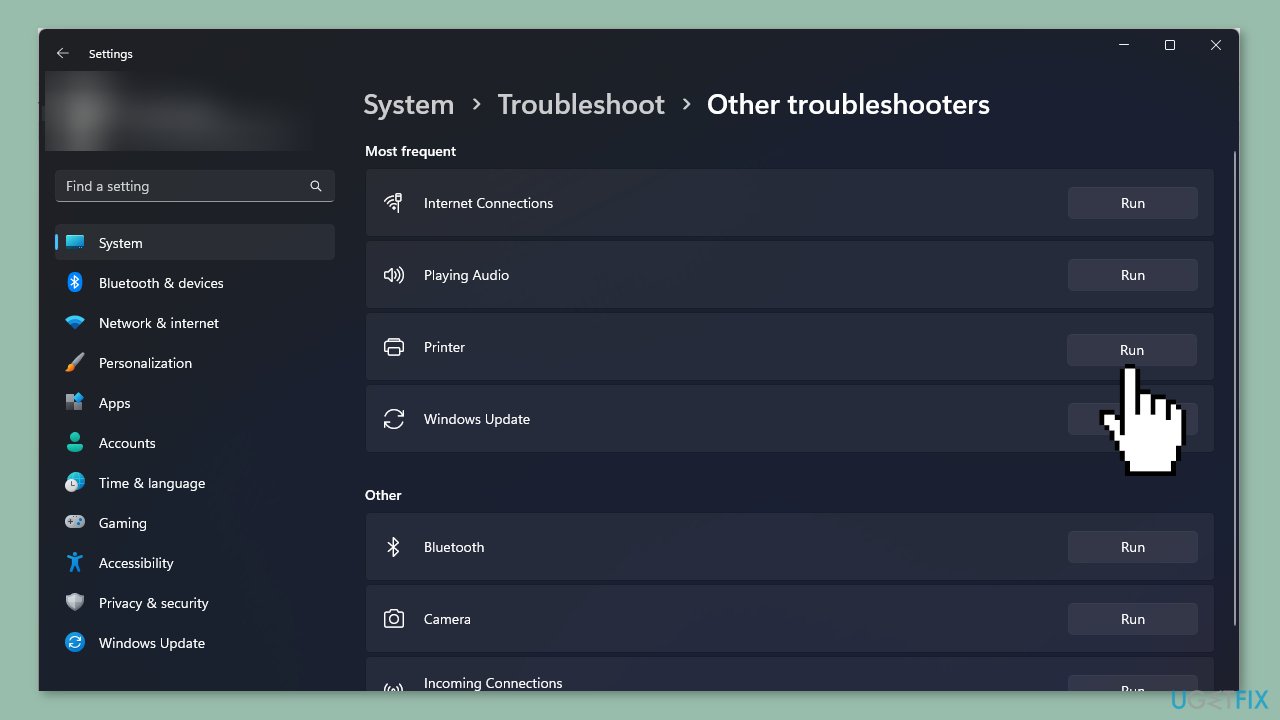
- Locate and click on Other troubleshooters.
- Look for the Printer troubleshooter in the list.
- Click on the Run button next to the Printer troubleshooter.
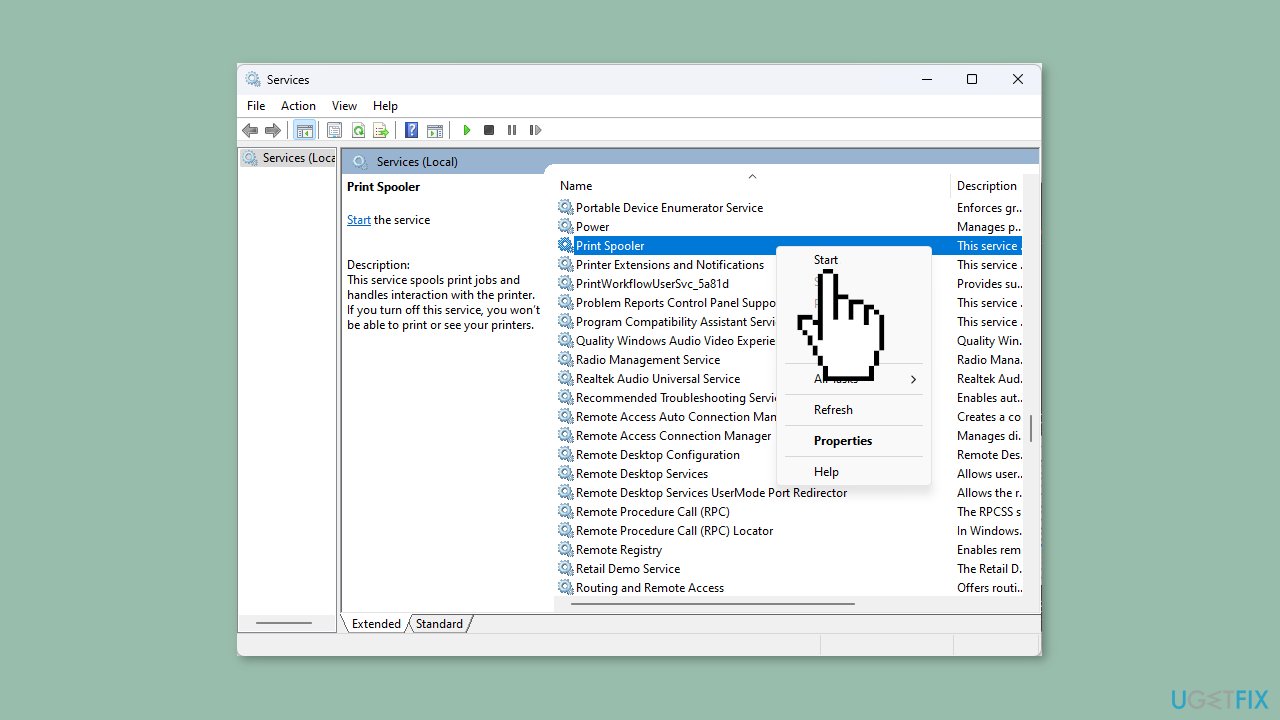
Method 2. Restart the Print Spooler Service
- Press the Windows key + R key together to open the Run command.
- In the Run dialog box, type services.msc.
- Press Enter or click OK.
- In the Services window, locate the Print Spooler service.
- Right-click on the Print Spooler service.
- Select Stop from the context menu that appears.
- Right-click on the Print Spooler service again.
- Select Start from the context menu.
Method 3. Disable Antivirus
- Click on the Start menu icon.
- Type Windows Security in the search bar.
- Click on the Windows Security app to open it.
- In the Windows Security window, click on Firewall & network protection.
- Select Public network from the options.
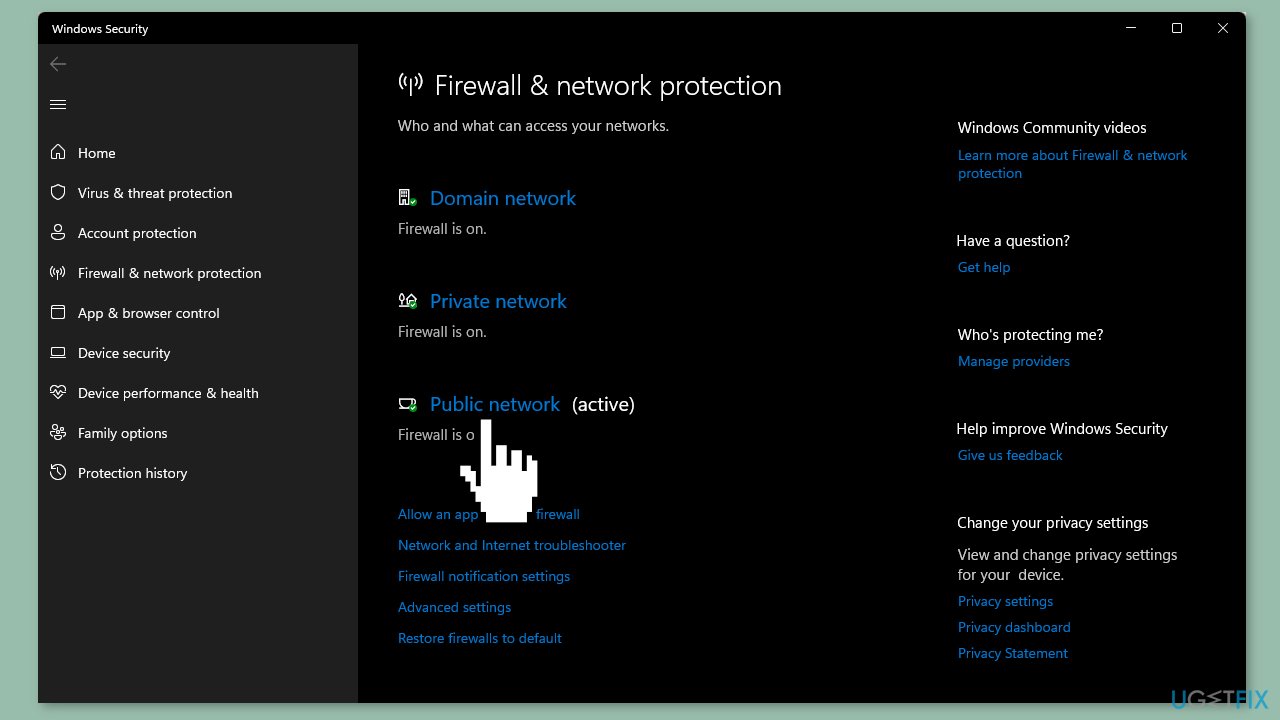
- Locate Microsoft Defender Firewall in the Firewall & network protection settings.
- Toggle the off button to turn off the Microsoft Defender Firewall.
Method 4. Update Printer Drivers
- Press the Windows key on your keyboard.
- Type Device Manager in the search bar.
- Click on Device Manager to open it.
- In the Device Manager window, locate and click on Printers to expand the category.
- Find your printer in the list.
- Right-click on your printer.
- Select Update driver from the context menu.
- Choose the option Search automatically for updated drivers.
- Windows will search for the most suitable driver for your printer.
- If a suitable driver is found, Windows will recommend installing it.
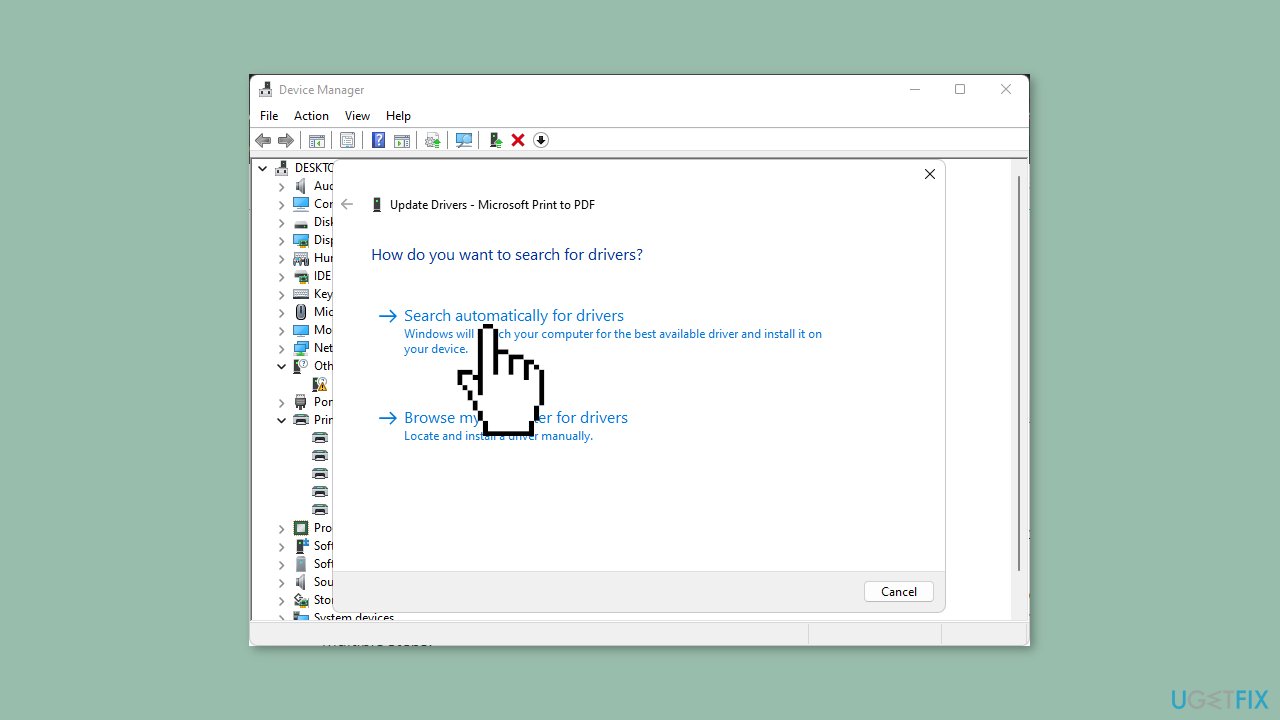
You can also use a dedicated utility, like [rev id="DriverFix"], that can find the best drivers for your machine and install them automatically.
Method 5. Delete the Printer Spooler Folder
- Press the Windows key + E together to open File Explorer.
- In File Explorer, navigate to the following location: C:\Windows\System32\spool.
- Locate the Printers folder within the spool directory and click to open it.
- Select all items within the Printers folder.
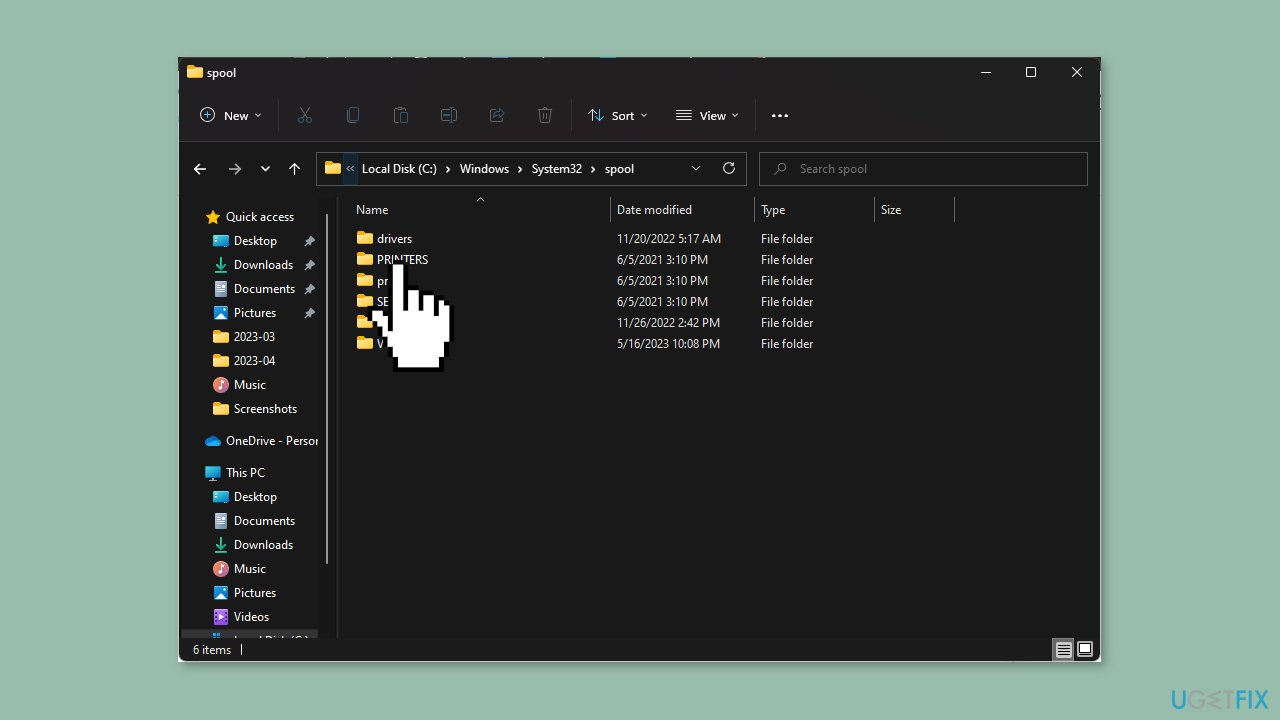
- Delete the selected items (files). You can do this by right-clicking and choosing the Delete option or by pressing the Delete key on your keyboard.
- Restart your PC to complete the process.
Method 6. Delete a Registry Key
- Press the Windows key + R key together to open the Run command.
- In the Run dialog box, type regedit.
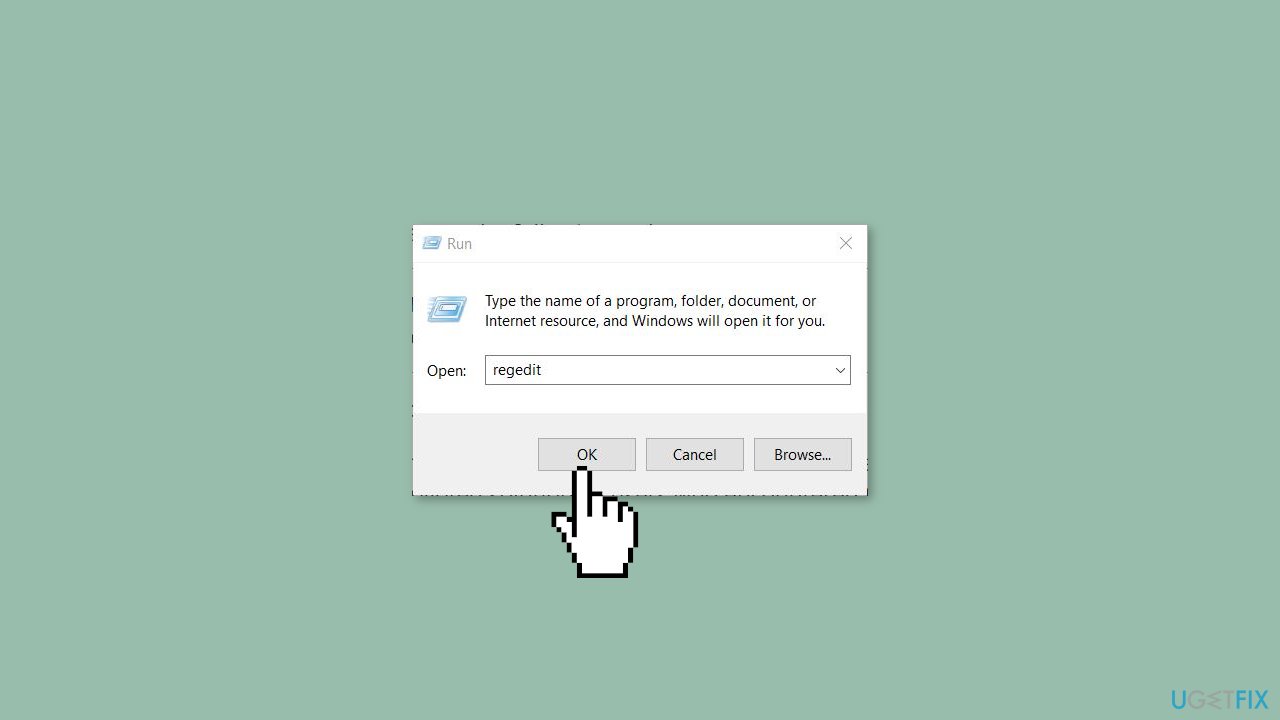
- Press Enter or click OK to open the Registry Editor.
- Navigate to the following path in the Registry Editor:
HKLM\Software\Microsoft\Windows NT\CurrentVersion\Print\Providers\Client Side Rendering Print Provider\Servers\
- Right-click on the server key within the Servers folder.
- Select Delete from the context menu.
Bottom line
To resolve the 0x00000006 printer error, ensure that your computer is on the same network as the printer, check network connections, and update printer drivers. If these steps do not work, consider running a maintenance tool or contacting your network administrator for further assistance.
Frequently asked questions
The 0x00000006 printer error in Windows 10 typically occurs due to issues with printer drivers, corrupted printer settings, or problems with the print spooler service.
To fix the 0x00000006 error on Windows 11, try reinstalling the printer drivers, clearing the print spooler, or resetting the printer settings.
Yes, you can quickly troubleshoot the 0x00000006 error by running the built-in Printer Troubleshooter found in the Settings app under Devices.




Report an issue
What's wrong with this guide? We review every report and update or remove content.
Report received — thank you. We'll review and fix it.
You need a free account to submit a report.
Be the first to comment