How to fix
Mail app error 0x8007042E
on Windows
Resolve the Mail app error 0x8007042E on Windows 10 and Windows 11 with our expert-tested solutions. Get back to emailing in minutes!


What causes How to fix Mail app error 0x8007042E in Windows?
- Improper configuration
- Corruption within Windows system files
- Incomplete installation
- Improper deletion of applications
- Virus attack
- Unexpected system shutdown
Repairs Windows system files, removes malware, and restores a clean OS state — without reinstalling.
Hi. I was trying to add my Hotmail account to the Mail app, but I keep receiving a 0x8007042E error every time. How do I fix this? I'm using Windows 10.
The Mail app, a versatile feature included in the Windows operating system, acts as a one-stop shop for managing various email accounts. With its clean, intuitive interface and seamless integration with other Windows services, it offers users an efficient way to handle their daily digital correspondence. With capabilities such as syncing with multiple accounts, easy access to attachments, and smart search functionality, the Mail app is an incredibly useful tool for both personal and professional communication.
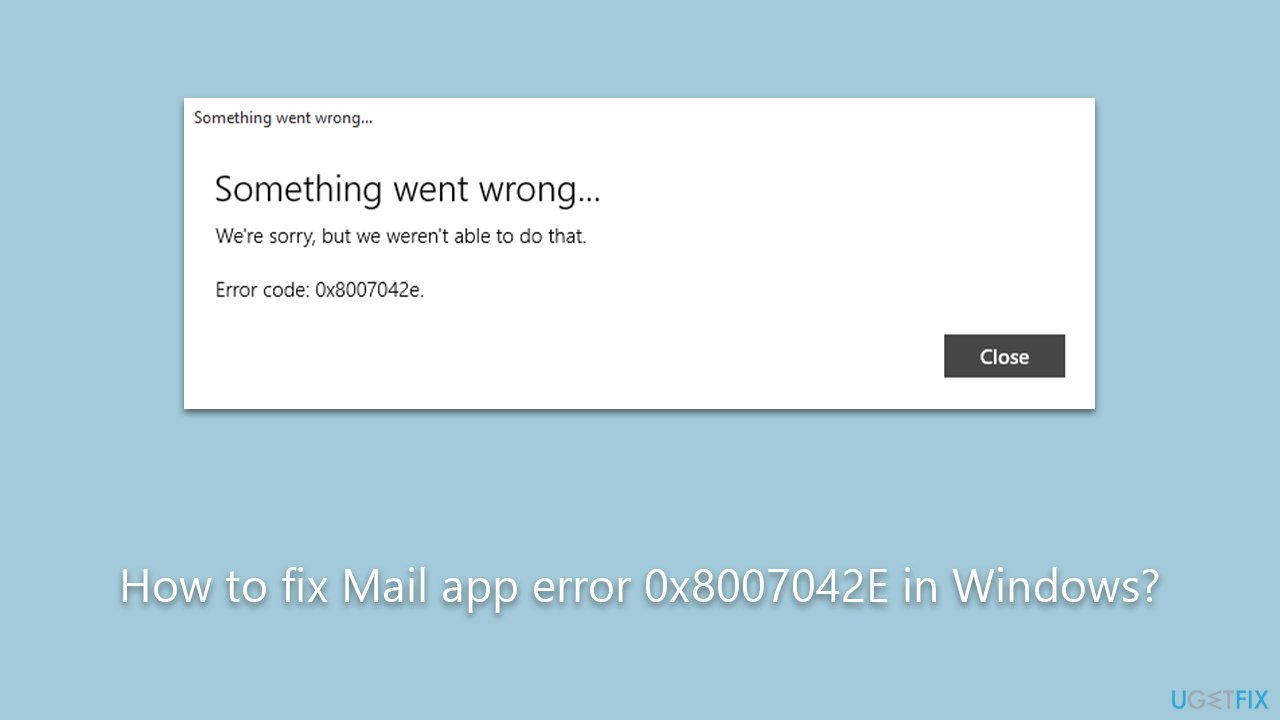
However, like any other digital tool, the Mail app is not immune to technical difficulties. Some users have reported encountering an error labeled 0x8007042E, disrupting their ability to fully utilize the app. This error typically occurs when users are experiencing sync issues with their email accounts within the app. To resolve these, they often attempt to remove their email account from the app and re-add it, but in some cases, they find this process disrupted by the same error code, turning a simple fix into a more complex problem.
The error 0x8007042E primarily stems from improper configuration or corruption within the Windows system files. Such corruption can result from an incomplete installation, improper deletion of applications, a virus attack, or an unexpected system shutdown. When these occur, they might affect the system files responsible for the operation of the Mail app, leading to sync issues and the appearance of the aforementioned error.
Addressing this issue requires a careful examination of the affected system files and potentially repairing or replacing them. Users can take several steps to resolve this error, including installing all Windows updates, cleaning up the system junk files, and creating a new user account. In some cases, it might be necessary to undo recent system changes using Windows System Restore or even to reinstall the Windows system entirely.
To streamline these often complex processes, it's advisable to use a trusted PC repair tool like [d1]. This software can efficiently identify, troubleshoot, and resolve various issues, such as BSODs, registry errors, corrupted system files, and more. It can also clean your system of junk, take care of your privacy by removing trackers, and repair malware-caused damage on Windows.
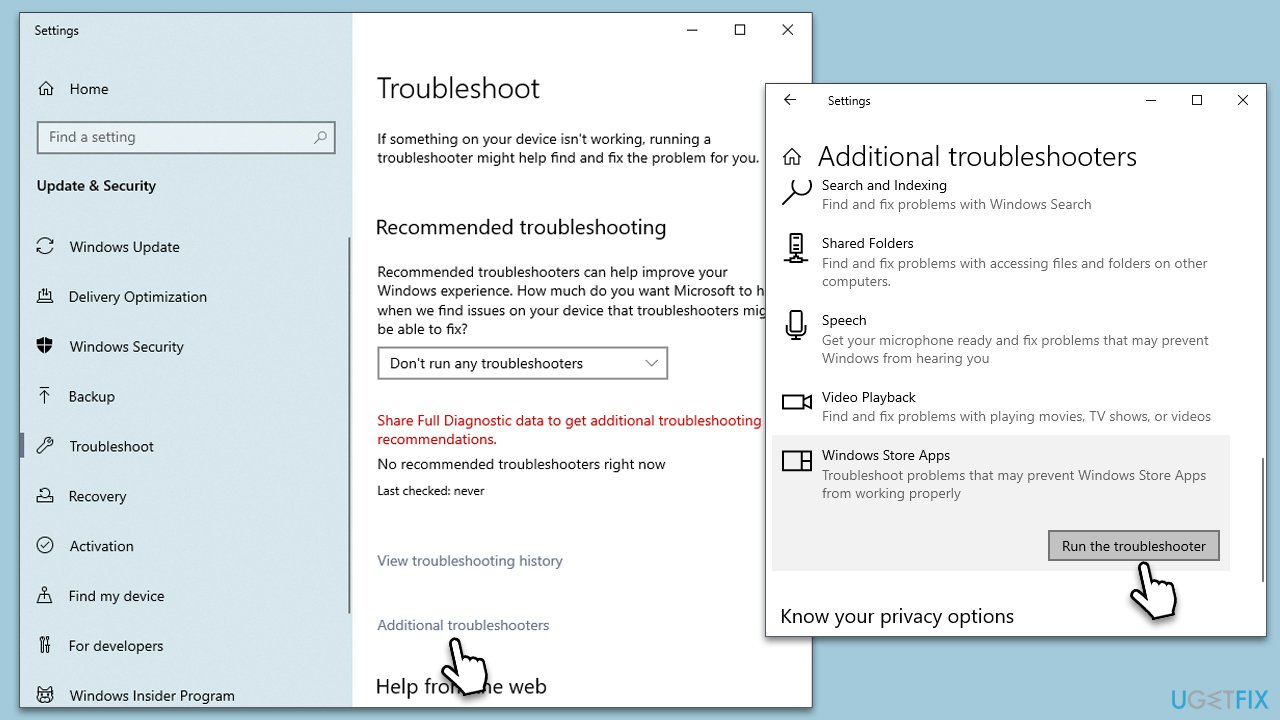
Fix 1. Use Windows Store apps troubleshooter
The Windows Store Apps troubleshooter is a built-in utility that diagnoses and resolves issues with Windows apps. It works by automatically detecting problems and applying the best solution.
- Type troubleshoot in Windows search and hit Enter.
- Click Other troubleshooters/Additional troubleshooters.
- Select Windows Store App.
- Click Run/Run the troubleshooter.
- Wait till the scan is completed and changes implemented.
Fix 2. Install all Windows updates
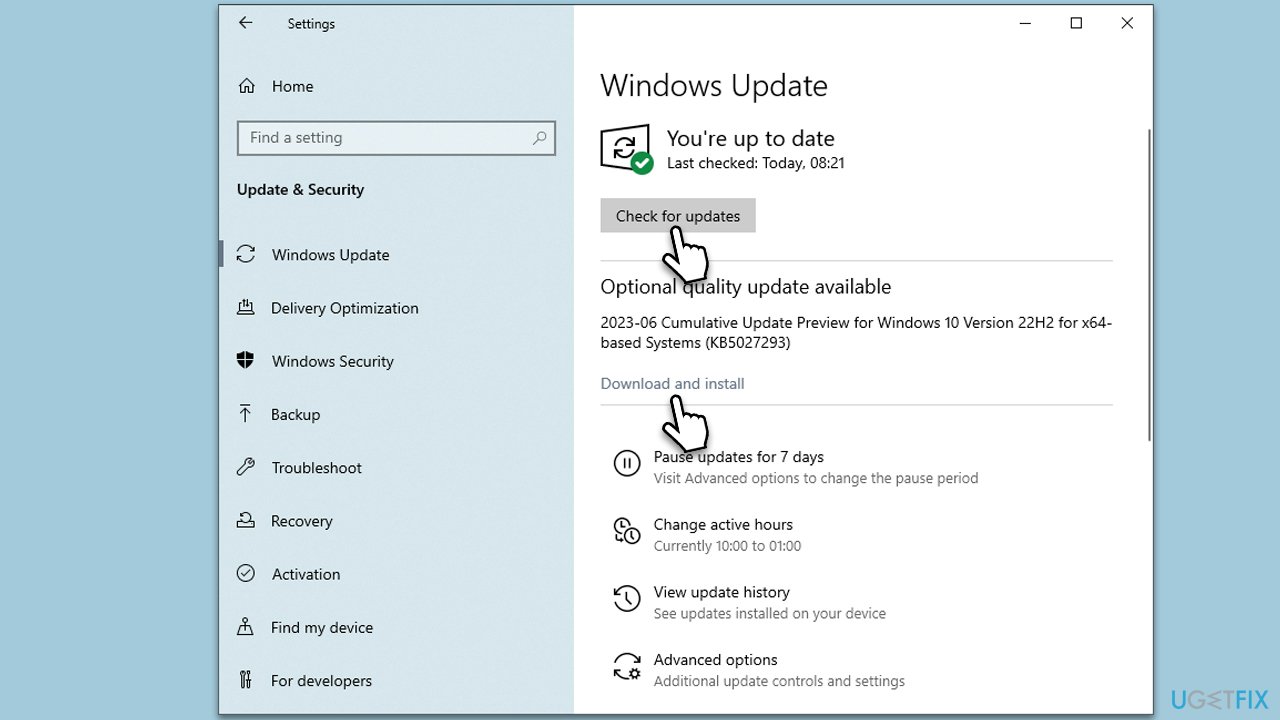
Keeping your system updated can fix any bugs or glitches causing the error. Windows updates include patches and fixes that enhance the stability of system operations.
- Type Updates in Windows search and press Enter.
- In the new window, click Check for updates.
- If optional updates are available, install them too.
- Wait till all the files are downloaded and installed, and then restart your PC to implement the changes.
Fix 3. Perform Disk Cleanup
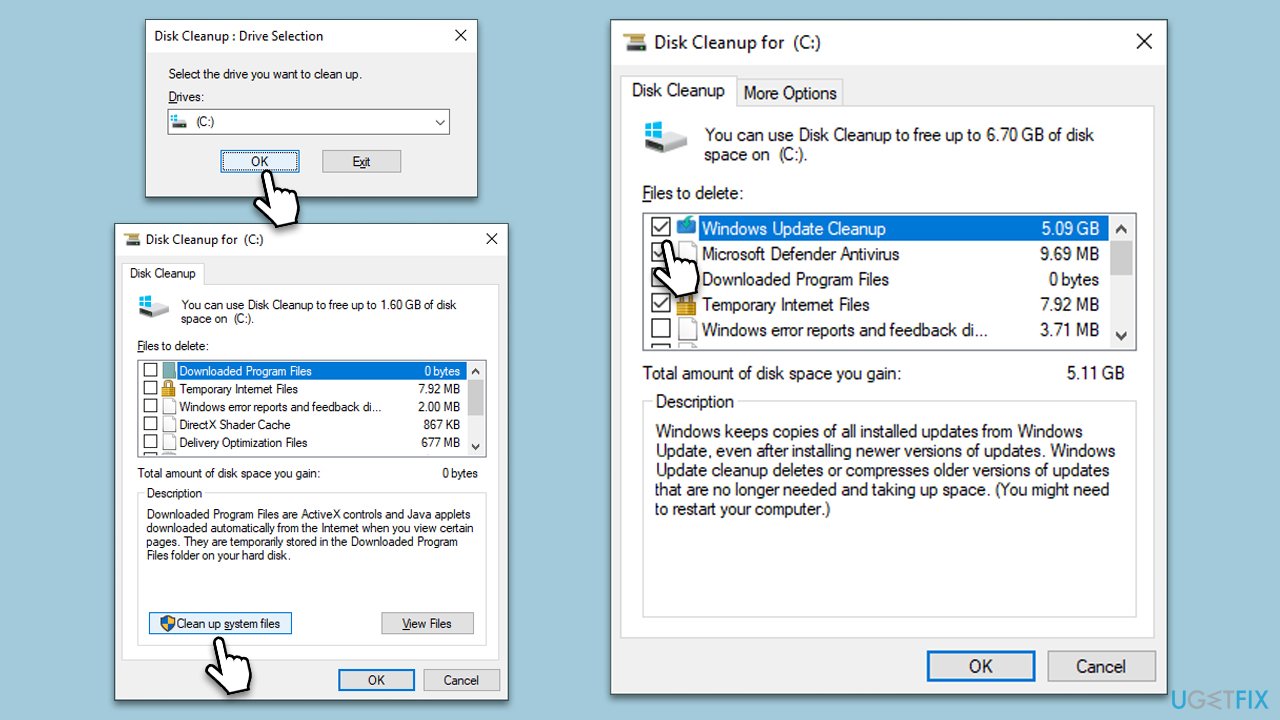
Disk Cleanup is a utility that removes unnecessary files from your system. This can increase performance and potentially resolve any issues causing errors.
- Type Disk Cleanup in Windows search and press Enter.
- If your Windows is installed on drive C, pick it from the list (it should be by default) and press OK.
- Click Clean up System Files.
- Here, mark the areas you want to be deleted, such as Windows update files, Setup log files, Recycle bin, Temporary files, etc.
- Click OK - the removal process of various leftover files will begin.
Fix 4. Create a new User account on Windows
Sometimes, the error might be associated with a specific user account. Creating a new user account can potentially solve this issue.
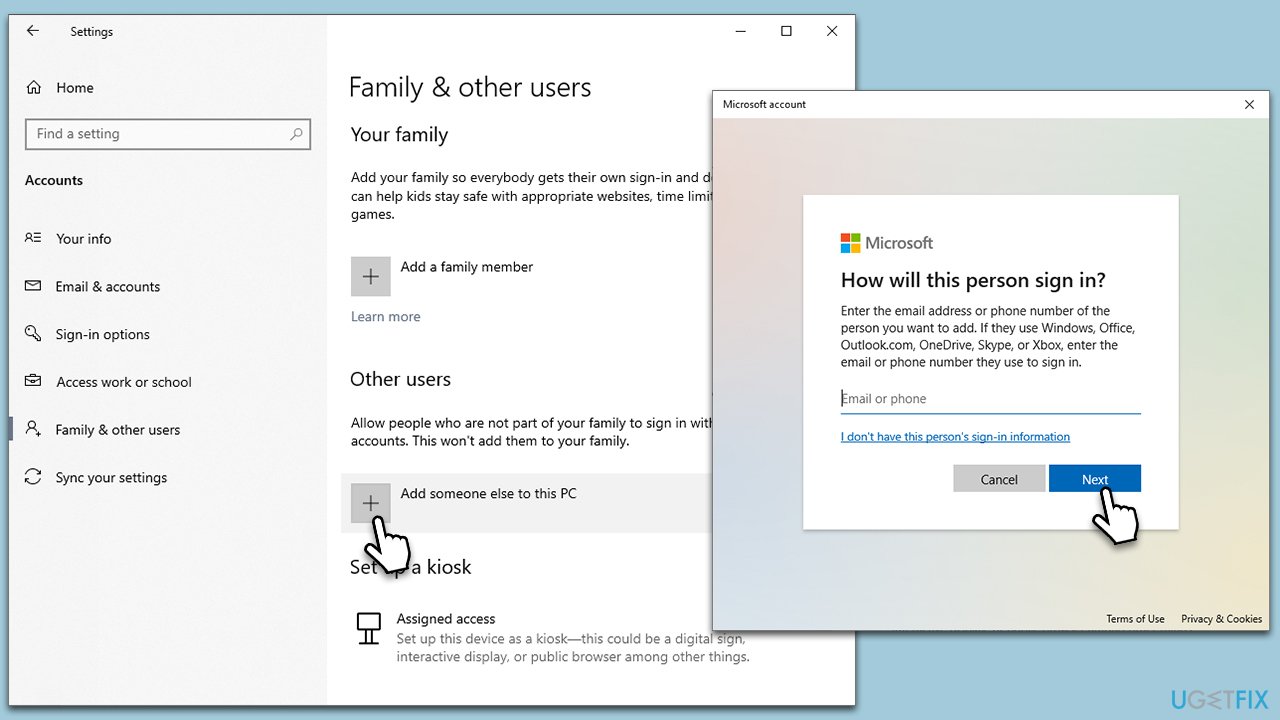
- Right-click on Start and pick Settings.
- Go to the Accounts section.
- Select Family & other users on the left.
- Under Other users, click Add someone else to this PC.
- Pick I don't have this person's sign-in information > Add a user without a Microsoft account.
- Enter the required information and click Next.
- Reboot your system once done and try using the new account.
Fix 5. Run SFC and DISM to fix corrupted files
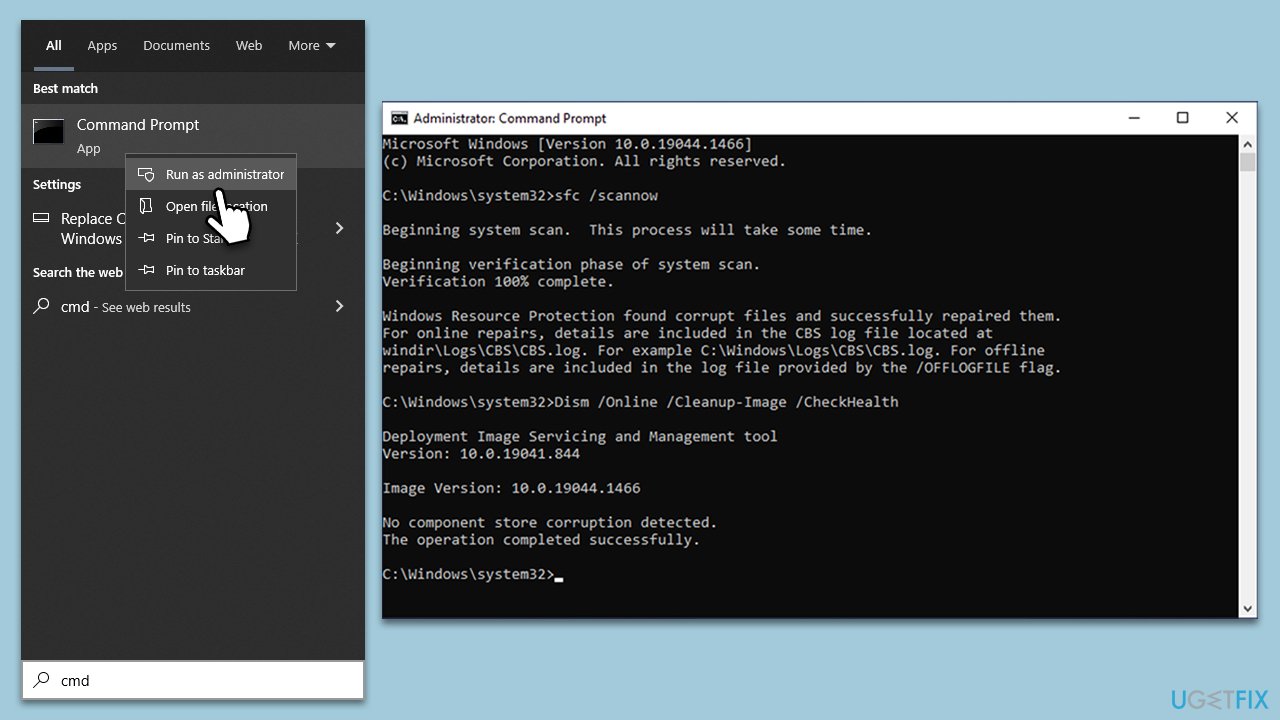
System File Checker (SFC) and Deployment Image Servicing and Management (DISM) are tools that scan and repair corrupted system files.
- Type cmd in Windows search.
- Right-click on Command Prompt and pick Run as administrator.
- When User Account Control shows up, click Yes.
- Use the following command lines, pressing Enter after each:
sfc /scannow - The System File Checker will now scan your system for any corrupted or missing files and try to repair them.
- After the scan is done, copy the following commands and press Enter:
DISM /Online /Cleanup-Image /CheckHealth
DISM /Online /Cleanup-Image /ScanHealth
DISM /Online /Cleanup-Image /RestoreHealth - When completed, restart your PC.
Fix 6. Repair the Mail and Calendar app
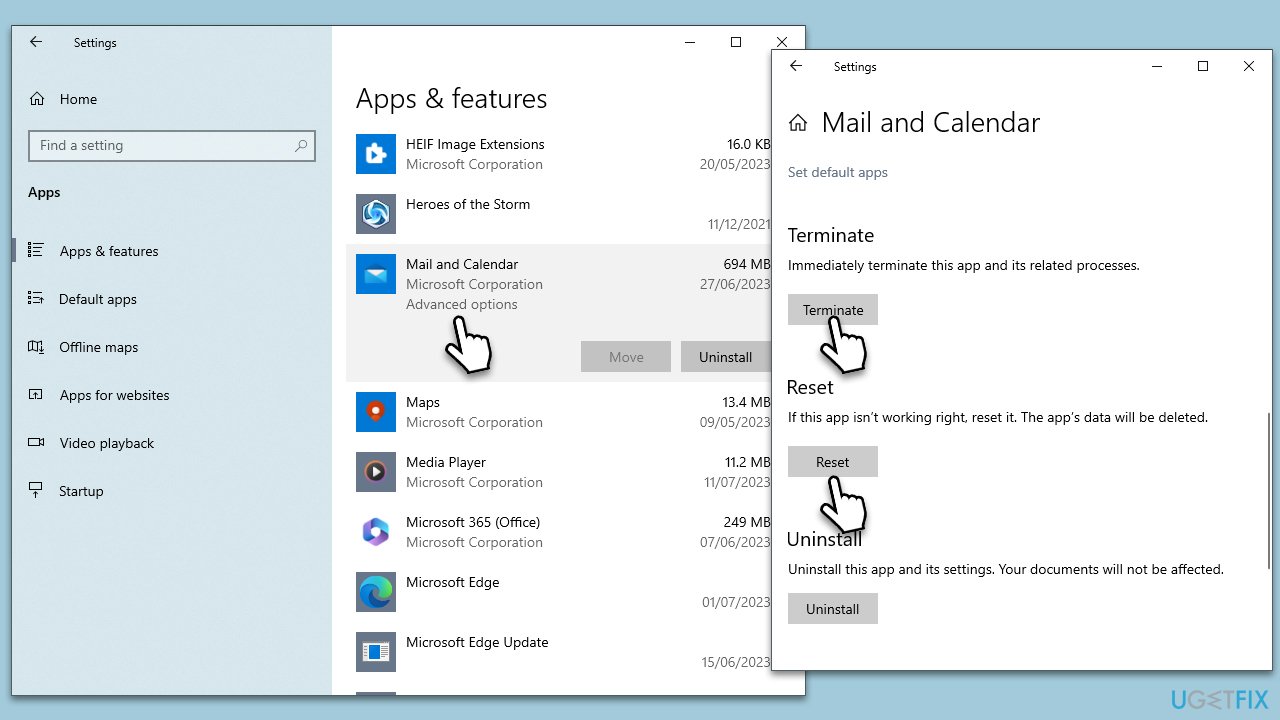
Repairing or resetting the Mail app can fix issues causing the error. It works by restoring the app to its original state.
- Right-click on Start and pick Apps & Features.
- Scroll down to locate Mail and Calendar app and click Advanced options.
- Click Terminate and Reset.
Fix 7. Reinstall Mail and Calendar apps via PowerShell
PowerShell is a command-line utility that can reinstall the Mail and Calendar apps. This can resolve any errors caused by issues with the apps themselves.
- Type PowerShell in Windows search.
- Right-click on PowerShell and select Run as administrator.
- UAC will ask you whether you want to allow changes - click Yes.
- Copy and paste the following command line and press Enter:
Get-AppxPackage windowscommunicationsapps | Remove-AppxPackage - Once the apps are uninstalled, go to the Microsoft Store and reinstall them.

Bottom line
To fix the Mail app error 0x8007042E, users can install all Windows updates, clean up system junk files, and create a new user account. If these steps do not resolve the issue, consider using Windows System Restore to undo recent changes or reinstalling the Windows system entirely.
Frequently asked questions
The Mail app error 0x8007042E typically indicates a problem with your account credentials or connectivity issues, preventing the Mail app from syncing properly in Windows 10.
To fix the Mail app error 0x8007042E in Windows 11, try resetting the Mail app through Settings, or check your account settings to ensure your email credentials are correct.
Yes, you can troubleshoot by running the Windows Store Apps troubleshooter and ensuring your Windows 10 or Windows 11 system is up to date, which may resolve the error without needing a reinstall.




Report an issue
What's wrong with this guide? We review every report and update or remove content.
Report received — thank you. We'll review and fix it.
You need a free account to submit a report.
Be the first to comment