How to fix
Error 0x80070037 when copying files
on Windows
Resolve the 0x80070037 error when copying files in Windows 10 or 11 effortlessly. Follow our expert-tested solutions for a quick fix!

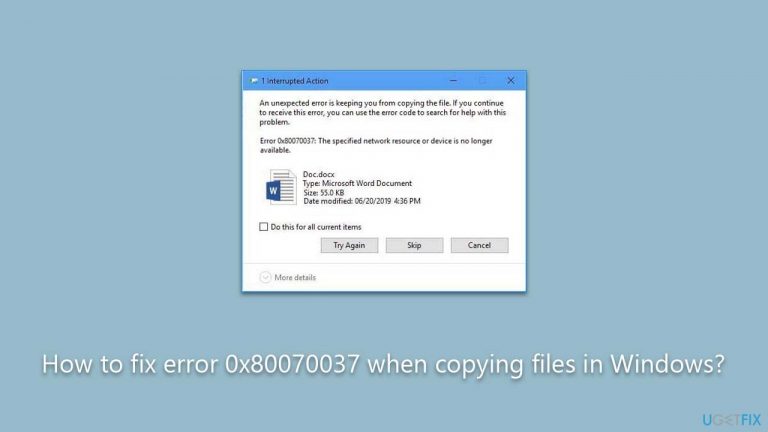
What causes How to fix error 0x80070037 when copying files in Windows?
- Faulty hardware such as an aging USB drive
- Deteriorating hard disk drive (HDD)
- Corrupted system files
- Driver errors
- Unstable or weak USB connection
Repairs Windows system files, removes malware, and restores a clean OS state — without reinstalling.
I was trying to transfer some files from a USB storage to my new PC, and I kept receiving a 0x80070037 error. Can you provide me with solutions? Thanks in advance.
In the vast world of computing, copying files is an essential task that we undertake almost daily. Whether it be transferring data from a storage device to the hard disk drive (HDD) or solid-state drive (SSD) or moving information between different drives, it is integral to data management and organization. This process becomes even more critical when we are safeguarding vital documents, preserving precious photos, or simply ensuring that our favorite media is accessible across multiple devices.
However, a common roadblock faced by many Windows users is the 0x80070037 error that appears when attempting to copy files. This error, often coupled with a notification that the device is unreachable, can be due to several reasons. For instance, it may be a result of faulty hardware, such as an aging USB drive or a deteriorating HDD.
It could also be attributed to corrupted system files or issues with the operating system itself. This error could appear if Windows fails to communicate correctly with the storage device, possibly due to driver errors. Similarly, the error might also occur due to an unstable or weak USB connection if you are transferring files from an external device.
Although encountering the 0x80070037 error can be frustrating, rest assured that it is not an insurmountable problem. With the right information and solutions, you can quickly resolve this issue and carry on with your file-copying activities. These solutions range from checking your hardware to ensuring your device drivers are up-to-date to running a system file check or updating your system's BIOS.
However, for a streamlined, fuss-free solution, the [d1] PC repair tool comes in handy. It scans for prevalent errors, cleans your system, and optimizes your PC for peak performance. From tech newcomers to experienced users, everyone can find value in incorporating [d1] into their toolkit to tackle errors like 0x80070037 effortlessly.
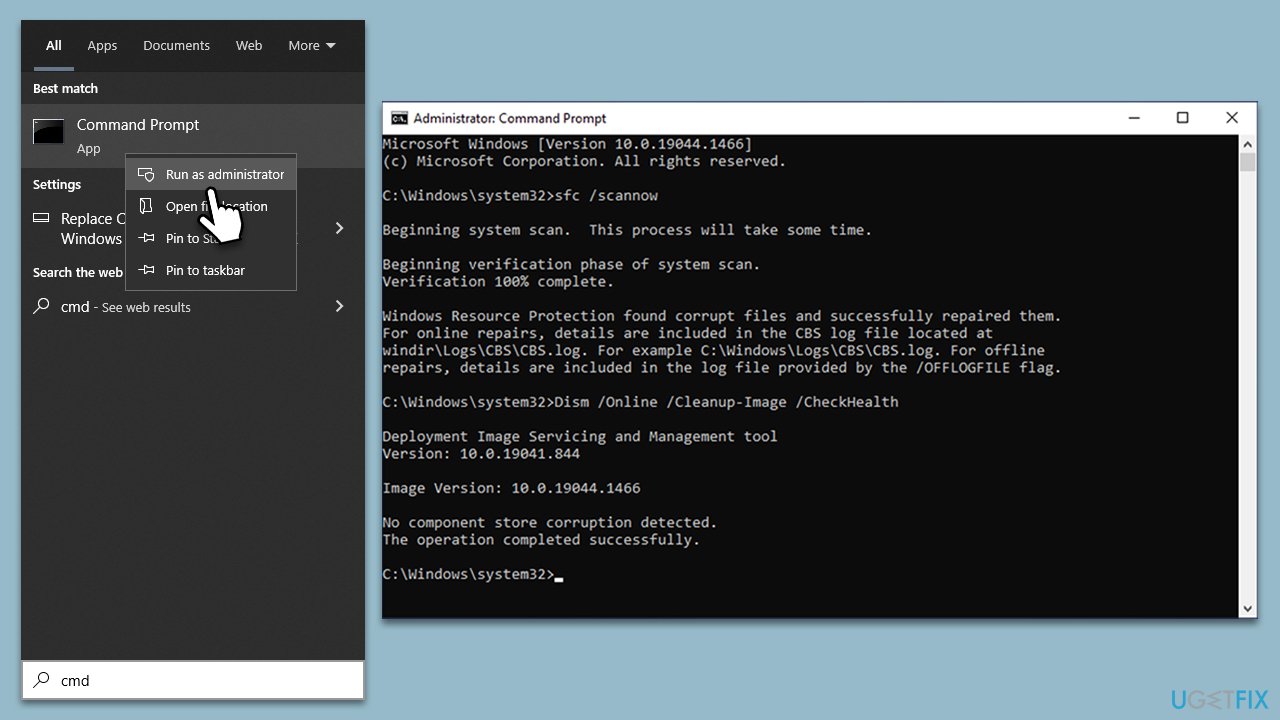
1. Running SFC and DISM
System File Checker (SFC) and Deployment Image Servicing and Management (DISM) are built-in Windows tools designed to fix system file corruption and restore system health, respectively. They could solve the 0x80070037 error if any file system corruption causes it.
- Type cmd in Windows search, right-click on Command Prompt, and select Run as administrator.
- Type this command and press Enter:
sfc /scannow - Wait for the scan to finish.
- As soon as the scan finishes, Windows will report whether integrity violations were found and if they could be fixed. Regardless of the outcome, use these commands next, pressing Enter after each:
Dism /Online /Cleanup-Image /CheckHealth
Dism /Online /Cleanup-Image /ScanHealth
Dism /Online /Cleanup-Image /RestoreHealth
(Note: if you get an error executing the last command, add /Source:C:\RepairSource\Windows /LimitAccess to it and try again.) - Close down the Command Prompt and restart your device.
2. Updating chipset drivers
Updating the chipset drivers ensures that your system can communicate effectively with all the hardware components, which may resolve any miscommunication causing the error. There are several ways you could do this, including downloading the drivers from your motherboard's manufacturer's website, employing the Windows update feature, or using an automatic option such as [rev id="DriverFix"] for an easier and faster approach.
3. Trying a different USB port
If the error is occurring while transferring files from a USB device, it could be due to an unstable or faulty USB port. Note that if you are using USB 3.0 (blue slot), you should try switching it to USB 2.0 (black slot) instead.
- Safely remove the USB device from the current port.
- Insert it into a different USB port on your computer.
- Attempt to copy the files again.
4. Running Check Disk
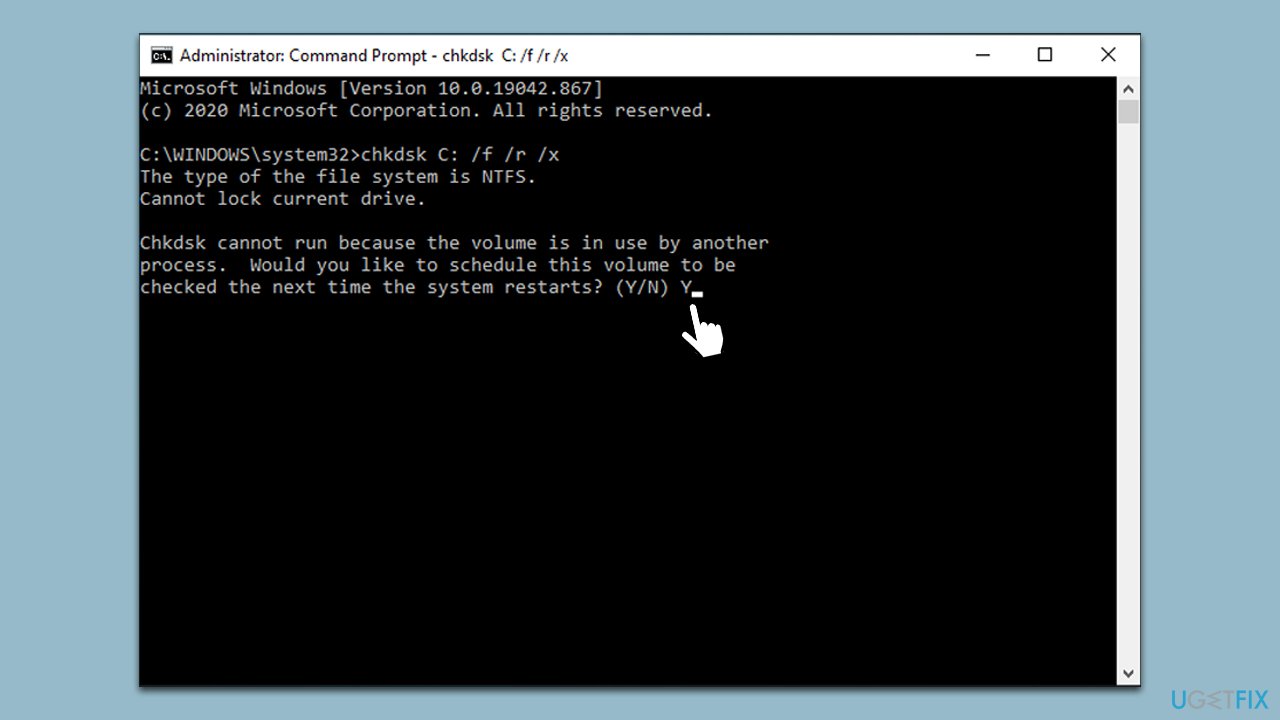
Check Disk is a Windows utility that checks the integrity of your files and fixes any issues it finds. This might resolve the error if it's due to a problem with the file system on your HDD or SSD.
- Open Command Prompt as administrator, as explained previously.
- In the new window, type in the following command and press Enter after:
chkdsk c: /f
(Note: use chkdsk c: /f /r /x command if you are using SSD as your primary partition) - If you receive an error, type in Y, close down Command Prompt and restart your device.
- Wait until the scan is finished - you can find the results in the Event Viewer.
5. Updating BIOS
- Identify your current BIOS version. You can do this by opening the System Information in Windows.
- Visit the manufacturer's website for your motherboard.
- Locate the latest BIOS update and compare it to your current version.
- If a newer version is available, download it.
- Follow the manufacturer's specific instructions for updating the BIOS. This process varies between manufacturers and can be complex.
- After the update, restart your computer.
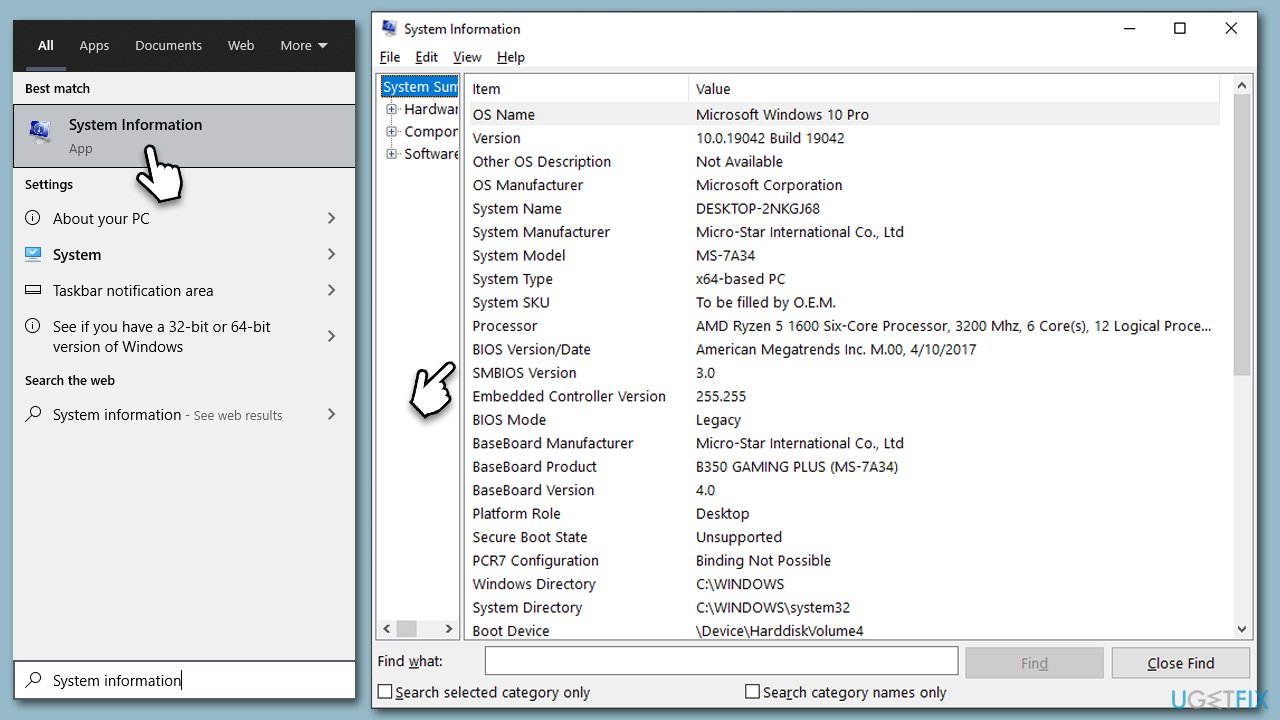
Note: Updating the BIOS can be risky and could potentially harm your system if not done properly. It's recommended only for advanced users and only when necessary. Always follow your manufacturer's instructions.
6. Checking hardware
Physical damage or deterioration of storage devices might cause the error.
- Check your USB device, HDD, or SSD for physical damage.
- If possible, test the device on another computer.
- If the device is damaged or not working on other computers, consider replacing it.
7. Using System Restore
If previous methods did not help, try using System Restore - it will bring your Windows to an earlier time without you losing any of your personal files.
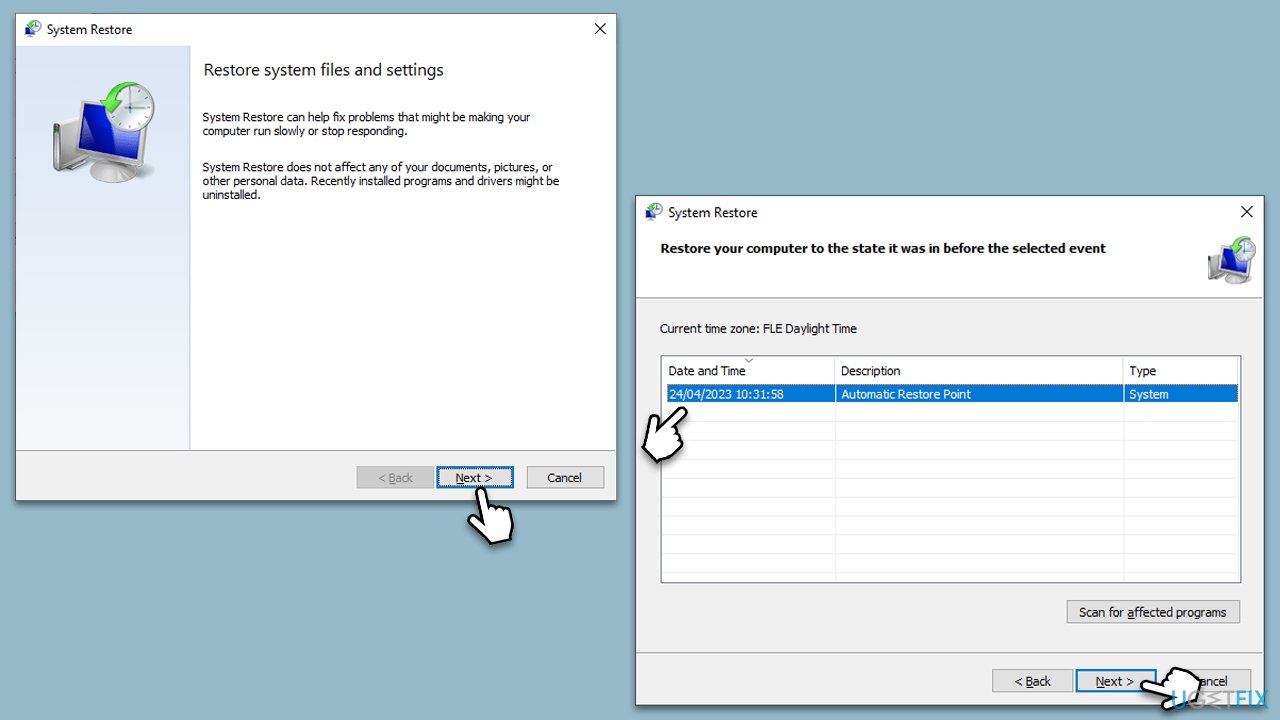
- Type in Create a Restore point in Windows search and hit Enter.
- Go to the System Protection tab and pick System Restore.
- Click Next.
- Click Show more restore points (if available).
- Pick the time before the problem occurred and click Next.
- Follow the prompts to finish the process.
Bottom line
To fix the 0x80070037 error, you can check your hardware, ensure your device drivers are up-to-date, run a system file check, or update your system's BIOS. If these solutions do not resolve the issue, consider using a PC repair tool to scan for prevalent errors and optimize your system.
Frequently asked questions
Error 0x80070037 indicates that the specified network name is no longer available, often occurring due to connectivity issues or problems with the network path.
To troubleshoot this error, check your network connection, ensure the target device is accessible, and verify that the correct permissions are set for file sharing.
Yes, you can resolve this error by running the built-in Network Troubleshooter, resetting your network adapter, or ensuring that your firewall settings are not blocking the connection.




Report an issue
What's wrong with this guide? We review every report and update or remove content.
Report received — thank you. We'll review and fix it.
You need a free account to submit a report.
Be the first to comment