How to fix
PDC.sys BSOD error
on Windows
Resolve the PDC.sys BSOD error in Windows 10 and 11 quickly with our expert-tested solutions. Get your system running smoothly again, fixed in minutes!

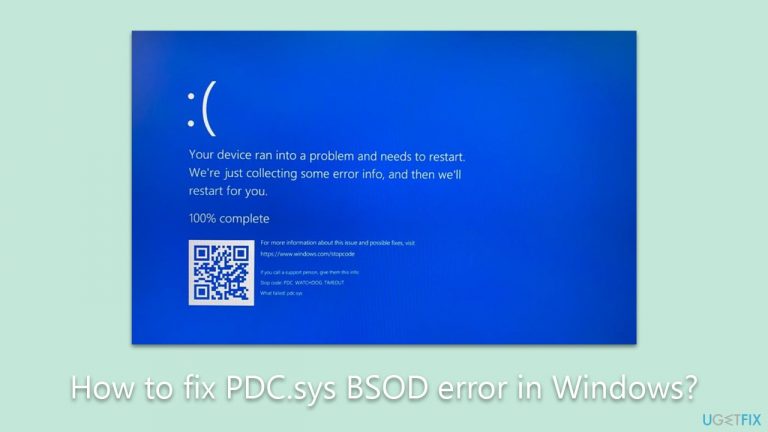
What causes How to fix PDC.sys BSOD error in Windows?
- Corrupted system files
- Outdated device drivers
- Hardware conflicts
- Issues with power management
- Problems with the PDC.sys file
Repairs Windows system files, removes malware, and restores a clean OS state — without reinstalling.
Hello. Whenever my PC goes to sleep and then wakes up, I receive a PDC.sys Blue Screen of Death crash. This only happens when coming back from sleep. Any idea how to resolve this?
The Blue Screen of Death (BSOD), formally known as a stop error, is a self-protection mechanism that Windows initiates whenever it encounters a critical system issue that it can't rectify automatically. The purpose of a BSOD is to prevent potential damage to your system and data by halting operations before a critical failure occurs. The screen turns blue, and a stop code and possibly a name such as "PDC.sys" is displayed, providing a clue to the cause of the issue.
PDC.sys is a system file that Windows uses to control some aspects of power management, notably in relation to sleep and wake-up cycles. Thus, when a PC or laptop is waking up from sleep mode and encounters a problem with the PDC.sys file, a BSOD error may be displayed. This situation can occur for several reasons, including corrupted system files, outdated device drivers, or hardware conflicts, to name just a few.
The Ntoskrnl.exe file, on the other hand, is a critical system file that the Windows kernel uses for various system services, such as hardware virtualization. When the PDC.sys and Ntoskrnl.exe BSOD errors occur simultaneously, it typically indicates a more complex system problem, usually connected to power management and system kernel issues. This joint occurrence is usually a strong hint at a serious issue that requires immediate attention.
Resolving these BSOD errors involves identifying and fixing the underlying causes. These may include system file checks, device driver updates, or in some cases, hardware replacements. In many instances, it may require a combination of these methods to fully resolve the issue. It is also worth noting that given the complexity and critical nature of these system files, users are advised to proceed with caution when resolving these issues to prevent further system damage.
In this context, using a reliable and efficient PC repair tool like [d1] can be extremely helpful. This tool can diagnose and rectify various system errors, potentially saving users time and preventing further damage to their systems.
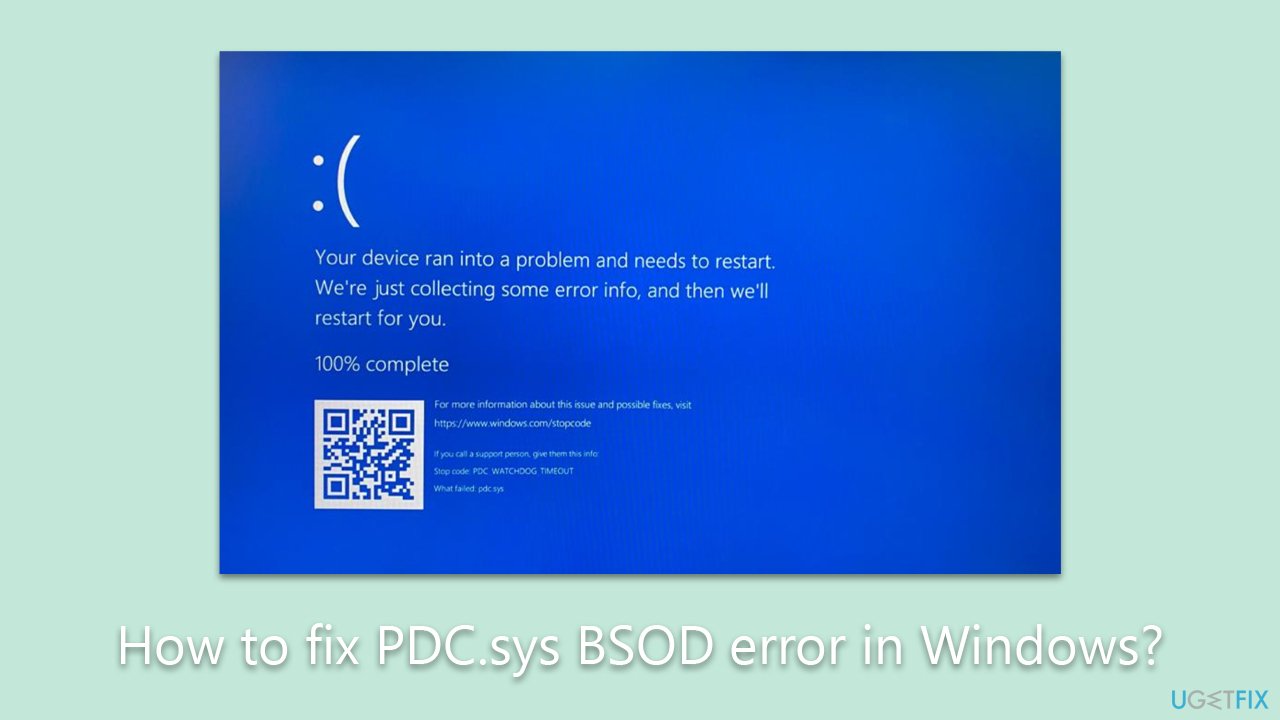
Fix 1. Run SFC and DISM
The System File Checker (SFC) and Deployment Image Servicing and Management (DISM) are built-in tools in Windows that can repair corrupted or damaged system files, which can be the cause of the PDC.sys BSOD error.
- Type in cmd in Windows search.
- Right-click on Command Prompt and select Run as administrator.
- When User Account Control asks you whether you allow changes to your system - click Yes.
- Copy and paste the following command, pressing Enter after:
sfc /scannow - Next, use these commands, pressing Enter each time:
Dism /Online /Cleanup-Image /CheckHealth
Dism /Online /Cleanup-Image /ScanHealth
Dism /Online /Cleanup-Image /RestoreHealth
(Note: if you get an error executing this last command, add /Source:C:\RepairSource\Windows /LimitAccess to it and try again). - Reboot your system.
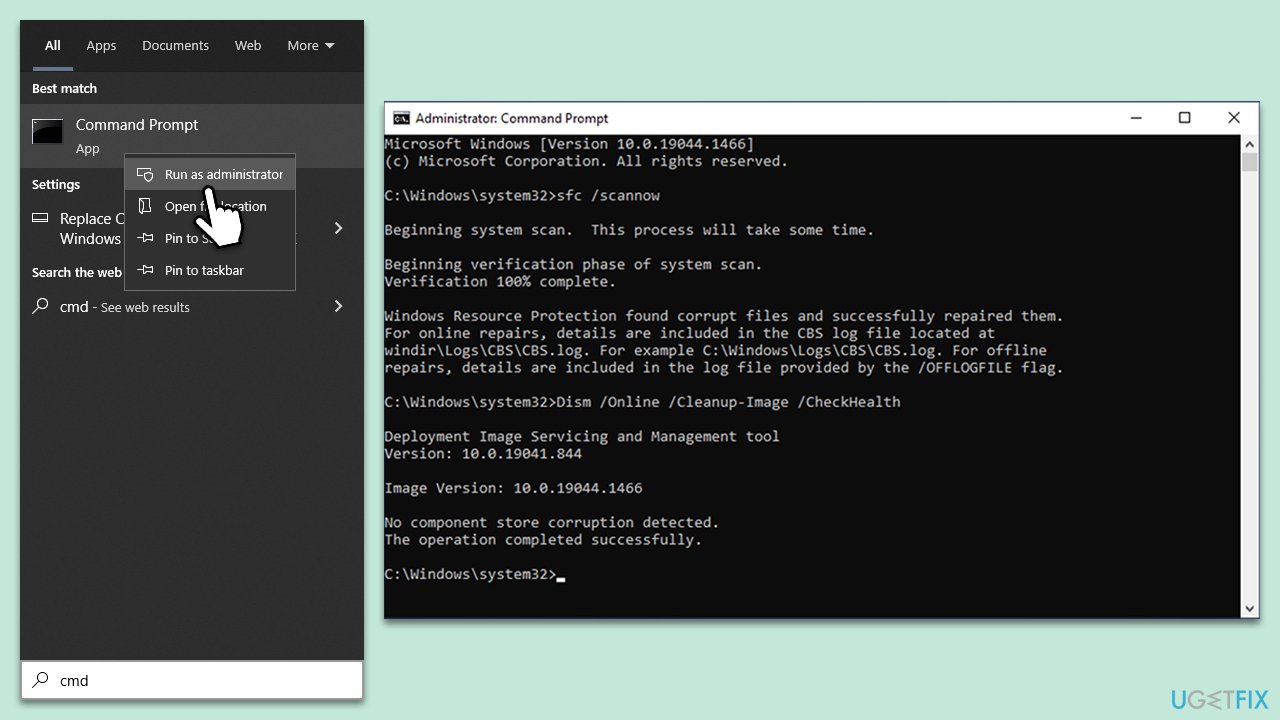
Fix 2. Check your disk
Disk errors or bad sectors can lead to system file corruption. Windows has a built-in tool, CHKDSK, that can detect and fix these issues.
- Open Command Prompt as administrator, as explained previously.
- In the new window, type in the following command and press Enter after:
chkdsk c: /f
(Note: use chkdsk c: /f /r /x command if you are using SSD as your primary partition) - If you receive an error, type in Y, close down Command Prompt, and restart your device.
- Wait until the scan is finished - you can find the results in the Event Viewer.
Fix 3. Check for Windows updates
Regularly updating Windows can help to fix bugs that might cause BSOD errors.
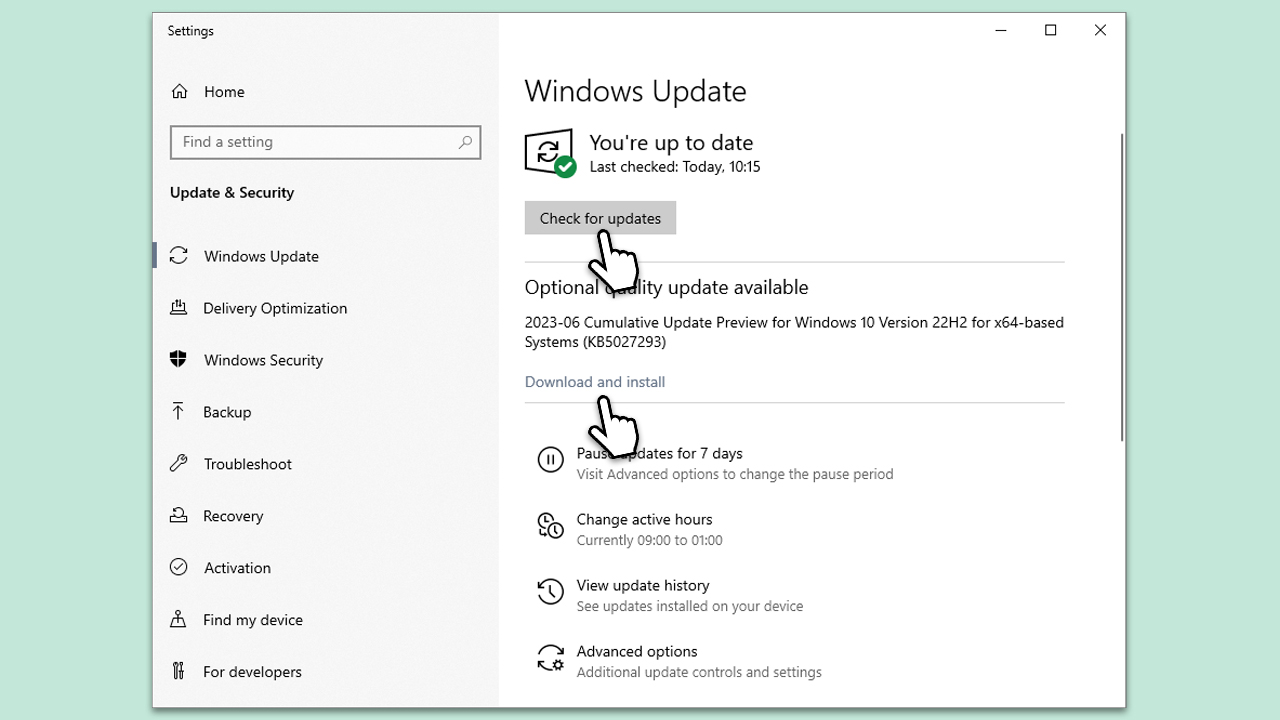
- Type Updates in Windows search and press Enter.
- In the new window, click Check for updates and wait till all the necessary files are downloaded.
- At this point, you might be offered optional updates - install them too.
- When done, reboot your system to implement new changes.
Fix 4. Update all drivers
Outdated or corrupt drivers can cause BSOD errors. Updating your drivers can resolve these issues.
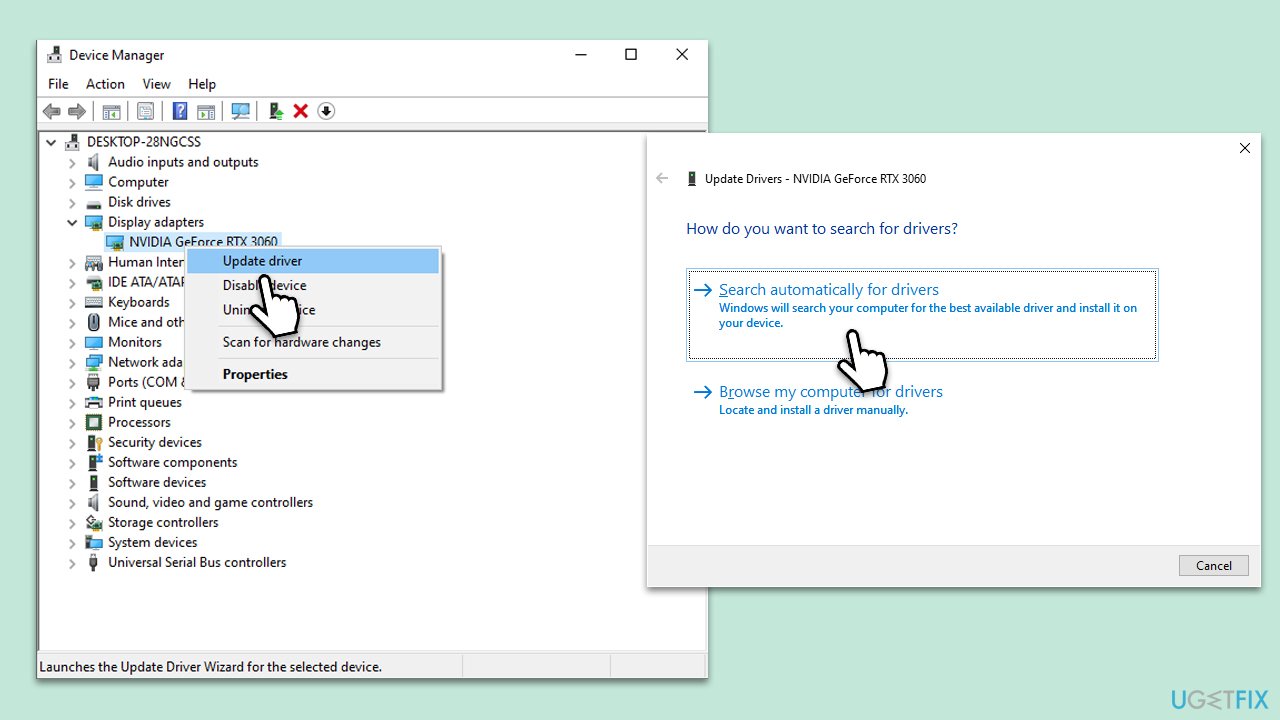
- Right-click on the Start button and pick Device Manager.
- Expand each category and right-click on each device, then choose Update driver.
- Select Search automatically for driver updates.
- Repeat this for all devices and restart your computer.
This process might be very tedious, so we recommend checking the automatic option by employing [rev id="DriverFix"].
Fix 5. Disable Fast Startup
Fast startup is a feature that enables your computer to boot faster, but it can sometimes cause BSOD errors. Disabling this feature may solve the issue.
- Type Control Panel in Windows search and hit Enter.
- Select Small icons view and pick Power options.
- On the left side of the window, select Choose what the power buttons do
- Pick the Change settings that are currently unavailable option at the top
- Remove the tick from the Turn on fast startup (recommended) option and select Save changes.

Fix 6. Update firmware
Outdated firmware can sometimes cause compatibility issues leading to BSOD errors. Always ensure that your system firmware, including BIOS, is up to date.
- Visit your device manufacturer's website.
- Locate the support or download section.
- Download the latest firmware or BIOS update.
- Follow the instructions provided by the manufacturer to update your firmware or BIOS.
Related: How to fix PDC_WATCHDOG_TIMEOUT error in Windows 10?
Bottom line
To resolve the PDC.sys BSOD error, users should perform system file checks, update device drivers, and address any hardware conflicts. If these methods do not work, consider using a reliable PC repair tool to diagnose and rectify the issue.
Frequently asked questions
The PDC.sys BSOD error is typically caused by corrupted system files, incompatible drivers, or hardware issues affecting the power management features of your PC.
You can fix the PDC.sys error by running the System File Checker tool and ensuring all drivers are up to date, particularly those related to power management.
To prevent the PDC.sys BSOD error, regularly update your system and drivers, and run diagnostics to check for hardware issues that may affect system stability.




Report an issue
What's wrong with this guide? We review every report and update or remove content.
Report received — thank you. We'll review and fix it.
You need a free account to submit a report.
Be the first to comment