How to fix
KB5028166 fails to install
on Windows
Resolve KB5028166 installation issues in Windows 10 effortlessly. Follow our expert-tested guide for quick fixes and get your updates running smoothly.

What causes How to fix KB5028166 fails to install in Windows 10?
- Existing software conflicts
- Issues with the Windows Update components
- Insufficient storage space
- Poor network connection
Repairs Windows system files, removes malware, and restores a clean OS state — without reinstalling.
Today I booted my PC and noticed that KB5028166 failed to install. I have been waiting for several hours, rebooting my PC several times, with no success. Could you provide some tips on what to do to fix this or should I continue waiting?
Microsoft's Windows, a widely used operating system worldwide, offers a robust and streamlined platform for users to execute myriad tasks and functions. One crucial feature of this OS is its ability to provide regular updates - upgrades that enhance system functionality and address bugs and potential security vulnerabilities. However, there are instances when these updates might not install as expected, causing a range of user inconveniences.
An example of such a problem is the recent KB5028166 update, which several users reported as failing to install. The KB in the update's name stands for "Knowledge Base," a Microsoft terminology that represents a library of individual articles and advisories. These unique KB numbers help users, and IT professionals track particular updates or fixes, providing them with crucial information about the update's contents and purpose.
Released on July 11, 2023, for Windows 10 versions 22H2 and 22H1, KB5028166 was aimed at addressing multiple security vulnerabilities. The update was designed to enhance user safety by fixing potential loopholes that hackers might exploit. In addition to these security improvements, it included quality updates to the servicing stack, an integral component responsible for installing Windows updates.
A failed installation of KB5028166 can occur due to various reasons. One common factor could be existing software conflicts within the system. Other possible causes might include issues with the Windows Update components, insufficient storage space, or even a poor network connection. This is by no means an exhaustive list, and the root cause can sometimes be intricate and obscure, often requiring meticulous troubleshooting.
While resolving such issues can sometimes be a complicated process, users can try numerous potential solutions. These might range from clearing the Windows Update cache and restarting the Windows Update service to performing a clean boot of the system. Some users might also find utility in third-party tools designed to help with general PC issues.
It's essential to remember that these are complex issues, and solutions might not always be straightforward. The use of a tool like the [d1] PC repair tool could be beneficial. This tool offers a range of features that can help maintain your computer's overall health, which might lead to more successful updates in the future.
Fix 1. Free up storage space
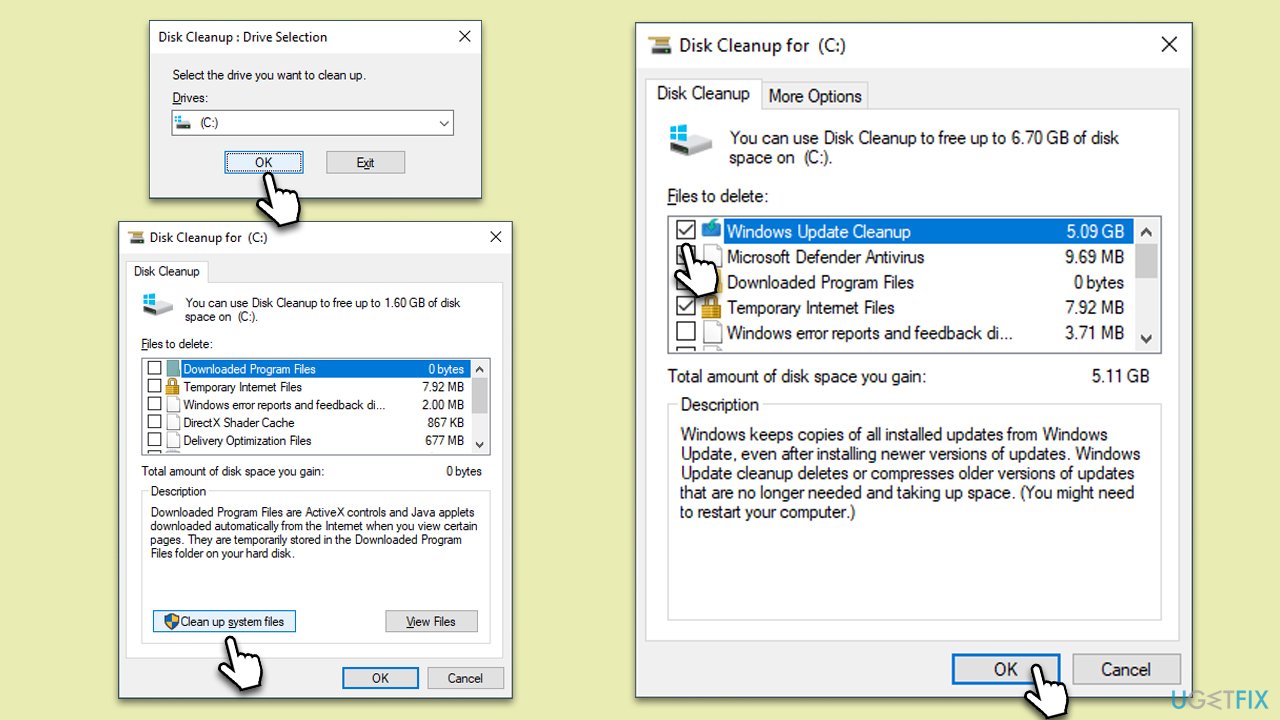
If your computer is low on storage, it might not have enough room to accommodate the new files, leading to the update failing. You can use the Disk Cleanup utility to free some space quickly:
- Type Disk Cleanup in Windows search and hit Enter.
- If your Windows is installed on drive C, pick it from the list (it should be by default) and press OK.
- Click Clean up system files.
- Select your main disk again and click OK.
- Here, select the largest portions of the data used - these typically include Temporary Internet Files, Windows Update, Temporary Files, Recycle Bin, Delivery Optimization Files, and others.
- Click OK - the process should be finished shortly.
Fix 2. Disable antivirus software temporarily
Antivirus software, while essential for protecting your system from malicious threats, can sometimes conflict with the installation of Windows updates. The antivirus might misinterpret the changes made during the update as potential threats, hence, causing the process to fail.
- Open your antivirus software application.
- Look for the option to disable the software, which is usually found in Settings. This is typically a temporary action; you can turn it back on after the update.
- Try to install the Windows update again.
Fix 3. Run Windows Update Troubleshooter
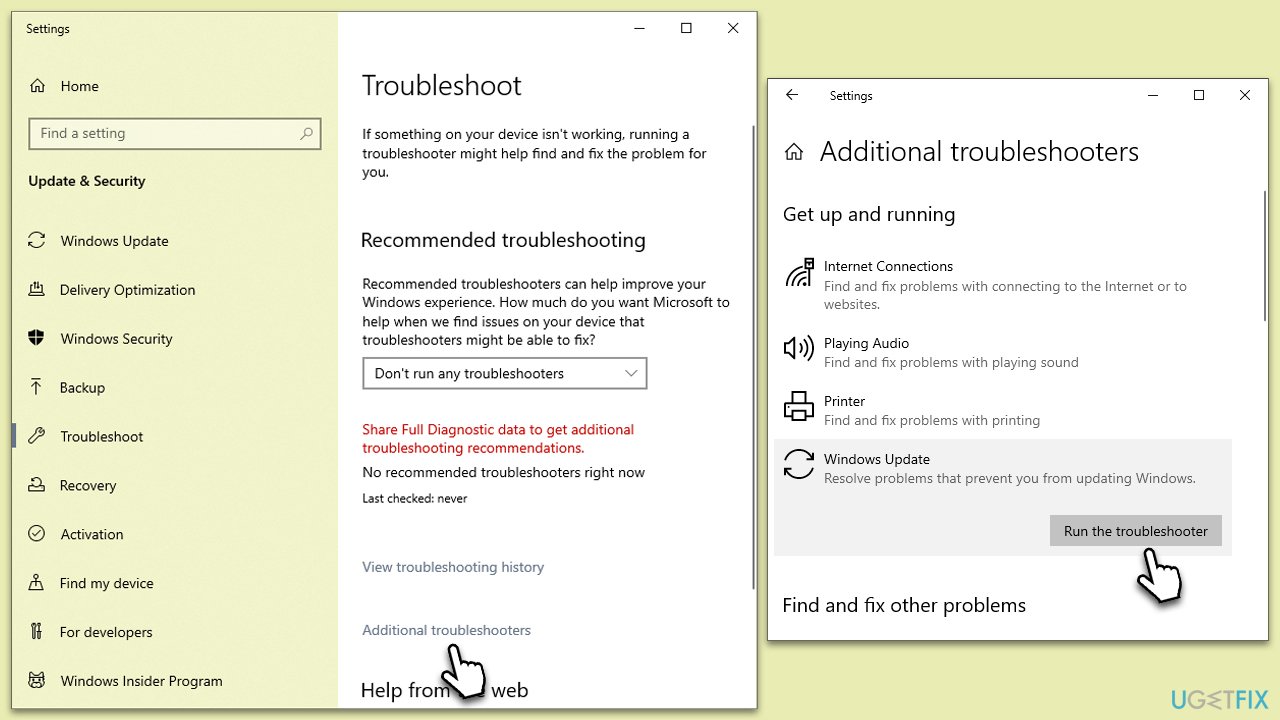
Microsoft provides a built-in tool called the Windows Update Troubleshooter to resolve common update problems. The tool scans your system for potential issues that might be preventing updates from installing and attempts to fix them automatically.
- Type Troubleshoot in Windows search and press Enter.
- Click Additional troubleshooters if you can't see them listed.
- Scroll down to find the Windows Update option.
- Click and select Run the troubleshooter.
- Apply the offered changes and close down the troubleshooter - see if that helps solve your problem.
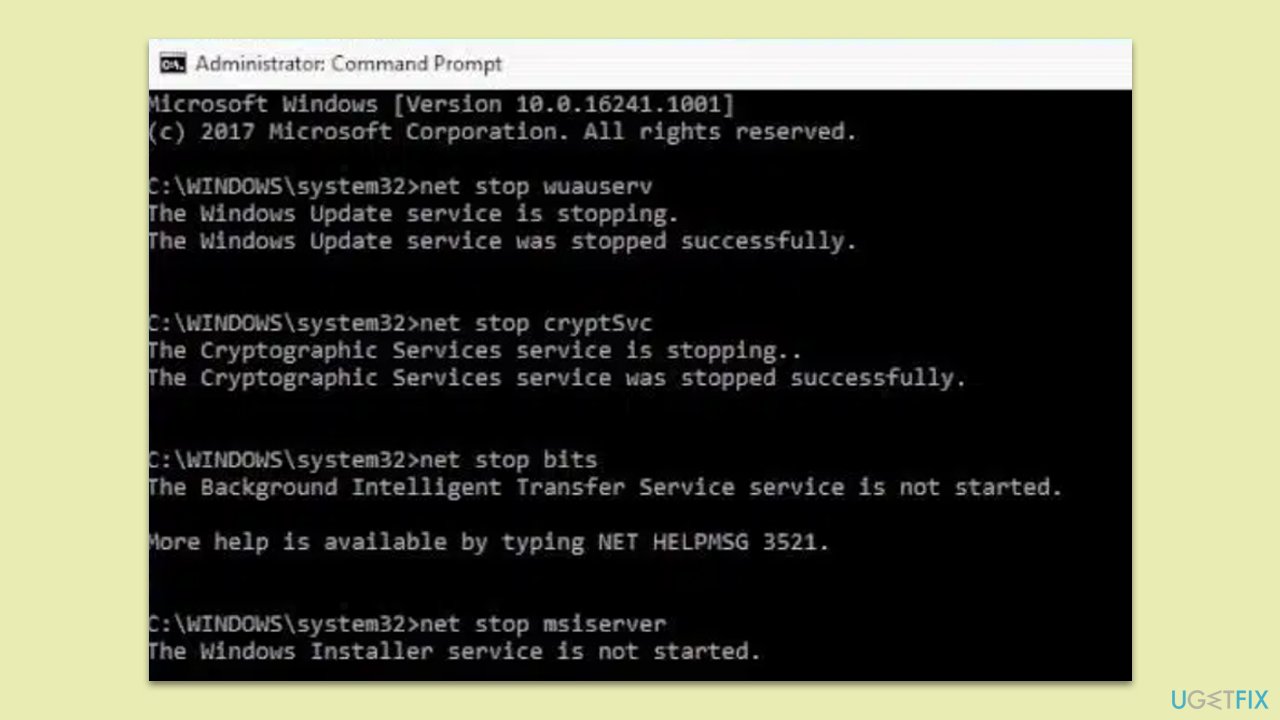
Fix 4. Reset Windows update components
When an update fails to install, it could be due to a problem with the Windows Update components themselves. Resetting these components can help clear out any errors or corruption that might be preventing the installation of updates.
- Type cmd in Windows search.
- Right-click on Command Prompt and pick Run as administrator.
- When User Account Control shows up, click Yes.
- Stop the Windows Update Services by entering the following commands, one at a time, and pressing Enter after each:
net stop wuauserv
net stop cryptSvc
net stop msiserver
net stop bits - Rename the SoftwareDistribution and Catroot2 folders with the following commands:
ren C:\Windows\SoftwareDistribution SoftwareDistribution.old
ren C:\Windows\System32\catroot2 catroot2.old - Restart the services you stopped earlier with these commands:
net start wuauserv
net start cryptSvc
net start msiserver
net start bits - Close the Command Prompt window and try running the Windows Update again.
Fix 5. Manual update
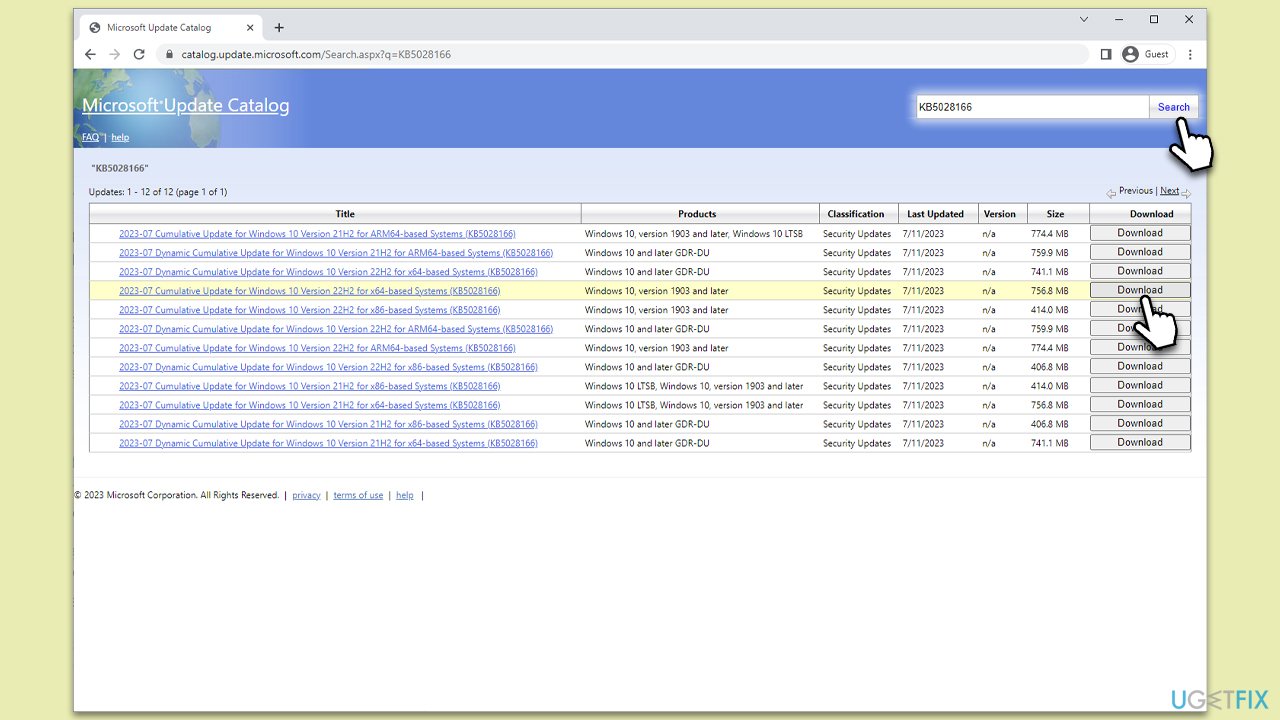
If the automatic update process through Windows Update isn't working, you might have more success with a manual update. This involves downloading the update files directly from the Microsoft Update Catalog and installing them yourself.
- Open your browser and go to Microsoft Update Catalog.
- Within the search bar, type in KB5028166 and click Search.
- Click the Download button next to the appropriate version. This will open a new window with a link to download the update.
- Click on the link in this new window to start downloading the update file. The file will typically be in ".msu" format.
- Double-click on the downloaded .msu file to run it. This will launch the Windows Update Standalone Installer.
- Follow the prompts from the installer to complete the update process. The installer will close, and you may need to restart your computer to finish the installation.
Fix 6. Run SFC and DISM
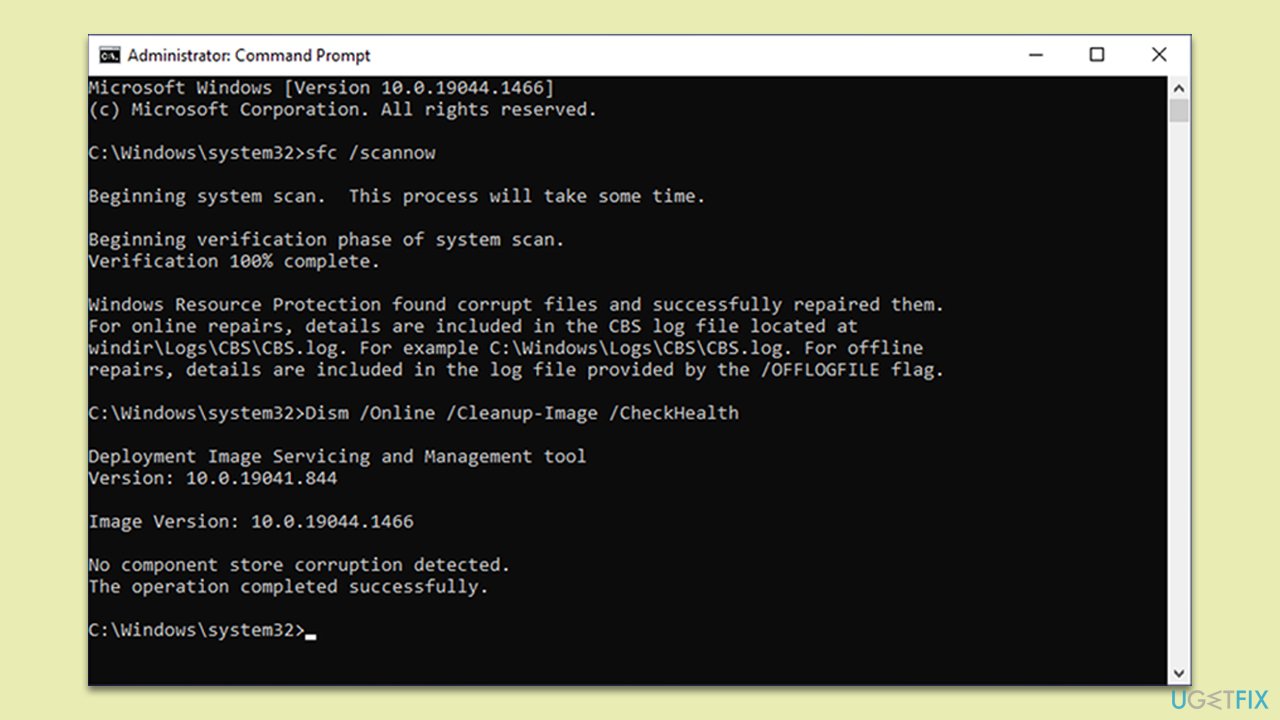
- Open Command Prompt (Admin).
- Use the following command lines, pressing Enter after each:
sfc /scannow
DISM /Online /Cleanup-Image /CheckHealth
DISM /Online /Cleanup-Image /ScanHealth
DISM /Online /Cleanup-Image /RestoreHealth - Restart your system.
Fix 7. Use Media Creation Tool
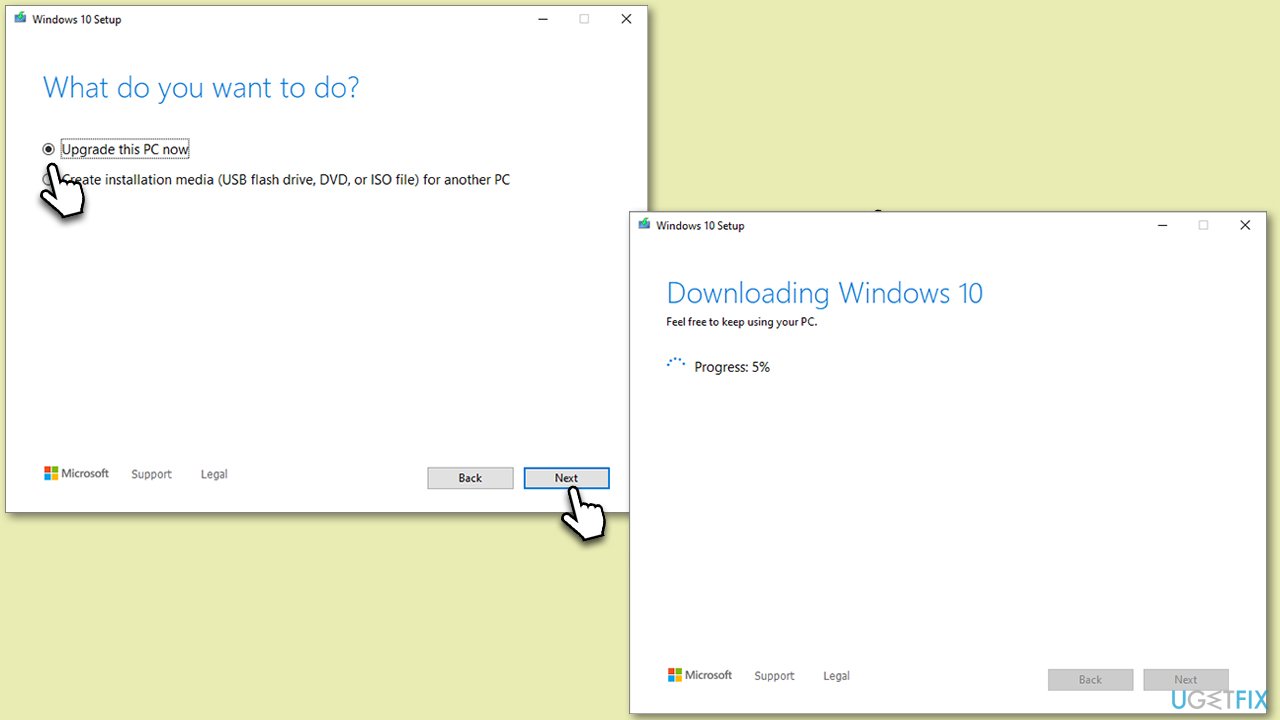
By using the Media Creation tool, you can perform an in-place upgrade of your Windows, which can potentially resolve update issues. Make sure you have enough space and your third-party security software is uninstalled.
- Visit the official Microsoft website and download Windows 10 installation media.
- Double-click the installer and click Yes when the User Account Control window shows up.
- Agree to the terms and click Next.
- Select Upgrade this PC now and click Next.
- Wait for Windows to download files.
- Agree to the terms once again and click Next.
- Before installing, ensure you are happy with your choices (otherwise, you can click the Change what to keep option).
- Click Install to begin the upgrade process.
Bottom line
To fix the installation failure of KB5028166, users can try clearing the Windows Update cache, restarting the Windows Update service, or performing a clean boot of the system. If these solutions do not resolve the issue, further troubleshooting may be necessary.
Frequently asked questions
First, try running the Windows Update Troubleshooter to identify and fix any issues. If that doesn't work, consider manually downloading the update from the Microsoft Update Catalog.
Yes, corrupted system files can prevent updates from installing correctly, so it's advisable to run the System File Checker tool by executing 'sfc /scannow' in the Command Prompt.
Temporarily disabling your antivirus may help resolve installation issues, but remember to re-enable it immediately after the update process to maintain your system's security.




Report an issue
What's wrong with this guide? We review every report and update or remove content.
Report received — thank you. We'll review and fix it.
You need a free account to submit a report.
Be the first to comment