How to fix
0x800700aa error
on Windows
Resolve the 0x800700aa error on Windows 10/11 quickly with our expert-tested solutions. Get your system back to normal in minutes!

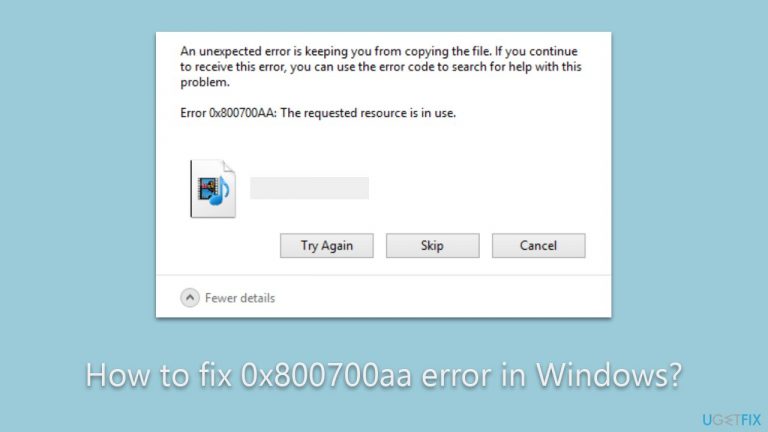
What causes How to fix 0x800700aa error in Windows?
- Conflicts with other antivirus software
- Corrupted restore points
- Inadequate disk space
- File system incompatibilities
- Problems with the destination storage
Repairs Windows system files, removes malware, and restores a clean OS state — without reinstalling.
Hi, I was trying to enable Windows Defender, and I've received an error 0x800700aa. Any idea what's going on?
When using a Windows operating system, encountering error codes can be frustrating, especially when they impede essential tasks like file transfers and system operations. One such error code that users may come across is 0x800700aa. This article aims to shed light on the causes of the error and the circumstances under which it commonly occurs. Additionally, it provides an overview of possible solutions, although detailed instructions will be presented separately.
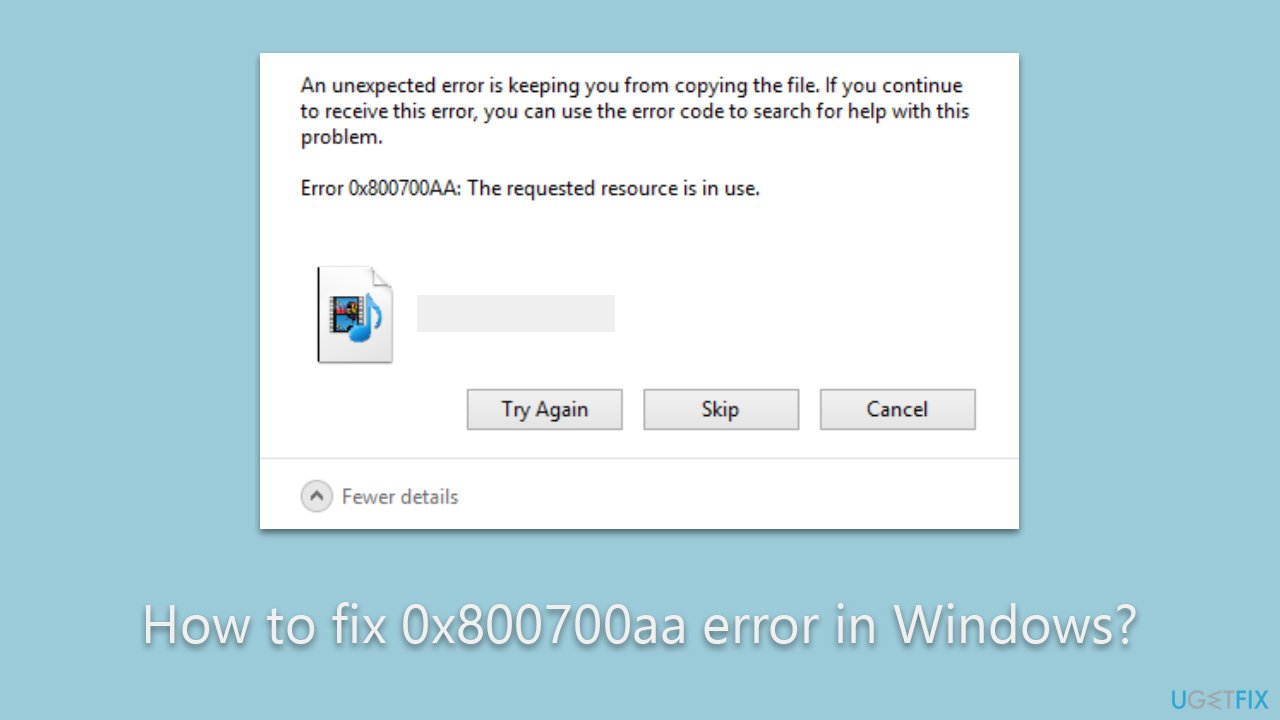
The 0x800700aa error can surface in various scenarios, each requiring a unique approach for resolution. Users have reported experiencing this error when enabling Windows Defender, utilizing the System Restore feature, or attempting to move files from one storage device to another.
In some instances, conflicts with other antivirus software may arise when enabling Windows Defender, leading to the error's appearance. When employing System Restore, issues such as corrupted restore points, inadequate disk space, or clashes with other programs can trigger the error. Similarly, moving files between different storage devices might be met with the 0x800700aa error, which may be caused by file system incompatibilities or problems with the destination storage itself.
Addressing the 0x800700aa error requires a systematic troubleshooting approach tailored to each specific circumstance. Depending on the cause, potential solutions may involve disabling conflicting antivirus software temporarily, updating Windows Defender, using alternative restore points, ensuring sufficient disk space, checking the compatibility of file systems between the source and destination storage devices, or copying files to different locations.
In addition to the aforementioned troubleshooting steps, utilizing a reliable PC repair tool [d1] can provide an efficient means of resolving various Windows problems automatically.
By understanding the causes and circumstances surrounding the 0x800700aa error in Windows, users can effectively troubleshoot and overcome this obstacle. Employing the appropriate solutions, including the assistance of PC repair tools, can help ensure smooth system functionality and optimize overall performance.
Fix 1. Disable conflicting antivirus software
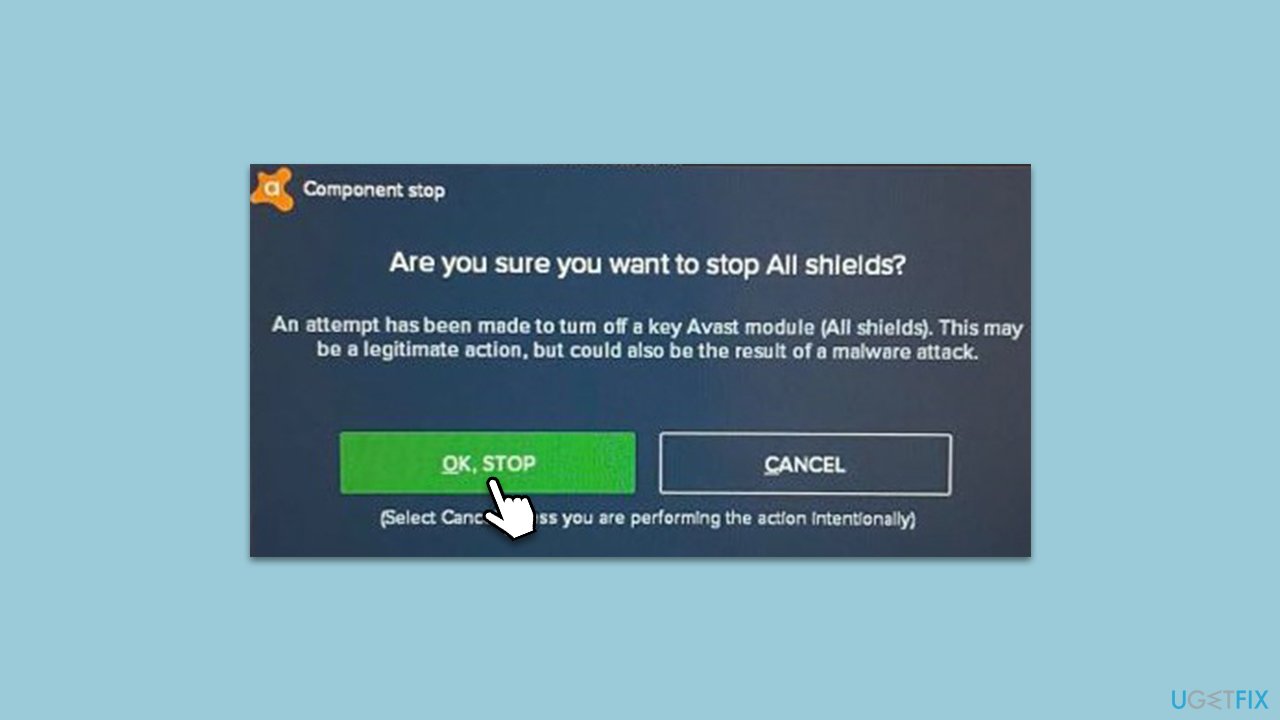
Conflicting antivirus software can trigger the error when enabling Windows Defender. Disabling the conflicting software temporarily can help resolve the issue.
- Open the antivirus software on your computer.
- Look for an option to disable or turn off the antivirus protection.
- Disable the antivirus software temporarily.
- Try enabling Windows Defender again and check if the error persists.
Fix 2. Update Windows Defender
Updating Windows Defender ensures that you have the latest version, which may include bug fixes and improvements that can address the error.
- Open the Start menu and type Windows Security in the search bar.
- Open the Windows Security app.
- Click on Virus & threat protection in the left-hand menu.
- Click on Check for updates under the Virus & threat protection updates section.
- If updates are available, let Windows Defender download and install them.
- Restart your computer and check if the error is resolved.

Fix 3. Use an alternative System Restore Point
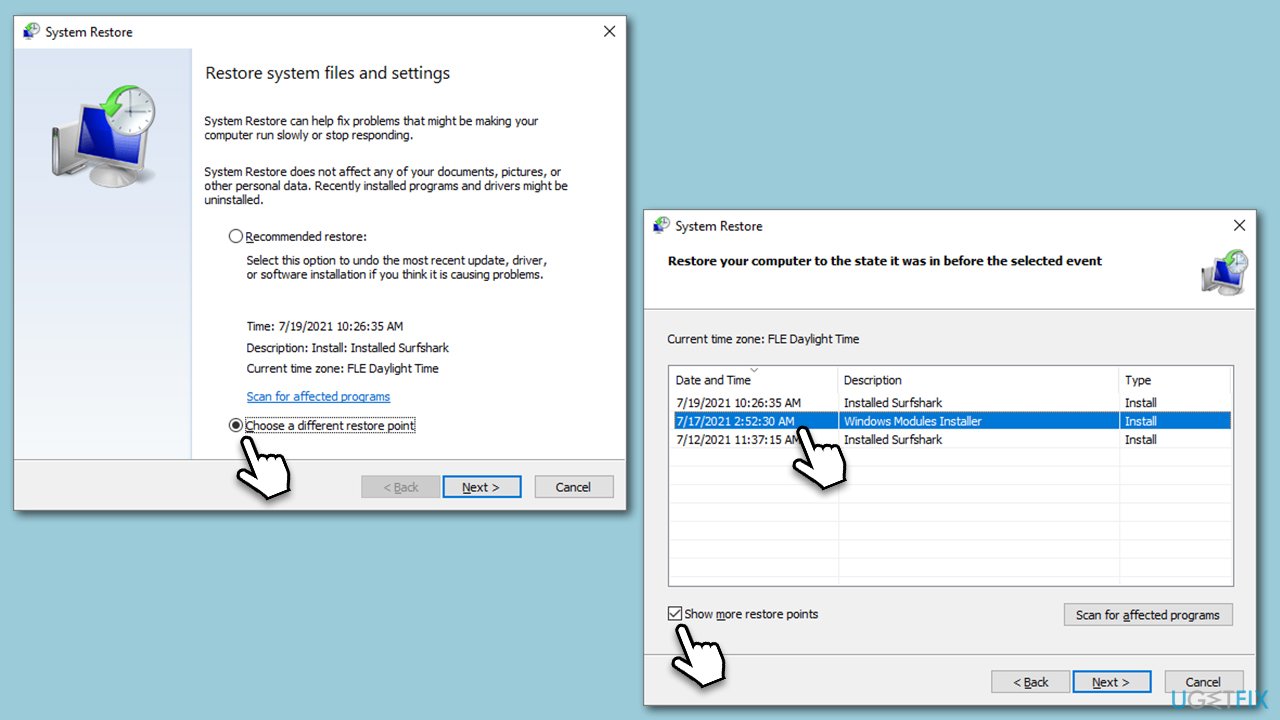
When encountering the 0x800700aa error during System Restore, trying different restore points can help bypass any issues associated with specific points in time.
- Open the Start menu and type Create a restore point in the search bar.
- Open the Create a restore point Control Panel option.
- In the System Protection tab, click on System Restore.
- Select Choose a different restore point and click Next.
- Choose an alternative restore point from the list.
- Follow the on-screen instructions to complete the system restore process.
- Check if the error is resolved after the system restore is complete.
Fix 4. Perform Disk Cleanup
Insufficient disk space can hinder System Restore and cause errors. Creating more space by deleting unnecessary files can help resolve the issue.
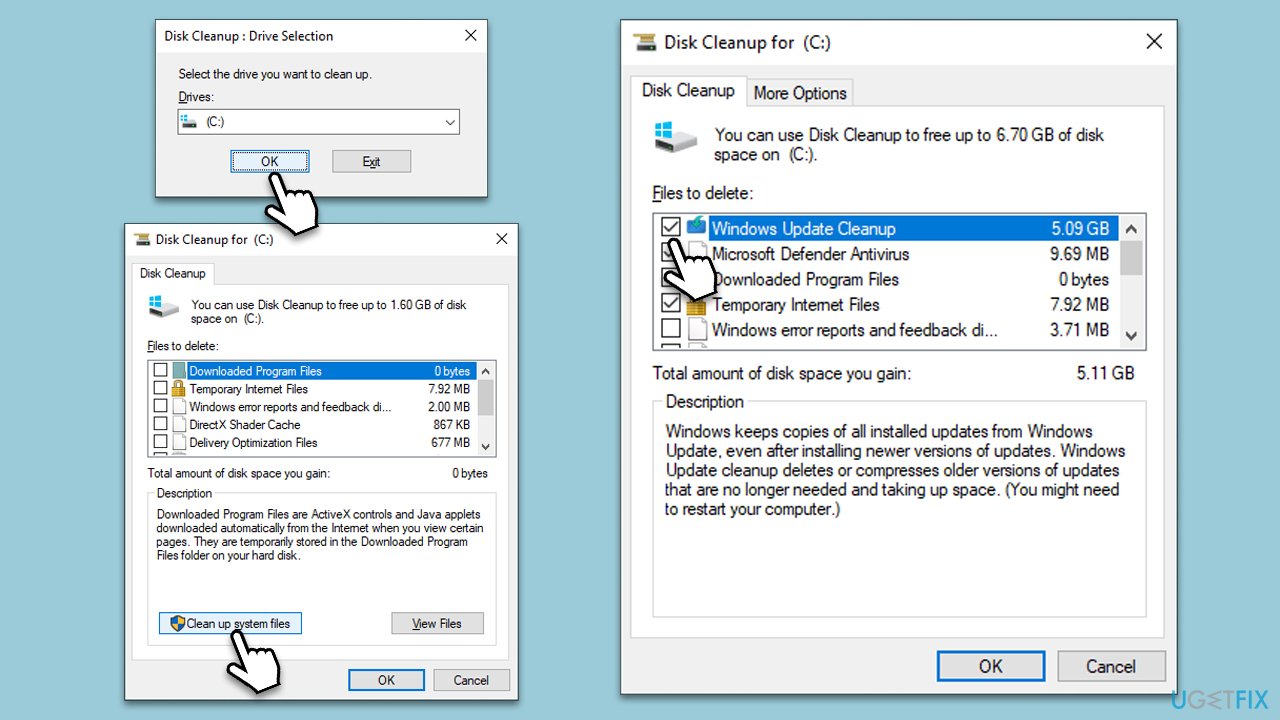
- Type Disk Cleanup in Windows search and press Enter.
- If your Windows is installed on drive C, pick it from the list (it should be by default) and press OK.
- Click Clean up System Files.
- Here, mark the areas you want to be deleted, such as Windows update files, Setup log files, Recycle bin, Temporary files, etc.
- Click OK - the removal process of various leftover files will begin.
Fix 5. Check File System compatibility
The 0x800700aa error may occur when moving files between storage devices with incompatible file systems. Checking and ensuring compatibility can help resolve the issue.
- Open File Explorer.
- Right-click on the source drive or folder containing the files and select Properties.
- In the General tab, check the File system field.
- Repeat the same steps for the destination drive or folder.
- If the file systems are different (e.g., NTFS and FAT32), consider converting the destination drive to a compatible file system or choose a different destination with a compatible file system.
Fix 6. Run SFC and DISM
Running SFC and DISM utilities can help resolve underlying system file corruption issues that may be causing the error.
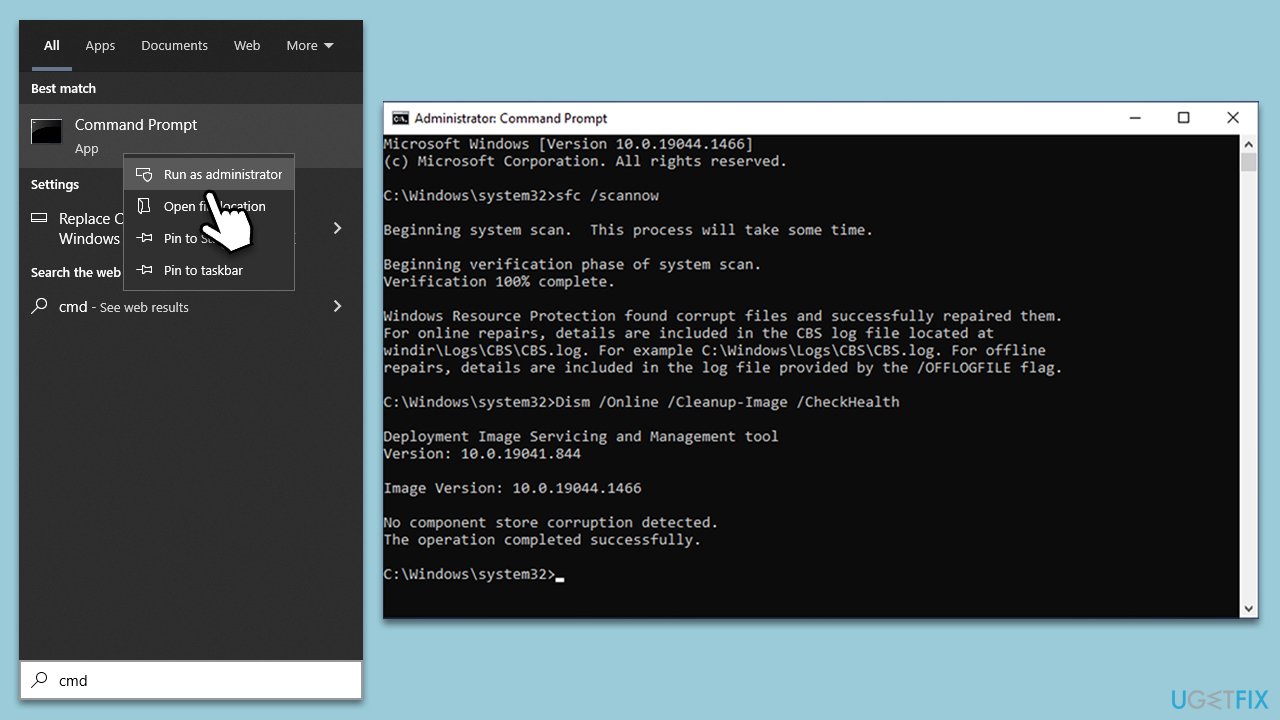
- To run an elevated Command Prompt, type in cmd in Windows search.
- Right-click the Command Prompt result and pick Run as administrator.
- User Account Control will ask whether you want to allow changes - click Yes.
- Type this command and press Enter:
sfc /scannow - Wait for the scan to finish.
- Then, use the following commands, pressing Enter after each:
Dism /Online /Cleanup-Image /CheckHealth
Dism /Online /Cleanup-Image /ScanHealth
Dism /Online /Cleanup-Image /RestoreHealth - Reboot your PC.
Bottom line
To fix the 0x800700aa error, users can disable conflicting antivirus software, update Windows Defender, use alternative restore points, ensure sufficient disk space, and check file system compatibility. If these solutions do not resolve the issue, utilizing a reliable PC repair tool may be beneficial.
Frequently asked questions
The 0x800700aa error typically occurs due to issues with the Windows Update service or conflicts with third-party applications. It can also arise from corrupted system files or incorrect system settings.
To fix the 0x800700aa error on Windows 11, try running the Windows Update Troubleshooter and resetting the Windows Update components. You can also perform a System File Checker scan to repair any corrupted files.
Yes, using the DISM tool is safe and can effectively repair the Windows image, which may help resolve the 0x800700aa error in Windows 10. Just ensure to follow the correct command syntax in the Command Prompt.




Report an issue
What's wrong with this guide? We review every report and update or remove content.
Report received — thank you. We'll review and fix it.
You need a free account to submit a report.
Be the first to comment