How to fix
“No such interface supported” error
on Windows
Resolve the "No such interface supported" error on Windows 10/11 easily. Quick solutions and expert tips to get your system back on track—fixed in minutes!

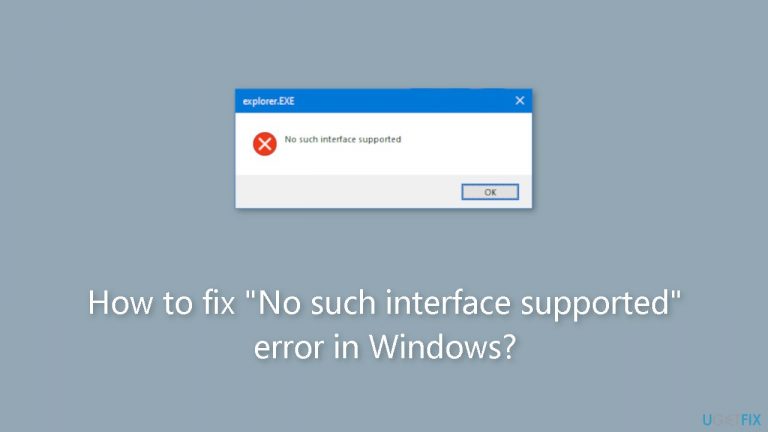
What causes How to fix “No such interface supported” error in Windows?
- Corrupt system files
- Faulty user account
- Missing DLL files
- Problems with the targeted application
- System instability
Repairs Windows system files, removes malware, and restores a clean OS state — without reinstalling.
Hello. I keep trying to launch one app on my Windows PC but I get the "No such interface supported" error. Is there a way to fix this?
The "no such interface supported" error message in Windows indicates a problem with a specific interface or component that a program is attempting to use. This error can occur for a number of reasons, including corrupt system files, a faulty user account, missing DLL files,[ref en-1] or problems with the targeted application itself.
When users receive the "no such interface supported" error, it can have a number of consequences for their system and overall user experience. One of the most noticeable consequences is the inability to launch or use specific applications that rely on the problematic interface or component. Users who rely on those applications for work or daily tasks may find this frustrating.
Furthermore, the error may limit the functionality of the affected applications. Users may encounter missing features or restricted access to certain functionalities, limiting their ability to effectively use the application. In some cases, the "no such interface supported" error can lead to system instability. This can take the form of system freezes, crashes, or other unexpected errors, making it difficult for users to complete their tasks smoothly.
In this guide, you will find 6 steps that should help you fix "No such interface supported" error in Windows. You can also try running a maintenance tool like [d1] that can fix most system errors, BSODs,[ref en-2] corrupted files, and registry[ref en-3] issues. Otherwise, follow the step-by-step instructions below.
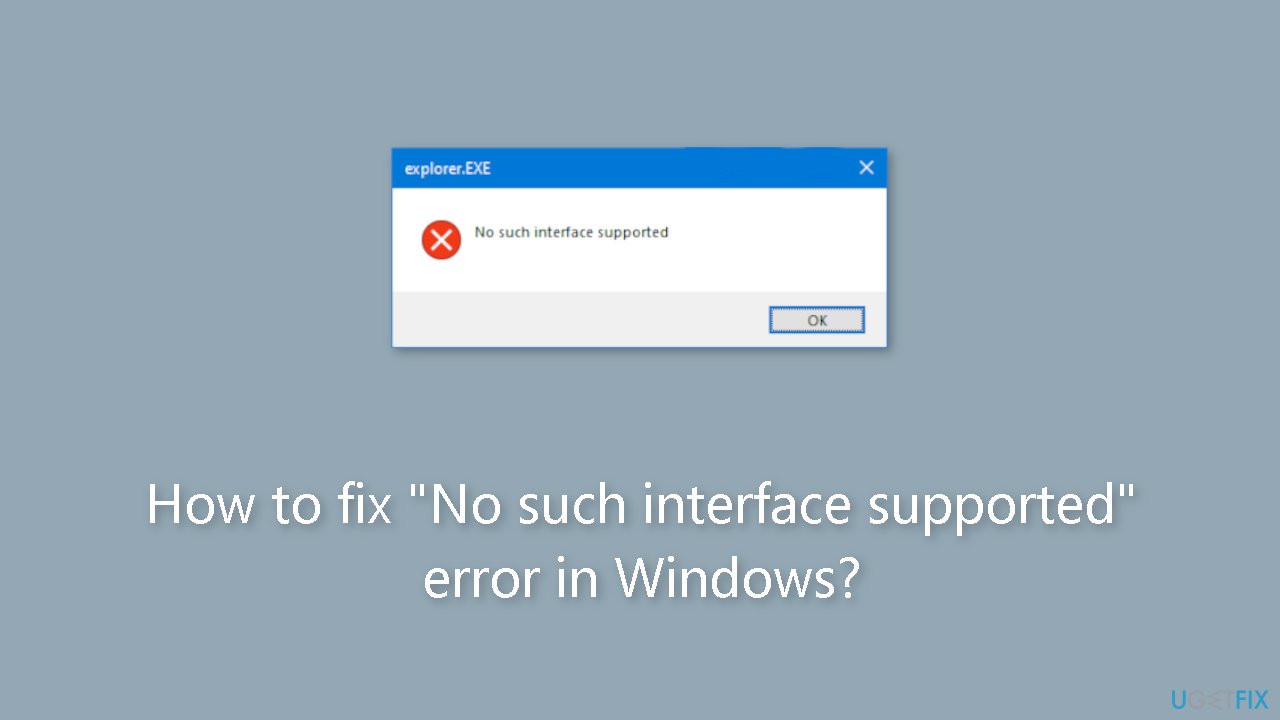
Method 1. Fix Corrupted System Files
Use Command Prompt commands to repair system file corruption:
- Open Command Prompt as administrator
- Use the following command and press Enter:
sfc /scannow

- Reboot your system
- If SFC returned an error, then use the following command lines, pressing Enter after each:
DISM /Online /Cleanup-Image /CheckHealth
DISM /Online /Cleanup-Image /ScanHealth
DISM /Online /Cleanup-Image /RestoreHealth
Method 2. Disable Non-Essential Startup Programs
- Press the Windows key + R together to open a Run dialog.
- Type msconfig in the Run dialog and press Enter to open the System Configuration window.
- In the System Configuration window, navigate to the Startup tab.
- Click on Open Task Manager in the Startup tab.
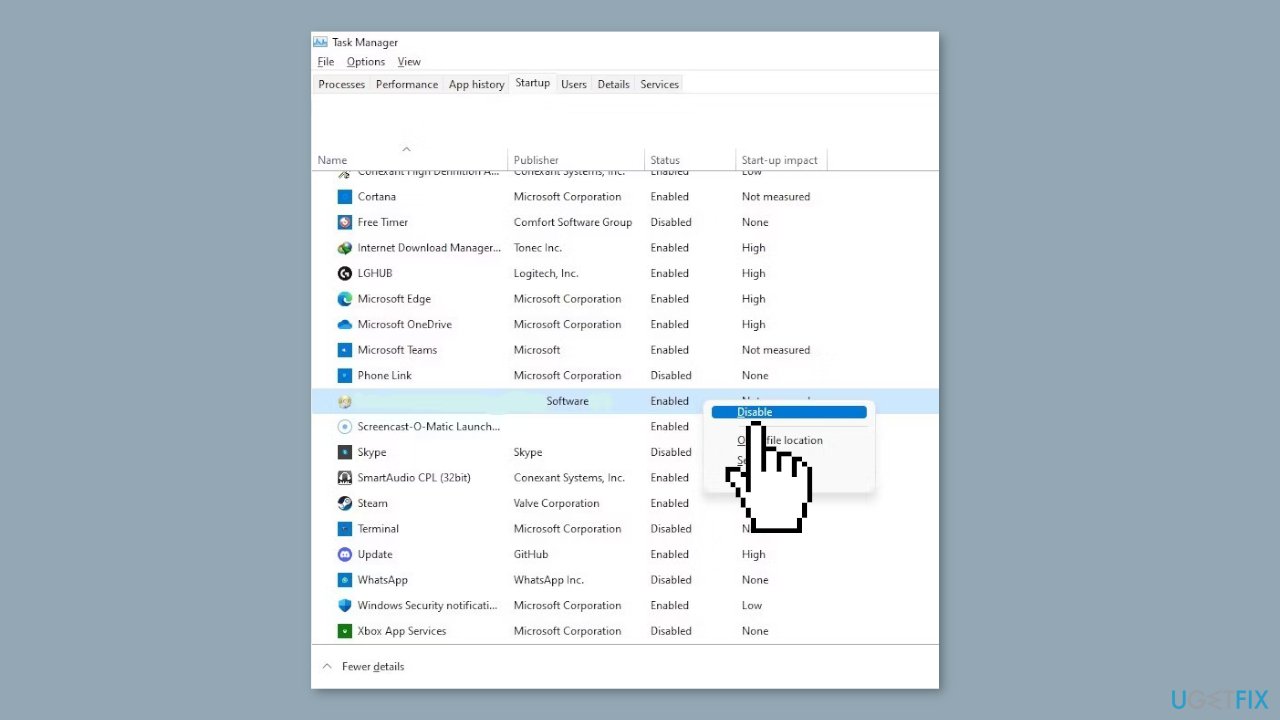
- The Task Manager will open, showing a list of programs that launch automatically when the system starts up.
- Identify the unnecessary programs from the list.
- Right-click on each unnecessary program and choose Disable from the context menu.
- Repeat the previous step for all the programs you don't want to launch at startup.
Method 3. Re-Register DLL Files
- Press the Windows key + R to open Run.
- Type cmd in Run and press the Ctrl + Shift + Enter keys together to launch Command Prompt as an administrator.
- Click Yes in the User Account Control prompt.
- Once in Command Prompt, type the following command and press Enter:
regsvr32 c:\windows\system32\actxprxy.dll
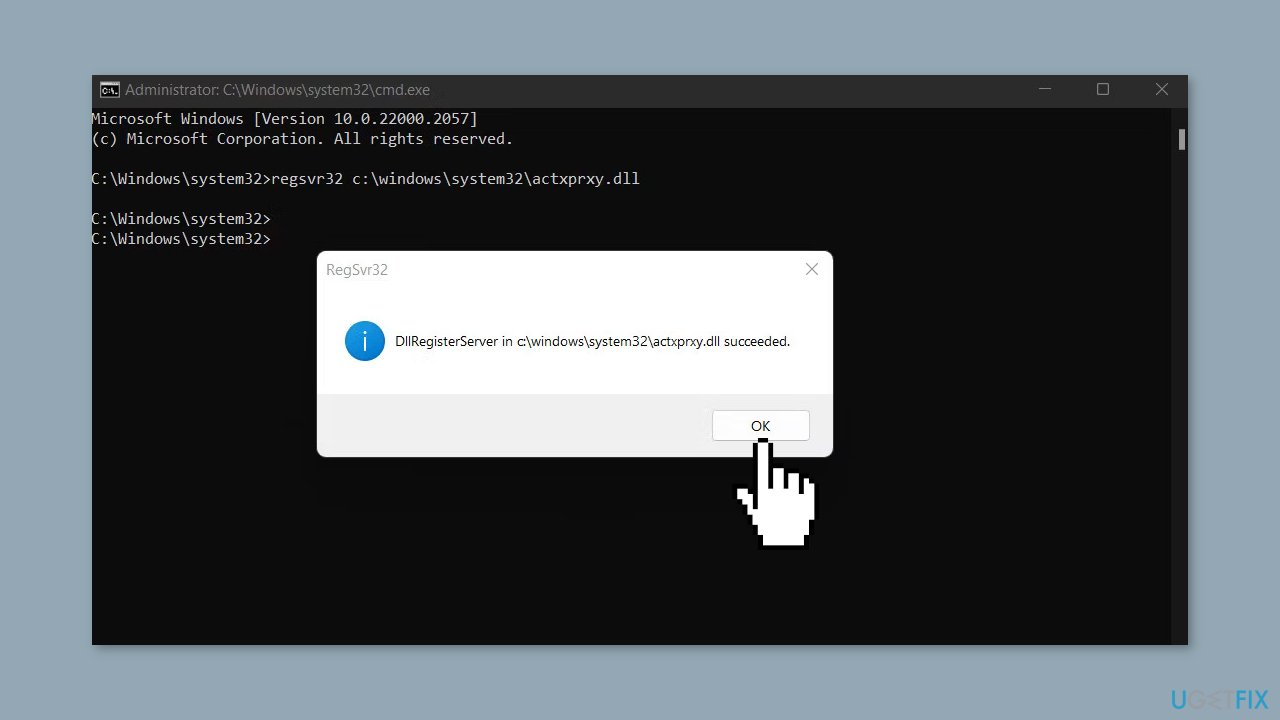
- After executing the command, a prompt should appear confirming that the action has been completed.
- Close Command Prompt and check if the issue is resolved.
- If the issue persists, execute the following command in Command Prompt:
FOR /R C:\ %G IN (*.dll) DO "%systemroot%\system32\regsvr32.exe" /s "%G"
Method 4. Create a New User Account
- Open the search by tapping the Windows key or clicking on the search icon.
- Type user in the search bar.
- From the search results, select Add, delete, and manage other user accounts to open the Other Accounts section.
- Click on Add an account to proceed.
- Instead of entering an email address, locate the gray option called Sign in without a Microsoft account at the bottom of the screen.
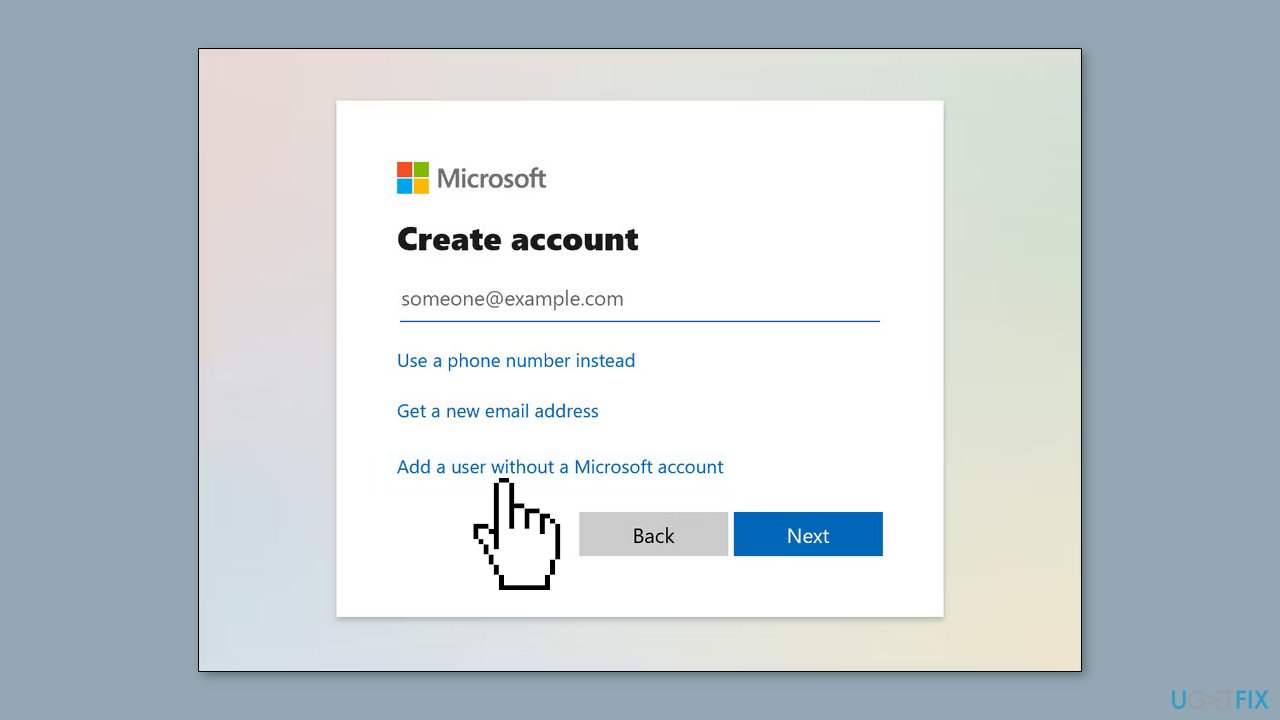
- Click on Sign in without a Microsoft account to choose a Local Account.
- In the next window, fill in the required details such as username and password.
- Click on Next to create the new user account.
- The new user account should now be successfully created and ready to use.
Method 5. Repair or Reset the Affected App
- Press the Windows key + X on your keyboard.
- From the menu that appears, select Installed apps.
- Scroll down the list of installed apps and locate the app.
- Click on the three dots next to the app.
- Select Advanced options from the menu.
- Scroll down to the Reset section.
- Click on the Repair button.
- Confirm your action by clicking Repair again.
- If repairing did not help, go back, and press Reset instead.
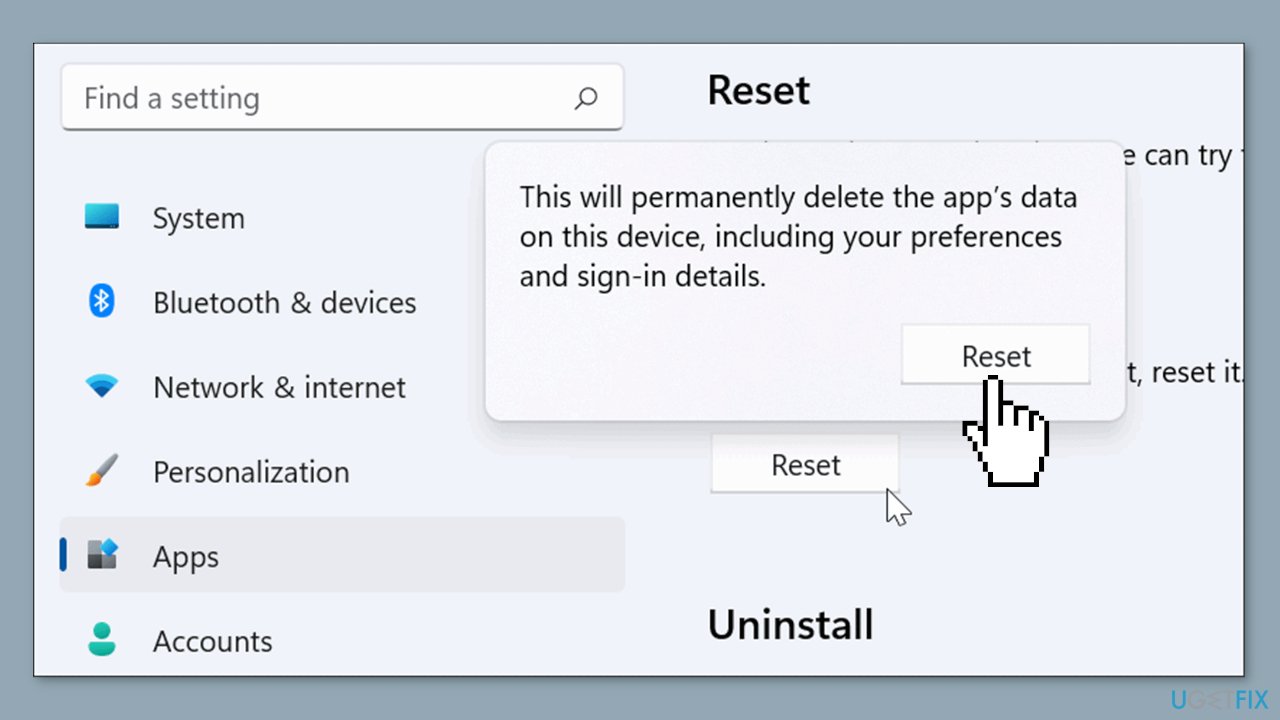
Method 6. Reinstall the App
- Open Control Panel on your computer.
- Set the View by option to Category.
- Click on Programs and then select Uninstall a program.

- Locate OneDrive in the list of installed programs.
- Click on Uninstall. If a confirmation prompt appears, click Yes.
- Follow the on-screen instructions to complete the uninstallation process.
- After uninstalling, download the app again.
- Run the downloaded file on your computer.
- Follow the on-screen instructions to complete the installation process.
Bottom line
To fix the 'No such interface supported' error in Windows, you can repair corrupted system files using Command Prompt commands, disable non-essential startup programs, and consider running a maintenance tool. If these steps do not resolve the issue, further troubleshooting may be necessary.
Frequently asked questions
This error often occurs due to corrupted system files, outdated drivers, or issues with the Windows registry. It can also be triggered by incompatible applications trying to access system components.
You can run the 'sfc /scannow' and 'DISM /Online /Cleanup-Image /RestoreHealth' commands in Command Prompt to scan for and repair corrupted system files that may be causing the error.
Yes, checking and resetting the default applications for the file types associated with the error can help, as well as ensuring that your Windows 10 is fully updated with the latest patches.




Report an issue
What's wrong with this guide? We review every report and update or remove content.
Report received — thank you. We'll review and fix it.
You need a free account to submit a report.
Be the first to comment