How to fix
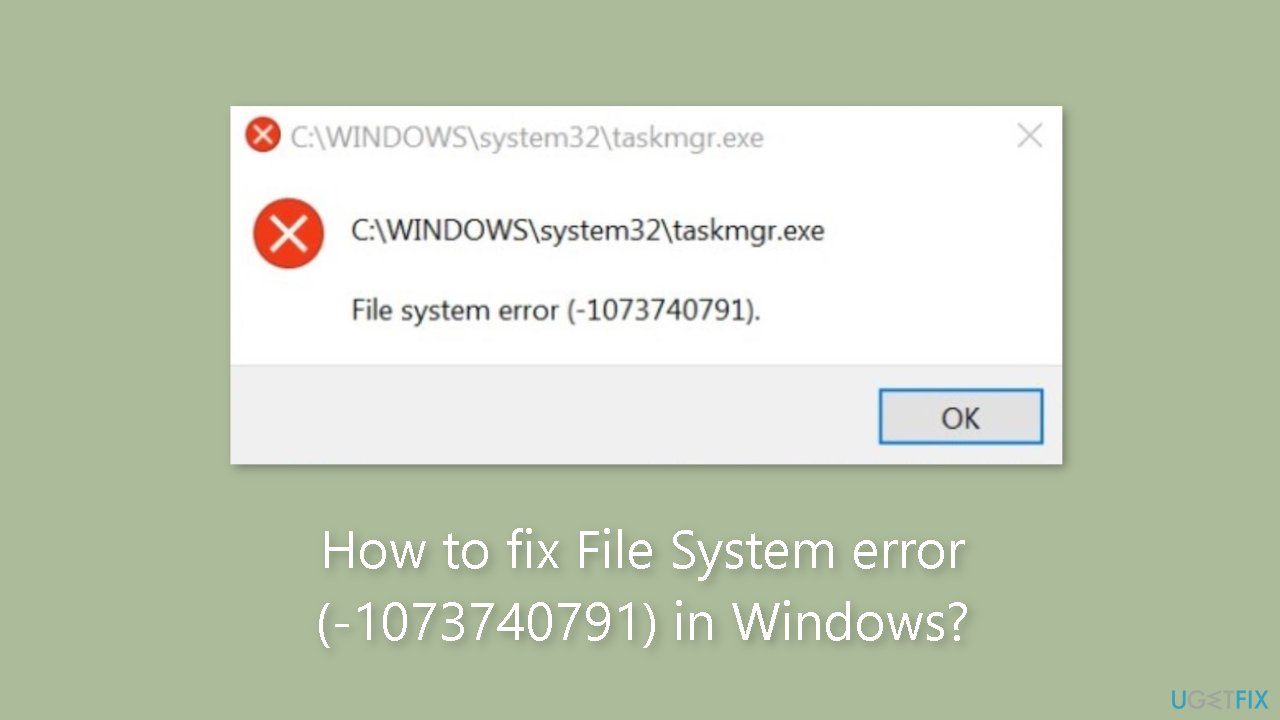
File System error (-1073740791)
on Windows
Resolve File System error (-1073740791) on Windows 10 and 11 quickly. Follow our expert-tested solutions for a smooth experience, fixed in minutes!


What causes How to fix File System error (-1073740791) in Windows?
- Corrupt system files
- Missing system files
- Compatibility issues with installed software
- Outdated software versions
- Conflicts with other installed programs
Repairs Windows system files, removes malware, and restores a clean OS state — without reinstalling.
Hello. When I try to run any app as an administrator on my Windows PC I get the File System error (-1073740791). Is there a way to fix this?
When attempting to run any program as an administrator, some Windows users may encounter the File System error File (-1073740791). This error is usually caused by underlying issues in the operating system that prevent the program from running successfully. While the precise cause of this error varies, it frequently indicates a problem with system files or a conflict with other installed software.
This error can have a significant impact on users because it prevents them from running programs that require administrative privileges. Many system maintenance and configuration tasks necessitate administrative access, and without it, users may be unable to perform critical actions such as installing or updating software, changing system settings, or troubleshooting specific problems. As a result, the File System error File (-1073740791) can stymie productivity and prevent users from completing critical tasks that necessitate elevated permissions.
Resolving the File System error File (-1073740791) can be difficult due to the variety of causes. However, there are several potential solutions that can help alleviate this problem. One option is to run a system file check with the built-in Windows System File Checker (SFC) tool. This utility scans for and repairs corrupt or missing system files that may be causing the error.
Another option is to update or reinstall the program that is causing the error. In some cases, the problem may be caused by compatibility issues or outdated software versions. Such conflicts are frequently resolved by updating the program to the most recent release or reinstalling it.
In this guide, you will find 7 steps that should help you fix File System error (-1073740791) in Windows. You can also use a maintenance tool like [d1] that can fix most system errors, BSODs,[ref en-1] corrupted files, and registry[ref en-2] issues. Otherwise, follow the step-by-step instructions below.
Method 1. Fix Corrupted System Files
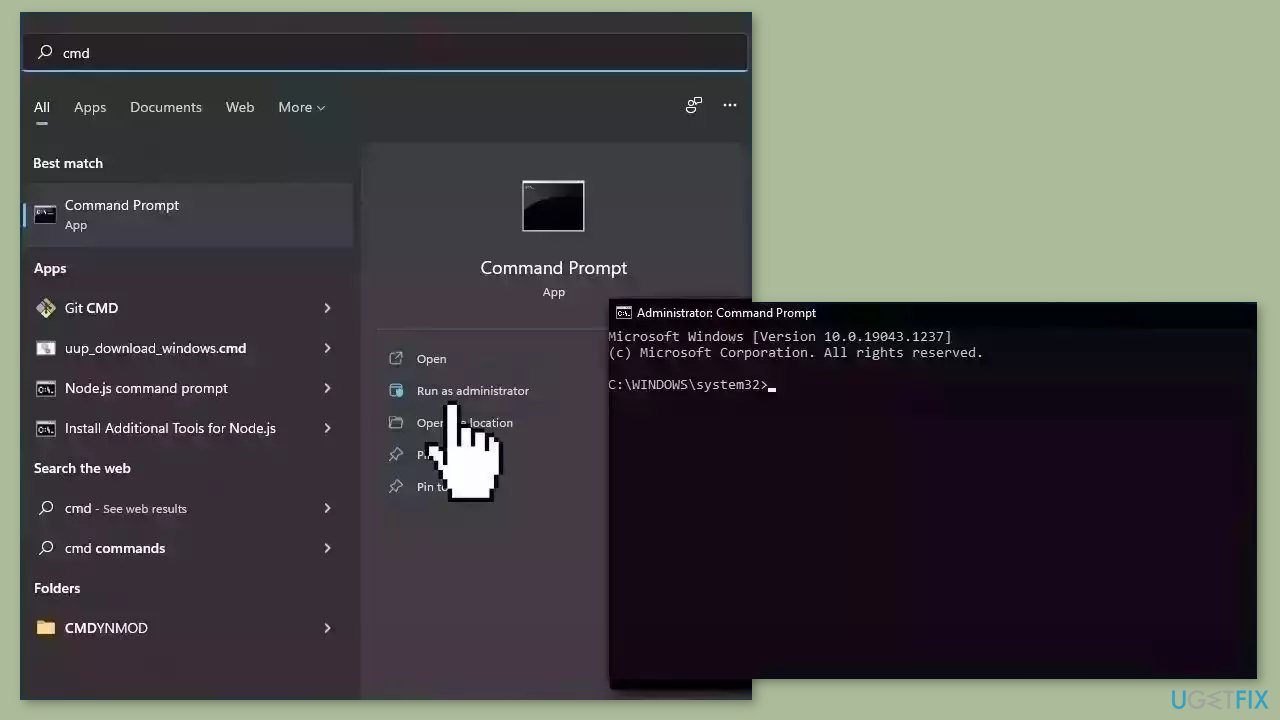
Use Command Prompt commands to repair system file corruption:
- Open Command Prompt as administrator
- Use the following command and press Enter:
sfc /scannow
- Reboot your system
- If SFC returned an error, then use the following command lines, pressing Enter after each:
DISM /Online /Cleanup-Image /CheckHealth
DISM /Online /Cleanup-Image /ScanHealth
DISM /Online /Cleanup-Image /RestoreHealth
Method 2. Check Disk
Ensure that your disk is not damaged. You can perform checks using Administrative Command Prompt:
- If you are using an HDD as your main driver (where your operating system is installed – C: by default), use the following command and press Enter:
chkdsk c: /f - If you are using SSD, use this command:
chkdsk c: /f /r /x

- If you receive an error, type in Y and hit Enter.
- Restart your device to perform the check.
Method 3. Scan for Malware
It is possible that a malware infection may be the cause of File System error (-1073740791) in Windows. It is important to run a comprehensive security scan to rule out this possibility and ensure that the computer is not infected. This can help to prevent further issues with the Windows operating system and ensure that it is functioning properly.
If you have access to a security scanner, or if your organization pays for one, you can use it to scan your entire system to check for a virus infection. Otherwise, you can use Windows Defender to scan your system:
- Click on the Windows Start menu or press the Windows key on your keyboard.
- Type Microsoft Defender in the search bar and click on Microsoft Defender Antivirus to open the application.
- Click on the Virus & threat protection option in the left-hand menu.
- Click on the Quick scan or Full scan option, depending on your preference.
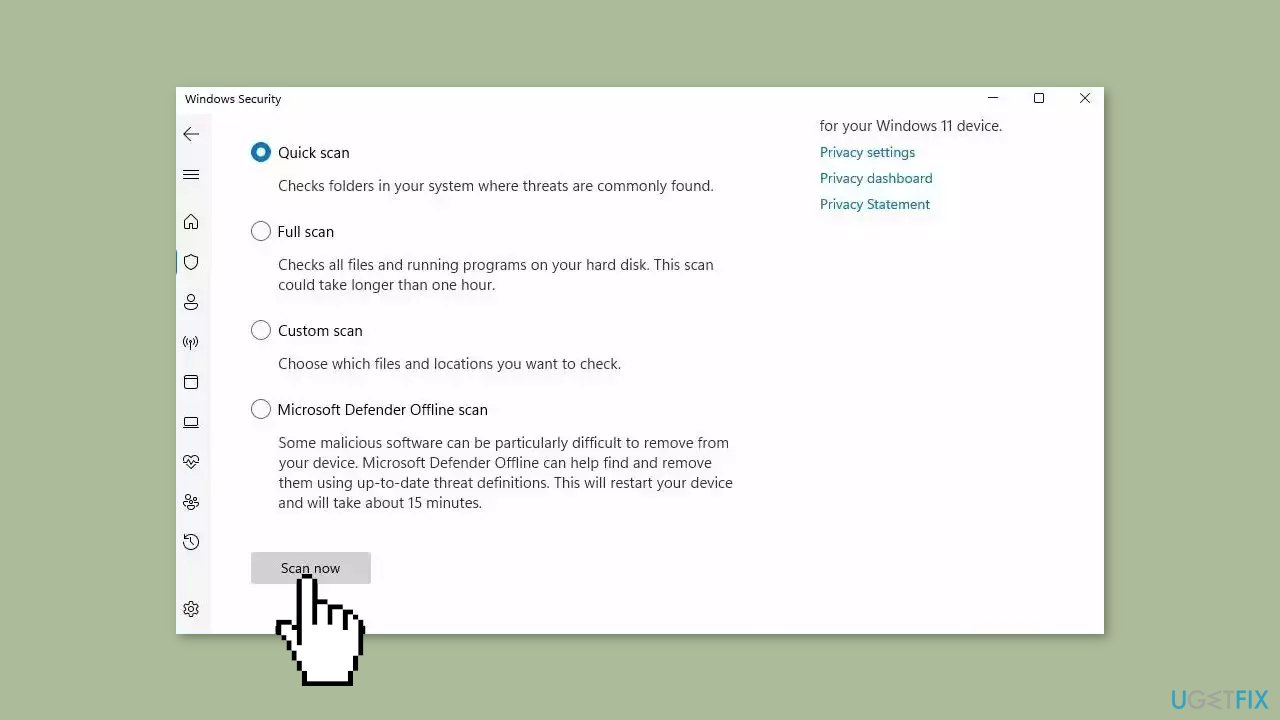
- If you choose Quick scan, Microsoft Defender Antivirus will scan the most vulnerable and commonly infected areas of your computer.
- If you choose Full scan, Microsoft Defender Antivirus will scan your entire computer, including all files, folders, and programs.
- Click on the Scan now button to start the selected scan type and wait for the scan to complete.
- The time it takes will depend on the size of your hard drive and the number of files being scanned.
- Once the scan is complete, you will be informed of any detected threats, and you can choose to quarantine or remove them.
- If no threats are found, Microsoft Defender Antivirus will inform you that your device is secure.
Method 4. Uninstall Recent Windows Updates
- Press the Windows key + I to open Settings.
- Go to Windows Update from the navigation pane.
- Click on Update history.
- Scroll to the bottom and click on Uninstall updates.

- Locate the update after which the error first appeared.
- Click on Uninstall next to that update.
- Confirm the uninstallation when prompted.
- Finally, restart the computer to complete the process.
Method 5. Create a New User Account
- Open the search by tapping the Windows key or clicking on the search icon.
- Type user in the search bar.
- From the search results, select Add, delete, and manage other user accounts to open the Other Accounts section.
- Click on Add an account to proceed.
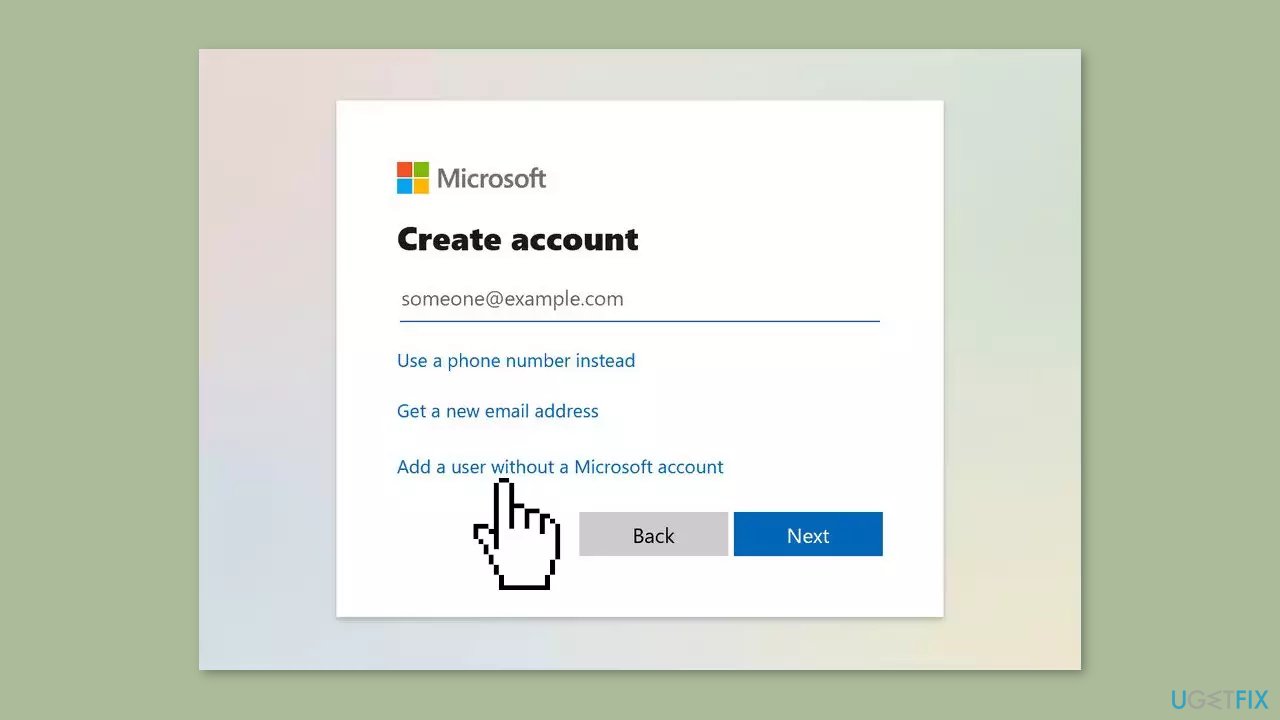
- Instead of entering an email address, locate the gray option called Sign in without a Microsoft account at the bottom of the screen.
- Click on Sign in without a Microsoft account to choose a Local Account.
- In the next window, fill in the required details such as username and password.
- Click on Next to create the new user account.
- The new user account should now be successfully created and ready to use.
Method 6. Use System Restore
System Restore is a feature in Microsoft Windows that allows users to revert their computer's state to a previous point in time. This can be helpful if you have made changes to your system that are causing problems.
- Press the Windows key + R on your keyboard to open the Run box.
- Type SystemPropertiesProtection and press Enter.
- Go to the System Protection tab.
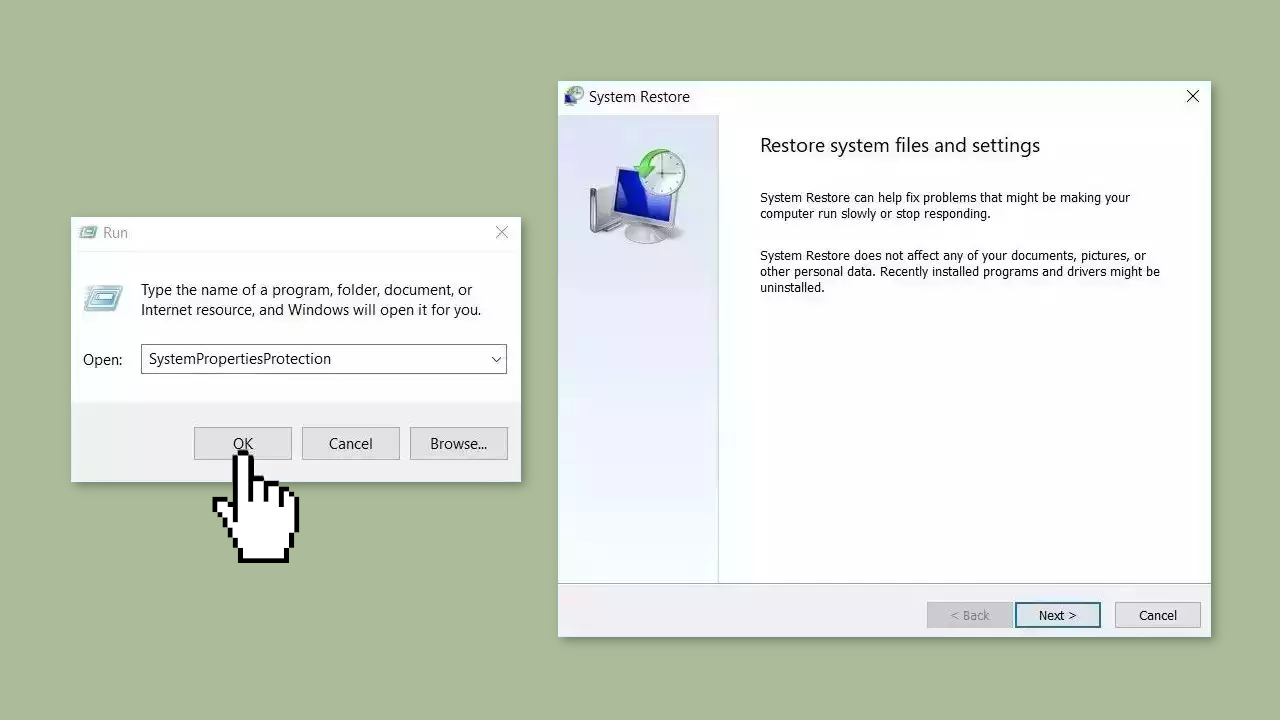
- You will see the System Restore… button. Click it to run System Restore.
- Follow the prompts until you can select a restore point.
- Select the one you want (ideally before the issue started occurring) and go ahead with the process.
Method 7. Perform an in-place Upgrade
- Download the Windows ISO file from the official Microsoft website.
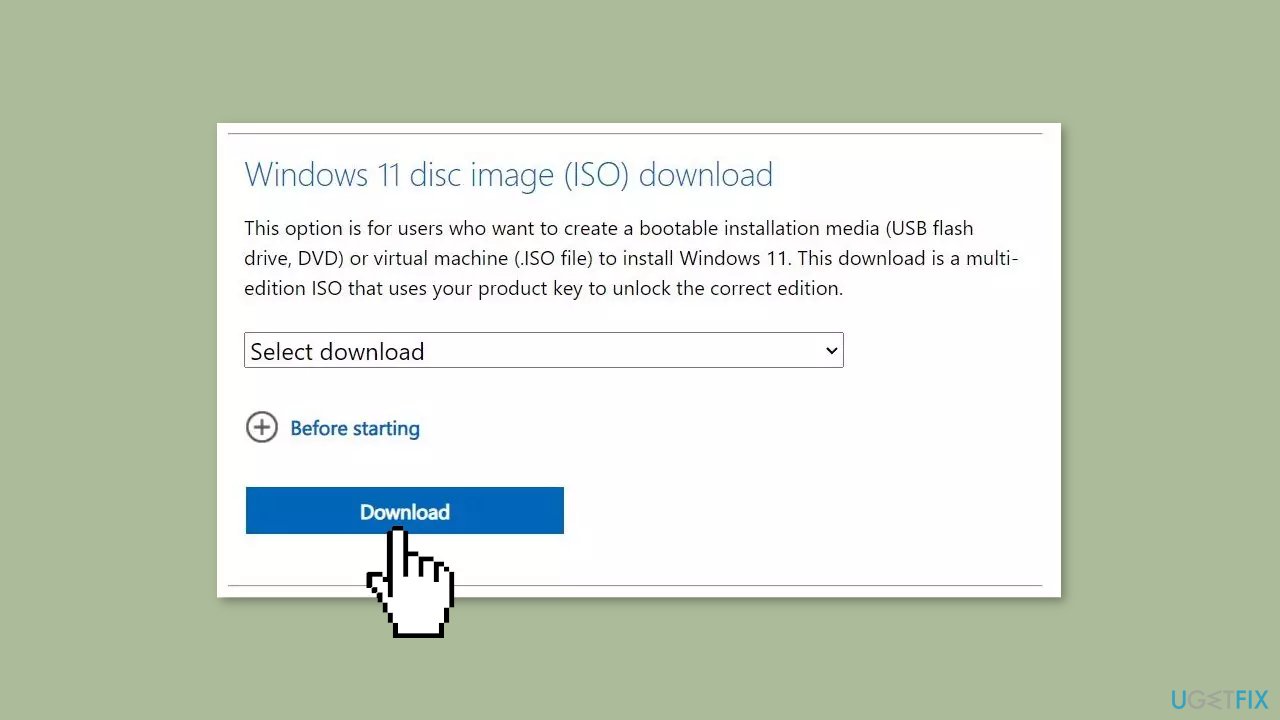
- Open File Explorer and navigate to the location where the Windows image file was downloaded.
- Right-click on the downloaded file and select the Mount option from the context menu.
- In File Explorer's navigation pane, click on the ISO drive that appears after mounting the file.
- Locate and click on the setup.exe file to initiate the Windows setup.
- A User Account Control (UAC) prompt will appear. Click on Yes to proceed.
- In the Windows setup window, click on the Change how Setup downloads updates option.
- Select the Not right now radio button and click on the Next button.
- Read the End User License Agreement (EULA) page and click on the Accept button.
- On the Choose what to keep page, select the Keep personal files and apps option.
- Click on the Next button, and then click on the Install button to begin the installation process.
- The setup will start installing a new copy of Windows. If you have an SSD, the installation should not take more than 15 minutes.
- Your system will restart multiple times during the installation process.
- After the setup finishes installing updates, it will redirect you to the login screen.
- Enter your password and press the Enter key to continue.
- Wait for the setup to prepare your system for the first boot, and you will automatically enter the desktop.
Bottom line
To fix the File System error (-1073740791), you can run a system file check using the Windows System File Checker (SFC) tool or update/reinstall the problematic program. If these solutions do not resolve the issue, consider using a maintenance tool to address system errors.
Frequently asked questions
This error can occur due to corrupted system files, issues with the Windows Update service, or problems with disk integrity in Windows 10.
To fix this error in Windows 11, you can run the System File Checker tool by typing 'sfc /scannow' in the Command Prompt.
Regularly running Windows Update and using the Disk Cleanup tool can help prevent this error by ensuring system files remain intact in both Windows 10 and Windows 11.




Report an issue
What's wrong with this guide? We review every report and update or remove content.
Report received — thank you. We'll review and fix it.
You need a free account to submit a report.
Be the first to comment