How to fix
0xc0000417 error when launching games
on Windows
Resolve the 0xc0000417 error swiftly and get back to gaming on Windows 10 or 11. Expert-tested solutions ensure a smooth experience, fixed in minutes.

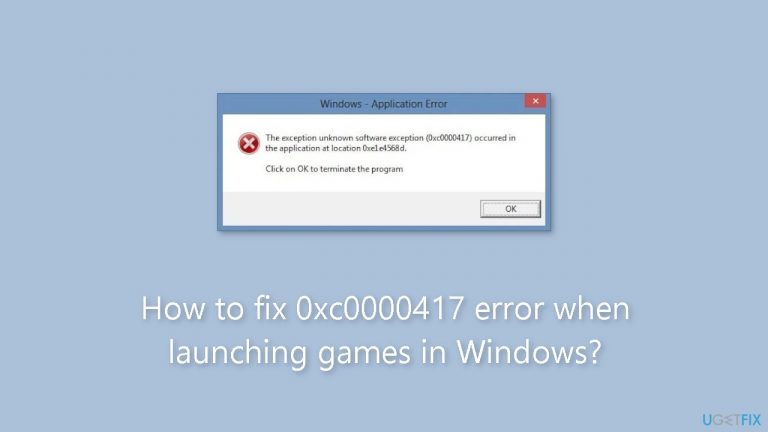
What causes How to fix 0xc0000417 error when launching games in Windows?
- Game's executable file failure
- Missing dependencies
- Incompatibility with Windows operating system
- Outdated drivers
- Corrupted game files
Repairs Windows system files, removes malware, and restores a clean OS state — without reinstalling.
Hello. When I try to launch certain games from Steam I get the 0xc0000417 error. Is there a way to fix this?
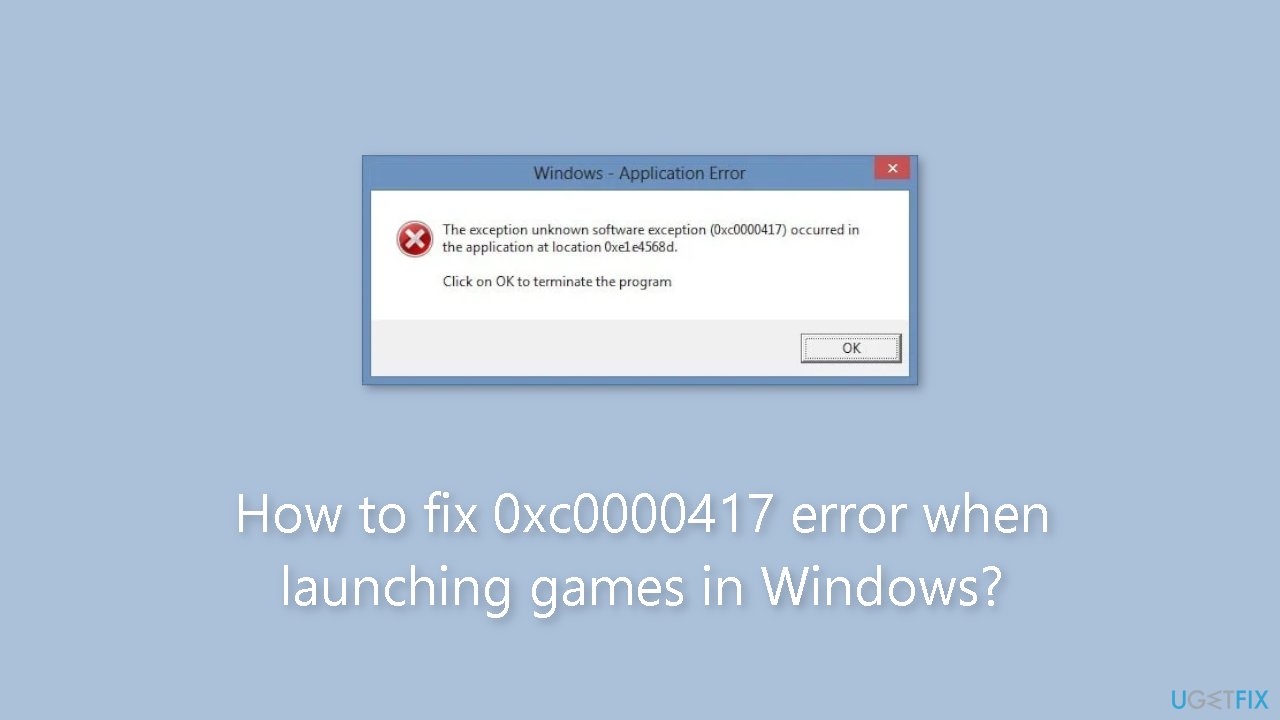
When attempting to launch a game on Windows, users may encounter the 0xc0000417 error. This error typically occurs when the game's executable file or its dependencies fail. It may appear as a pop-up error message, preventing the game from starting.
The "The exception unknown software exception (0xc0000417) occurred" error can have serious consequences for users. For starters, it prevents them from starting the game they intended to play. This can be frustrating and disappointing, especially if they were looking forward to having a good time while gaming. The error disrupts their gaming routine and can result in time and effort wasted troubleshooting the problem.
Furthermore, users who are unfamiliar with the 0xc0000417 error may become confused and concerned. They may be concerned that their system is fundamentally flawed or that their game files have become corrupted. This uncertainty can exacerbate the frustration and anxiety felt by users who encounter this error.
While the exact cause of the 0xc0000417 error can vary, users can try a few different solutions. Checking and repairing the game's installation files, ensuring compatibility with the Windows operating system, updating drivers[ref en-1] and software, or performing system maintenance tasks are some of the solutions available.
In this guide, you will find 6 steps that should help you fix 0xc0000417 error when launching games in Windows. You can also try running a maintenance tool like [d1] that can fix most system errors, BSODs,[ref en-2] corrupted files, and registry[ref en-3] issues. Otherwise, follow the step-by-step instructions below.
Solution 1. Verify the Game Files
Steam:
- Open your Steam library.
- Locate the problematic game in your library.
- Right-click on the game.
- A context menu will appear. Select Properties from the menu.
- The Properties window for the game will open.
- In the Properties window, navigate to the Local Files tab.
- Click on the tab labeled Local Files.
- On the Local Files tab, look for the option that says Verify Integrity of game files.
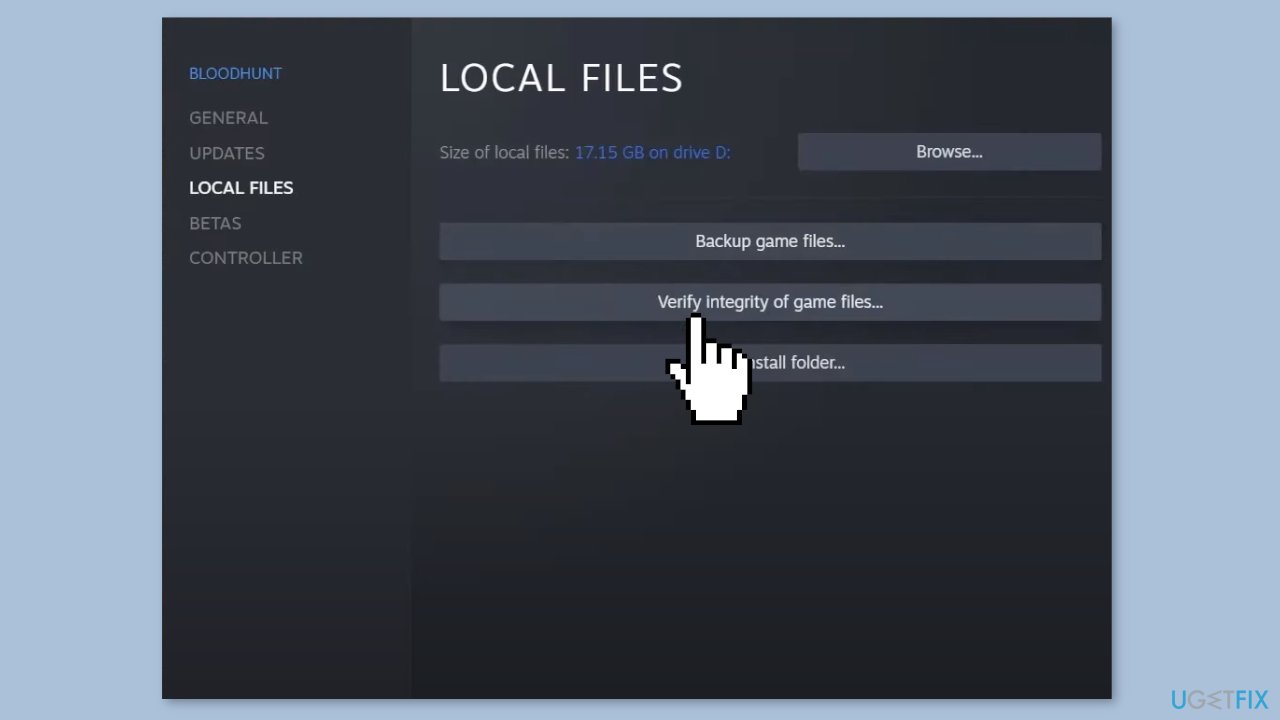
- Click on the Verify integrity of game files option.
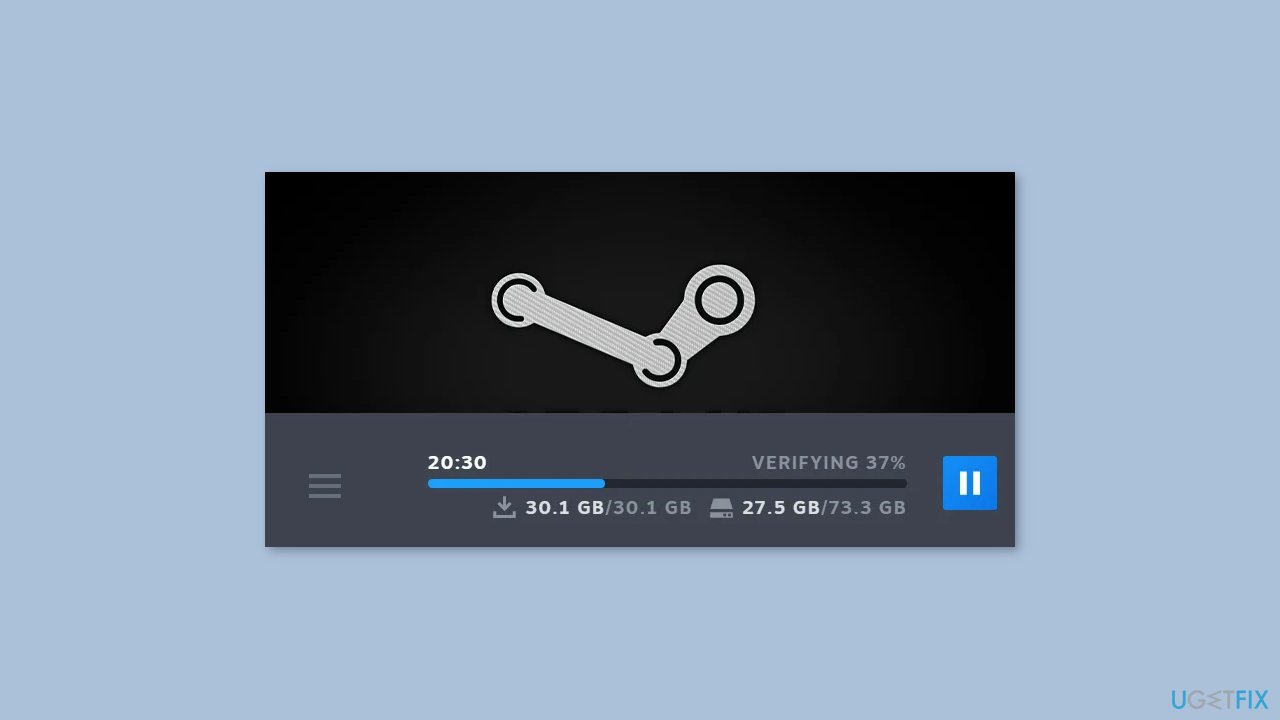
- The verification process will begin, and Steam will check for any missing or corrupted files.
- If any issues are found, Steam will attempt to repair the files automatically.
Solution 2. Update the Application
Make sure you have the latest version of the application or software that is generating the error. Developers often release updates to address known issues and vulnerabilities.
Steam:
- Launch the Steam application on your computer.
- Log in to your Steam account if you haven't already.
- In your Steam library, locate the game you want to update.
- If the game needs an update, you will see an update notification next to its title.
Solution 3. Install Windows Updates
- Press the Windows key + I on your keyboard to open the Settings window.
- From the left sidebar, click on the Windows Update tab.
- Click on the Check for updates button.
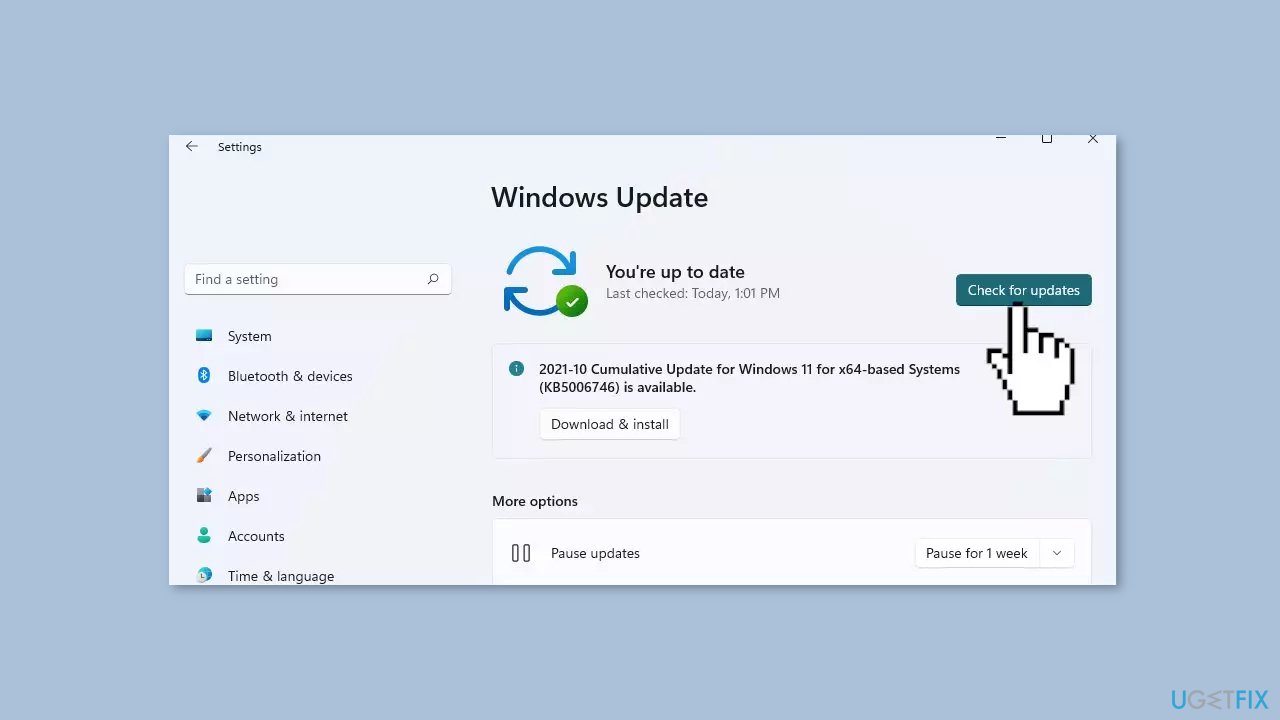
- Wait while Windows checks for available updates.
- If new updates are found, download and install them.
- Follow the on-screen instructions to complete the update process.
Solution 4. Update Drivers
Outdated drivers could be the cause of this issue. In this case, you can fix it automatically by using [rev id="DriverFix"], which will scan your PC for missing and out-of-date device drivers. Or you can update them manually:
- Open Settings.
- Click on Update & Security.
- Click on Windows Update.
- Click the Check for updates button.
- Click the View optional updates option.
- Click the Driver updates tab.
- Select the driver you want to update.
- Click the Download and install button.
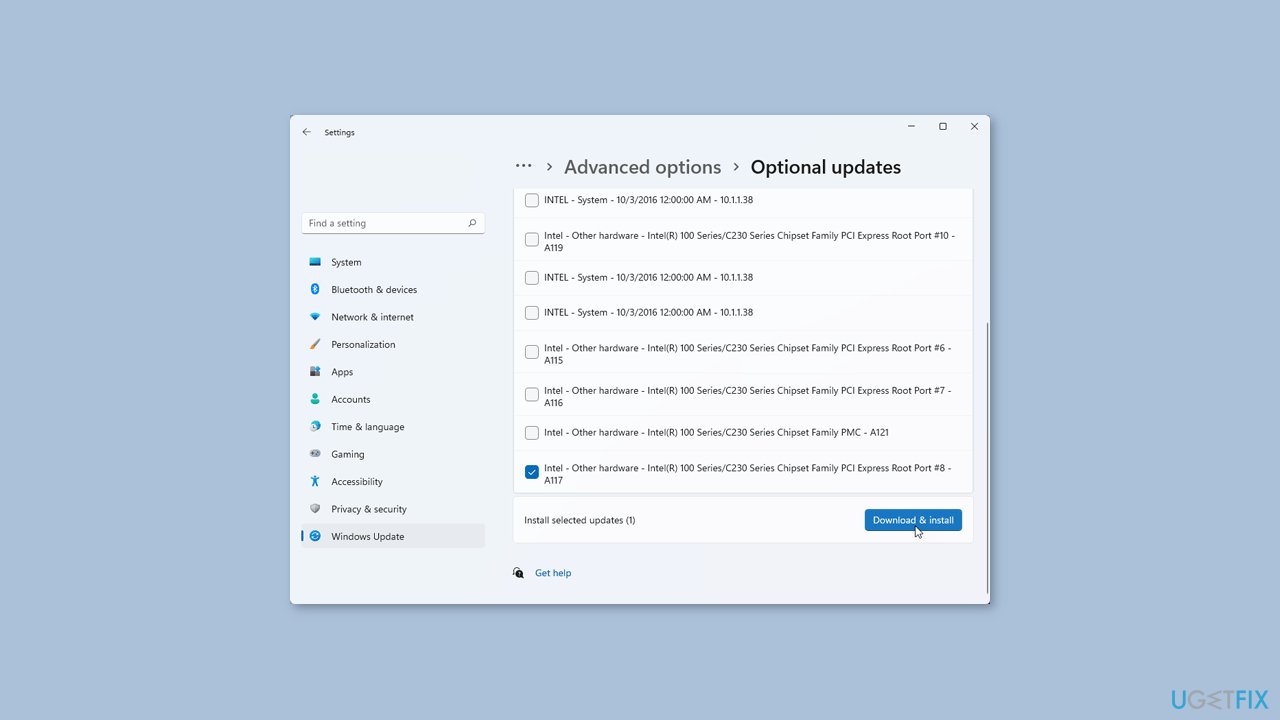
If the View optional updates link is not available after checking for updates, then Windows Update does not have any new drivers or any updates for other products at that particular time.
Solution 5. Try Clean Boot
- Open the Search menu, type in system configuration, and press Enter.
- Under the Services tab, tick the Hide all Microsoft services box.
- Click on Disable all button.
- Head over to the Startup tab and click on Open Task Manager.
- Select a third-party program and click on Disable at the top.
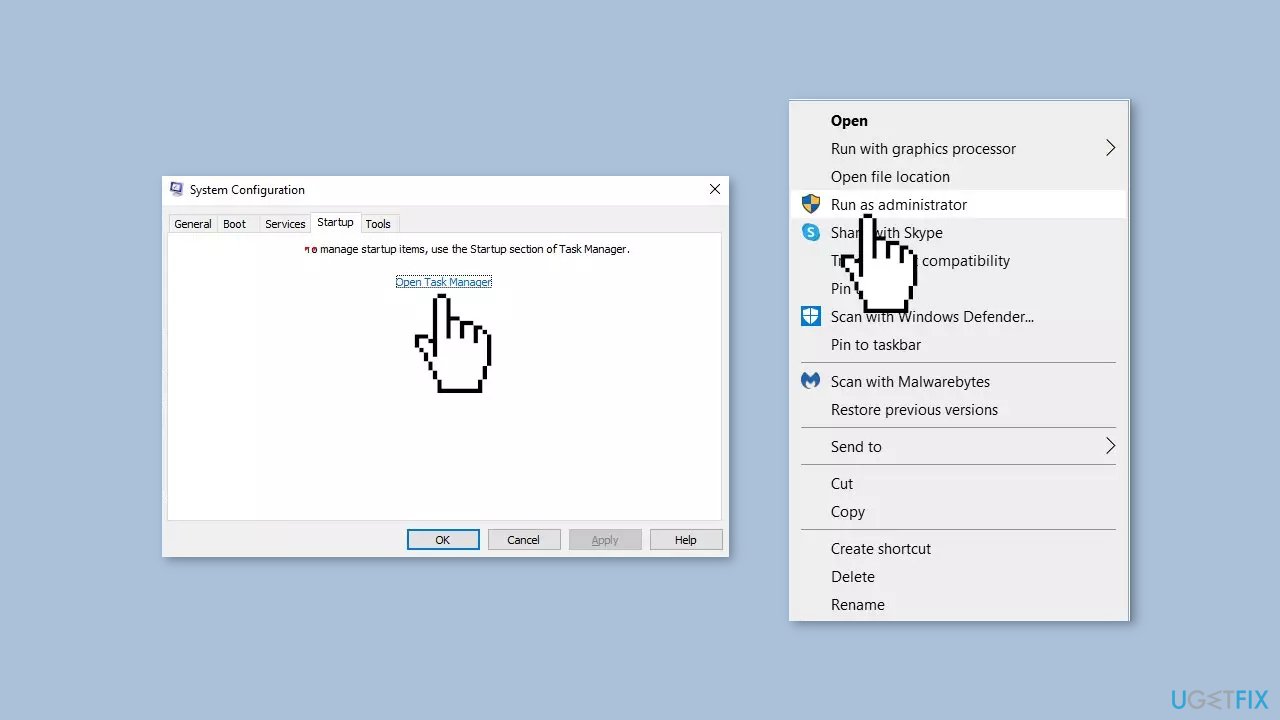
- Repeat this step to disable all third-party apps and programs.
- Restart your PC to enter the clean boot state and see if the issue persists.
- If the issue disappeared in the clean boot state, then you can be certain that a third-party app is causing it.
- Go through all recently installed apps or programs and remove them one by one.
Solution 6. Turn off Core Isolation
- Select the Start button and type Core isolation.
- Select the Core Isolation system settings from the search results to open the Windows security app.
- On the Core isolation page, you’ll find Memory integrity along with the toggle to turn it on or off.
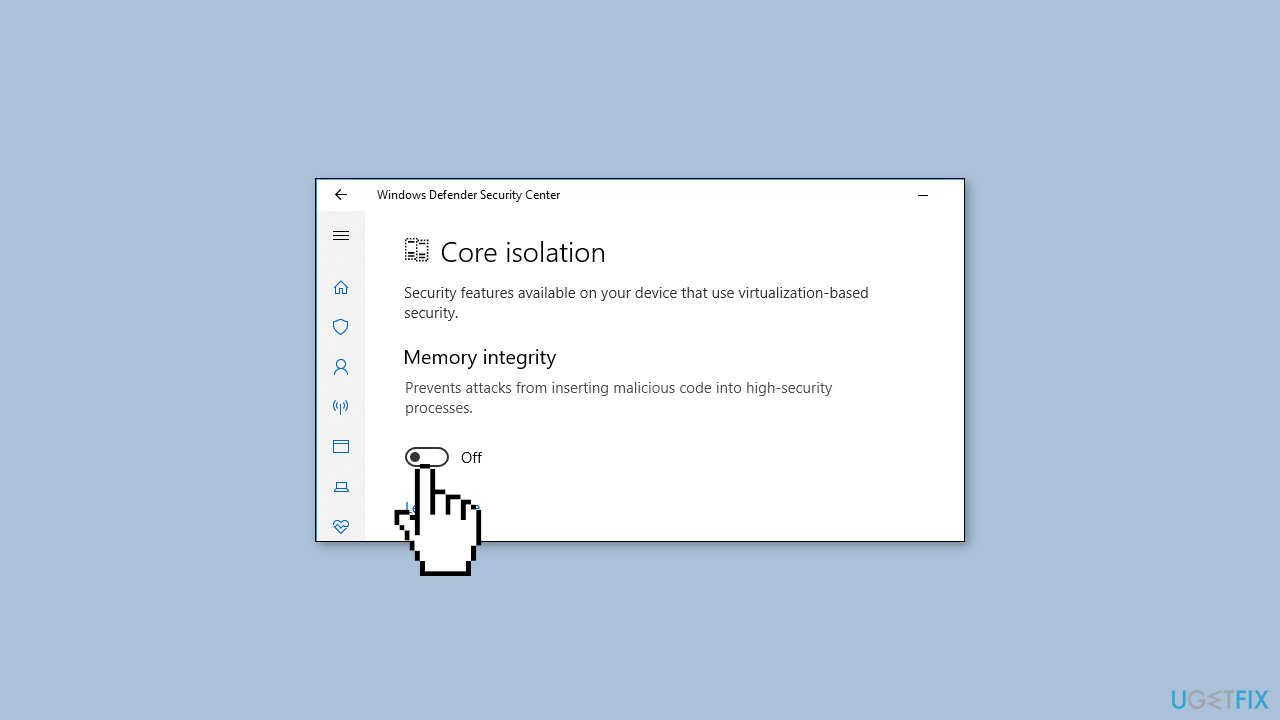
Bottom line
To fix the 0xc0000417 error, users can verify the integrity of game files, ensure compatibility with Windows, update drivers, and perform system maintenance tasks. If these solutions do not resolve the issue, consider using a maintenance tool to address system errors and corrupted files.
Frequently asked questions
The 0xc0000417 error indicates an application error, typically related to a problem with the game or its associated files. This can occur due to corrupted game files, outdated drivers, or compatibility issues.
To fix the error, try verifying the game files through the game launcher, updating your graphics drivers, and ensuring that Windows is up-to-date. Additionally, running the game in compatibility mode may help resolve the issue.
Yes, uninstalling and then reinstalling the game can often resolve the 0xc0000417 error by ensuring that all game files are fresh and not corrupted. Make sure to back up any saved data if necessary before doing so.




Report an issue
What's wrong with this guide? We review every report and update or remove content.
Report received — thank you. We'll review and fix it.
You need a free account to submit a report.
Be the first to comment