How to fix
File Explorer keeps resetting sort order
on Windows
Resolve the annoying issue of File Explorer resetting sort order in Windows 10/11 with expert tips. Fix it in minutes for smoother file management!

What causes How to fix File Explorer keeps resetting sort order in Windows?
- Windows unable to retain personalized preferences
- File Explorer-related Windows Registry settings issues
- Outdated device drivers
- Pending Windows updates
- Missing software patches
Repairs Windows system files, removes malware, and restores a clean OS state — without reinstalling.
Hello. Whenever I open a folder in File Explorer it defaults back to sorting by name even though I changed the sort order. How do I fix this?
One common problem encountered by Windows users is when File Explorer repeatedly resets the sort order and fails to remember Folder View settings. This problem occurs when users change the sorting order or view settings for their files and folders, only to discover that Windows reverts to the default settings when they navigate to different directories or restart their computers. The issue is that Windows is unable to retain and remember the personalized preferences that users have set.
This issue can have a significant impact, especially for users who rely heavily on specific sorting orders and customized Folder View settings. As users are forced to repeatedly rearrange and customize the view settings to match their preferences, it can lead to decreased productivity and wasted time. Searching for files and folders becomes more difficult, especially in large directories with many items. This inconsistency in retaining Folder View settings can be frustrating and disruptive to users' workflows, causing annoyance and hampering the overall user experience.
Depending on the underlying cause, different approaches may be required to address this issue. Users can try a variety of solutions to the problem. These may include modifying File Explorer-related Windows Registry settings, ensuring that device drivers are up to date, checking for available Windows updates, and applying the most recent software patches.
In this guide, you will find 6 steps that should help you fix File Explorer keeps resetting sort order in Windows. You can also try a maintenance tool like [d1] that can fix most system errors, BSODs,[ref en-1] corrupted files, registry[ref en-2] issues, or clear cookies and cache.[ref en-3] Otherwise, follow the step-by-step instructions below.
Solution 1. Reset the Folder Type View Settings
- Press the Windows key + E to open Windows File Explorer.
- Click on the View tab.
- Click on Options to open the Folder Options dialog box.
- Switch to the View tab within the Folder Options dialog box.
- Click on the Reset Folders button.

- Reboot your PC to save the changes.
- Open Windows File Explorer again.
- Try to save your preferences once more.
- Check if Windows remembers your preferences this time.
Solution 2. Select Apply to Folders
- Open File Explorer.
- Go to the drive where you want to apply these settings.
- At the top of File Explorer, select View.
- In the Layout section, choose your desired View option.
- While still in the View tab, click on Options located on the far right.
- The Folder Options dialog box will appear.
- Switch to the View tab within the Folder Options dialog box.
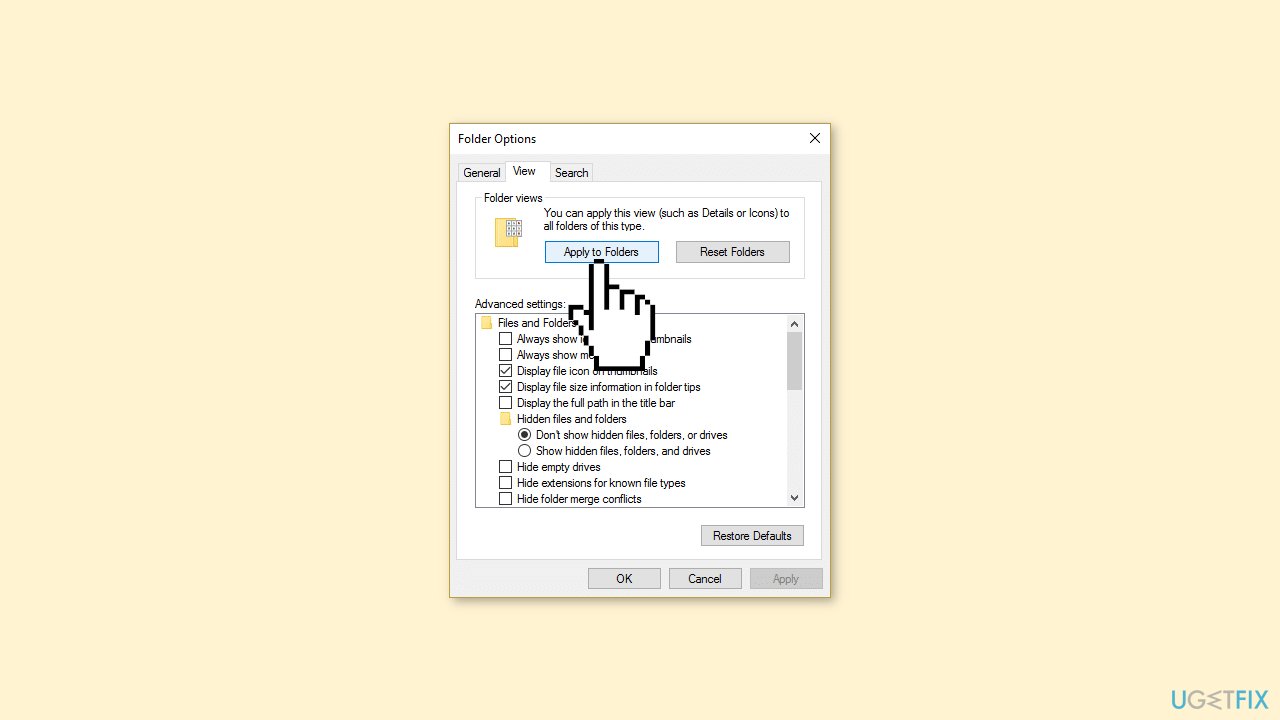
- Click on Apply to Folders.
- Reboot your PC to save the settings.
Solution 3. Add User’s File Shortcut to Desktop
- Right-click on the Desktop.
- Select Personalize from the context menu.
- In the left-hand menu, click on Theme.
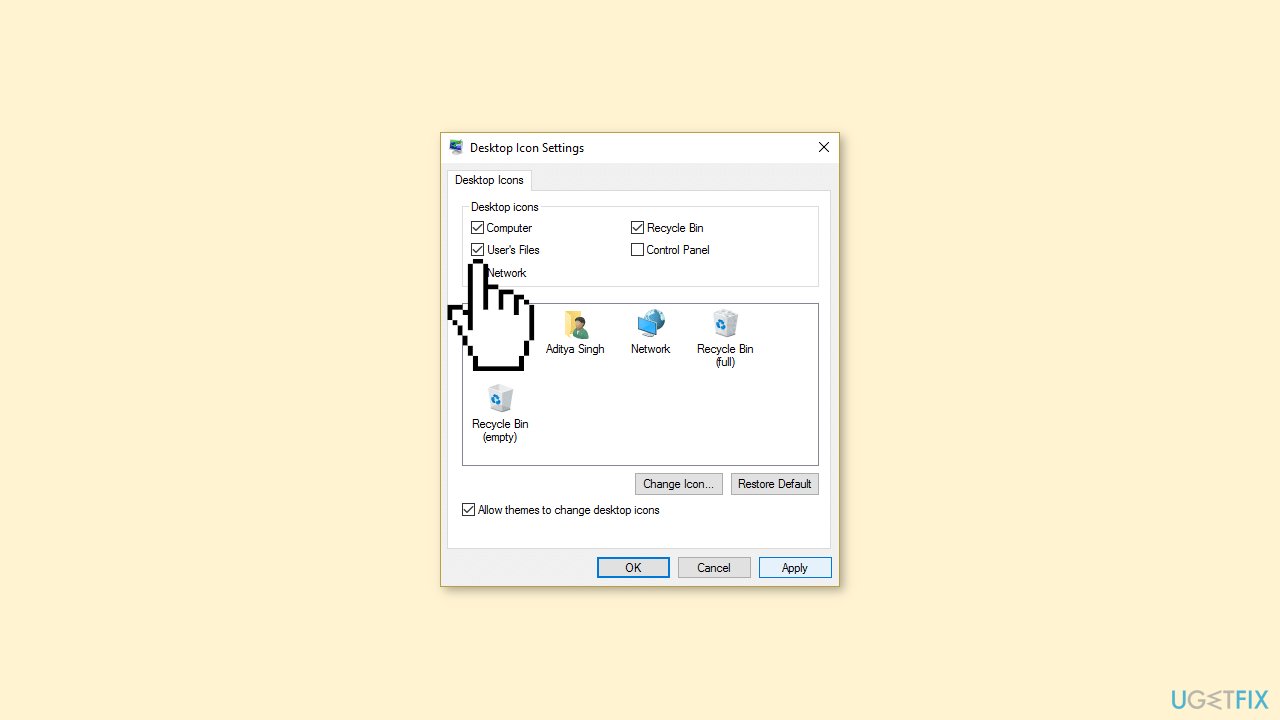
- Under Related Settings, click on Desktop icon settings.
- Check mark User's Files.
- Click on Apply, followed by OK.
- Open User's Files from the Desktop.
- Navigate to your desired directory within User's Files.
- Try to change the folder view option to your desired preferences.
- Reboot your PC to save the changes.
Solution 4. Use System Restore
System Restore is a feature in Microsoft Windows that allows users to revert their computer's state to a previous point in time. This can be helpful if you have made changes to your system that are causing problems.
- Press the Windows key + R on your keyboard to open the Run box.
- Type SystemPropertiesProtection and press Enter.
- Go to the System Protection tab.
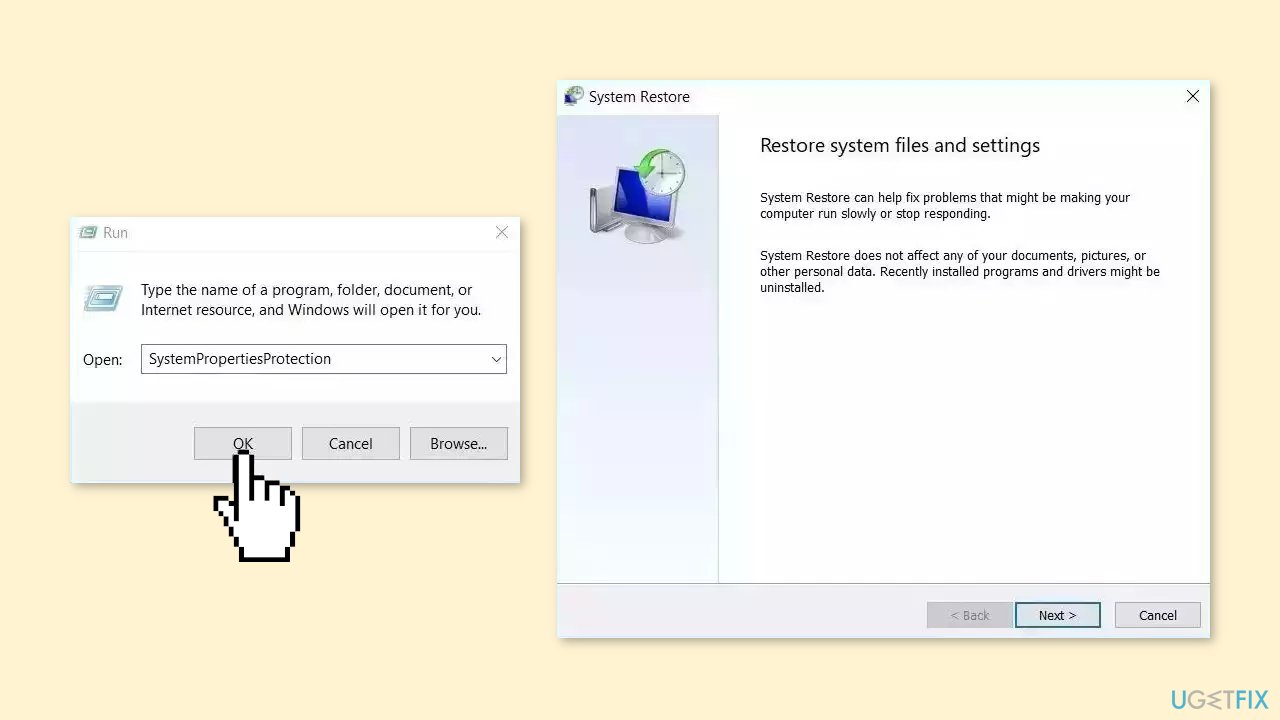
- You will see the System Restore… button. Click it to run System Restore.
- Follow the prompts until you can select a restore point.
- Select the one you want (ideally before the issue started occurring) and go ahead with the process.
Solution 5. Use Command Prompt
- Press the Windows key + X to open the Quick Link menu.
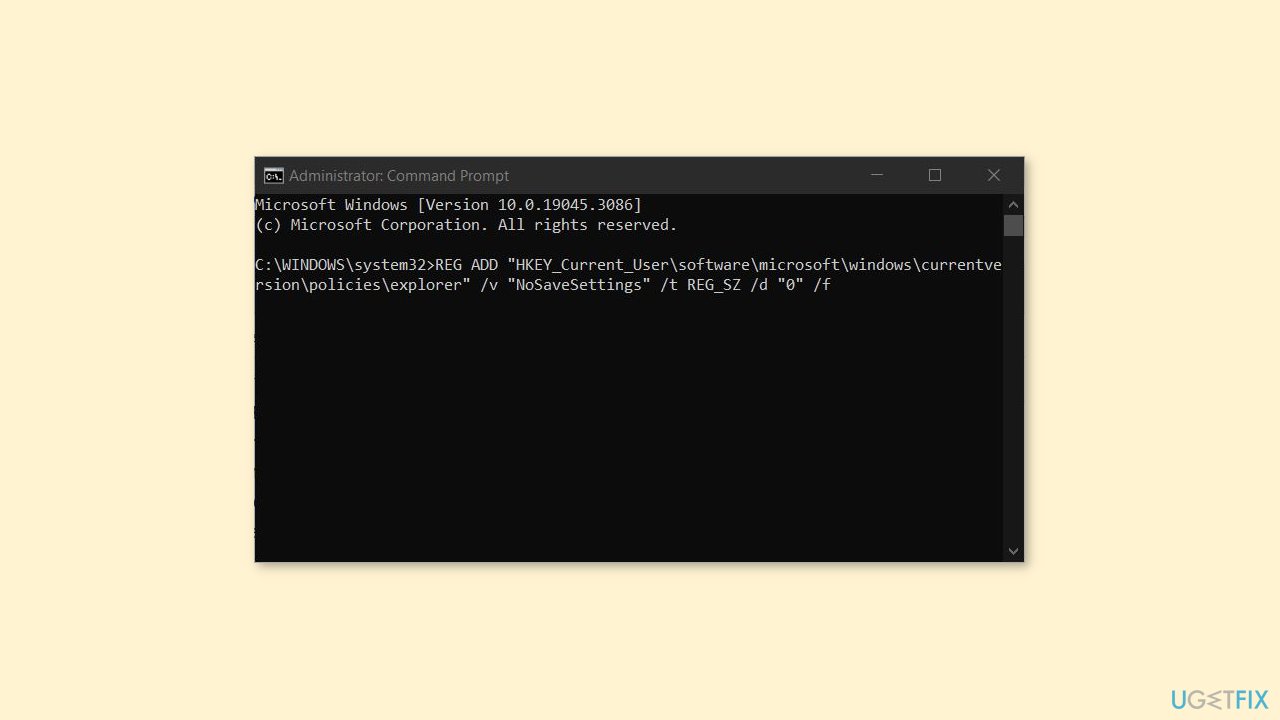
- From the menu, select Command Prompt (Admin).
- The Command Prompt window will open with administrator privileges.
- Type the following command and press Enter after each one:
REG ADD "HKEY_Current_User\software\microsoft\windows\currentversion\policies\explorer" /v "NoSaveSettings" /t REG_SZ /d "0" /f
REG ADD "HKEY_Local_Machine\software\microsoft\windows\currentversion\policies\explorer" /v "NoSaveSettings" /t REG_SZ /d "0" /f
- Reboot your PC.
Solution 6. Modify Windows Registry
- Open Notepad.
- Copy the following content exactly and paste it into your Notepad file:
Windows Registry Editor Version 5.00
[-HKEY_CURRENT_USER\Software\Classes\Local Settings\Software\Microsoft\Windows\Shell\BagMRU]
[-HKEY_CURRENT_USER\Software\Classes\Local Settings\Software\Microsoft\Windows\Shell\Bags]
[HKEY_CURRENT_USER\Software\Classes\Local Settings\Software\Microsoft\Windows\Shell\Bags\All Folders\Shell] "FolderType"="NotSpecified"
[HKEY_CURRENT_USER\Software\Classes\Local Settings\Software\Microsoft\Windows\Shell] "BagMRU Size"=dword:00002710

- Click on File and then select Save as.
- Make sure to select All Files from the Save as type dropdown menu.
- Browse to the desired location where you want to save the file.
- Name the file as Registry_Fix.reg.
- Click on Save to save the file.
- Reboot your PC to save the changes.
- This should resolve the problem of Folder View Settings not saving.
Bottom line
To fix the issue of File Explorer resetting sort order, users can try resetting the Folder Type View settings, updating device drivers, checking for Windows updates, and modifying Windows Registry settings. If these solutions do not resolve the problem, consider using a maintenance tool to address system errors or corrupted files.
Frequently asked questions
File Explorer may reset the sort order due to corrupted settings or system cache issues. Try resetting the Folder Options or clearing the File Explorer history to address this problem.
To prevent File Explorer from resetting view settings, ensure that you apply the changes to all folders in the Folder Options and disable any conflicting third-party software.
If the sort order resets after updates, check for any pending updates and install them, as Microsoft may have released patches to fix known issues.




Report an issue
What's wrong with this guide? We review every report and update or remove content.
Report received — thank you. We'll review and fix it.
You need a free account to submit a report.
Be the first to comment