How to fix
Get Help app not working
on Windows
Resolve the Get Help app issues in Windows 10 and 11 effortlessly with our expert-tested solutions. Get back on track in minutes!

What causes How to fix Get Help app not working in Windows?
- App not responding
- Network connectivity issues
- Outdated app version
- Corrupted app files
- Windows system errors
Repairs Windows system files, removes malware, and restores a clean OS state — without reinstalling.
Hello. When I try to open the Get Help app on my Windows PC it does not respond. What should I do?
Microsoft's Get Help app is a unified platform designed to simplify troubleshooting for Windows users. The Get Help app aims to provide a centralized and user-friendly interface for accessing support and resolving technical issues as part of Microsoft's transition away from traditional troubleshooters. This app is a comprehensive resource for solving common problems, accessing helpful articles, and communicating with Microsoft support professionals.
However, users may occasionally experience problems with the Get Help app not working properly. This can have a variety of consequences for users who rely on the app to troubleshoot their Windows devices. Users may have difficulty finding relevant troubleshooting information or easily accessing support resources without a functional Get Help app. It can cause frustration and impair their ability to effectively resolve technical issues.
There are several possible solutions that users can try to address this issue. These solutions could include checking network connectivity, making sure the app is up to date, or troubleshooting specific issues with the app's functionality. This guide will walk you through seven steps to resolve the Get Help app not working issue.
You can also try to run a repair tool like [d1] that can fix most system errors, BSODs,[ref en-1] corrupted files, and registry[ref en-2] issues. Otherwise, follow the step-by-step instructions below.
Method 1. Restart the App
- Open the Task Manager.
- Right-click on the Get Help app.
- Click on End task.
- Start the app again.
Method 2. Install Windows Updates
- Press the Windows key + I on your keyboard to open the Settings window.
- From the left sidebar, click on the Windows Update tab.
- Click on the Check for updates button.
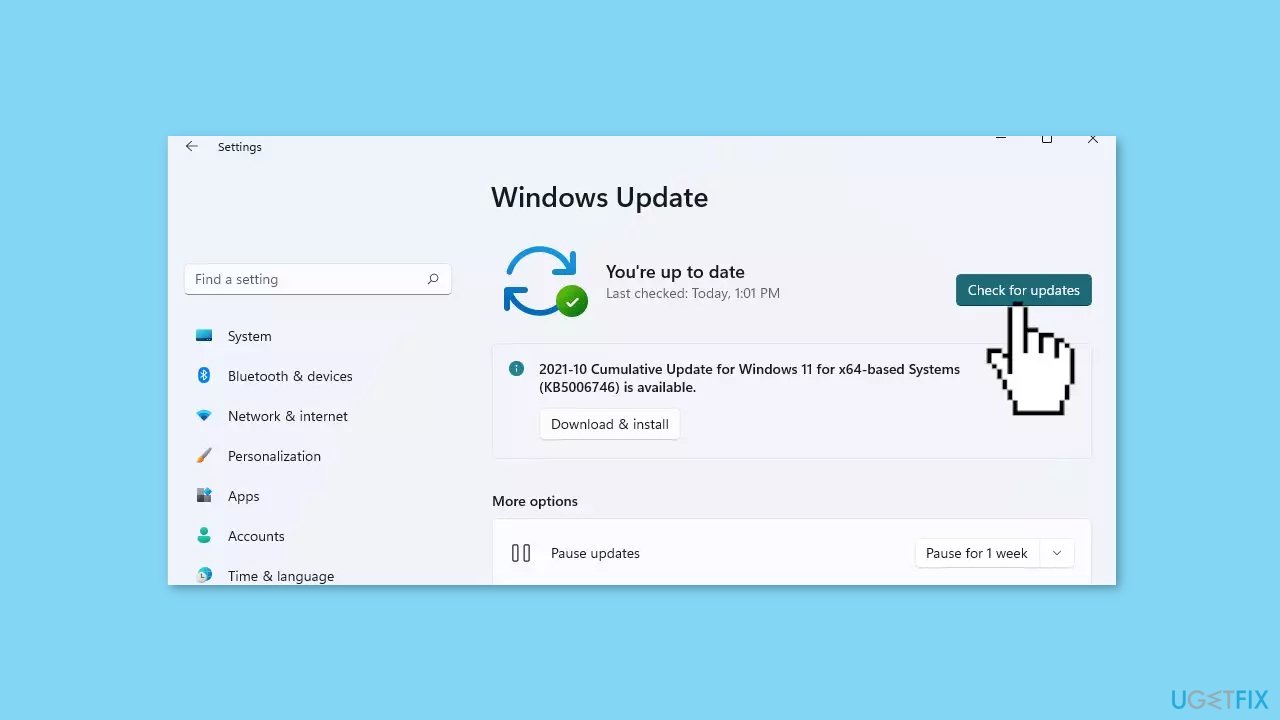
- Wait while Windows checks for available updates.
- If new updates are found, download and install them.
- Follow the on-screen instructions to complete the update process.
Method 3. Repair or Reset the Get Help App
- Press the Windows key + I combination to open the Windows Settings app.
- In the search bar, type Apps and click on Add or remove programs.
- Search for Get Help in the list of apps.
- Click on the three-dot menu next to Get Help.
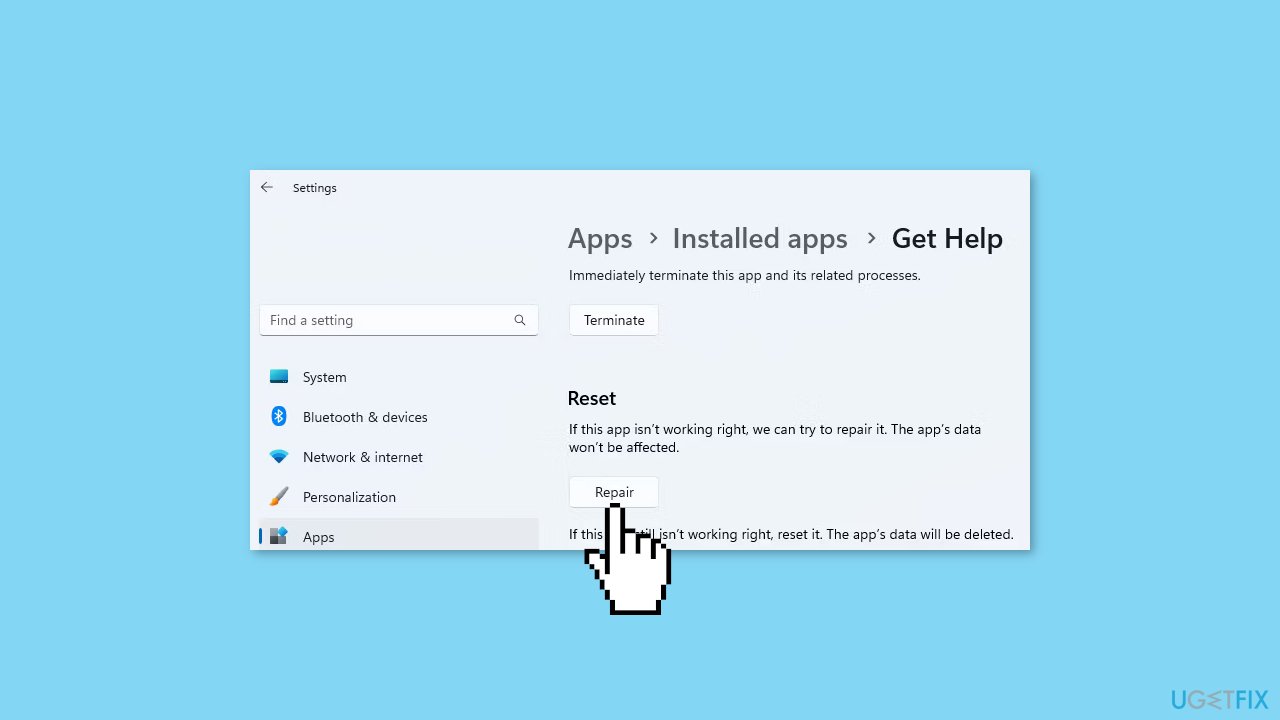
- Select Advanced options.
- Scroll to the bottom of the page.
- Click on Repair.
- If the repair fails, you can use the Reset option.
Method 4. Disable VPN or Proxy
- Type VPN settings in Windows Search and select Open next to the search result.
- Choose the Disconnect button to turn off the VPN.
- Press the Windows key + I to open the Settings menu.
- Go to the left pane and select Network & internet.
- Select Proxy from the right-side menu.
- Under Automatic proxy setup, turn off Automatically detect settings.
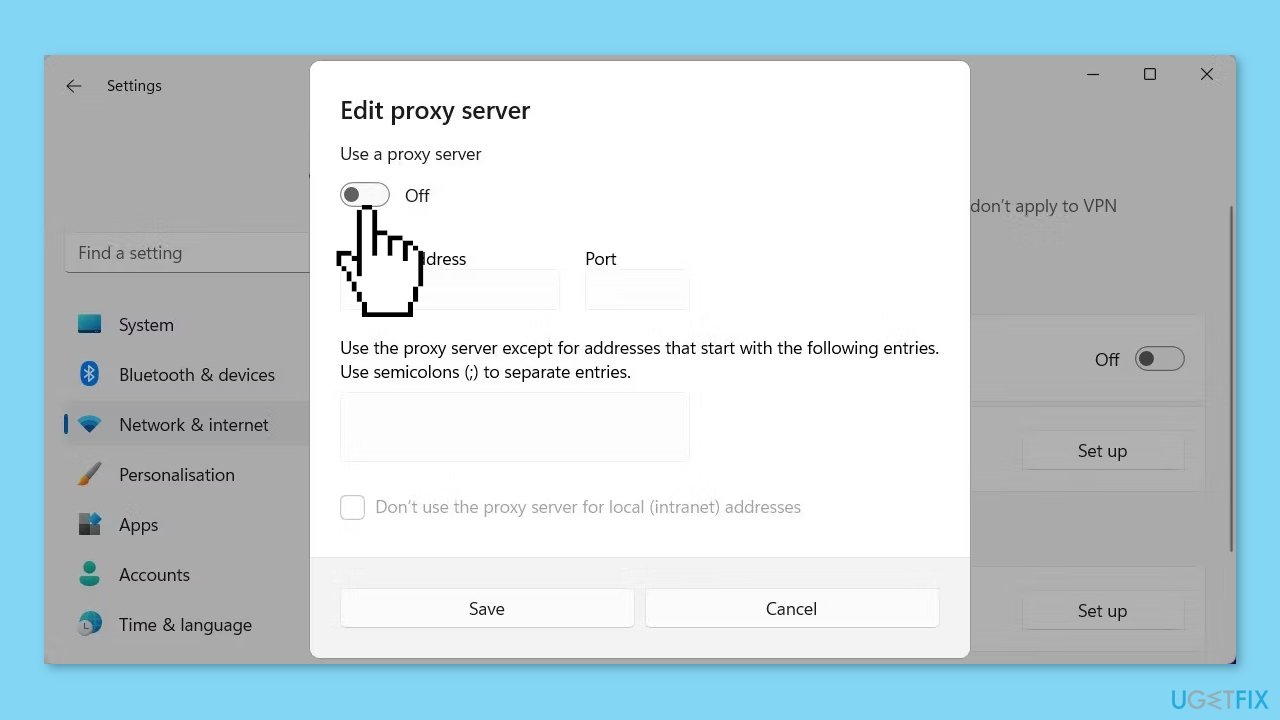
- Scroll down to Manual proxy setup and click on the Setup button.
- Toggle off the Use a proxy server slider.
Method 5. Restart Windows Services
- Press the Windows key + R to open the Run dialog box.
- Type services.msc and press Enter to launch the Services app.
- In the Services app window, you'll see a list of all the services available in your system.
- Locate the Diagnostic Policy Service in the list.
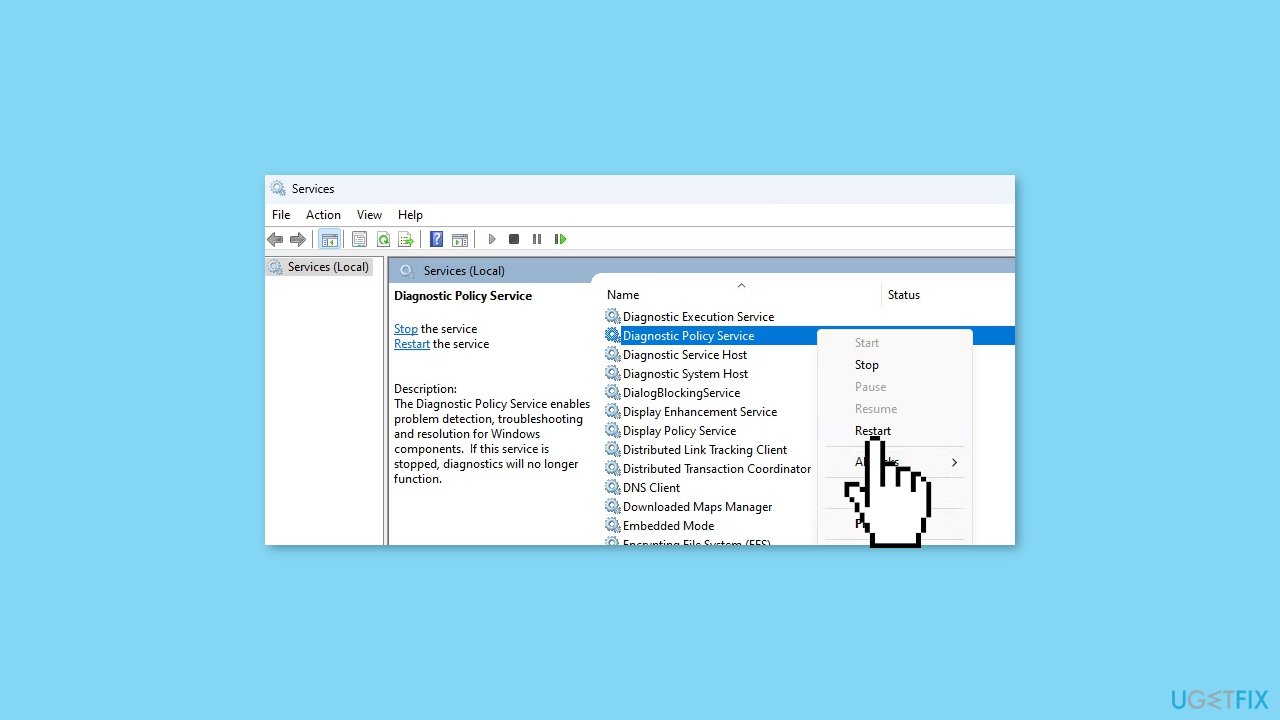
- Right-click on the Diagnostic Policy Service name.
- Select Restart from the context menu.
- Similarly, repeat the steps to restart the Windows Management Instrumentation service.
Method 6. Install the Microsoft Edge WebView2 Runtime
- Visit the Microsoft Edge Developer website.
- Locate the Download the WebView2 Runtime section.

- Under the Evergreen Standalone Installer heading, click on the button that matches your system's architecture.
- Download the setup file and run it.
- Follow the instructions provided to complete the installation of the Microsoft Edge WebView2 Runtime.
- After installing the WebView2 Runtime, check if the Get Help app functions correctly.
Method 7. Reinstall the Get Help App
- Click on the Start button.
- Scroll down and click on Settings.
- Click on Apps.
- Scroll down and select the Get Help option.
- Click on the Uninstall button.
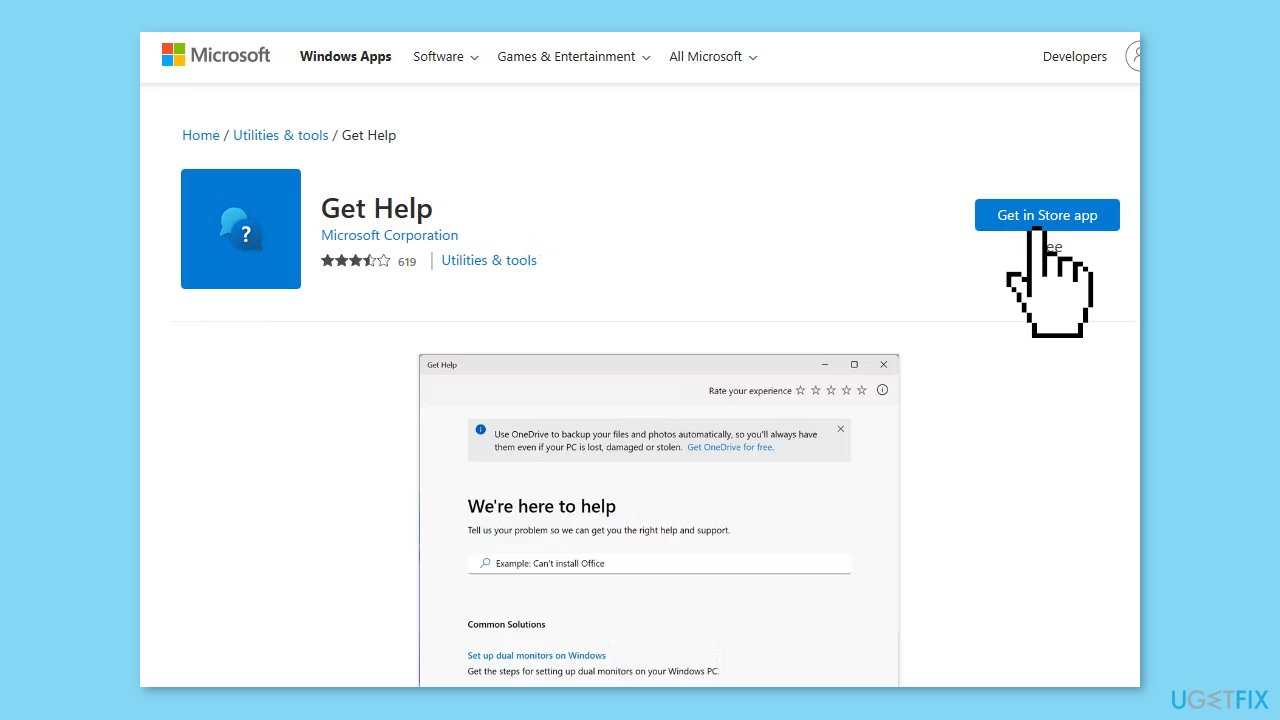
- Go to the Get Help Microsoft Store page.
- On the store page, click on the Get in Store app button.
- Proceed with on-screen instructions to install the app.
Bottom line
To fix the Get Help app not working issue, you can try restarting the app, installing Windows updates, or repairing and resetting the app. If none of these solutions work, consider using a repair tool to address system errors or corrupted files.
Frequently asked questions
Try resetting the app by going to Settings > Apps > Apps & features, selecting Get Help, and clicking on Advanced options to reset it. If that doesn't work, consider reinstalling the app via PowerShell commands.
You can repair the Get Help app by navigating to Settings > Apps > Apps & features, finding the app, and selecting 'Repair' in the Advanced options. If issues persist, running a System File Checker scan may help.
This issue can occur due to a corrupted app installation or missing system files; ensure your Windows 10 or Windows 11 is up to date and consider running the Windows Store Apps troubleshooter.




Report an issue
What's wrong with this guide? We review every report and update or remove content.
Report received — thank you. We'll review and fix it.
You need a free account to submit a report.
Be the first to comment