How to fix
Windows Photo Viewer “not enough memory” error
on Windows
Fix the "not enough memory" error in Windows Photo Viewer quickly and easily. Get expert tips for smooth photo viewing on Windows 10 and 11, fixed in mi…

What causes How to fix Windows Photo Viewer “not enough memory” error?
- Low RAM problem
- Outdated graphic drivers
- Incorrect color management settings
- Heavy utilization of memory resources
- Incompatibility with image format
Repairs Windows system files, removes malware, and restores a clean OS state — without reinstalling.
Hello. When I try to open files with Windows Photo Viewer I get the "Windows Photo Viewer can’t display this picture because there might not be enough memory available on your computer." error. I tried closing background apps but it is still not working. How do I fix this?
Windows Photo Viewer is a built-in image viewer that comes standard with Windows operating systems. It allows you to view photos and images on a Windows PC in a simple and straightforward manner. While newer versions of Windows, such as Windows 11, have made the Photos app the default image viewer, Windows Photo Viewer remains available as an alternative.
However, when using Windows Photo Viewer on a Windows PC, users may occasionally receive an error message stating, "Windows Photo Viewer can't display this picture because there might not be enough memory available on your computer." This error message indicates that the available memory on the computer, particularly RAM (Random Access Memory), may be insufficient to handle the image being opened.
This error message can be caused by a number of factors. One possible cause is a low RAM problem, which occurs when the computer's memory resources are already heavily utilized by other running processes, making it difficult for Windows Photo Viewer to allocate enough memory for displaying the image. Outdated graphic drivers,[ref en-1] which may not be optimized to handle the image format or may not provide adequate memory allocation, can also be a factor. Furthermore, incorrect color management settings can degrade Windows Photo Viewer performance and cause memory-related errors.
This problem may have a variety of consequences for users. The error message prevents the image from being displayed, which prevents them from viewing images in Windows Photo Viewer. Users who prefer to use Windows Photo Viewer as their default image viewer or rely on its simplicity and ease of use may find this frustrating.
In this guide, you will find 5 steps that should help you fix Windows Photo Viewer "not enough memory" error. You can also try running a system repair tool like [d1]. It can fix most system errors, BSODs,[ref en-2] corrupted files, and registry[ref en-3] issues automatically. Otherwise, follow the step-by-step instructions below.
Solution 1. Fix Corrupted System Files
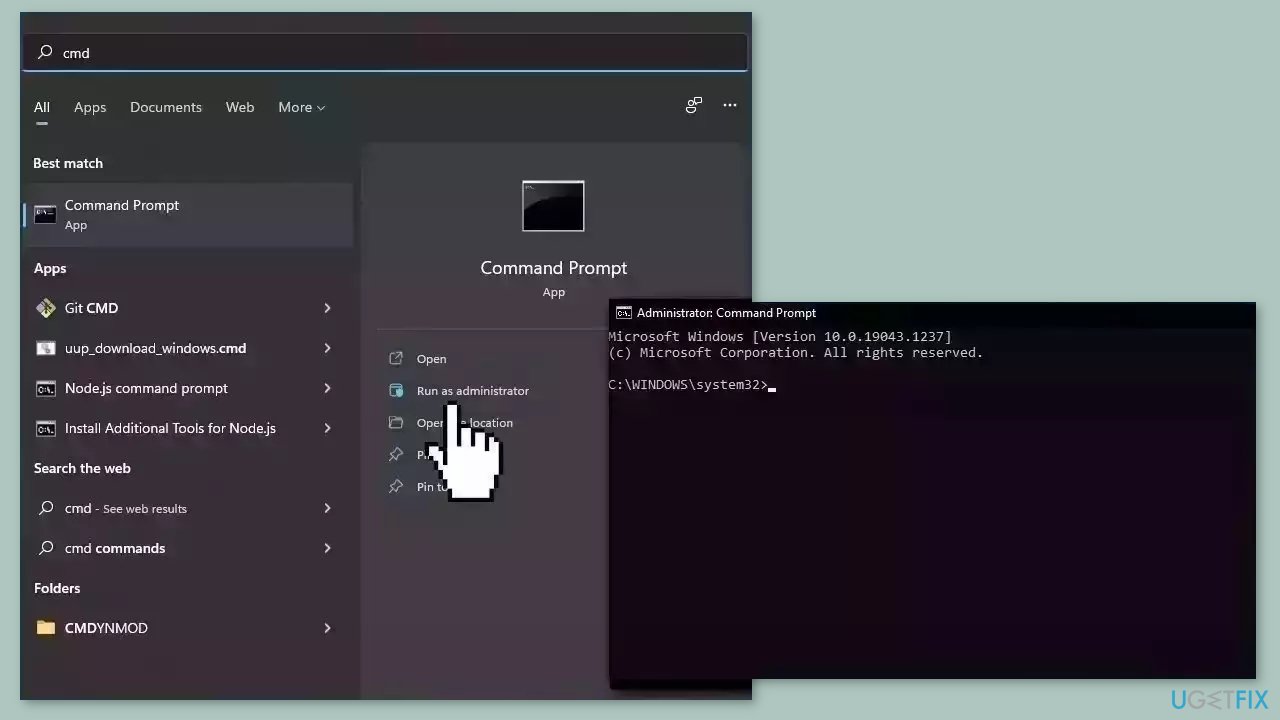
Use Command Prompt commands to repair system file corruption:
- Open Command Prompt as administrator
- Use the following command and press Enter:
sfc /scannow
- Reboot your system
- If SFC returned an error, then use the following command lines, pressing Enter after each:
DISM /Online /Cleanup-Image /CheckHealth
DISM /Online /Cleanup-Image /ScanHealth
DISM /Online /Cleanup-Image /RestoreHealth
Solution 2. Install Windows Updates
- Press the Windows key + I on your keyboard to open the Settings window.
- From the left sidebar, click on the Windows Update tab.
- Click on the Check for updates button.
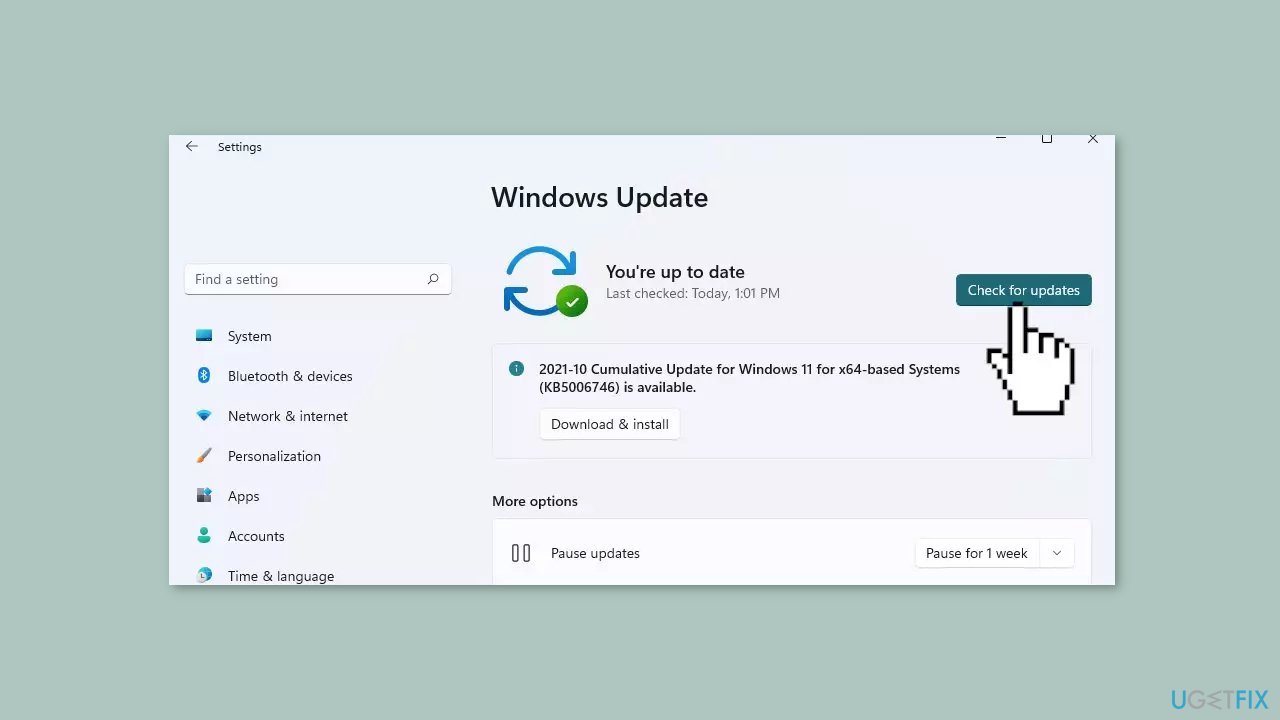
- Wait while Windows checks for available updates.
- If new updates are found, download and install them.
- Follow the on-screen instructions to complete the update process.
Solution 3. Change Colour Management Settings
- Press the Windows key + R to open the Run console.
- Type in colorcpl and hit Enter.
- In the Colour Management window, locate and select the primary monitor from the drop-down menu.
- Alternatively, you can click on the identify monitors button below to identify the primary monitor.
- Check the box next to Use my settings for this device.
- Under the Profile associated with this device section, select the desired profile name.
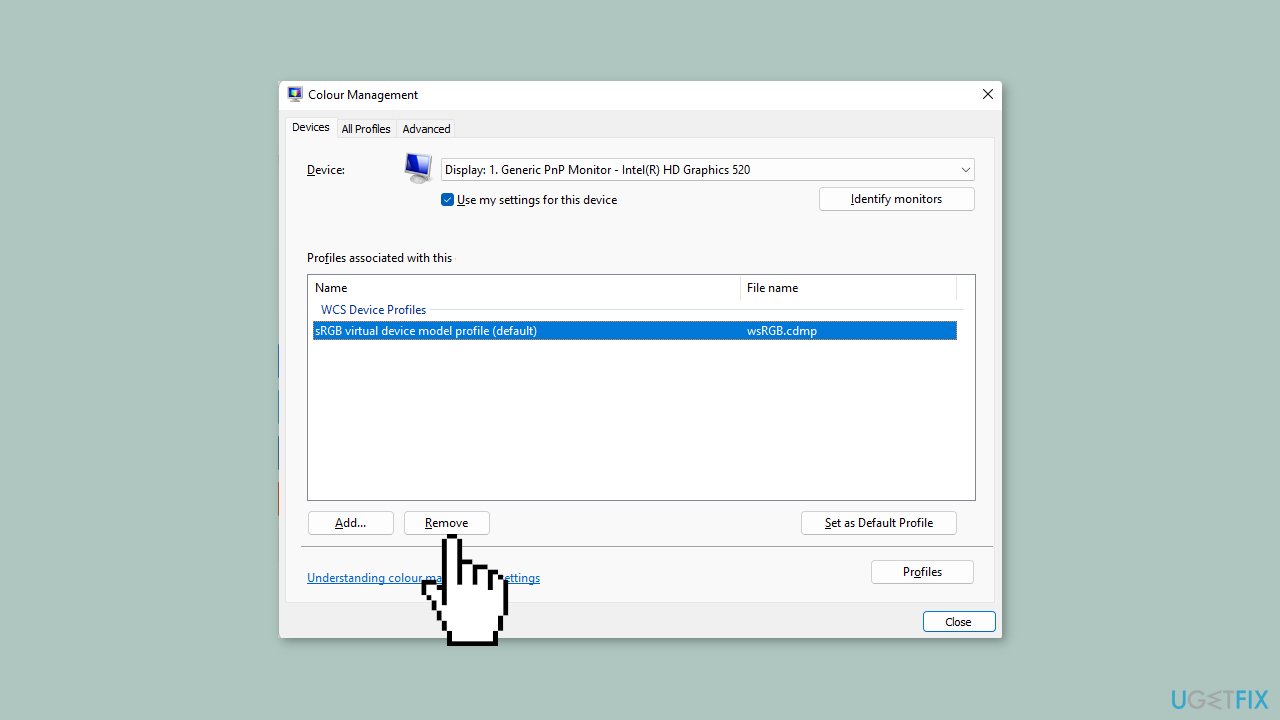
- Click on Remove to remove any existing profile associated with the device.
- If there is no profile name, click on the Profile button at the bottom right.
- Select Reset my settings to the system defaults.
- Go to the Advanced tab in the Colour Management window.
- Change all the settings to System default.
- Reboot your PC for the changes to take effect.
Solution 4. Repair or Reset Windows Photos Viewer
- Press the Windows key + I together to launch Windows Settings.
- Select Apps from the options.
- Click on Apps and features in the left sidebar.
- Look for Microsoft Photos in the list of installed apps.
- Click on the three dots (...) next to Microsoft Photos.
- From the menu that appears, click on Advanced options.
- Scroll down to the Reset section.
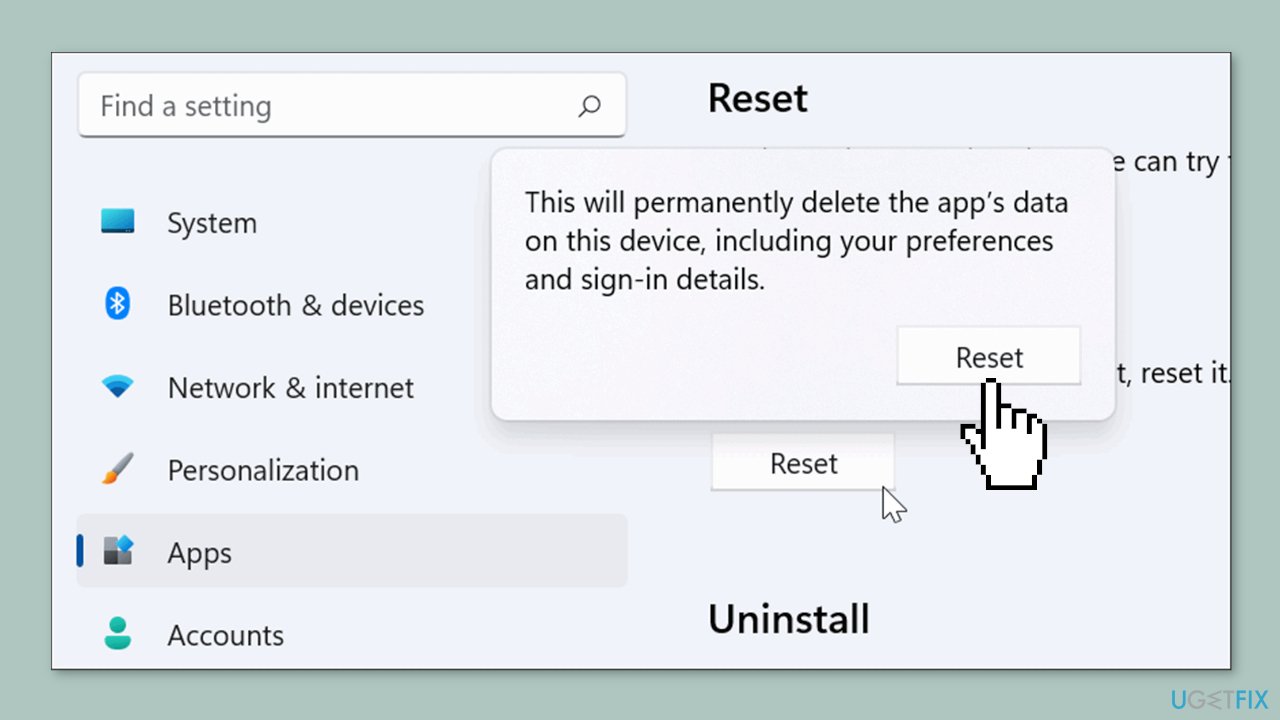
- Click on Repair to start the repair process for Microsoft Photos.
- Alternatively, you can choose Reset to reset the PC, which will remove all data associated with Microsoft Photos and restore it to its default settings.
Solution 5. Update the App
- Open the Windows search by clicking on the search icon or pressing the Windows key.
- In the search bar, type Microsoft Store and press Enter.
- Click on the search result to open the Microsoft Store application.
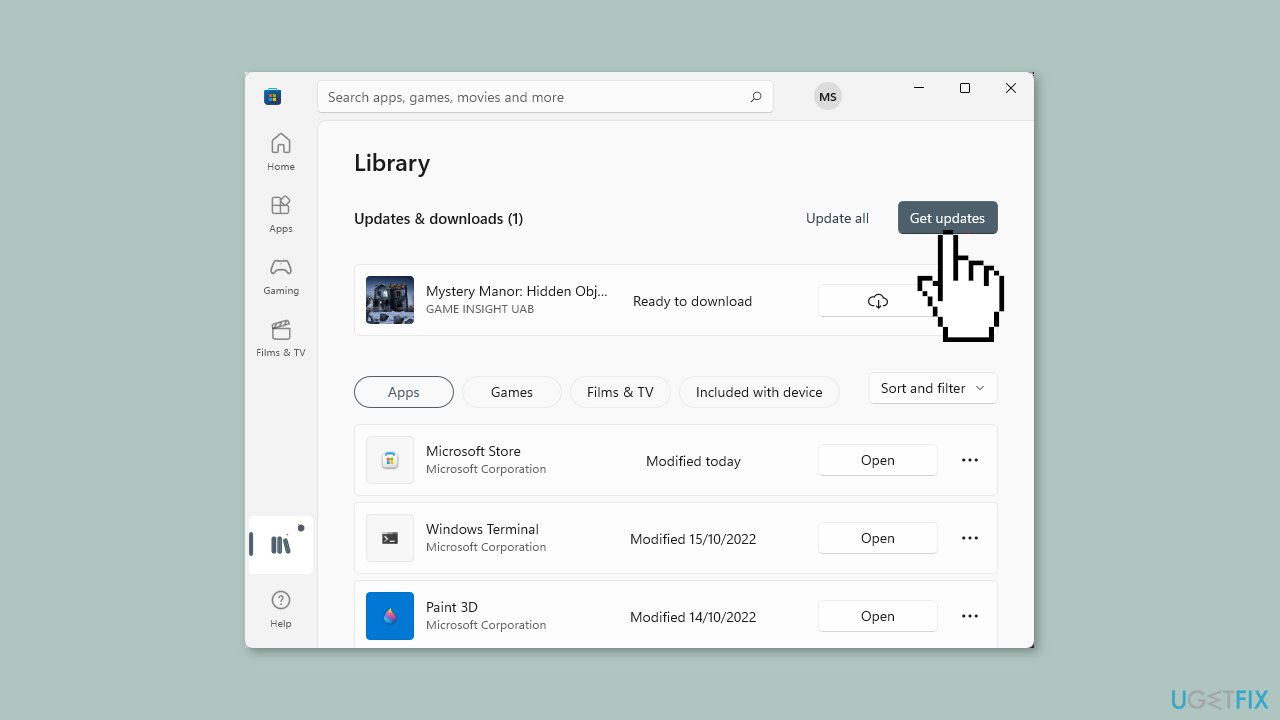
- Once the Microsoft Store is open, click on Library located on the left-hand side.
- Next, click on Get updates located on the top right corner of the Microsoft Store window.
- The Microsoft Store will now automatically download and update any available app updates, including updates for the Store itself.
Bottom line
To fix the Windows Photo Viewer 'not enough memory' error, you can try closing background applications, updating graphic drivers, adjusting color management settings, and running a system repair tool. If these steps do not resolve the issue, consider checking for additional memory upgrades or using an alternative image viewer.
Frequently asked questions
Try reducing the image size or resolution using an image editing tool before opening it in Windows Photo Viewer on Windows 10 or Windows 11.
You can clear the cache by navigating to the Disk Cleanup tool in Windows 10 or Windows 11, selecting your system drive, and choosing to delete temporary files.
While you cannot directly increase memory for Windows Photo Viewer, ensuring your system has sufficient RAM and closing unnecessary applications can help alleviate the issue.




Report an issue
What's wrong with this guide? We review every report and update or remove content.
Report received — thank you. We'll review and fix it.
You need a free account to submit a report.
Be the first to comment