How to fix
Slow Ethernet speed
on Windows
Boost your Ethernet speed on Windows 10 or 11 with expert-tested fixes. Enjoy a faster connection and improved performance—get results in minutes!

What causes How to fix slow Ethernet speed in Windows?
- Outdated network drivers
- Incorrect network settings
- Faulty Ethernet cable
- Worn-out Ethernet port
- Background applications consuming bandwidth
Repairs Windows system files, removes malware, and restores a clean OS state — without reinstalling.
I have 100mbps internet speed as per my ISP, but since yesterday, it is nowhere near as fast as it used to be - I only get around 5mbps for some reason, which is extremely slow. This is happening on my Windows computer, while the speed on other devices, such as my tablet and phone, is completely normal. Please help me to resolve this.
The advent of the internet has dramatically transformed the way we work, learn, and communicate. High-speed internet, in particular, has brought significant advancements in various sectors, streamlining processes and improving efficiency in unprecedented ways. However, despite these advancements, issues with internet speed persist and continue to frustrate users. One such common issue is a sudden decrease in Ethernet speed on Windows devices.
Users often report a drastic drop in their internet speed from highs of around 200mbps to lows of 2mbps. Intriguingly, this slow Ethernet speed seems to affect only their Windows computers while other devices in the home remain unaffected, suggesting an issue localized to the Ethernet on the Windows computer.
There could be several reasons behind this sharp decline in Ethernet speed on Windows computers. One common cause is outdated network drivers. Like any software, network drivers need regular updates to function optimally. When these drivers are not updated, they can cause the Ethernet to run at reduced speeds.
Similarly, incorrect network settings can limit the amount of data that can be transferred at a time, resulting in slower speeds. Hardware issues, such as a faulty Ethernet cable or a worn-out Ethernet port, can also be responsible for the reduced speed.
Another potential culprit is background applications using a significant portion of the bandwidth, causing a decrease in available speed for other tasks. Windows updates or antivirus scans, for example, can consume a substantial amount of network resources when running in the background.
Despite these challenges, the good news is that many of these issues can be fixed. Solutions range from updating network drivers and tweaking network settings to checking for hardware faults or limiting background data usage. Detailed instructions to address these issues can be found below this article.
For some users, a comprehensive solution like the [d1] PC repair tool can be a valuable asset. This tool is capable of identifying and resolving a wide array of issues related to slow Ethernet automatically. By addressing these issues promptly, users can ensure that they make the most of their internet connections and maintain high-speed connectivity.
A few basic checks to make
Before proceeding with more advanced solutions, we recommend trying out basic things that could resolve slow Ethernet speeds for you. Here is what you should try (if you haven't yet):
- Shut off your computer and disconnect your Ethernet cable from it, as well as your router/modem. Wait for a few minutes and connect it back.
- Restart your router/modem and see if that changes anything.
- Disable software that could affect internet speed, for example, VPN or third-party security software.
- Contact your ISP - ensure that it does not experience any difficulties.
Fix 1. Update network drivers
Network drivers enable your computer to interact with the network. Outdated drivers may not work optimally with the current software, leading to slow Ethernet speed. Updating them can resolve compatibility issues and improve speed.
- Right-click on Start and pick Device Manager.
- Expand the Network Adapters section.
- Right-click on your Ethernet Adapter and choose Update driver.
- Pick Search automatically for drivers and wait till they are installed.
- Reboot your system when done.
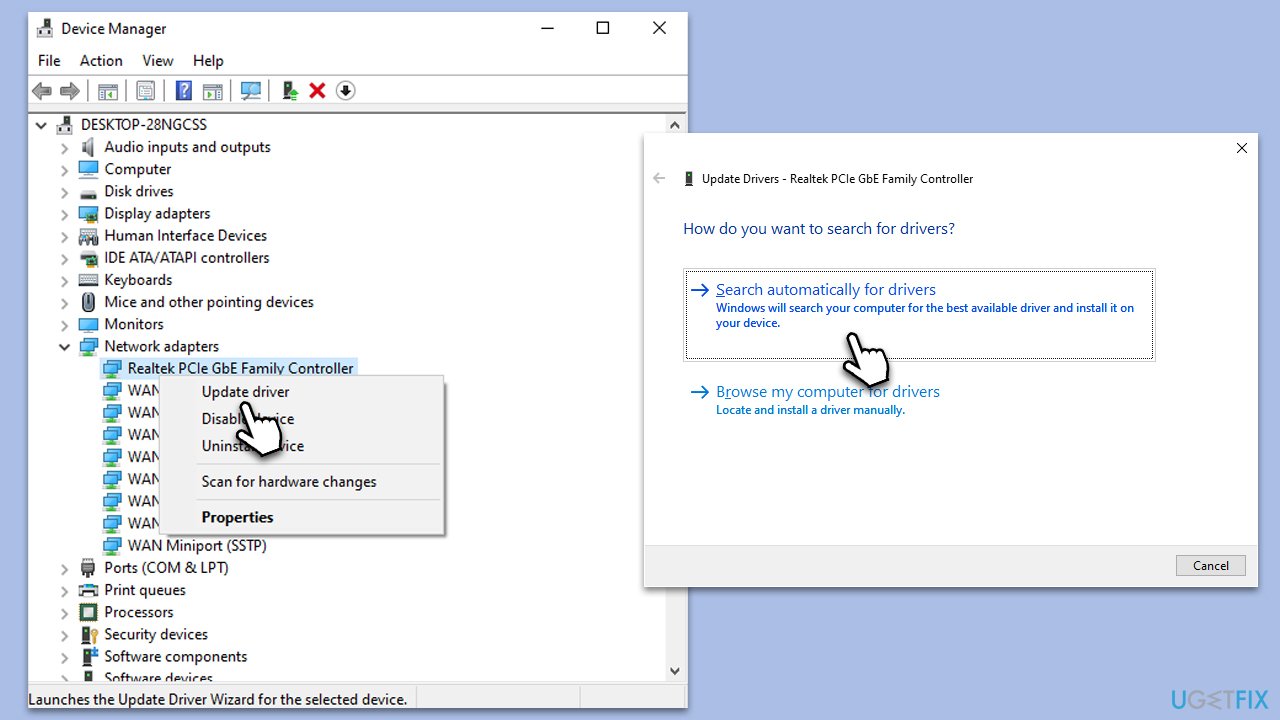
It is worth noting that Windows is not the best at finding the latest driver updates for your hardware. Therefore, we recommend employing an automatic driver updater [rev id="DriverFix"], which can quickly update all your drivers without any issues. Alternatively, visit your network card manufacturer's website and download it from there.
Fix 2. Adjust network settings
Improper network settings can limit your Ethernet speed. Tweaking these settings can maximize your bandwidth usage.
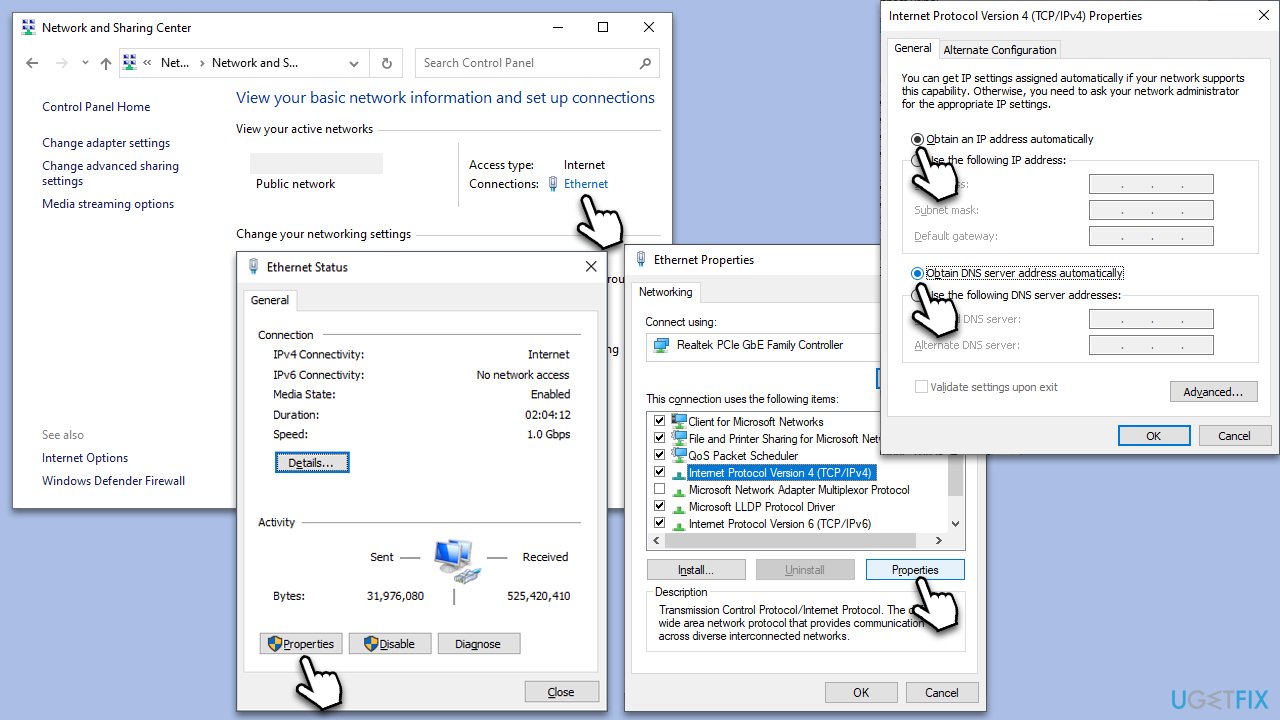
- Open Network and Sharing Center via the Control Panel.
- Click on your Ethernet connection.
- In the Ethernet Status window, click on Properties.
- Scroll down and select Internet Protocol Version 4 (TCP/IPv4), then click Properties.
- Set both IP address and DNS server to Obtain automatically.
- Click OK to save the changes.
Fix 3. Check for hardware issues
Faulty Ethernet cables or ports can slow down your connection. Checking for hardware issues can help identify and correct physical problems.
- Inspect the Ethernet cable for any visible damage.
- Try connecting the cable to a different port.
- If possible, try a different cable to rule out cable issues.
Fix 4. Run network troubleshooter
A troubleshooter might help you in this situation.
- Right-click on Start and pick Settings.
- Go to Network & Internet section.
- On the right side, find the Advanced network settings section.
- Click Network troubleshooter and wait.
- The fixes should be automatically applied.

Fix 5. Disable large send-offload (LSO)
LSO is a property that can help boost performance. However, it can also cause problems with network performance on some systems.
- Go to Device Manager and then Network Adapters.
- Right-click your Ethernet adapter, and select Properties.
- Go to the Advanced tab.
- Disable both Large Send Offload v2 (IPv4) and Large Send Offload v2 (IPv6).
- Click OK to apply the changes.
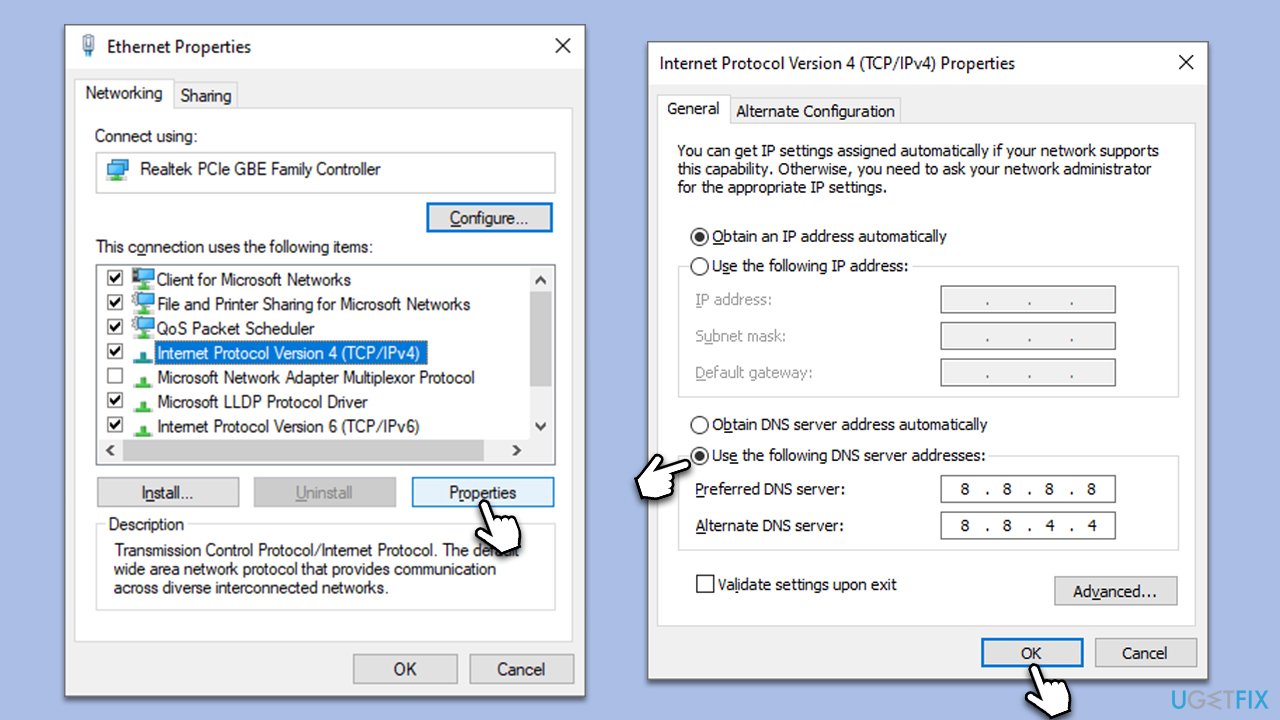
Fix 6. Use Google's public DNS
Sometimes your Internet Service Provider's DNS servers may be slow or overloaded. Using Google's public DNS might speed up your connection.
- Right-click on Start and select Settings.
- Go to Network and Internet section.
- Click on Change adapter options.
- Right-click on your internet connection and pick Properties.
- Click Internet Protocol Version 4 (TCP/IPv4) once and go to Properties
- Select Use the following DNS server addresses option and set your DNS to Google's:
Preferred DNS server: 8.8.8.8
Alternate DNS server: 8.8.4.4 - Click OK.
Fix 7. Disable auto-tuning
Auto-tuning is a Windows feature that aims to improve performance, but it can sometimes reduce Ethernet speed.
- Type cmd in Windows search.
- Right-click on Command Prompt and select Run as administrator.
- Copy and paste the following command, and press Enter:
netsh int tcp set global autotuninglevel=disabled - Close down Command Prompt.
Fix 8. Reset your network settings
If all else fails, resetting your network settings might help.
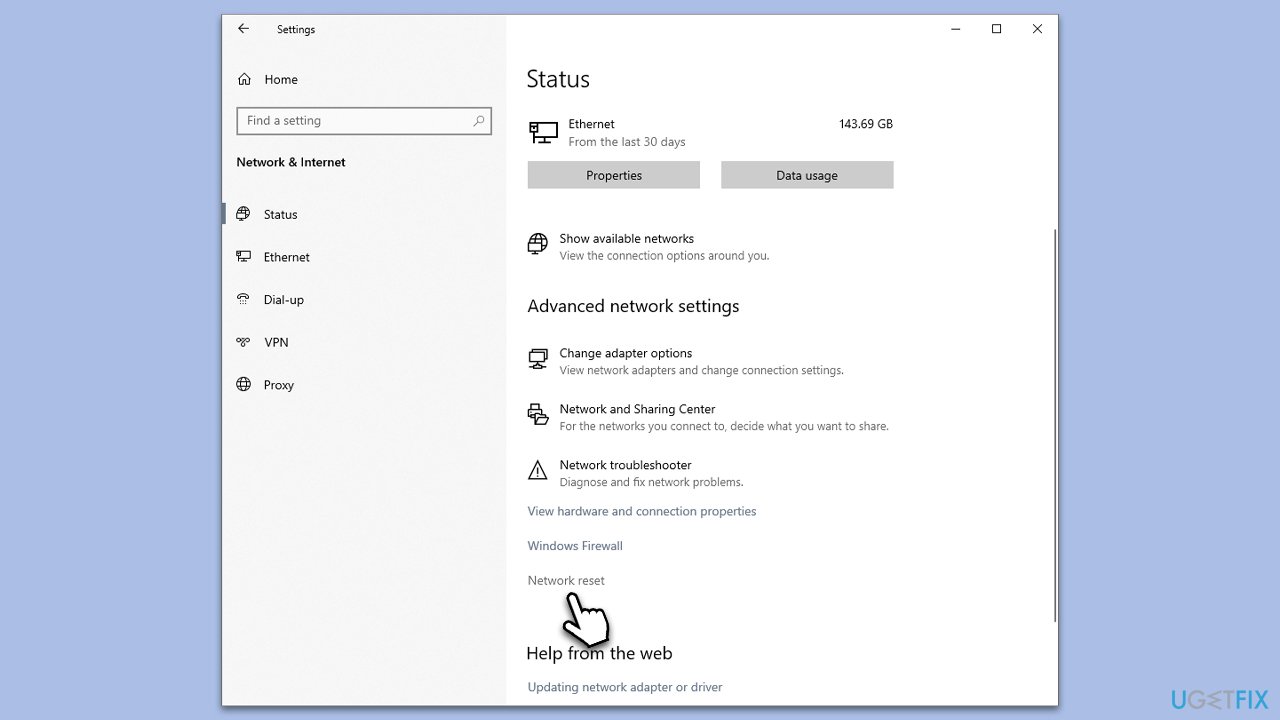
- Open Settings from the Start Menu.
- Navigate to Network & Internet > Status.
- Click on Network reset.
- Follow the prompts to complete the process.
Bottom line
To fix slow Ethernet speed in Windows, consider updating your network drivers, adjusting network settings, checking for hardware faults, and limiting background applications. If these solutions do not resolve the issue, further troubleshooting may be necessary.
Frequently asked questions
Common reasons include outdated network drivers, incorrect network settings, and hardware issues like a faulty Ethernet cable or port.
You can update your Ethernet drivers by going to Device Manager, expanding the Network adapters section, right-clicking on your Ethernet adapter, and selecting 'Update driver'.
Yes, you can reset your network settings by going to Settings > Network & Internet > Status, and clicking on 'Network reset' at the bottom of the page.




Report an issue
What's wrong with this guide? We review every report and update or remove content.
Report received — thank you. We'll review and fix it.
You need a free account to submit a report.
Be the first to comment