How to fix
Computer won’t boot when keyboard is plugged in
on Windows
Resolve boot issues on Windows 10 or 11 caused by a plugged-in keyboard. Follow expert-tested tips for quick fixes and get your PC running smoothly!

What causes How to fix computer won’t boot when keyboard is plugged in?
- Malfunction in the BIOS settings
- Physical fault within the keyboard
- Outdated keyboard drivers
- Corrupted keyboard drivers
Repairs Windows system files, removes malware, and restores a clean OS state — without reinstalling.
I use a separate keyboard when playing games on my laptop. A few weeks ago, I started having problems with this setup: whenever I have the keyboard plugged-in, my Windows won't boot at all. What is going on here?
In a computer setup, a standalone keyboard is an integral part of the system, frequently preferred for its comfortable design, keys with better tactile feedback, and ergonomic features. These benefits make it ideal for people who spend long hours typing or gaming, helping them maintain productivity and reduce physical strain.
However, the convenience of using a standalone keyboard can be compromised when certain technical issues arise. One such common problem experienced by some users is their PC or laptop refusing to boot whenever the keyboard is connected. This problem can significantly disrupt regular computer operation and requires immediate attention.
Computer not booting when a keyboard is plugged in can arise for many reasons. One common cause is a malfunction in the computer's BIOS (Basic Input/Output System) settings. The BIOS manages the data flow between the computer's operating system and attached devices like the keyboard. If the settings are configured to halt any keyboard errors, the computer might not boot when a keyboard is plugged in.
Another cause could be the presence of a physical fault within the keyboard itself, such as a short circuit in its wiring. This fault may prevent the computer from powering up to prevent any potential damage to the system. Moreover, outdated or corrupted keyboard drivers can also cause this issue, as they can interfere with the normal functioning of the computer's hardware.
While these problems can seem overwhelming, solutions are often straightforward. Adjusting the BIOS settings, replacing the keyboard, or updating the keyboard drivers can usually resolve the issue. However, troubleshooting requires a level of technical expertise and may involve certain risks if not performed properly.
In situations where the issue persists, or the cause is unclear, using advanced system solutions can be a viable option. One such tool is the [d1] PC repair. While it may not directly resolve this specific booting issue, its broad range of repair functionalities can aid in identifying and resolving other underlying system problems, thus contributing to a smoother computing experience.
Fix 1. Use the on-screen keyboard
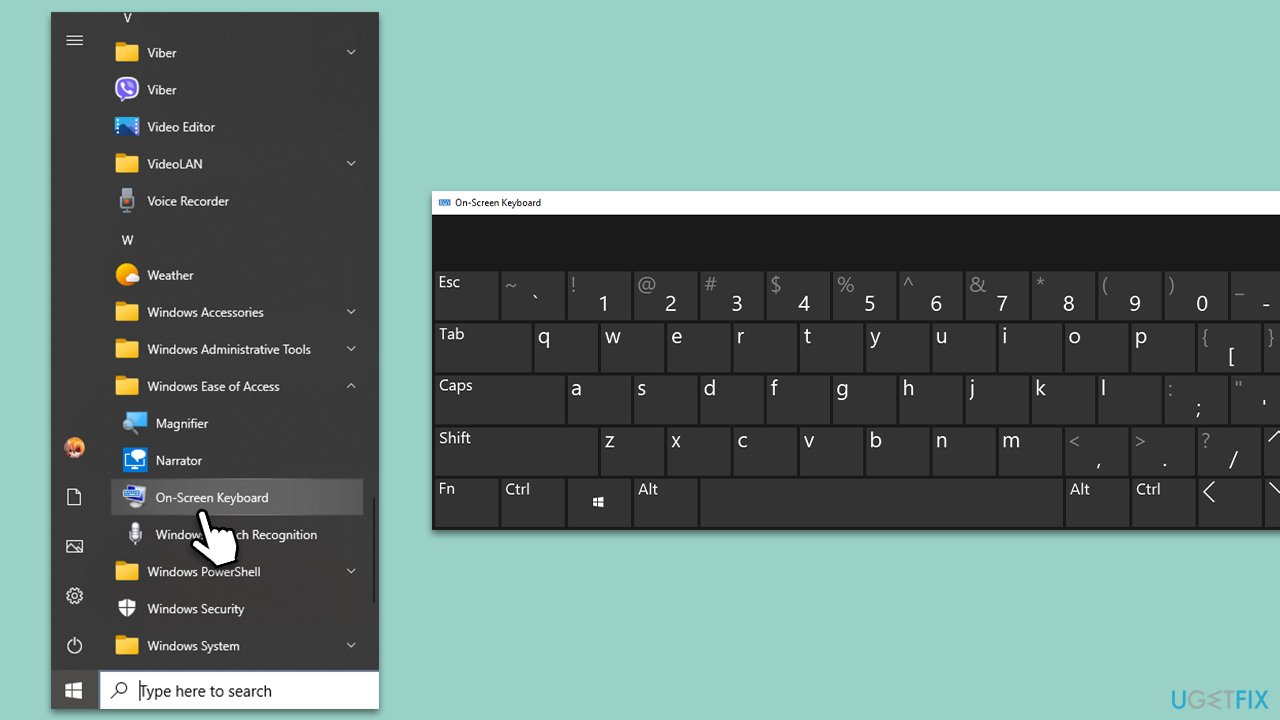
This solution works by providing an alternative way to input data into the computer. The on-screen keyboard replicates a physical keyboard on your computer screen, which you can activate using your mouse or touchpad.
- Click on the Windows Start menu at the bottom left of the screen.
- Scroll down to the "Windows Ease of Access" folder in the apps list and click on it.
- Select "On-Screen Keyboard" from the folder.
- Use this virtual keyboard for any typing needs.
Fix 2. Run keyboard troubleshooter
The built-in troubleshooter in Windows can detect and potentially resolve any issues with the keyboard. It's a software utility that automatically finds and fixes problems.
- Type "Troubleshoot" into the Windows search bar and press Enter.
- Next, on the right side of the window, select "Additional troubleshooters"/"Other troubleshooters."
- Find the "Keyboard" option and click on it.
- Click on "Run the troubleshooter"/"Run" and allow the process to complete.
- Once it is finished, implement any recommended fixes and restart your PC.

Fix 3. Try Clean Boot
A clean boot starts Windows with a minimal set of drivers and startup programs. This can help isolate the problem by eliminating potential software conflicts. Once in a clean boot state, you can perform diagnostic tests to identify if a particular program or service is causing the issue. Once the problematic application is identified, you can disable it or uninstall it completely to resolve the conflict.
- Using the on-screen keyboard, type "System Configuration" in the Windows search bar and open it.
- In the "Services" tab, check "Hide all Microsoft services," then click "Disable all."
- Go to the "Startup" tab, click "Open Task Manager," disable all startup items, then close Task Manager.
- Click "OK" on the System Configuration window and restart your computer.
- Now in the clean boot state, observe if the keyboard problem persists.
- Identify the problematic software by re-enabling services and startup items one by one (or in groups) and restarting your computer each time until the problem reoccurs.
- Once identified, you can disable, update, or uninstall the problematic software.
- After troubleshooting, revert your system to a normal state via the "System Configuration" > "General" tab -> "Normal Startup," then restart your PC.

Fix 4. Test a different keyboard
A faulty keyboard could be the source of the problem. Testing a different keyboard can help to confirm this.
- Unplug your current keyboard.
- Plug in a different keyboard.
- Restart your computer.
Fix 5. Update keyboard and chipset drivers
Outdated or corrupted drivers can cause hardware to malfunction. Updating these drivers can fix the issue.
- Unplug the keyboard, then start your computer.
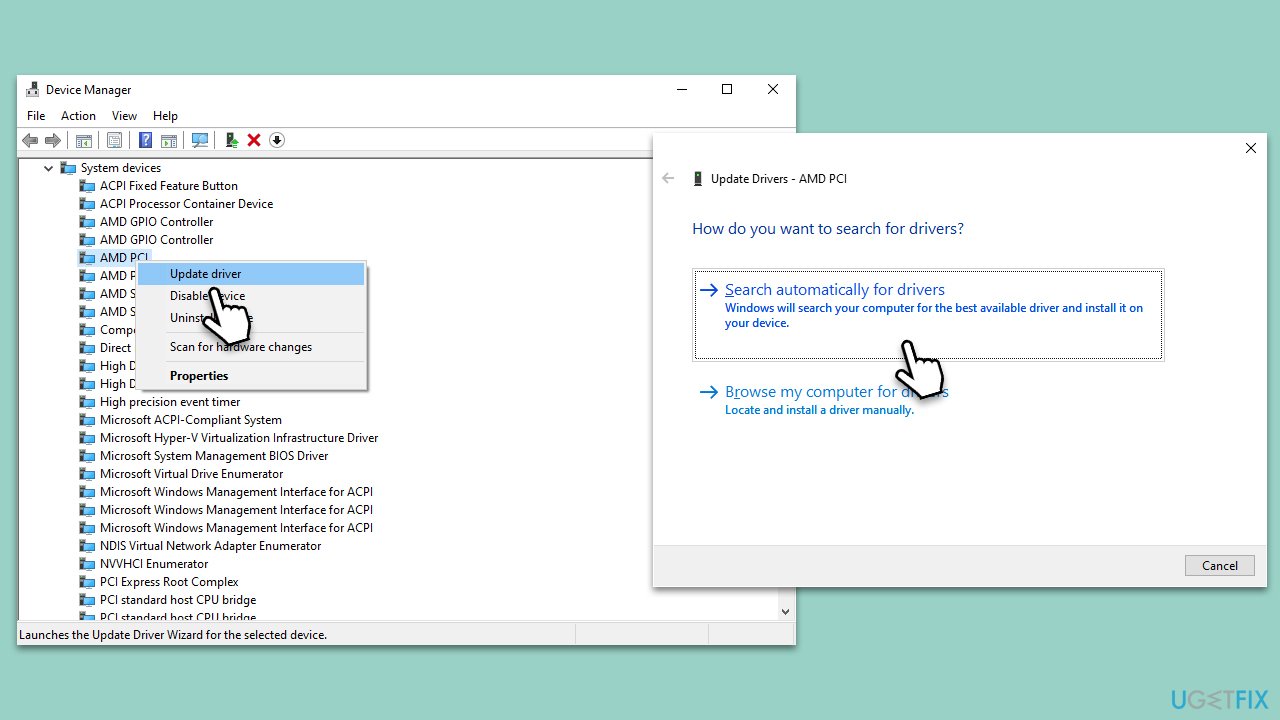
- Open Device Manager.
- Expand the "Keyboards" and "System devices" categories.
- Note down the current driver versions for your keyboard and chipset.
- Right-click on each of the devices and select Update drivers.
- Follow the on-screen instructions to install updates, then restart your computer.
- Finally, plug the keyboard back in to test if the issue is resolved.
Ensure to follow each step carefully, as incorrect updates can lead to system instability. If uncertain, seek professional help or use a trusted driver update tool, such as [rev id="DriverFix"].
Fix 6. Update BIOS
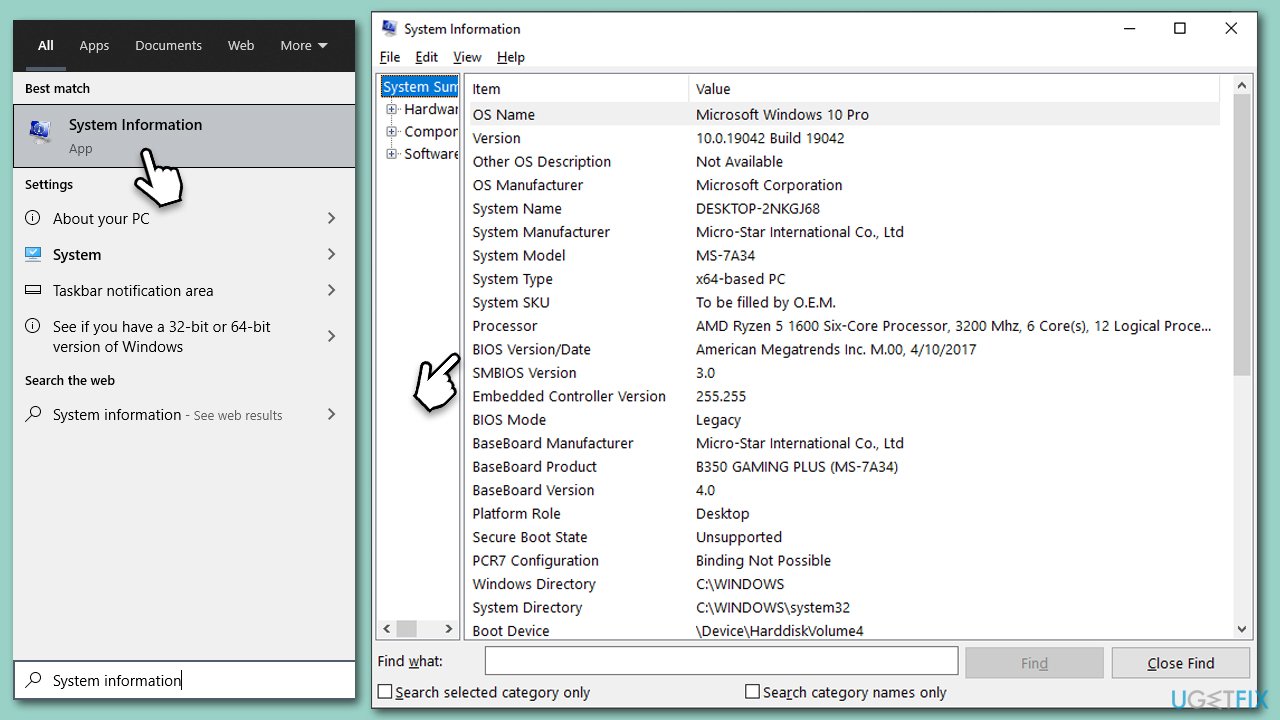
BIOS controls your computer's startup process and configures how your hardware communicates with your operating system. If the BIOS is outdated, it may cause some hardware, like your keyboard, not to function properly. Updating your BIOS to the latest version can potentially resolve the problem.
- Identify your current BIOS version. You can do this by opening the System Information in Windows.
- Visit the manufacturer's website for your motherboard.
- Locate the latest BIOS update and compare it to your current version.
- If a newer version is available, download it.
- Follow the manufacturer's specific instructions for updating the BIOS. This process varies between manufacturers and can be complex.
- After the update, restart your computer.
Fix 7. Check for Windows updates
Windows updates often include fixes for common problems.
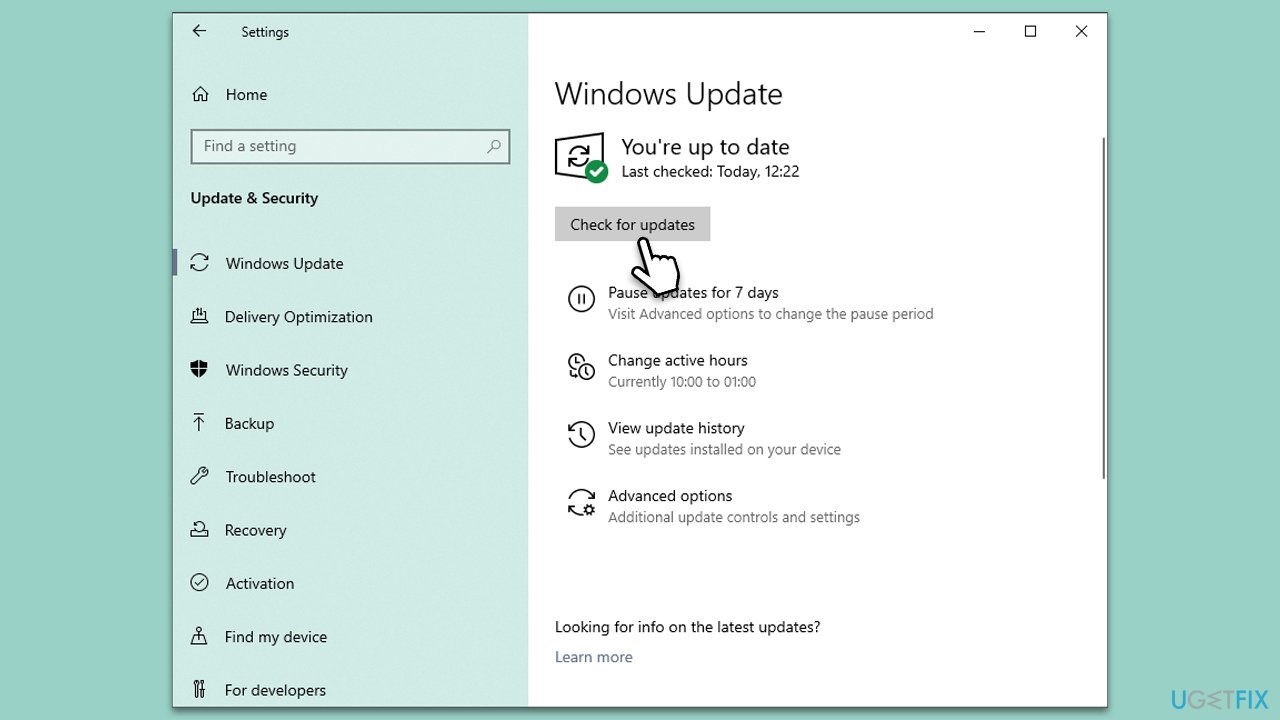
- Type Updates in Windows search and press Enter.
- When the new window opens, click Check for updates and wait.
- If there are optional updates available, install them as well.
- Restart your computer to implement the changes.
Fix 8. Try a different USB port
A faulty USB port can also cause problems. Trying a different port can help to identify if this is the cause.
- Unplug your keyboard from its current USB port.
- Plug it into a different USB port.
- Restart your computer.
Bottom line
To fix the issue of a computer not booting when a keyboard is plugged in, you can adjust the BIOS settings, replace the keyboard, or update the keyboard drivers. If these solutions do not resolve the problem, consider using advanced system solutions.
Frequently asked questions
This issue may be caused by a malfunctioning keyboard or USB port that conflicts with the boot process. Try using a different keyboard or connecting it to another USB port before powering on your computer.
If your Windows 11 device boots successfully without the keyboard, you may need to update your keyboard drivers or check for hardware issues. Consider testing the keyboard on another computer to rule out defects.
Yes, certain BIOS settings related to USB legacy support or keyboard initialization can prevent booting with a keyboard attached. Access the BIOS setup and adjust these settings if necessary.




Report an issue
What's wrong with this guide? We review every report and update or remove content.
Report received — thank you. We'll review and fix it.
You need a free account to submit a report.
Be the first to comment