How to fix
SecurityHealthSystray.exe Bad Image error
on Windows
Resolve the SecurityHealthSystray.exe Bad Image error on Windows 10 and 11 quickly. Get expert-tested solutions and fix your system in minutes.

What causes How to fix SecurityHealthSystray.exe Bad Image error in Windows?
- Corrupted system files
- Faulty Windows update
- Malware infection
- Incomplete software installations
- Damaged or lost critical files
Repairs Windows system files, removes malware, and restores a clean OS state — without reinstalling.
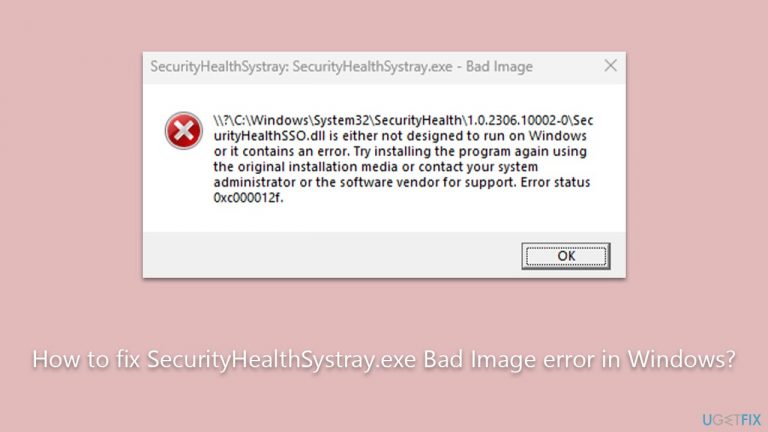
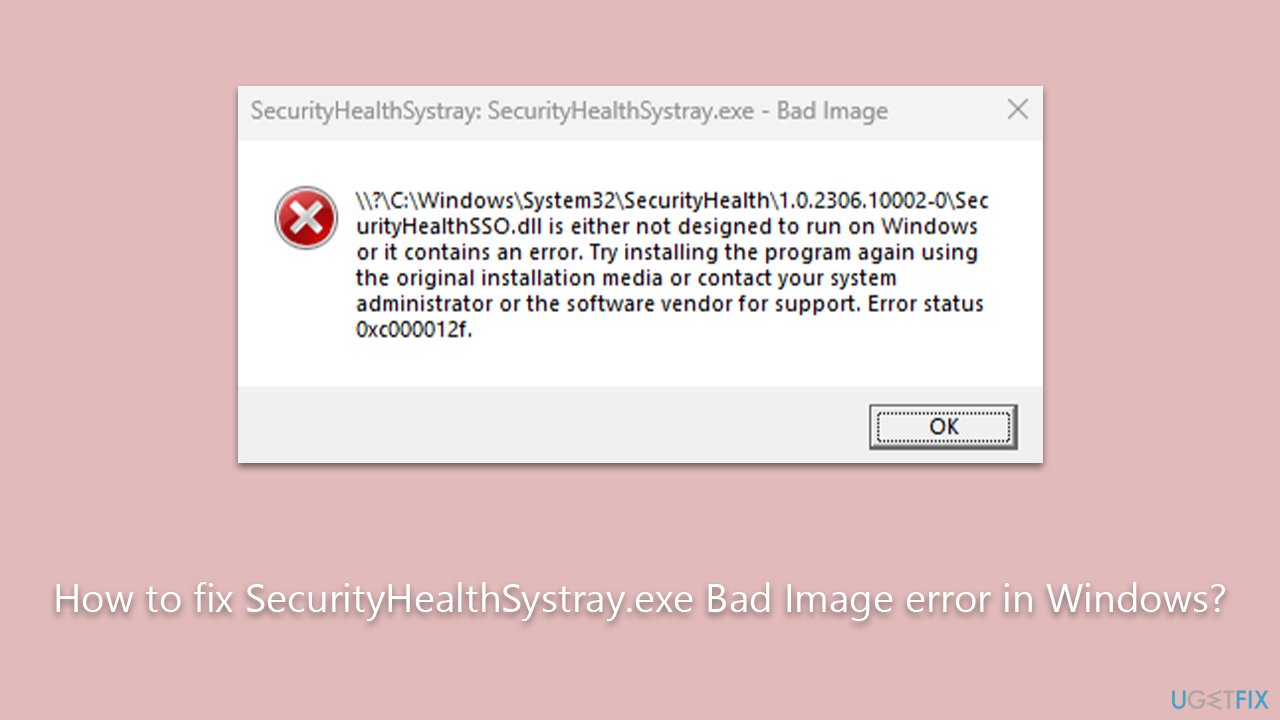
I keep getting a pop-up titled SecurityHealthSystray.exe - Bad Image, which says SecurityHealthSystray \\?\C:\windows\system32\securityHealth1.0.2109.27002\SecurityHealthSSO.dll is not designed to run on Windows or contains an error. What can I do to fix this?
Bad Image errors in Windows are common and often frustrating for users. These errors usually occur when Windows is unable to run or load specific programs or files correctly. SecurityHealthSystray.exe Bad Image error is one such problem that Windows users might encounter.
SecurityHealthSystray.exe is a crucial component of Windows, specifically responsible for displaying the Windows Security icon in the system tray. This executable file serves as a link between the user and the system's security features, providing updates and alerts on the system's security status.
When the SecurityHealthSystray.exe Bad Image error occurs, it prevents Microsoft Defender and Windows Security from functioning properly. This can lead to vulnerabilities in the system's security, which is a serious issue that should be addressed promptly.
There are several potential reasons for the SecurityHealthSystray.exe Bad Image error. One common cause is corrupted system files. Over time, Windows system files can become damaged or lost due to various factors, including malware or incomplete software installations. When these critical files are compromised, it can lead to Bad Image errors.
Another possible reason for this error is a faulty update, such as KB5007651, as reported by some users. This particular Windows update has been known to cause issues with system files, leading to various errors, including the SecurityHealthSystray.exe Bad Image error.
While these problems can be persistent, solutions are available and will be provided in the article below. These could include running system file checks, uninstalling the problematic updates, or even using the system's restore point to revert the system to a point before the error occurred.
Finally, using a dedicated PC repair tool, such as [d1], can also be a powerful solution. These tools are designed to scan, diagnose, and repair various system issues, including Bad Image errors, thereby restoring your PC's health and performance.
Method 1. Re-register the SecurityHealthSSO.dll file
Re-registering the SecurityHealthSSO.dll file essentially resets this file in the system registry. It helps to repair the file if it's corrupted, thereby resolving issues related to the Bad Image error.
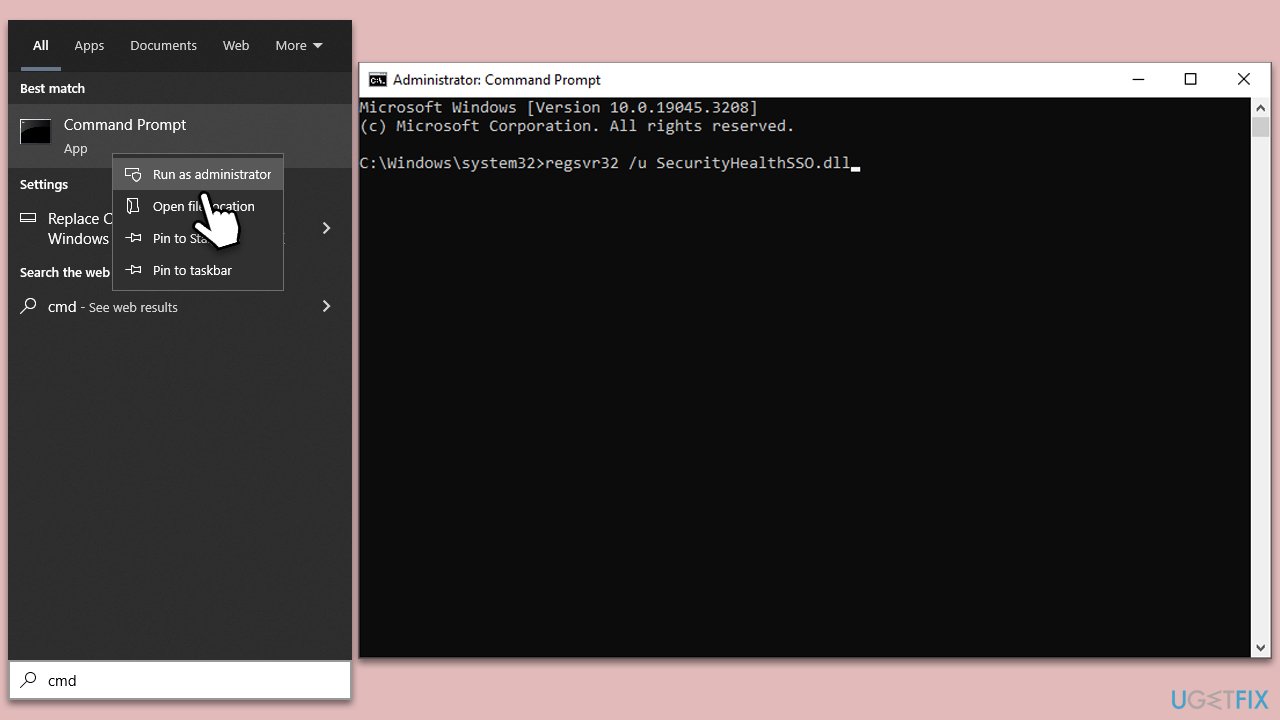
- Type cmd in Windows search.
- Right-click on Command Prompt and pick Run as administrator.
- When User Account Control shows up, click Yes.
- In the prompt, type in the following command and press Enter:
regsvr32 /u SecurityHealthSSO.dll - After that, type the next command and hit Enter:
regsvr32 /i SecurityHealthSSO.dll - Restart your computer to apply the changes.
Method 2. Perform SFC and DISM scans
SFC (System File Checker) and DISM (Deployment Image Servicing and Management) are built-in Windows tools that can scan and repair corrupted system files.
- Open Command Prompt as administrator.
- Type in the following command and press Enter:
sfc /scannow - When done, run the following commands as well:
dism /online /cleanup-image /scanhealth
dism /online /cleanup-image /checkhealth
dism /online /cleanup-image /restorehealth
(Note: if you get an error executing this last command, add /Source:C:\RepairSource\Windows /LimitAccess to it and try again). - Restart your device.

Method 3. Uninstall recently installed updates
Some Windows updates might cause issues with system files. Uninstalling these updates can resolve the issue.
- Type Control Panel in Windows search and press Enter.
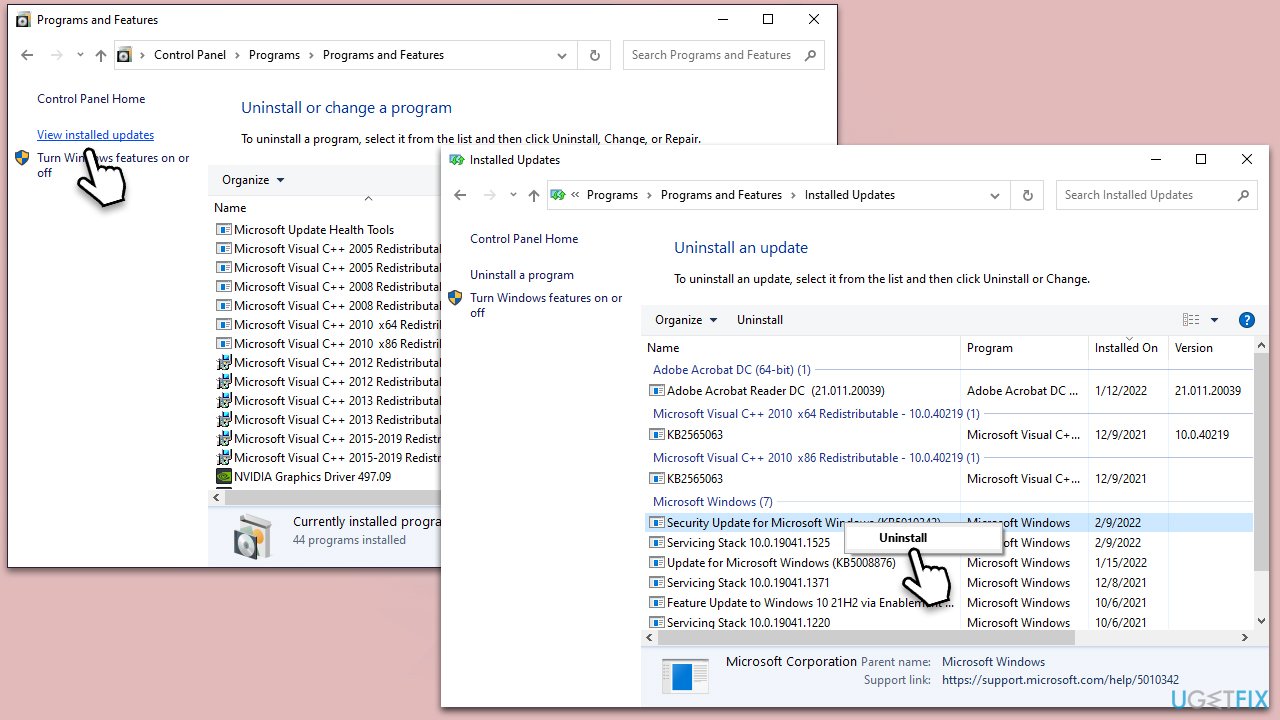
- Select Programs > Uninstall a program.
- Click on View installed updates on the left side of the window.
- Sort all the updates by date.
- Right-click on the most recent update and select Uninstall.
- Proceed with on-screen instructions.
- Then, type Updates in Windows search and press Enter.
- Click Pause the updates for 7 days (in Windows 11, you can pick a different time period).
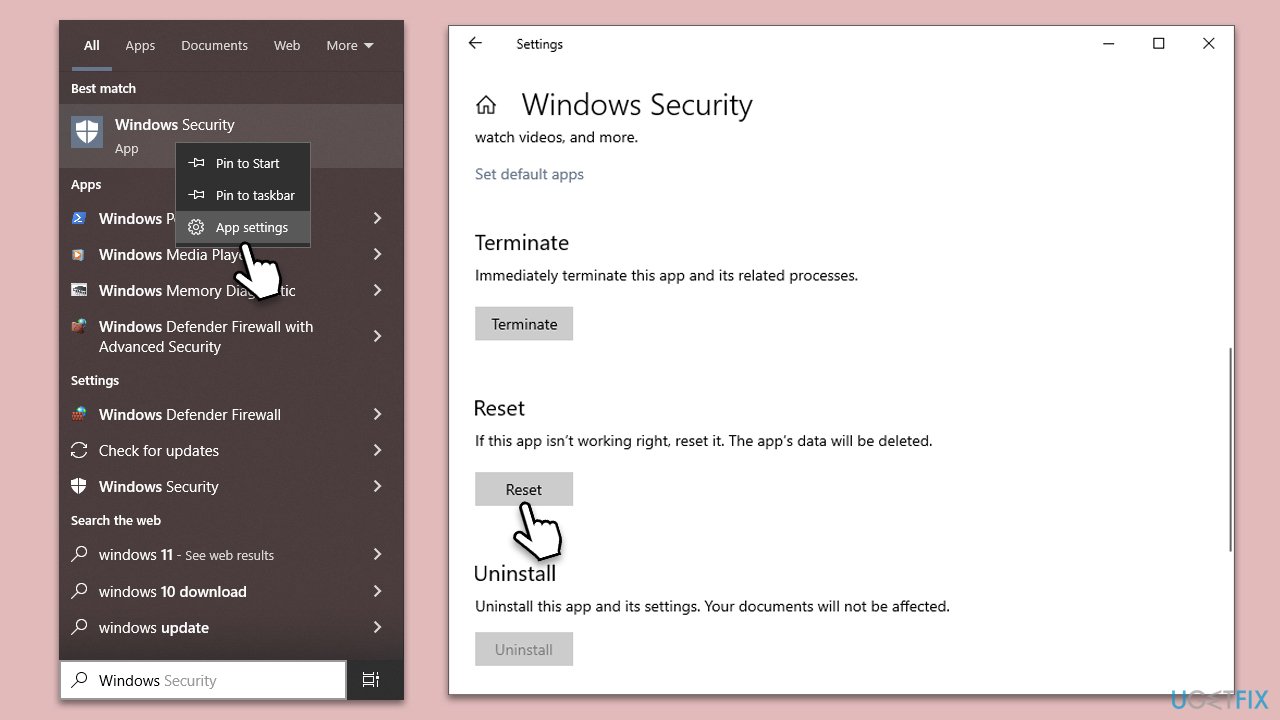
Method 4. Reset the Windows Security application
Resetting the Windows Security application can help in fixing issues associated with its components, such as the SecurityHealthSystray.exe file.
- In Windows search, type in Windows Security.
- Right-click on it and select App settings.
- Scroll down and click on Reset.
- Restart your computer for changes to take effect.
Method 5. Use System Restore
System Restore is a utility in Windows that allows you to revert your computer's state (including system files, installed applications, Windows Registry, and system settings) to a previous point in time. This can be useful when your system was working just fine and then started to experience issues.
- Type in Create a Restore point in Windows search and hit Enter.
- Go to the System Protection tab and pick System Restore.
- Click Next.
- Click Show more restore points.
- Pick a different restore point you tried last time and click Next.
- Follow the prompts to finish the process.

Bottom line
To fix the SecurityHealthSystray.exe Bad Image error, you can try re-registering the SecurityHealthSSO.dll file, running system file checks, uninstalling problematic updates, or using a system restore point. If these solutions do not resolve the issue, consider using a dedicated PC repair tool to diagnose and repair the problem.
Frequently asked questions
This error typically occurs due to corrupted system files or issues with Windows Defender components. It can also be triggered by malware or incorrect system updates.
You can resolve this error by running the System File Checker tool and performing a DISM scan to repair any corrupted files. Additionally, ensure that your Windows Defender is up to date.
To prevent this error, regularly update your Windows 10 or Windows 11 system and perform routine system maintenance checks for corrupted files. Keeping your antivirus software updated can also help protect against malware that may cause such issues.




Report an issue
What's wrong with this guide? We review every report and update or remove content.
Report received — thank you. We'll review and fix it.
You need a free account to submit a report.
Be the first to comment