How to fix
Media Feature Pack not showing up in Feature list
on Windows
Resolve the Media Feature Pack issue on Windows 10 or Windows 11 effortlessly. Get expert-tested solutions and restore your missing features quickly!

What causes How to fix Media Feature Pack not showing up in Feature list in Windows?
- Media Feature Pack not included in N or KN editions of Windows
- Use of specific Windows editions that lack media-related technologies
- Regulatory compliance leading to stripped-down versions of Windows
- Absence of Windows Media Player in certain versions
- Multimedia applications requiring Media Feature Pack to function properly
Repairs Windows system files, removes malware, and restores a clean OS state — without reinstalling.
It seems like Media Feature Pack does not appear on the Windows feature app list. It only shows language packs when I attempt to install optional features. How can I get the media features pack when it is not showing up in the optional features menu?
The Media Feature Pack is an integral component of the Windows operating system, necessary for multimedia applications such as Skype and Voice Recorder to function correctly. By expanding the native capabilities of the OS, it enables users to tap into a variety of features that otherwise would remain inaccessible. Despite its significance, some Windows users encounter an issue where the Media Feature Pack doesn't show up in the Windows Features list, potentially signifying that it's not installed on their systems.
One scenario where users cannot install the Windows Media Feature Pack, leading it to be absent from the Windows Features list, is the use of specific editions of Windows. These editions, often N or KN versions, are distributed without certain media-related technologies, including Windows Media Player. For users who utilize multimedia apps extensively, this could become a significant stumbling block.
Applications such as Skype, Voice Recorder, and certain web content won't function as expected without the Media Feature Pack. Consequently, the lack of it in the operating system doesn't merely represent an abstract issue; it can limit the scope of activities one can engage in and disrupt daily tasks.
Why does this happen? The answer lies in Microsoft's compliance with regulatory requirements. In certain regions, the company is obliged to provide these stripped-down versions of Windows. Consequently, users in these regions might find that the Media Feature Pack for Windows is not showing up because it was never included in their OS version.
If you're facing this situation, don't panic. There are several potential solutions to this problem. Installing the Media Feature Pack manually often resolves the issue, and detailed instructions for this process are available below. By correctly identifying your Windows version and following the step-by-step guide, you should be able to restore the functionality of your multimedia applications.
Lastly, the use of third-party repair software like [d1] might also be considered. While not a direct solution for the Media Feature Pack not showing up, it can help resolve system issues and enhance the overall performance of your Windows.
Fix 1. Run program install and uninstall troubleshooter
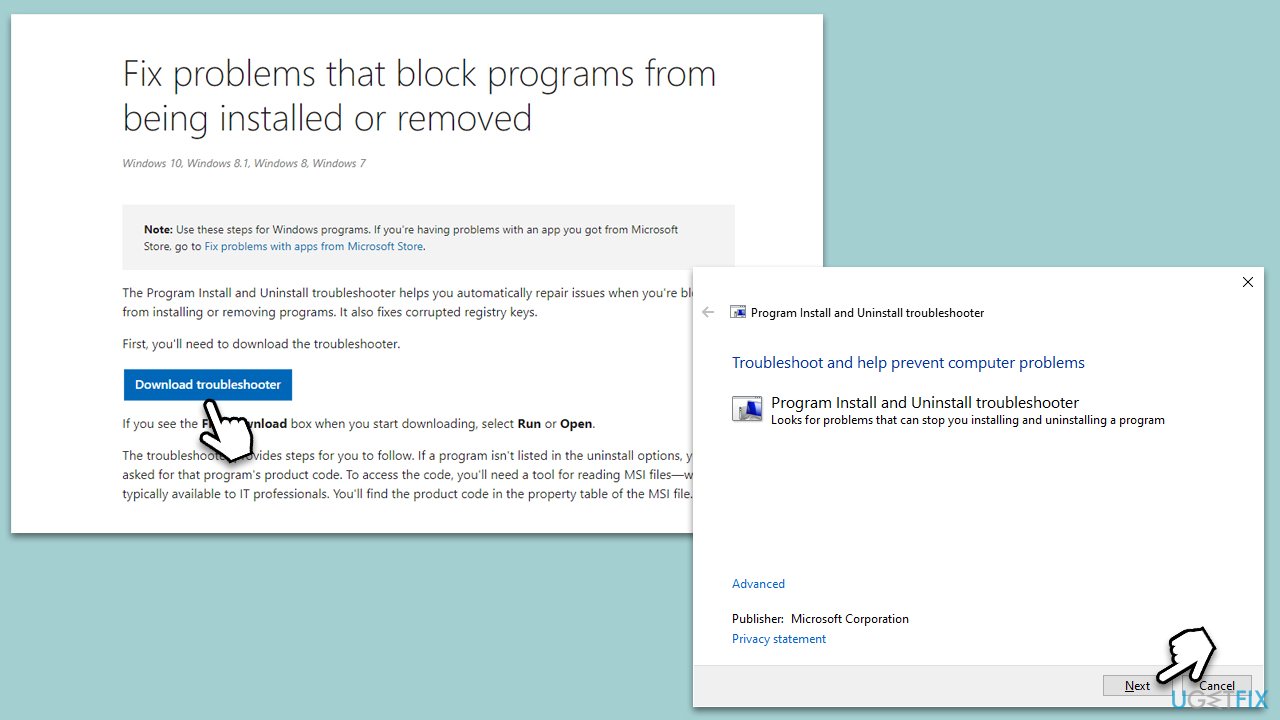
The program install and uninstall troubleshooter is a Windows utility designed to identify and solve problems related to installing or removing programs. It may address the issue if the Media Feature Pack failed to install properly or was incorrectly uninstalled.
- Download the troubleshooter from Microsoft's official website.
- Open the downloaded file and click Next.
- Choose Installing when prompted.
- Find the Media Feature Pack in the list of programs, select it, and proceed with the instructions.
Fix 2. Install via the Settings app
Sometimes, using the Settings app can enable the installation of the Media Feature Pack when it's not appearing in the Windows Features list. This method simply taps into the system settings, checking for updates and optional features.
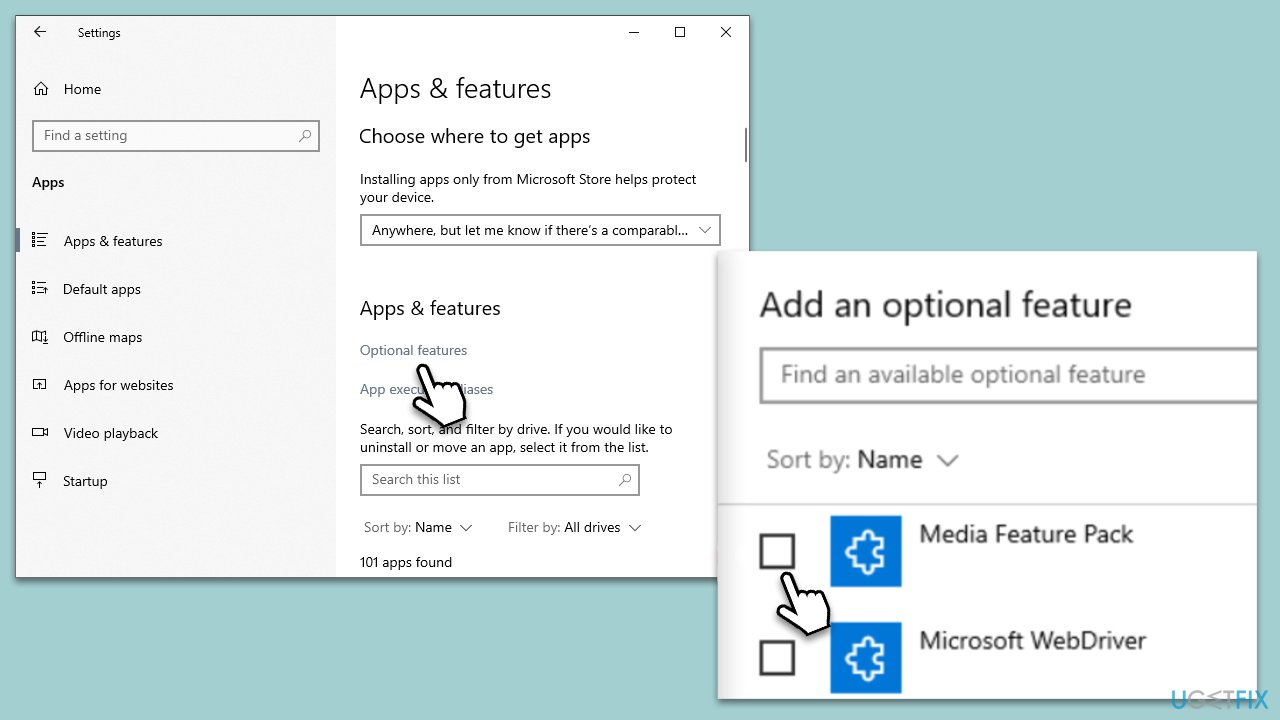
- Right-click on Start and select the Settings app.
- Go to Apps and then Optional features.
- Click on Add a feature.
- Find the Media Feature Pack in the list (you can also use the search box to find it faster), select it, and click Install.
Fix 3. Use administrator account
Certain system changes, like installing the Media Feature Pack, might require administrative privileges. Logging into an administrator account can overcome these limitations.
- Sign out of your current account.
- Sign in with an account that has administrative privileges.
- Retry the installation process for the Media Feature Pack.
Fix 4. Install Media Feature Pack manually
If all else fails, manually downloading and installing the Media Feature Pack can be a reliable fix. This method ensures the direct acquisition and installation of the necessary software components. Before proceeding, makes sure that all the latest Windows updates are installed on your system.
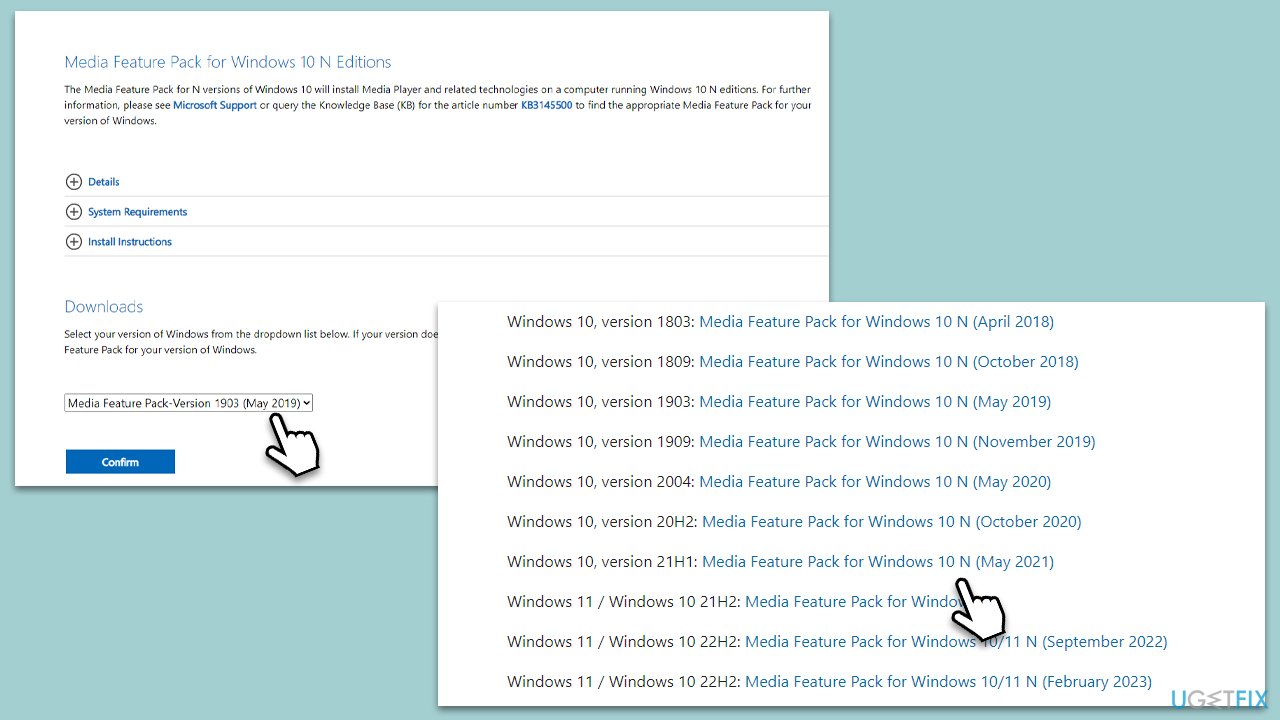
- Visit Microsoft's official download page for all versions of Media Feature Pack for Windows N editions. (you can find some of the versions here)
- Find the Media Feature Pack for your specific Windows version.
- Download the correct pack.
- Run the downloaded file and follow the installation instructions.
- Once done, restart your computer.
Bottom line
To fix the issue of the Media Feature Pack not showing up, users can try installing it manually by following detailed instructions based on their Windows version. If these solutions do not resolve the problem, users may need to consider upgrading their Windows edition or seeking further technical support.
Frequently asked questions
The Media Feature Pack may not appear if you're using a Windows 10 edition that doesn't support it, such as the N or KN editions. Ensure that your system is updated and check if the Media Feature Pack is available for your specific version.
You can install the Media Feature Pack by going to Settings > Apps > Optional Features and then selecting 'Add a feature' to find and install it. Make sure your Windows 11 is the N edition, as that's where the pack is required.
If the pack is installed but not showing, try running the Windows Update troubleshooter to fix any potential issues. Additionally, restarting your computer can help refresh the system and make the features visible.




Report an issue
What's wrong with this guide? We review every report and update or remove content.
Report received — thank you. We'll review and fix it.
You need a free account to submit a report.
Be the first to comment