How to fix
0x800704E8 error when updating Microsoft Defender
on Windows
Resolve the 0x800704E8 error while updating Microsoft Defender on Windows 10 or 11 effortlessly. Expert-tested solutions await you!

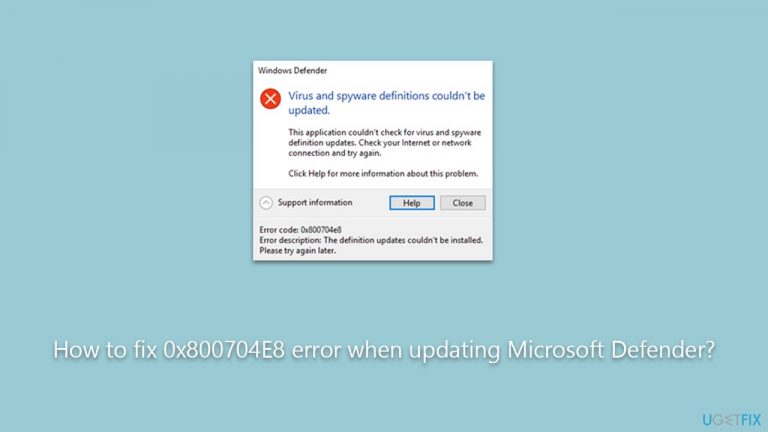
What causes How to fix 0x800704E8 error when updating Microsoft Defender?
- Network problems
- System file corruption
- Issues with the Windows Update service
- Outdated Microsoft Defender definitions
Repairs Windows system files, removes malware, and restores a clean OS state — without reinstalling.
I never used to have problems updating Windows Defender definitions, but it became a problem just a few days ago, when I first faced the 0x800704E8 error. My definitions are now outdated, and I think my PC might be at risk - I'd like this to be resolved as soon as possible.
Microsoft Defender, formerly known as Windows Defender, is a critical component of the Windows operating system. It provides real-time protection against a broad spectrum of potential threats such as malware, spyware, and viruses. These threats can compromise the security and performance of your device, potentially leading to loss of personal data or damage to your computer's hardware. Therefore, it's crucial to keep your Microsoft Defender software updated for optimal protection.
Microsoft maintains an extensive database of definitions that help Microsoft Defender identify and counteract the latest threats. These definitions encapsulate the characteristics of known malicious software, thereby enabling Microsoft Defender to recognize and neutralize potential dangers. Microsoft routinely distributes these definition updates to ensure that your computer remains safeguarded against the most recent types of malware.
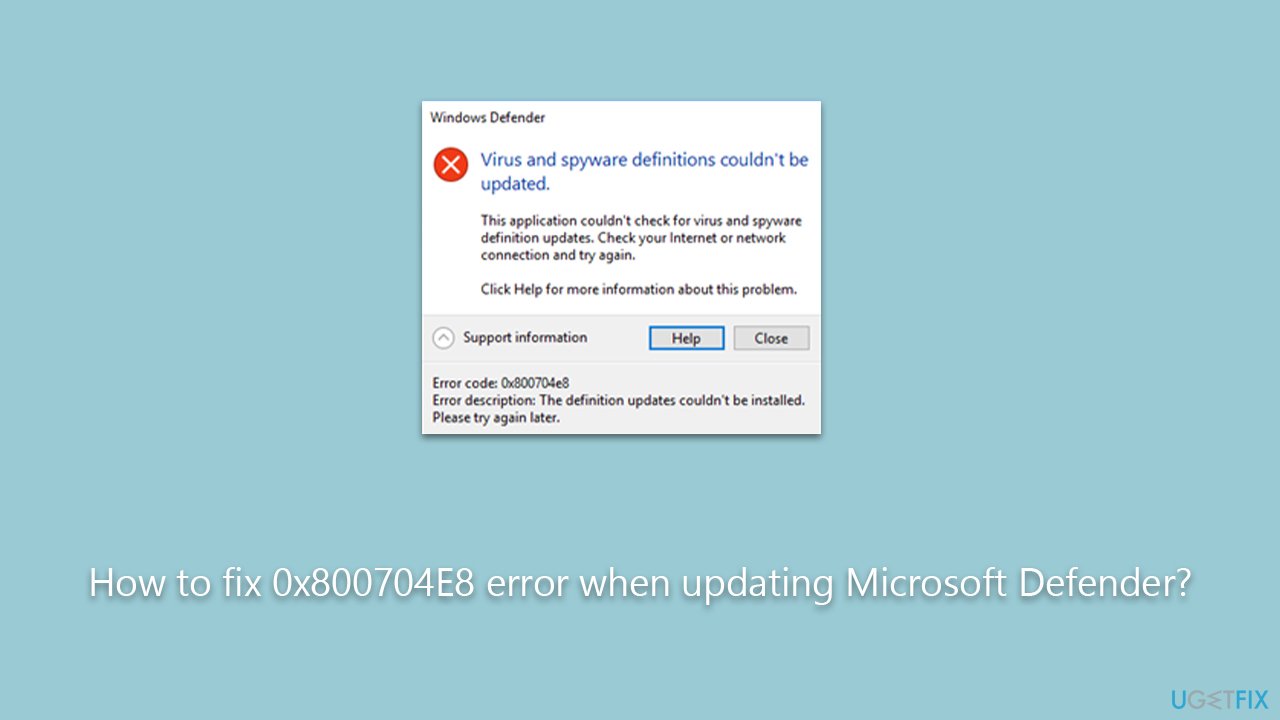
Nevertheless, the updating process doesn't always proceed without complications. One common issue encountered by users is the 0x800704E8 error. This error generally signifies that the Microsoft Defender updates are not being successfully installed on your computer. The reasons behind this error can be multifarious and might include network problems, system file corruption, or issues with the Windows Update service itself.
Importantly, this error should not be overlooked as it prevents Microsoft Defender from being updated with the latest threat definitions, potentially leaving your system vulnerable. The good news is solutions exist to rectify this problem. These will be provided in the following sections, detailing step-by-step instructions to help fix the 0x800704E8 error and ensure your Microsoft Defender is kept up-to-date.
In some cases, using a trusted PC repair tool such as [d1] can also be an efficient way to fix common issues like the 0x800704E8 error. Such tools can conduct a comprehensive scan of your system, identify the root cause of the problem, and suggest suitable solutions to mitigate it, thereby aiding in maintaining your computer's overall health and security.
Fix 1. Run Windows update troubleshooter
This solution involves using the Windows Update Troubleshooter, a tool provided by Microsoft to diagnose and resolve common issues associated with Windows Update. It can help to fix the 0x800704E8 error by identifying and rectifying any issues that might be preventing Microsoft Defender updates from being successfully installed.
- Type Troubleshoot in Windows search and hit Enter.
- Select Additional troubleshooters/Other troubleshooters.
- Find Windows Update from the list and click Run the troubleshooter/Run.
- The troubleshooter will automatically scan your system for potential problems and display any issues it finds.
- If the troubleshooter finds any issues, it will provide recommended solutions.
- Follow the on-screen instructions to apply the recommended solution.

Fix 2. Perform SFC and DISM checks
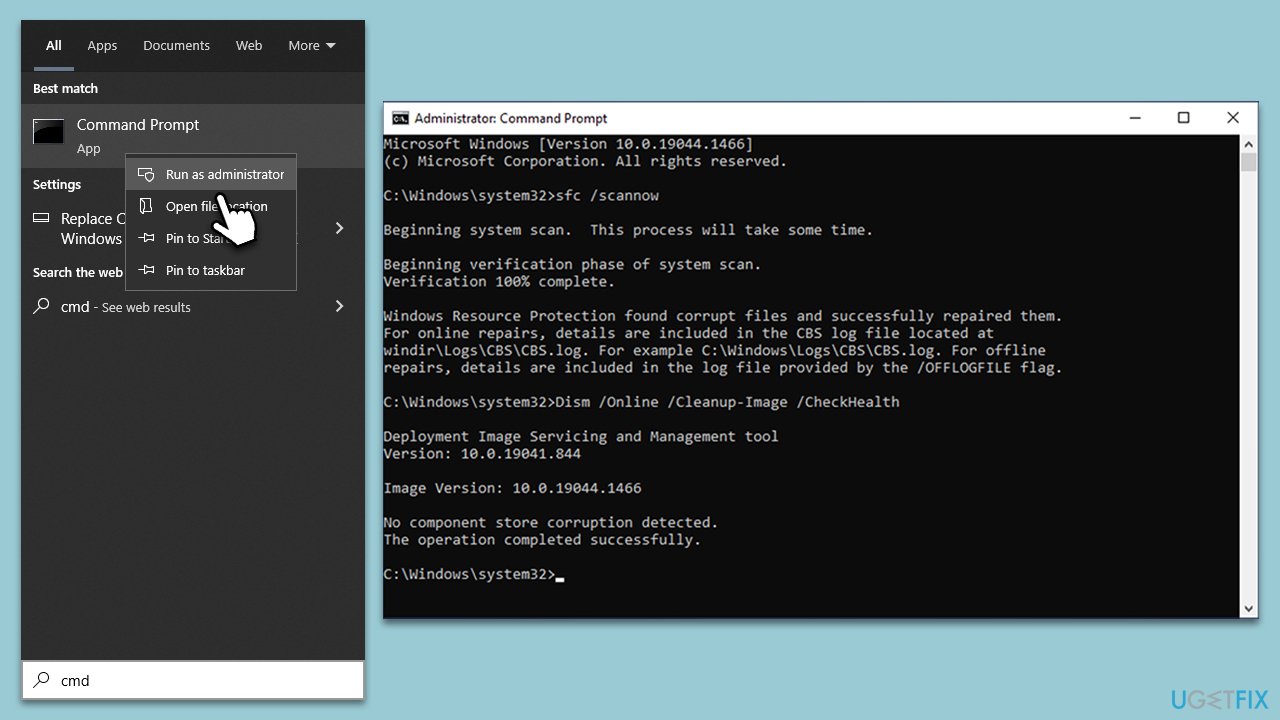
SFC (System File Checker) and DISM (Deployment Image Servicing and Management) are built-in Windows tools that can repair corrupt system files, which may be causing the error.
- Type cmd in Windows search.
- Right-click on the Command Prompt result and select Run as administrator.
- UAC (User Account Control) will ask whether you want to allow changes - click Yes.
- Next, type in the following command and press Enter:
sfc /scannow - When done, run the following commands as well:
dism /online /cleanup-image /scanhealth
dism /online /cleanup-image /checkhealth
dism /online /cleanup-image /restorehealth - Restart your device.
Fix 3. Run Microsoft Security Scanner
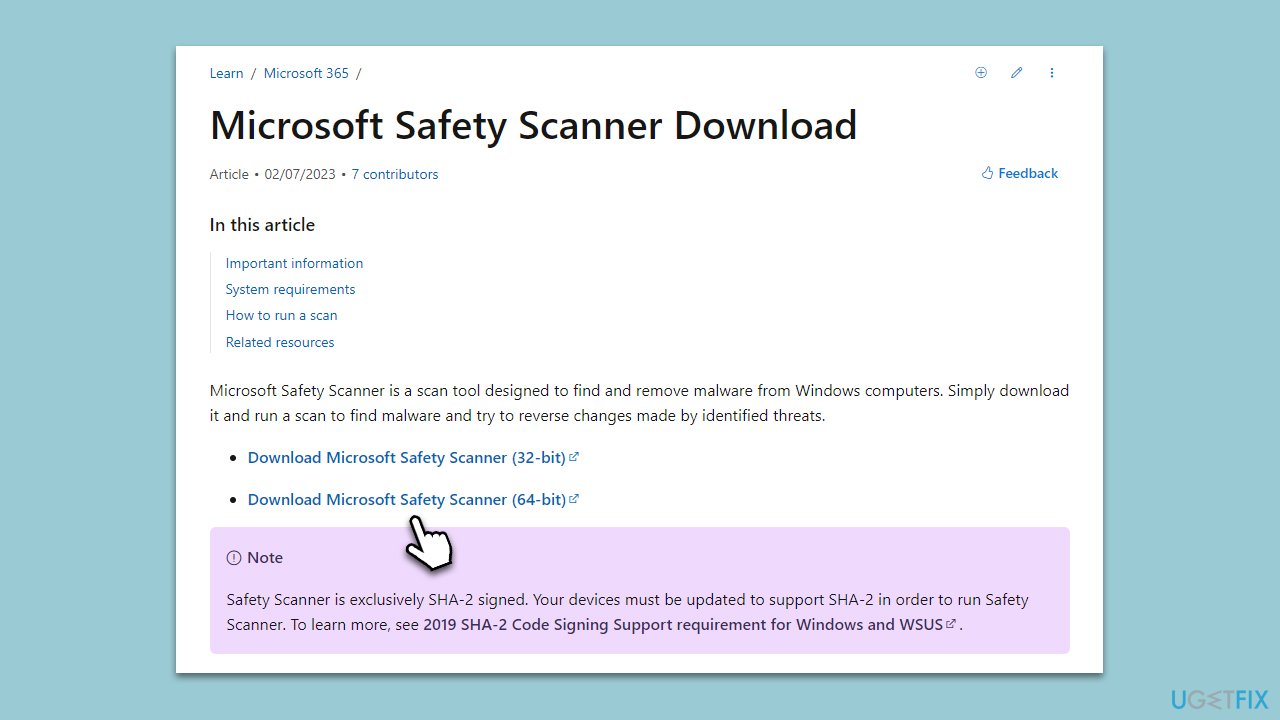
Microsoft Safety Scanner is a scanning tool designed to find and remove malware from your computer. It can help resolve the 0x800704E8 error by eliminating any malware that may be interfering with the Microsoft Defender update process.
- Download the Microsoft Safety Scanner from the official website.
- Run the downloaded file and follow the on-screen instructions to complete the scan.
Fix 4. Manually update Microsoft Defender through Command Prompt
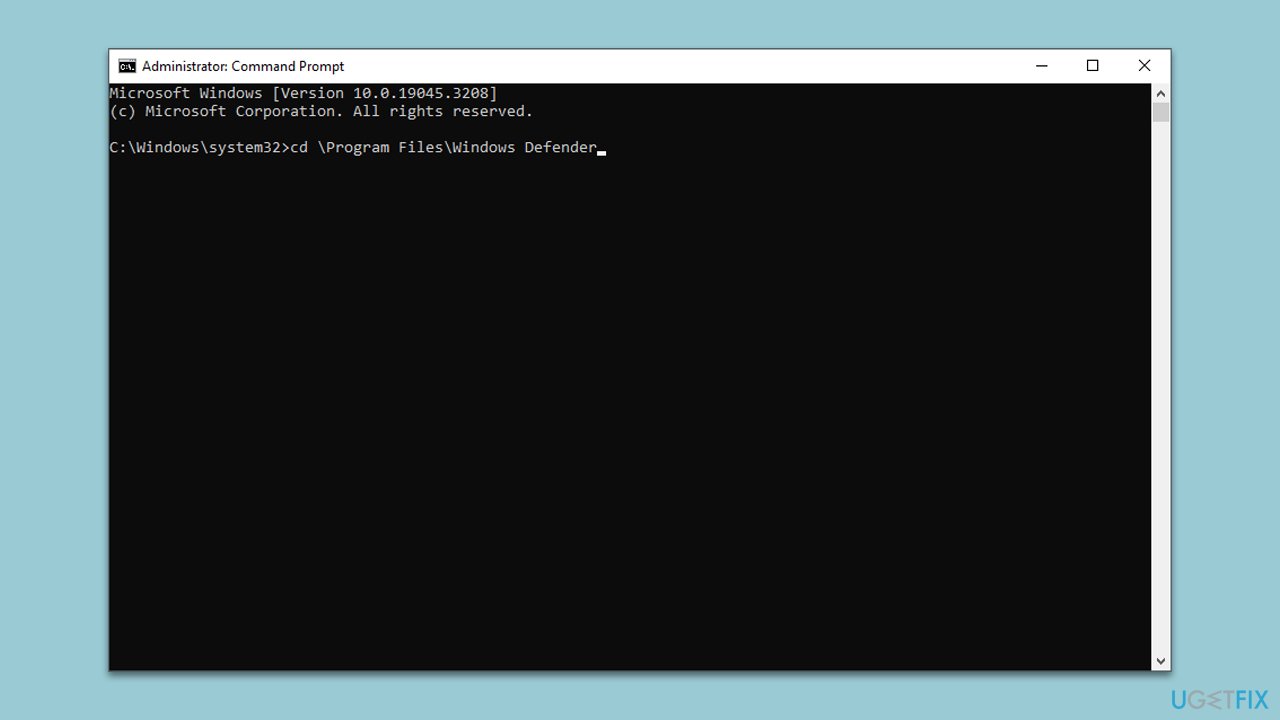
This fix involves directly updating the Microsoft Defender definitions using commands in the Command Prompt.
- Open the Command Prompt as an administrator.
- Type the following and press Enter:
cd \Program Files\Windows Defender - Next, type this to update Defender:
MpCmdRun.exe -SignatureUpdate - Wait for the updates to complete.
Fix 5. Remove the Windows Defender signature file
Sometimes, a corrupted signature file can prevent Microsoft Defender from updating. Removing this file allows Windows to download a new, uncorrupted version.
- Ensure that Microsoft Defender is turned off.
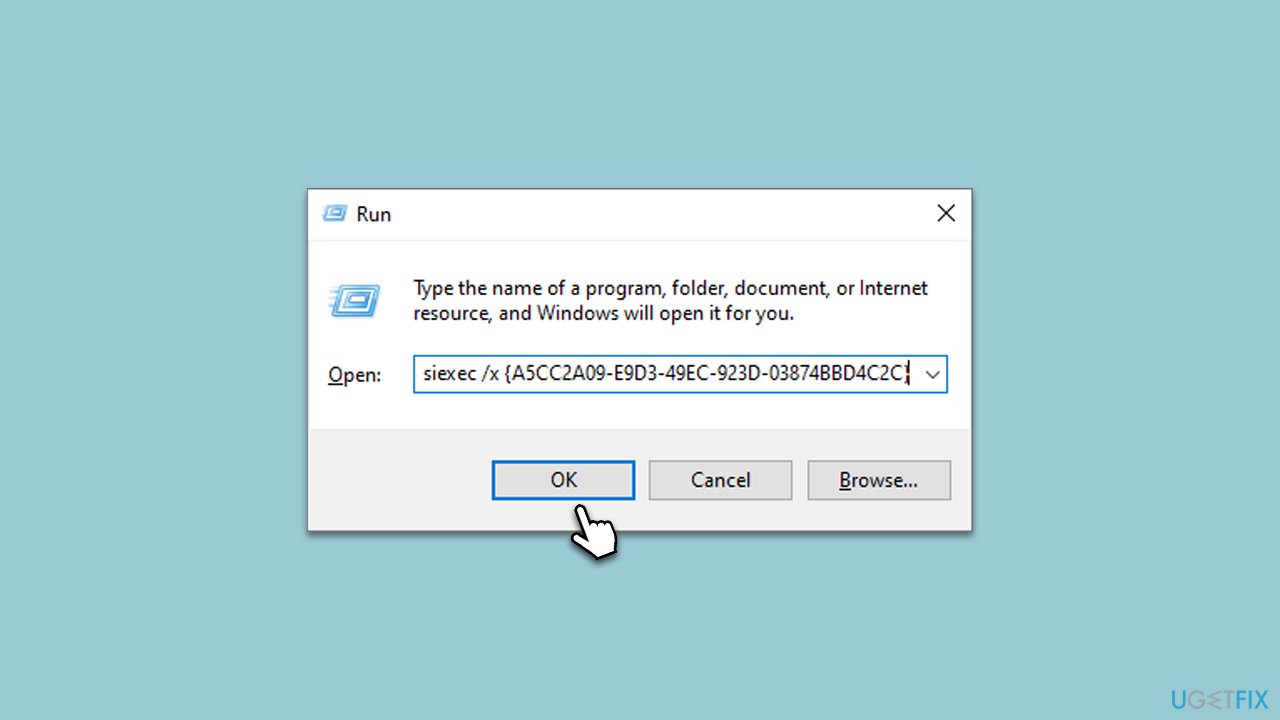
- Press Win + R to open the Run dialog.
- Here copy and paste the following:
Msiexec /x {A5CC2A09-E9D3-49EC-923D-03874BBD4C2C} - Press Enter.
- Launch Defender and attempt to update definitions again.
Bottom line
To fix the 0x800704E8 error, you can try troubleshooting network issues, repairing system files, or checking the Windows Update service. Additionally, using a trusted PC repair tool may help identify and resolve the underlying problem. If none of these solutions work, consider seeking further assistance or contacting Microsoft support.
Frequently asked questions
The 0x800704E8 error typically indicates a problem with Microsoft Defender's update process, often related to corrupted files or system settings preventing the update from completing.
You can try resetting the Windows Update components by using the Command Prompt to stop and restart the services, followed by running the Windows Update Troubleshooter.
Yes, you can use the System File Checker tool by running 'sfc /scannow' in the Command Prompt to repair any corrupted system files that may be causing the error.




Report an issue
What's wrong with this guide? We review every report and update or remove content.
Report received — thank you. We'll review and fix it.
You need a free account to submit a report.
Be the first to comment