How to fix
Application launch error 0xc0000135
on Windows
Resolve application launch error 0xc0000135 in Windows 10 and 11 quickly. Follow our expert-tested guide for effective solutions and zero traces left.

What causes How to fix application launch error 0xc0000135 in Windows?
- Corrupted system files
- Issues with .NET Framework components
- Incomplete software installations
- Incomplete uninstalls
- Improper system shutdowns
Repairs Windows system files, removes malware, and restores a clean OS state — without reinstalling.
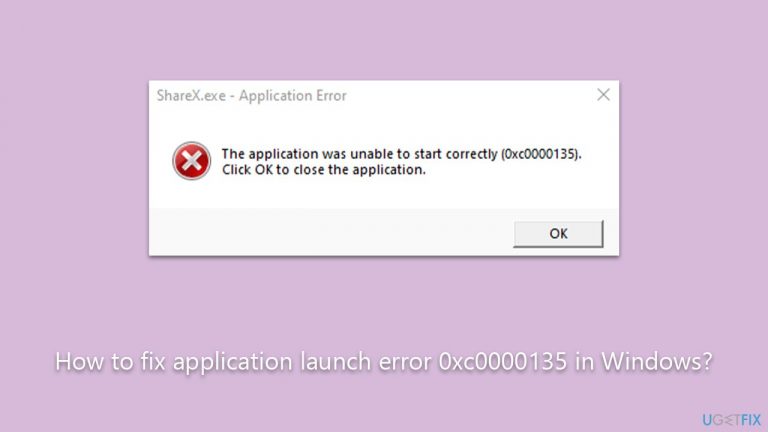
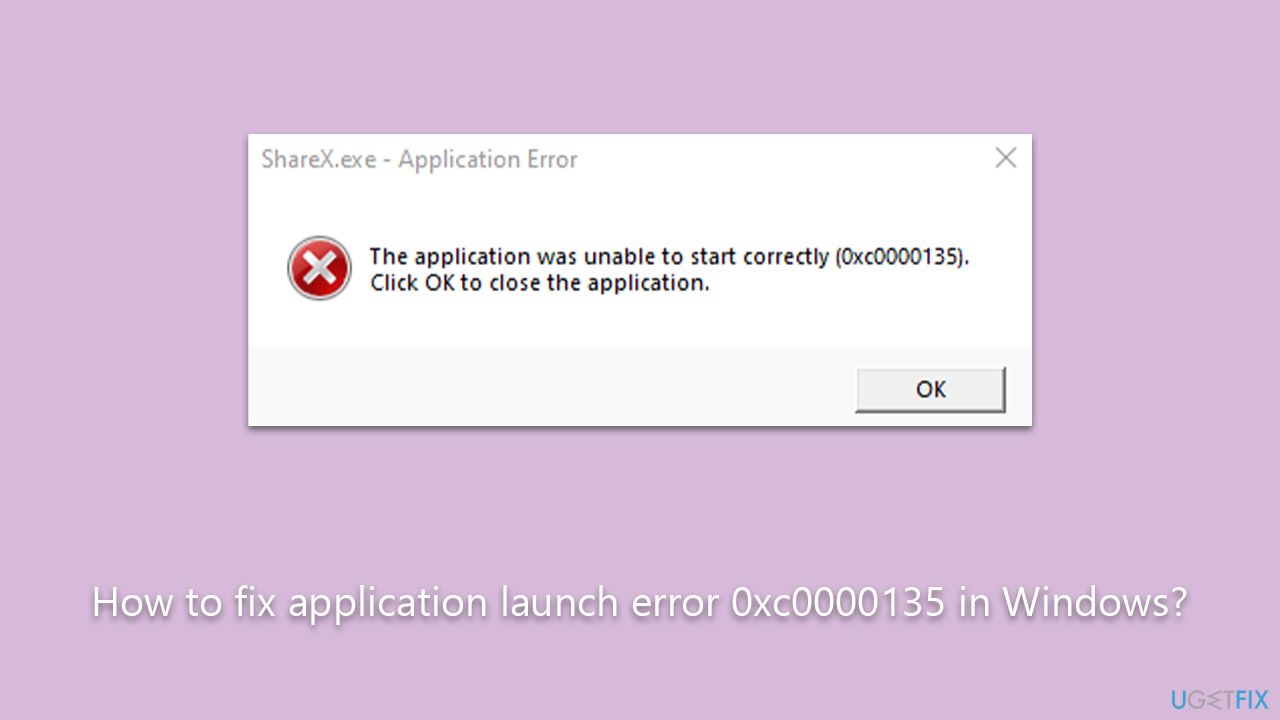
Whenever I try to open any application on my Windows PC, I keep getting an error that says that the application was unable to start correctly with an error code 0xc0000135. Any suggestions on what can I do to address this?
Application launch errors in Windows operating systems can create a frustrating experience for users, especially when the issues appear without any apparent reason. One such issue that users might encounter is the 0xc0000135 (STATUS_DLL_NOT_FOUND) error code.
This error is not unusual and can present itself under various circumstances, such as during system updates or when launching a specific application. When this error surfaces, it often signifies an issue within the system's core, typically related to corrupted system files or issues with the .NET Framework components.
Applications, especially those running on Windows operating systems, don't always launch as expected. Many users have reported encountering the 0xc0000135 error code unexpectedly, often after performing a routine Windows update. However, this error can also occur in different scenarios, indicating an underlying issue that needs addressing.
The root cause of this error is often traced back to corrupted system files or problems with the .NET Framework components. .NET Framework is a programming infrastructure created by Microsoft for building, deploying, and running applications and services that use .NET technologies, such as desktop applications and web services. It provides a consistent object-oriented programming environment whether object code is stored and executed locally, executed locally but Internet-distributed, or executed remotely.
When corrupted or incomplete, the .NET Framework can fail to perform its duties effectively, leading to errors like 0xc0000135. This corruption can occur due to various reasons, like incomplete software installations, incomplete uninstalls, improper system shutdowns, or inadequate removal of applications.
While the error code 0xc0000135 can disrupt your day-to-day computing tasks, it's important to note that there are potential solutions at hand. By following the instructions provided in the subsequent section of this article, you should be able to navigate your way out of this application launch predicament.
Moreover, remember that tools like the [d1] PC repair tool exist to aid in troubleshooting and resolving such issues. They are designed to simplify the process of rectifying common computer errors, making the overall digital experience more comfortable and efficient.
Fix 1. Run SFC and DISM
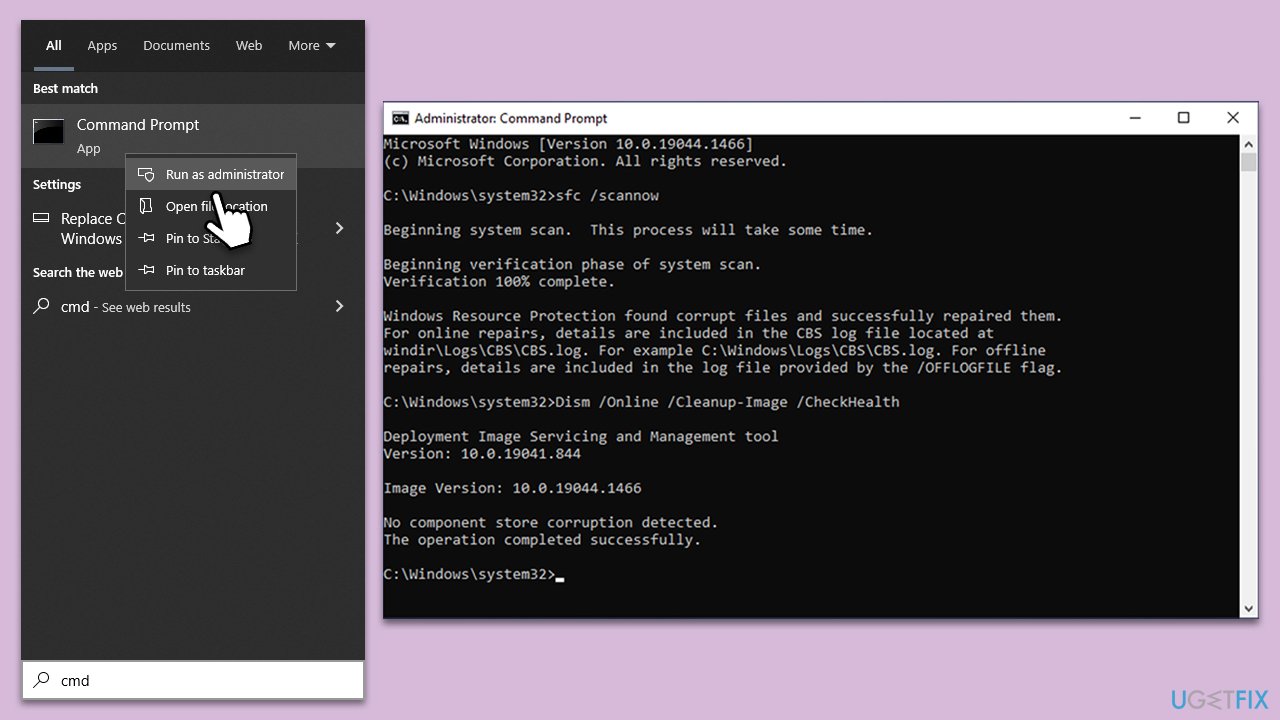
SFC (System File Checker) and DISM (Deployment Image Servicing and Management) are two integral utilities within Windows that are designed to repair system files. SFC scans for any corrupted system files and replaces them with a cached copy, while DISM can be used to fix issues that SFC cannot.
- Type cmd in Windows search.
- Right-click on Command Prompt and pick Run as administrator.
- The User Account Control window will ask whether you want to allow changes - click Yes.
- In the Command Prompt window, paste the following command and hit Enter:
sfc /scannow - Once the scan is complete, use the following commands and press Enter after each:
Dism /Online /Cleanup-Image /CheckHealth
Dism /Online /Cleanup-Image /ScanHealth
Dism /Online /Cleanup-Image /RestoreHealth - (Note: if you get an error executing this last command, add /Source:C:\RepairSource\Windows /LimitAccess to it and try again).
- Restart your system.
Fix 2. Enable .NET Framework in Windows Features
.NET Framework is required for many Windows applications to function correctly. If it is disabled, enabling it may resolve the error.
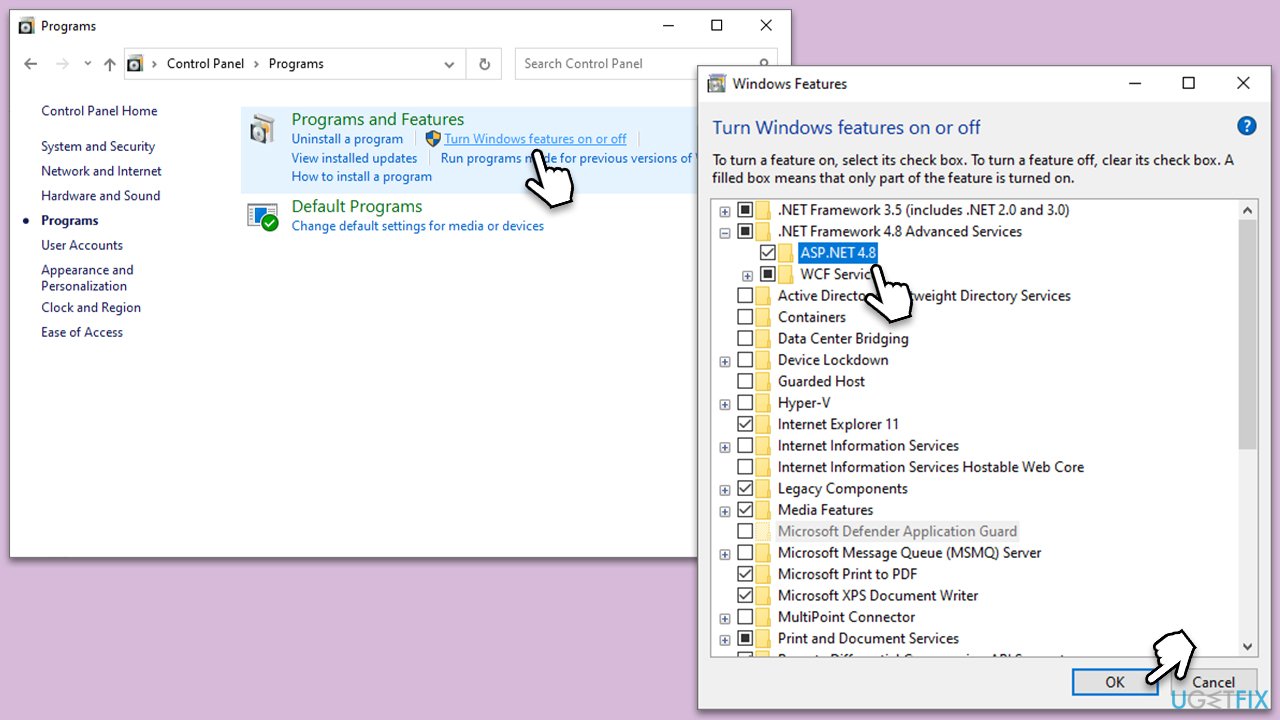
- Type Control Panel in Windows search and select Programs.
- Select Turn Windows features on or off.
- Enable .NET Framework 3.5 (includes .NET 2.0 and 3.0).
- Next, enable .NET Framework 4.8 Advanced Services and press the plus icon next to it.
- Make sure to enable ASP.NET 4.8 as well.
- Click OK when done.
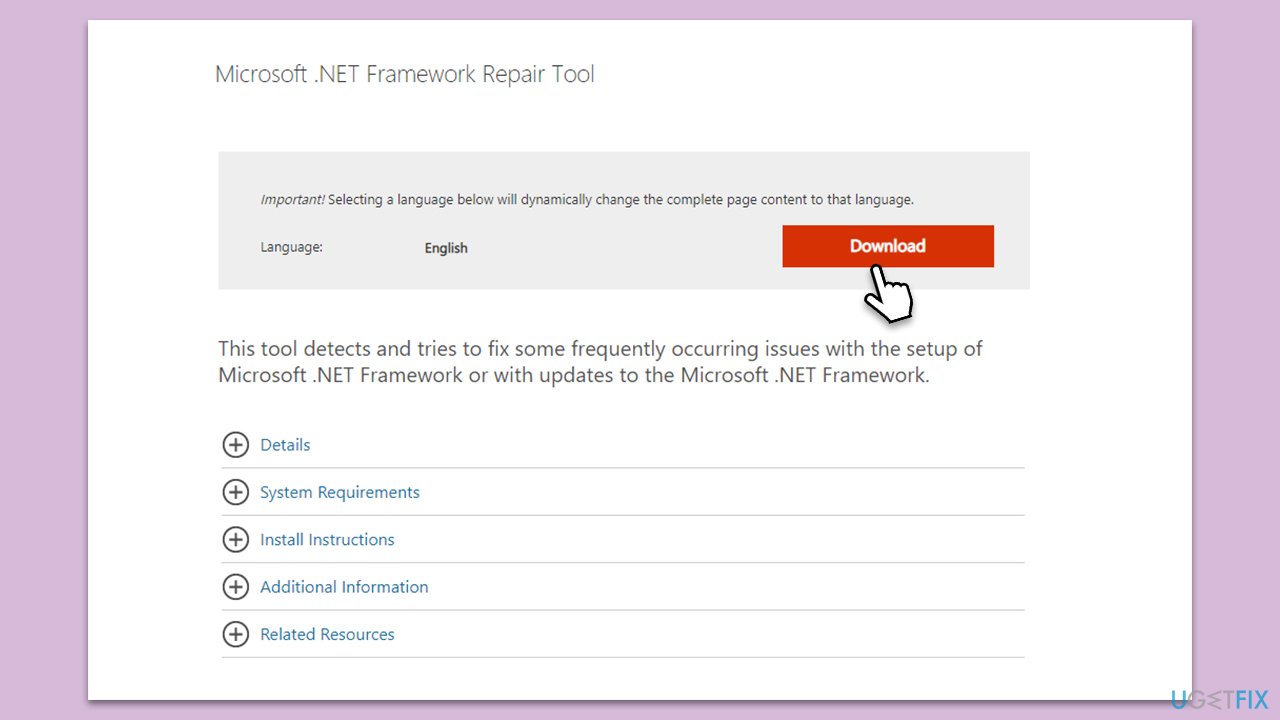
Fix 3. Use .NET Framework repair tool
.NET Framework repair tool can detect and fix issues associated with the .NET Framework installation.
- Download Microsoft .NET Framework Repair Tool from the official Microsoft website.
- Start the launcher and select NetFxRepairTool.exe, pressing Next after.
- Double-click the file to begin the repair process.
- When prompted, mark the I have read and accept the license terms and click Next
- Windows will diagnose all the issues and repair them automatically for you
- Restart your computer if it doesn't happen automatically.
Fix 4. Run Windows Store Apps troubleshooter
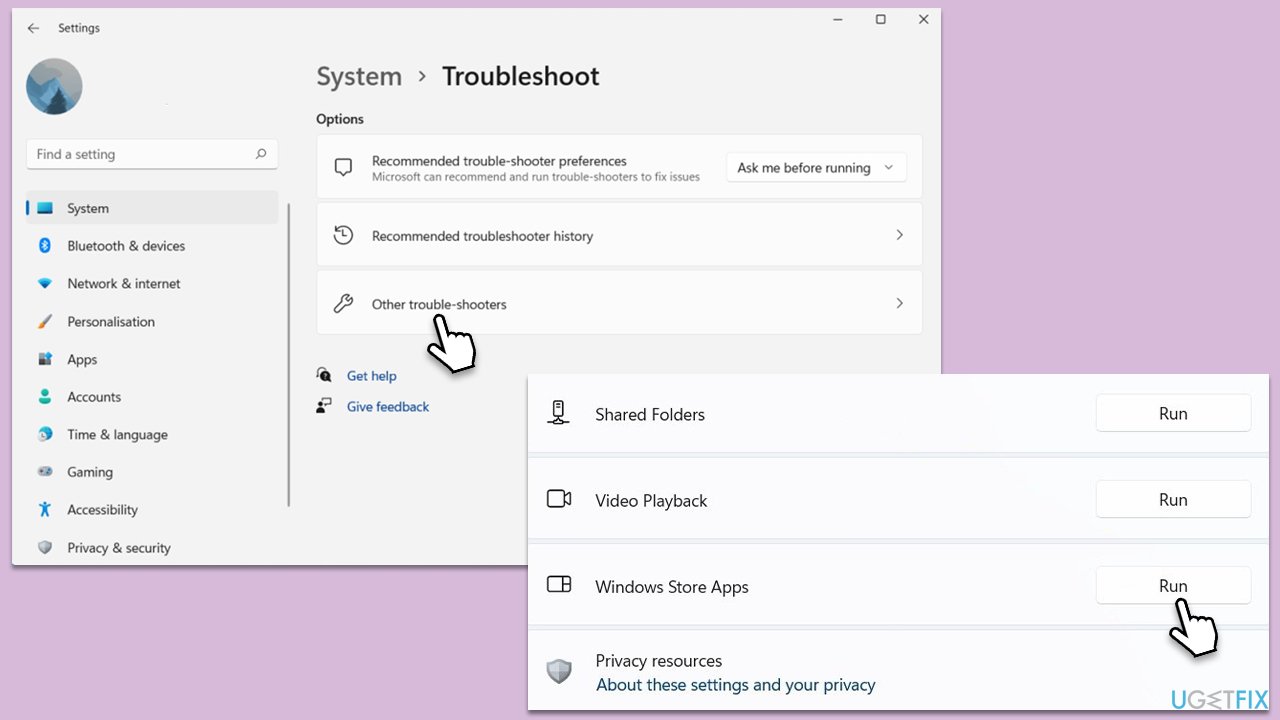
The Windows Store Apps troubleshooter can identify and fix problems with apps downloaded from the Windows Store.
- Type in Troubleshoot in Windows search and hit Enter.
- Select Additional Troubleshooters/Other troubleshooters.
- Pick Windows Store Apps and click Run the troubleshooter/Run.
- Wait till the scan is finished, and then apply the proposed fixes.
- Reboot your device.
Fix 5. Try Clean Boot
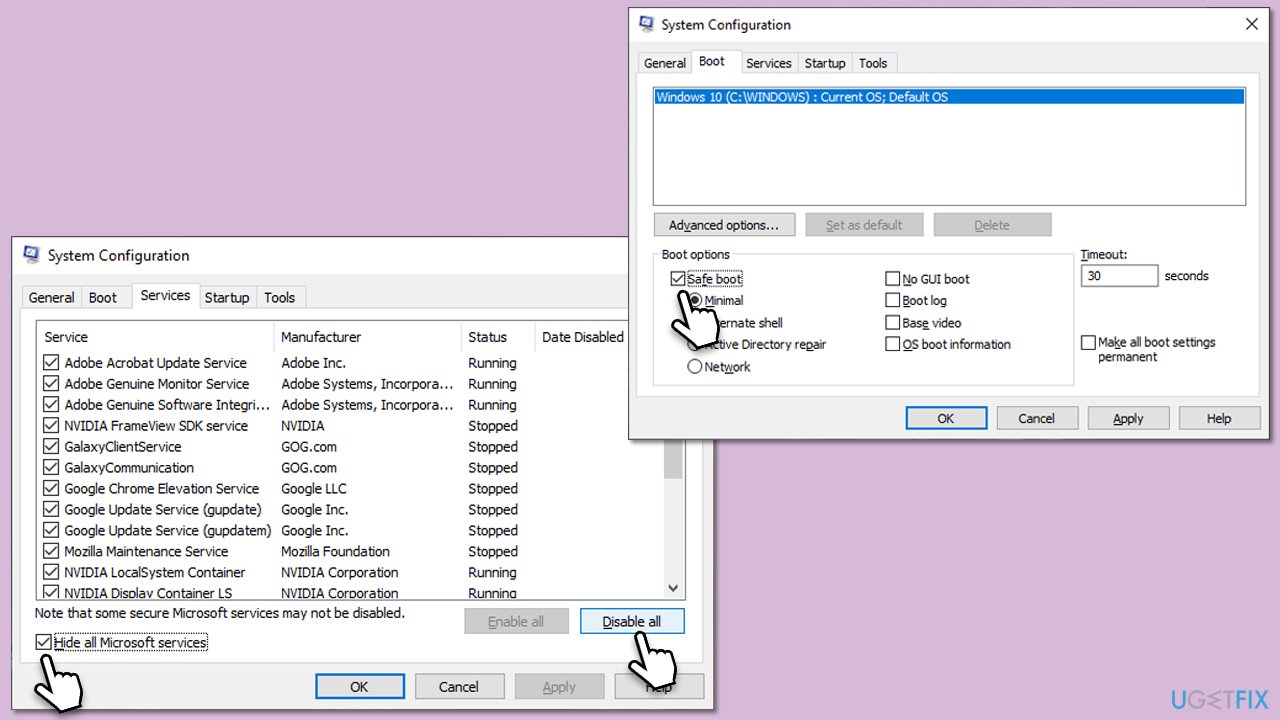
A clean boot starts Windows with a minimal set of drivers and startup programs, which can help identify if background programs are causing the issue.
- Press Win + R, type msconfig, then press Enter.
- Select the Services tab and tick the Hide all Microsoft services checkbox.
- Pick Disable all.
- Go to the Startup tab and click Open Task Manager.
- Here, right-click on each of the non-Windows entries and select Disable.
- Close down the Task Manager.
- Go to the Boot tab and tick the Safe boot option.
- Reboot your PC.
Fix 6. Reinstall the application
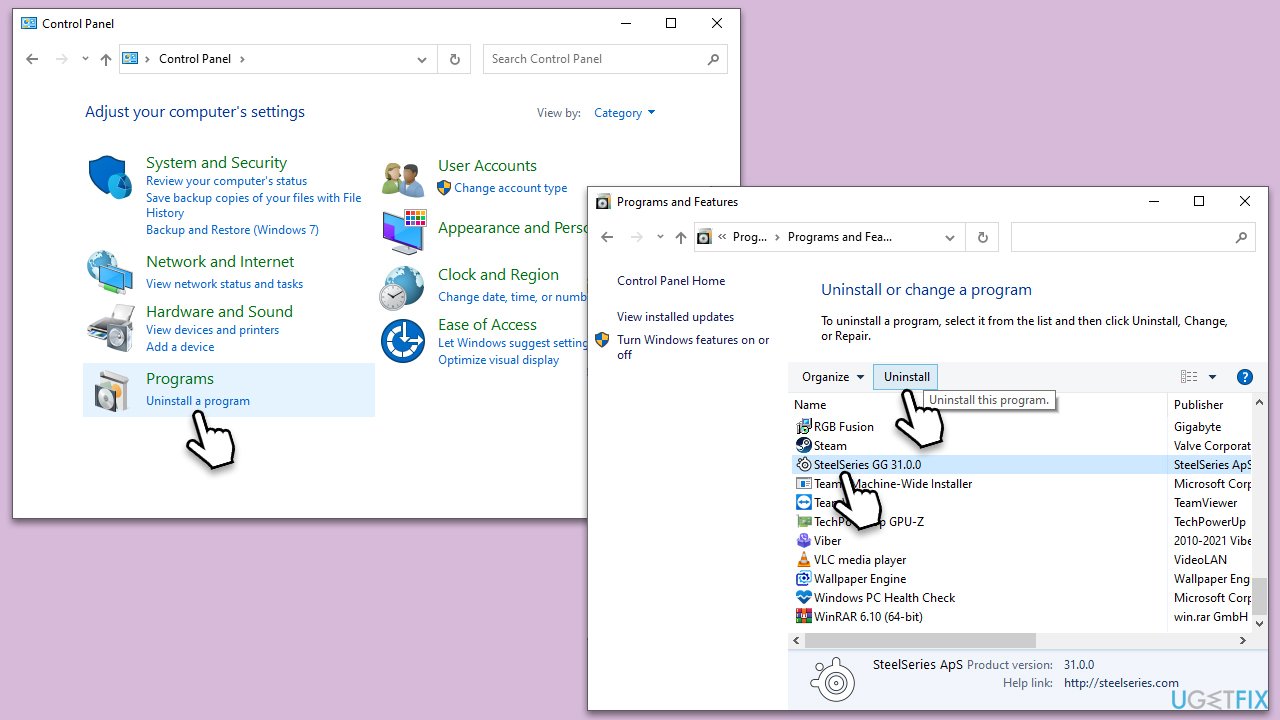
If all else fails, uninstalling and then reinstalling the application may fix the issue.
- Go to Control Panel, then Programs and Programs and Features.
- Find and select the application, then click Uninstall.
- Once the uninstallation is complete, reinstall the application from the original source.
- Restart your computer.
Bottom line
To fix the application launch error 0xc0000135, you can repair the .NET Framework, check for corrupted system files, or perform a clean installation of the affected application. If these solutions do not resolve the issue, consider seeking further technical support.
Frequently asked questions
Error 0xc0000135 indicates that a required DLL file is missing or not found, preventing the application from launching properly in Windows 10 or Windows 11.
To fix the 0xc0000135 error in Windows 11, ensure that all necessary runtime libraries, such as Visual C++ Redistributables, are installed and up to date.
Yes, keeping your Windows 10 or Windows 11 system updated can help resolve the 0xc0000135 error by ensuring all components and dependencies are current.




Report an issue
What's wrong with this guide? We review every report and update or remove content.
Report received — thank you. We'll review and fix it.
You need a free account to submit a report.
Be the first to comment