How to fix
Error AADSTS90100: Login parameter is empty or not valid error
on Windows
Resolve the AADSTS90100 error on Windows 10 or 11 effortlessly. Get quick solutions and expert-tested tips to fix login issues in minutes.

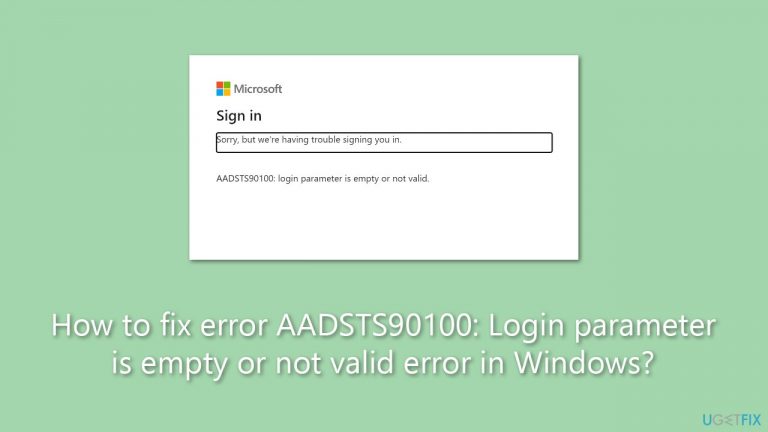
What causes How to fix error AADSTS90100: Login parameter is empty or not valid error in Windows?
- Corrupted browser cache
- Incorrect account credentials
- Tool servers being down
- Conflicting stored information
- Technical difficulties with authentication servers
Repairs Windows system files, removes malware, and restores a clean OS state — without reinstalling.
Hello. I wanted to access my Microsoft account on my browser to change a few settings but I couldn't because of the AADSTS90100: Login parameter is empty or not valid error. How do I access my account now?
Microsoft accounts are essential for millions of users globally. They serve various purposes, including accessing emails, working on documents, managing subscriptions, and synchronizing data across devices. With such widespread usage, Microsoft accounts become a central part of many people's daily activities.
However, these accounts are not without issues. Sometimes, users find themselves unable to access their account settings. A common cause of this hindrance is the AADSTS90100: Login parameter is empty or not valid error. This error can be particularly frustrating, leaving users stranded and unable to access essential services.
Several underlying factors might trigger the AADSTS90100 error. One significant cause is the corrupted browser cache. This happens when the stored information conflicts with the current login attempt, leading to the error. The issue may also arise from the simple input of incorrect account credentials. If the user enters a wrong username or password, the system detects it as an invalid parameter, thus triggering the error.
Tool servers being down can also lead to this problem. Specifically, when the servers responsible for authentication are down or facing technical difficulties, users can encounter this error. These are not the only causes, but they are among the most common, leading to the need for effective solutions.
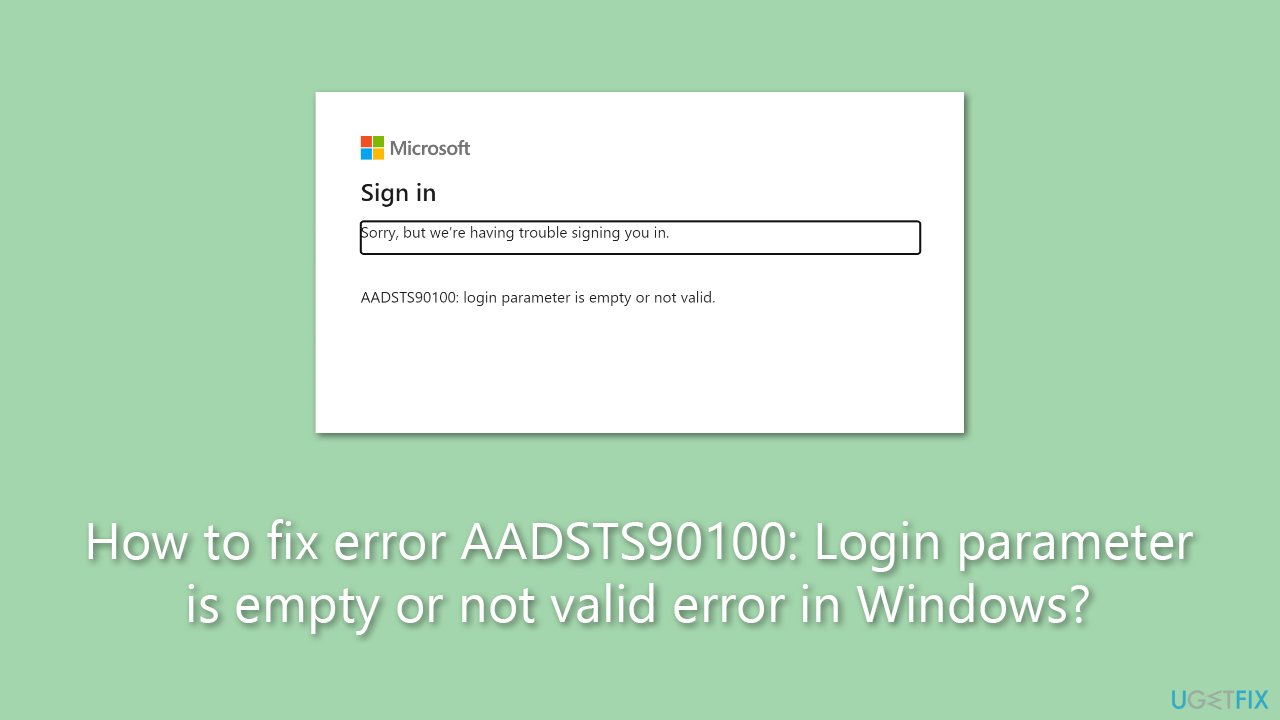
Although the error can create barriers for users to access their Microsoft accounts, it is typically symptomatic of underlying issues that can often be rectified. Solutions exist, and although they are beyond the scope of this article, they often involve addressing the root causes listed above.
For those looking for a comprehensive fix to this and other Windows-related issues, using [d1] PC repair tool may be suitable. This tool is designed to address most of the general Windows issues automatically, providing an efficient way to keep systems running smoothly.
Fix 1. Verify account credentials
Incorrect login credentials can directly trigger the error. Verifying and ensuring that the credentials are correct can eliminate this as the cause.
- Check the username and password for typos.
- Ensure that the account is active and not locked.
- Attempt to log in again with the correct credentials.
- If forgotten, follow the password recovery process on the login page.
- If you are using a school or work account, contact your administrator.
Fix 2. Clear browser cookies and cache
Clearing browser cookies and cache can resolve conflicts with stored information that might interfere with login attempts. This action essentially removes any outdated or corrupted data that may be causing the AADSTS90100 error.
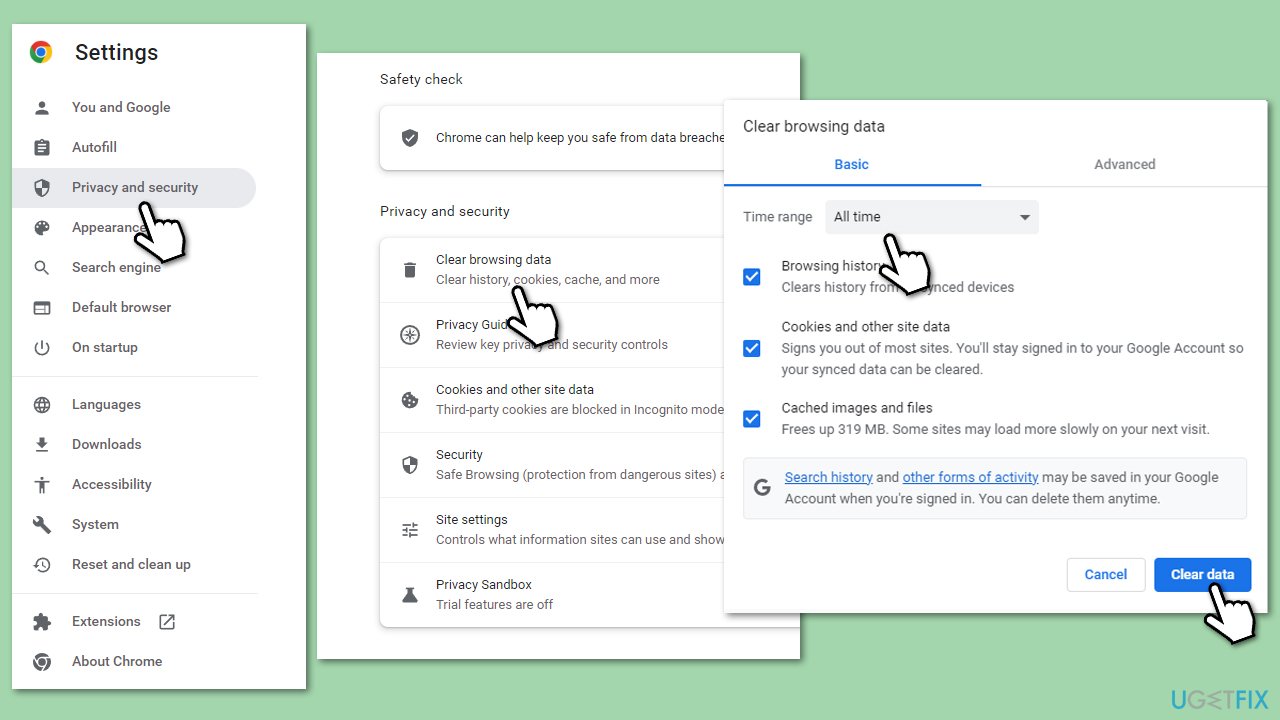
Google Chrome
- Click on Menu (⋮) and pick Settings.
- Under Privacy and security, select Clear browsing data.
- Under time range, pick All time.
- Select Browsing history, Cookies and other site data, and Cached images and files.
- Click Clear data.
Mozilla Firefox
- Open Mozilla Firefox.
- Click the three lines icon (≡) located at the top-right corner of the window.
- Click on Settings from the dropdown menu.
- In the left-hand menu, click on Privacy & Security.
- Scroll down to locate the Cookies and Site Data section.
- Click Clear data...
- Mark the Cookies and Site Data, as well as Cached Web Content checkmarks, and click Clear.
Microsoft Edge
- Open Edge and click on three horizontal dots (…) (Settings and more).
- Pick Settings.
- Click Privacy, search, and services on the left.
- On the right side of the window, scroll down to find the Clear browsing data section.
- Click Choose what to clear.
- Select All time.
- Pick all the sections and click Clear now.
Fix 3. Clear cache of the app you're trying to log in to
The application-specific cache could also lead to login issues. Clearing the app cache ensures that any temporary data that might be conflicting with login parameters is removed.
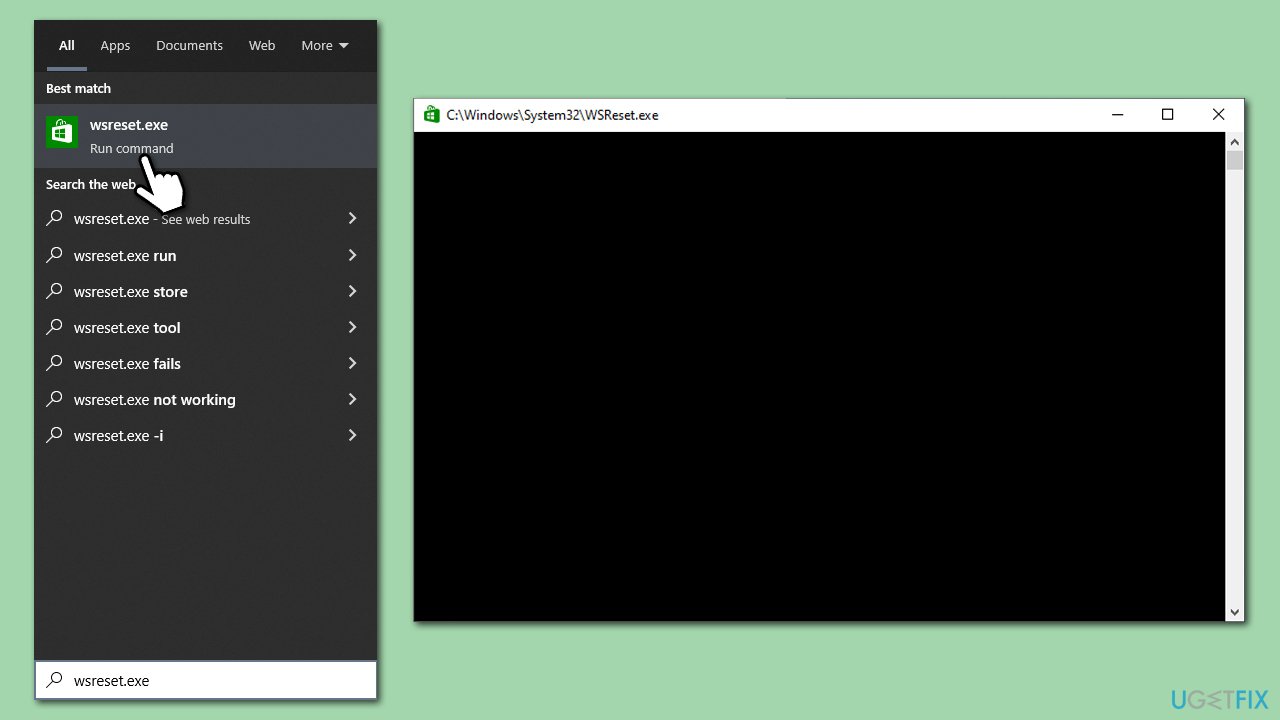
It is important to note that instructions for cleaning the cache of apps depend on which app you are using. For example, for Microsoft Store, use the following instructions:
- In Windows search, type wsreset and press Enter.
- Wait till a black window shows up - do not close it.
- As soon as it closes, the store should be reset and will reopen.
- Try updating or downloading apps again.
For other apps, follow these general steps:
- Open the application settings or preferences.
- Find the option to clear cache or temporary files.
- Click on the clear cache or similar option.
- Confirm the action if prompted.
- Restart the application if necessary.
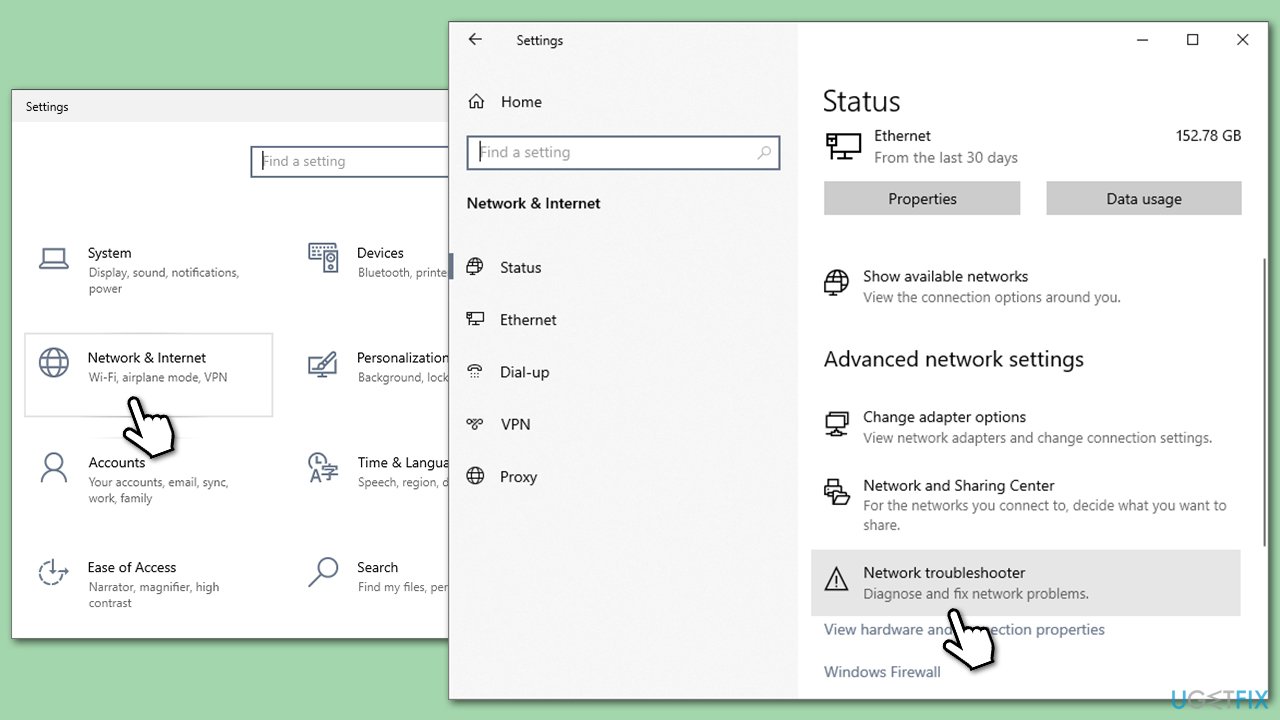
Fix 4. Run network troubleshooter
Running the network troubleshooter can detect and automatically resolve issues with the network settings, which might be preventing successful login.
- Right-click on Start and pick Settings.
- Go to Network & Internet section.
- On the right side, find the Advanced network settings section.
- Click Network troubleshooter and wait.
- The fixes will be automatically applied.
Fix 5. Reset network settings
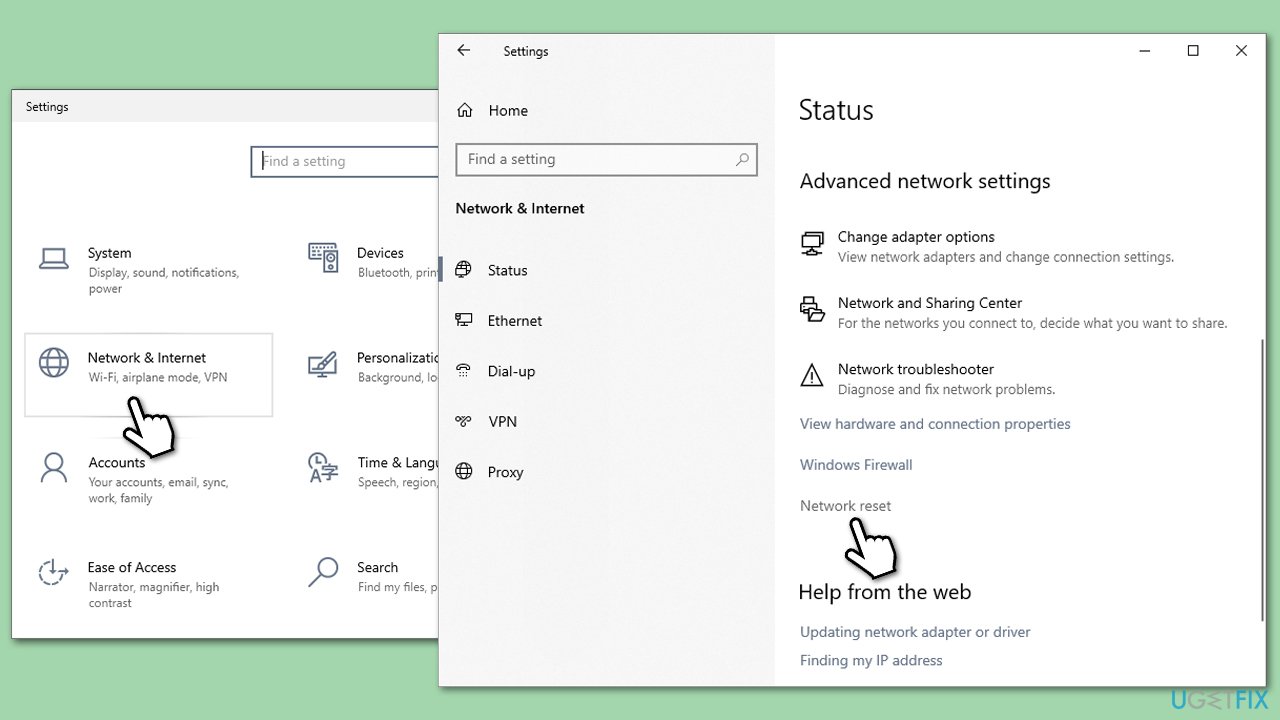
Resetting network settings to their default can help eliminate any customized configurations that might be causing conflicts with Microsoft's servers during the login process.
- Open the Settings app.
- Navigate to Network and internet.
- Click on Network reset.
- Confirm by clicking on Reset now.
- Restart the computer if required.
Bottom line
The AADSTS90100 error can often be resolved by verifying your account, clearing your browser cache, or ensuring that your login credentials are correct. If these solutions do not work, consider using a PC repair tool to address underlying Windows issues.
Frequently asked questions
First, ensure that your login credentials are correct and not empty. If the problem persists, try resetting the app's settings by going to Settings > Apps > [App Name] > Advanced options and clicking on 'Reset'.
Check if your internet connection is stable and try clearing your browser cache or app data. Additionally, make sure that your Windows 11 system is fully updated to the latest version.
Yes, you can attempt to fix this error by signing out of your Microsoft account and signing back in, or by using the Windows Troubleshooter for apps to diagnose and resolve the issue.




Report an issue
What's wrong with this guide? We review every report and update or remove content.
Report received — thank you. We'll review and fix it.
You need a free account to submit a report.
Be the first to comment