How to fix
High CPU Usage by Conhost.exe
on Windows
Struggling with high CPU usage from conhost.exe on Windows 10 or 11? Discover effective solutions that can fix it in minutes, expert-tested for reliabil…

What causes How to Fix High CPU Usage by Conhost.exe?
- Driver issues
- Malware infection
- Corrupted Windows Updates
- High resource usage by command-line applications
Repairs Windows system files, removes malware, and restores a clean OS state — without reinstalling.
Hello. For the past week, I have noticed that my PC has gotten slow. I was checking the Task Manager to find the culprit, and I noticed several instances of Conhost.exe, with some of them really spiking my CPU. I don't think this is normal. Any tips on how to deal with this?
Introducing Conhost.exe process
Conhost.exe (short for Console Window Host) is a legitimate Windows system process that is responsible for managing and displaying console windows for command-line applications. It is located in the C:\Windows\System32 folder and was first introduced in Windows 7, and is included in all subsequent versions of Windows.
When a command-line application is launched in Windows, Conhost.exe creates a new console window and manages its display. It also provides additional functionality, such as supporting Unicode characters and providing support for text selection and copying. It also provides security improvements by separating the console window and application processes.
Unfortunately, the Console Window Host process might sometimes cause high CPU usage for users. High CPU usage by any of the Windows system components may be triggered by driver issues, malware infection, corrupted Windows Updates, or similar. We provide all the solutions below, although we recommend using [d1] PC repair to fix the problem automatically.
Can Conhost.exe Process be malicious?
Although it is quite unlikely, some instances of the Conhost.exe process can be hijacked by malware. Malicious actors exploit the common process in order to misguide users and, sometimes, even security software.
According to the latest reports, Trojan:Win32/Alureon.FM, Backdoor:Win32/Cycbot.B, RiskTool.Win32.BitCoinMiner.amv and Packed.Win32.Krap.hy malware can call up a process of Conhost.exe, which in no capacity would be legitimate.
In such a case, the best thing to do is to run a full system scan with powerful anti-malware. While you can employ your third-party security software, if the threat is already active, it might have bypassed the protection. In this case, you should access Safe Mode and perform a full system scan with alternative security software or employ Microsoft Defender offline scan:
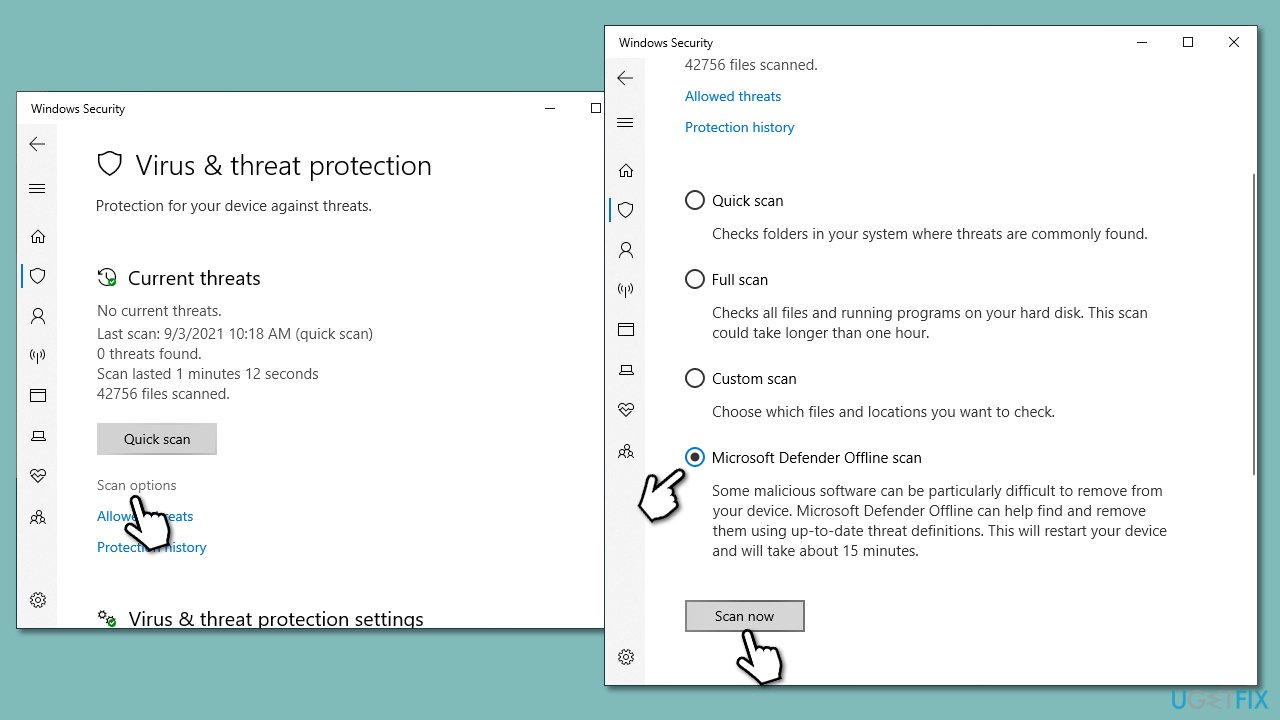
- Type Windows Security in the Windows search bar and hit Enter.
- Select Virus & threat protection.
- Pick Scan options.
- Choose Microsoft Defender Offline scan and click Scan now
- Your computer will immediately reboot and begin a deep scan.
You could also employ Microsoft Safety Scanner you can download from the official website. If no threats are found, proceed with the instructions below to fix Conhost.exe high CPU usage.
Fix 1. Install all the available updates
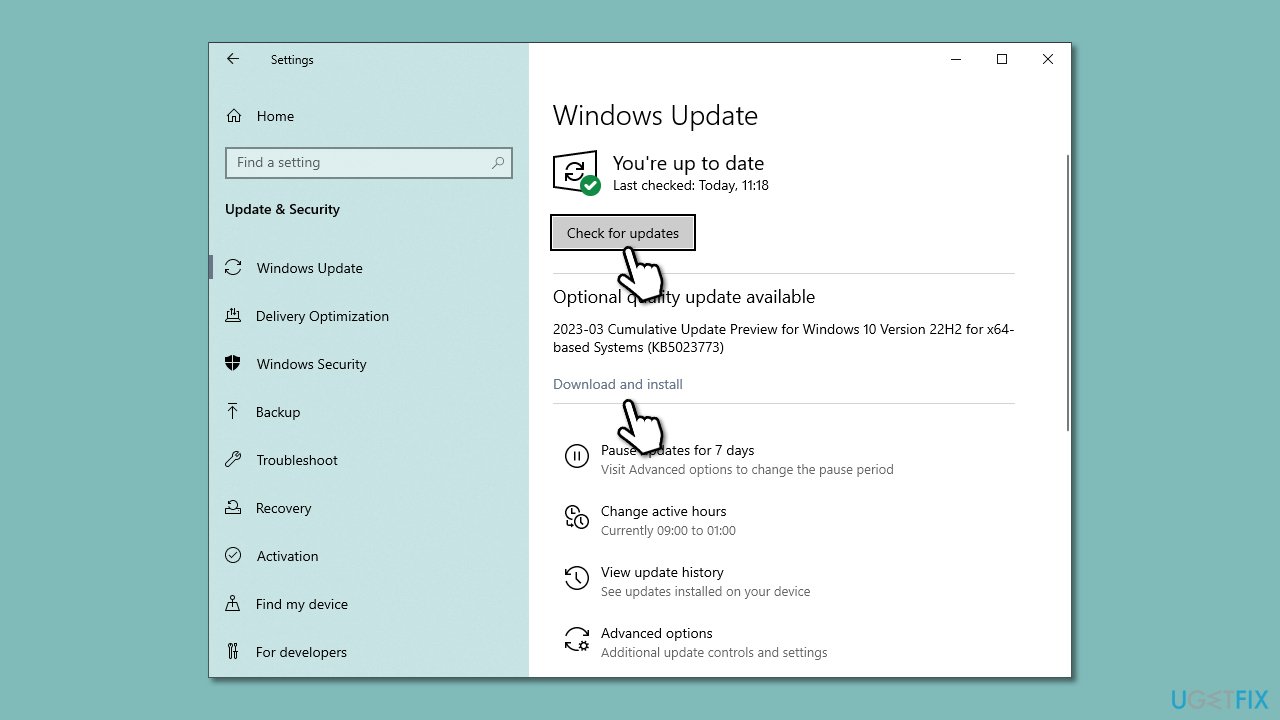
First of all, install all available Windows Updates via an in-built Windows Update service.
- Type Updates in Windows search and press Enter.
- Here, click the Check for Updates button.
- Wait till all the available updates are installed (if any optional updates are available, install them too).
- Once done, restart your system.
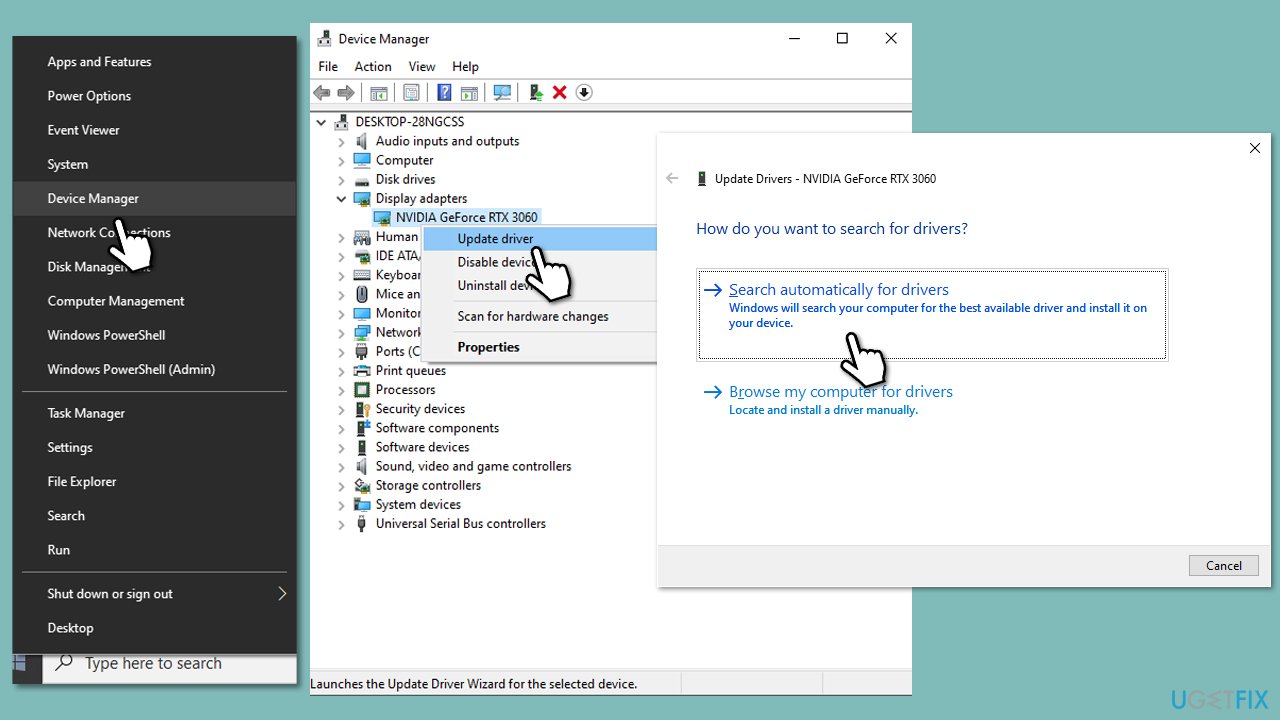
Fix 2. Check for driver issues
- Right-click on Start and select Device Manager.
- Go through the list of devices and check if any of them are marked with a yellow exclamation mark.
- If you find a malfunctioning device driver, right-click on it, and select Update Driver Software.
- Reboot the system.
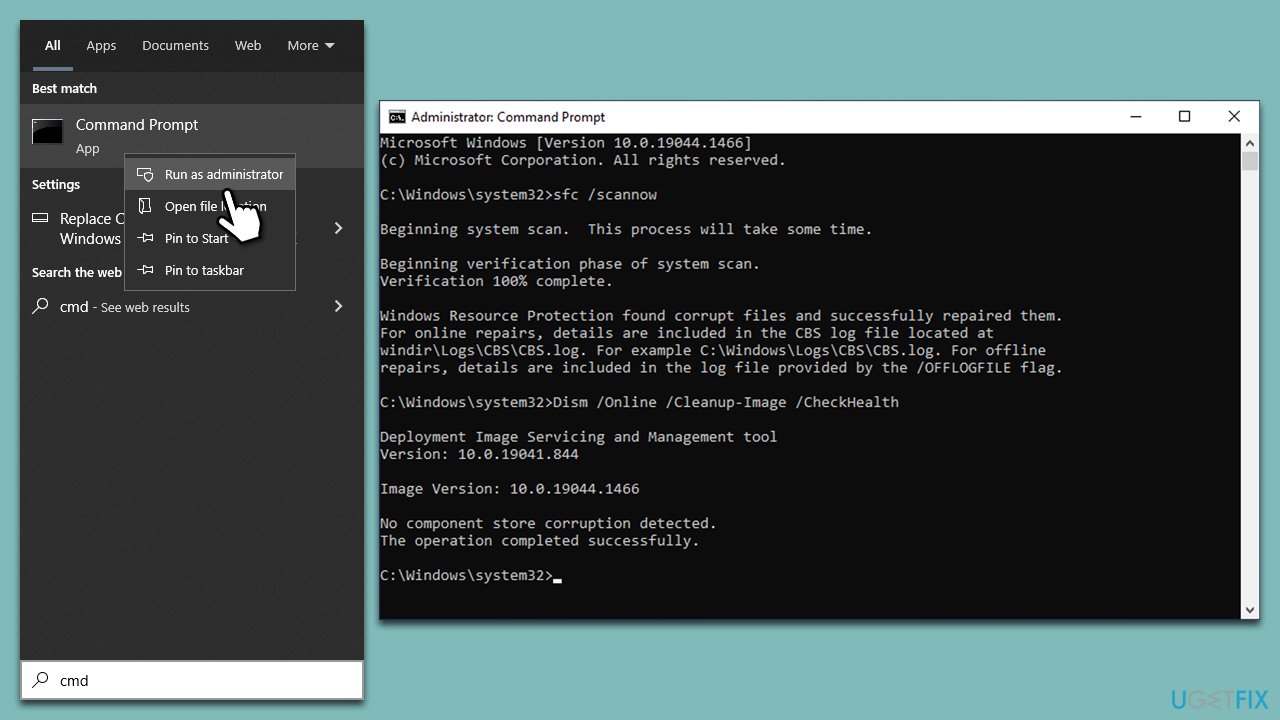
Fix 3. Check for file corruption
- Type cmd in Windows search.
- Right-click on Command Prompt and select Run as administrator.
- Type sfc /scannow command and press Enter.
- Wait till Windows runs a check and reboot your device to see if the errors were fixed.
- If SFC was unable to repair damaged files, run the set of following commands:
Dism /Online /Cleanup-Image /CheckHealth
Dism /Online /Cleanup-Image /ScanHealth
Dism /Online /Cleanup-Image /RestoreHealth - Restart your system.
Fix 4. Try Clean Boot
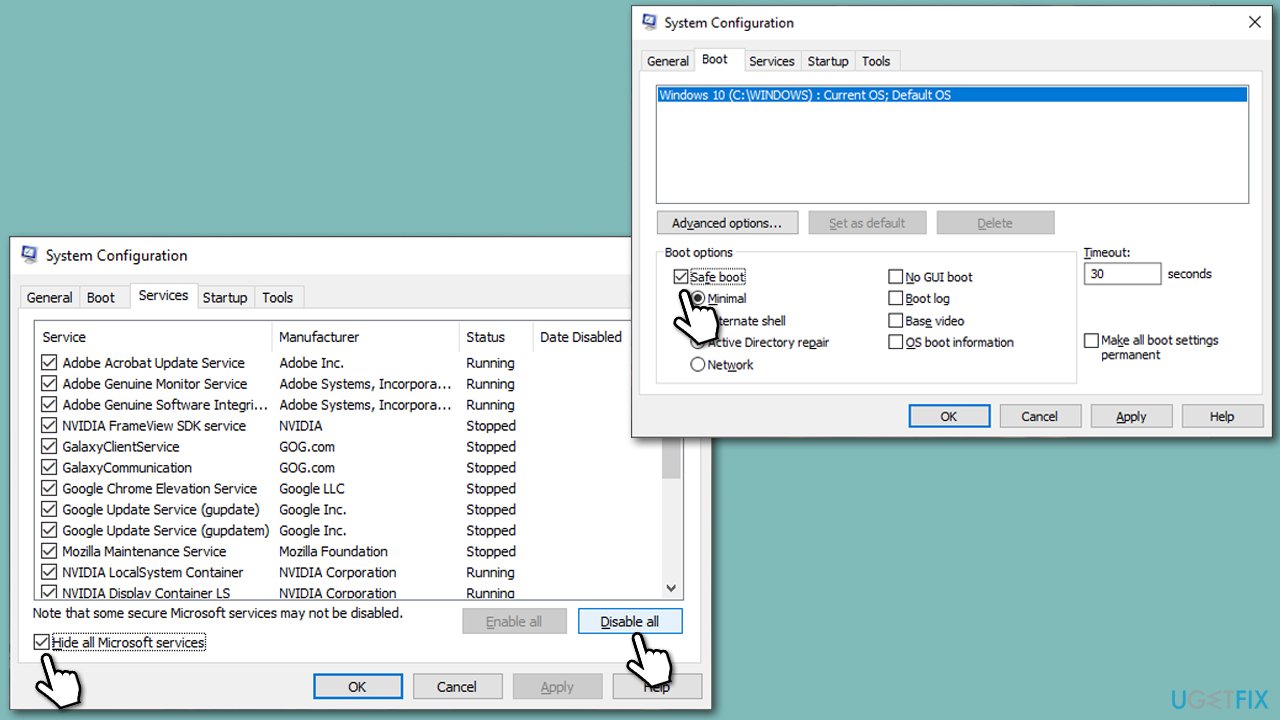
Conhost.exe process may start sucking up CPU resources due to some collision of third-party software. To check that, try a Clean Boot. If Clean Boot puts CPU usage back to normal, enable third-party apps one by one to isolate the one causing the problem (you can instead disable half of all the apps and then repeat the process until you find the culprit). We would recommend either reinstalling or removing it completely.
- In Windows search, type msconfig and press Enter.
- Click System Configuration and open Services tab.
- Mark Hide all Microsoft services box and select Disable all.
- Open the Startup tab and click Open Task Manager.
- Click on each startup item and select Disable.
- Close Task Manager and click OK on the System Configuration window.
- Reboot the system.
Fix 5. Reset Windows
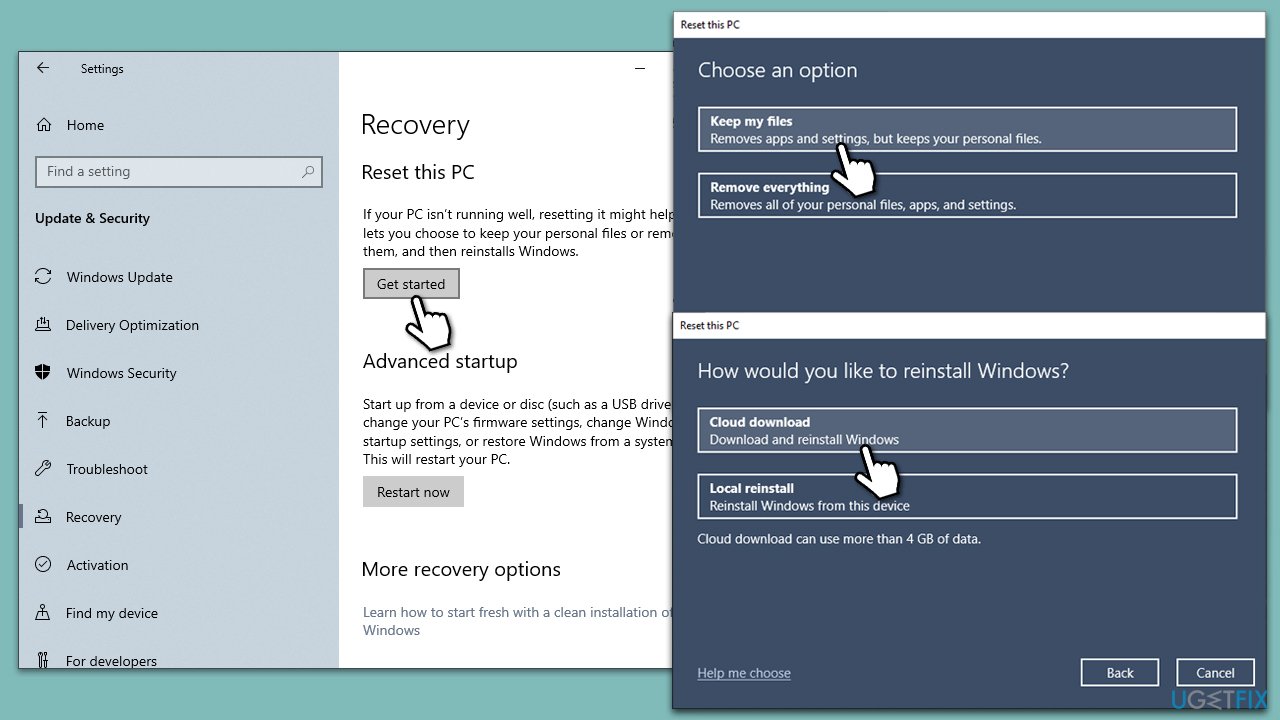
If you were not successful in resolving Conhost.exe high CPU usage, you could reset Windows without losing files or programs. Follow these steps:
- Right-click on Start and then select Settings.
- Go to Update & Security and pick Recovery on the left side of the window.
- Find Reset this PC section and click Get Started.
- Select Keep my files and Cloud download.
- Next, pick whether you want to reinstall the apps.
- Click Reset.
- Your system will restart, and the process of Windows reset will begin.
Bottom line
To address high CPU usage by Conhost.exe, you can run a full system scan with anti-malware software, access Safe Mode for an alternative scan, or use Microsoft Defender offline scan. If these solutions do not resolve the issue, consider using a PC repair tool to fix the problem automatically.
Frequently asked questions
Conhost.exe is a Windows system process that acts as a bridge between the command prompt and the graphical interface. High CPU usage can occur due to issues with applications running in the command prompt or malware masquerading as this process.
You can check if conhost.exe is a virus by right-clicking the process in Task Manager, selecting 'Open file location', and ensuring it is located in the C:\Windows\System32 folder. Additionally, running a full system scan with Windows Defender or a trusted antivirus can help identify any threats.
To reduce CPU usage, try updating the drivers for your hardware, disabling unnecessary startup applications, and checking for malware infections. If the issue persists, consider performing a clean boot to eliminate software conflicts.




Report an issue
What's wrong with this guide? We review every report and update or remove content.
Report received — thank you. We'll review and fix it.
You need a free account to submit a report.
Be the first to comment