How to fix
“problem with this Windows Installer package” error
on Windows
Resolve the "problem with this Windows Installer package" error on Windows 10 and 11 quickly. Expert-tested solutions for smooth installations await!


What causes How to fix “problem with this Windows Installer package” error?
- Conflict or fault inside the Windows Installer package
- Missing component required for installation
- Compatibility problems with the Windows Installer
- Issues with third-party applications or security programs
- Corrupted downloaded installer package
Repairs Windows system files, removes malware, and restores a clean OS state — without reinstalling.
Hello. When I try to install software on my Windows PC I get the "problem with this Windows Installer package" error. How can I fix this?
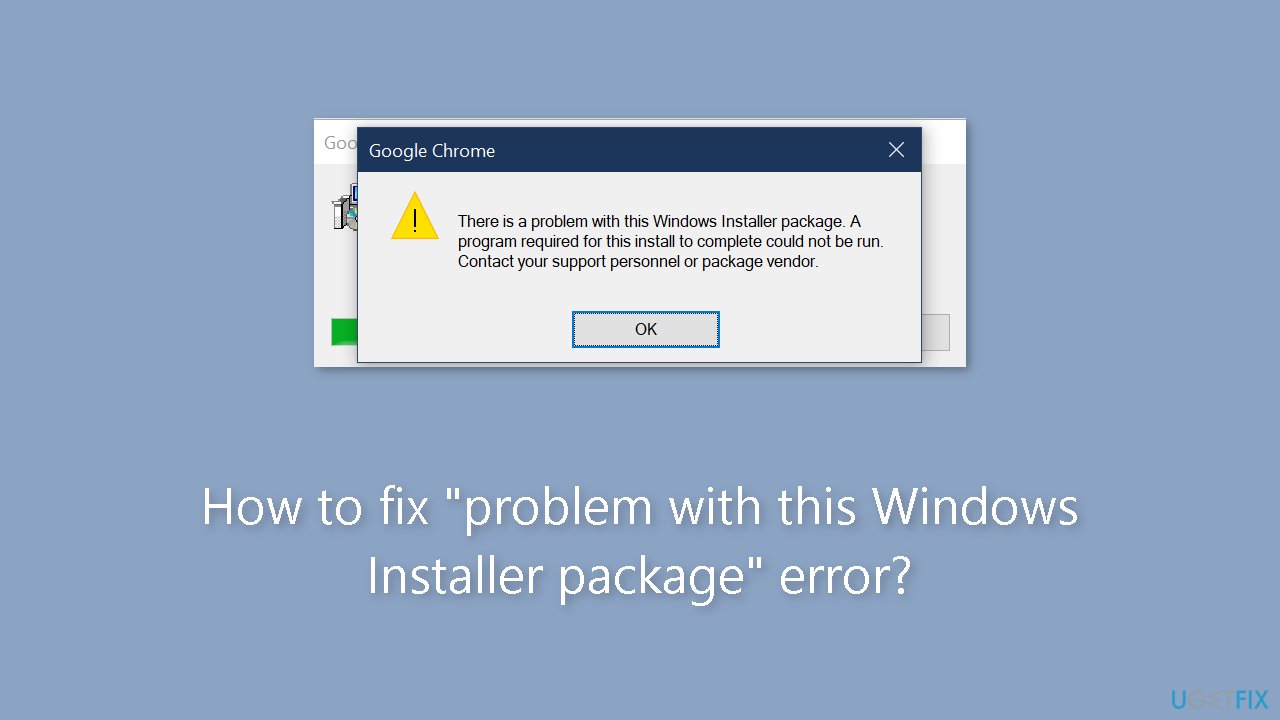
The error notice "problem with this Windows Installer package" is a common stumbling block for consumers wanting to install various desktop software on their Windows PCs. This vexing problem is distinguished by a notification stating that "a program required for this install to complete could not be run." This error message is especially aggravating since it frequently halts the installation process and hinders users from successfully installing the requested program.
The problem is usually caused by a conflict or fault inside the Windows Installer package or one of its related components. The Windows Installer is an important component that manages software installation, maintenance, and removal on Windows systems. When this error message appears, it means that a component required for the installation to run effectively is either missing or experiencing compatibility problems.
This problem may have a variety of consequences for users. For starters, it prevents the installation of necessary or desired software applications, limiting the user's capacity to access necessary tools or services. This can reduce productivity by preventing people from using the appropriate software for their work or projects. Furthermore, the error message may not provide clear directions on how to remedy the issue, causing annoyance and misunderstanding among users who are unfamiliar with technical troubleshooting.
While particular solutions may differ based on the underlying reason of the error, there are some broad measures that users can take to remedy the problem. These may include checking the downloaded installer package's integrity, ensuring the Windows Installer service is operating and properly configured, and handling potential incompatibilities with third-party applications or security programs. Seeking help from the program provider's support resources or online groups can also be beneficial in locating solutions that are specific to the software producing the error.
In this guide, you will find 9 steps that should help you fix "problem with this Windows Installer package" error. You can also try using a repair tool like [d1] that can fix most system errors, BSODs,[ref en-1] corrupted files, and registry[ref en-2] issues. Otherwise, follow the step-by-step instructions below.
Solution 1. Re-download the Setup File
The setup file you downloaded may be corrupted. As a result, consider acquiring a new setup file for the product you can't install. Choose to save the installer in a different directory on your hard drive and then retry the installation.
Solution 2. Run the Program Install and Uninstall Troubleshooter
- Visit the relevant Microsoft webpage designed for downloading the Program Install and Uninstall troubleshooter.
- Download the troubleshooter by clicking on the Download troubleshooter option. This will save the file named MicrosoftProgram_Install_and_Uninstall.meta.
- Navigate to your browser's default download folder and double-click on the file named MicrosoftProgram_Install_and_Uninstall.meta.diagcab.
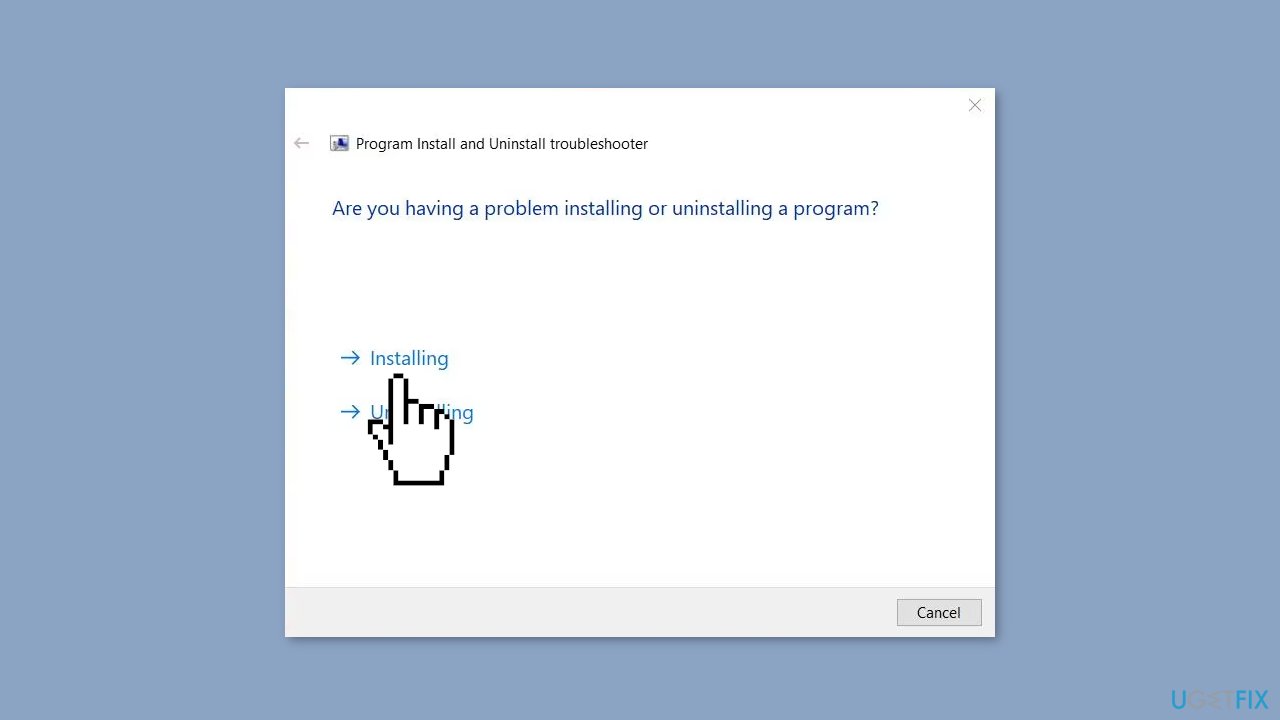
- Click on the troubleshooter's Next button once the diagnostic tool opens.
- Select the Installing option to access a list of installed programs.
- Choose either the specific software you're having trouble installing or select Not listed, then click Next.
Solution 3. Set Admin Rights on User Account
- Press the Windows key + I to open the Settings panel.
- Go to Accounts > Family & other users.
- Under Other users, choose the account for which you wish to modify privileges.
- Click on Change account type.
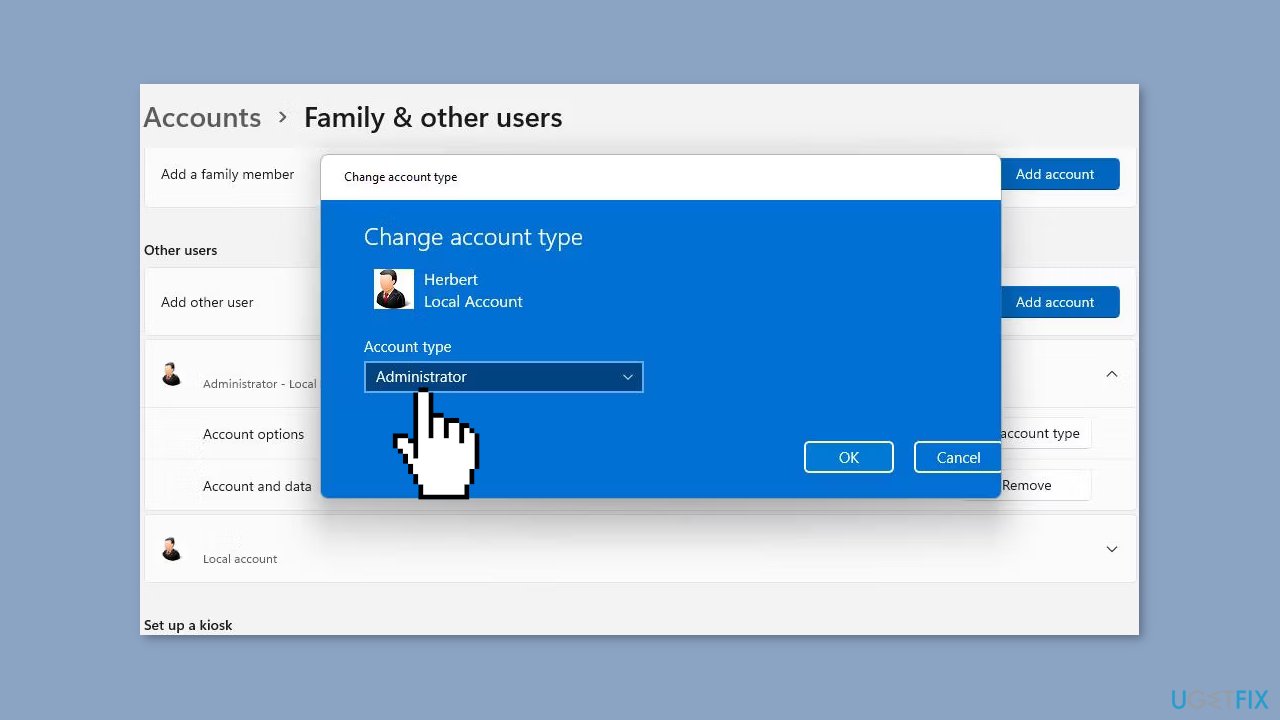
- A popup displaying the current permissions of the selected user account will appear. Click on it.
- Select Administrator.
- Confirm the changes by clicking OK.
Solution 4. Modify the Registry
- Open the Registry Editor.
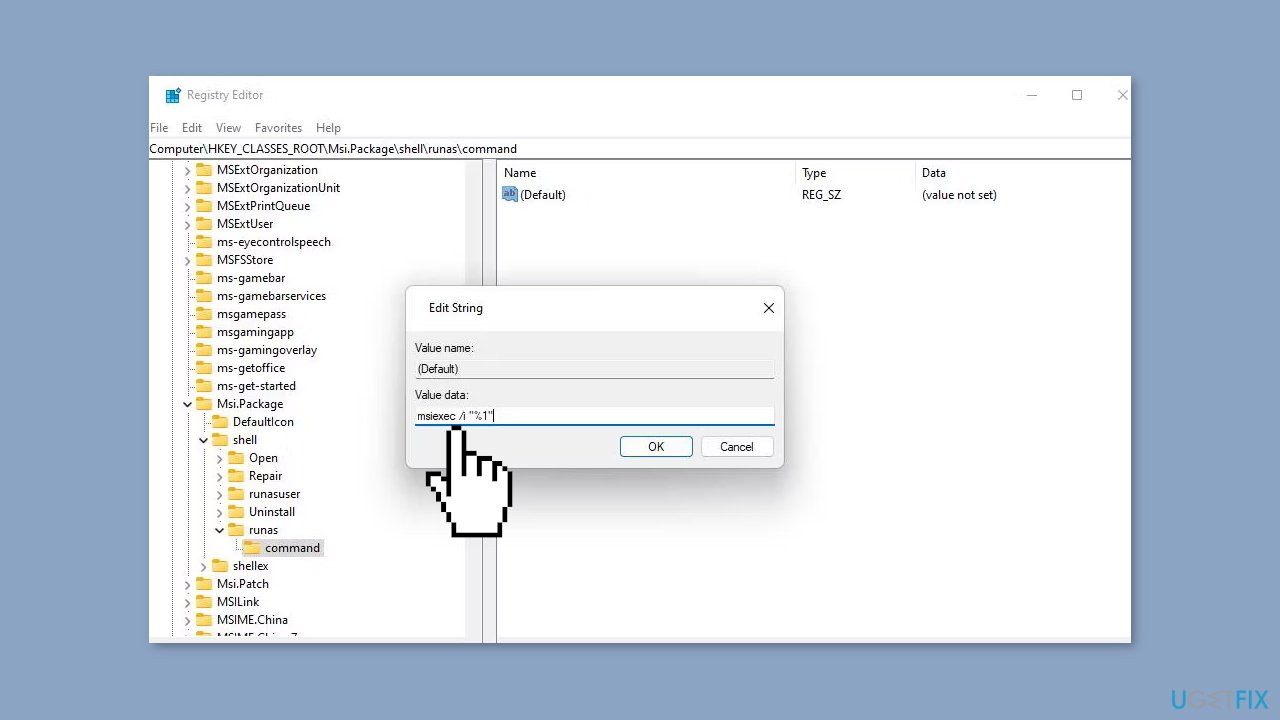
- Navigate within the Registry Editor to the following key location: Computer\HKEY_CLASSES_ROOT\Msi.Package\shell
- Right-click on shell in the sidebar of the Registry Editor and choose New > Key. Name this new key runas.
- Double-click on the (Default) string inside the runas key.
- Input Install as &administrator in the Value data box and click OK.
- Right-click on the runas key, then select New and choose Key. Name this new key command.
- Double-click on the (Default) string inside the command key.
- Input msiexec /i "%1" in the Value data box and click OK.
- Close the Registry Editor.
- Click on the Power icon in the Windows Start menu and select Restart to apply the changes.
Solution 5. Set Full Control for the Temp Folder
- Open File Explorer and navigate to the following folder: C:\Users\%username%\AppData\Local\
- Right-click on the Temp directory and choose Properties.
- In the Temp Properties window, select the Security tab. Click Edit to open the Permissions for Temp window.
- Click Add to open the Select Users or Groups window.
- Input everyone in the Enter the object names to select box.
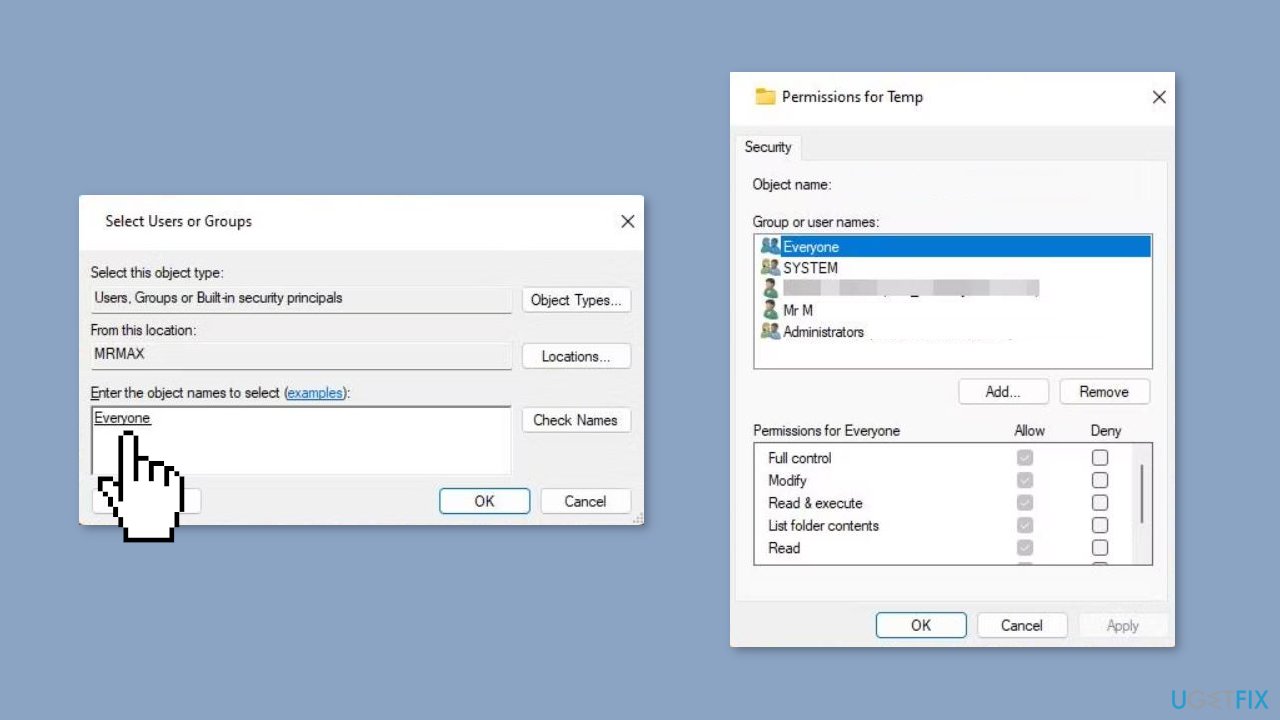
- Click the Check Names button to validate the entry. Select OK to exit the Users or Groups window.
- Within the Allow column, check the Full Control checkbox.
- Click Apply to apply the new permission settings, then confirm by selecting OK in all windows.
Solution 6. Repair the Apple Software Update App
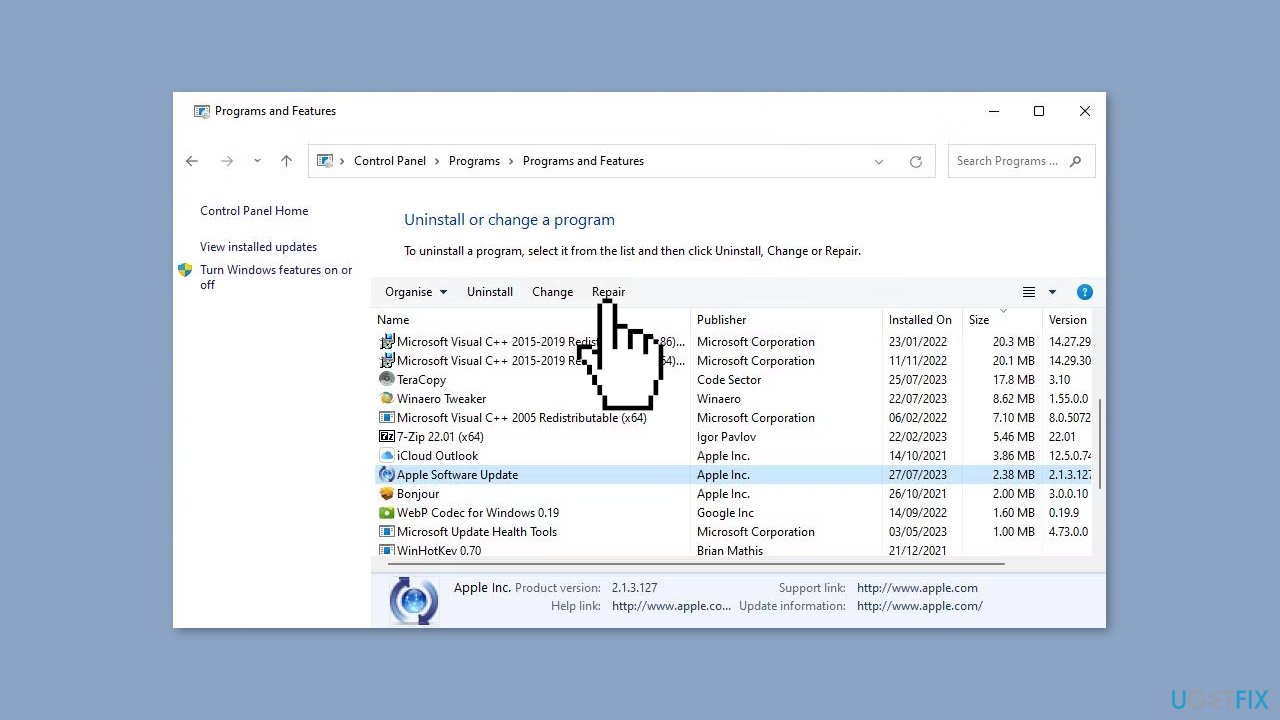
- Open the Control Panel.
- In the category view, click on Uninstall a program.
- From the list of programs, select Apple Software Update.
- Click on the Repair option for Apple Software Update.
- After completing the repair for Apple Software Update, attempt to install iTunes again.
Solution 7. Restart the Windows Installer Service
- Press the Windows key + R to open the Run dialog.
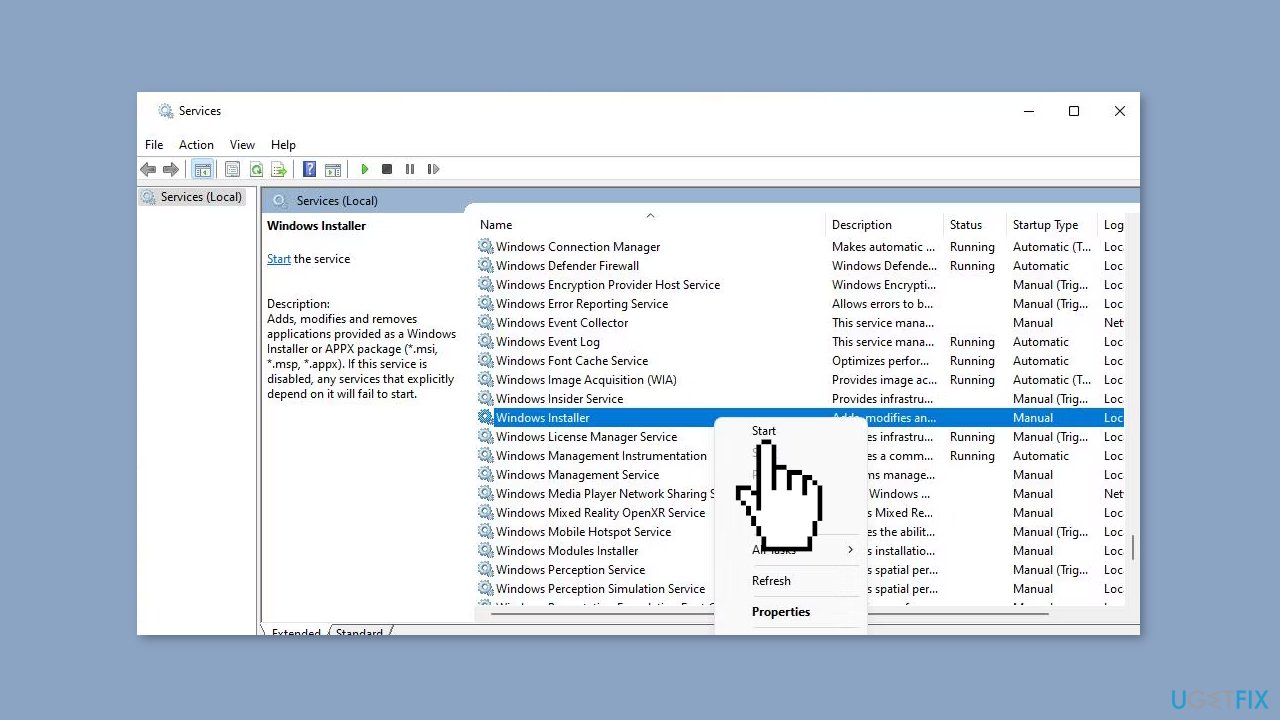
- Type services.msc and press Enter to open Services.
- Locate the Windows Installer service.
- If the service is already running, right-click on it and select Restart.
- If the service is stopped, right-click on it and choose Start.
Solution 8. Re-Register the Windows Installer Service
- Press the Windows key + S to initiate a search.
- Type CMD in the search bar to find Command Prompt.
- When Command Prompt appears in the search results, right-click on it, and choose Run as administrator.
- Type (or copy and paste) the following command and press Enter:
msiexec.exe /unregister
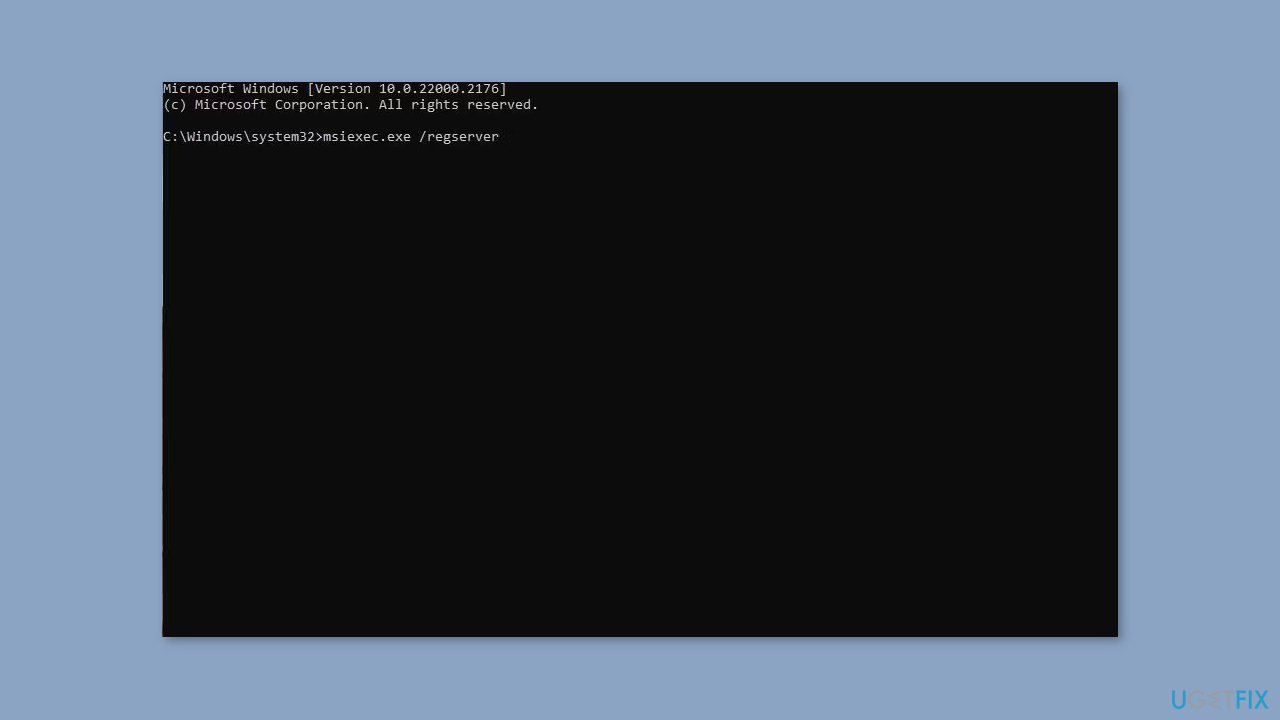
- Execute this command to re-register Windows Installer:
msiexec.exe /regserver
- Ensure the Windows Installer service is running. If not, start it following the earlier provided steps.
Solution 9. Try Clean Boot
- Open the Search menu, type in system configuration, and press Enter.
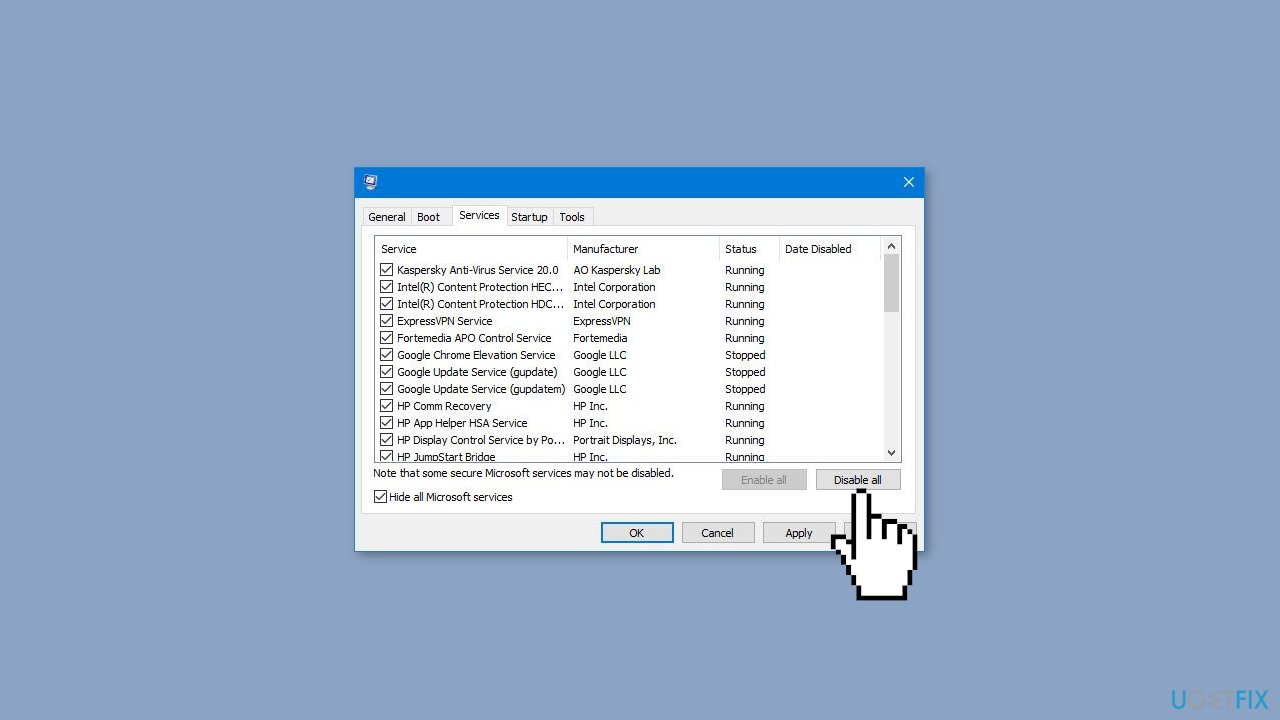
- Under the Services tab, tick the Hide all Microsoft services box.
- Click on Disable all button.
- Head over to the Startup tab and click on Open Task Manager.
- Select a third-party program and click on Disable at the top.
- Repeat this step to disable all third-party apps and programs.
- Restart your PC to enter the clean boot state and see if the issue persists.
- If the issue disappeared in the clean boot state, then you can be certain that a third-party app is causing it.
- Go through all recently installed apps or programs and remove them one by one.
Bottom line
To fix the 'problem with this Windows Installer package' error, users can check the integrity of the downloaded installer, ensure the Windows Installer service is running, and address potential incompatibilities with other software. If these steps do not resolve the issue, seeking help from the program provider's support resources may be beneficial.
Frequently asked questions
Try re-registering the Windows Installer service by opening Command Prompt as an administrator and running 'msiexec /unregister' followed by 'msiexec /regserver'. This can help resolve issues with the installation package.
Yes, you can run the Windows Troubleshooter for installations, which can identify and fix problems related to the Windows Installer package.
Open the Services app by typing 'services.msc' in the search bar, then locate 'Windows Installer' and ensure its status is set to 'Running'; if not, right-click and select 'Start'.




Report an issue
What's wrong with this guide? We review every report and update or remove content.
Report received — thank you. We'll review and fix it.
You need a free account to submit a report.
Be the first to comment