How to fix
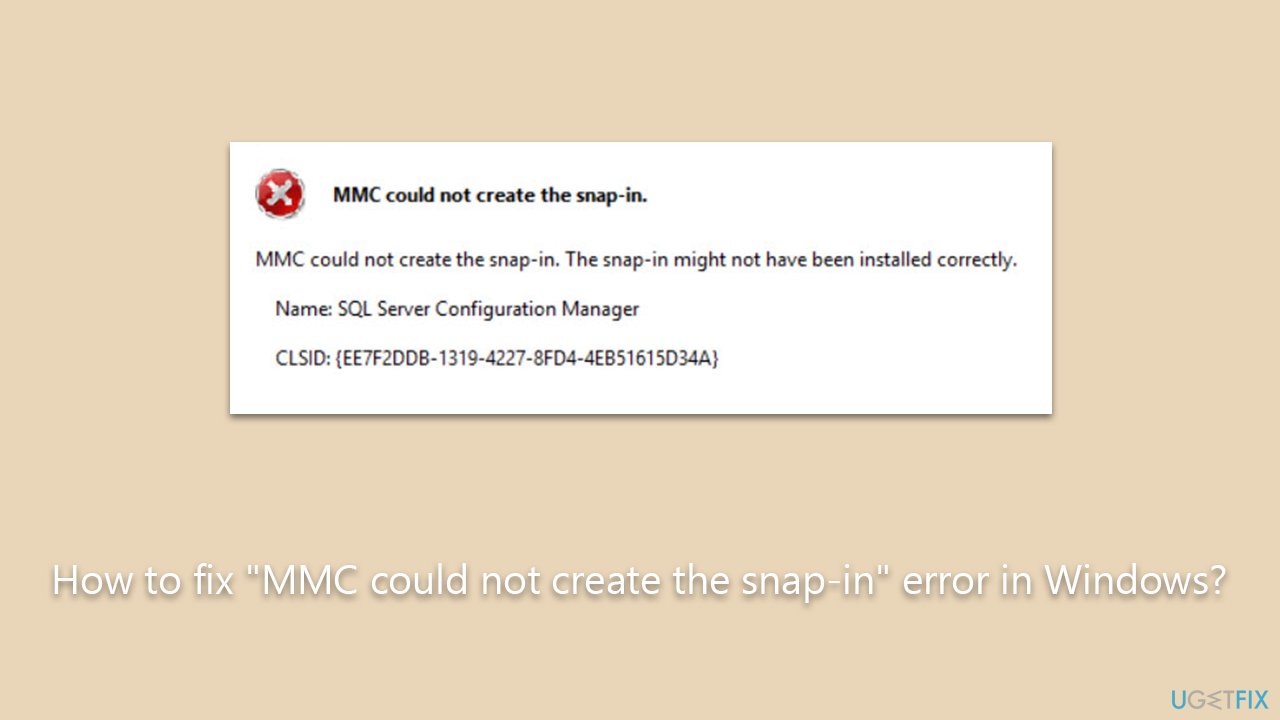
“MMC could not create the snap-in” error
on Windows
Resolve the "MMC could not create the snap-in" error in Windows 10 and 11 quickly. Follow expert-tested solutions for hassle-free troubleshooting. Fixed…


What causes How to fix “MMC could not create the snap-in” error in Windows?
- Corrupted system files
- Misconfigured registry entries
- Incompatibility issues with updates
- Improper user permissions
Repairs Windows system files, removes malware, and restores a clean OS state — without reinstalling.
I was trying to access the Event Viewer to check information about crashes I had, and I received an error "MMC could not create the snap-in." I then noticed the same issue when opening the Device Manager and Task Scheduler. What is happening, and how can I fix this? I'm using the latest version of Windows.
Windows operating system offers a set of powerful tools like Task Scheduler, Device Manager, Event Viewer, and others that facilitate the monitoring and management of hardware, applications, and the overall system. These utilities are indispensable for both regular users and system administrators, as they provide insights into the system's operation and allow adjustments to optimize performance. Despite their utility, some individuals have encountered a specific error message stating "MMC could not create the snap-in" when attempting to access these features.
MMC, or Microsoft Management Console, is an interface that unifies and simplifies day-to-day system management tasks. Snap-ins are modular components within MMC, and they provide the actual functionality for different administrative tools. When the error "MMC could not create the snap-in" appears, it means that a particular snap-in could not be initiated within the MMC framework, thus hindering the ability to use the required tool.
The underlying reasons for the "MMC could not create the snap-in" error can vary. It may stem from corrupted system files, misconfigured registry entries, or incompatibility issues with various updates and versions of Windows. Additionally, improper user permissions might also lead to this issue, restricting the ability to load the necessary snap-ins.
Although this error can be alarming, it is often resolvable. Detailed instructions for various solutions will be provided below the article, covering a range of potential causes and offering steps to correct the issue. Users encountering this problem should explore these solutions in accordance with their specific circumstances.
For those seeking a more straightforward and comprehensive approach to common Windows problems, using [d1] PC repair tool might be the ideal choice. It offers an automatic solution designed to address and resolve a variety of system issues efficiently.
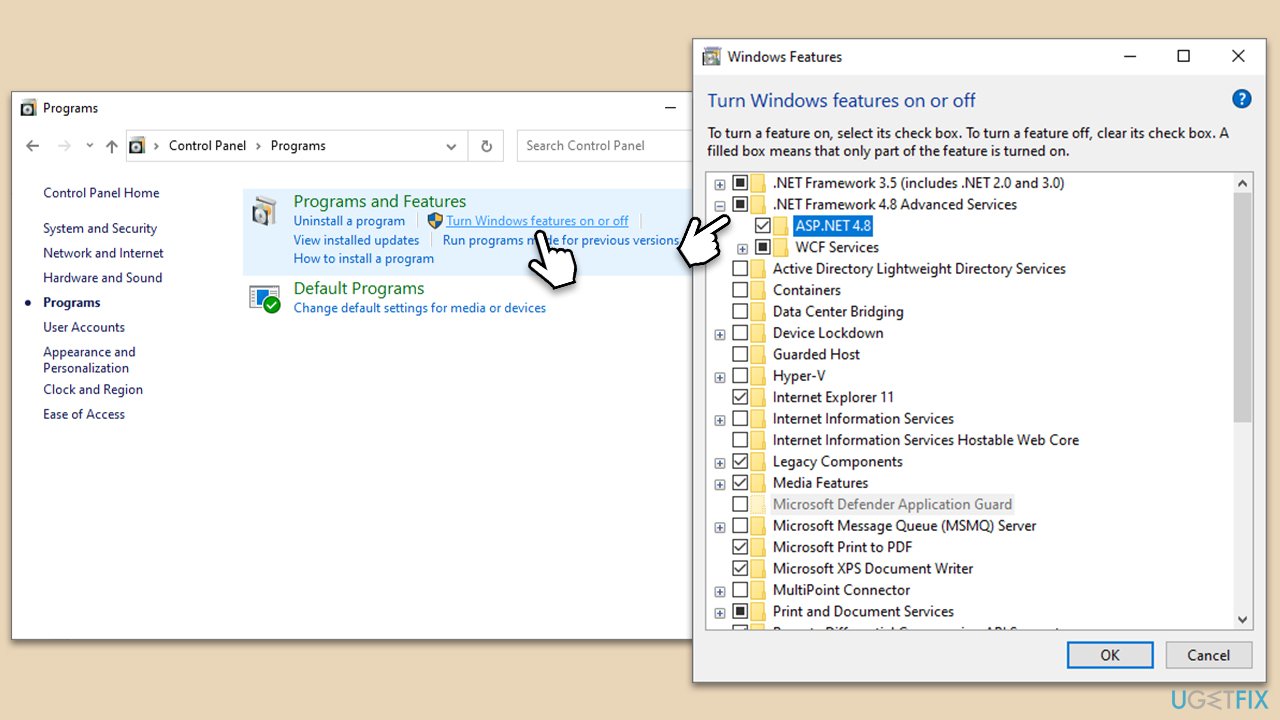
Fix 1. Enable .NET Framework
.NET Framework is a crucial component of many applications running on Windows, including the Microsoft Management Console. Enabling it might resolve the "MMC could not create the snap-in" error.
- Type Control Panel in Windows search and hit Enter.
- Go to Programs.
- Select Turn Windows features on or off.
- Enable .NET Framework 3.5 (includes .NET 2.0 and 3.0).
- Next, enable .NET Framework 4.8 Advanced Services and press the plus (+) icon next to it.
- Make sure to enable ASP.NET 4.8 as well.
- Click OK.
Fix 2. Run SFC and DISM
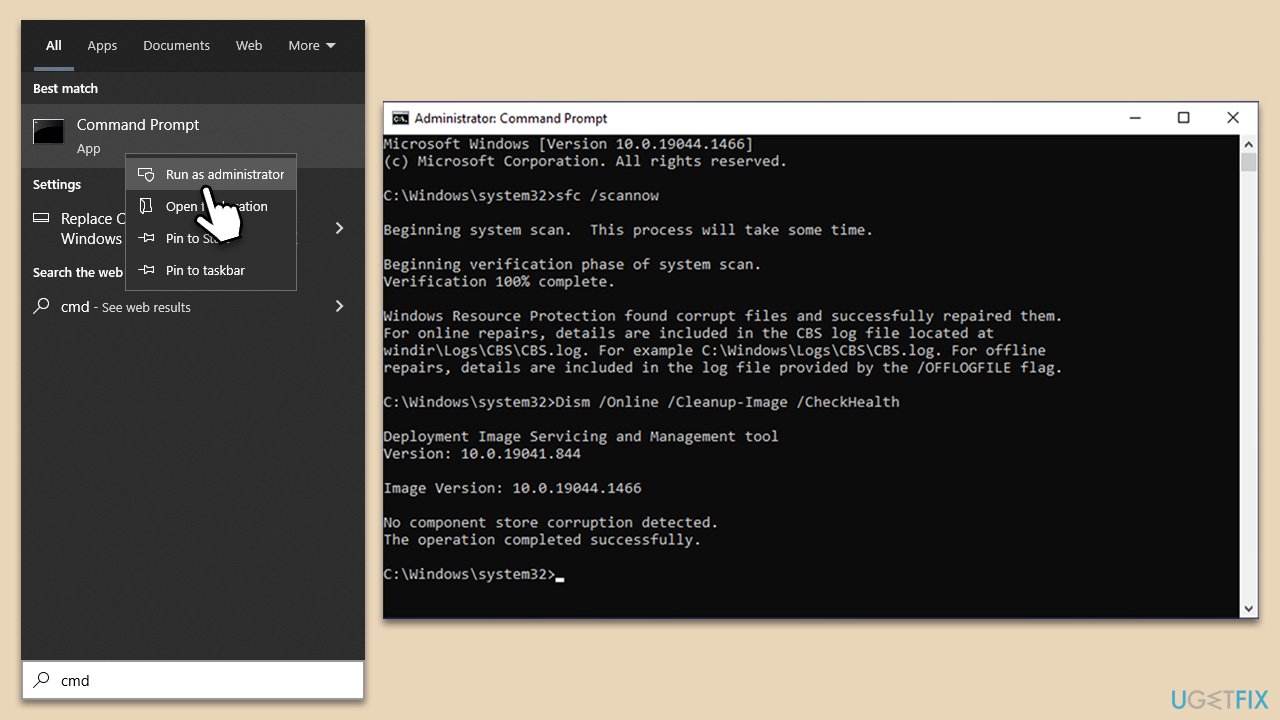
Corrupted system files are one of the main causes of various Windows errors. Please use the following instructions to rectify corrupted system files and Windows image:
- Type cmd in Windows search, right-click on Command Prompt, and select Run as administrator.
- Type this command and press Enter:
sfc /scannow - Wait for the scan to finish.
- As soon as it completes, Windows will report whether file integrity violations were found and if they could be fixed. Regardless of the outcome, use these commands next, pressing Enter each time:
Dism /Online /Cleanup-Image /CheckHealth
Dism /Online /Cleanup-Image /ScanHealth
Dism /Online /Cleanup-Image /RestoreHealth
(Note: if you get an error executing the last command, add /Source:C:\RepairSource\Windows /LimitAccess to it and try again.) - Close down the Command Prompt and restart your PC.
Fix 3. Repair Microsoft Visual C++ Redistributable packages
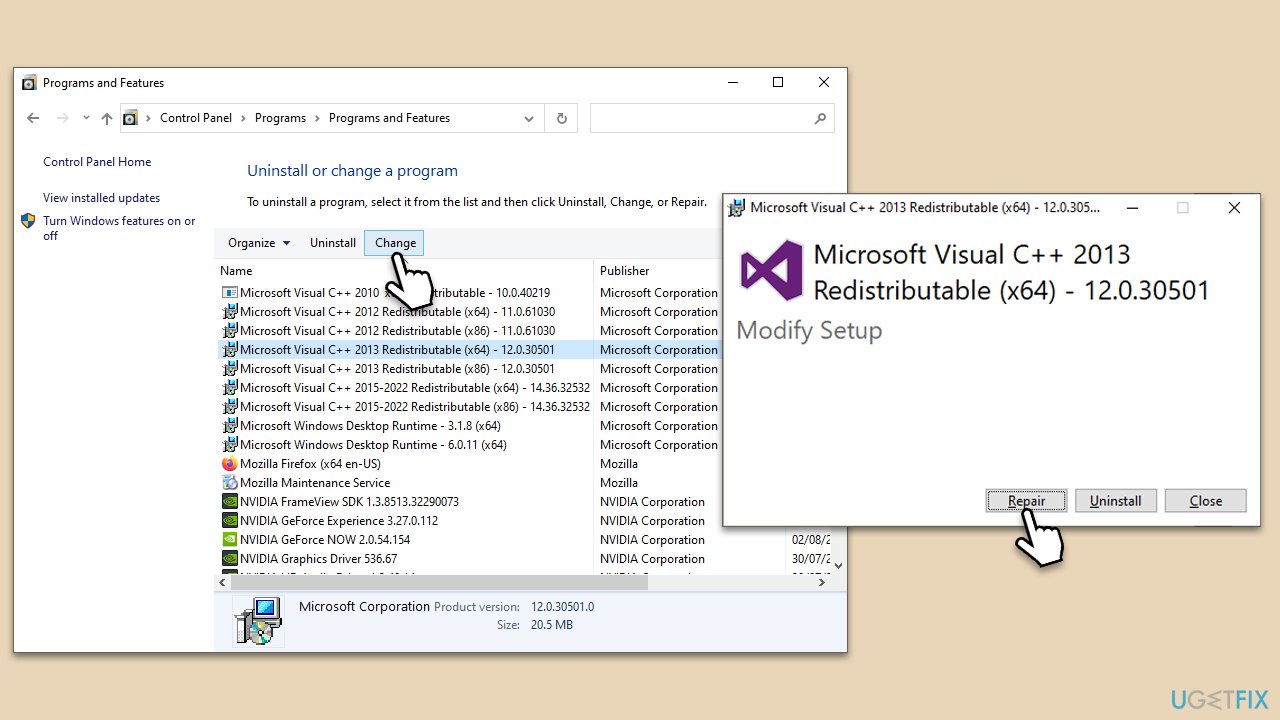
Microsoft Visual C++ Redistributable packages might become corrupted and lead to the error. Repairing them can resolve the issue.
- Type in Control Panel in Windows search and hit Enter.
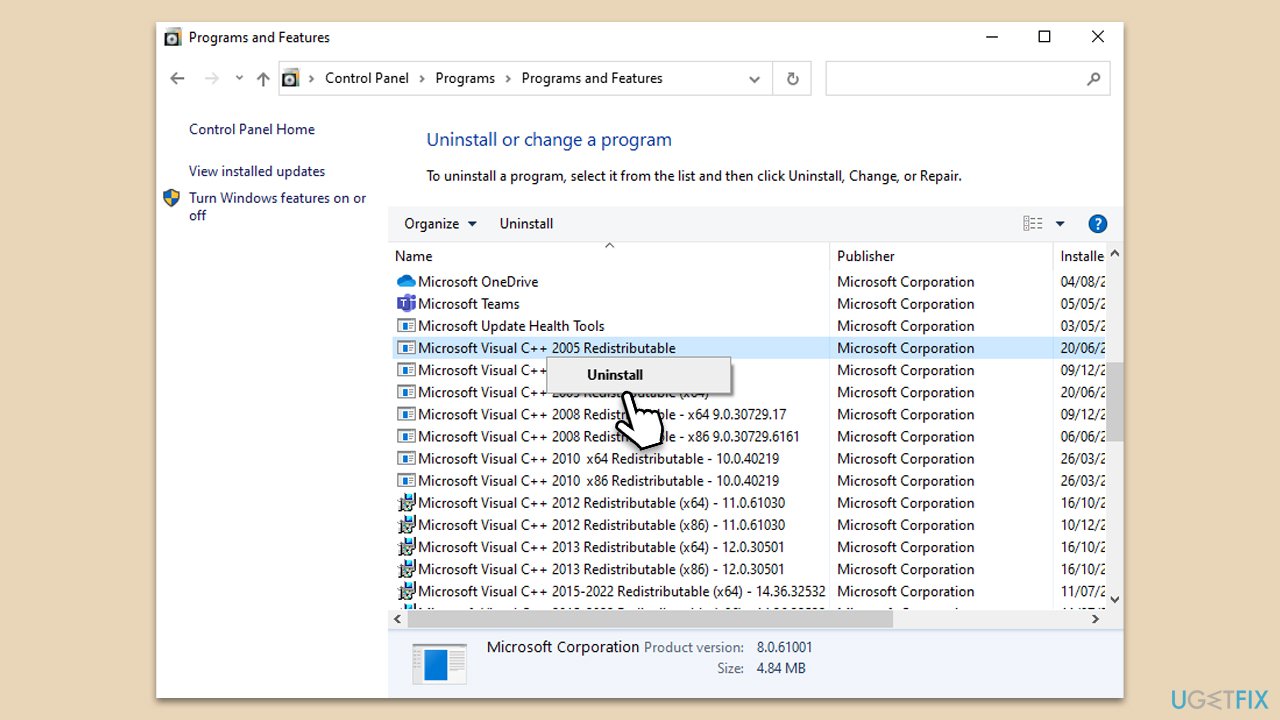
- Go to Programs > Uninstall a program.
- Here, you will see all the Visual C++ Redistributables installed.
- Click on each of them and select Change at the top.
- In the new window, click Repair and follow the on-screen instructions.
- Repeat the process for each of the entries.
Fix 4. Reinstall Microsoft Visual C++ Redistributable packages
If repairing the packages doesn't resolve the error, reinstalling might be necessary.
- Open Control Panel.
- Go to Programs > Uninstall a program.
- Find all entries that belong to Microsoft Visual C++, right-click on each of the packages, and select Uninstall.
- Follow the prompts to finish the process.
- Once done, reboot your PC.
- Go to the official Microsoft website to download and install all the missing packages.
Fix 5. Modify the Registry
The error might be linked to a misconfigured registry entry. Modifying the registry can be complex and requires careful handling. Before proceeding, make sure you make a backup of the registry database.
- Type regedit in Windows search and press Enter.
- When UAC shows up, click Yes.
- In the new window, navigate to the following location:
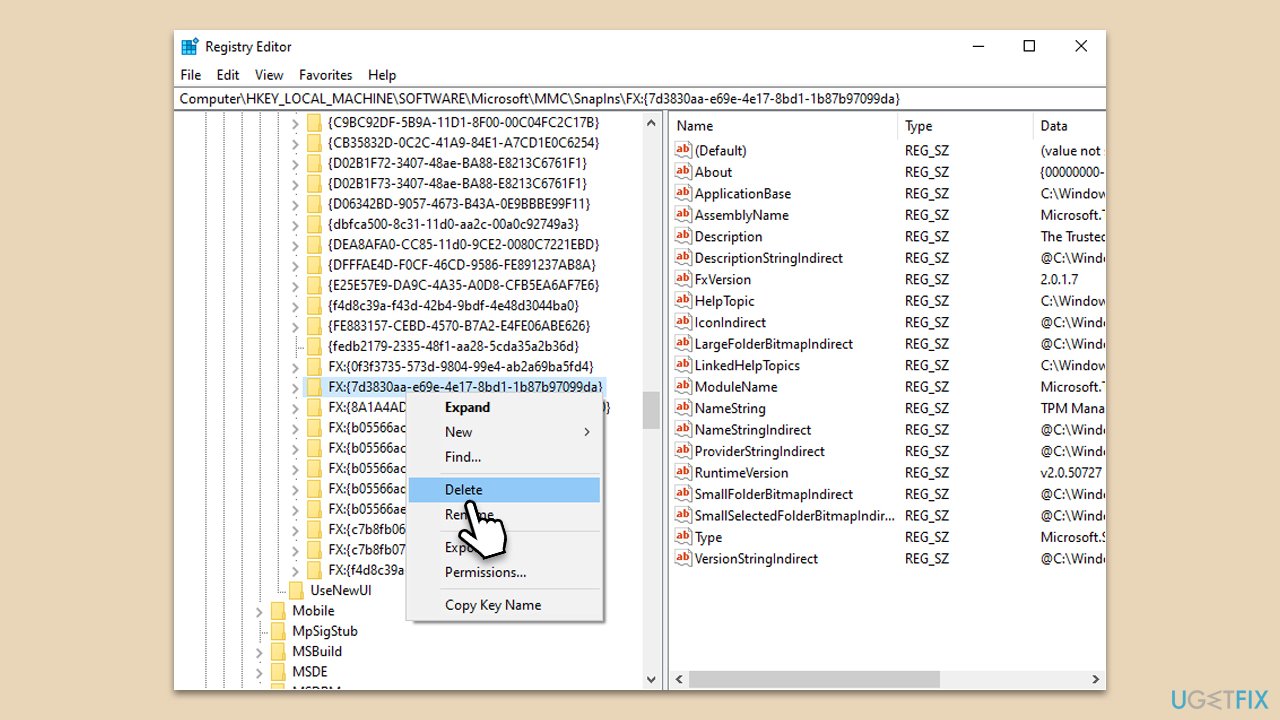
HKEY_LOCAL_MACHINE\SOFTWARE\Microsoft\MMC\SnapIns - Here, you will have dozens of subkeys. Your goal is to find the one that's mentioned in the error message. For example, if CLSID in error is FX:{7d3830aa-e69e-4e17-8bd1-1b87b97099da}, you need to find it in the list.
- Right-click on the subkey in question and click Delete.
- Confirm when prompted.
- Restart your system and see if this managed to fix the "MMC could not create the snap-in" error.
Bottom line
To resolve the 'MMC could not create the snap-in' error, users can follow detailed instructions that address corrupted files, registry configurations, and user permissions. If these solutions do not work, consider using a PC repair tool for an automatic fix.
Frequently asked questions
This error typically occurs due to corrupted system files, incorrect registry entries, or missing MMC-related components in Windows 10 or Windows 11.
You can run the System File Checker by opening Command Prompt as an administrator and typing 'sfc /scannow' to repair any corrupted system files that may be causing the MMC error.
Yes, resetting Windows settings can help resolve the MMC snap-in error, but ensure to back up your data first, as this process may affect your installed applications.




Report an issue
What's wrong with this guide? We review every report and update or remove content.
Report received — thank you. We'll review and fix it.
You need a free account to submit a report.
Be the first to comment