How to fix
Intelppm.sys BSOD
on Windows
Resolve the Intelppm.sys BSOD issue in Windows 10 and 11 quickly. Get expert-tested solutions and tips to fix the problem in minutes.

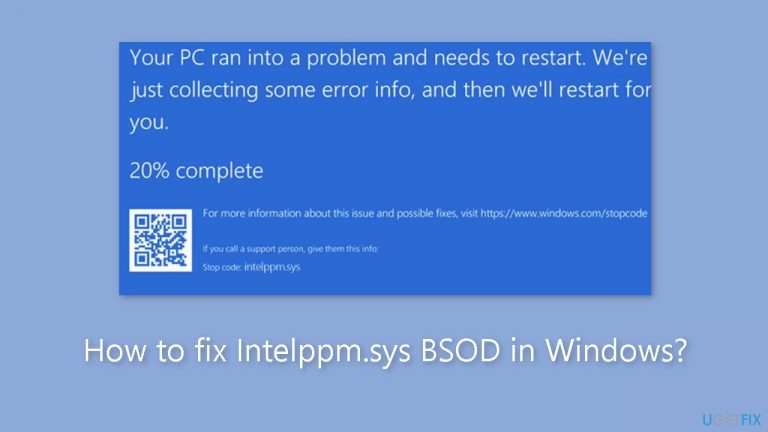
What causes How to fix Intelppm.sys BSOD in Windows?
- Corrupted Intel Processor Power Management Driver
- Conflicts with third-party applications
- Corrupted system files
- Outdated Windows updates
- Registry errors
Repairs Windows system files, removes malware, and restores a clean OS state — without reinstalling.
Hello. My Windows PC keeps crashing because of Intelppm.sys Blue Screen error. How do I tackle this error?
BSOD[ref en-1] issues, sometimes known as "Blue Screen of Death," are annoying and frequently terrifying events in Windows operating systems. These issues cause the system to crash and display a blue screen with error numbers and messages. The BSOD's aim is to protect the system from potentially irreversible damage by stopping all processes and requiring a restart.
The Intelppm.sys BSOD error is caused by the Intel Processor Power Management Driver, sometimes known as "IntelPPM." This critical driver[ref en-2] is in charge of regulating power consumption in Intel processors in the Windows system. When this driver becomes corrupted or collides with other software components, it can cause glitches, disrupt system stability, and eventually result in the dreaded BSOD error.
The Intelppm.sys BSOD problem is caused by conflicts between the Intel Processor Power Management Driver and third-party applications or drivers. These conflicts disrupt the driver's natural functioning, resulting in erratic behavior and, eventually, system crashes.
In this technical guide, you will find 7 steps that should help you fix Intelppm.sys BSOD error in Windows. You can also run a system repair tool like [d1]. It can fix most system errors, BSODs, corrupted files, and registry[ref en-3] errors automatically. Otherwise, follow the step-by-step instructions below.
Method 1. Install Windows Updates
- Press the Windows key + R to open the Run box.
- Type ms-settings:windowsupdate in the text box and press Enter.
- Click the Check for updates button.
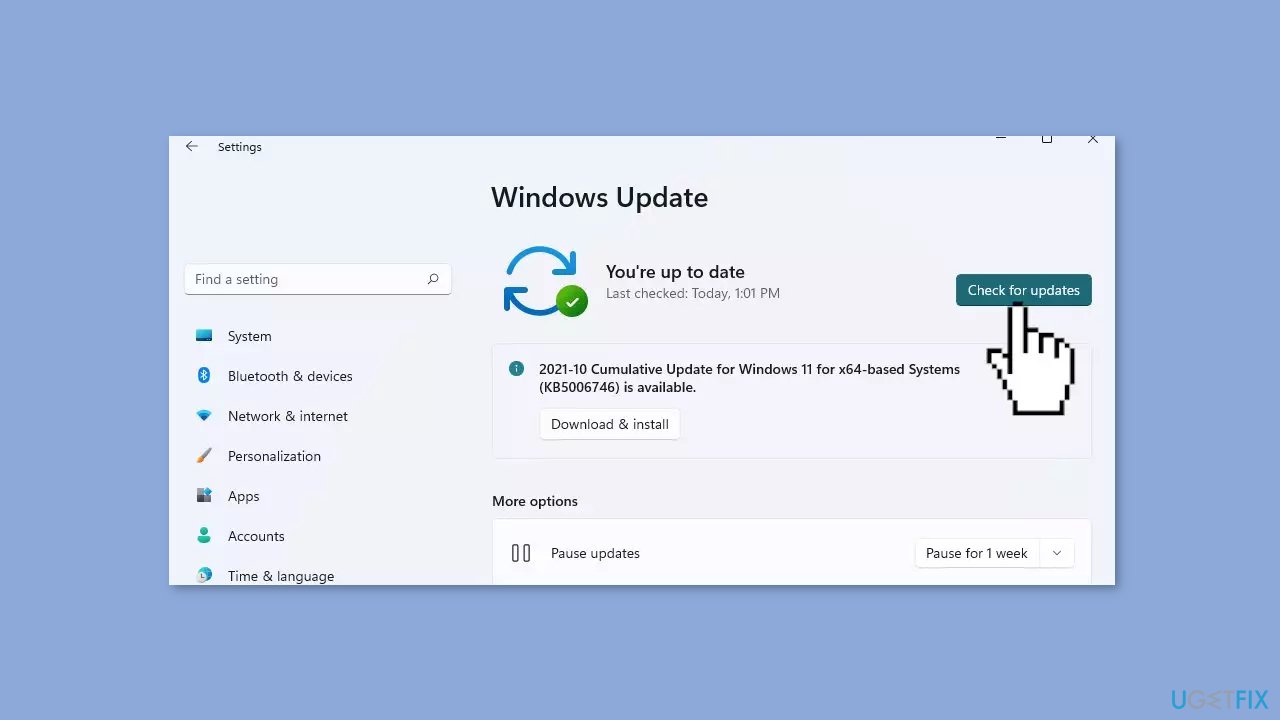
- If a new update is available, click the Download & Install all button.
- Restart your computer after the process is finished and check to see if the problem is fixed.
Method 2. Fix Corrupted System Files
Use Command Prompt commands to repair system file corruption:
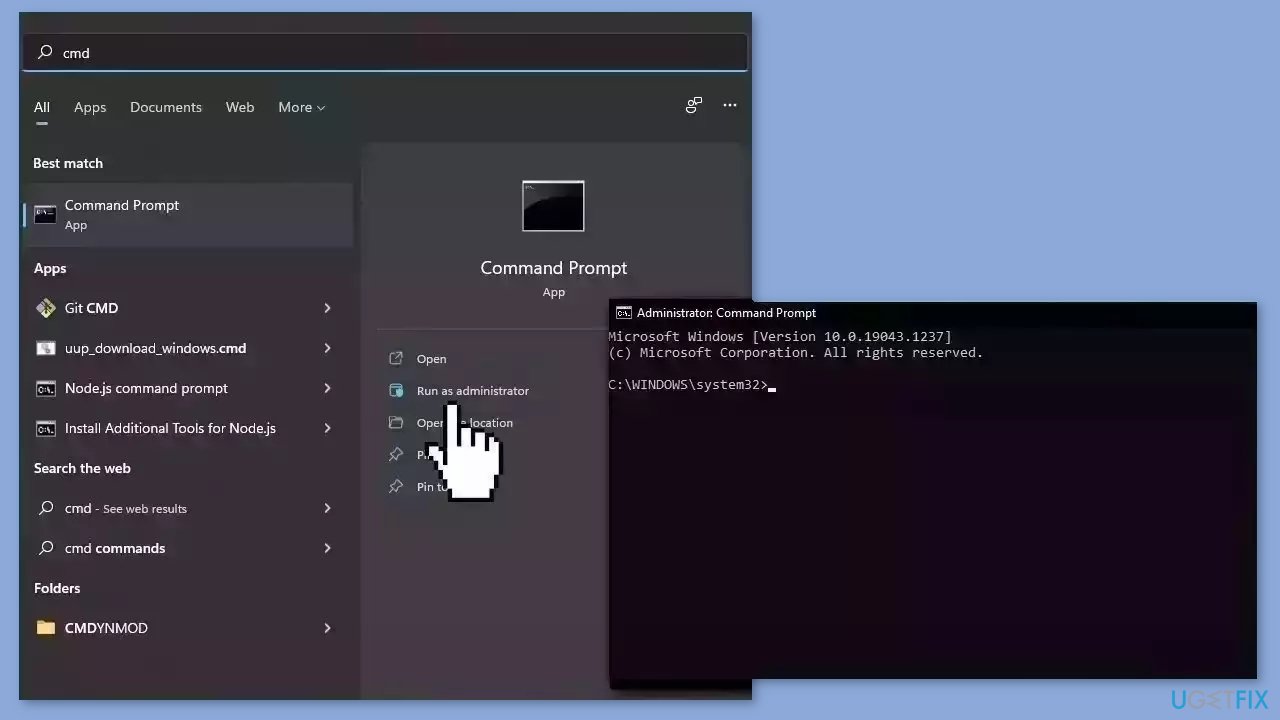
- Open Command Prompt as administrator
- Use the following command and press Enter:
sfc /scannow
- Reboot your system
- If SFC returned an error, then use the following command lines, pressing Enter after each:
DISM /Online /Cleanup-Image /CheckHealth
DISM /Online /Cleanup-Image /ScanHealth
DISM /Online /Cleanup-Image /RestoreHealth
Method 3. Modify the Registry
- Press the Windows key + R on your keyboard to open the Run dialog box.
- Type Regedit in the Run dialog box and click OK.
- The Registry Editor will open.
- Navigate to the following folder:
HKEY_LOCAL_MACHINE\SYSTEM\CurrentControlSet\Services\intelppm
- In the right side of the Registry Editor, locate the Start DWORD.
- Double-click on the Start DWORD.
- A new window will appear. Set the value data to 4.
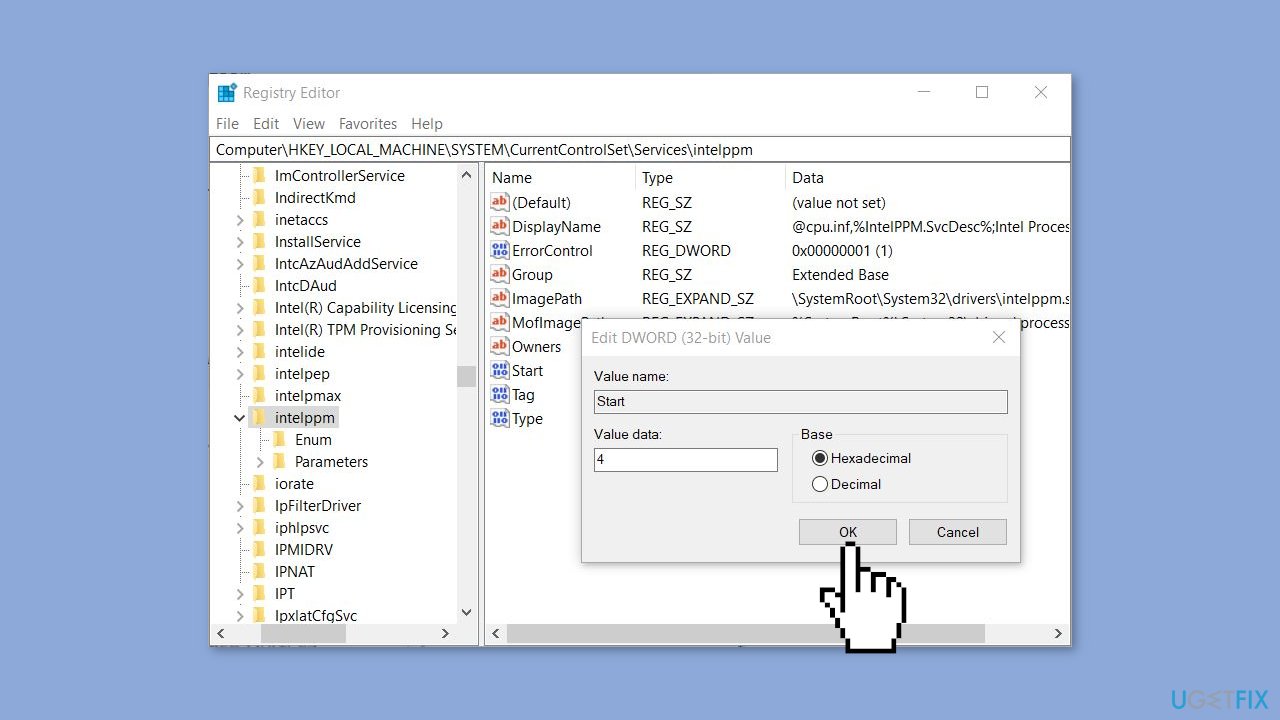
- Click OK to confirm the value change.
- Reboot your system.
- After the system restarts, check if the error is resolved.
Method 4. Rename the Intelppm.sys File
- Press the Windows key + R combination.
- In the Run dialog box, type C:\Windows\System32\Drivers and press Enter.
- Locate the file named intelppm.sys within the Drivers folder.
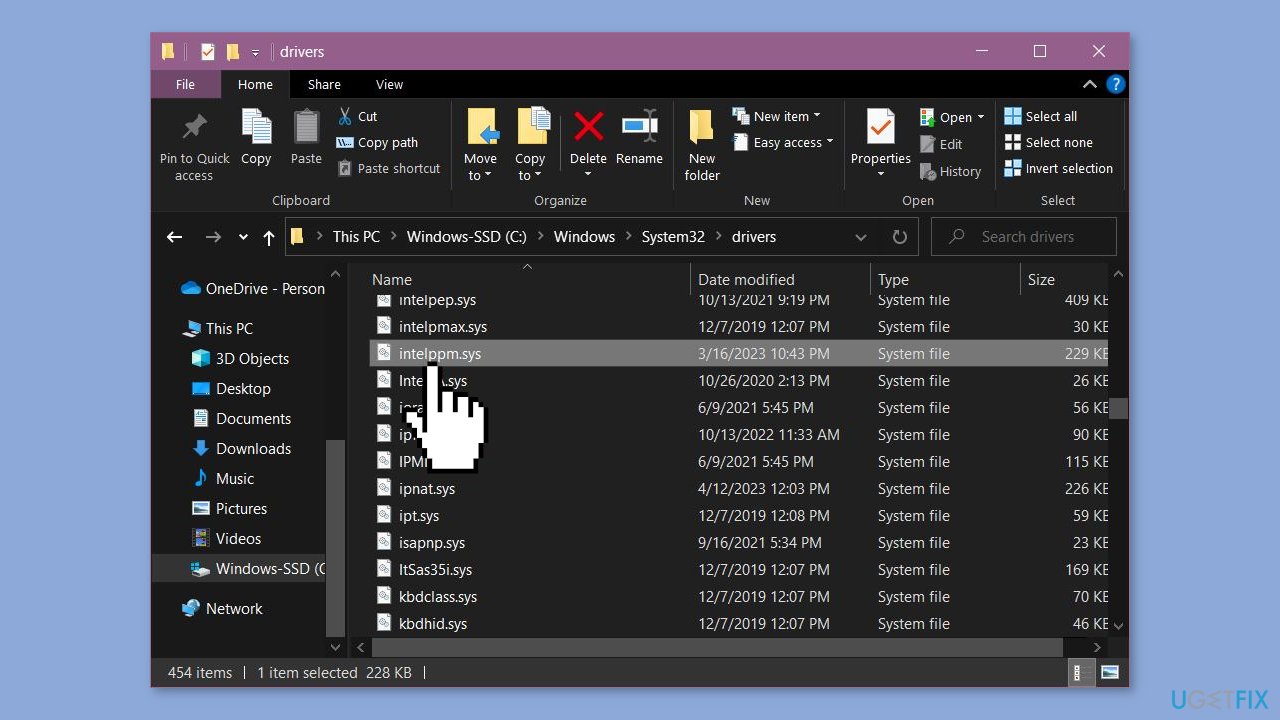
- Right-click on the file and choose Rename.
- Change the name to intelppm.sys.bak. If prompted for permission to make this change, click on Continue.
- Reboot your system.
- After your system restarts, check to see if the problem has been resolved.
Method 5. Update Driver
- Right-click on the Start button.
- From the context menu, choose Device Manager.
- In the Device Manager window, locate and click on Processors to expand its section.
- Look through the list of processors and identify the one with a yellow warning mark next to it.
- Right-click on the processor driver with the warning mark.
- Choose the option Update driver from the menu.
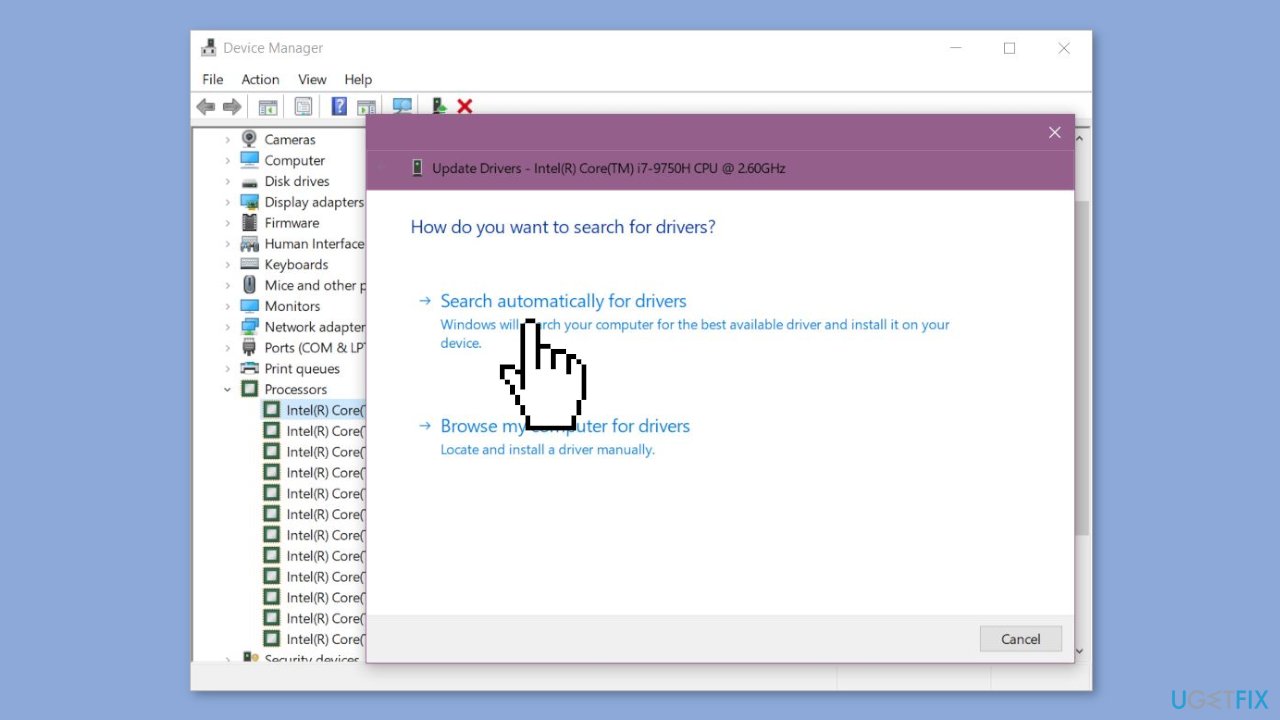
- Select Search automatically for updated driver software.
- Close the driver update window.
- Restart your system.
Method 6. Run System Restore
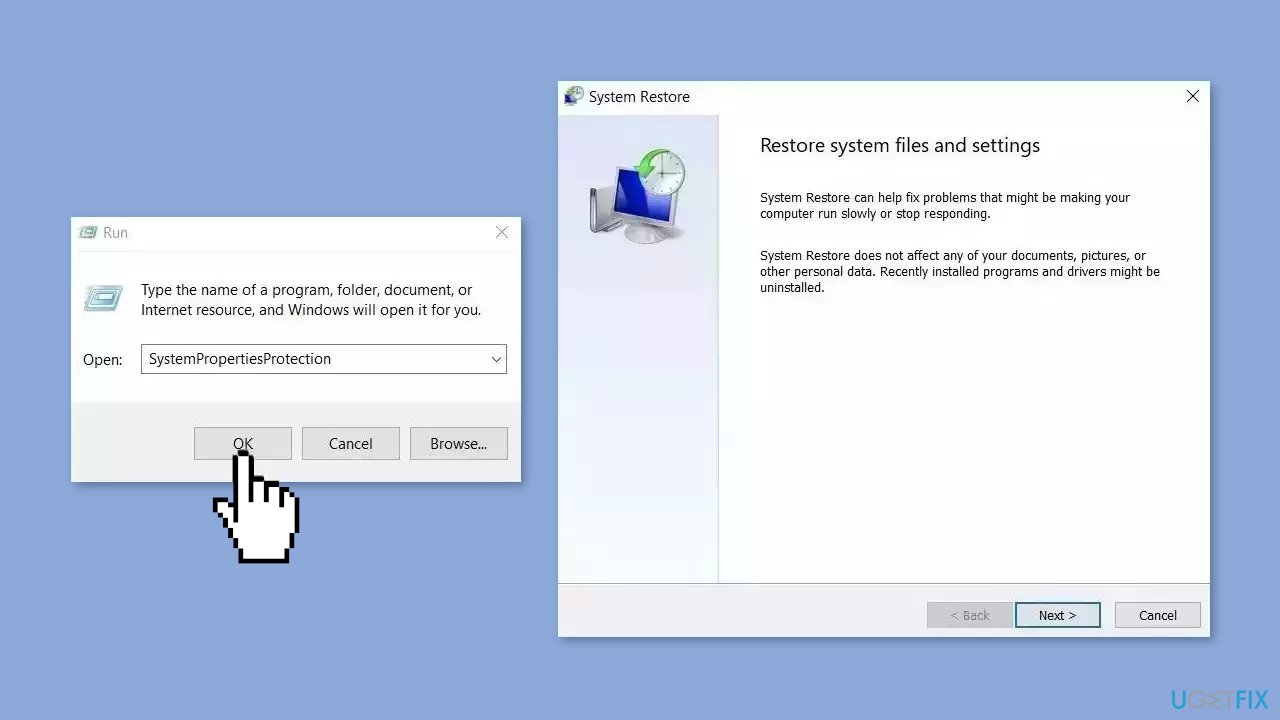
System Restore is a feature in Microsoft Windows that allows users to revert their computer's state to a previous point in time. This can be helpful if you have made changes to your system that are causing problems.
- Go to the Start menu, type restore, and click on Create a restore point.
- Click System Restore, then follow the prompts until you can select a restore point.
- Select the one you want (ideally before the issue started occurring) and go ahead with the process.
Method 7. Reset Windows
- Press the Windows key + I on your keyboard to open the Windows settings.
- Click on Recovery located on the right-hand side.
- Next, click on Reset PC.
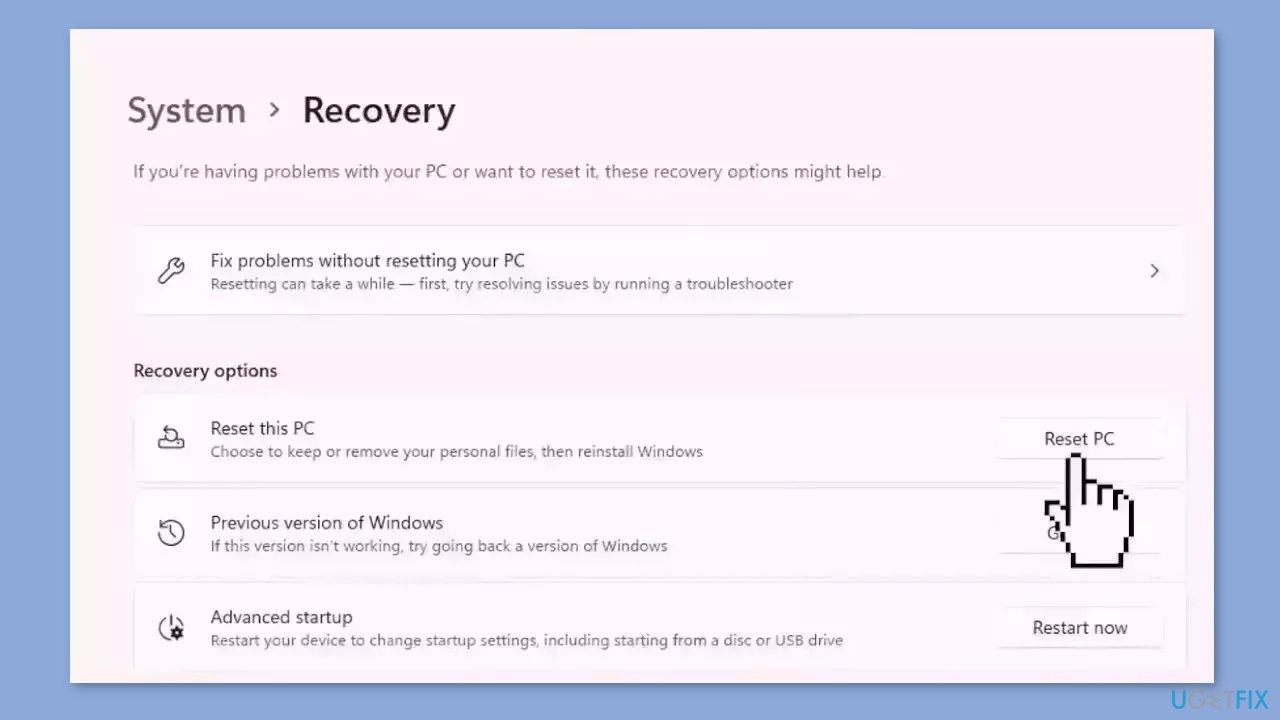
- Choose the option Keep my files.
- Click on Local reinstall and then select Next.
- In the subsequent window, click on Reset and confirm your decision.
- Allow the process to complete.
- Once the process finishes, check to see if the issue on your PC has been resolved.
Bottom line
To fix the Intelppm.sys BSOD error, you can install Windows updates, repair corrupted system files using Command Prompt, or modify the registry. If these steps do not resolve the issue, consider running a system repair tool to address any remaining problems.
Frequently asked questions
The Intelppm.sys BSOD error is often caused by outdated or corrupted Intel processor drivers, which can lead to system instability. Additionally, issues with system files or conflicts with third-party software may also trigger this error.
To update Intel drivers, go to Device Manager, expand the 'Processors' section, right-click on your Intel processor, and select 'Update driver'. You can also visit the Intel website to download the latest drivers directly.
Yes, you can use the System File Checker tool by opening Command Prompt as an administrator and running the command 'sfc /scannow'. This will scan and repair any corrupted system files that may be causing the BSOD.




Report an issue
What's wrong with this guide? We review every report and update or remove content.
Report received — thank you. We'll review and fix it.
You need a free account to submit a report.
Be the first to comment