How to fix
Windows update error 0x8007370a
on Windows
Resolve Windows update error 0x8007370a quickly with proven methods for Windows 10 and 11. Expert-tested solutions ensure smooth updates, fixed in minutes.

What causes How to fix Windows update error 0x8007370a?
- Corruption within Windows Update components
- Inconsistencies in related system files
- Third-party software conflicts
- Inadequate system resources
- Interrupted update installations
Repairs Windows system files, removes malware, and restores a clean OS state — without reinstalling.
I can't seem to be able to install Windows updates due to the 0x8007370a error. I tried waiting for a few days, but the problem persists. Any tips you could give me to fix this?
Windows updates play a crucial role in maintaining the functionality, security, and performance of your operating system. Regular updates are shipped by Microsoft to address vulnerabilities, introduce new features, and enhance overall user experience. These updates encompass a variety of types, including security updates, feature updates, cumulative updates, and more, each designed to keep your system up-to-date and optimized.
For users of Windows 10 and 11, the journey of updating their operating systems might encounter a roadblock in the form of error code 0x8007370a. This error can emerge when attempting to install updates, disrupting the seamless update process. The error is often accompanied by a vague error message that provides little insight into the underlying issue.
This error typically arises due to corruption or inconsistencies within the Windows Update components or related system files. In some instances, third-party software conflicts, inadequate system resources, or interrupted update installations can contribute to the error's occurrence. The resulting disruption can hinder the installation of important updates, potentially leaving your system exposed to security vulnerabilities or missing out on critical enhancements.
Fortunately, there are several potential solutions to fix error 0x8007370a and facilitate successful updates. These solutions range from simple troubleshooting steps to more advanced actions, all aimed at resolving the underlying causes of the error. By following these steps, users can potentially restore their update functionality and ensure their systems remain secure and efficient.
For users seeking a more automated approach, employing a reputable PC repair tool like [d1] can offer a streamlined solution. This tool has the capability to scan for and rectify underlying issues within the Windows system, including those responsible for update errors like 0x8007370a. Its ability to automatically identify and resolve such issues can save users time and effort while ensuring a smoother update process and a healthier operating system overall.
1. Common resolutions
- Restarting your PC. Often, a simple restart can resolve minor update-related issues. It refreshes system processes and clears temporary glitches. Checking date and time settings: Incorrect date and time settings can cause authentication problems during updates. Ensuring accurate settings can prevent this issue.
- Scanning for malware. Malware can interfere with system processes, including updates. Running a malware scan can identify and remove potential threats.
- Disabling third-party security software. Sometimes, security software can hinder updates. Temporarily disabling it during the update process can help eliminate conflicts.
2. Perform Disk Cleanup
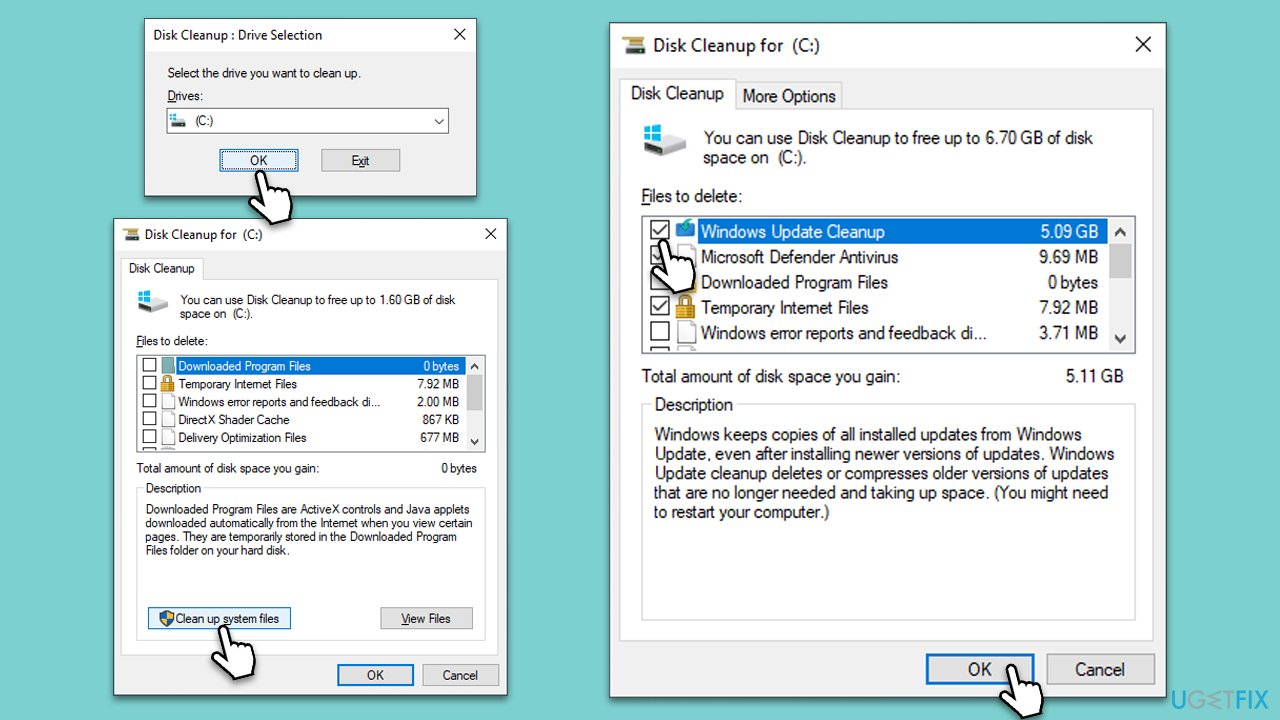
Disk Cleanup helps remove unnecessary files, creating more space for updates to be installed without interruption. Removing old Windows update files is extremely important, considering you want to fix the 0x8007370a update error.
- In the Windows search bar, enter Disk Cleanup, then press Enter to launch the utility.
- Pick the main drive (C: by default) and select the option for Clean up system files.
- Choose the drive once more and press OK.
- From the array of files that can be cleaned, choose those taking up the most space, for example, Temporary Internet Files, Windows Update, and Temporary Files, among others.
- Hit OK to begin the cleanup process.
3. Run Windows Update troubleshooter
Windows Update Troubleshooter is a built-in tool that can automatically identify and fix common update-related issues.
- Type Troubleshoot in Windows search and press Enter.
- Select Additional troubleshooters/Other troubleshooters.
- Find Windows Update from the list.
- Click it and select Run the troubleshooter/Run.
- Restart your computer when the update process is finished.

4. Restart or enable relevant services
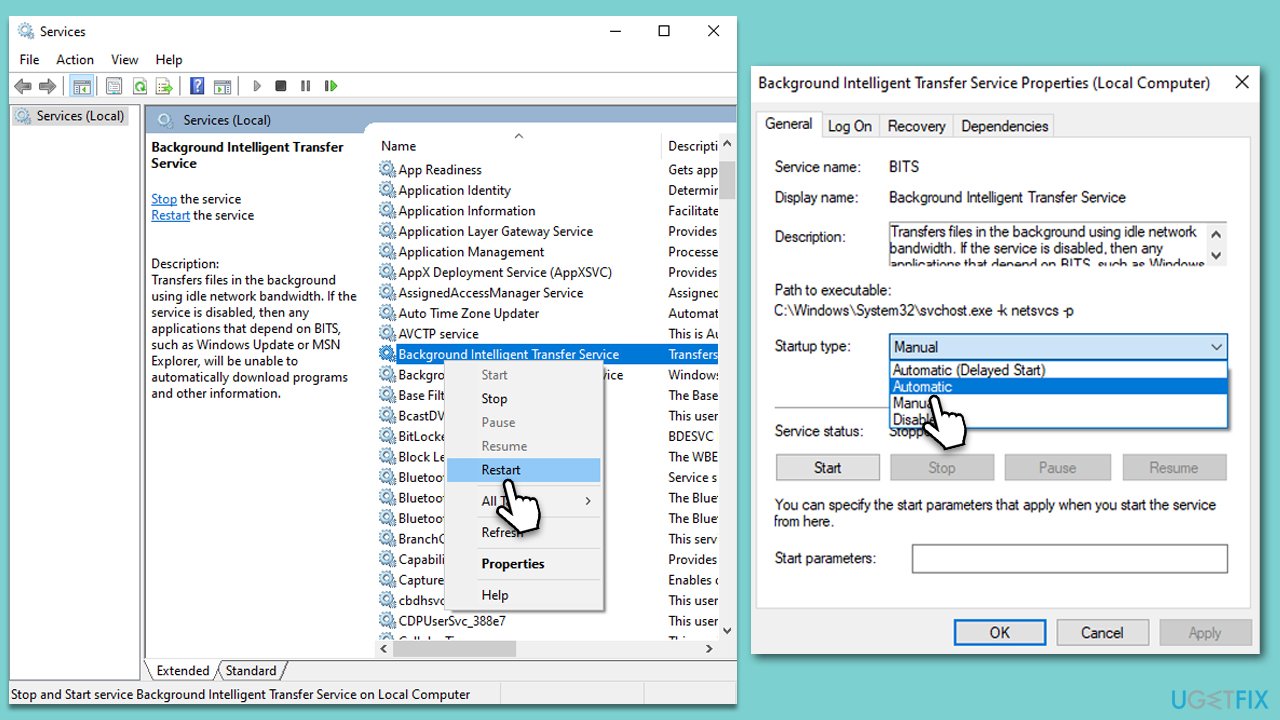
Certain services like the Windows Update service are essential for a smooth update process. Restarting or enabling these services can often resolve update errors.
- Type in Services in Windows search and press Enter.
- Locate Background Intelligent Transfer Service (BITS).
- If it is already running, right-click and select Restart.
- If the service is not running, double-click it, select Automatic under the Startup type from the drop-down menu.
- Click Start, Apply, and OK.
- Repeat the process with the Windows Update, Cryptographic, and Windows Installer services.
5. Run SFC and DISM
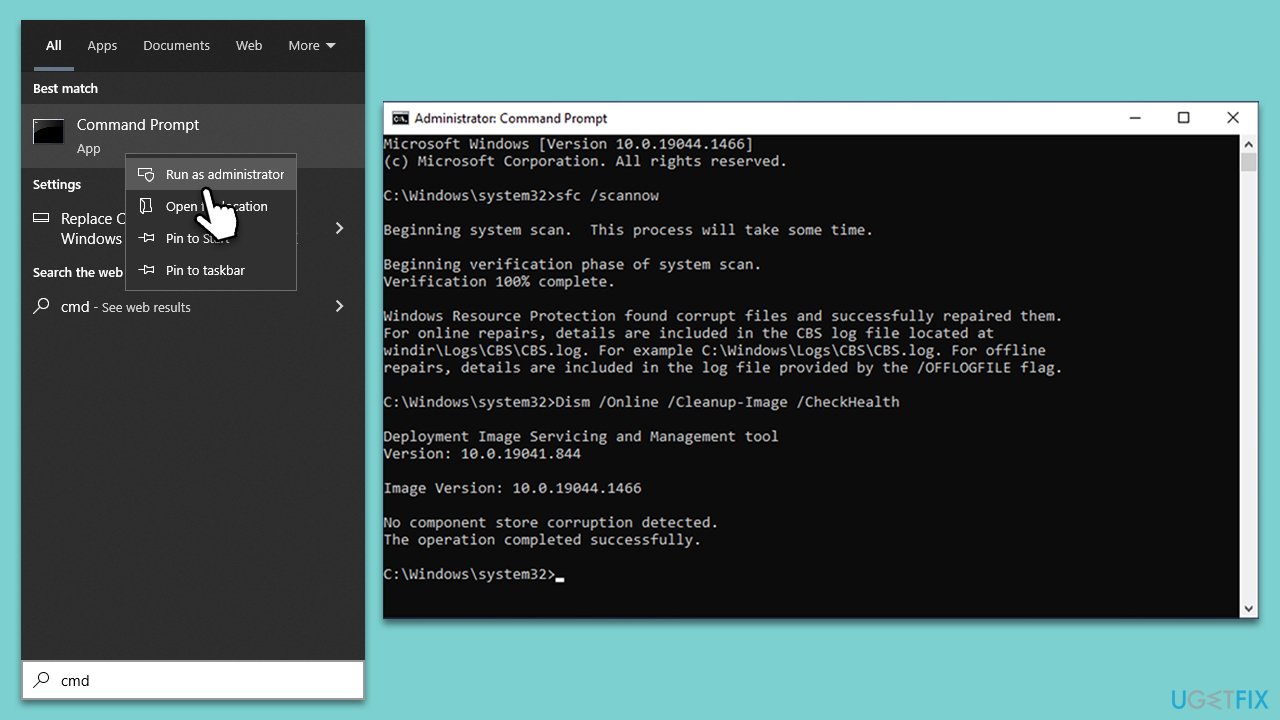
Repair system files corruption and Windows image issues using the following instructions:
- Type cmd into Windows search.
- Right-click on Command Prompt and select Run as administrator.
- When User Account Control (UAC) window shows up, click Yes.
- Next, type in the following command and press Enter:
sfc /scannow - When done, run the following commands as well:
dism /online /cleanup-image /scanhealth
dism /online /cleanup-image /checkhealth
dism /online /cleanup-image /restorehealth
(Note: if you get an error executing the last command, add /Source:C:\RepairSource\Windows /LimitAccess to it and try again.) - Restart your device.
6. Reset Windows Update Components
Manually resetting the Windows Update components can resolve issues caused by corrupted files or services. This involves stopping services, deleting temporary files, and restarting the services.
- Open Command Prompt as administrator.
- Paste in each of these commands, pressing Enter each time:
net stop bits
net stop wuauserv
net stop appidsvc
net stop cryptsvc
Del “%ALLUSERSPROFILE%\Application Data\Microsoft\Network\Downloader\*.*”
rmdir %systemroot%\SoftwareDistribution /S /Q
rmdir %systemroot%\system32\catroot2 /S /Q
regsvr32.exe /s atl.dll
regsvr32.exe /s urlmon.dll
regsvr32.exe /s mshtml.dll
netsh winsock reset
netsh winsock reset proxy
net start bits
net start wuauserv
net start appidsvc
net start cryptsvc - Reboot your device.
7. Install the update manually
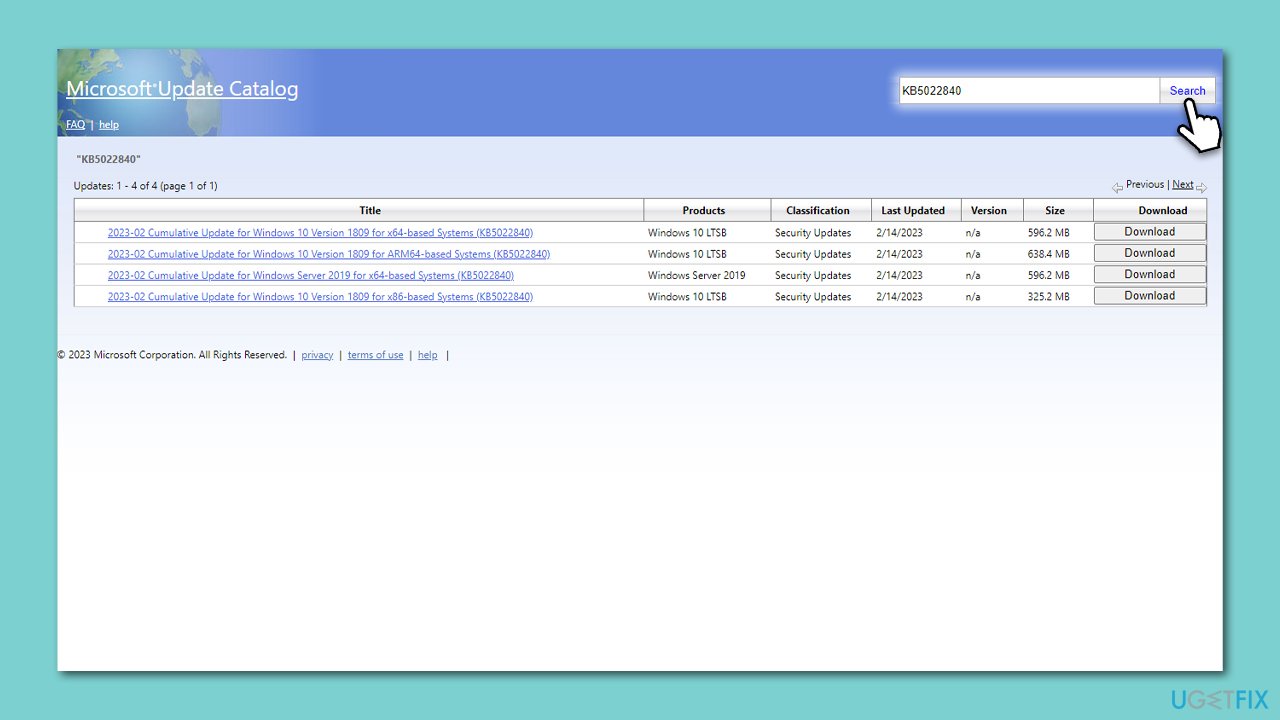
If you have the KB number of the failed update, you can manually download and install it from the Microsoft Update Catalog. You can check this as follows:
- Type in Update in Windows search and press Enter.
- Click View Update History on the right side of the window.
- From the list of updates, note the KB number of the one that failed to be installed with the 0x8007370a error.
- Go to Microsoft Update Catalog.
- Here, type in the KB number and click Search.
- Pick the version that is compatible with your operating system (ignore updates for the server) and click Download.
- Proceed with on-screen instructions and restart Windows once done.
8. Use Media Creation Tool
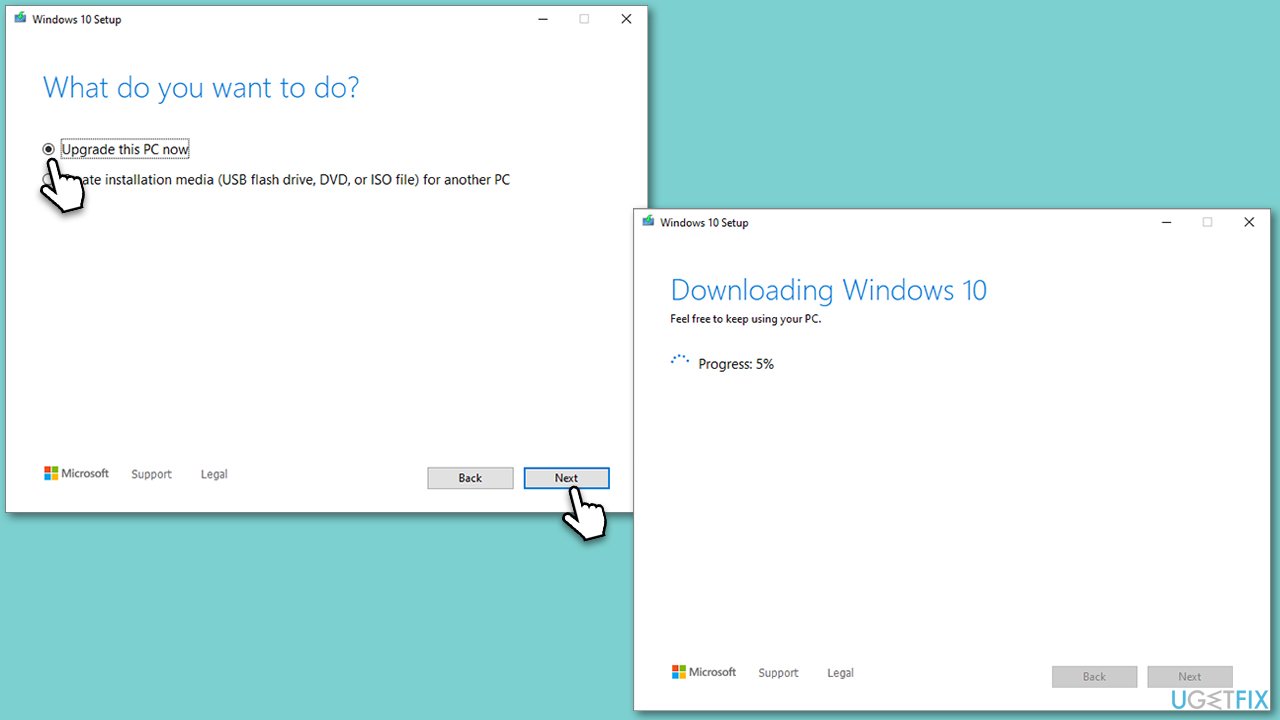
Microsoft's Media Creation Tool allows you to create installation media or upgrade your current system. Running the tool can sometimes repair update-related problems.
- Visit the official Microsoft website and download Windows 10 installation media (Windows 11 version).
- Double-click the installer and select Yes when UAC shows up.
- Agree to terms.
- Select Upgrade this PC now and select Next.
- Windows will now download all the necessary files – it might take a while.
- Agree to the terms once again and click Next.
- Before installing, ensure you are happy with your choices (otherwise, you can click the Change what to keep option).
- Click Install to begin the upgrade process.
Bottom line
To fix the Windows update error 0x8007370a, users can try restarting their PC, using a reputable PC repair tool, or following other troubleshooting steps. If these solutions do not resolve the issue, further investigation may be necessary to identify the underlying problem.
Frequently asked questions
The error 0x8007370a typically occurs due to corrupted system files or missing components required for the update process on Windows 10 and Windows 11.
To fix error 0x8007370a, open Command Prompt as an administrator and run the command 'DISM /Online /Cleanup-Image /RestoreHealth' to repair system image files.
Windows 11 users should try running the Windows Update Troubleshooter from Settings, and if that doesn't work, consider resetting the Windows Update components manually.




Report an issue
What's wrong with this guide? We review every report and update or remove content.
Report received — thank you. We'll review and fix it.
You need a free account to submit a report.
Be the first to comment