How to fix
Windows update error 0x800705aa
on Windows
Resolve Windows update error 0x800705aa quickly and efficiently. Get expert-tested solutions and restore functionality in minutes!

What causes How to fix Windows update error 0x800705aa?
- Missing necessary files
- Corrupted system components
- Unstable network connection
- Issues with the Windows Update service
Repairs Windows system files, removes malware, and restores a clean OS state — without reinstalling.
Hello. When I try to install updates for my Windows PC, I get the 0x800705aa error. Is there a way to fix this?
When attempting to upgrade their Windows operating system, customers frequently experience Windows update error 0x800705aa. This error code indicates that a necessary file or system component for the update process is either missing or corrupted. As a result, the update operation fails to complete effectively, depriving the system of the most recent security fixes, performance improvements, and new features that updates generally provide.
This problem can have a variety of negative consequences for users' systems and overall experiences. The most urgent issue is the possibility of security flaws. When updates fail to install, the system remains vulnerable to the security dangers that the upgrades were intended to address. Hackers and malicious software can take advantage of these flaws, jeopardizing user data and system integrity.
Furthermore, customers may miss out on new features and enhancements introduced via upgrades. These features may include usability improvements, new functions, and bug fixes that improve the user experience and make the operating system more efficient and user-friendly. Users may not have access to these developments if updates are not installed.
Responses to the 0x800705aa error include identifying and correcting the underlying causes of the problem. These can include troubleshooting actions including restoring corrupted system files, ensuring a steady network connection, and dealing with any issues with the Windows Update service itself.
In this guide, you will find 6 steps that should help you fix Windows update error 0x800705aa. You can also deploy a maintenance tool like [d1] that can fix most system errors, BSODs,[ref en-1] corrupted files, registry[ref en-2] issues, or clear cookies and cache.[ref en-3] Otherwise, follow the step-by-step instructions below.

Method 1. Run Windows Update Troubleshooter
- Press the Windows key + I to open Windows Settings.
- Within the Windows Settings, navigate to the System tab.
- Scroll down the options in the System tab and locate Troubleshoot; click on it.
- Inside the Troubleshoot screen, find and select the Other troubleshooters option.
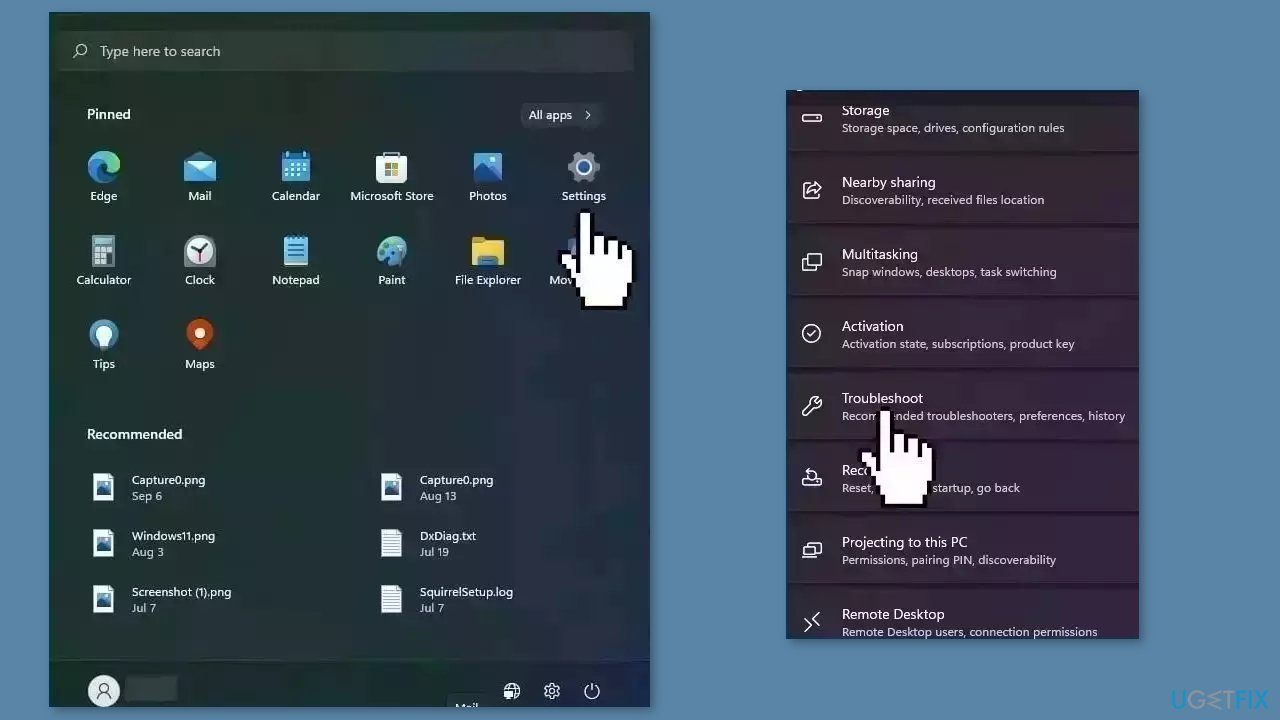
- A list of various troubleshooters will be displayed.
- Look for the Windows Update troubleshooter in the list.
- Click on the Run button associated with the Windows Update troubleshooter.
- Allow the troubleshooter to complete its process.
- Once the troubleshooter finishes, check your computer to determine if the issue has been resolved.
Method 2. Reset Windows Update Components
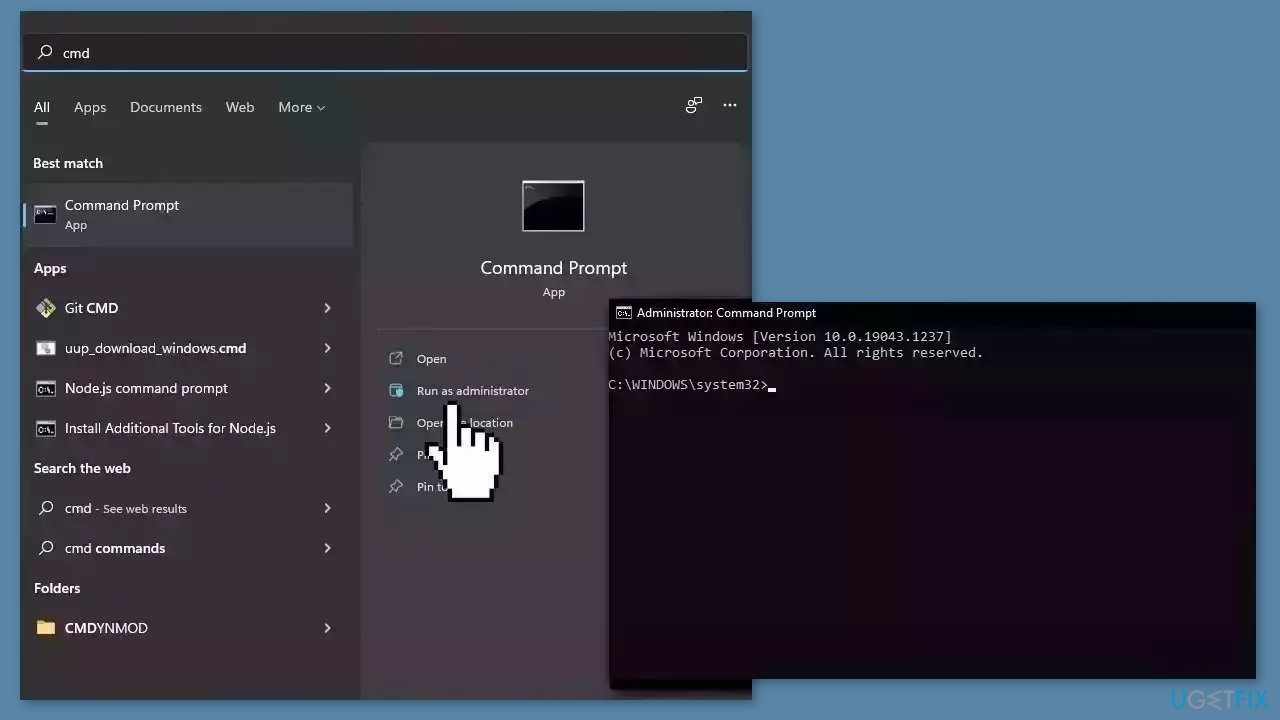
- Type cmd in the search bar.
- Right-click on Command Prompt in the search results.
- Select Run as administrator.
- In the Command Prompt window:
- Type the following commands one by one and press Enter after each:
net stop wuauserv
net stop cryptSvc
net stop bits
net stop msiserver
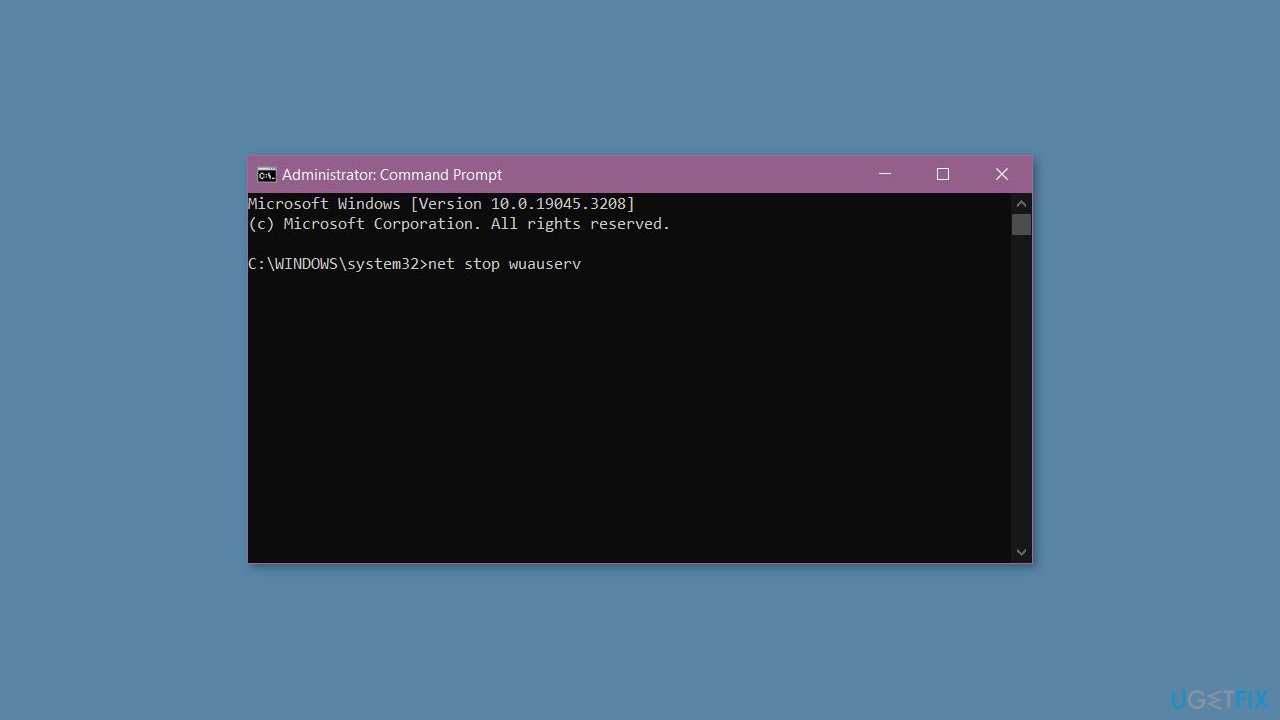
- Execute the following commands one by one:
net start wuauserv
net start cryptSvc
net start bits
net start msiserver
- Restart your PC.
- Check to see if the issue has been resolved.
Method 3. Fix Corrupted System Files
Use Command Prompt commands to repair system file corruption:
- Open Command Prompt as administrator
- Use the following command and press Enter:
sfc /scannow
- Reboot your system
- If SFC returned an error, then use the following command lines, pressing Enter after each:
DISM /Online /Cleanup-Image /CheckHealth
DISM /Online /Cleanup-Image /ScanHealth
DISM /Online /Cleanup-Image /RestoreHealth
Method 4. Free up Space
- Open the search area of your taskbar.
- Type Disk Clean-up in the search bar and click on Open when it appears in the results.
- Under the Files to delete option, select the files you want to delete. (Check the boxes next to the types of files you want to remove.)
- Click the OK button to proceed.
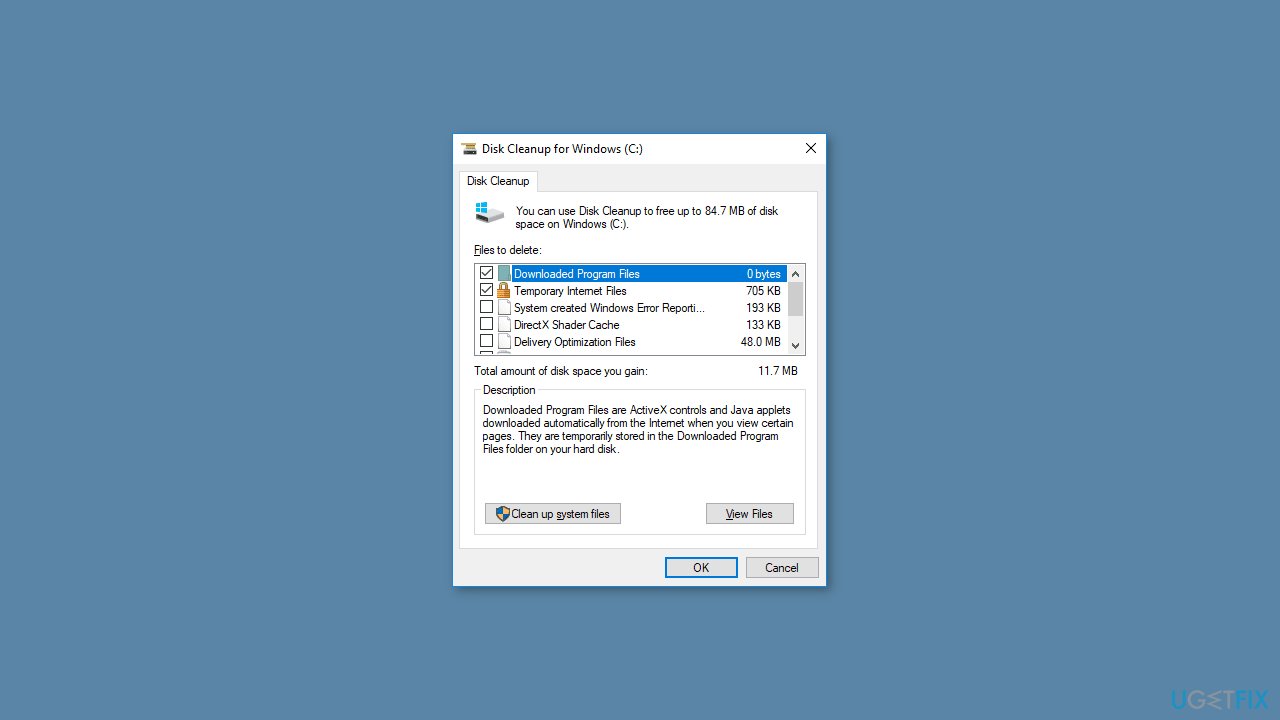
- Confirm your selection by clicking the Delete Files button.
- In the same window, you can also select the Clean up system files button.
- Follow the previous steps to select the additional files you want to delete.
- Click OK and then click Delete Files to confirm the cleanup.
Method 5. Install the Update Manually
Whenever Windows updates fail to install automatically, you can always try doing it manually. First, you need to find out which KB number is relevant to you.
- Right-click Start button and pick Settings.
- Go to Update & Security.
- On the right, locate and click View update history.
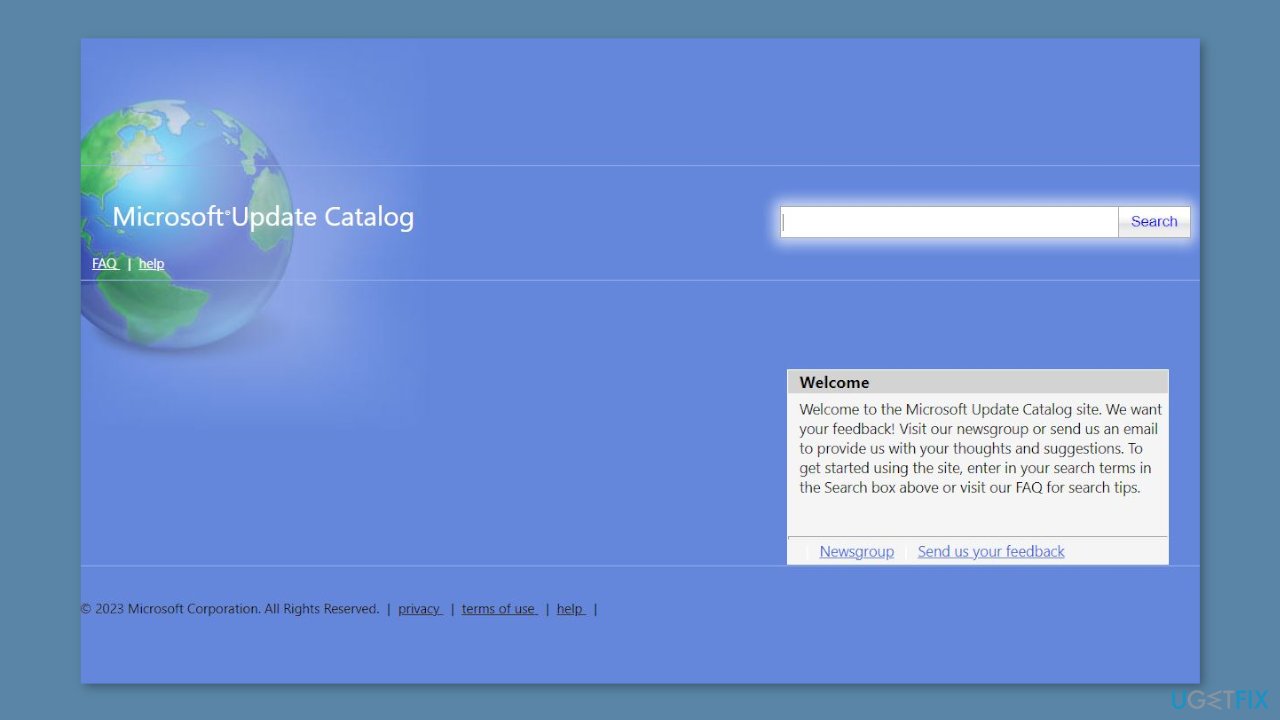
- From the list, note the KB number that fails to install with the error code.
- Go to Microsoft Update Catalog page, type in the KB number, and press Search.
- Download the update and install it manually.
Method 6. Try Clean Boot
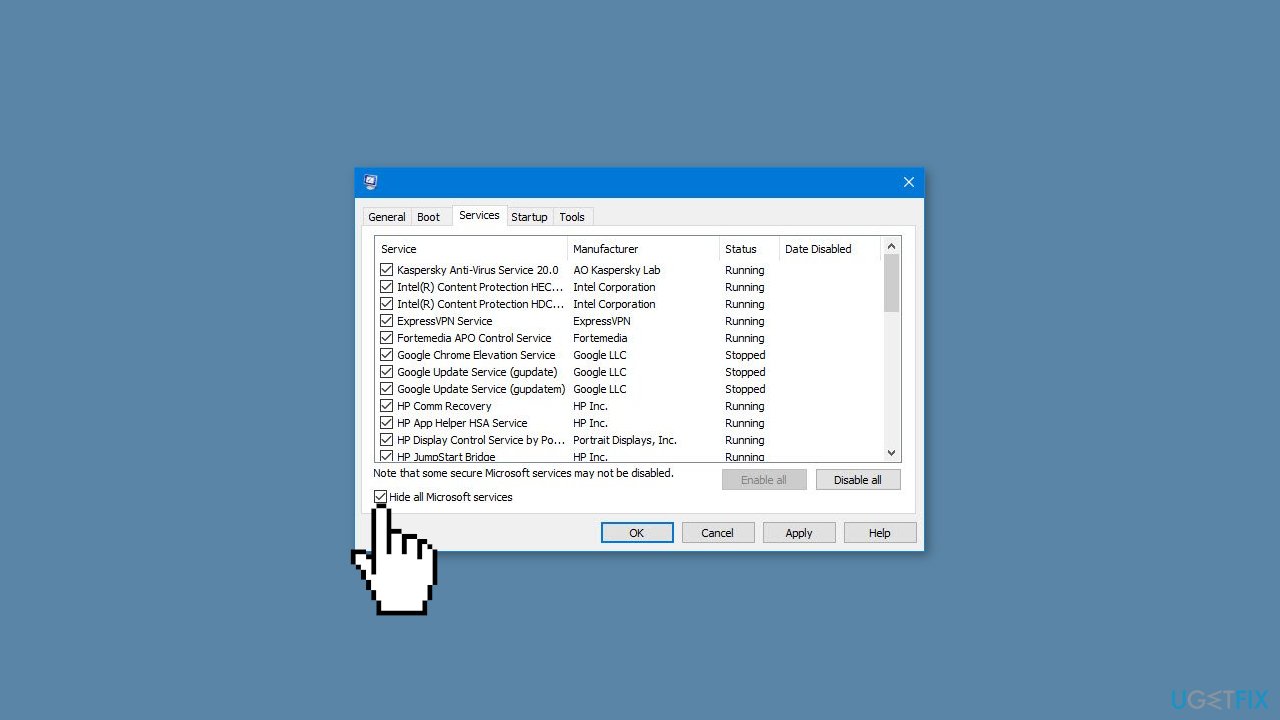
- Open the Search menu, type in system configuration, and press Enter.
- Under the Services tab, tick the Hide all Microsoft services box.
- Click on Disable all button.
- Head over to the Startup tab and click on Open Task Manager.
- Select a third-party program and click on Disable at the top.
- Repeat this step to disable all third-party apps and programs.
- Restart your PC to enter the clean boot state and see if the issue persists.
- If the issue disappeared in the clean boot state, then you can be certain that a third-party app is causing it.
- Go through all recently installed apps or programs and remove them one by one.
Bottom line
To fix the Windows update error 0x800705aa, you can run the Windows Update Troubleshooter, restore corrupted system files, ensure a stable network connection, and address any issues with the Windows Update service. If these steps do not resolve the issue, consider using a maintenance tool to fix system errors.
Frequently asked questions
Common causes include corrupted system files, issues with the Windows Update service, or conflicts with third-party software. Ensuring your system is free of malware and has enough disk space can also help resolve this error.
To troubleshoot this error on Windows 11, try running the Windows Update Troubleshooter from the Settings app, and check for any pending updates. If the issue persists, consider resetting the Windows Update components manually.
Yes, resetting the Windows Update components can often resolve error 0x800705aa by clearing any corrupt files or settings that may be causing the issue. You can do this via the Command Prompt with specific commands.




Report an issue
What's wrong with this guide? We review every report and update or remove content.
Report received — thank you. We'll review and fix it.
You need a free account to submit a report.
Be the first to comment