How to fix
KB5029649 fails to install
on Windows
Resolve the KB5029649 installation issue on Windows 10 swiftly with our expert-tested solutions. Get your updates back on track today!

What causes How to fix KB5029649 fails to install in Windows 10?
- Internet Information Services (IIS) vulnerability
- ClickOnce deployment vulnerability
- Corrupted system files
- Registry issues
- Outdated software
Repairs Windows system files, removes malware, and restores a clean OS state — without reinstalling.
Hello. When I tried installing the KB5029649 update on Windows 10 I received an error. Is it possible to solve this?
KB5029649[ref en-1] is a Windows 10 security update that tries to address two major vulnerabilities that could jeopardize the system's security. The first vulnerability affects Internet Information Services (IIS) apps that use their parent application's Application Pool. Attackers can take advantage of this flaw to perform privilege escalation or bypass other security protections.
The second issue resolved by KB5029649 is with ClickOnce deployments. ClickOnce is a web-based platform that allows developers to distribute Windows-based apps. This vulnerability, allows an unauthenticated remote attacker to sign ClickOnce deployments without requiring a valid code signing certificate. Code signing certificates are used to validate software's validity and integrity. By evading this criterion, an attacker may be able to distribute malicious software that appears legal, deceiving users into running dangerous applications.
The consequences of these flaws can be severe and far-reaching. The IIS vulnerability, if exploited, might result in unauthorized access to sensitive information, unauthorized resource modification, and the execution of malicious code. This could result in data breaches, system compromise, and additional attacks on related systems.
Users are encouraged to deploy the KB5029649 security update as soon as possible to mitigate these risks. This update fixes the vulnerabilities and ensures that the security flaws are addressed. Furthermore, it is critical to keep all software, including the operating system and apps, up to date in order to reduce the danger of exploitation. Regular software updates and patches help guard against known vulnerabilities that attackers may exploit.
In this guide, you will find 7 steps that should help you fix KB5029649 failing to install in Windows 10. You can also run a maintenance tool like [d1] that can fix most system errors, BSODs,[ref en-2] corrupted files, and registry[ref en-3] issues. Otherwise, follow the step-by-step instructions below.
Method 1. Run the Windows Update Troubleshooter
- Press the Windows + X keys and go to Settings
- Go to Update and Security
- Click Troubleshooter
- Select Additional troubleshooters
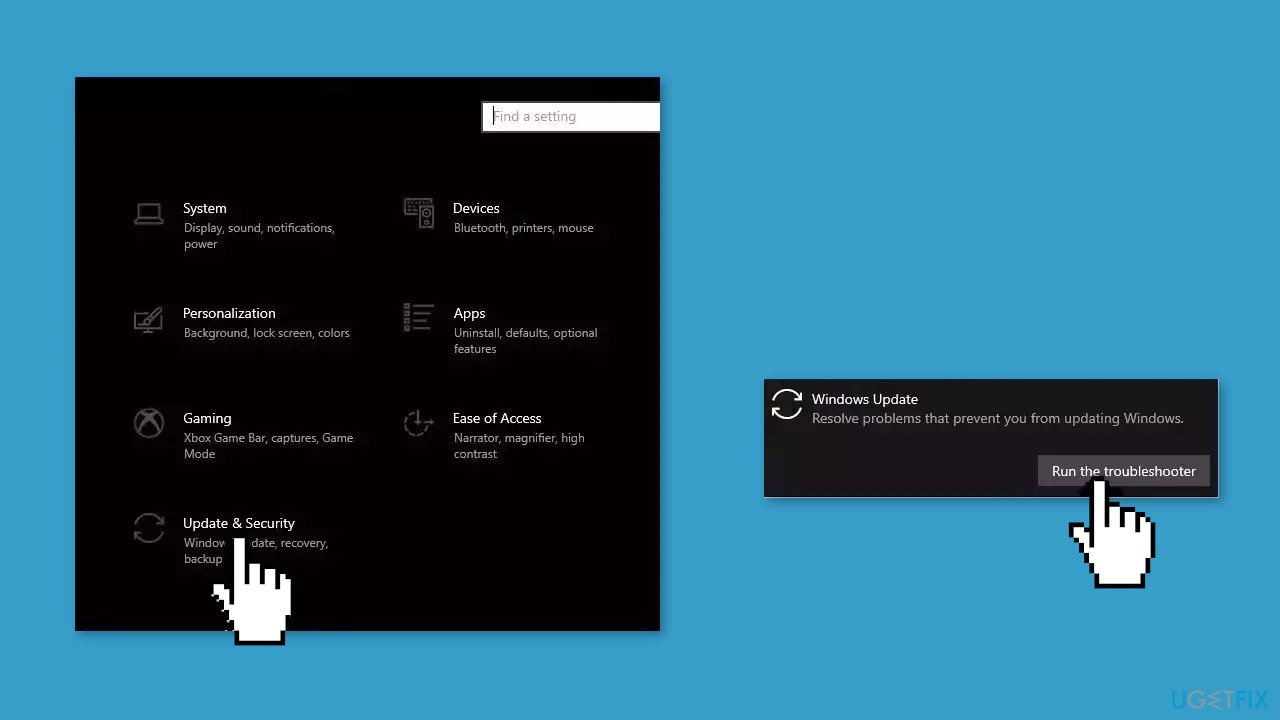
- Run the Update troubleshooter
- Restart
Method 2. Fix Corrupted System Files
Use Command Prompt commands to repair system file corruption:
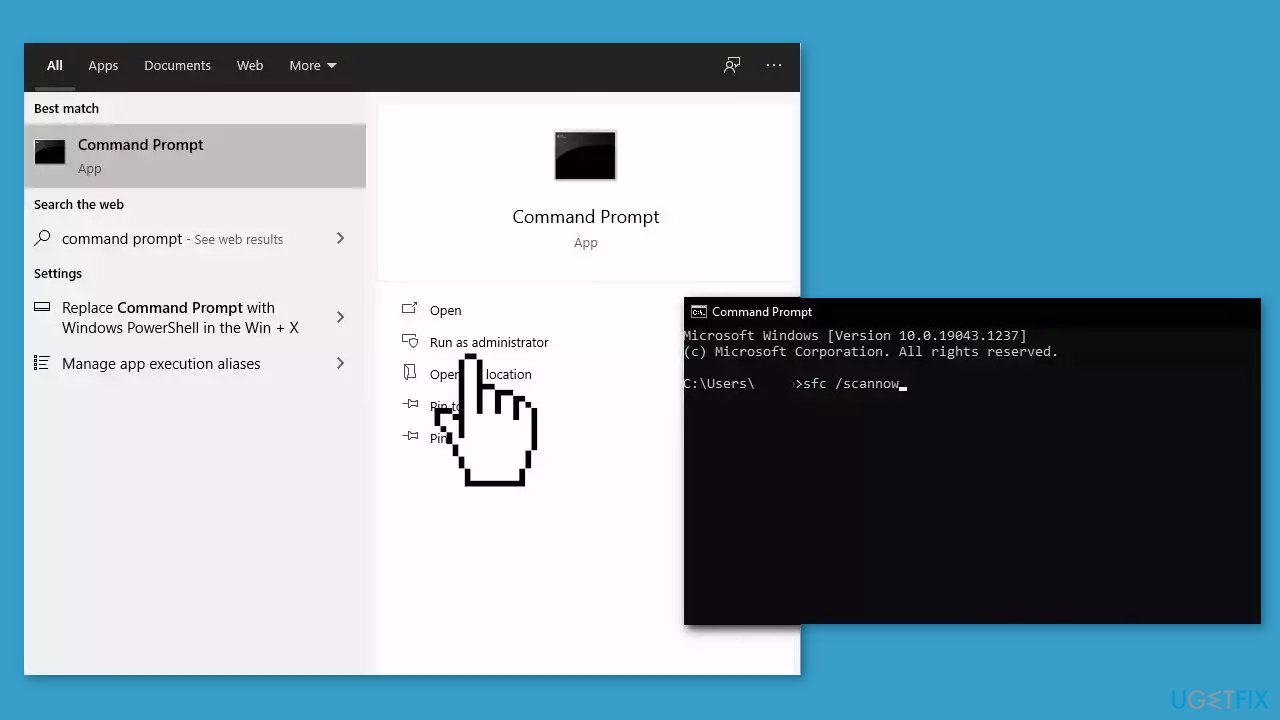
- Open Command Prompt as administrator
- Use the following command and press Enter:
sfc /scannow
- Reboot your system
- If SFC returned an error, then use the following command lines, pressing Enter after each:
DISM /Online /Cleanup-Image /CheckHealth
DISM /Online /Cleanup-Image /ScanHealth
DISM /Online /Cleanup-Image /RestoreHealth
Method 3. Restart Windows Services
- Type services in the search bar and launch the Services utility
- Find Windows Update in the list
- Double-click on it, set the Startup type to Automatic, and click Apply
- Now click on Restart the Service
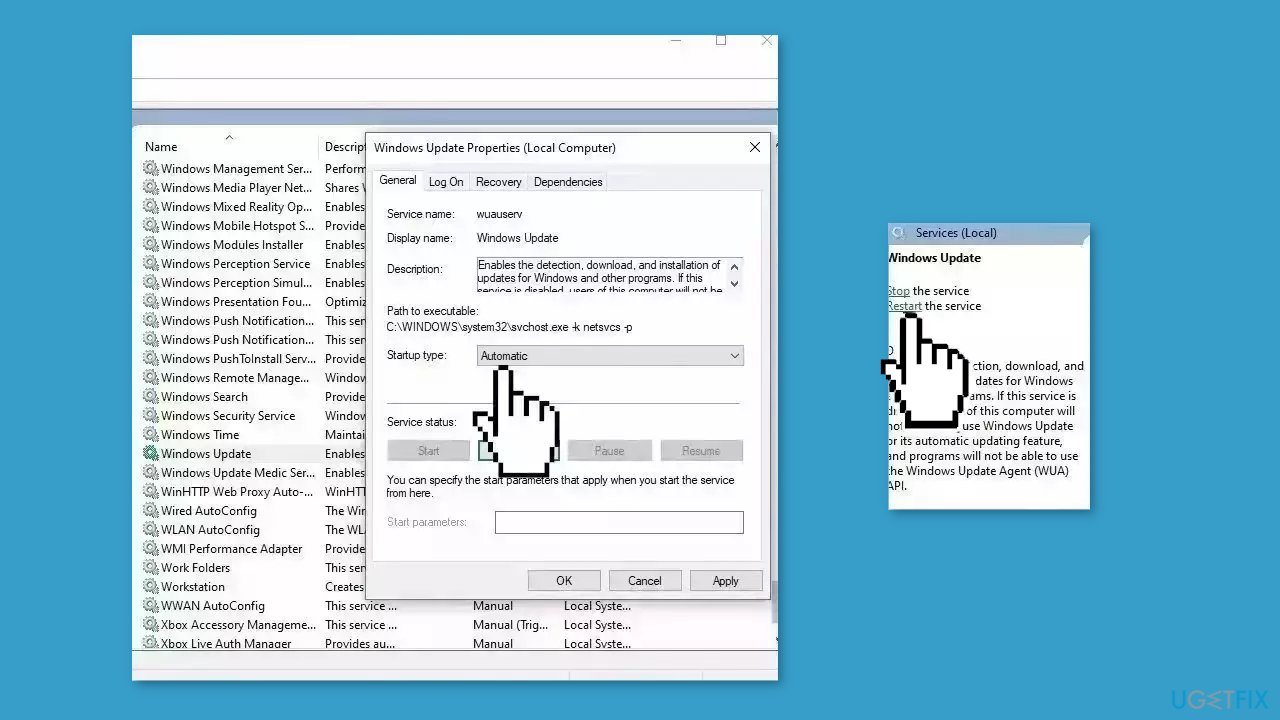
- Do the same with Background Intelligent Transfer Service
Method 4. Update Drivers
- In the search box on the taskbar, enter device manager, then select Device Manager
- Select a category to see the names of devices, then right-click the one you’d like to update
- Select Search automatically for updated driver software
- Select Update Driver
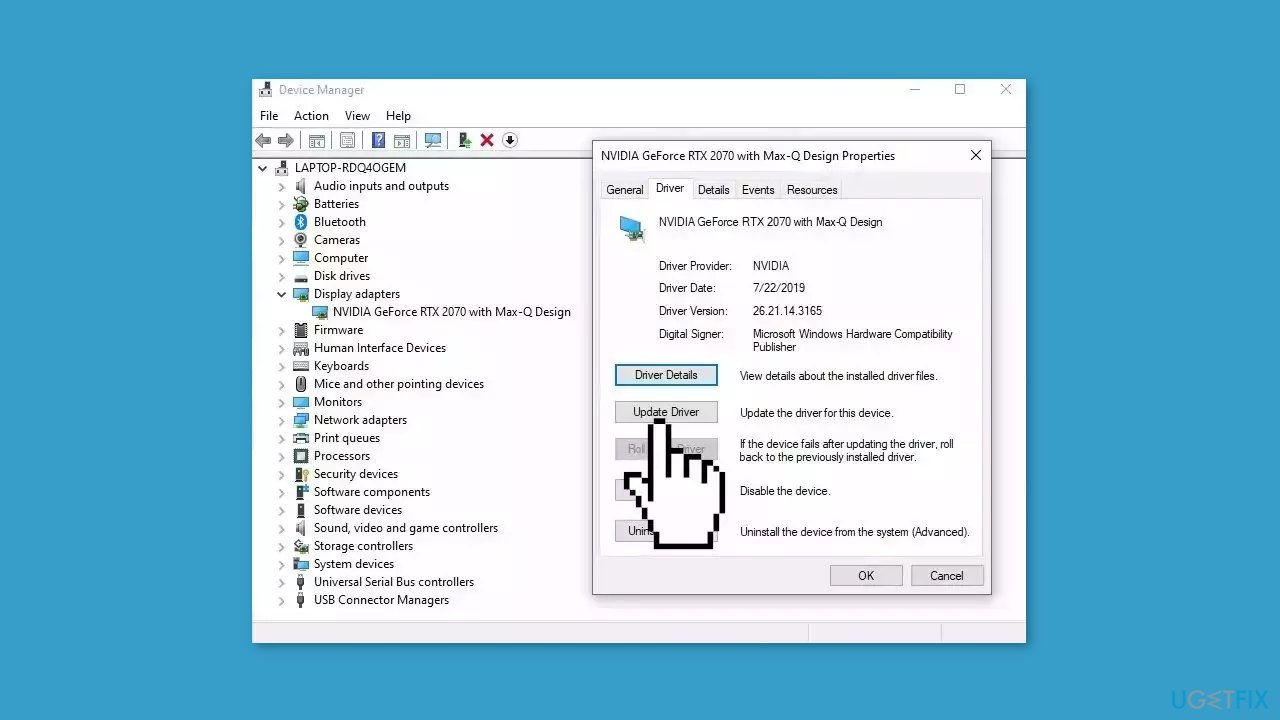
- If Windows doesn't find a new driver, you can try using an automatic tool like [rev id="DriverFix"] which can find the best drivers for your system
Method 5. Install the Update Manually
- Open your browser and go to the Microsoft Update Catalog.

- You will be presented with several versions of the KB5029649 update.
- Find the correct update for your OS version (you can check it by right-clicking Start and picking System > Windows specifications > Version is what you are looking for) and click Download.
- Follow the on-screen instructions and install the update.
- Reboot your system.
Method 6. Try Clean Boot
- Open the Search menu, type in system configuration, and press Enter
- Under the Services tab, tick the Hide all Microsoft services box
- Click on Disable all button
- Head over to the Startup tab and click on Open Task Manager
- Select a third-party program and click on Disable at the top

- Repeat this step to disable all third-party apps and programs
- Restart your PC to enter the clean boot state and see if the issue persists
- If the issue disappeared in the clean boot state, then you can be certain that a third-party app is causing it
- Go through all recently installed apps or programs and remove them one by one
Method 7. Use Media Creation Tool
- Visit the official Microsoft website and download Windows 10 installation media.

- Double-click the installer and select Yes when UAC shows up.
- Agree to terms and click Next.
- Select Upgrade this PC now and select Next.
- Proceed with on-screen instructions.
- Your PC will restart.
Bottom line
To fix the KB5029649 installation failure, you can run the Windows Update Troubleshooter, check for corrupted files, and ensure your software is up to date. If these methods do not resolve the issue, consider using a maintenance tool to address system errors.
Frequently asked questions
First, try running the Windows Update Troubleshooter to automatically detect and fix issues related to updates. If that doesn't work, consider manually downloading the update from the Microsoft Update Catalog.
Yes, common error codes include 0x800f0922 and 0x800f081f, which indicate problems with the update installation process. Identifying the specific error code can help in finding a targeted solution.
Yes, if the installation failure impacts system stability, you can use System Restore to revert your system to a previous state before the update attempt. Just ensure you have a restore point created prior to the failed update.




Report an issue
What's wrong with this guide? We review every report and update or remove content.
Report received — thank you. We'll review and fix it.
You need a free account to submit a report.
Be the first to comment