How to fix
Windows Troubleshooter Error “An Unexpected Error Has Occurred. The Troubleshooting Wizard Can’t Continue?”
on Windows
Resolve the "An Unexpected Error Has Occurred" issue on Windows 10 and 11 with expert-tested solutions that fix it in minutes.


What causes How to Fix Windows Troubleshooter Error “An Unexpected Error Has Occurred. The Troubleshooting Wizard Can’t Continue?”?
- Corrupted system files
- Outdated Windows version
- Conflicting software or applications
- Issues with Windows Update
- Malfunctioning hardware
Repairs Windows system files, removes malware, and restores a clean OS state — without reinstalling.
Hello. I had some problems regarding Windows 10 apps, so I wanted to run Windows App Troubleshooter, but the process failed with an error “An Unexpected Error Has Occurred. The Troubleshooting Wizard Can’t Continue.” It seems that my PC is a sack of bugs… Could you please help me to fix this issue with the troubleshooter?
Being aware of the issues that people face while using Windows OS, Microsoft developed a pack of in-built Windows Troubleshooters. While older Windows versions were not so troubleshooters rich, Creators Update offers the following internal troubleshooters: Blue Screen, Bluetooth, Hardware and Devices, HomeGroup, Incoming Connections, Internet Connections, Keyboard, Network Adapter, Printer, Playing Audio, Power, Program Compatibility Troubleshooter, Recording Audio, Search and Indexing, Shared Folders, Speech, Video Playback, Windows Store Apps, and Windows Update.
Inbuilt Windows Troubleshooters Often Fail to Execute
To access all the troubleshooters, the PC owner has to navigate to Settings > Update & Security > Troubleshoot. Regarding the circumstances and the source of the problem, the user has to select the type of troubleshooter to run and wait while the system scan is being executed. Unfortunately, Windows Troubleshooters often fail to accomplish their tasks. Usually, they fail to detect issues on the system, although it’s obvious that there’s something wrong, or the scan ends up with the errors like “An Unexpected Error Has Occurred. The Troubleshooting Wizard Can’t Continue.” Many Windows 10 users reported us this Troubleshooting Wizard bug and it seems that it may occur with a variety of different error codes. Nevertheless, the vast majority of them may be fixed using the same methods. All the “An Unexpected Error Has Occurred. The Troubleshooting Wizard Can’t Continue” error fixed that we came up with are provided down below.
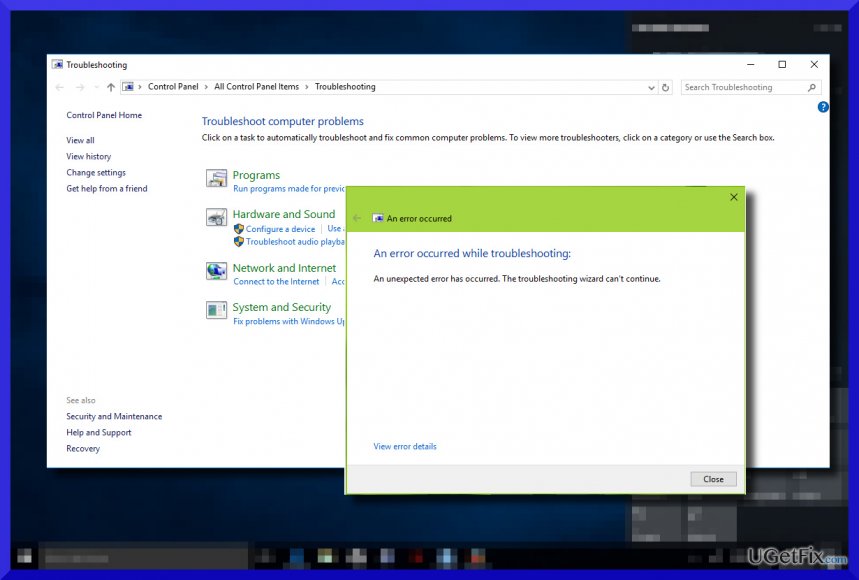
What Should People Do if the Troubleshooter Itself Malfunctions?
There is no perfect piece of software that would never fail to execute. Windows Troubleshooters are not an exception. Sometimes Windows 10 encounters very serious problems, which require a special maintenance and the troubleshooters may not be powerful enough to detect and fix them. If “An Unexpected Error Has Occurred. The Troubleshooting Wizard Can’t Continue” error showed up for the first time, we would strongly recommend rebooting the system. Sometimes that helps, but rarely. Another solution would be to run a scan with [d1] or another professional PC optimization tool that would check for faulty registries, corrupted software, damaged system files, and similar issues that may be negatively influencing PC’s performance. If these basic steps did not help to solve the problem, please refer to the following instructions:
Method 1. Check the Running Services
- Press Windows key + R, type services.msc, and press Enter.
- Here you have to check if the three services listed below are running:
Diagnostic Policy Service. Startup Type should be Automatic.
Diagnostic Service Host. Startup Type should be Manual.
Diagnostic System Host. Startup Type should be Manual. - If any of them are not working, right-click it and select Start.
- In case the Startup Type does not match, double-click on the service, and expand the Startup Type drop-down menu.
- Select the needed Startup type, click Apply and OK to save the changes.
- Reboot the system.
Method 2. Run Registry Editor
- Press Windows key + R, type regedit, and press Enter.
- Navigate to the HKEY_LOCAL_MACHINE\SOFTWARE\Policies\Microsoft\Windows\ScriptedDiagnostics path.
- Right-click on the ScriptedDiagnostics registry key and select Delete.
- Then navigate to the LOCAL_MACHINE\SOFTWARE\Policies\Microsoft\Windows\ScriptedDiagnosticsProvider path.
- Right-click on the ScriptedDiagnosticsProvider registry key and select Delete.
- Close the Registry Editor and reboot your PC.
Bottom line
To fix the error, users can try running the System File Checker, updating Windows, or performing a clean boot to eliminate software conflicts. If these methods do not resolve the issue, consider seeking further technical support or performing a system restore.
Frequently asked questions
You can try running the Troubleshooter in Safe Mode, which may help resolve any conflicts preventing it from running properly. Additionally, ensure that your Windows 10 is updated to the latest version.
You can resolve this by resetting the Windows Update components or running the System File Checker tool to repair any corrupted files. These steps often help restore the functionality of the Troubleshooter.
Yes, incorrect system settings, third-party software interference, or corrupted user profiles can lead to this error on both Windows 10 and Windows 11. Checking for these issues can help in fixing the Troubleshooter.




Report an issue
What's wrong with this guide? We review every report and update or remove content.
Report received — thank you. We'll review and fix it.
You need a free account to submit a report.
Be the first to comment