How to fix
Microsoft Teams screen sharing not working
on Windows
Resolve Microsoft Teams screen sharing issues on Windows 10 and 11 effortlessly. Expert-tested methods ensure quick fixes with zero traces left.

What causes How to fix Microsoft Teams screen sharing not working in Windows?
- Outdated Teams application
- Incompatible graphics drivers
- System errors
- Corrupted files
- Registry issues
Repairs Windows system files, removes malware, and restores a clean OS state — without reinstalling.
Hello. I was in a meeting on Microsoft Teams and I could not share my screen. How do I resolve this quickly?
Microsoft has created Microsoft Teams, a platform for group collaboration and communication. It is intended to promote effective communication and teamwork between individuals and groups within organizations. Teams offers a centralized location where users can communicate, hold phone and video conversations, share files, and work together in real time on projects. The platform's integrations with several Microsoft 365 applications make it a flexible tool for both physical and virtual teams to collaborate successfully.
When using Microsoft Teams on Windows, users frequently report that the screen-sharing capability isn't functioning properly. For presentations, problem-solving, and team projects, screen sharing enables users to share their computer screen with others during a call or meeting. Users are unable to share their displays while this feature is broken, which can impair productive collaboration and effective communication.
Users' workflows may be significantly impacted by Microsoft Teams on Windows' inability to share screens. For instance, the inability to share displays can hinder the effective presentation of information and visual aids during online meetings or remote collaboration sessions. This may lead to misunderstandings, delays, and a diminished capacity for successfully communicating complicated ideas. The lack of this functionality is harmful to problem-solving efforts because professionals may need to share their displays to explain issues they are seeing during troubleshooting.
The problem of screen sharing has a few potential solutions. Making sure the Teams application is updated is one option, as Microsoft frequently publishes updates that may bring bug fixes and enhancements. It is advised to look for an updated version under the "About Teams" heading in the Settings menu. Users may need to troubleshoot their system's graphics drivers if the issue persists because out-of-date or incompatible drivers may affect the functioning of screen-sharing.
In this guide, you will find 6 steps that should help you fix Microsoft Teams screen sharing not working. You can also run a maintenance tool like [d1] that can fix most system errors, BSODs,[ref en-1] corrupted files, and registry[ref en-2] issues. Otherwise, follow the step-by-step instructions below.
Method 1. Allow Everyone to Present the Screen
- Open the Microsoft Teams call screen.
- Locate and click on the three-dot menu icon situated at the top of the screen.
- From the dropdown menu, choose Settings.
- In the settings menu, click on Meeting options.
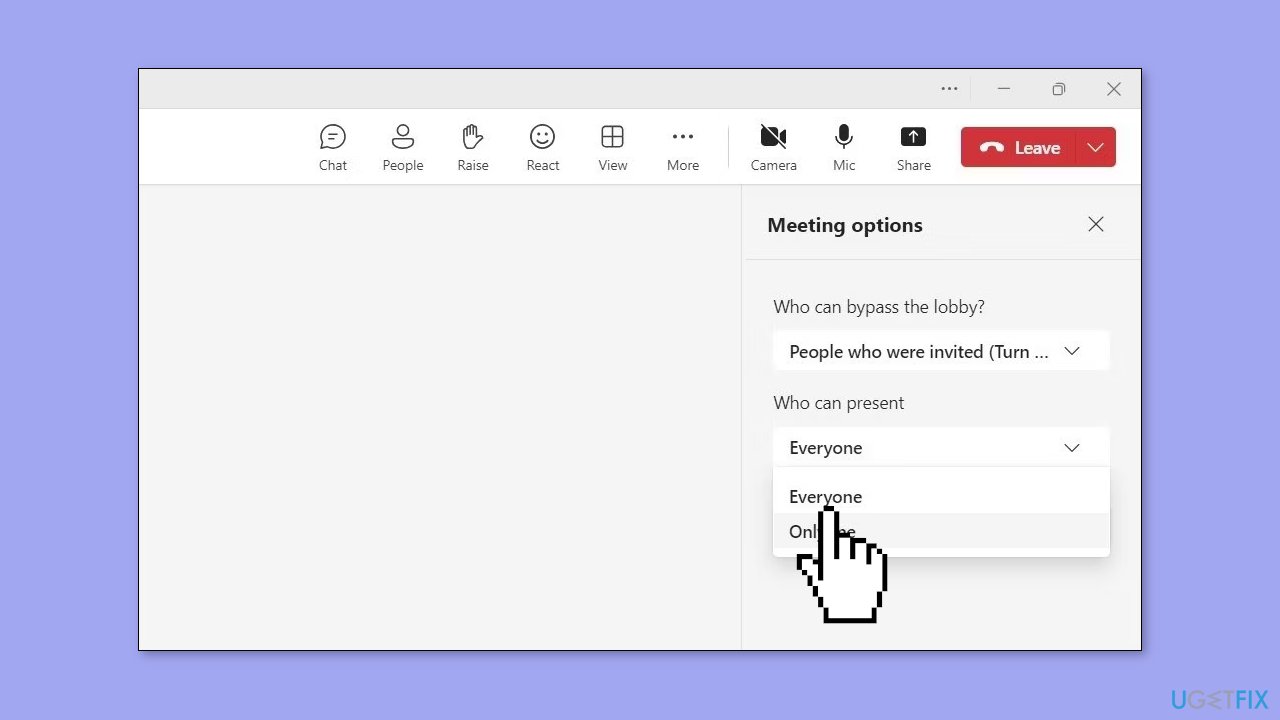
- Look for the section labeled Who can present and click on it.
- Select the option Everyone from the available choices.
- Once you've chosen Everyone, locate and click the Save button to confirm your changes.
Method 2. Check Network Connection
If you find yourself unable to share your screen even though you possess the necessary permissions, it's possible that your internet connection could be the culprit. Since activities such as screen sharing demand a speedy and reliable internet connection, you're more likely to run into difficulties if your internet connection is sluggish or unreliable.
Method 3. Close Background Apps
- Press the key combination Ctrl + Shift + Esc. This will open the Task Manager.
- Navigate to the Processes tab within the Task Manager window.
- Review the list of apps and programs displayed to identify those that you're not currently using.
- Select the apps or programs that you've identified as unnecessary.
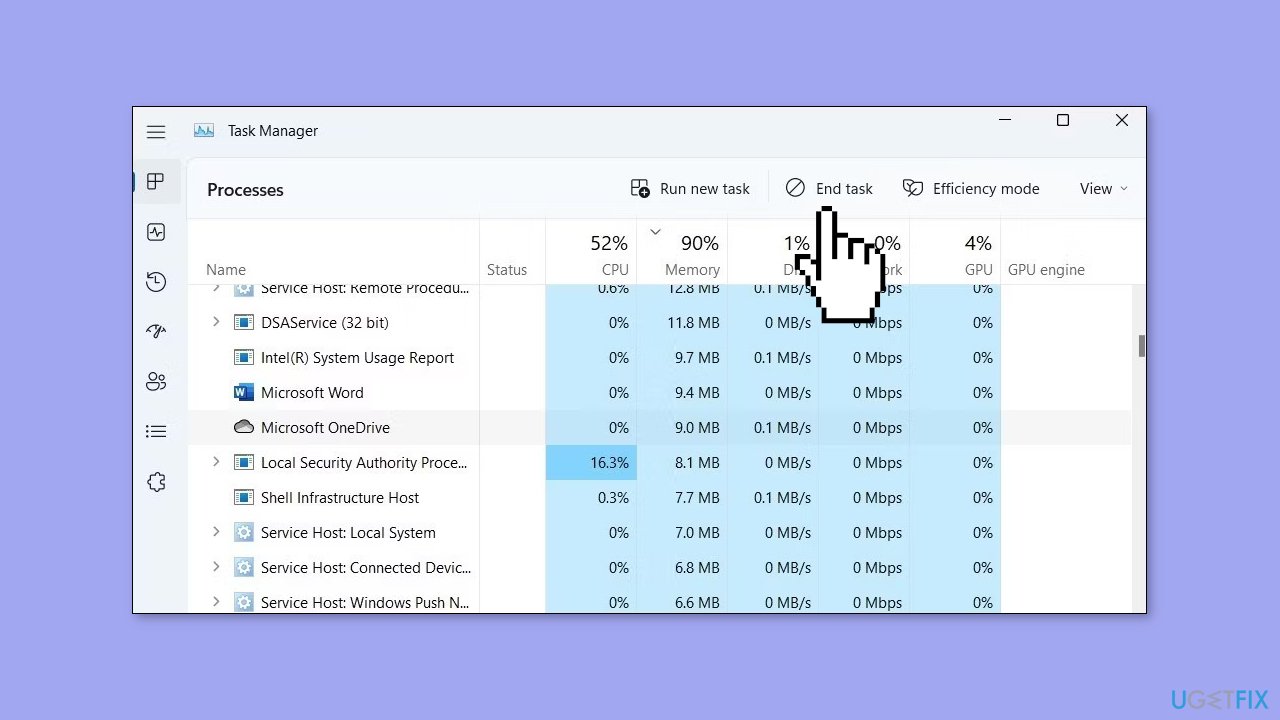
- At the top of the Task Manager window, click on the End task option.
- This action will terminate the selected apps or programs, freeing up system resources.
Method 4. Lower the Display Resolution
- Press the Windows key + I to launch the Settings app.
- Navigate to the System category and then select Display.
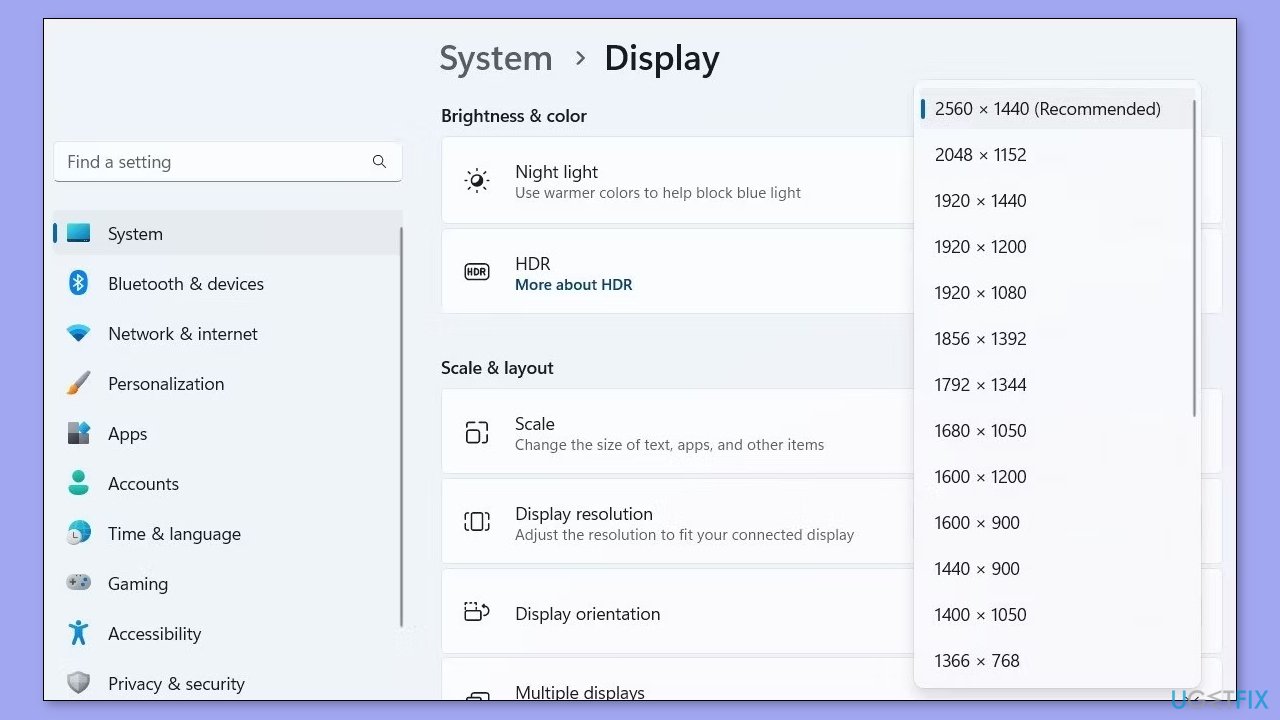
- Locate the drop-down menu positioned next to Display resolution.
- Click on the drop-down menu and choose a lower resolution setting from the available options.
Method 5. Clear Microsoft Teams Cache
- Press the Windows key + R to open the Run dialog.
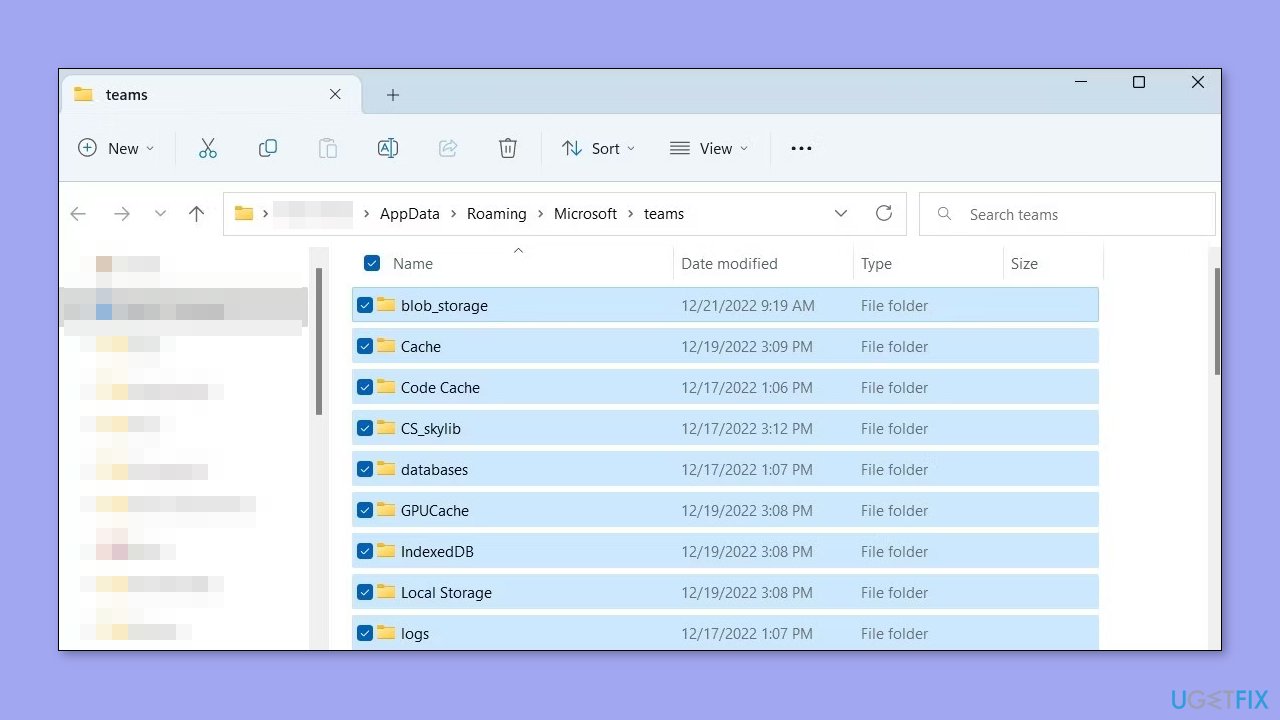
- Copy and then paste the following path into the text box: %appdata%\Microsoft\teams
- Click the OK button.
- Inside the Teams folder that opens, press Ctrl + A to select all files and folders.
- Click on the trash icon located at the top to delete the selected items.
- Close File Explorer.
- Restart the Teams app.
- Verify whether the issue is still present after performing these steps.
Method 6. Update or Reinstall Microsoft Teams
- Open the Teams app.
- Click on the menu icon located at the top.
- From the dropdown menu, choose Settings.

- Switch to the About Teams tab within the Settings menu.
- Check if a newer version of Teams is available.
- If the issue persists, consider uninstalling and then reinstalling the Teams app.
- To start the uninstallation process, press the Windows key + S to open the search menu.
- Type Microsoft Teams into the search box.
- Select the Uninstall option associated with Microsoft Teams.
- Confirm the uninstallation process when prompted.
- After successfully uninstalling Teams, visit Microsoft's website to download the Teams app again.
- Install Teams by following the installation instructions provided.
Bottom line
To fix the screen sharing issue in Microsoft Teams on Windows, ensure that the Teams application is updated and troubleshoot your system's graphics drivers. If the problem persists, consider running a maintenance tool to address system errors, corrupted files, and registry issues. If none of these solutions work, further investigation may be necessary.
Frequently asked questions
Screen sharing issues in Microsoft Teams on Windows 10 can often be resolved by ensuring that Teams has the necessary permissions to access your display settings. Additionally, check if your graphics drivers are up to date.
If screen sharing fails in Microsoft Teams on Windows 11, try restarting the app and your computer, as this can often clear temporary glitches. Also, verify that your Windows 11 privacy settings allow Teams to share your screen.
To troubleshoot screen sharing in Microsoft Teams on Windows, ensure you are using the latest version of the app and check your network connection for stability. You may also want to adjust Teams settings by disabling hardware acceleration in the app's settings.




Report an issue
What's wrong with this guide? We review every report and update or remove content.
Report received — thank you. We'll review and fix it.
You need a free account to submit a report.
Be the first to comment