How to fix
Windows Update Error “Your device is at risk”
on Windows
Resolve the “Your device is at risk” error on Windows 10 effortlessly. Discover proven fixes and restore your system's security. Expert-tested solutions!

What causes How to Fix Windows Update Error “Your device is at risk” on Windows 10?
- Outdated Windows version
- Missing security updates
- Installation issues with Windows Updates
- System slowdowns or errors
- Malware vulnerabilities
Repairs Windows system files, removes malware, and restores a clean OS state — without reinstalling.
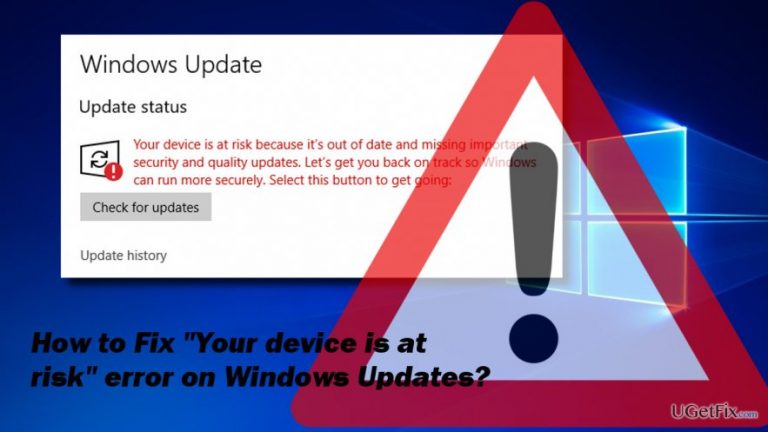
“Your device is at risk because it’s out of date and missing important security and quality updates. Let’s get you back on track so Windows can run more securely. Select this button to get going.” That’s an error message that I’ve got today when opened Windows Update app. Strange because I’ve performed a clean install a couple of days. How should I fix it?
The “Your device is at risk because it’s out of date and missing important security and quality updates” error is a new phenomenon which has started bothering users of Windows 10 insiders preview build 16193. The message is displayed in the Settings app under Update and Security section and creates an image that you are in need of some updates.
However, while you can expect to see “Your device is at risk" warning if you are using older Windows versions, such as XP, Vista or Windows 7, (their support has already expired)[ref en-2] it can be quite surprising to receive such alert when using fresh Windows version after a clean install or upgrade.
Undoubtedly, no matter which Windows version[ref en-1] is used, it’s crucial to keep it up-to-date. Missing updates may lead to serious system slowdowns, errors, malfunctions, and open the backdoor to malware. However, even if you are the one who installs updates regularly, you can receive the message given below:
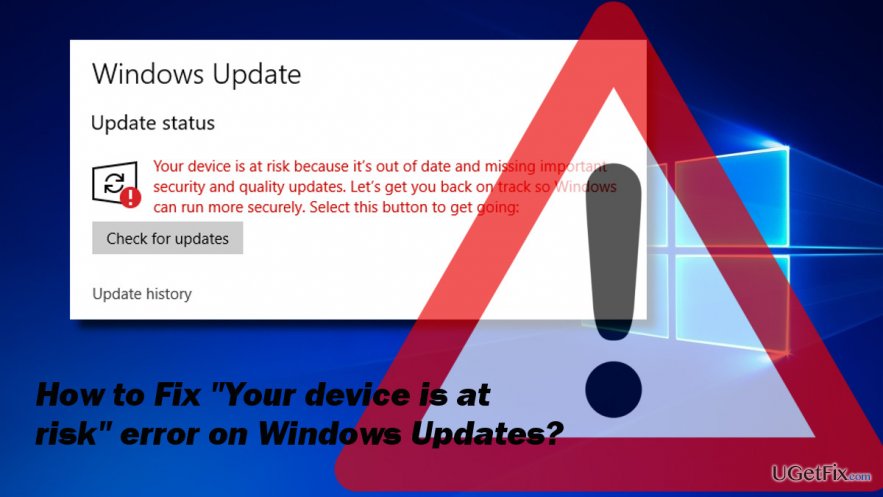
Your device is at risk because it’s out of date and missing important security and quality updates. Let’s get you back on track so Windows can run more securely. Select this button to get going:
Check for Updates
The culprit of the bug – missing security updates
Although Microsoft hasn’t yet acknowledged the “Your device is at risk” error on Windows 10 Creators Update, Microsoft technicians unofficially reported that the culprit is missing security updates.[ref en-3]
The problem here is that the “Your device is at risk because it’s out of date and missing important security and quality updates” alert prevents Windows Updates from being installed. The list of available updates is displayed, but the Install button does not respond.
However, sometimes the same error message occurs on PCs that are fully updated. In this case, the culprit may be the malfunctioning of Windows Update components or incorrect Date & Time settings. Therefore, to fix the error, you should try the following methods:
Here is a video for your convenience:
[youtube YJG93Kh1cqo]
Install the updates manually to fix "Your device is at risk error"
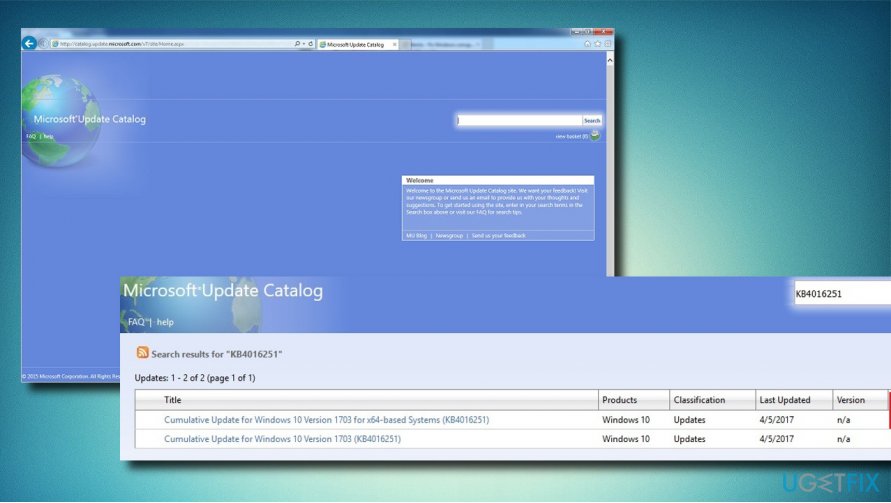
If you have received this error message and clicked the "Check for Updates" button, but none of the available updates were installed, navigate to the official Microsoft website and download the latest updates. The priority should be given for the security updates.
Check Date & Time Settings
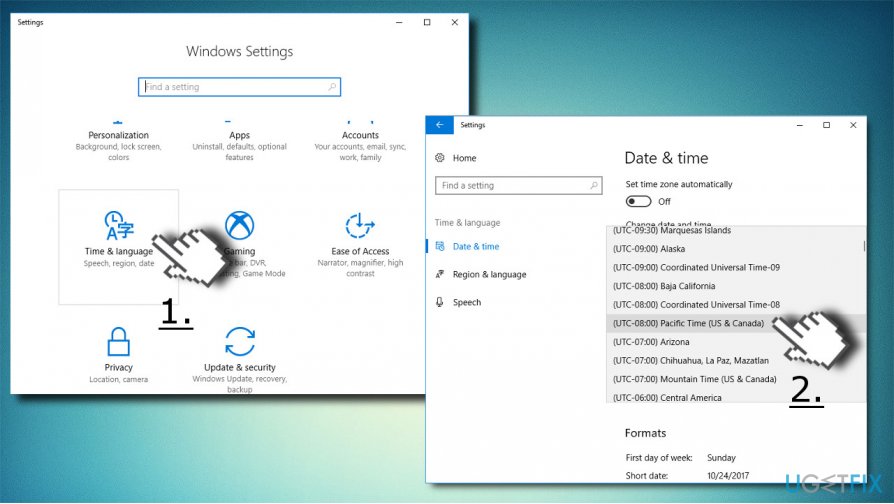
Several people have reported that changing the time zone to the US Pacific and forwarding the date to tomorrow fixed “Your device is at risk” error on Windows 10. For that:
- Press Windows key + I and open Time & Language;
- Check the time zone and change it to US Pacific;
- Set the date to tomorrow and save the changes;
- Navigate to Windows Updates and check if you can install the updates.
Reset Windows Update Components
- Press Windows key + X and select Command Prompt (Admin) from a drop-down menu.
- Click Yes on the User Account Control.
- Now you have to stop MSI Installer, Windows Update Services, and BITS services. For this purpose, copy and paste the following command into the Command Prompt window and press Enter:
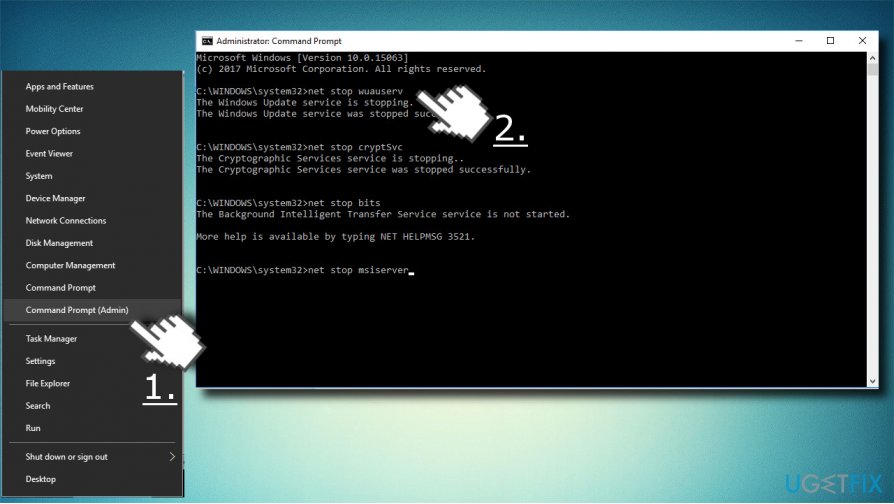
Reset windows update components2 net stop wuauserv
net stop cryptSvc
net stop bits
net stop msiserver - Then change the names of Catroot2 and SoftwareDistribution folders. For that, type the following commands in the Command Prompt and press Enter after each of them:
ren C:\\Windows\\System32\\catroot2 Catroot2.old
ren C:\\Windows\\SoftwareDistribution SoftwareDistribution.old - Finally, start the MSI Installer, Windows Update Services, and BITS services. Type the commands given below in the Command Prompt and hit Enter:
net start wuauserv
net start cryptSvc
net start bits
net start msiserver - Close Command Prompt and reboot.
Download update correction for “Your device is at risk” error fix
- Download the KB4073290 update from this link (Microsoft update catalog):
http://www.catalog.update.microsoft.com/Search.aspx?q=KB4073290 - Create a new local temporary folder;
- Drag and drop the downloaded KB4073290 update;
- Go to Control Panel -> Programs and Features and click on View Installed Updates;
- Scroll down until you see Microsoft Windows;
- Check if there is KB4058043 and uninstall it;
- Reboot your computer;
- When the computer turns on, go to the previously-created folder in step 2;
- Click on the KB4073290 update and install;
- Your computer system will reboot and the error should be gone;
- Delete step 2 folder.
Pro tip: after initiating any system's modifications, it's advisable to run a thorough system scan with an optimization tool, say [d1]. This will ensure that none of the system's files have been damaged.
Bottom line
To fix the 'Your device is at risk' error, ensure your Windows is up-to-date by checking for updates, and install any available security updates. If the Install button is unresponsive, consider troubleshooting Windows Update or performing a clean install again. If none of these solutions work, seek further assistance from Microsoft support.
Frequently asked questions
This error typically occurs due to corrupted system files, outdated drivers, or issues with Windows Update components on your device.
You can try running the Windows Update Troubleshooter, resetting Windows Update components, or performing a System File Checker scan to fix this issue.
Yes, resolving this error is essential to ensure your system receives important security updates and maintains optimal performance.




Report an issue
What's wrong with this guide? We review every report and update or remove content.
Report received — thank you. We'll review and fix it.
You need a free account to submit a report.
Be the first to comment