How to fix
Keyboard automatically doing shortcuts
on Windows
Fix your Windows 10 or Windows 11 keyboard shortcut issues effortlessly with our expert-tested solutions. Get your keyboard back to normal in minutes!

What causes How to fix keyboard automatically doing shortcuts in Windows?
- Out-of-date keyboard driver
- Hardware damage
- Activation of sticky keys
- Broken keyboard circuits
- Malfunctioning keys
Repairs Windows system files, removes malware, and restores a clean OS state — without reinstalling.
Hello. My keyboard is automatically initiating shortcuts and opening random apps. How do I fix this? Any suggestions would be appreciated.
Users may find it annoying and distracting when their keyboards in Windows start completing shortcuts automatically. This abnormality occurs when the keyboard appears to start opening shortcuts or programs suddenly with each keypress, interfering with regular typing. A number of things, such as an out-of-date keyboard driver, hardware damage, or the activation of sticky keys, could be the cause of this problem.
An outdated keyboard driver is one of the frequent causes of this problem. It can result in unexpected behavior, such as the shortcuts being executed automatically, if the driver software that interprets keystrokes and converts them into computer actions is out of date. Damage to the hardware itself may also be a factor. If some keyboard circuits or keys are broken or not functioning properly, they may send out signals that are not intended, leading to shortcuts or undesirable actions.
Sticky keys, a function that enables users with poor dexterity to press one key at a time for shortcuts, may unintentionally be enabled. This could result in the system mistaking regular keystrokes for shortcut commands and opening unwanted applications as a result. This problem can hinder productivity, result in data loss if unanticipated actions modify documents, and overall leave users who depend on their keyboards for numerous tasks perplexed and frustrated.
Users may need to think about a variety of potential solutions to this problem. One of these could be updating the keyboard driver to check that it is compatible with the operating system and to fix any issues that have been reported. Hardware-related issues can be diagnosed by physically checking the keyboard for damage or connecting an external keyboard to see if the issue continues. It may also be a relief to disable the sticky keys function or change its configuration.
In this guide, you will find 6 steps that should help you fix keyboard automatically doing shortcuts in Windows. You can also run a repair tool like [d1] that can fix most system errors, BSODs,[ref en-1] corrupted files, and registry[ref en-2] issues. Otherwise, follow the step-by-step instructions below.
Solution 1. Use the Keyboard Troubleshooter
- Press the Windows key + I to open the Settings app.
- In the Settings app, select System.
- Click on Troubleshoot.
- Then, click on Other troubleshooters.
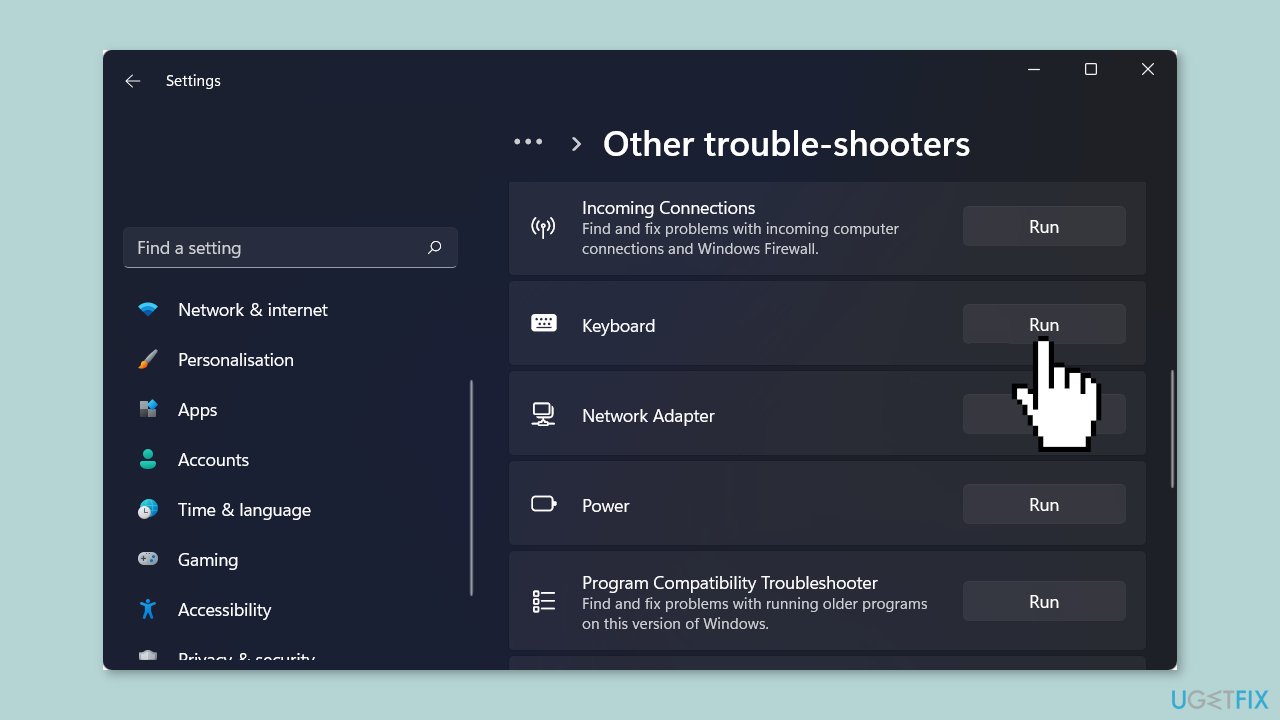
- Look for the option labeled Keyboard and click on it.
- Click the Run button.
- Follow the prompts that appear on the screen to complete the troubleshooting process.
Solution 2. Disable the Sticky keys, Filter keys, and Toggle keys
- Press the Windows key + I simultaneously to open the Settings app.
- Navigate to Accessibility.
- Under the Interaction section, find and select Keyboard.
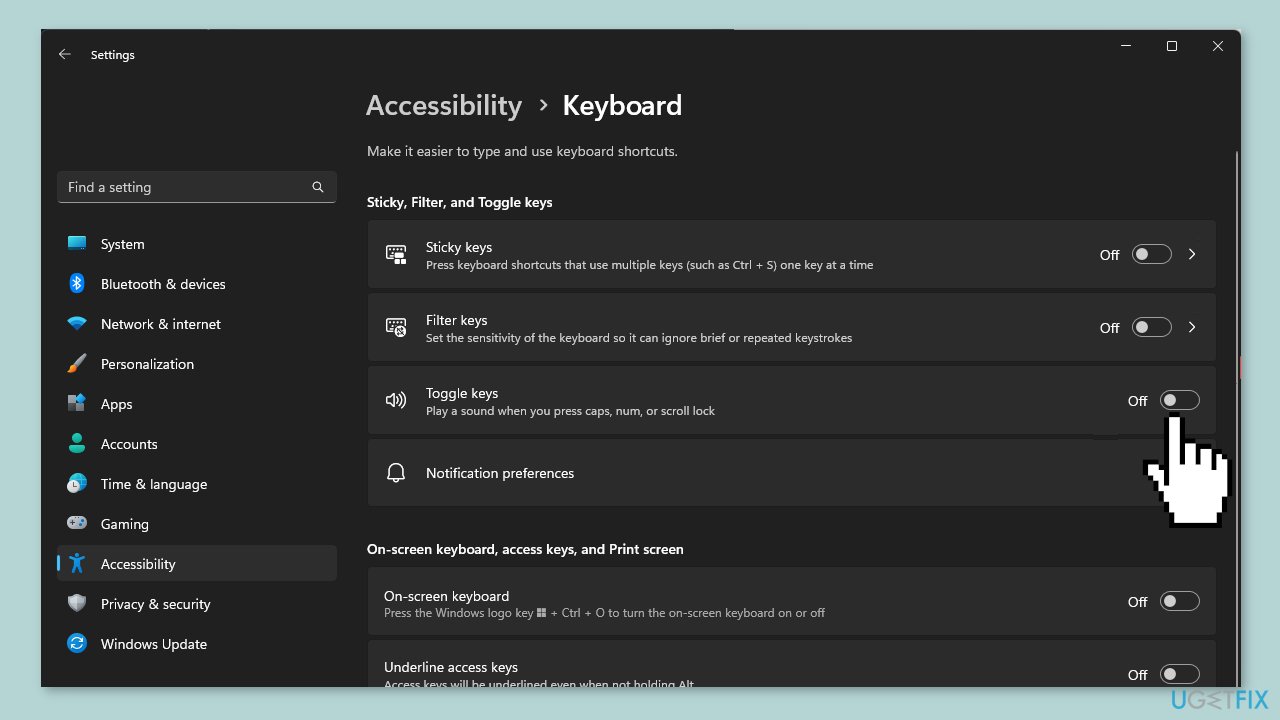
- Look for options such as Sticky keys, Toggle keys, and Filter keys.
- Make sure all of these options are disabled.
Solution 3. Reinstall the Keyboard Drivers
- Press the Windows key + R simultaneously to open the Run window.
- Type devmgmt.msc into the Run window and click OK to open the Device Manager.
- In the Device Manager window, find and click on the Keyboards category to expand it.
- Right-click on your keyboard option.
- From the context menu, select Uninstall device.
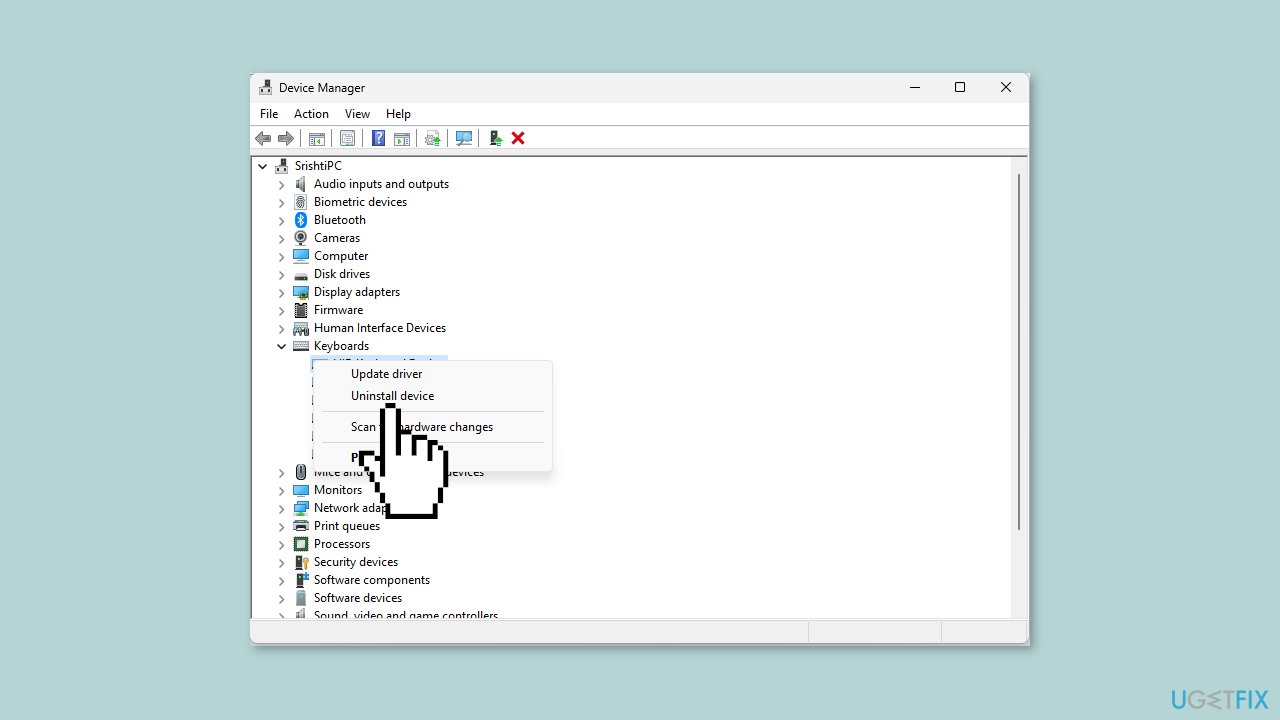
- After the device is uninstalled, click on the Action tab in the Device Manager.
- Choose Scan for hardware changes.
- Wait for a while as the system scans for new hardware, and the keyboard driver will be automatically reinstalled.
Solution 4. Modify the WindowsInkWorkspace key
- Press the Windows key + R simultaneously to open the Run dialog box.
- Type regedit into the Run dialog box and click OK to open the Registry Editor.
- Go to the File menu.
- Select Export to create a backup of registry entries.
- Save the backup as a .reg file in a location you can easily access.
- Navigate to the following path in the Registry Editor:
Computer\HKEY_LOCAL_MACHINE\SOFTWARE\Policies\Microsoft\WindowsInkWorkspace
If you can't find the WindowsInkWorkspace key:
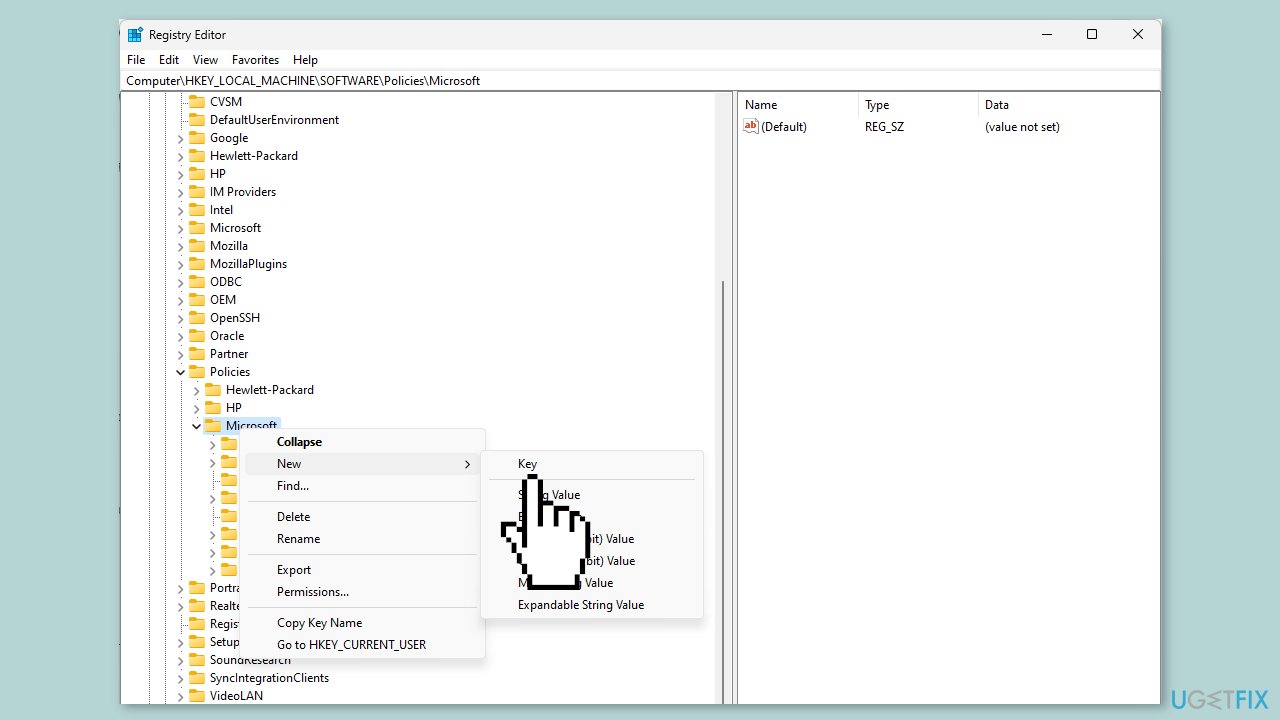
- Right-click the Microsoft key.
- Choose New, then select Key.
- Name the new key as WindowsInkWorkspace.
- Once the WindowsInkWorkspace key is created or located right-click it.
- Select New, then choose DWORD (32-bit) Value.
- Rename the newly created DWORD value as AllowWindowsInkWorkspace.
- Double-click the AllowWindowsInkWorkspace DWORD value.
- Change the Value data to 0.
- Click OK to save the changes.
- Reboot your computer to apply and save the changes you made in the Registry Editor.
Solution 5. Reset Keyboard Settings
- Press the Windows key + I together to open the Settings app.
- Go to Time & Language, and then select Language & region.
- Under Preferred languages, check if there is more than one language listed.
- If you have only one language listed and want to remove it, you'll need to add another language since the primary language can't be removed directly.
- To add a language, click on Add a language.
- In the Choose a language to install window, select the desired language and click Next.
- Click Install to install the selected language.
- Once the new language is installed, locate the old language in the list and click the three horizontal dots icon next to it.
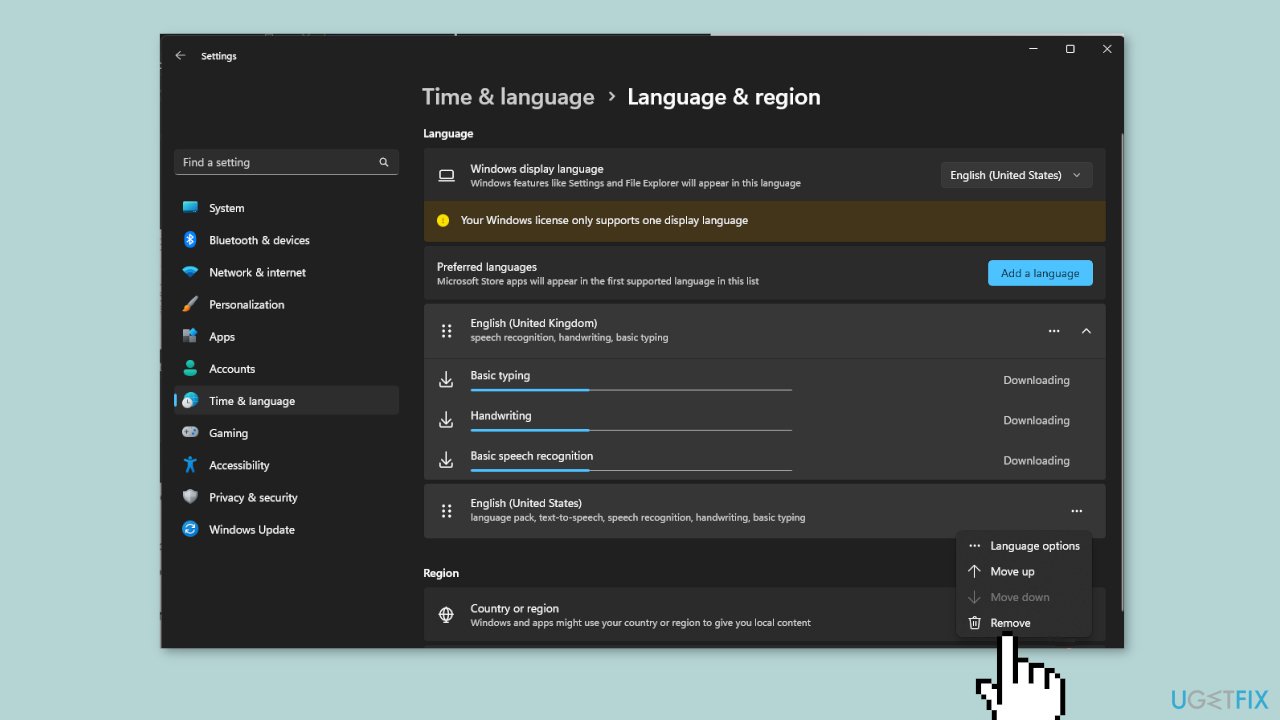
- Choose Remove to reset the keyboard settings associated with that language.
- Now, click Add a language again.
- Follow previous steps to add the preferred language back.
- After adding the language, click on it and then click Move up to set it as the primary language.
Solution 6. Disable Keyboard Shortcuts
- Press the Windows key + R together to open the Run dialog box.
- Type regedit into the Run dialog box and click OK to open the Registry Editor.
- In the Registry Editor, navigate to the following key:
Computer\HKEY_CURRENT_USER\Software\Microsoft\Windows\CurrentVersion\Policies
If the Explorer key isn't present:
- Right-click the Policies key.
- Select New, then choose Key.
- Name the new key as Explorer.
- Once you've located or created the Explorer key:
- Right-click it.
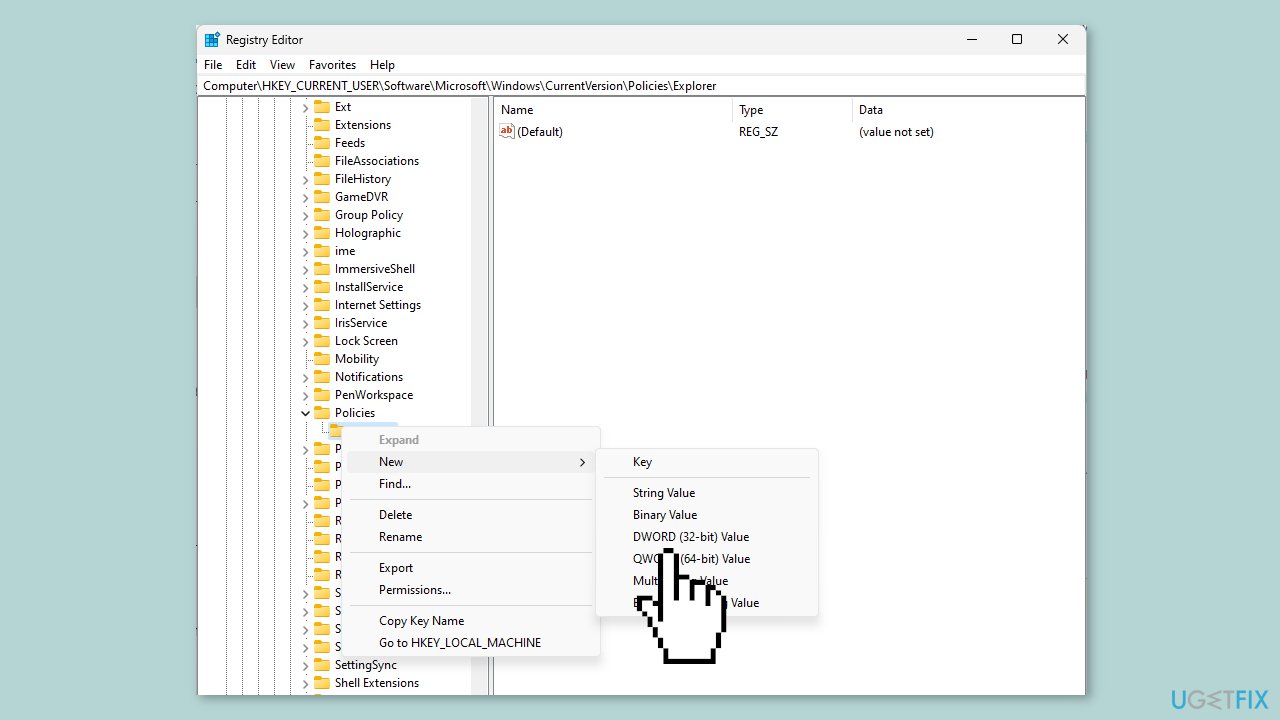
- Choose New, then select DWORD (32-bit) Value.
- Name the DWORD as NoWinKeys or NoKeyShorts.
- Double-click the newly created DWORD value.
- Set the Value data to 1 to turn off shortcuts.
- Click OK to save the changes.
- Reboot your PC to complete the process and apply the changes you made in the Registry Editor.
Bottom line
To fix the issue of the keyboard automatically initiating shortcuts, consider updating the keyboard driver, checking for hardware damage, or disabling the sticky keys function. If these solutions do not resolve the problem, you may want to run a repair tool to fix system errors.
Frequently asked questions
This issue may occur due to sticky keys or a malfunctioning keyboard. Check your keyboard settings and ensure that Sticky Keys is turned off in the Ease of Access settings.
You can disable keyboard shortcuts by going to Settings > Devices > Typing and turning off the 'Show the touch keyboard when not in tablet mode' option, or by checking for any third-party software that may interfere.
Try updating your keyboard drivers through Device Manager, or perform a system scan using the built-in troubleshooter to identify and fix any underlying issues.




Report an issue
What's wrong with this guide? We review every report and update or remove content.
Report received — thank you. We'll review and fix it.
You need a free account to submit a report.
Be the first to comment