How to fix
“Voice/Music only” Bluetooth device
on Windows
Resolve the "Voice/Music only" Bluetooth issue on Windows 10 or 11 effortlessly. Get back to seamless audio with our expert-tested guide!

What causes How to fix “Voice/Music only” Bluetooth device in Windows?
- Bluetooth device connected as 'voice only'
- Bluetooth device connected as 'music only'
- Outdated firmware or drivers
- Incorrect Bluetooth audio profile settings
- Compatibility issues
Repairs Windows system files, removes malware, and restores a clean OS state — without reinstalling.
Hello. I connected a gaming headset to my Windows PC but it is shown as "voice only". How do I fix this?
When attempting to connect Bluetooth speakers or headphones to a Windows computer, the problem of a "Voice/Music only" Bluetooth device connection might occasionally occur. Instead of the anticipated complete stereo audio connection, this condition often entails the device displaying a connection status of "voice only" or "music only." Although Bluetooth speakers and headphones are intended to offer a smooth listening experience, running into this problem might result in restrictions on the audio quality and usefulness.
This problem may have a major negative effect on users' overall auditory experiences. If a Bluetooth device is connected as "voice only," it is not making use of all of its audio features. The sound quality of music, films, and other multimedia items is frequently reduced as a result. The device's adaptability may be restricted if it is connected as "music only," as this may make it difficult to use the microphone for calls or voice commands.
It is feasible to investigate a number of potential solutions to this problem. The Bluetooth device and the Windows PC can both benefit from firmware and driver[ref en-1] upgrades, which should be checked for and applied. Compatibility problems that contribute to this issue can frequently be fixed. A balanced connection can also be established by verifying the Bluetooth audio profile settings on the computer and making sure they are properly set up for both audio playback and microphone use.
In this guide, you will find 5 steps that should help you fix a "Voice/Music only" Bluetooth device. You can also run a maintenance tool like [d1] that can fix most system errors, BSODs,[ref en-2] corrupted files, and registry[ref en-3] issues. Otherwise, follow the step-by-step instructions below.
Solution 1. Run the Bluetooth Troubleshooter
- Press the Windows key + I to open Settings.
- In the System tab, scroll down and click on Troubleshooter.
- Select the Other troubleshooters option.
- Click Run for the Bluetooth option.
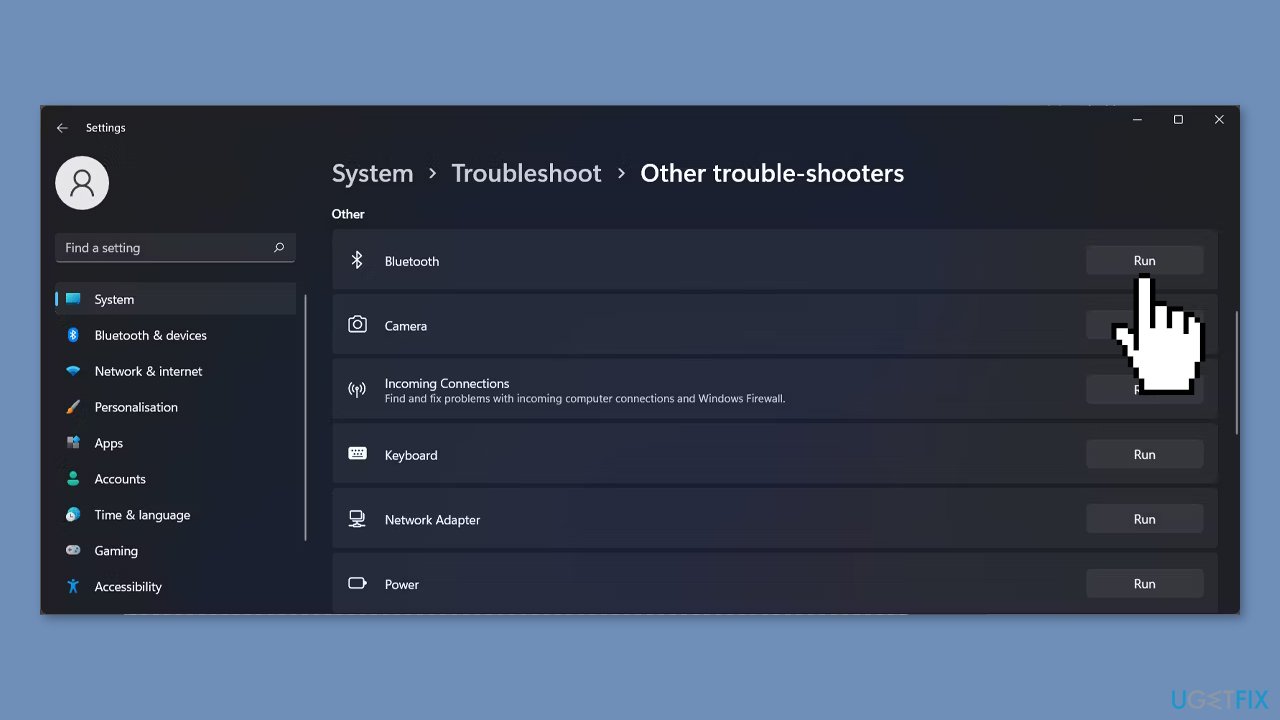
- The troubleshooter will scan the system for issues and recommend applicable fixes automatically.
- Follow the on-screen instructions to apply the fixes.
- This will open the Get Help app seeking your consent to run the troubleshooter.
- Click Yes and then follow the on-screen instructions.
- You can skip some steps, like checking for Windows updates, by selecting the No option.
Solution 2. Enable Bluetooth Services
- Press the Windows key + R to open Run.
- Type control printers and click OK to open the Bluetooth & devices tab in the Settings app.
- Click on Devices.
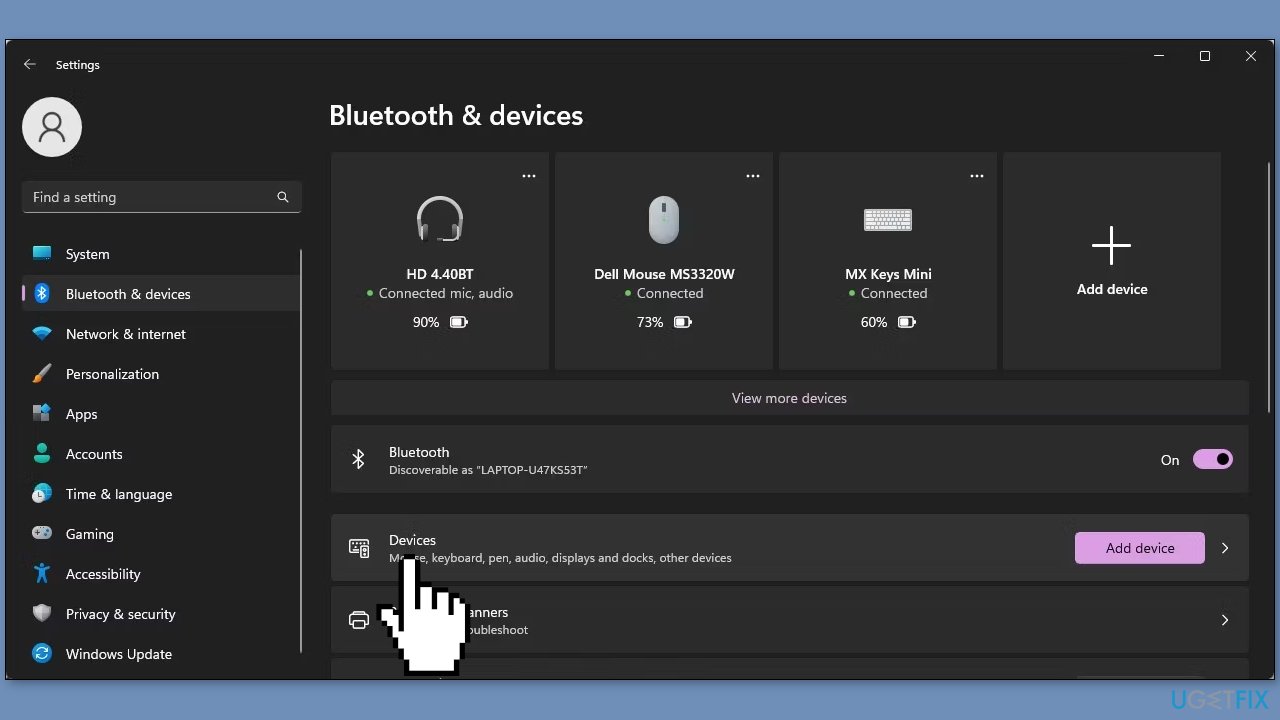
- Scroll down and click on More devices and printer settings. This should open Devices and Printers in the Control Panel.
- Alternatively, you can copy and paste the following into the Run dialog to directly open Devices and Printers: shell:::{A8A91A66-3A7D-4424-8D24-04E180695C7A}
- Right-click on your Bluetooth headset or speaker and select Properties.
- Open the Services tab in the Properties dialog.
- Under Bluetooth services, select all the options. These typically include:
Audio Sink
Handsfree Telephony
Remote Control
Remotely Controllable Device
- Click Apply and OK to save the changes.
Solution 3. Enable the Windows Bluetooth Services
- Press the Windows key + R to open Run.
- Type services.msc and click OK to open the Services app.
- In the Services window, locate the following services and check their status (should show Running):
Bluetooth Audio Gateway Service
Bluetooth Support Service
Bluetooth User Support Service
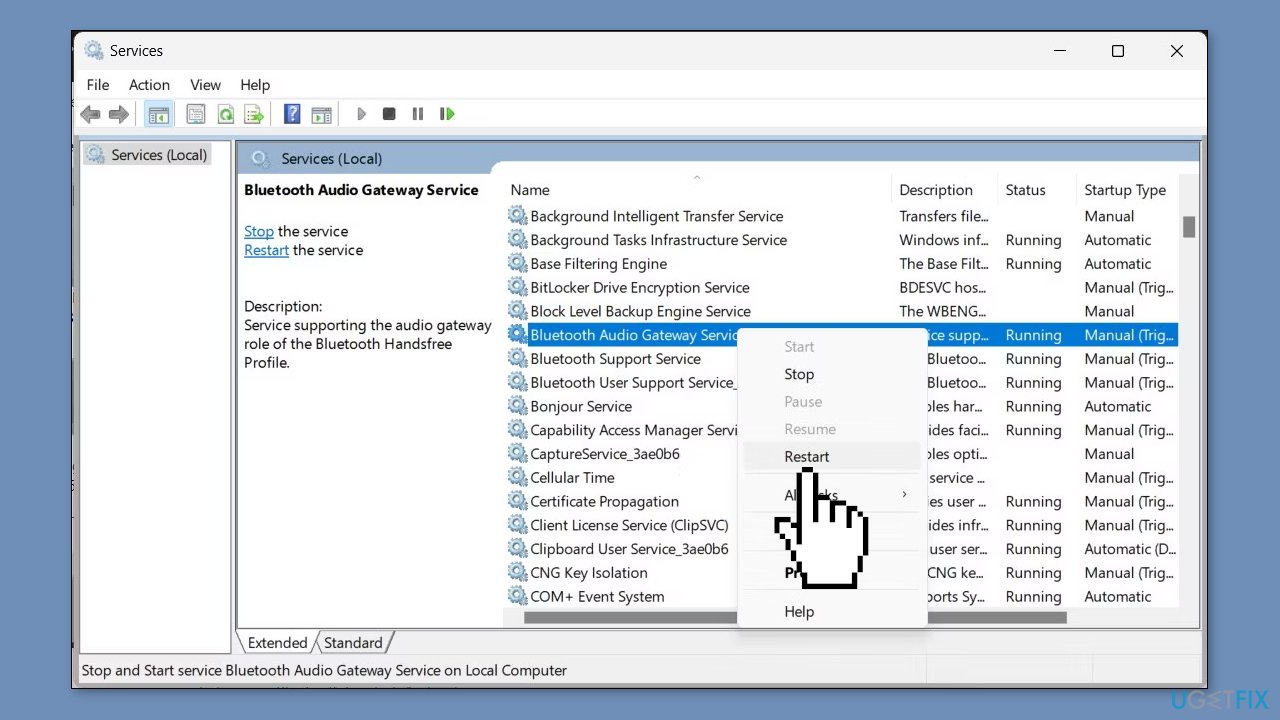
- If any of the services are not running:
- Right-click on Bluetooth Audio Gateway Service and select Restart.
- Check the status of the other two services.
- If they are not running, restart them one by one.
- Close the Services window.
- Check for any improvements in the Bluetooth functionality.
Solution 4. Update the Bluetooth Driver Manually
- Press the Windows key + R to open Run.
- Type devmgmt.msc and click OK to open Device Manager.
- Expand the Bluetooth section.
- Locate your Bluetooth device's make (e.g., Intel (R) Wireless Bluetooth (R)).
- Double-click on the Bluetooth device entry to open its properties.
- Open the Driver tab and make a note of the Driver version for reference.
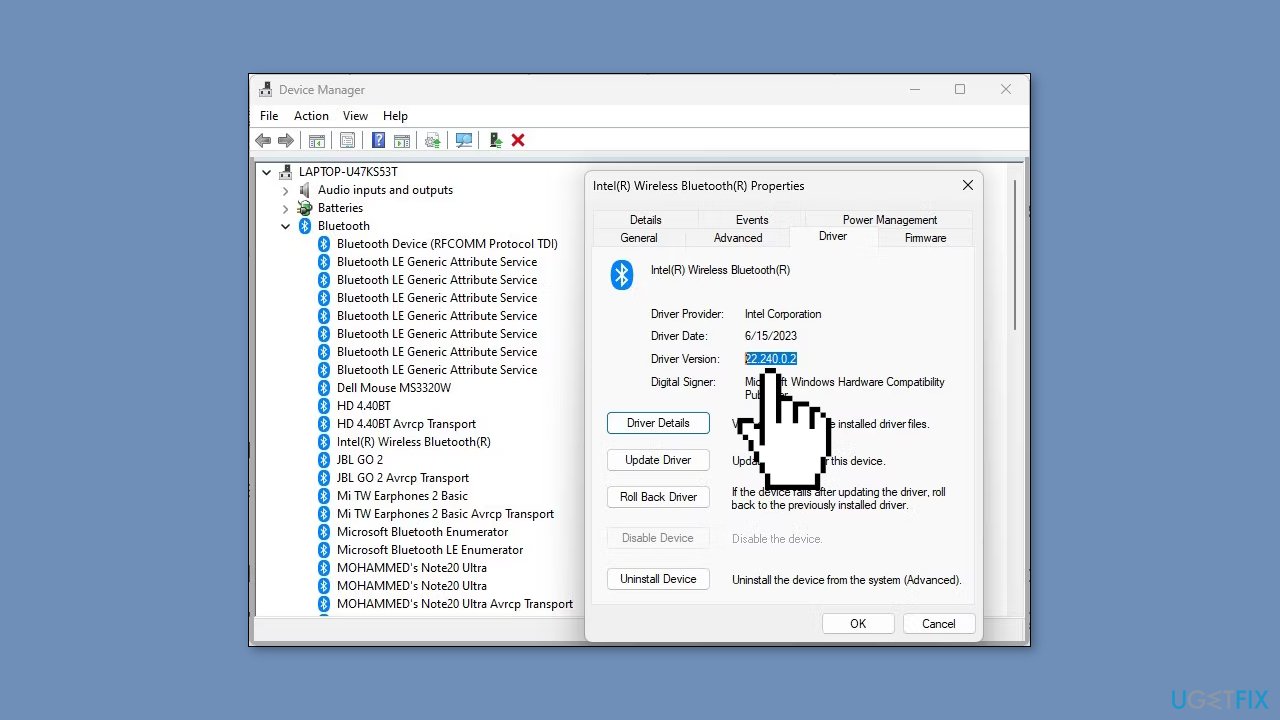
- If you have an Intel Bluetooth Wireless device:
- Visit the Intel Wireless Bluetooth for Windows page to find the latest driver version available for download.
- For devices from other manufacturers, visit the respective manufacturer's website and find downloads for your Bluetooth device.
- Compare the downloaded driver version with the one on your computer.
- If a newer version is available, download it.
- Run the installer and follow the installation steps.
You can also use a dedicated utility, like [rev id="DriverFix"] that can find the best drivers for your machine and install them automatically.
Solution 5. Reinstall Bluetooth Driver
- Open the Power menu by pressing the Windows key + X.
- Select Device Manager from the menu.
- Double-click the category containing the device driver you wish to remove.
- Right-click on the specific device and choose Uninstall device from the context menu.
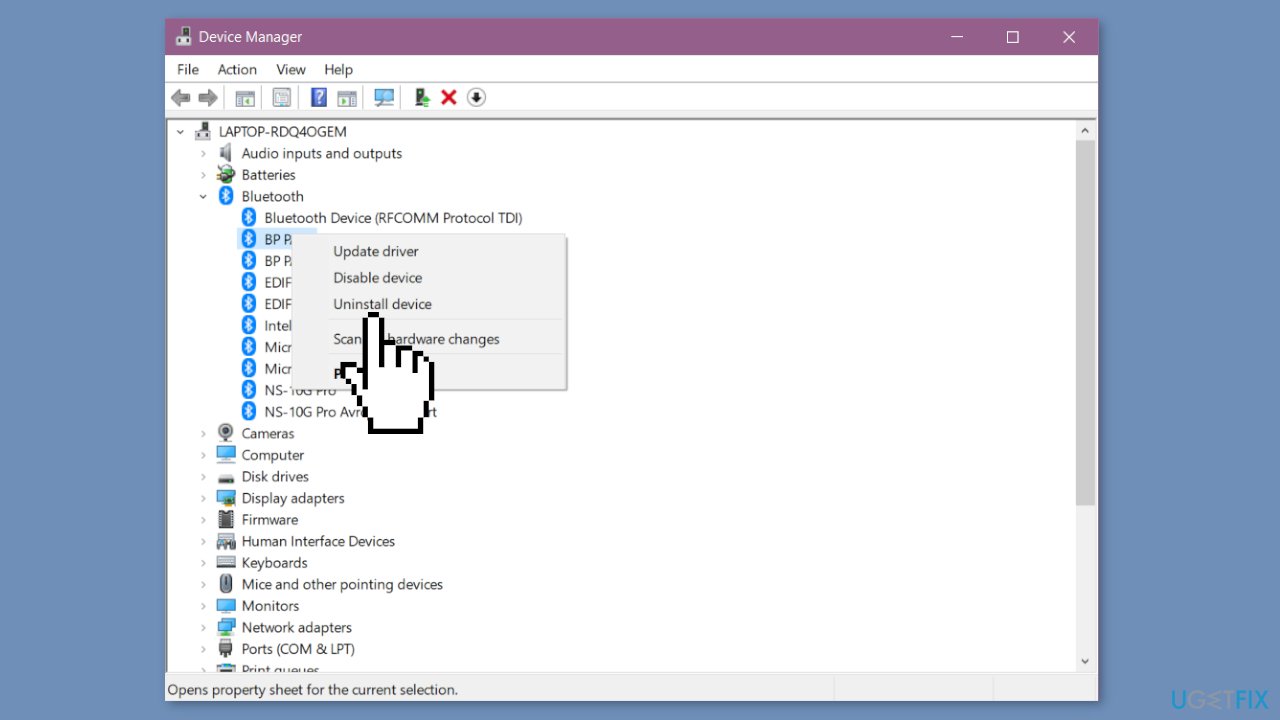
- Confirm the uninstallation by clicking on Uninstall.
- Restart your computer.
Bottom line
To fix the 'Voice/Music only' Bluetooth device issue, you can run the Bluetooth troubleshooter, check for firmware and driver updates, and verify the Bluetooth audio profile settings. If these steps do not resolve the problem, consider using a maintenance tool to address system errors.
Frequently asked questions
This issue typically occurs when your Bluetooth device is not properly configured or lacks the necessary drivers. Ensure that you have the latest Bluetooth drivers installed and check your device settings in Windows 10.
To change the audio profile, go to Settings > Devices > Bluetooth & other devices, select your Bluetooth device, and adjust the audio settings to prioritize high-quality audio instead of voice.
If updating drivers doesn't resolve the issue, try removing the Bluetooth device from your paired devices list and then re-pairing it, which can often reset its audio capabilities.




Report an issue
What's wrong with this guide? We review every report and update or remove content.
Report received — thank you. We'll review and fix it.
You need a free account to submit a report.
Be the first to comment