How to fix
Error Code: 0xa297sa
on Windows
Resolve the 0xa297sa error quickly on Windows 10 or 11. Get expert-tested solutions that restore your system's functionality in minutes.

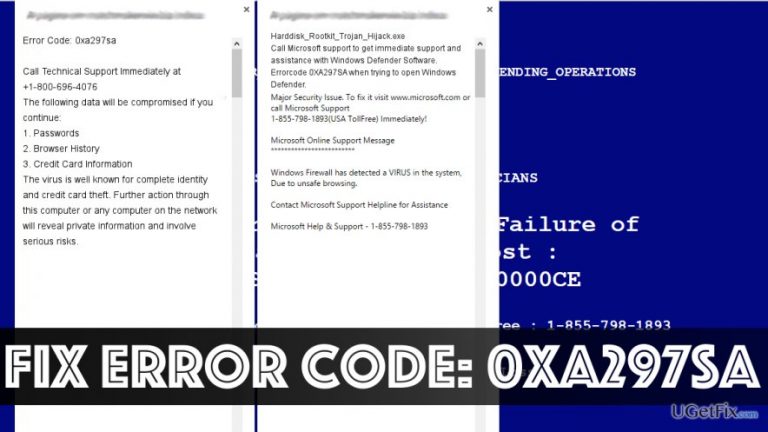
What causes How to Fix Error Code: 0xa297sa?
- Tech support scam malware installed
- Deceptive pop-ups suggesting to call scam numbers
- Phishing sites claiming system infection
- Potential loss of money from buying suggested software
Repairs Windows system files, removes malware, and restores a clean OS state — without reinstalling.
My browser continuously opens pages that warn me about Error Code: 0xa297sa. These alerts typically say that my computer has been blocked and that I must call Microsoft Safety & Security Center. How can I fix this error without calling Microsoft?
If your computer keeps displaying Error Code: 0xa297sa pop-ups, it means that you have a tech support scam malware installed on your computer. It doesn’t, however, mean that you need to call Microsoft support for help, especially via numbers provided by these deceptive pop-ups. If you do, it is very likely that scammers will attempt to trick you into performing tasks that could damage your computer or pose a threat to your privacy.
Finally, you could end up losing money if you decide to buy software suggested by scammers. These phishing sites appearing on your screen might suggest that your system was affected by Harddisk_Rootkit_Trojan_Hijack.exe and urge you to call +1-800-696-4076 or another scam number. Do not do that if you value your time and money. You do not need to find some sophisticated fix for Error Code: 0xa297sa; instead, just remove the tech support scam virus from your system using these easy steps:
Fix Error Code: 0xa297sa easily
Windows users should follow this guide:
- First of all, you will need to close the browser that’s displaying you these pop-ups. Hit Ctrl+Alt+Del to open Windows Task Manager.
- Close the browser that’s sending you the annoying alerts: select the right process, and select End Task.
- Now, reboot your PC into Safe Mode with Networking. There are two ways to do it. You can just restart your PC and start tapping the F8 key on your keyboard as soon as the computer beeps and then use arrow keys to select Safe Mode with Networking and click Enter afterward. You can also just press Windows Key + R at the same time and type msconfig into the Run box. Hit OK, then go to Boot tab and under Boot options select Safe boot. Click OK. Once a pop-up asking when do you want to restart appears, select Restart.
- Now that your computer is in a Safe Mode with Networking, you can start scanning your computer system with the anti-malware program you have. Make sure you update it first. If you do not have a security software, you can try to download it while the computer is in the Safe Mode with Networking. This way, the tech support malware won’t try to interrupt your attempts to launch the security software. We highly recommend using [d1] software, which can not only delete malicious programs from your PC but optimize it afterward the malware removal. In our opinion, it is a great feature.
- Once you have an up-to-date security program on your system, launch it and start scanning the system thoroughly.
- As soon as the anti-malware software detects all dangerous configurations in system settings and malicious files, let it fix them all automatically.
Mac users should follow this guide:
- The first thing you want to do is to kill the browser that's freezing your Mac and urging you to call the scammers. Therefore, you should click Command+Option+Escape at the same time. Then select the browser that's displaying these Error Code: 0xa297sa pop-ups and select Force Quit.
- Now scan your Mac with anti-malware software that is compatible with Macs. For programs that could fix your Mac, see this software review page provided by 2-Spyware team.
Bottom line
To fix Error Code: 0xa297sa, close the browser displaying the pop-ups, reboot your PC into Safe Mode with Networking, and follow the provided steps to remove the scam virus. If these steps do not resolve the issue, consider seeking professional help.
Frequently asked questions
Error Code: 0xa297sa is typically caused by corrupted system files or issues with Windows updates. It can also occur due to conflicts with third-party software.
You can fix this error by running the Windows Troubleshooter, performing a system file check using the command 'sfc /scannow', or resetting Windows Update components.
To prevent this error, keep your Windows 10 system updated, regularly run system maintenance tools, and avoid installing unverified third-party applications.




Report an issue
What's wrong with this guide? We review every report and update or remove content.
Report received — thank you. We'll review and fix it.
You need a free account to submit a report.
Be the first to comment