How to fix
Windows update error 0x8007000e
on Windows
Resolve Windows update error 0x8007000e effortlessly with our expert-tested solutions. Get your system back on track in minutes!


What causes How to fix Windows update error 0x8007000e?
- Damaged system files
- Incompatibilities with outdated device drivers
- Software that doesn't work properly with the update procedure
- Corrupted files
- Registry issues
Repairs Windows system files, removes malware, and restores a clean OS state — without reinstalling.
Hello. When I try to update Windows I get the 0x8007000e error. Is there a way to fix this?
The common problem of Windows Update error 0x8007000E may prevent the smooth updating of the Windows operating system. This error code frequently results from a number of issues, such as damaged system files, incompatibilities with outdated device drivers, or software that doesn't work properly with the update procedure. It might appear as a frustrating barrier for users trying to keep their systems up to date and is characterized by a failure to download or install updates.
The effects of running into error 0x8007000E might have a big impact on users. Maintaining the overall stability and security of the operating system depends heavily on performing regular Windows updates. Updates are intended to fix security holes, improve system responsiveness, and provide new features. Users are exposed to potential security threats, software incompatibilities, and missed performance enhancements when this issue stops updates from being installed. In essence, the issue might degrade user experience and hamper overall system stability.
Additionally, error 0x8007000E may cause problems with numerous programs and gadgets. In some circumstances, an update could offer crucial corrections or improvements that guarantee smooth communication between the operating system and hardware or software components. Users may experience functionality issues, crashes, or even system instability when using particular apps or devices when updates cannot be implemented owing to the error.
In this guide, you will find 6 steps that should help you fix Windows update error 0x8007000e. You can also run a maintenance tool like [d1] that can fix most system errors, BSODs,[ref en-1] corrupted files, registry[ref en-2] issues, or clear cookies and cache.[ref en-3] Otherwise, follow the step-by-step instructions below.

Method 1. Fix Corrupted System Files
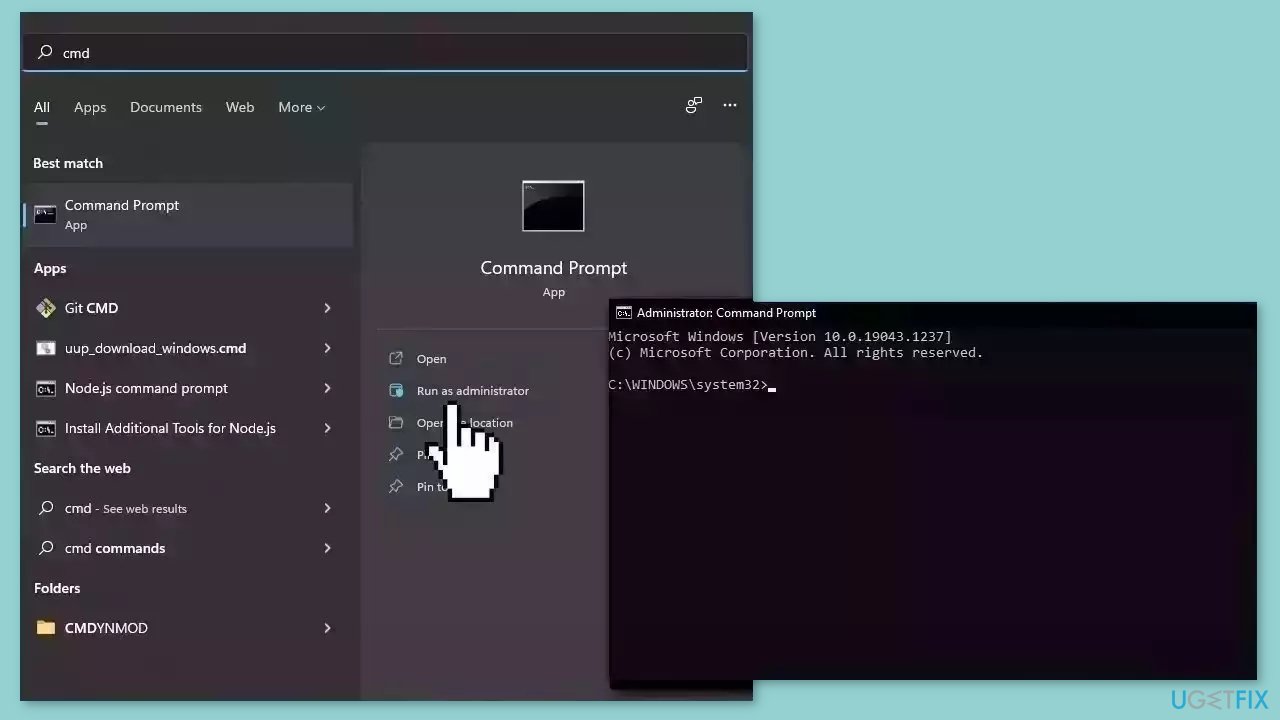
Use Command Prompt commands to repair system file corruption:
- Open Command Prompt as administrator
- Use the following command and press Enter:
sfc /scannow
- Reboot your system
- If SFC returned an error, then use the following command lines, pressing Enter after each:
DISM /Online /Cleanup-Image /CheckHealth
DISM /Online /Cleanup-Image /ScanHealth
DISM /Online /Cleanup-Image /RestoreHealth
Method 2. Run Windows Update Troubleshooter
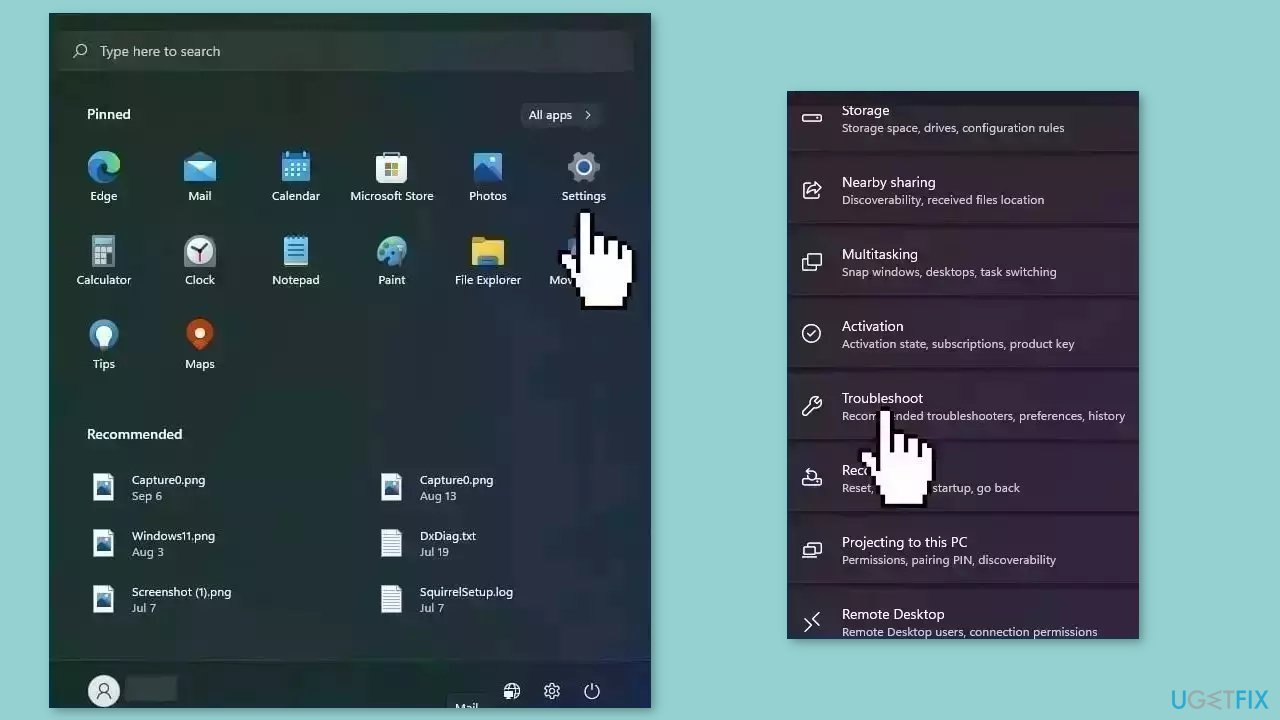
- Press the Windows key + I to open Windows Settings.
- Within the Windows Settings, navigate to the System tab.
- Scroll down the options in the System tab and locate Troubleshoot; click on it.
- Inside the Troubleshoot screen, find and select the Other troubleshooters option.
- A list of various troubleshooters will be displayed.
- Look for the Windows Update troubleshooter in the list.
- Click on the Run button associated with the Windows Update troubleshooter.
- Allow the troubleshooter to complete its process.
- Once the troubleshooter finishes, check your computer to determine if the issue has been resolved.
Method 3. Rename SoftwareDistribution Folder
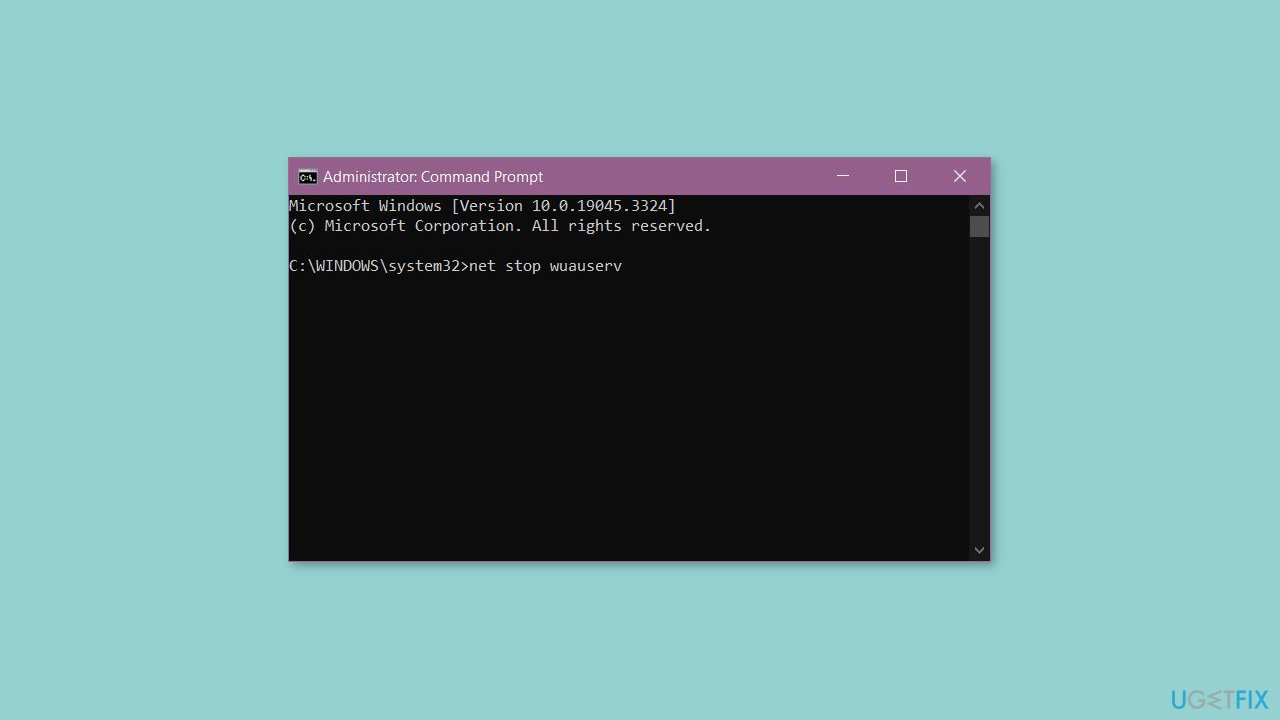
- Open Command Prompt (Admin).
- Enter the following command and press Enter:
net stop wuauserv
net stop bits
net stop msiserver
net stop CryptSvc
- Run the following command:
ren %systemroot%\SoftwareDistribution SoftwareDistribution.old
- Start the Windows update-related services using the following command:
net start wuauserv
net start bits
net start msiserver
net start CryptSvc
- Close Command Prompt.
- Restart your PC.
Method 4. Check Windows Update Service
- Press the Windows key + R together.
- Type services.msc and then press OK.
- Double-click on the Windows Update option.
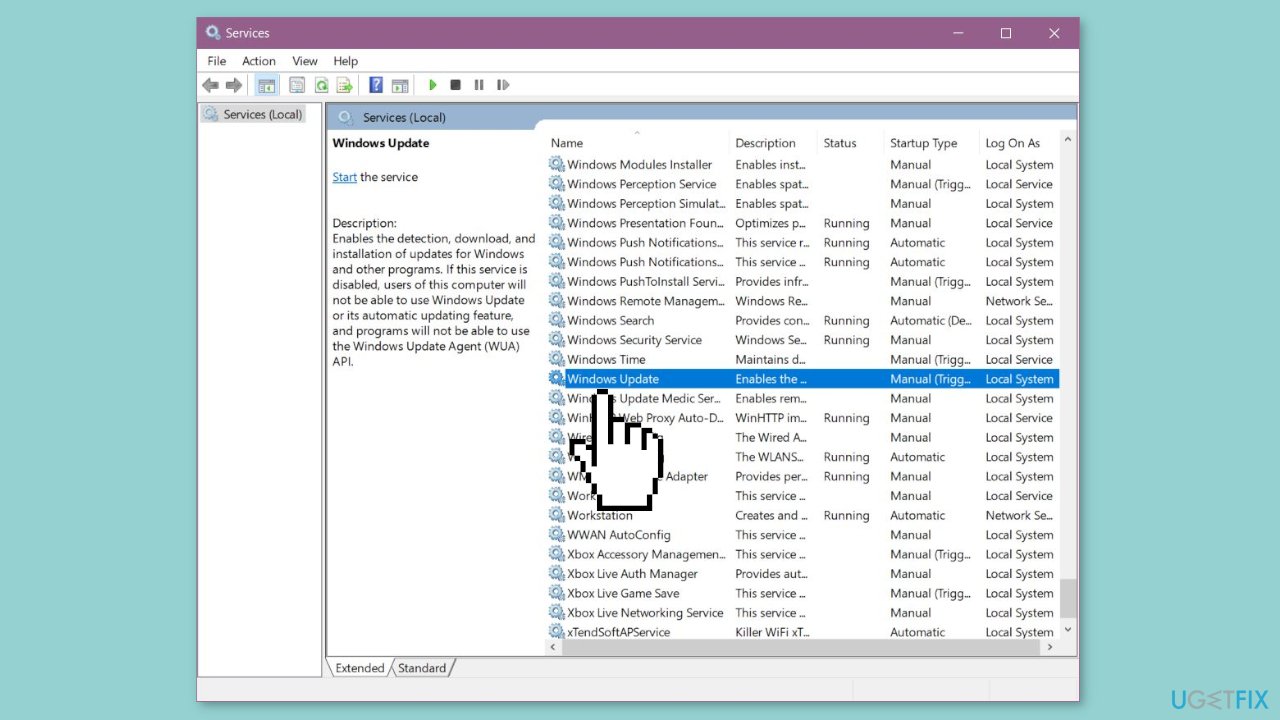
- If not already chosen, select Automatic from the Startup type dropdown.
- In the Running status field, click on Start.
- Apply the changes and then click OK.
Method 5. Clean Windows Download Path
- Press the Windows key + R together.
- Type regedit and press Enter.
- Navigate to the following path in the Registry Editor:
HKEY_LOCAL_MACHINE\SOFTWARE\Policies\Microsoft\Windows\WindowsUpdate
- Locate the entries named WUServer and WIStatusServer in the right panel.
- If either or both of these entries are listed, delete them.
- Restart your computer.
Method 6. Install the Update Manually
Whenever Windows updates fail to install automatically, you can always try doing it manually. First, you need to find out which KB number is relevant to you.
- Right-click Start button and pick Settings.
- Go to Update & Security.
- On the right, locate and click View update history.
- From the list, note the KB number that fails to install with the error code.
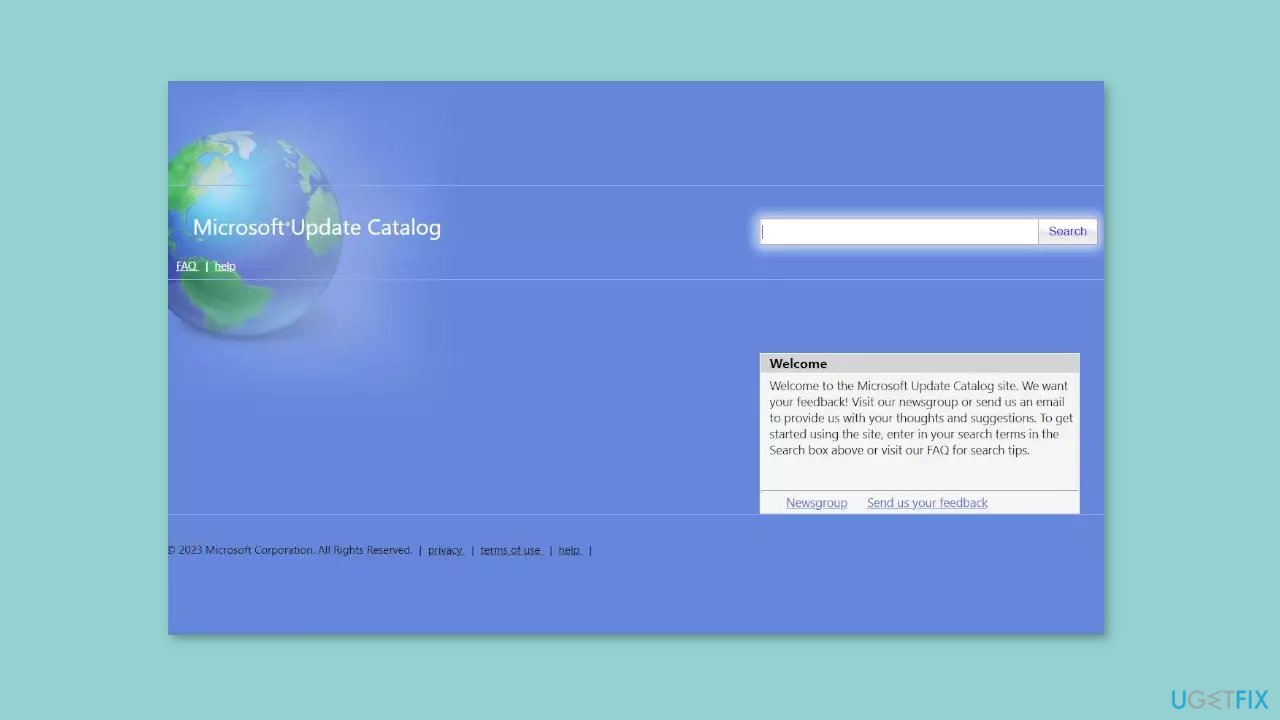
- Go to Microsoft Update Catalog page, type in the KB number, and press Search.
- Download the update and install it manually.
Bottom line
To fix Windows update error 0x8007000E, you can repair corrupted system files using Command Prompt commands, run a maintenance tool, or check for outdated drivers. If these methods do not resolve the issue, consider seeking further assistance or exploring additional troubleshooting steps.
Frequently asked questions
The error 0x8007000e typically indicates that there is insufficient memory to complete the Windows update process on Windows 10 or Windows 11.
To fix the error 0x8007000e on Windows 10, try freeing up disk space, running the Windows Update Troubleshooter, or performing a system file check.
Yes, you can attempt to fix error 0x8007000e on Windows 11 by clearing the SoftwareDistribution folder and resetting the Windows Update components.




Report an issue
What's wrong with this guide? We review every report and update or remove content.
Report received — thank you. We'll review and fix it.
You need a free account to submit a report.
Be the first to comment