How to fix
Windows freezes when printing
on Windows
Resolve printing-related freezes on Windows 10 and 11 effortlessly. Get expert-tested solutions to get your printing back on track, fixed in minutes.

What causes How to fix Windows freezes when printing?
- Old printer drivers
- Incorrect printer settings
- Faulty cache information
- Damaged print queue
- Incompatible print spooler configurations
Repairs Windows system files, removes malware, and restores a clean OS state — without reinstalling.
Hello. When I attempt to print, Windows freezes up. Why is this happening? Any tips would be appreciated.
Users may encounter an irritating and inconvenient problem if Windows freezes during printing. When trying to print documents, this issue might cause the entire system to abruptly stop, preventing users from doing anything else or even using their computer until the problem is fixed.
Old printer drivers,[ref en-1] incorrect settings, and faulty cache information pertaining to printing processes are frequently cited as the primary reasons for this problem. When trying to start print tasks, the operating system may freeze due to outdated or incompatible printer drivers causing compatibility problems. Problems with freezing can also be caused by incorrectly specified settings, such as incompatible printer settings or inappropriate print spooler configurations. Furthermore, a damaged print queue or cached print data can build up over time, disrupting printing and perhaps causing system freezes.
Users have access to a number of alternative options to deal with these freezing issues. Freezes caused by compatibility issues can frequently be fixed by updating printer drivers to the most recent versions that are compatible with the operating system. Furthermore, misconfiguration-related freezes can be avoided by verifying and configuring printer settings to make sure they are properly aligned with the system's requirements. Affected difficulties can often be resolved by restarting the print spooler, clearing the print queues, and clearing the cache.
In this guide, you will find 5 steps that should help you fix Windows freezing when printing. You can also run a repair tool like [d1] that can fix most system errors, BSODs,[ref en-2] corrupted files, and registry[ref en-3] issues. Otherwise, follow the step-by-step instructions below.
Solution 1. Fix Corrupted System Files
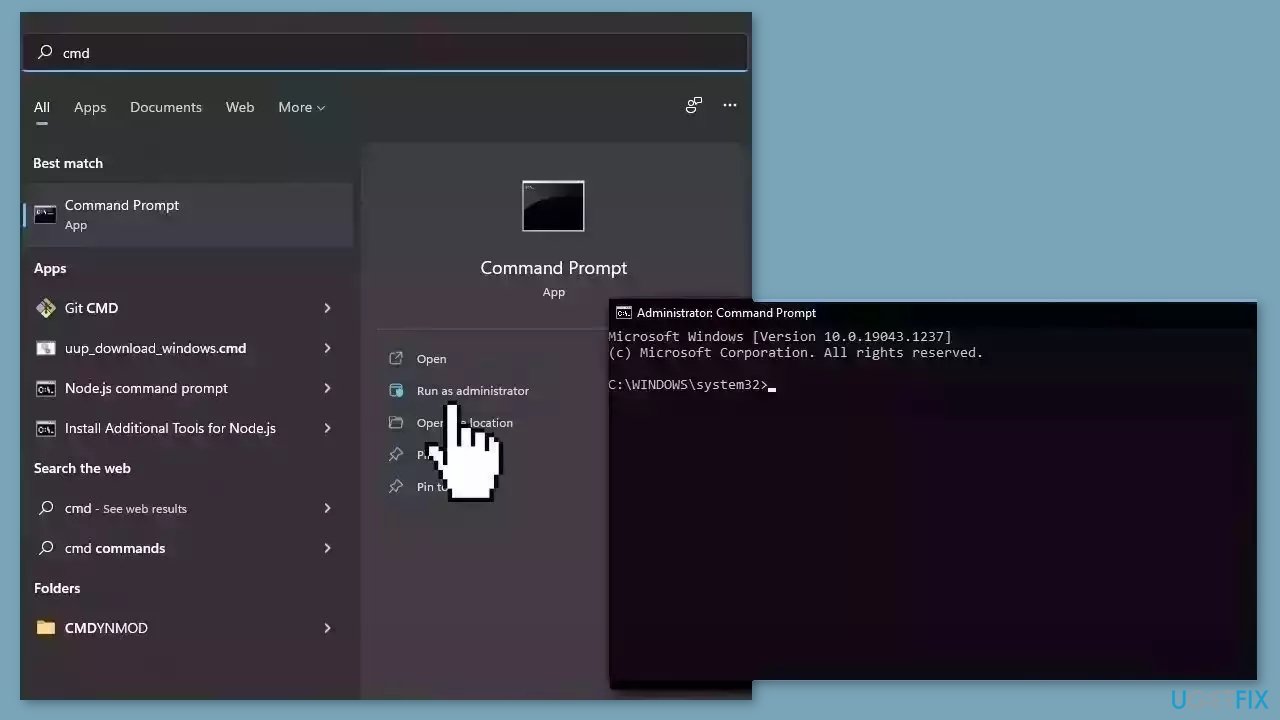
Use Command Prompt commands to repair system file corruption:
- Open Command Prompt as administrator
- Use the following command and press Enter:
sfc /scannow
- Reboot your system
- If SFC returned an error, then use the following command lines, pressing Enter after each:
DISM /Online /Cleanup-Image /CheckHealth
DISM /Online /Cleanup-Image /ScanHealth
DISM /Online /Cleanup-Image /RestoreHealth
Solution 2. Change the Default Printer
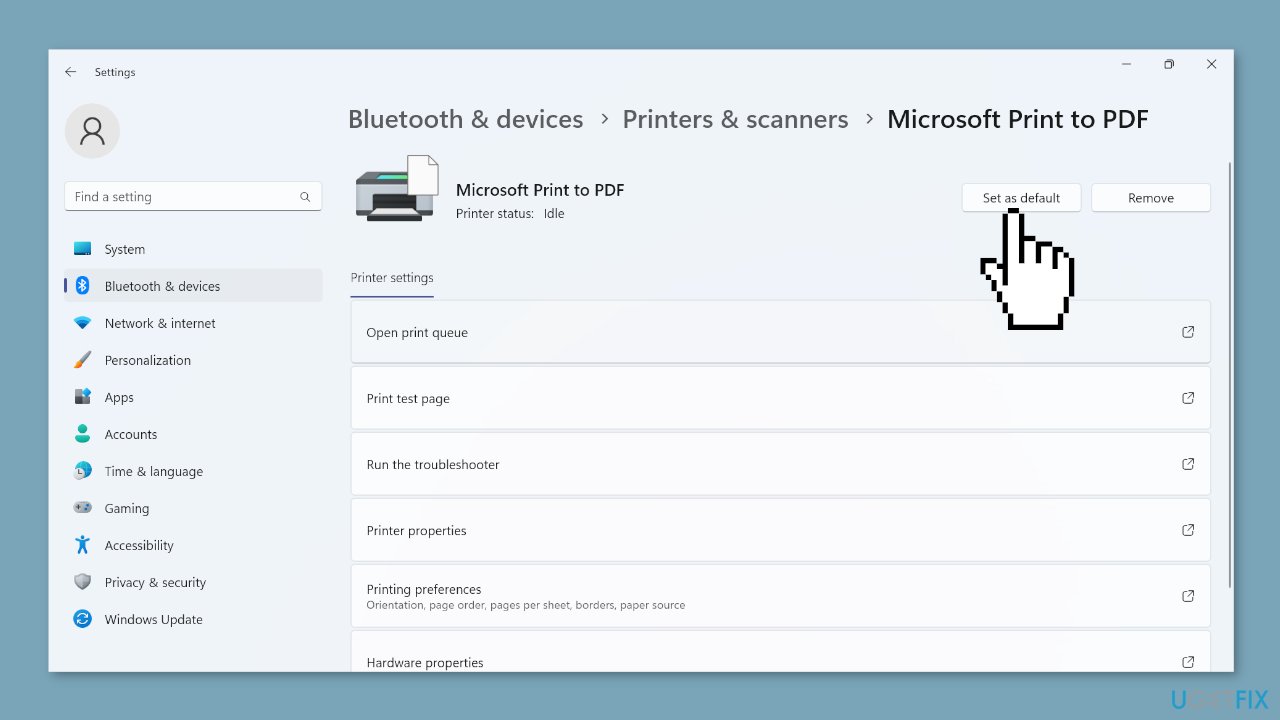
- Press the Windows key + I to open the Settings menu.
- In the navigation pane, select Bluetooth & devices.
- Click on Printers & scanners.
- Find the toggle for Let Windows manage my default printer and turn it off.
- Locate the printer that is causing issues and that you want to set as the default.
- Click on the desired printer to select it.
- Click the Set as default button to make the selected printer the default one.
Solution 3. Restart the Print Spooler Service
- Press the Windows key + R to open the Run dialog.
- Type services.msc in the text field and press Enter.
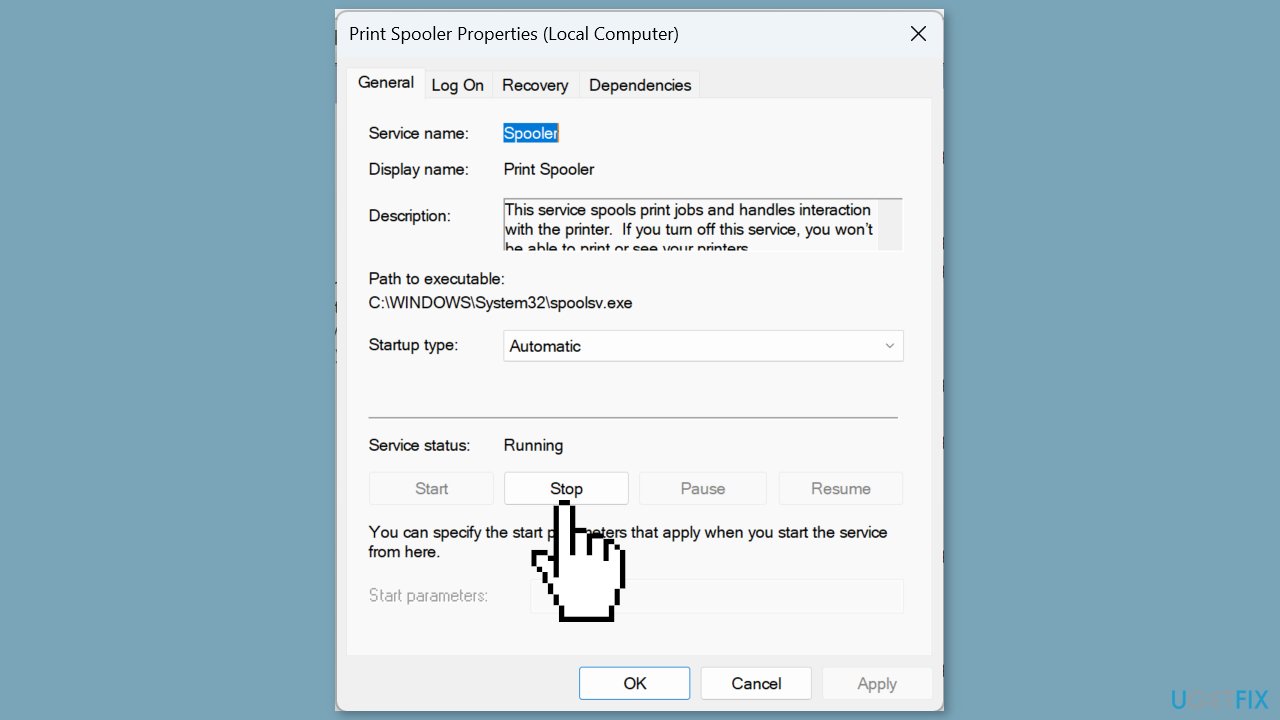
- In the Services window, locate the Print Spooler service.
- Right-click on the Print Spooler service and choose Properties.
- Click the Stop button within the Properties window.
- Press the Windows key + E to open File Explorer.
- In the address bar of File Explorer, paste the following path: C:\Windows\System32\spool\PRINTERS
- Press Enter to navigate to the specified directory.
- Press Ctrl + A to select all the files in the PRINTERS folder.
- Hit the Delete key to clear all the selected files.
- Return to the Services window.
- In the Properties window of Print Spooler, locate the Startup type dropdown menu.
- Select Automatic from the dropdown menu.
- Click the Start button.
- Click OK to save the changes and close the Properties window.
Solution 4. Update the Printer Driver
- Press the Windows key + X to open the Power User menu.
- Select Device Manager from the menu.
- Expand the Printers entry in Device Manager.

- Right-click on the printer that is experiencing issues.
- Choose Update driver from the context menu.
- Select Search automatically for drivers and wait for Windows to find and install the best available driver locally.
- Once the driver installation is complete, restart the computer.
Solution 5. Select a Different Port
- Press the Windows key + S to open the Search function.
- Type Printers & scanners in the search field and click on the relevant search result.
- Choose the default printer or the one causing problems.
- Click on Printer properties.
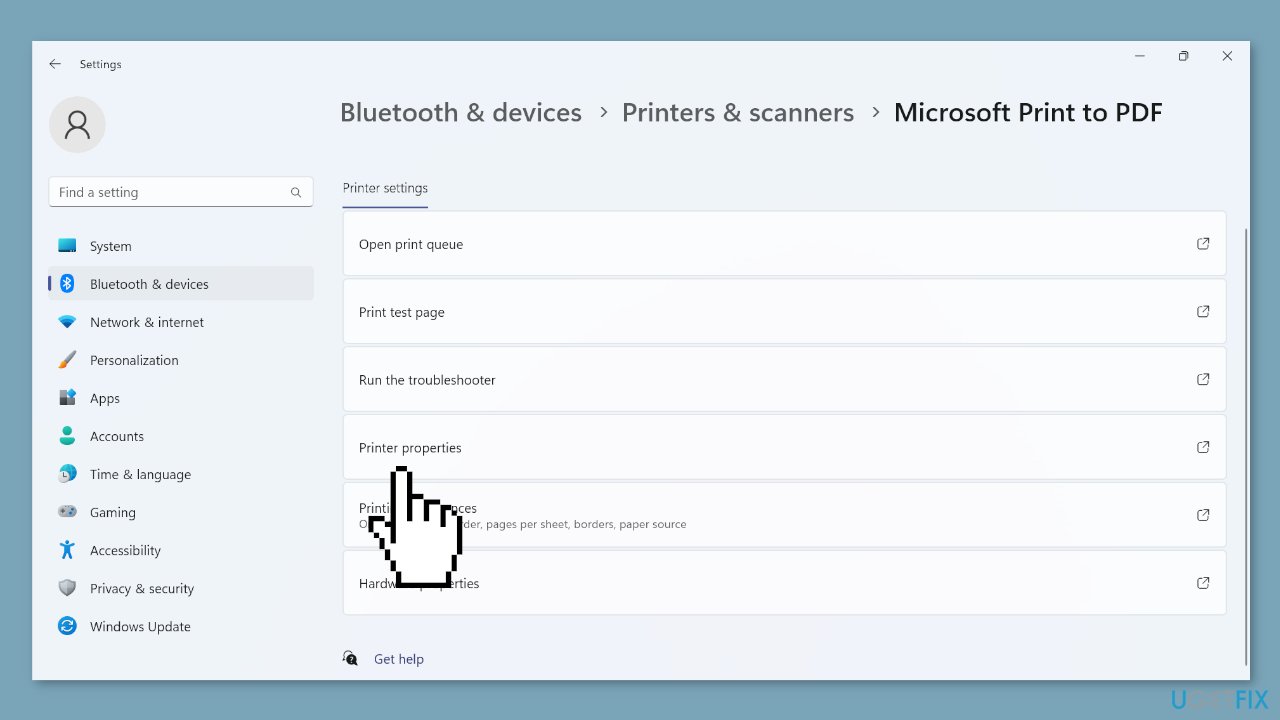
- Navigate to the Ports tab within the printer properties.
- From the list of available ports, select a different port.
- Click the OK button to confirm and save the changes.
Bottom line
To fix Windows freezing when printing, users can update printer drivers, verify and configure printer settings, restart the print spooler, and clear print queues and cache. If these solutions do not resolve the issue, consider running a repair tool to fix system errors.
Frequently asked questions
You can start by updating your printer drivers through Device Manager or the manufacturer's website, as outdated drivers often cause freezing issues. Additionally, check for Windows updates that might address compatibility problems.
Yes, ensure that the Print Spooler service is running properly by accessing 'Services' and restarting it if necessary. Also, consider adjusting the printer's settings to reduce the complexity of print jobs.
Try printing from a different application to determine if the issue is isolated; if it is, reinstall or update that specific application. If the problem persists, consider resetting the application settings or reinstalling the software.




Report an issue
What's wrong with this guide? We review every report and update or remove content.
Report received — thank you. We'll review and fix it.
You need a free account to submit a report.
Be the first to comment