How to fix
“No battery is detected” error
on Windows
Resolve the "No battery is detected" error on Windows 10 and 11 with our expert-tested solutions. Fix it in minutes and get back to work!

What causes How to fix “No battery is detected” error in Windows?
- Bad or malfunctioning battery
- System-level issues
- Improper battery placement
- Outdated or corrupted battery drivers
- BIOS settings misconfiguration
Repairs Windows system files, removes malware, and restores a clean OS state — without reinstalling.
Hello. I get the "No battery is detected" error every time I boot up my Windows laptop. What should I do?
When using laptops or other portable devices, users may see the Windows "No battery is detected" error. This error message often signifies that the device's battery cannot be detected by the operating system. Although the exact source of this error is unpredictable, a bad or malfunctioning battery is frequently blamed for it. It may also be the result of system-level issues.
The "No battery is detected" problem can cause users to encounter a number of annoyances and restrictions when using their devices. The inability to rely on battery power makes the gadget dependent on a continual external power supply, which is one of the most noticeable effects. Being reliant on power sources drastically reduces the device's portability and convenience. This problem can hinder mobile computing for people who use laptops for work or travel by interfering with their workflow.
The mistake may also have an impact on operating system settings and features that have to do with batteries. Users might not be able to view their battery status, determine how much longer their batteries will last, or change their power-saving settings as usual. Users' ability to efficiently manage their device's power usage may be hampered by this lack of visibility and control over battery-related aspects.
Users can look at a few potential fixes to deal with the "No battery is detected" problem. These remedies could entail resetting the BIOS settings, updating or reinstalling battery drivers,[ref en-1] verifying physical connections to make sure the battery is properly placed, or even changing the battery if it turns out to be bad.
In this guide, you will find 5 steps that should help you fix "No battery is detected" error. You can also run a system repair tool like [d1] that can fix most system errors, BSODs,[ref en-2] corrupted files, and registry[ref en-3] issues. Otherwise, follow the step-by-step instructions below.

Solution 1. Install Windows Updates
- Press the Windows key + R to open the Run box.
- Type ms-settings:windowsupdate in the text box and press Enter.
- Click the Check for updates button.
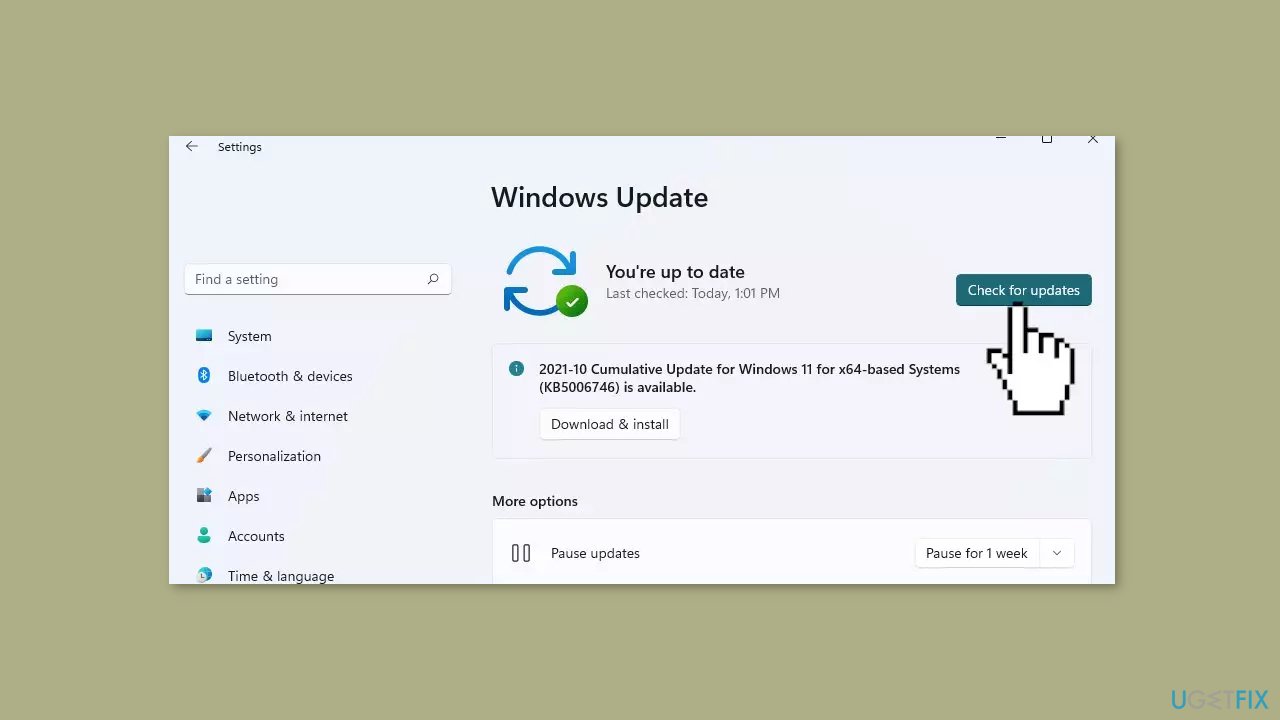
- If a new update is available, click the Download & Install all button.
- Restart your computer after the process is finished and check to see if the problem is fixed.
Solution 2. Check the Battery Status
- Press the Windows key + R to open the Run dialog box.
- Type devmgmt.msc and then press Enter to open the Device Manager.
- Double-click on the Batteries option to expand it.
- Right-click on each of the Battery adapters (one at a time) and select Properties from the menu options.
- In the Properties window, examine the information in the Device status box.
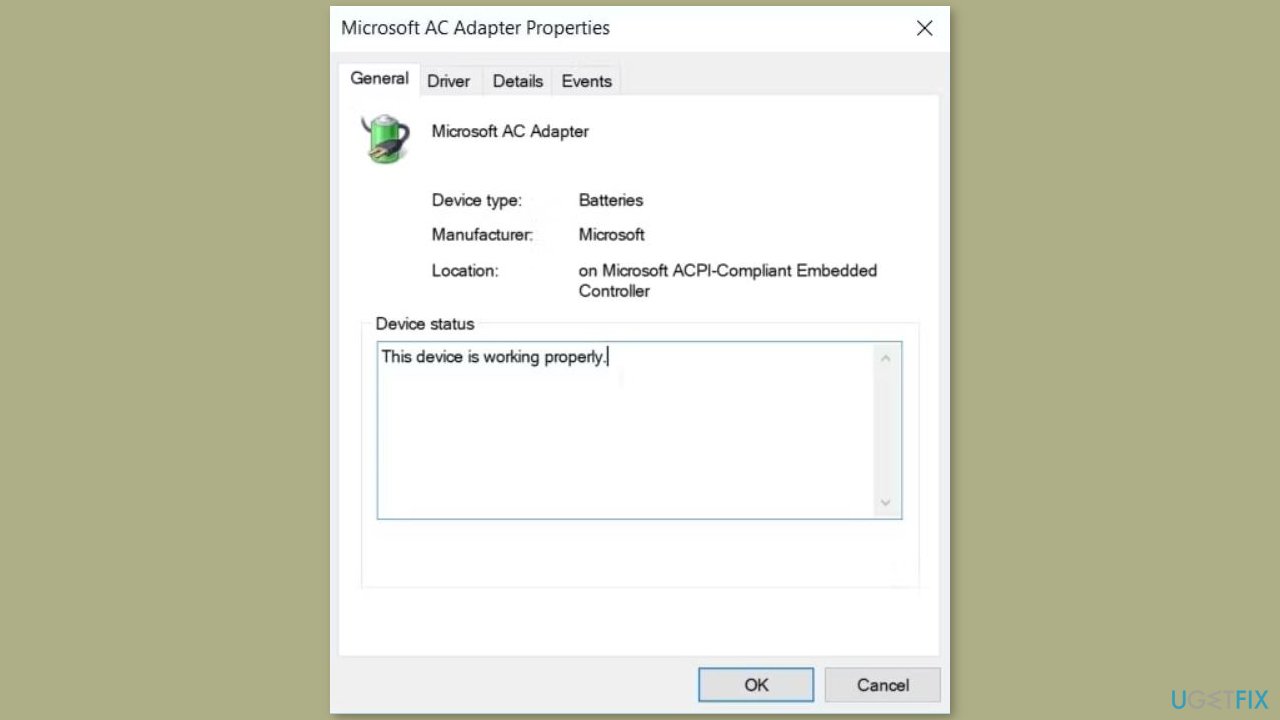
- If the Device status shows The device is working properly, the battery is not experiencing issues. In this case, refer to other solutions in this article to address the No battery detected error.
- If the Device status reads The device has a problem, the battery is likely faulty.
- To resolve the issue, there are two approaches:
- Firstly, attempt to repair the battery drivers using the next method.
- If the driver repair doesn't resolve the problem, consider replacing the battery with a new one.
Solution 3. Restart or Reinstall the Battery Drivers
- Press the Windows key + X and choose Device Manager from the menu.
- Double-click on the Batteries option to expand the section.
- Right-click each Battery adapter individually and choose Disable device.
- Afterward, right-click each Battery adapter again and choose Enable device.
- Restart your computer and verify if the problem has been resolved.

If the issue persists, reinstall battery drivers:
- Access the Device Manager using the methods mentioned earlier.
- Right-click on each Battery adapter and opt for Uninstall device.
- Click the Scan for hardware changes option. Wait for the process to finish, then restart your device.
Solution 4. Run the Windows Troubleshooter
- Open the Start Menu and navigate to PC settings.
- Choose Update & Security, then click on Troubleshoot in the left-hand side pane.
- Scroll down on the right-hand side pane and select the Hardware and Devices troubleshooter.
- Press the Run the troubleshooter button.
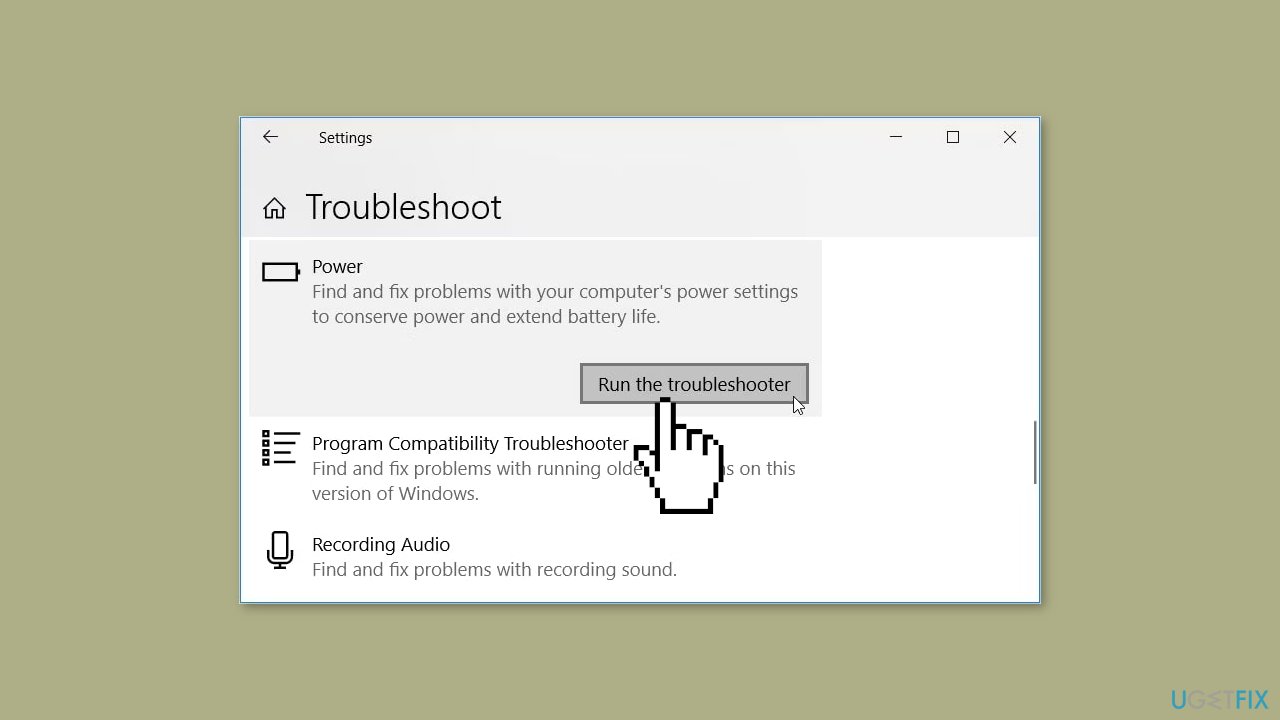
- Scroll further and click on the Power troubleshooter.
- Again, press the Run the troubleshooter button.
Solution 5. Update BIOS
- Ensure your computer is connected to a stable power source and not running on battery power.
- Back up important files, as a BIOS update carries some risks.
- Press the Windows key + R to open the Run dialog.
- Type msinfo32 and press Enter.
- Note down the BIOS Version/Date information.
- Go to your computer manufacturer's website.
- Navigate to the Support or Downloads section.
- Locate the latest BIOS update for your specific model.
- Download and read the documentation accompanying the BIOS update.
- This documentation will explain the update process and any precautions.
- If the update is in a compressed format, extract the files to a folder on your desktop or any easily accessible location.
- Close all running applications.
- Run the BIOS update executable file you downloaded.
- Follow the on-screen instructions carefully.
- Avoid interrupting the process, as it can result in a non-functional system.
- Once the BIOS update is complete, your computer might restart automatically.
- If it doesn't, manually restart your computer.
- After restarting, press the appropriate key (usually F2, F10, F12, or Del) to enter BIOS/UEFI settings.
- Navigate to the BIOS version section and verify that it matches the new version you installed.
- Sometimes, BIOS updates reset settings to default. Make any necessary changes back to your preferred settings.
Bottom line
To fix the "No battery is detected" error, users can reset BIOS settings, update or reinstall battery drivers, and verify that the battery is properly connected. If these steps do not resolve the issue, consider replacing the battery or using a system repair tool to address potential system errors.
Frequently asked questions
You can start by checking the physical connection of the battery, updating your battery drivers in Device Manager, and running the Windows Power Troubleshooter.
Yes, this error can occur in Windows 11 as well; try reinstalling the battery drivers and ensuring your battery is properly seated in the laptop.
If the issue continues, consider performing a system restore to a previous point when the battery was recognized or contacting the manufacturer for hardware diagnostics.




Report an issue
What's wrong with this guide? We review every report and update or remove content.
Report received — thank you. We'll review and fix it.
You need a free account to submit a report.
Be the first to comment