How to fix
“This app has been blocked by your system administrator” error
on Windows
Resolve the "This app has been blocked by your system administrator" error in Windows 10 and 11 quickly with expert-tested solutions. Fixed in minutes!


What causes How to fix “This app has been blocked by your system administrator” error in Windows?
- Lack of administrative permissions
- System or security update modified settings
- Application quarantined by antivirus or Windows Defender
- Company policies blocking specific applications
- User Account Control (UAC) settings may be too restrictive
Repairs Windows system files, removes malware, and restores a clean OS state — without reinstalling.
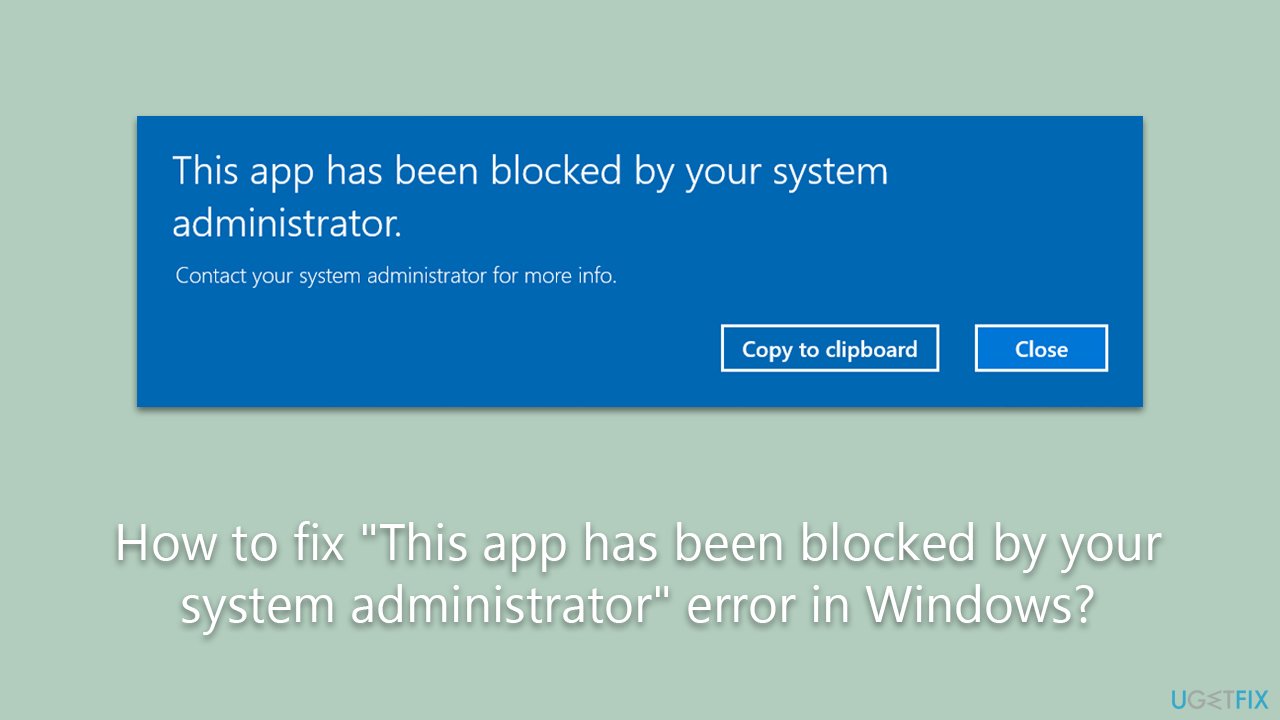
For some unknown reason, Windows started blocking an app I've been using for several months without problems before. Whenever I attempt to open it, I receive an "This app has been blocked by your system administrator" error. Any tips on what is happening, because it seems to be very sudden.
Applications serve as the backbone of our daily interactions with computers, allowing us to perform tasks ranging from word processing to data analysis. However, a number of users encounter the message "This app has been blocked by your system administrator" when trying to open an application on their Windows system. While this error is commonly associated with a lack of administrative permissions, many users report experiencing it even after using certain apps on their personal computers for extended periods.
The causes for the "This app has been blocked by your system administrator" error can vary. It is possible that a system or security update modified settings that now flag the application as untrustworthy. Alternatively, the application may have been automatically quarantined by an antivirus program or Windows Defender due to an update or detected vulnerability. Company policies and administrator settings may also block specific applications for reasons ranging from security risks to licensing constraints.
Several solutions exist to fix the "This app has been blocked by your system administrator" error. One straightforward approach is enabling the administrator account on the system, granting permission to run the application. Users may also consider adjusting Microsoft Defender settings, specifically the Controlled Folder Access and Real-time Protection features, to allow the application. Disabling SmartScreen, a tool that identifies potentially hazardous applications, can also resolve the issue.
Additionally, some antivirus software has a whitelist feature where users can manually add applications they trust. Users should proceed with caution when making these changes and ensure they trust the source of the blocked application. Another way is to modify the User Account Control (UAC) settings, although this can make your system more vulnerable to potential threats.
If the problem persists despite trying the above measures, utilizing a [d1] PC repair tool can be a last resort option. Although this tool doesn't guarantee a direct fix for this particular issue, it is capable of resolving corrupted system files, rectifying registry issues, and cleaning up junk that may indirectly contribute to the problem.
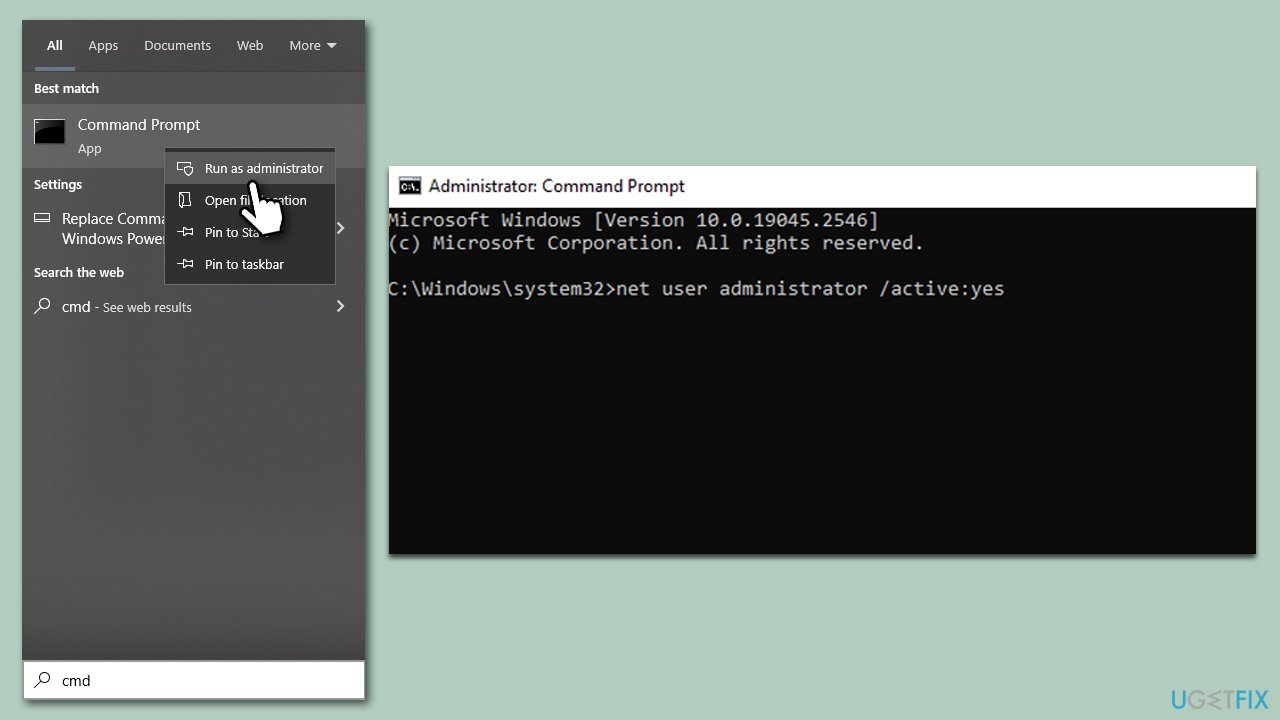
Fix 1. Enable administrator account
Enabling the administrator account gives you full control over the system, including the ability to run apps that might be blocked. This could solve the problem by overriding any restrictions.
- Open the Start menu and type
cmd. - Right-click on Command Prompt and select Run as administrator.
- User Account Control will ask whether you want to make changes - click Yes.
- Type the following command and press Enter:
net user administrator /active:yes - Restart your computer.
Fix 2. Adjust Microsoft Defender settings
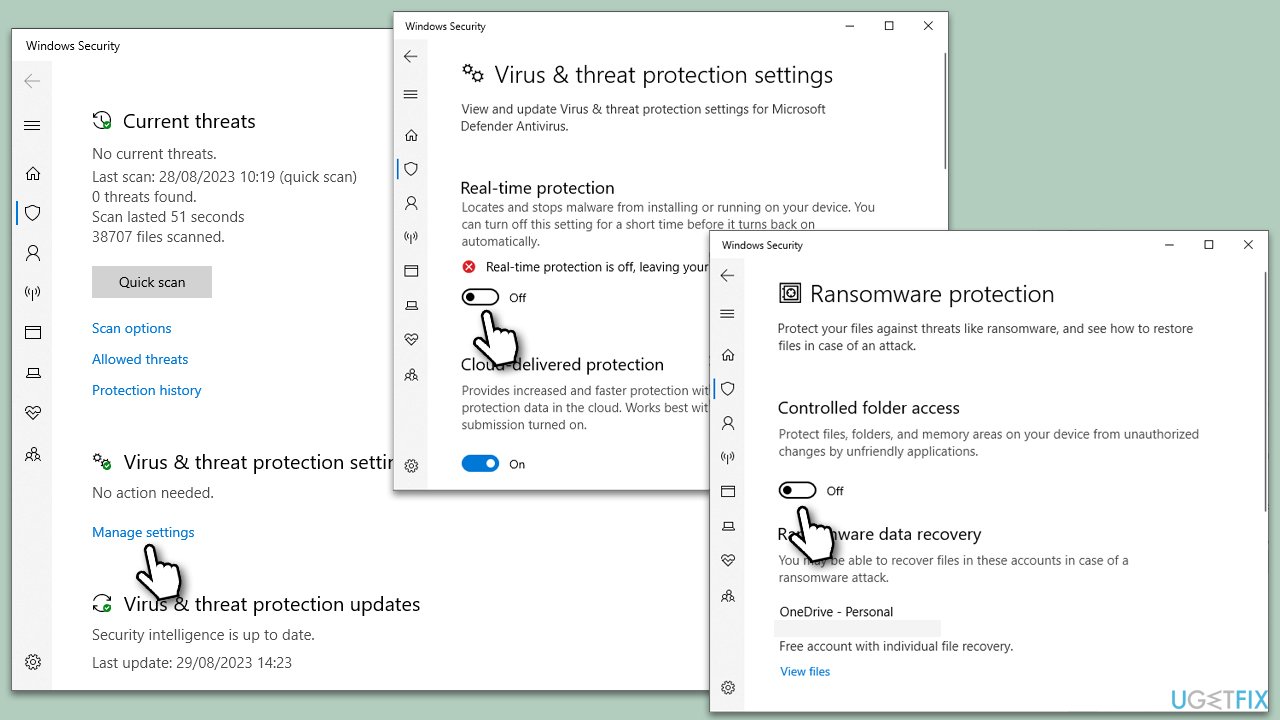
Microsoft Defender could be blocking the app because of its security configurations. You can change these settings to allow the application to run.
- Go to Settings > Update & Security > Windows Security.
- Click on Virus & threat protection.
- Under Manage settings, disable Real-time protection and Controlled folder access.
- Try running the app again.
Fix 3. Disable SmartScreen
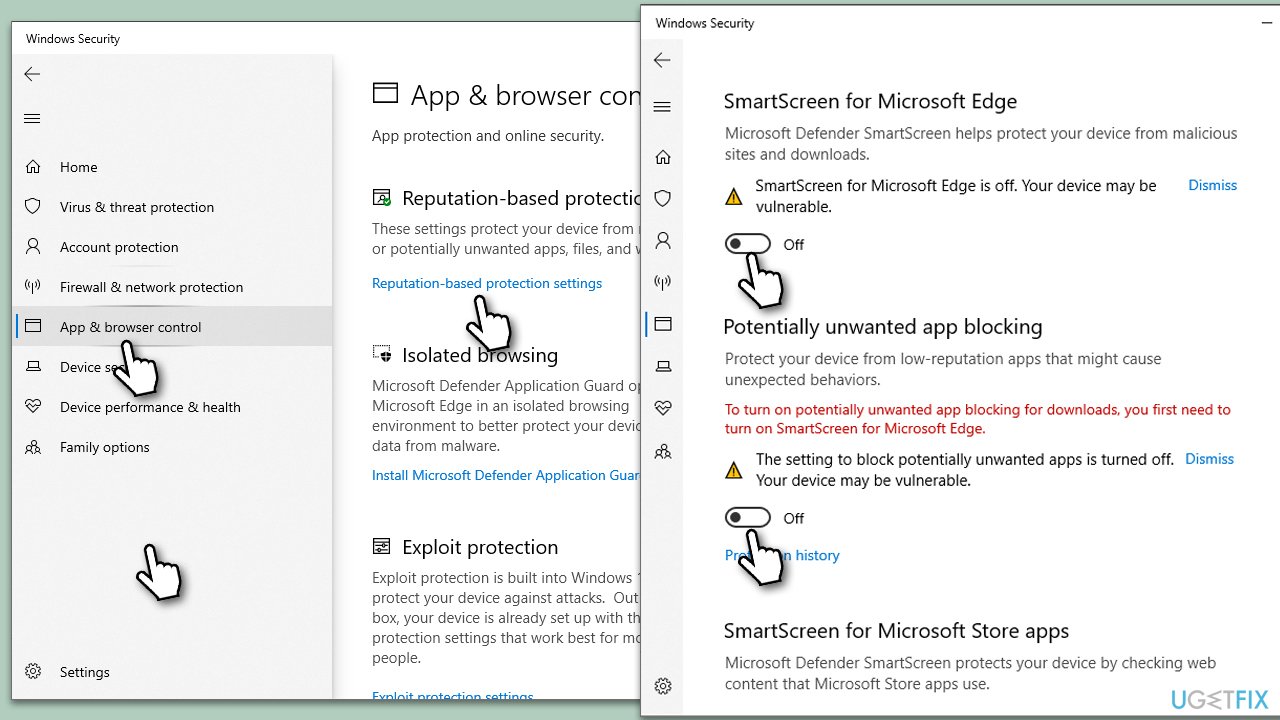
SmartScreen is a Windows feature that filters and blocks recognized malicious software. Disabling it might resolve the issue.
- Navigate to Windows Settings > Update & Security > Windows Security.
- Click on App & browser control.
- Select Reputation-based protection settings.
- Under Potentially unwanted app blocking, toggle the switch to the left to disable the setting.
- Do the same with SmartScreen for Microsoft Edge.
- Reattempt launching the app.
Fix 4. Unblock via properties
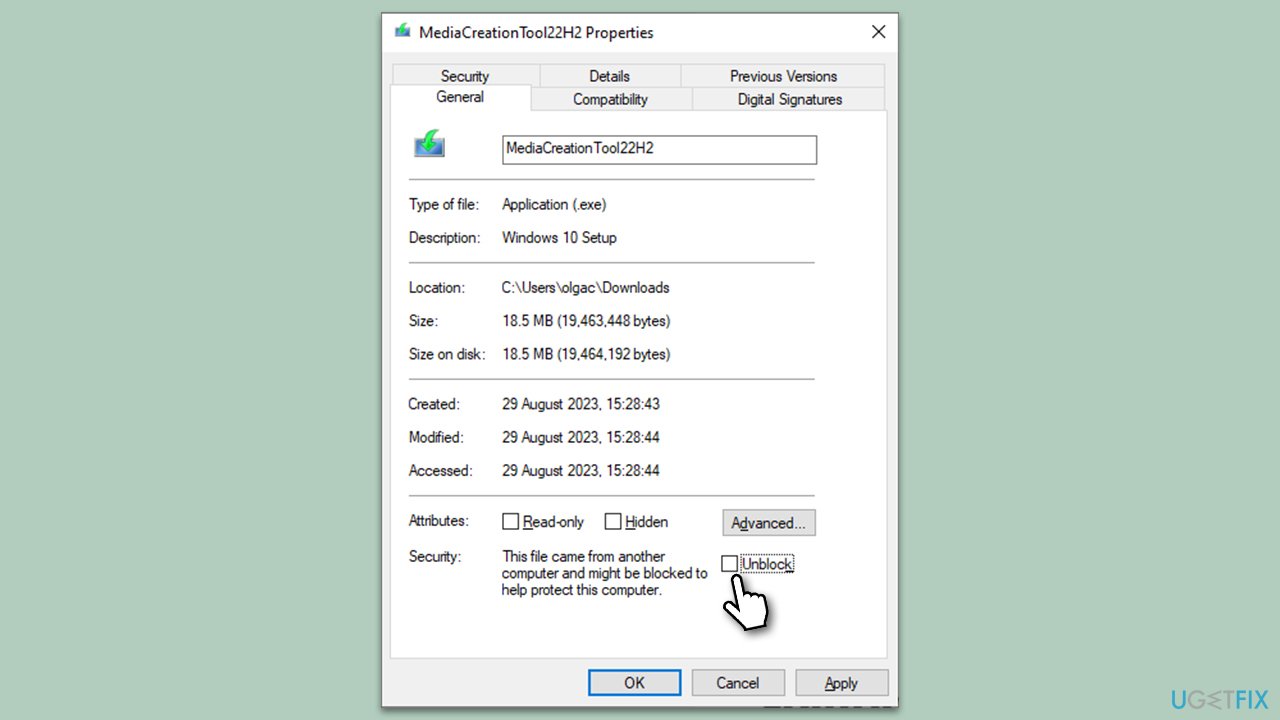
You can try to unblock the app by simply accessing the properties of the EXE file:
- Right-click on the EXE file that's failing to launch.
- Select Properties and ensure you're in the General tab.
- At the bottom, you should see the Security section - check the Unblock tickmark.
- Click Apply and OK.
Fix 5. Edit Group Policy
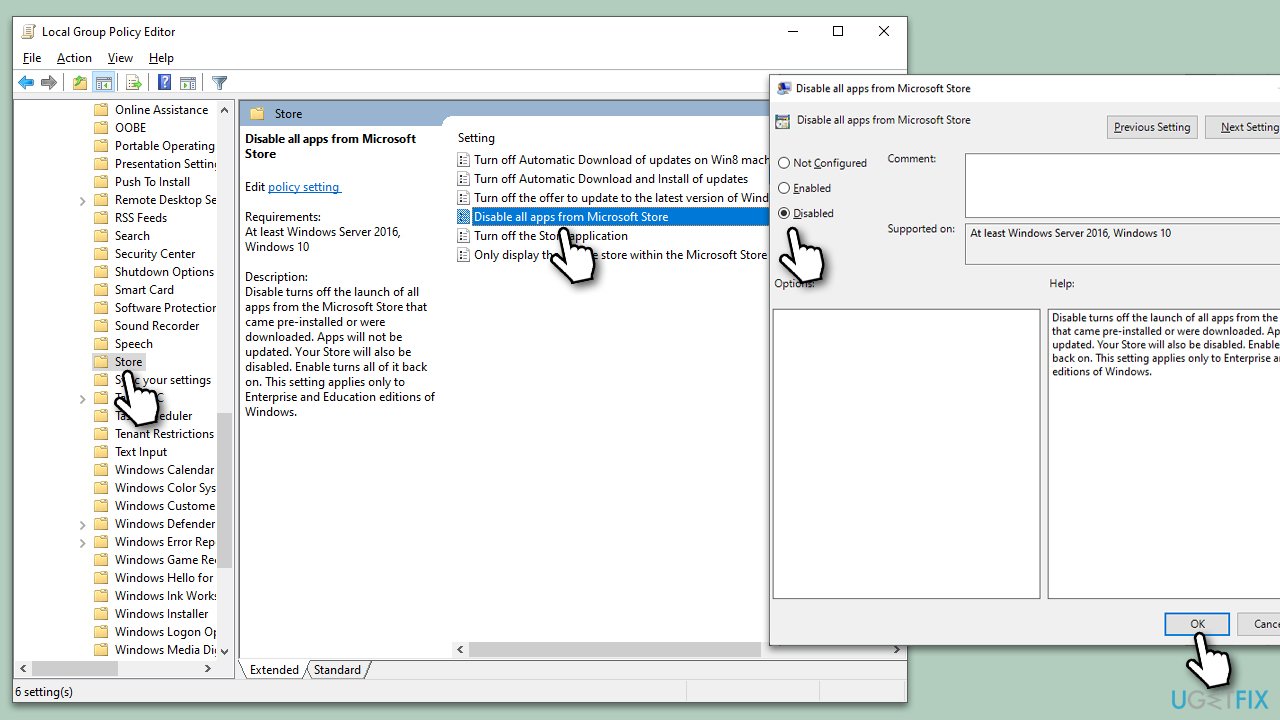
- In Windows search, type in Group Policy and press Enter.
- Navigate to the following location:
Computer Configuration > Administrative Templates > Windows Components > Store - On the right side of the window, double-click Disable all apps from Microsoft Store option.
- Select Disable.
- Click Apply and OK.
- Open Command Prompt as administrator and type in the following command, pressing Enter after:
gpupdate /force - Restart your device.
Fix 6. Modify User Account Control settings
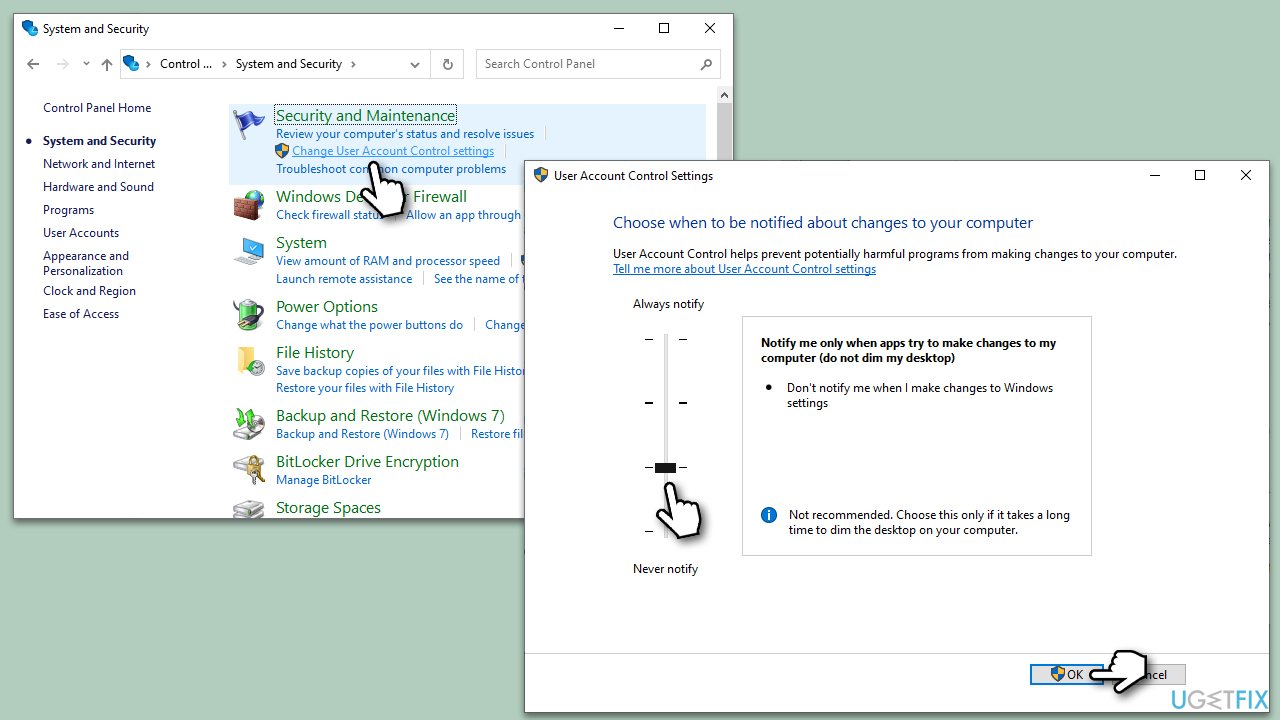
UAC can block apps from running without administrative approval. Lowering the security level may solve the problem.
- Go to Control Panel > System and Security > Change User Account Control settings.
- Lower the slider to a less secure setting.
- Click OK and restart your computer.
Fix 7. Run the app in compatibility mode
Running the application in compatibility mode can help if the app was designed for an older version of Windows.
- Right-click on the application’s icon and select Properties.
- Go to the Compatibility tab.
- Check the box for Run this program in compatibility mode.
- Select the Windows version you want and click OK.
Fix 8. Reinstall the app
Sometimes, reinstalling the application can resolve any corrupt files that might be causing the issue.
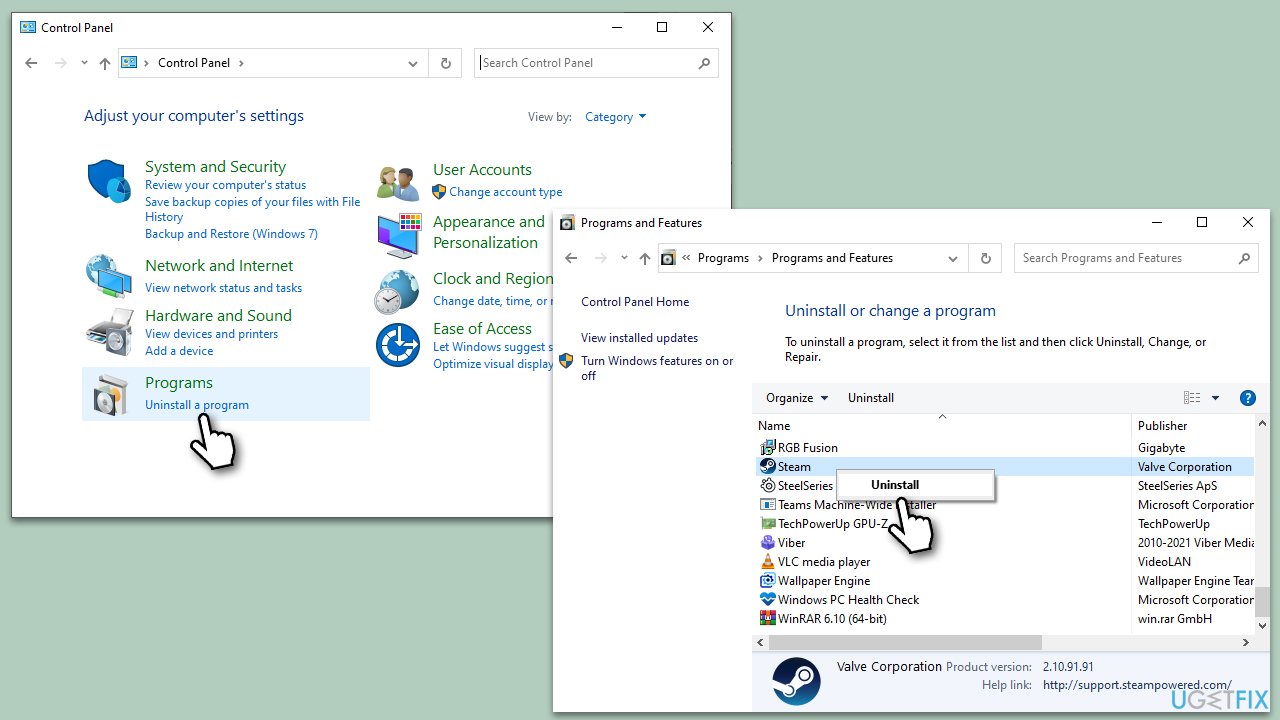
- Uninstall the application from Control Panel > Programs > Uninstall a program.
- Download the latest version of the app from a trusted source.
- Install the app and try running it again.
Bottom line
To fix the 'This app has been blocked by your system administrator' error, you can enable the administrator account, adjust Microsoft Defender settings, disable SmartScreen, or modify UAC settings. If the problem persists despite trying these solutions, consider checking your antivirus software's whitelist feature or consult with your system administrator.
Frequently asked questions
You can try running the app as an administrator or check your Group Policy settings to ensure that the app is not restricted. Additionally, adjusting the User Account Control settings may help resolve this issue.
You can modify the app's properties by right-clicking it, selecting 'Properties,' and then unchecking the 'Block' option under the Security tab if available. Alternatively, changing your account type to Administrator may give you the necessary permissions.
You can disable the feature by accessing the Local Group Policy Editor and navigating to User Configuration > Administrative Templates > Windows Components > App Package Deployment, then setting 'Allow all trusted apps to install' to Enabled. Make sure to restart your computer for the changes to take effect.




Report an issue
What's wrong with this guide? We review every report and update or remove content.
Report received — thank you. We'll review and fix it.
You need a free account to submit a report.
Be the first to comment