How to fix
Microsoft Forms error code 1003 (Sorry, something went wrong)
on Windows
Resolve Microsoft Forms error code 1003 on Windows 10 or Windows 11 quickly. Follow our expert-tested solutions for a seamless experience. Fixed in minu…

What causes How to fix Microsoft Forms error code 1003 (Sorry, something went wrong) in Windows?
- Browser cache and cookies issues
- Conflicting browser add-ons
- Server-related issues on Microsoft's end
- Unstable or slow internet connection
Repairs Windows system files, removes malware, and restores a clean OS state — without reinstalling.
Hello. When I try to access Microsoft Forms I get the "Sorry, something went wrong" message with error code 1003. How can I resolve this?
Microsoft Forms is a flexible web application that enables users to create and share surveys, tests, and polls to encourage interactive communication and the gathering of feedback. Multiple-choice, text, and rating questions can all be included in bespoke forms that users can easily construct. These forms are a useful tool for both personal and business use because they can be linked to or integrated in websites and emails.
Microsoft Forms is not immune to technical setbacks, despite its powers, as demonstrated by error code 1003, which frequently appears as a notice saying, "Sorry, something went wrong." Users who depend on the platform for data collecting and analysis may find this issue to be confusing.
Addressing the underlying problems that might be causing the disruption is necessary to fix error code 1003. Users may try deleting their browser's cache and cookies, turning off any add-ons that might conflict with Microsoft Forms, or using a new web browser to access the platform. Sometimes the error may be caused by server-related issues on Microsoft's end, in which case you may need to wait until the problem gets fixed on their end.
Reaching out to Microsoft's support channels for advice or to look for any official updates regarding continuing technical issues may be useful in more complicated situations. This post includes 4 steps that should assist you in resolving the "Sorry, something went wrong" Microsoft Forms error code 1003 in Windows. You can also run a maintenance tool like [d1] that can fix most system errors, BSODs, corrupted files, and registry issues. Otherwise, follow the step-by-step instructions below.
Solution 1. Check Network Connection
Prior to delving into various troubleshooting techniques, ensure that your internet connection is both stable and high-speed. Evaluate your connection's speed by conducting a speed test. Should the speed fall short of your chosen plan, proceed to reboot your router and get in touch with your service provider for assistance.
Solution 2. Enable CollabDBService in Azure Portal
- Access your Microsoft Azure account.
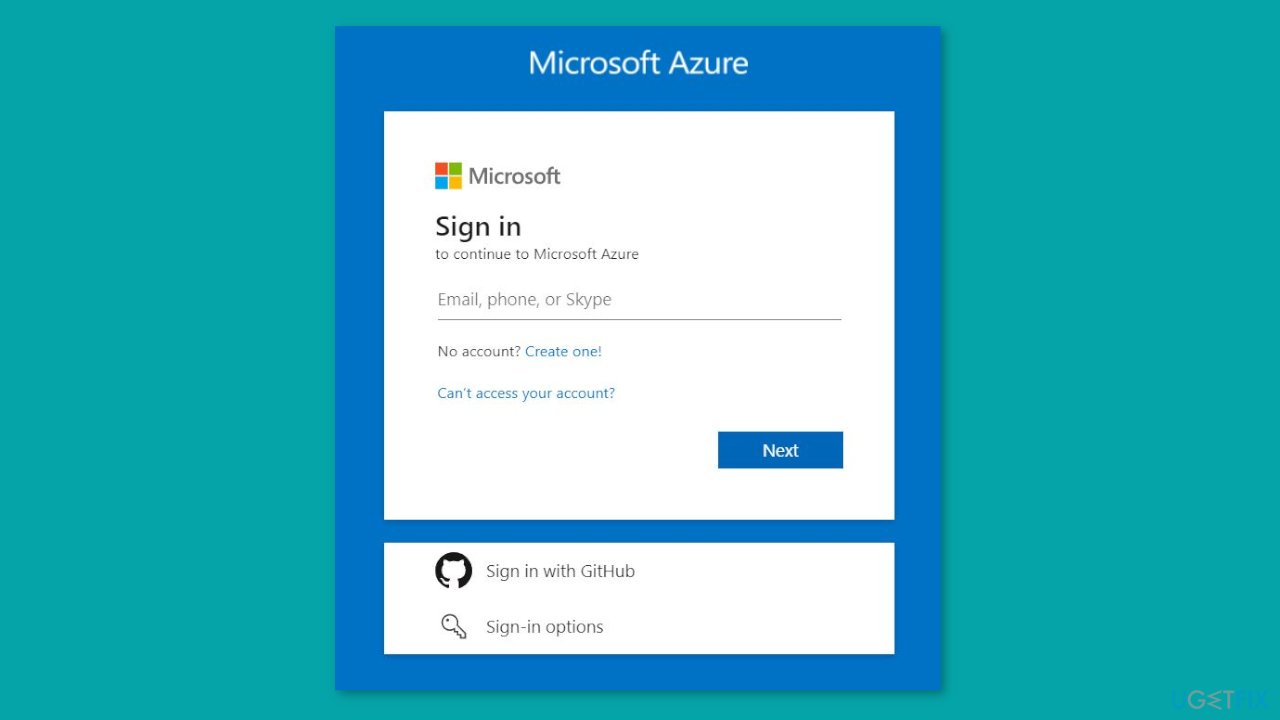
- Navigate to the left pane and choose Azure Active Directory, then select Enterprise Applications.
- Locate and click on CollabDBService from the list.
- Under the Manage section, click on Properties.
- Toggle the Enabled for users to sign in option to Yes.
Solution 3. Clear Browser Cache and Cookies
Chrome:
- Launch the Chrome browser.
- Click on the three vertical dots located at the top-right corner of the window.
- Select Settings from the dropdown menu.
- In the next window, click on Privacy and Security on the left pane.
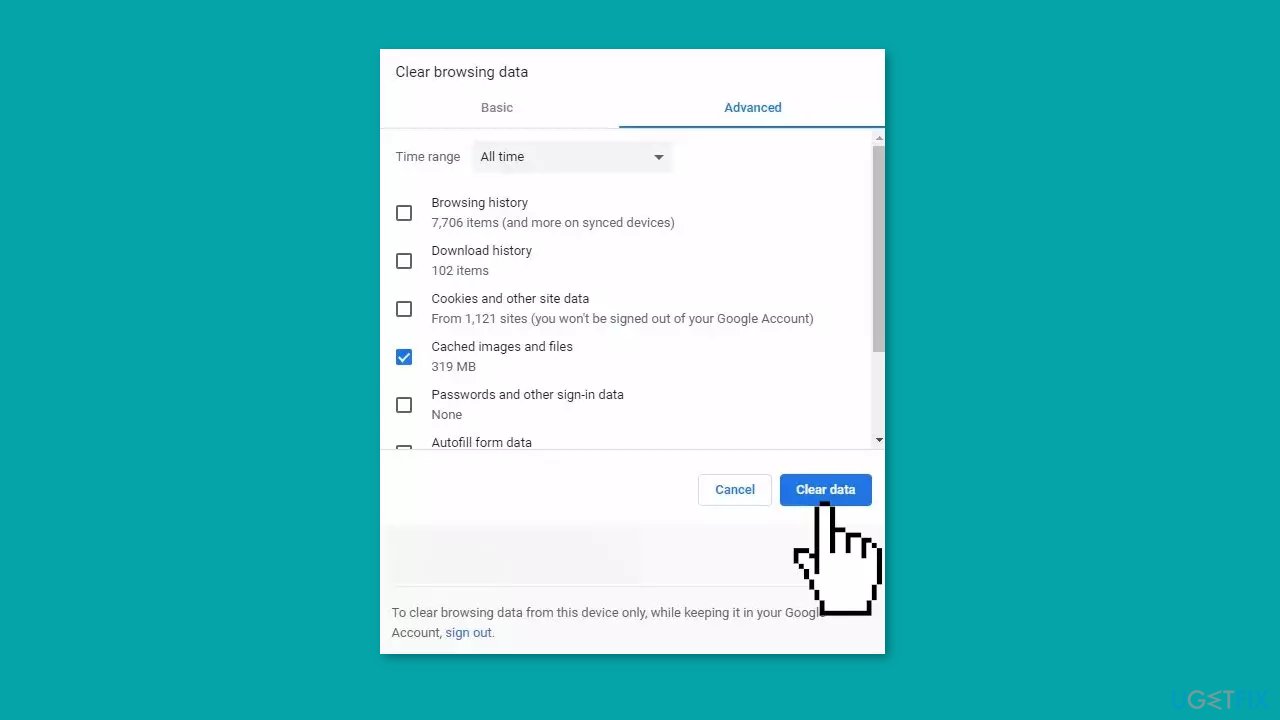
- On the right pane, select Clear Browsing Data.
- In the popup window that appears, check the boxes next to Browsing History, Cookies, and Cache data.
- Click on the Clear Data button.
- Wait until the browsing data is cleared.
- Exit the browser by closing the window.
- Check if the error is fixed.
Firefox:
- Launch Firefox and open a new tab.
- Click on the Library icon located on the top right side.
- From the dropdown menu, select the History option.
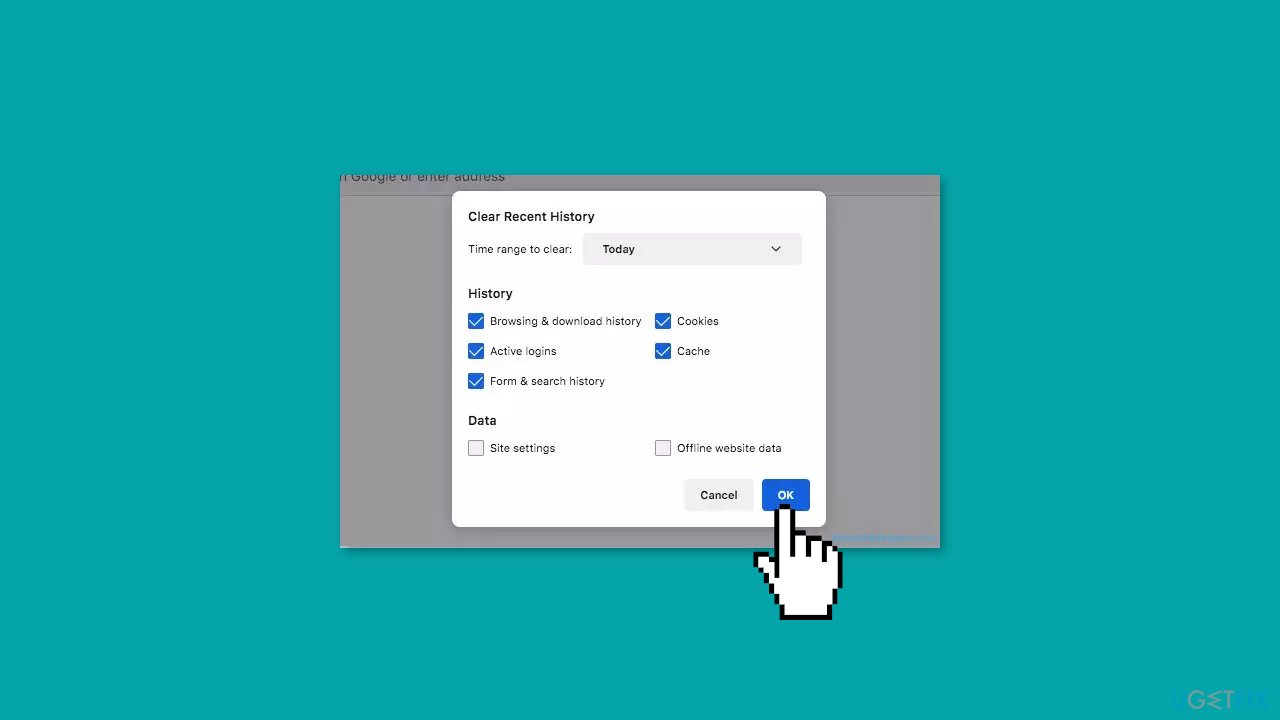
- In the History window that opens, click on the Clear Recent History button.
- Next to the Time range to Clear option, click on the dropdown.
- Select All time from the options provided.
- Under the History heading, check all the boxes related to the items you want to clear.
- Click on the Clear Now option.
- If prompted, select yes to confirm the action.
- The cookies and history for your browser have now been cleared.
- Check to see if the issue persists.
Microsoft Edge:
- Launch the browser and open a new tab.
- Click on the three vertical dots located on the top right corner.
- From the dropdown menu, click on the History option.
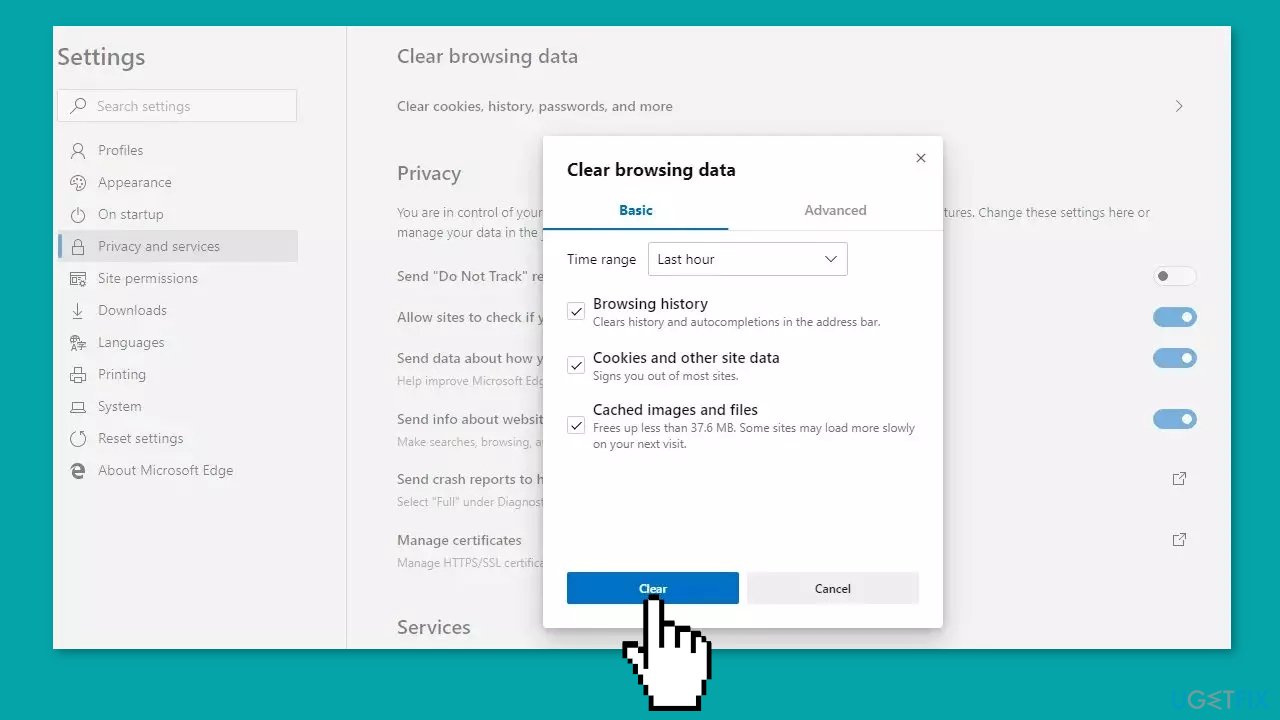
- In the History menu, locate and click on the Clear History button.
- Check the first four options or checkboxes related to the items you want to clear.
- Click on the Clear option to proceed with clearing the selected history.
- After the clearing process is complete, check to see if the issue persists.
Solution 4. Disable Proxy
- Open Settings by pressing the Windows key + I.
- Navigate to Network & Internet using the options in the navigation pane.
- Click on Proxy in the Network & Internet settings.
- Find the toggle for Automatically detect settings.
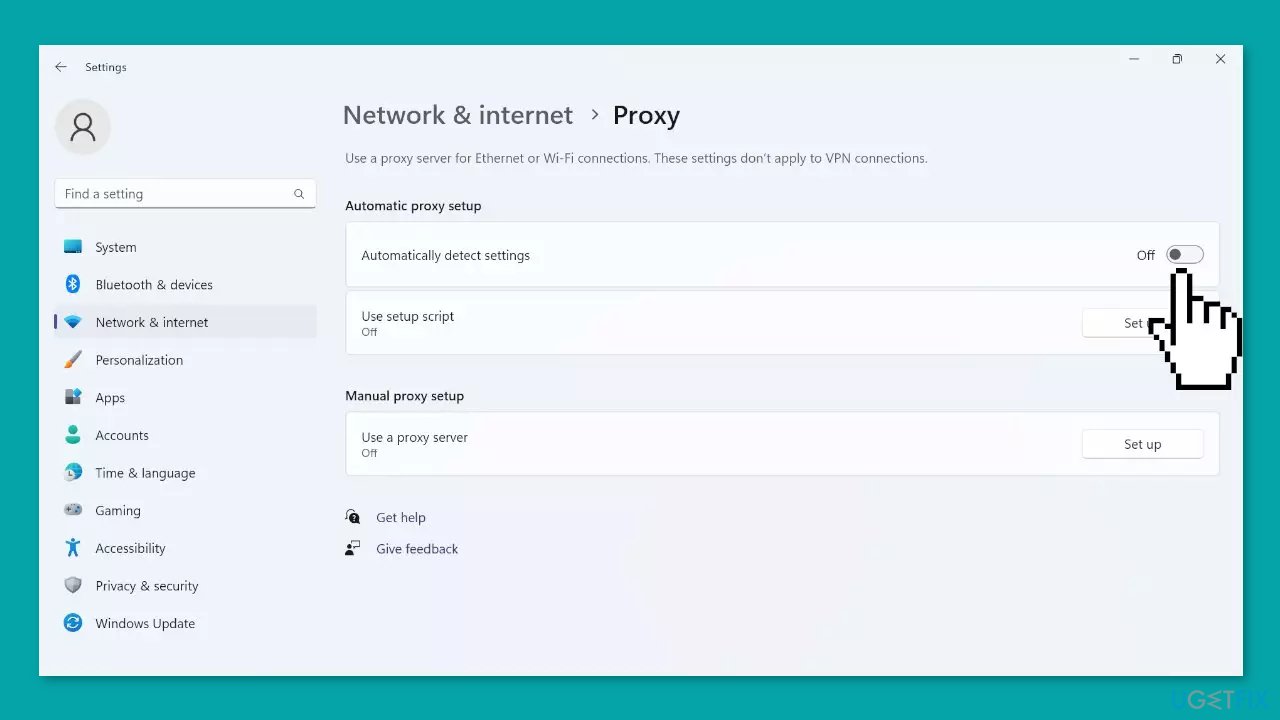
- Turn off the toggle to disable automatic proxy detection.
- Verify that there are no entries present under Manual proxy setup.
Bottom line
To resolve the Microsoft Forms error code 1003, users can try deleting their browser's cache and cookies, disabling any conflicting add-ons, or using a different web browser. Additionally, checking the stability and speed of the internet connection is crucial. If these solutions do not work, reaching out to Microsoft support for further assistance may be necessary.
Frequently asked questions
Error code 1003 typically arises due to network connectivity issues or problems with the Microsoft Forms service itself on Windows 10 or Windows 11.
To fix error code 1003, try clearing your browser cache, checking your internet connection, or logging out and back into your Microsoft account on Windows 11.
If error 1003 continues, consider using a different browser, disabling browser extensions, or running Windows Update to ensure your system is up to date on Windows 10.




Report an issue
What's wrong with this guide? We review every report and update or remove content.
Report received — thank you. We'll review and fix it.
You need a free account to submit a report.
Be the first to comment