How to fix
“The directory is not empty” error 0x80070091
on Windows
Resolve the "The directory is not empty" error 0x80070091 on Windows 10 and 11 effortlessly. Expert-tested solutions ensure quick fixes without hassle.


What causes How to fix “The directory is not empty” error 0x80070091 in Windows?
- Corrupted system files
- Faulty folder configurations
- Conflicts with file permissions
- Hidden system files
- Background processes using the folder
Repairs Windows system files, removes malware, and restores a clean OS state — without reinstalling.
Hi. I was trying to remove some files from my C drive on Windows, and I received an error 0x80070091, which says, "The directory is not empty." What does it mean, and why can't I delete my files?
"The directory is not empty" error, coded as 0x80070091, is a Windows-based issue that users may encounter while trying to delete, move, or rename folders on their system. This error not only halts the intended action but can also be frustrating for users looking to manage their files efficiently. The problem can arise under several circumstances and is indicative of underlying issues that need to be addressed.
The error 0x80070091 occurs most commonly when users attempt to delete a folder that Windows believes still contains files or subfolders. Despite the folder appearing empty or even if it has hidden system files, the operating system restricts the action, presenting the user with this error message. This is usually a result of corrupted system files, faulty folder configurations, or conflicts with file permissions.
One might encounter the 0x80070091 error when trying to clean up disk space or during the process of transferring files from one directory to another. Additionally, it may occur when software applications try to modify folders during updates or installations but fail to do so because of this issue.
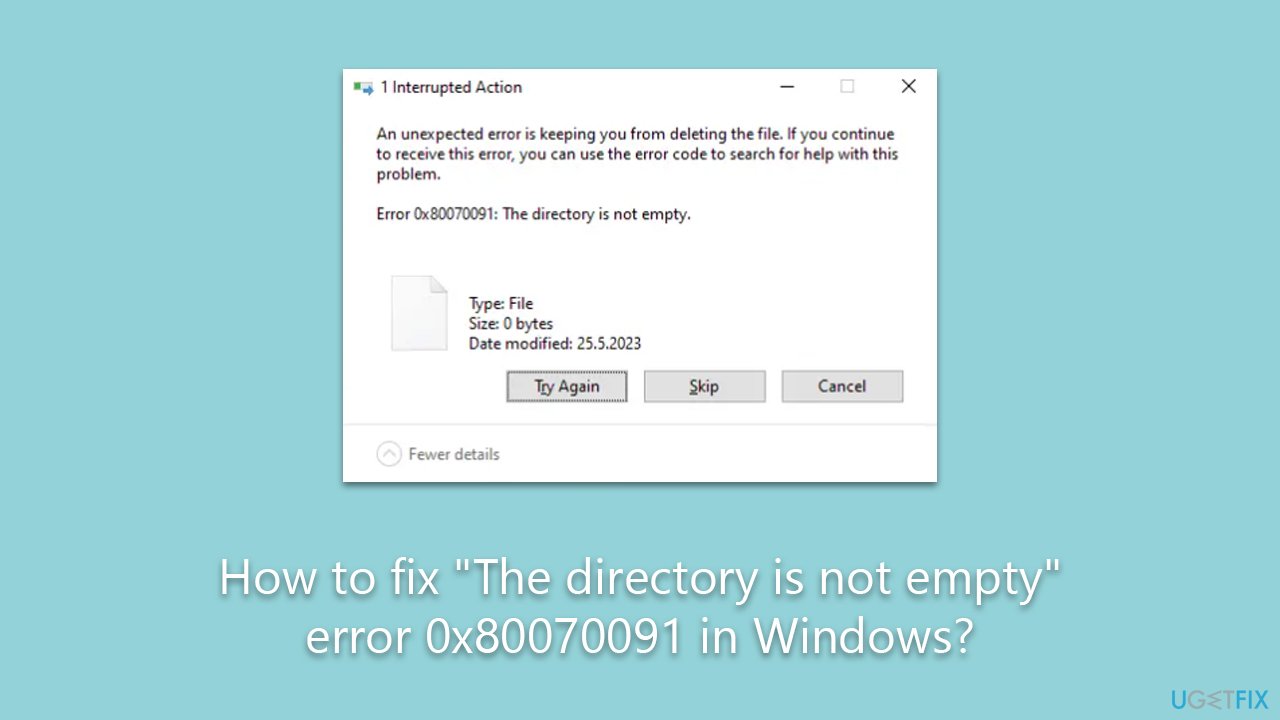
Although the error message does not provide specific guidance, there are multiple ways to resolve this issue. Solutions may involve using Command Prompt to manually delete the folder, adjusting folder permissions, or scanning and repairing corrupted system files. Additionally, checking for and terminating any background processes that may be using the folder could also be a viable solution. These methods will be detailed below this article for anyone looking to tackle the problem.
While the "The directory is not empty" error 0x80070091 can be inconvenient, understanding its origins and potential solutions is the first step in resolving it. For users looking for a more comprehensive approach to tackling not just this but other system errors, the use of a [d1] PC repair tool can be beneficial. This application is designed to fix corrupted system files, resolve registry issues, and clean junk, among other functionalities.
Fix 1. Perform Check Disk
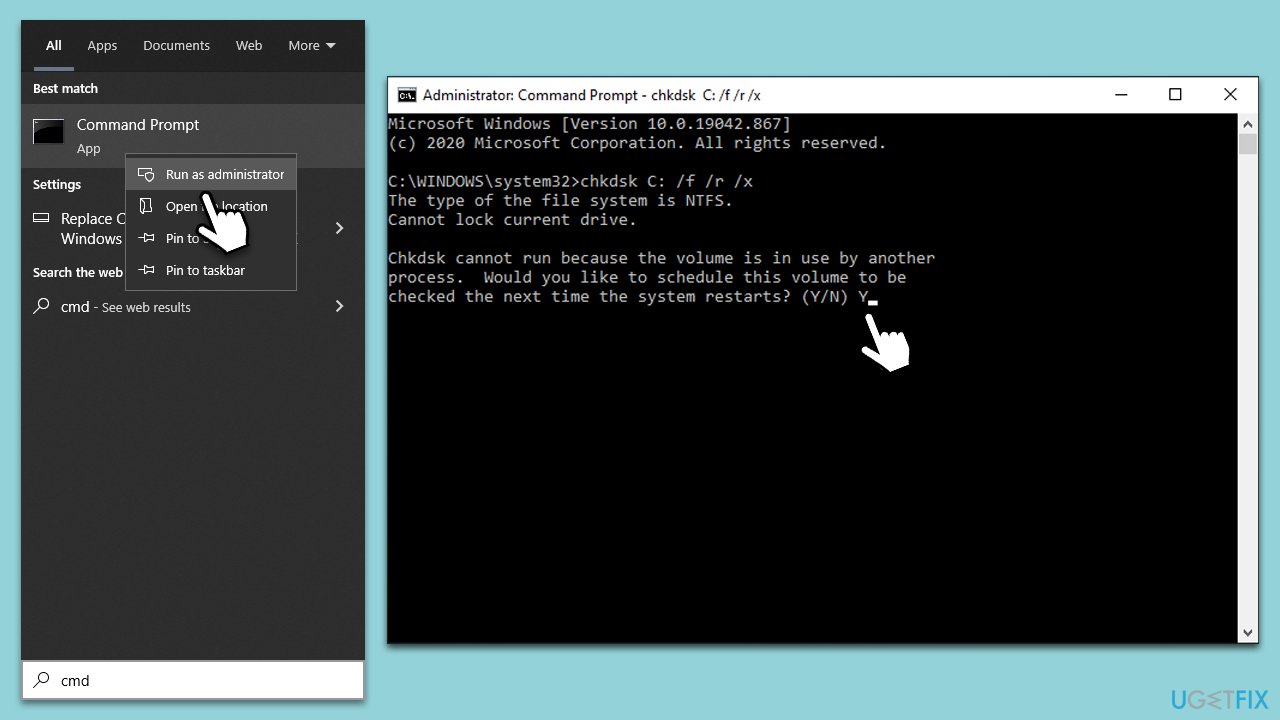
The Check Disk utility scans and fixes errors on the hard drive, which can include corrupted files that may be causing the 0x80070091 error. This is an inbuilt tool in Windows that works by identifying and automatically repairing filesystem errors and bad sectors.
- Open the Start menu and type cmd.
- Right-click on Command Prompt and select Run as administrator.
- When UAC shows up, click Yes.
- In the new window, type in the following command and press Enter after:
chkdsk c: /f
(Note: use chkdsk c: /f /r /x command if you are using SSD as your primary partition) - If you receive an error, type in Y, close down Command Prompt and restart your system.
- Wait until the scan is finished - you can find the results in the Event Viewer.
Fix 2. Restart Windows Explorer
Windows Explorer is the application you use to navigate files and folders. Restarting it can help resolve issues with file and folder manipulations, such as deleting a folder.
- Press Ctrl + Shift + Esc to open Task Manager.
- Locate Windows Explorer in the list.
- Right-click on it and select Restart.

Fix 3. Run SFC and DISM
System File Checker and Deployment Imaging Service and Management Tool can repair corrupted system files that might be preventing you from deleting a folder. These utilities are built into Windows and are known for their ability to fix various system-related issues.
- Open Command Prompt as administrator.
- Next, type in the following command and press Enter:
sfc /scannow - When done, run the following commands as well:
dism /online /cleanup-image /scanhealth
dism /online /cleanup-image /checkhealth
dism /online /cleanup-image /restorehealth - Restart your computer.

Fix 4. Adjust folder permissions
Sometimes, the issue is with the folder permissions that prevent you from making changes. Adjusting these can resolve the issue.
- Press Win + E to open File Explorer.
- Right-click on the folder in question and select Properties.
- Go to the Security tab and click Advanced.
- Under Owner, click Change.
- Type the username of the account (or use the administrator account) you are using, click Check names, select your account, and click OK.
- Check the Replace owner on subcontainers and objects checkbox, then click Apply and OK.
- See if the problem is resolved.

Fix 5. Use Safe Mode
Booting into Safe Mode allows you to operate with only essential system programs, making it easier to delete problematic folders.
- Restart your computer.
- Once Windows starts booting, press the Power button, interrupting the loading process - do this two more times.
- After that, Windows will automatically enter Advanced Startup mode.
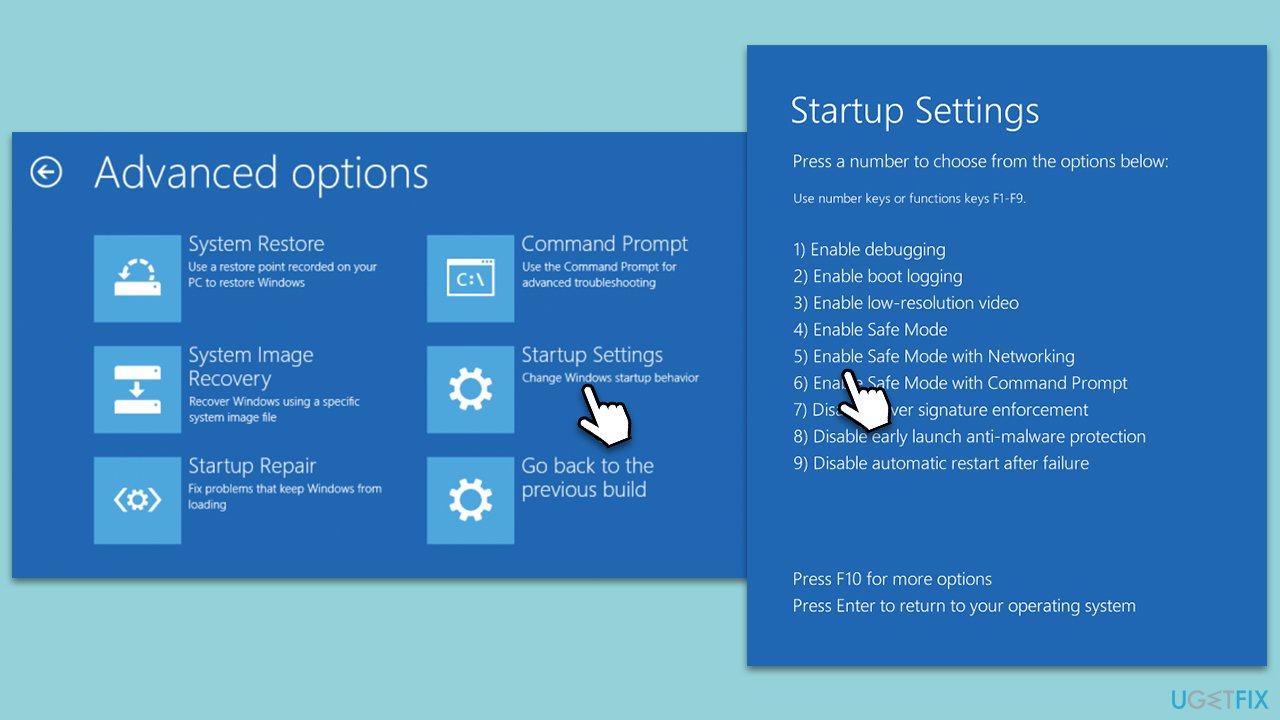
- Select Troubleshoot > Advanced options > Startup Settings and Restart.
- After a reboot, pick either 4/F4 for Safe Mode or 5/F5 for Safe Mode with Networking.
Fix 6. Empty the Recycle Bin
Sometimes, remnants of deleted files can conflict with the folder you are trying to delete. Emptying the Recycle Bin can resolve such conflicts.
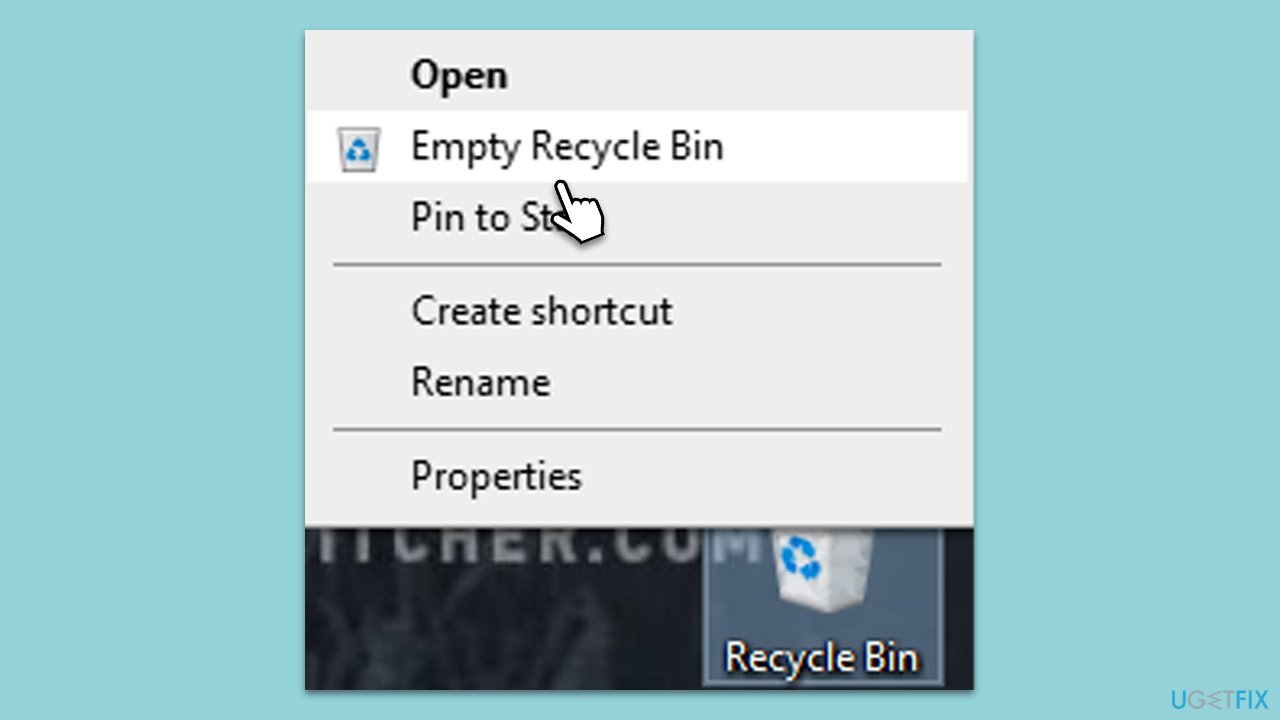
- Right-click on the Recycle Bin icon on your desktop.
- Select Empty Recycle Bin.
- Confirm the action when prompted.
Fix 7. Close background applications
Some background applications may be using files within the folder you are trying to delete, causing the error.
- Press Ctrl + Shift + Esc to open Task Manager.
- Identify and end any processes that might be using the folder.
- Attempt to delete the folder again.
Fix 8. Use the Command Prompt to delete the folder
For advanced users, Command Prompt can be used to force delete a folder, bypassing the issue entirely.
- Open Command Prompt as administrator.
- Type in the following and press the following:
cd C:\PATH - Next, type the next command and hit Enter:
rmdir /s /q FOLDERNAME - When prompted, type Y and press Enter.
Bottom line
To fix the 'The directory is not empty' error 0x80070091, users can try using Command Prompt to manually delete the folder, adjusting folder permissions, or scanning and repairing corrupted system files. Additionally, terminating any background processes that may be using the folder could help. If none of these solutions work, further investigation into the system may be necessary.
Frequently asked questions
This error indicates that you are trying to delete a folder that Windows believes still contains files or subdirectories, even if they are not visible. It often occurs during file management tasks, like moving or deleting directories.
You can resolve this error by using the Command Prompt to forcefully delete the folder with the 'rd /s /q' command, or by checking for hidden files and ensuring that no applications are using the directory.
Yes, you can use the built-in Disk Cleanup tool to remove temporary files or the Check Disk utility to scan for and fix file system errors that might cause this issue.




Report an issue
What's wrong with this guide? We review every report and update or remove content.
Report received — thank you. We'll review and fix it.
You need a free account to submit a report.
Be the first to comment