How to fix
Error Code 32
on Windows
Resolve Error Code 32 on Windows 10 or 11 effortlessly with our expert-tested solutions. Get your system running smoothly again—fixed in minutes!


What causes How to fix Error Code 32 in Windows?
- Driver may be outdated
- Driver may be incompatible
- Driver may be incorrectly identified
- Driver may be intentionally disabled
Repairs Windows system files, removes malware, and restores a clean OS state — without reinstalling.
How do I fix Error Code 32 that I see in the Device Manager? Could you provide some tips, please?
Drivers are foundational elements in a Windows operating system, serving as the bridge between computer hardware and software. When you connect a new piece of hardware, such as a printer, keyboard, or graphics card, to your computer, a corresponding driver must be installed for the operating system to communicate with it effectively.
These drivers are overseen by a built-in Windows utility called Device Manager, which allows users to view all hardware devices recognized by the system, manage drivers, disable hardware, and perform other related tasks.
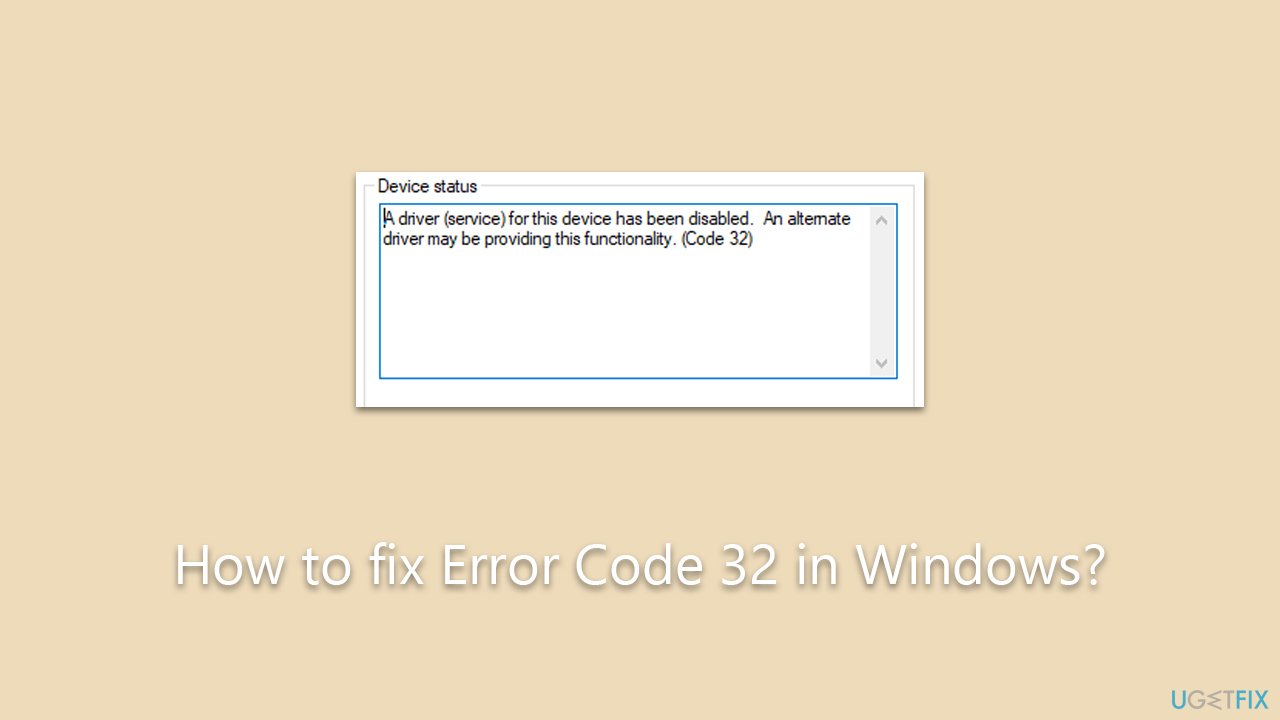
However, problems can arise, one of which is Error Code 32 displayed in the Device Manager. This error is specifically related to driver issues and usually comes with a message stating, "A driver (service) for this device has been disabled. An alternate driver may be providing this functionality."
The error is essentially a red flag, alerting the user that a driver essential for functioning a particular piece of hardware has been disabled. This could be due to a number of reasons: the driver may be outdated or incompatible, it might be incorrectly identified by the system, or it could even be intentionally disabled due to perceived conflicts or issues.
When this error occurs, it can result in hardware malfunction, causing the associated device to stop working correctly. This, in turn affects the overall system’s performance, leading to a less-than-optimal user experience. Thus, resolving the error is critical for ensuring that your Windows operating system runs smoothly.
There are multiple solutions to address Error Code 32. The specific fix largely depends on the nature of the problem and could range from simply updating the driver to more complicated measures such as editing Windows Registry entries.
Generally, users can attempt to update the problematic driver through the Device Manager, roll it back to a previous version if the issue started after an update, or even uninstall and reinstall the driver completely. It is crucial to carefully follow the instructions in the troubleshooting guides to avoid further complications.
For those who are not comfortable navigating these complexities manually, automated software tools like [d1] can be a viable option. This PC repair tool can scan the system, identify the issues, including Error Code 32, and apply appropriate fixes automatically, simplifying the entire process.
Fix 1. Update the driver
Updating the driver is one of the most straightforward methods to resolve Error Code 32. A new driver version usually comes with fixes for bugs and improved compatibility.
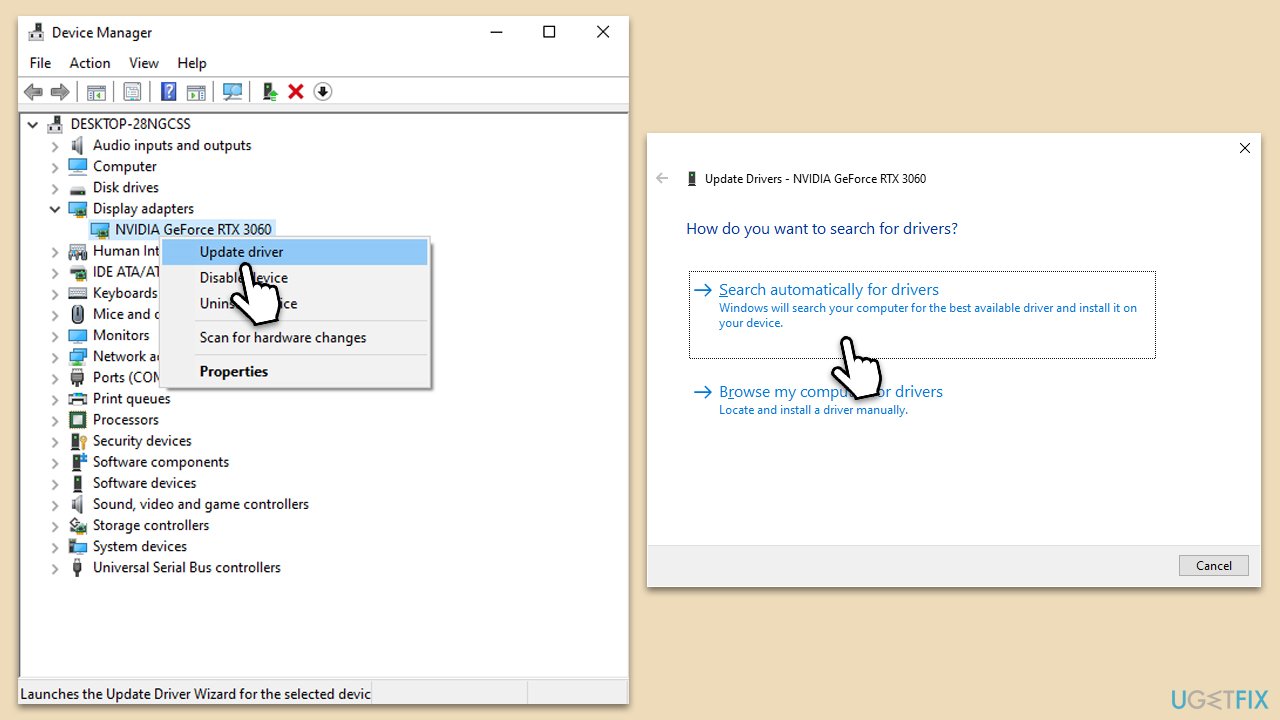
- Right-click on Start and pick Device Manager.
- Locate the hardware device with the error.
- Right-click on it and choose Update driver.
- Select Search automatically for drivers.
- Follow the on-screen instructions and then restart your system.
If you would like a more reliable way of updating drivers, which is also much faster, you should try employing [rev id="DriverFix"].
Fix 2. Rollback the driver
If you recently updated the driver and started encountering the error, rolling back to the previous version could resolve the issue.
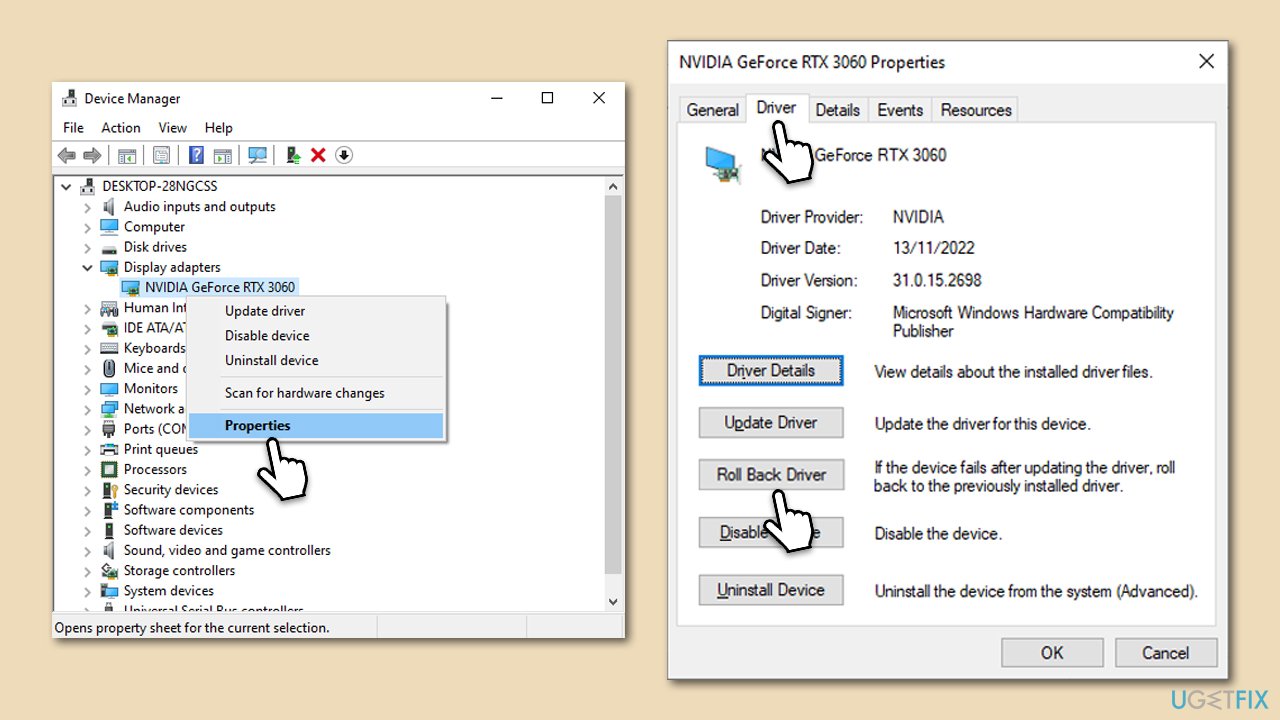
- Open Device Manager.
- Find the problematic device and right-click on it.
- Choose Properties.
- Go to the Driver tab and click Roll Back Driver.
- Select the reason you are rolling back.
- Follow the prompts and reboot your system.
Fix 3. Uninstall and reinstall the driver
Completely removing the driver and reinstalling it can reset settings and solve compatibility issues.
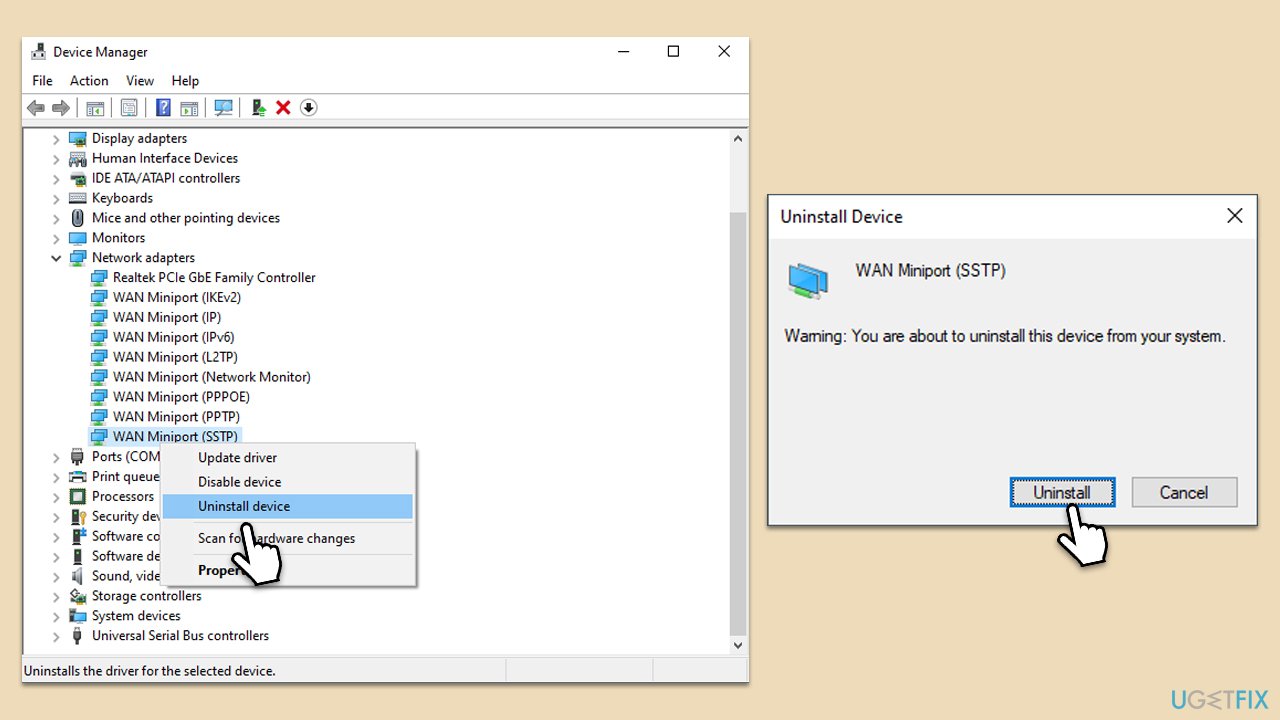
- Open Device Manager.
- Right-click on the device with the error.
- Choose Uninstall device.
- Reboot your computer.
- Windows should automatically reinstall the driver upon restart.
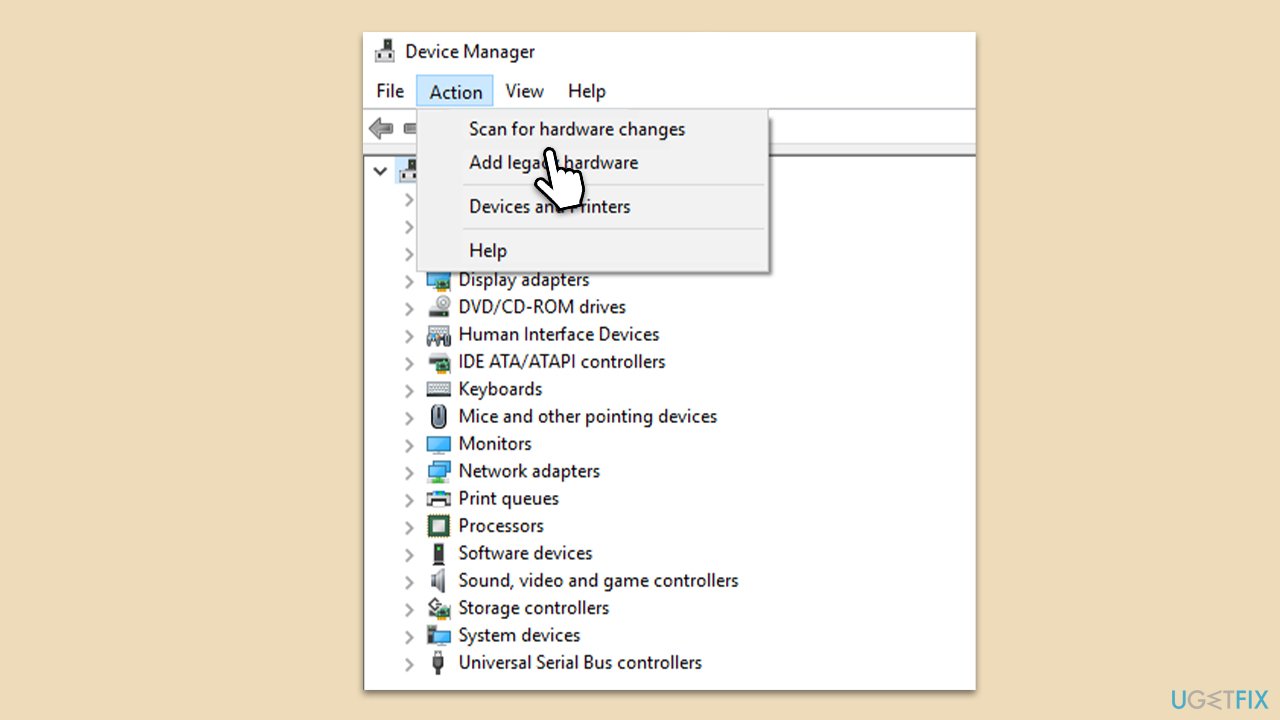
Fix 4. Scan for hardware changes
Sometimes, rescanning the hardware can correct misconfigurations and recognize the correct driver.
- Open Device Manager.
- In the menu, click Action.
- Choose Scan for hardware changes.
- Check if the error persists.
Fix 5. Manually install driver
If automatic updates aren’t working, you can download and install the driver manually from the manufacturer’s website.
- Visit the hardware manufacturer's website and download the correct driver.
- Open Device Manager.
- Right-click the device and choose Update driver.
- Choose Browse my computer for drivers and locate the downloaded file.
- Follow the instructions to install.

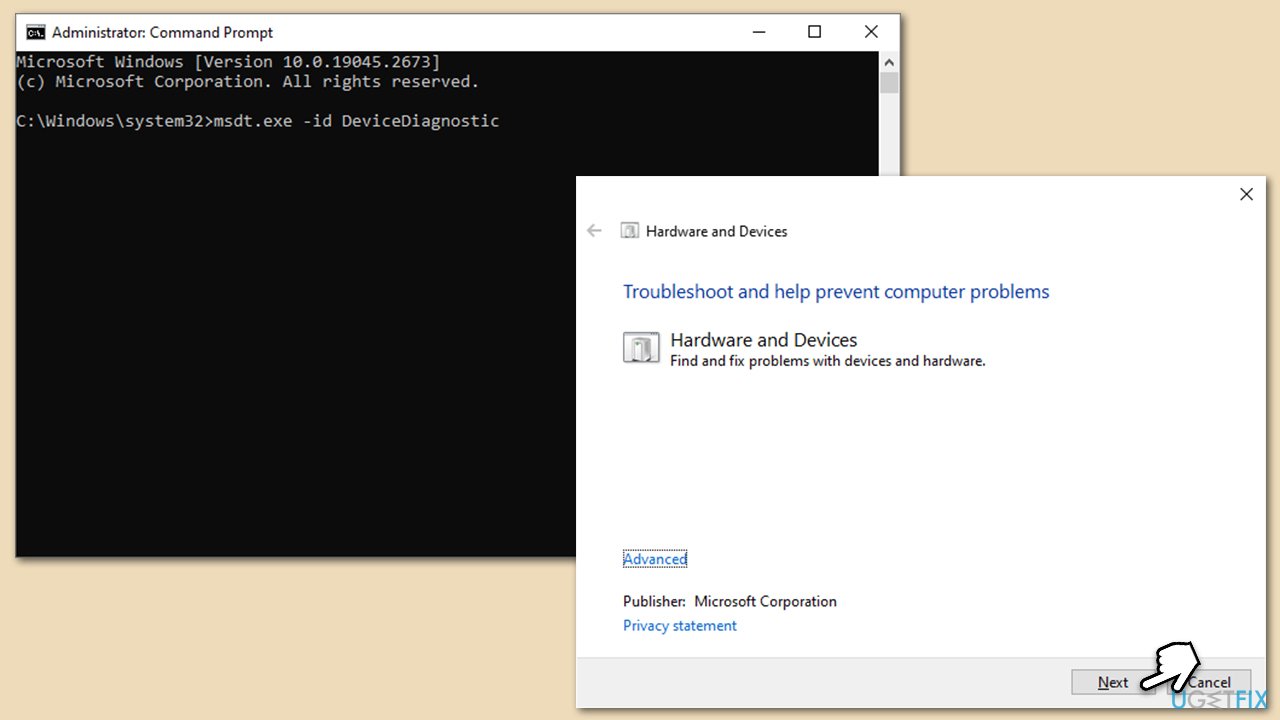
Fix 6. Run Hardware and Devices Troubleshooter
Windows Troubleshooter can diagnose and fix issues automatically.
- Type cmd in Windows search.
- Right-click on the Command Prompt result and pick Run as administrator.
- When User Account Control shows up, click Yes.
- Copy and paste the following command, pressing Enter after:
msdt.exe -id DeviceDiagnostic - Follow on-screen instructions to run the troubleshooter and apply the suggested fixes.
- Restart your device.
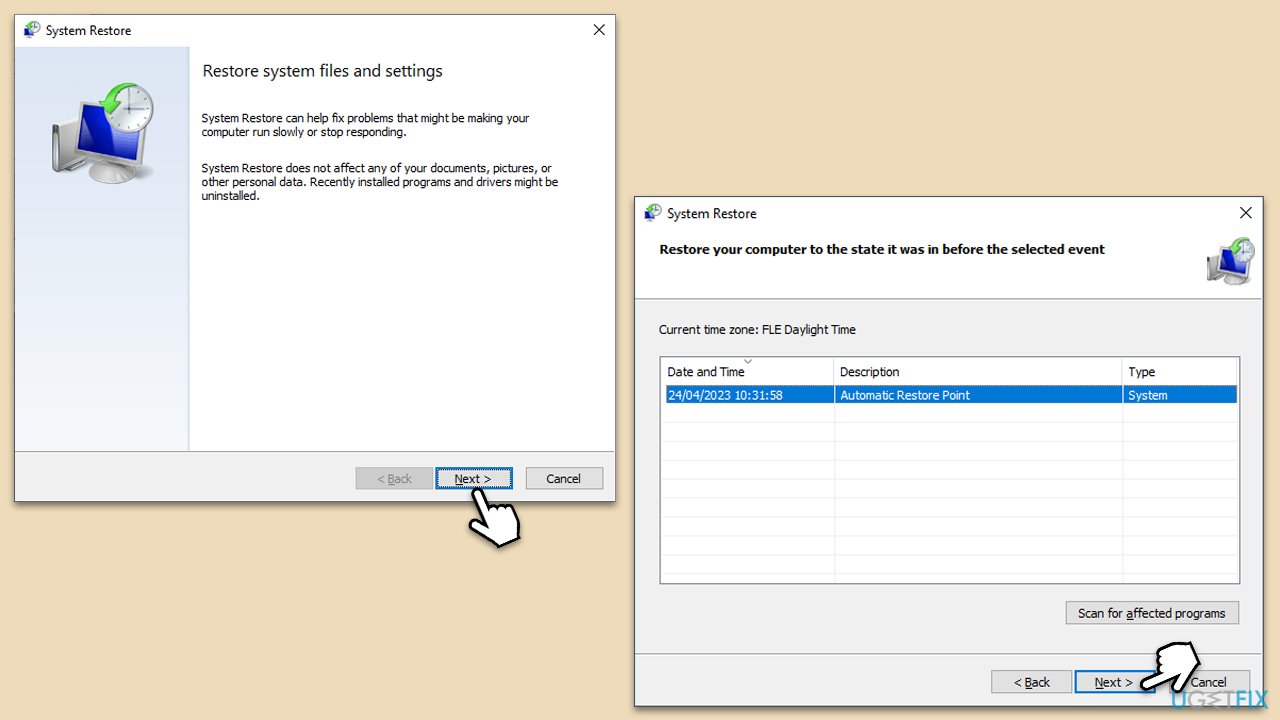
Fix 7. Perform a System Restore
System Restore is a feature in Windows that allows you to revert your system's state (including system files, installed applications, Windows Registry, and system settings) to a previous point in time. This can be especially useful if Error Code 32 appears after a recent change to your system.
- Type in Create a Restore point in Windows search and hit Enter.
- In the System Protection tab, pick System restore.
- Click Next.
- Click Show more restore points (if available).
- Pick the time before the problem occurred and click Next.
- Your computer will reboot.
Bottom line
To fix Error Code 32, you can update the problematic driver through Device Manager, roll it back to a previous version, or uninstall and reinstall the driver completely. If these solutions do not resolve the issue, further investigation may be required.
Frequently asked questions
Error Code 32 indicates that a device or driver is not functioning correctly, often due to conflicts with hardware or driver issues. This can prevent certain features from operating properly.
To fix Error Code 32 on Windows 11, try updating or reinstalling the affected device driver through Device Manager. If that doesn't work, check for hardware conflicts or perform a system scan.
Yes, you can use the built-in Troubleshooter in Windows 10 to automatically detect and fix common problems related to devices and drivers, which may resolve Error Code 32.




Report an issue
What's wrong with this guide? We review every report and update or remove content.
Report received — thank you. We'll review and fix it.
You need a free account to submit a report.
Be the first to comment