How to fix
Windows update error 0xC1900109
on Windows
Resolve Windows update error 0xC1900109 effortlessly with our expert-tested fixes. Get your Windows 10 or 11 system running smoothly again in minutes!

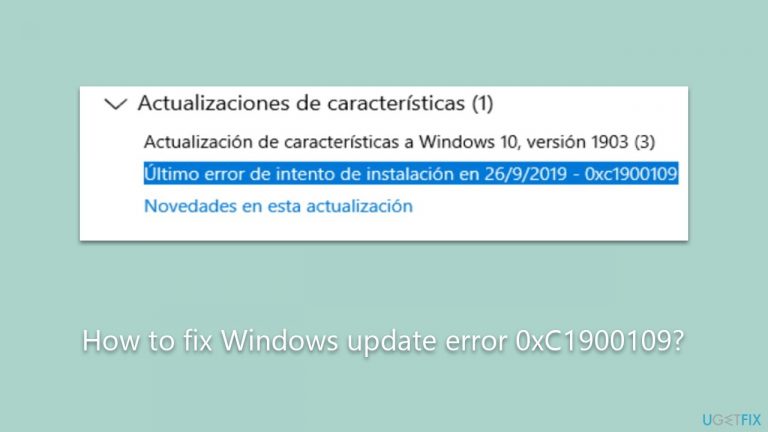
What causes How to fix Windows update error 0xC1900109?
- Incomplete or corrupted update files
- Conflicts with installed software such as antivirus or firewall applications
- Modified or corrupted system files
- Hardware incompatibility
- Insufficient disk space
Repairs Windows system files, removes malware, and restores a clean OS state — without reinstalling.
I receive the 0xC1900109 error every time I attempt to install the latest Windows updates. Please provide any solutions, if such are available.
Windows updates are an essential aspect of maintaining system security and functionality. Microsoft routinely releases these updates to fix security vulnerabilities, correct bugs, and introduce new features that enhance performance. These updates are generally released on the second Tuesday of each month, commonly referred to as "Patch Tuesday."
While these updates aim to improve the overall computing experience, users sometimes encounter issues when trying to install them. One such issue that some Windows users may face is the error code 0xC1900109.
This error typically presents itself during the Windows update installation process and disrupts its successful completion. Various factors could lead to the 0xC1900109 error. For example, incomplete or corrupted update files can result in a failed installation. Sometimes, this error may occur due to conflicts with software already installed on your computer, such as antivirus or firewall applications.
Additionally, system files that have been modified or corrupted can interfere with the installation process, triggering the error message. Hardware incompatibility or insufficient disk space could also be possible culprits behind the error. In essence, the 0xC1900109 error serves as a general alert flagging an obstruction in the update process.
While encountering an update error can be frustrating, there are multiple ways to approach its resolution. One common solution is to free up disk space on your computer to accommodate the new update files. Another step involves disabling any security software temporarily, as it could conflict with the update process.

Running the Windows Update Troubleshooter, a built-in tool designed to identify and automatically fix problems related to Windows Update is another recommended method. Users could also consider resetting the Windows Update components manually, although this approach is more technical and might require some familiarity with system settings.
If these solutions do not resolve the issue or if the problem is indicative of deeper system issues, then a comprehensive PC repair tool like [d1] can be considered. The app is a perfect solution for those who want to deal with computer problems quickly and effectively.
Fix 1. Check for sufficient disk space
The Windows update process requires a certain amount of free disk space to download and install update files. If you're running low on disk space, the update may fail, leading to errors like 0xC1900109.
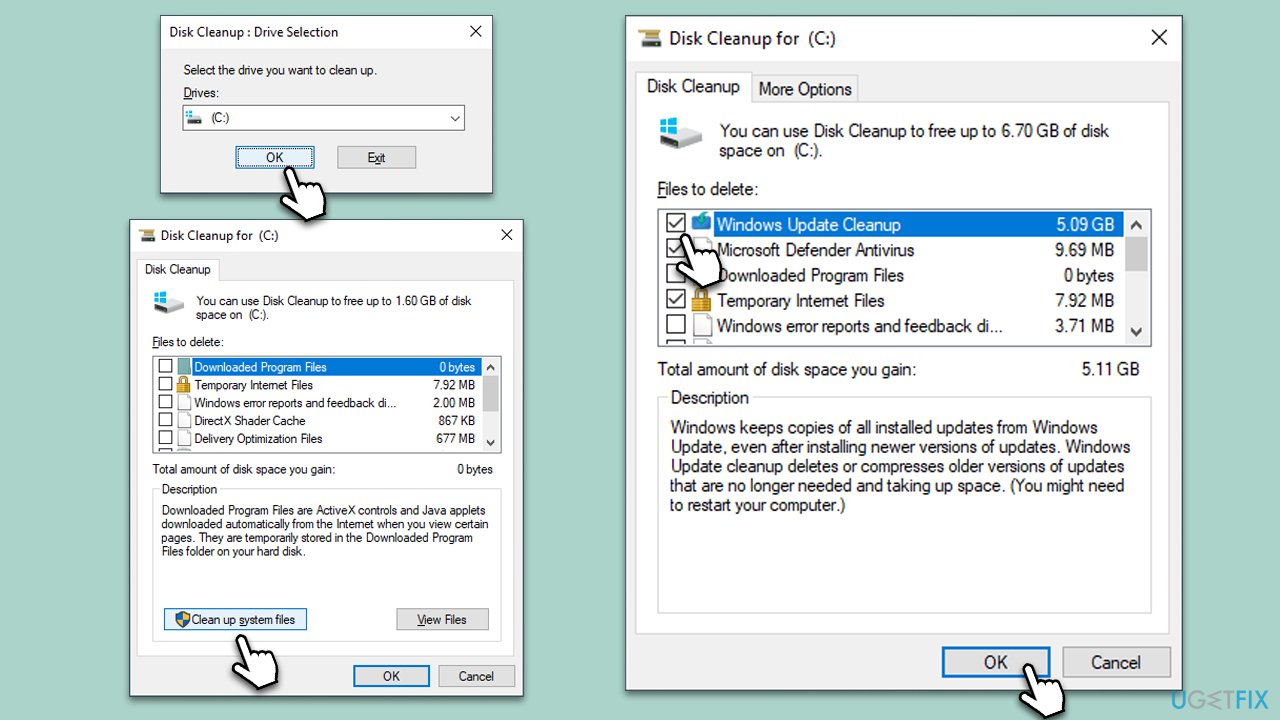
- Type Disk Cleanup in Windows search and press Enter.
- If your Windows is installed on drive C, pick it from the list (it should be by default) and press OK.
- Click Clean up System Files.
- Here, mark the areas you want to be deleted, such as Windows update files, Setup log files, Recycle bin, Temporary files, etc.
- Click OK - the removal process of various leftover files will begin.
Fix 2. Disable antivirus temporarily
Antivirus software can sometimes interfere with Windows updates. Disabling it momentarily could allow the update to proceed smoothly.
- Open your antivirus software.
- Locate the option to disable real-time protection.
- Turn it off temporarily and try running the Windows update again.
Fix 3. Run Windows Update Troubleshooter
Windows comes with built-in troubleshooters designed to automatically detect and fix issues. The Windows Update Troubleshooter can solve problems that prevent updates from installing.
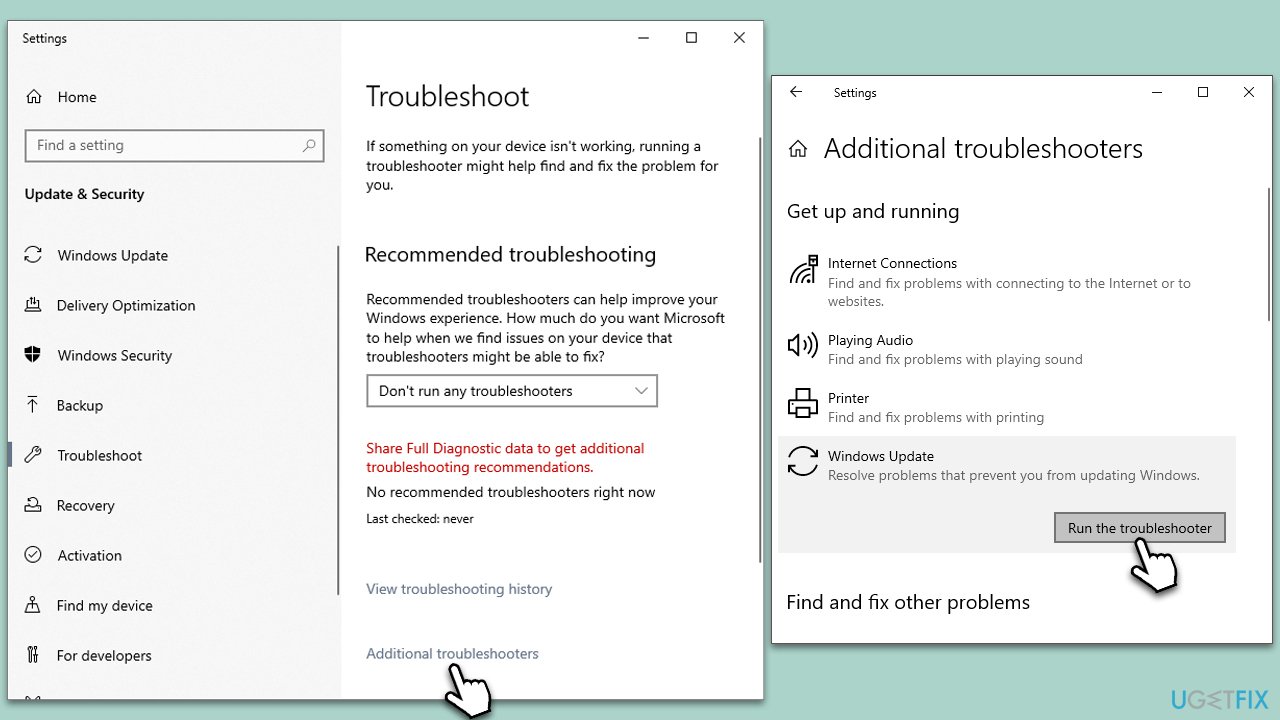
- Type Troubleshoot into the Windows search bar and press Enter.
- Next, on the right side of the window, select Additional troubleshooters/Other troubleshooters.
- Scroll down to locate the Windows update option and click on it.
- Click on Run the troubleshooter/Run and allow the process to complete.
- Once it is finished, implement any recommended fixes and restart your PC.
Fix 4. Reset Windows Update components
Resetting the components involved in Windows Update can resolve errors by restoring all services and settings to their default state.
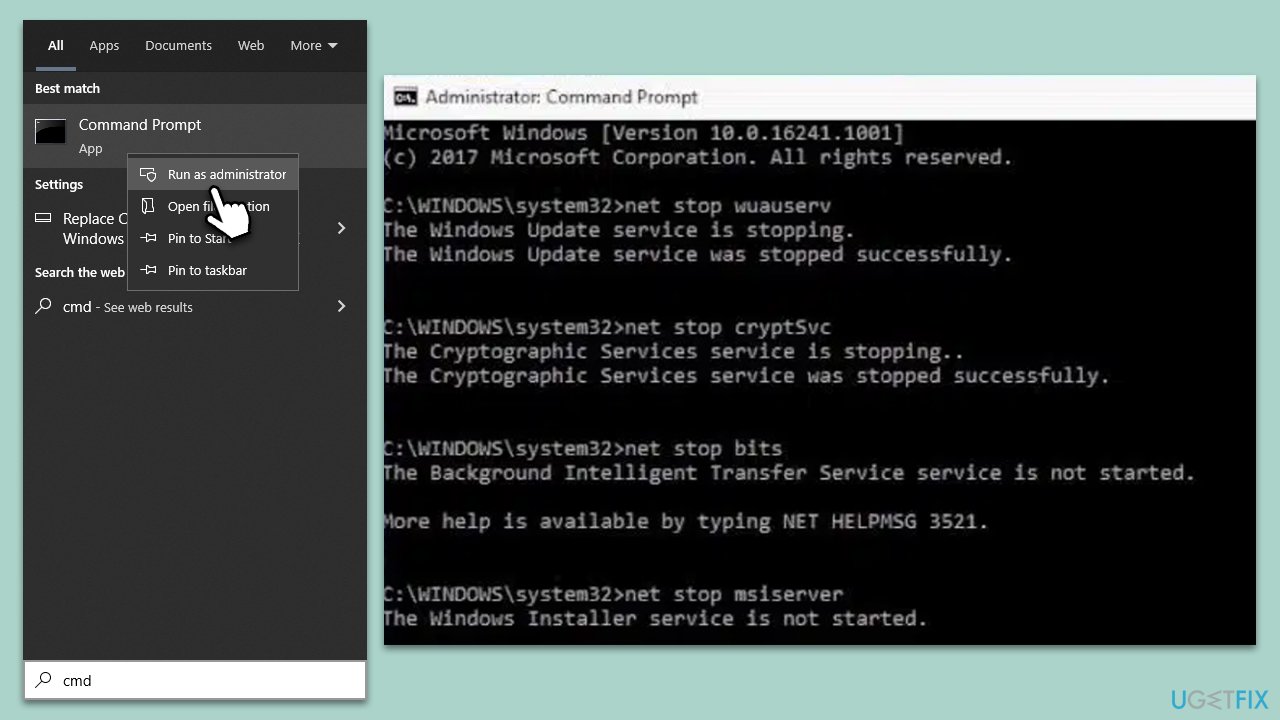
- Type cmd into Windows search.
- Right-click on Command Prompt and select Run as administrator.
- When User Account Control (UAC) window shows up, click Yes.
- Paste in each of these commands, pressing Enter every time:
net stop bits
net stop wuauserv
net stop appidsvc
net stop cryptsvc
Del “%ALLUSERSPROFILE%\Application Data\Microsoft\Network\Downloader\*.*”
rmdir %systemroot%\SoftwareDistribution /S /Q
rmdir %systemroot%\system32\catroot2 /S /Q
regsvr32.exe /s atl.dll
regsvr32.exe /s urlmon.dll
regsvr32.exe /s mshtml.dll
netsh winsock reset
netsh winsock reset proxy
net start bits
net start wuauserv
net start appidsvc
net start cryptsvc - Restart your device.
Fix 5. Install the update manually
Outdated or incompatible drivers can lead to issues during the Windows update process. Keeping them up to date can help resolve this.
- Type in Updates in Windows search and press Enter.
- Select View update history.
- Find the update that failed with the 0xC1900109 error and copy its KB number.
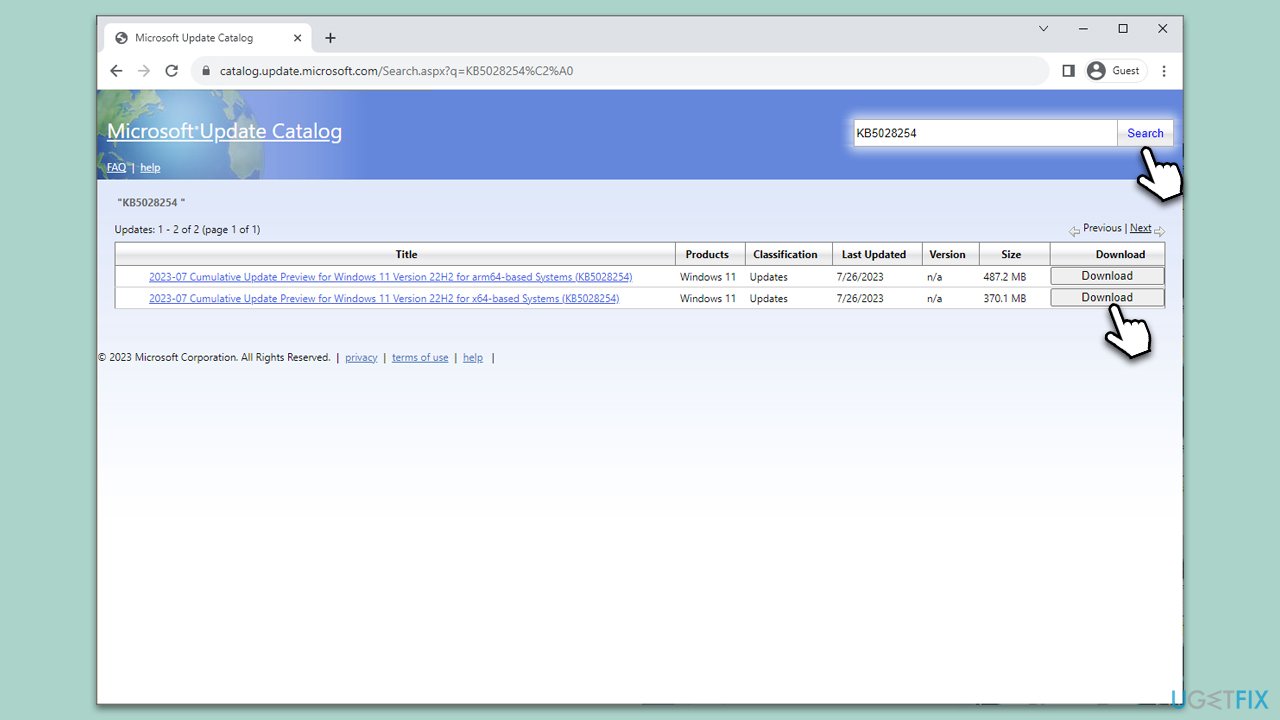
- Open your browser and go to Microsoft Update Catalog.
- Within the search bar, type in the KB number and clicks Search.
- Find the correct version of the update for your operating system (to check this, right-click on Start and pick System. Under Device specifications and check the System type) and click Download.
- Use on-screen guidelines to finish the installation process and restart your computer.
Fix 6. Use Media Creation Tool
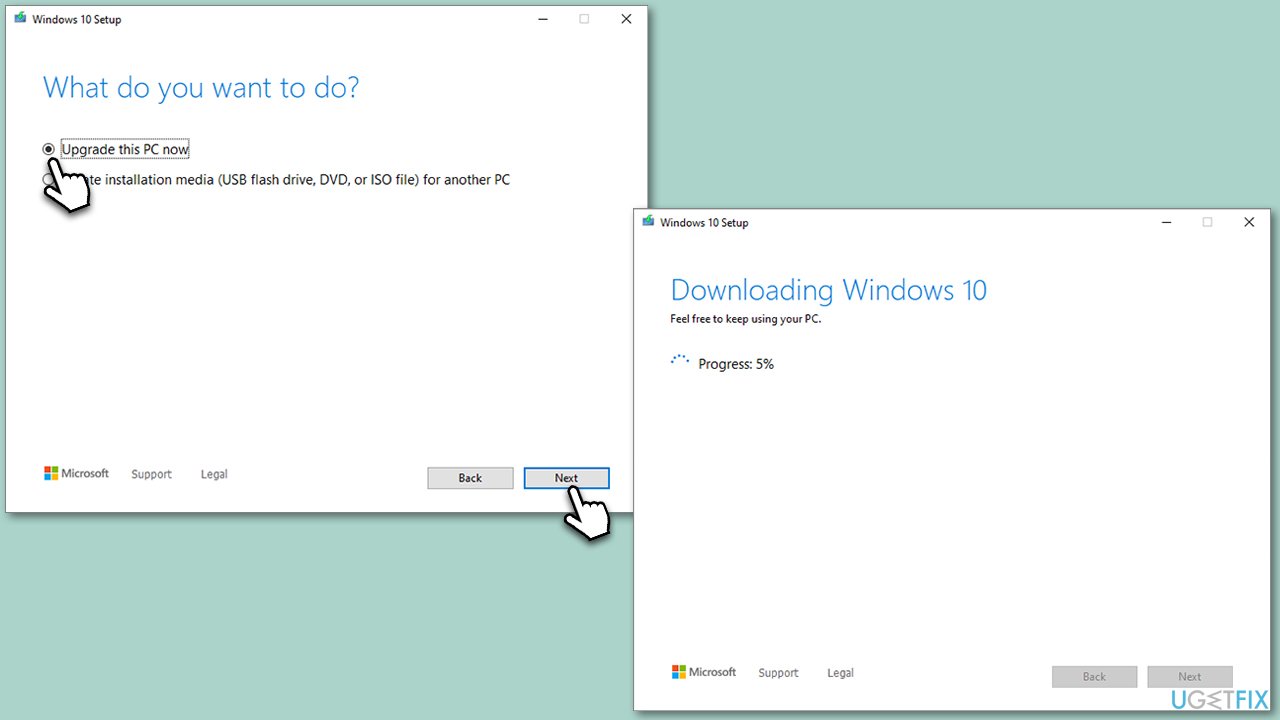
- Visit the official Microsoft website and download Windows 10 installation media (Windows 11 version).
- Double-click the installer and select Yes when UAC shows up.
- Agree to terms.
- Select Upgrade this PC now and select Next.
- Windows will now download all the necessary files – it might take a while.
- Agree to the terms once again and click Next.
- Before installing, ensure you are happy with your choices (otherwise, you can click the Change what to keep option).
- Click Install to begin the upgrade process.
Fix 7. Perform a Clean Boot
A clean boot can help identify if the error is being caused by third-party applications running in the background.
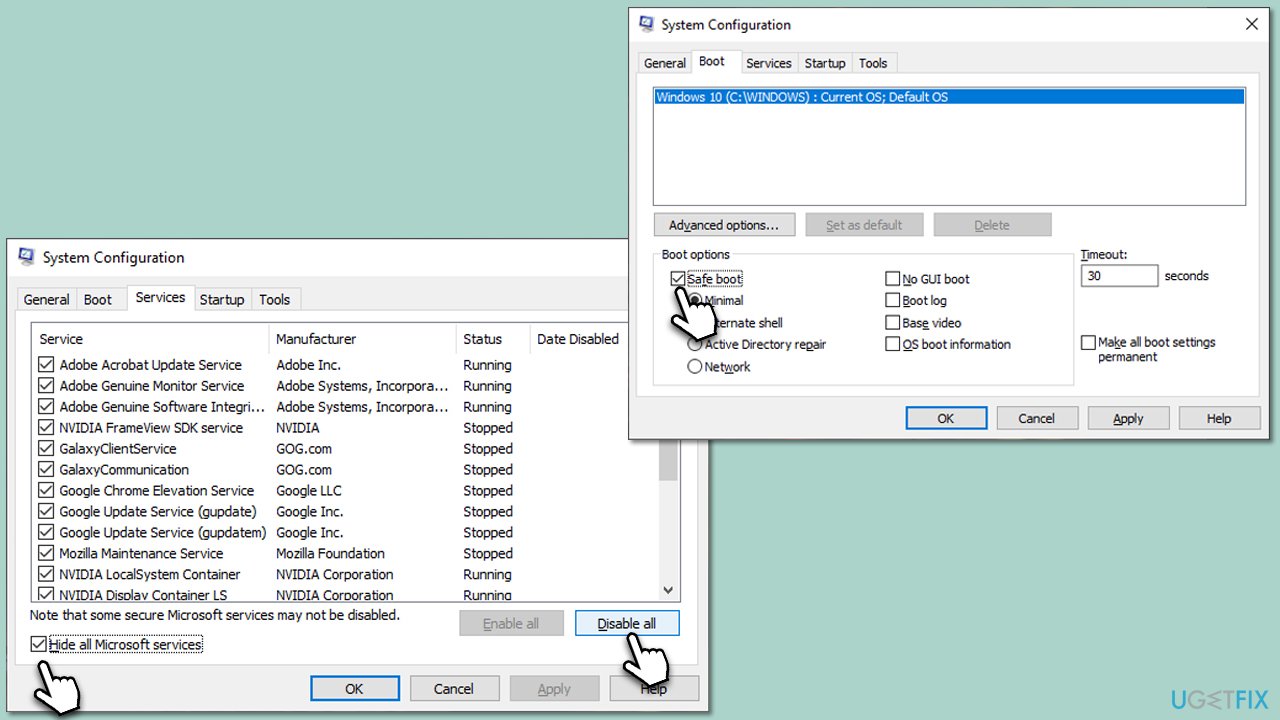
- Press Win + R, type msconfig, then press Enter.
- Select the Services tab and tick the Hide all Microsoft services checkbox.
- Pick Disable all.
- Go to the Startup tab and click Open Task Manager.
- Here, right-click on each of the non-Windows entries and select Disable.
- Close down the Task Manager.
- Go to the Boot tab and tick the Safe boot option
- Reboot your system.
Fix 8. Scan for corrupted system files
Corrupted system files can interfere with Windows updates. Running the built-in Windows tools can identify and repair these files.
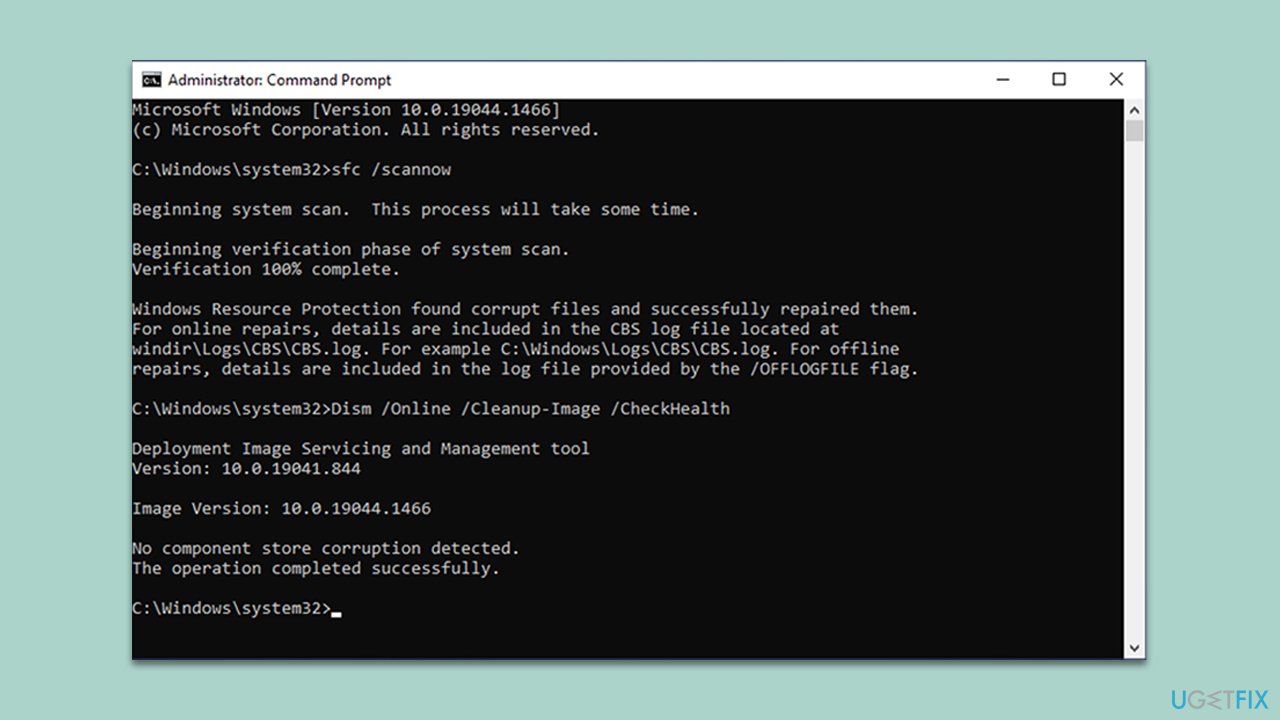
- Open Command Prompt as administrator.
- Copy and paste the following command and press Enter:
sfc /scannow - Next, use the following commands, pressing Enter each time:
Dism /Online /Cleanup-Image /CheckHealth
Dism /Online /Cleanup-Image /ScanHealth
Dism /Online /Cleanup-Image /RestoreHealth
(Note: if you get an error executing this last command, add /Source:C:\RepairSource\Windows /LimitAccess to it and try again). - Reboot your device.
Bottom line
To fix the 0xC1900109 error, users can free up disk space, disable security software temporarily, run the Windows Update Troubleshooter, or reset Windows Update components manually. If these solutions do not resolve the issue, consider using a comprehensive PC repair tool.
Frequently asked questions
The error 0xC1900109 usually indicates that there is an issue with installing Windows updates due to insufficient disk space or a problematic driver. To resolve this, ensure you have enough free space on your Windows 10 or Windows 11 system and check for any driver updates.
You can free up space by using the Disk Cleanup tool or by uninstalling unnecessary applications and files. Additionally, consider moving large files to an external drive to ensure ample space for the update.
If the error persists, try running the Windows Update Troubleshooter found in Settings under Update & Security, or consider resetting the Windows Update components manually. These steps can help resolve underlying issues preventing the update on Windows 10 or Windows 11.




Report an issue
What's wrong with this guide? We review every report and update or remove content.
Report received — thank you. We'll review and fix it.
You need a free account to submit a report.
Be the first to comment