How to fix
Broken Microsoft Edge after Installation of Windows 10 June Update
on Windows
Resolve Microsoft Edge issues after the Windows 10 June update with our expert-tested solutions. Get your browser working perfectly again! Fixed in minu…


What causes How to Fix Broken Microsoft Edge after Installation of Windows 10 June Update?
- Corrupted update files
- Faulty installation of update
- IBM Trusteer Endpoint Protection interference
- Removal of Edge favourites and history
- Edge settings reset to default
Repairs Windows system files, removes malware, and restores a clean OS state — without reinstalling.
After automatic Windows Update, Edge browser just stopped working. It responds slowly and works in a very slow manner. Most of the buttons, I mean settings, and so on, work, but when I try to enter a random website, Edge totally hangs. On top of that, the June update removed all favourites, browser history, and so on. Once I try to launch a website, Edge freezes and I have to use Task Manager to close it. Is it one of the update bugs that Microsoft is about to address soon? I‘m already used to Edge, so I‘m not fond of switching to another browser. Please help.
Windows 10 June Update, namely KB4022725 (OS Build 15063.413 and 15063.414), broke Microsoft Edge. Such conclusion can be made based on people‘s reports regarding Microsoft Edge malfunctions. Almost every third post on the official Microsoft website and other Windows-related forums is about how Microsoft Edge crashed after the installation of Windows 10 update released in the middle of June. Although other problems have also emerged, Edge errors seem to be leading the way. The following issues have been registered:
- Edge does not respond or respond in a sluggish manner;
- Websites in Edge do not load;
- The browser crashes when trying to enter websites;
- Edge freezes and can‘t be closed normally;
- Buttons are blanc, meaning they are not working;
- Edge favourites, browsing history, bookmarks, extensions, and other customizations are set to default, etc.
What issues might have influenced Microsoft Edge‘s issues?
Often it‘s difficult to indicate the culprit of errors without a thorough analysis, which can be performed professionally only by Microsoft technicians. However, there are loads of tech-savvy people who come up with the possible triggers and fixes before Microsoft officially acknowledges the bug. For now, several people reported that Microsoft Edge crashes after the installation of Windows 10 June update may be related to the IBM Trusteer Endpoint Protection. However, it seems that this time Edge might have been damaged by the Windows 10 Cumulative Update KB4022725. The cultrit may be corrupted update files or faulty installation.
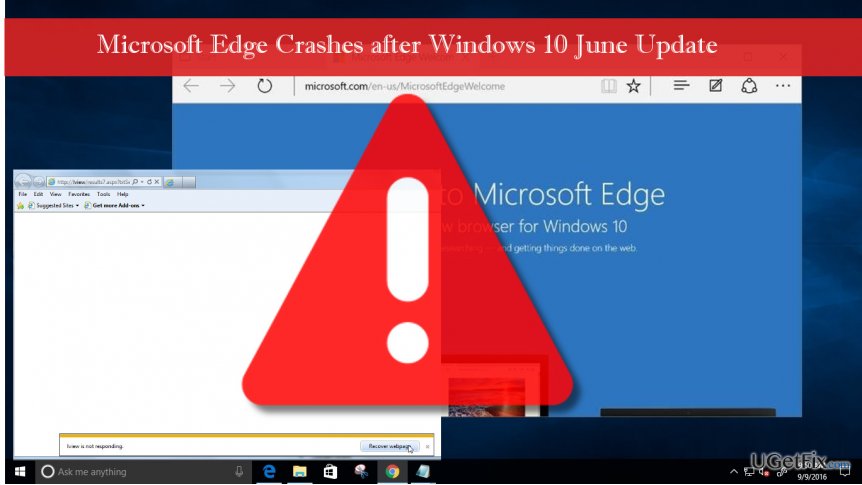
Fixing Broken Microsoft Edge
If you have installed the latest Windows 10 update and noticed that Microsoft Edge stopped working, first of all, you should submit your issue using the Feedback Hub. You can either vote on an existing submission or submit a new issue.
- Seach for Feedback Hub in Cortana search and run the app.
- Find Feedback on the left pane and press Add new feedback.
- Before submitting the form, click Begin Monitoring or Start capture.
- Then select the Problem and describe the details.
- Select an appropriate category and subcategory.
- When you reproduce the problem, select Stop monitoring.
- Click Submit and Continue.
- To check if the issue has been successfully submited, click My feedback at the top of the page.
- If the item is there, click Share.
These steps won‘t fix Microsoft Edge, but submitting an issue will help Microsoft to get information about the problem, analyse its causes, and address it.
Indeed, Microsoft will do everything to resolve Edge problems with the next update. However, if you are not fond of using another web browser before the next Windows 10 update shows up, you can use a System Restore Point to rollback the update. Before that, you should disable automatic Windows Updates, at least temporarily. Otherwise, the next system reboot will end up with the installation of KB4022725 update.
- Hold power button to turn off your PC and then restart the system.
- Before Windows logo shows up, press F8 to boot into Safe Mode.
- Log in to your account if required.
- Once the system boots up, disable your antivirus.
- Click Windows key and type system restore.
- Select Create a restore point, select System Restore and hit Next.
- Select the latest systems restore point and click Next.
In addition to this fix, you may also try to restore Microsoft Edge by disabling IBM Trusteer Endpoint Protection. For this purpose, open Start menu -> Programs -> Trusteer Endpoint Protection -> Stop Trusteer Endpoint Protection. Finally, don‘t forget to scan the system with a trusted PC optimization tool, say [d1] or [rev id=”SpeedyPC Pro”].
Bottom line
The issues with Microsoft Edge after the Windows 10 June Update may be addressed by checking for corrupted update files, reinstalling the update, or disabling conflicting software like IBM Trusteer Endpoint Protection. If these fixes do not resolve the problem, consider seeking professional assistance from Microsoft technicians.
Frequently asked questions
Try resetting Microsoft Edge by going to Settings > Reset settings. If that doesn't work, consider reinstalling Edge from the Microsoft website.
You can repair Microsoft Edge by going to Settings > Apps > Apps & features, selecting Microsoft Edge, and clicking on 'Modify' to initiate a repair.
Common issues include slow performance, inability to load pages, and crashes, which can often be resolved by clearing the browser cache or resetting the browser settings.




Report an issue
What's wrong with this guide? We review every report and update or remove content.
Report received — thank you. We'll review and fix it.
You need a free account to submit a report.
Be the first to comment